Flex Time and Flex Pitch in Logic Pro: A Practical Fixing Guide
A careful workflow for timing and pitch fixes that improves a take without making it sound processed.
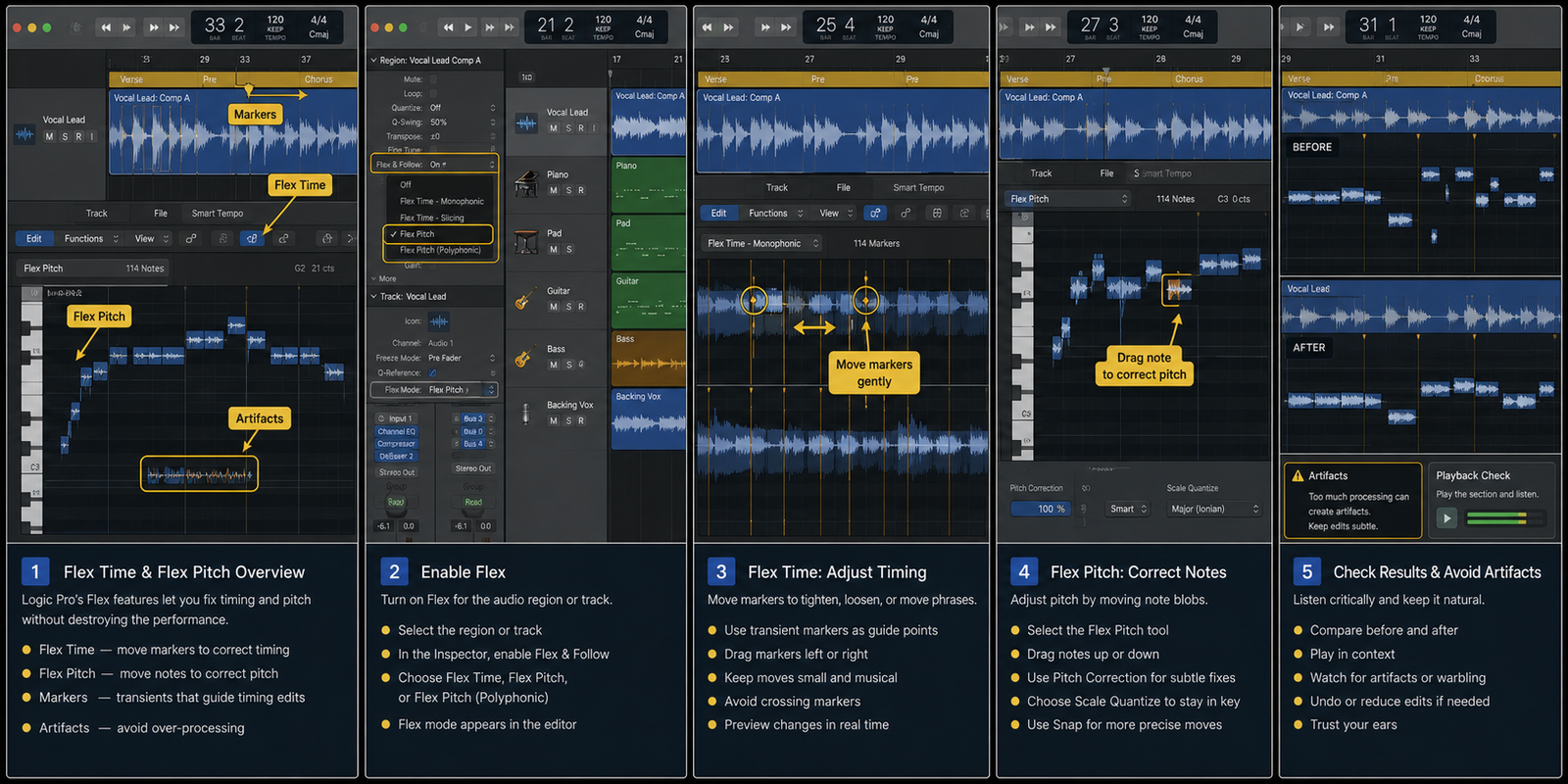
Flex tools are for saving good performances, not manufacturing perfect ones. Flex Time can tighten audio timing. Flex Pitch can correct notes. Both can create artifacts when you ask them to do too much.
The rule is simple: fix what distracts the listener and leave the rest alone. A human take with two repaired moments often beats a fully flattened performance.
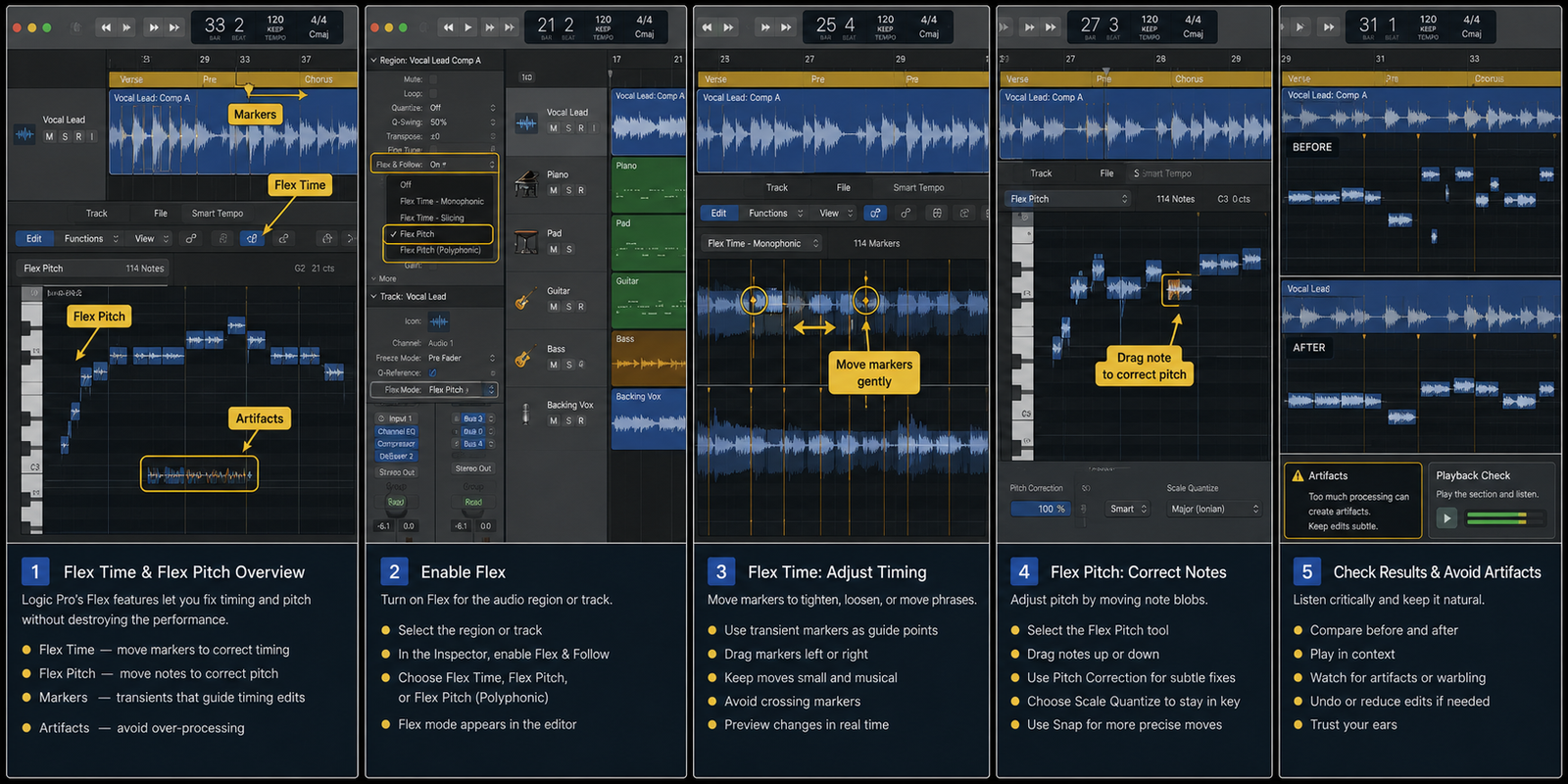
Quick answer
If you are in Logic Pro right now, do not start by opening every menu. Duplicate the track or save a version before heavy Flex edits. Choose a Flex mode that matches the material. Then move through the four checks below in order.
The order matters because workflow work usually breaks earlier than it looks. A wrong track, region, input, bus, or range can make the last setting look guilty when it is only receiving a bad setup.
Use this as the short version before reading the full guide.
- Pick the right Flex mode: Different material needs different processing.
- Move fewer timing markers: Start with the moments that actually feel late or early.
- Correct pitch in phrases: For vocals, fix the notes that pull attention.
- Check for artifacts before committing: Listen for watery consonants, phasey drums, robotic vibrato, and weird tails.
Before you start
- Duplicate the track or save a version before heavy Flex edits.
- Choose a Flex mode that matches the material.
- Work in context after identifying the problem in solo.
- Do not flatten until the edit decision is stable.
A clean pass from start to finish
Run this as one clean pass, not as disconnected tricks. Begin with the first checkpoint: pick the right Flex mode. Then move to the second: move fewer timing markers. Those two checks make the project readable before you make detailed changes.
After that, use the next two checkpoints as the decision stage: correct pitch in phrases, then check for artifacts before committing. This is where you stop guessing and let the screen show whether the sound, timing, routing, or edit is behaving the way the song needs.
If you change more than one thing at once, write down what you changed or save a new version. Logic Pro is fast enough that a session can go from fixed to confusing in under a minute. Small, named moves are easier to trust later.
1. Pick the right Flex mode
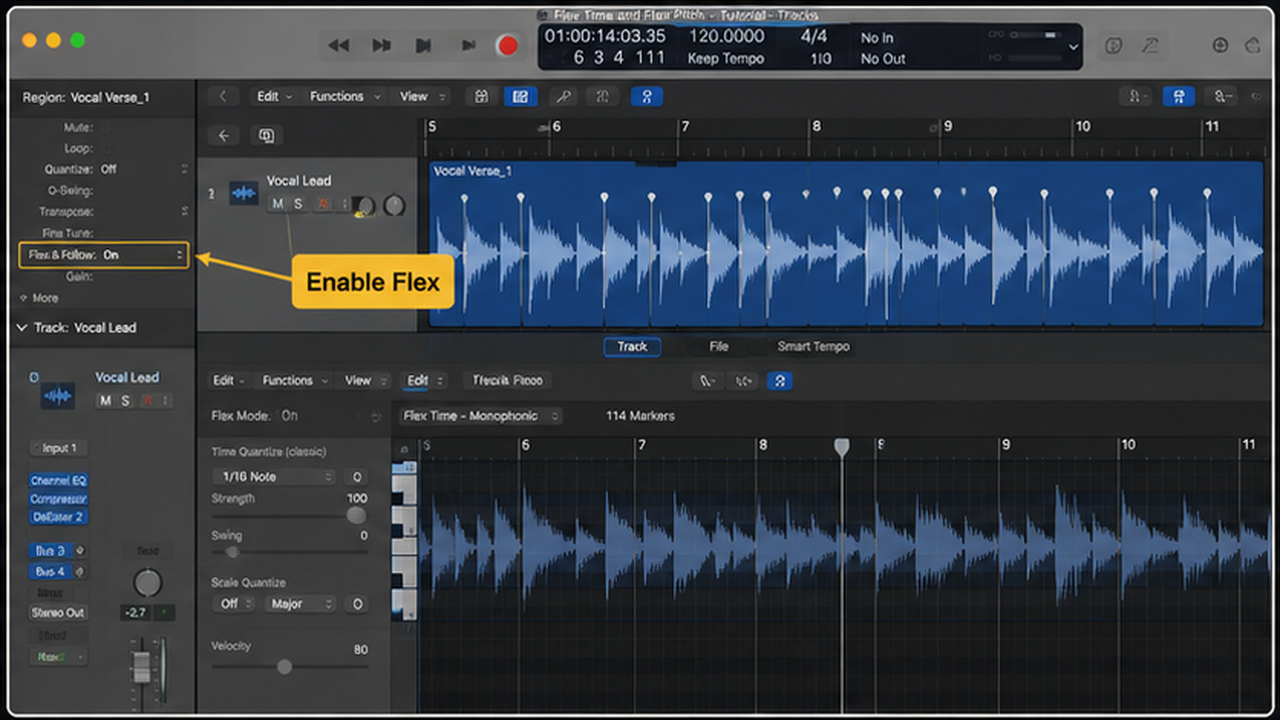
Different material needs different processing. Drums, monophonic vocals, bass, and polyphonic instruments do not behave the same.
If the mode is wrong, artifacts show up quickly: smearing, chirping, phase movement, or unnatural transients.
2. Move fewer timing markers
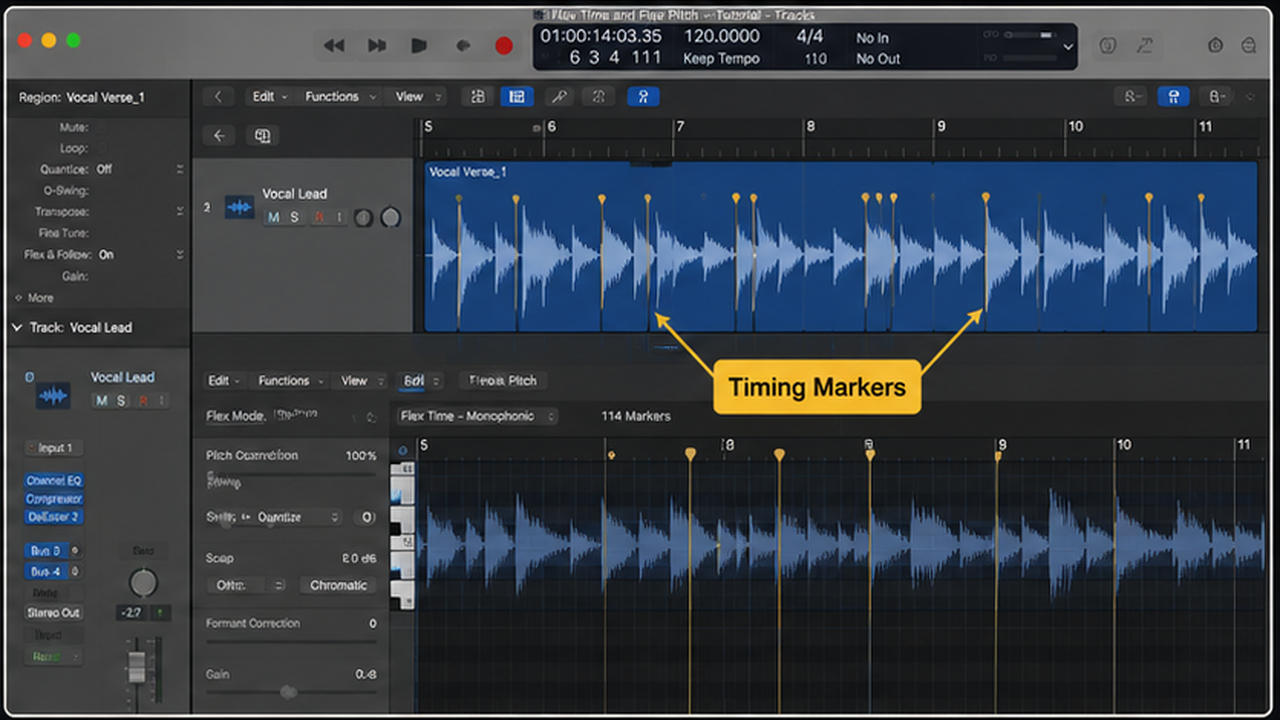
Start with the moments that actually feel late or early. Moving every marker creates more chances for damage.
After each timing edit, play the section with the drums or groove source. Timing only matters in relation to the track.
3. Correct pitch in phrases
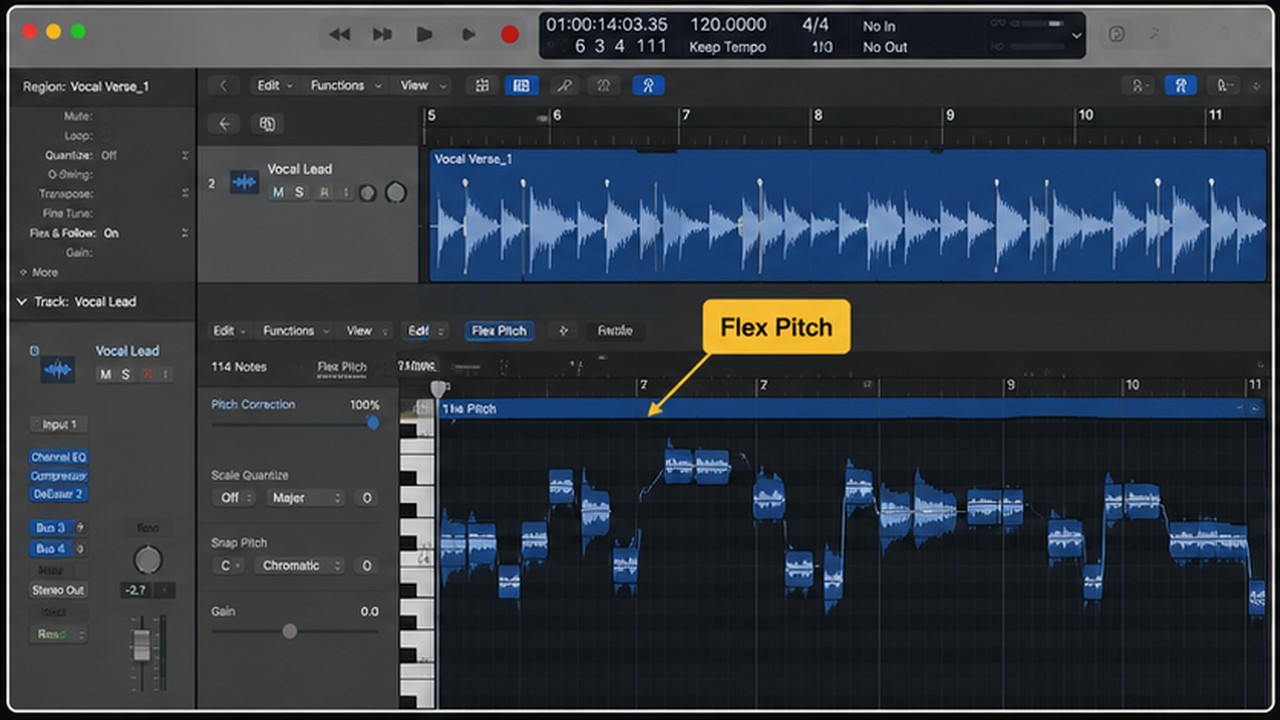
For vocals, fix the notes that pull attention. Leave natural scoops, vibrato, and expressive movement when they support the line.
If every note is centered, the vocal may look tidy and sound lifeless.
4. Check for artifacts before committing
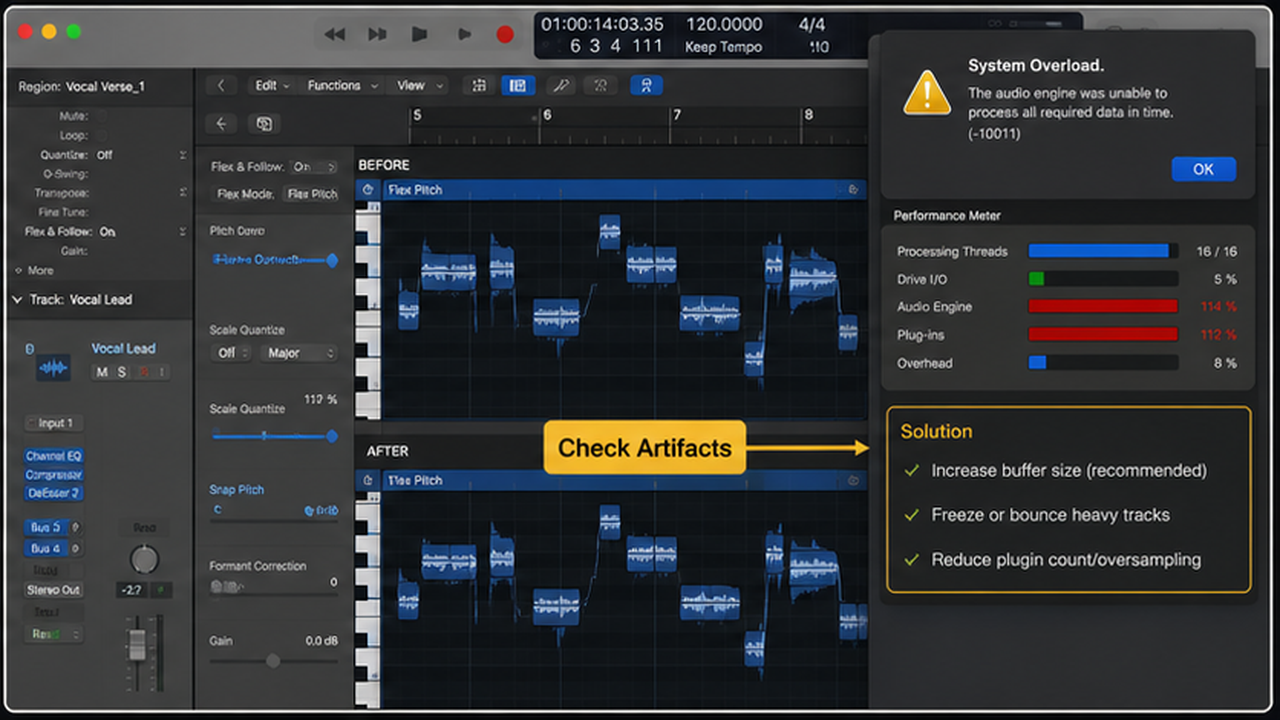
Listen for watery consonants, phasey drums, robotic vibrato, and weird tails. If an edit causes a new problem, undo it or make a smaller move.
Keep the original nearby until the song is finished.
Decision table
| Use case | Tool | Edit size |
|---|---|---|
| Late vocal phrase | Flex Time | Small phrase move |
| One sour note | Flex Pitch | Small pitch correction |
| Loose drum fill | Flex Time | Careful transient edits |
| Bad performance | Rerecord | Usually faster than repair |
Checkpoint table
| Checkpoint | What should be true | If it is not true |
|---|---|---|
| Pick the right Flex mode | If the mode is wrong, artifacts show up quickly: smearing, chirping, phase movement, or unnatural transients. | Back up and fix the setup before continuing. |
| Move fewer timing markers | After each timing edit, play the section with the drums or groove source. | Do the smaller edit instead of rebuilding the whole part. |
| Correct pitch in phrases | If every note is centered, the vocal may look tidy and sound lifeless. | Check what is selected, then repeat the change deliberately. |
| Check for artifacts before committing | Keep the original nearby until the song is finished. | Use the mixer or playback context as the final judge. |
Before and after check
Before the change, make one short playback pass and name the exact problem in plain words: late entrance, dull vocal, wrong input, harsh consonant, missing output, messy routing, clipped bounce, or whatever the session is actually doing. If you cannot name it, you are not ready to fix it yet.
After the change, play the same section at the same volume. Louder almost always sounds better for ten seconds, so level-match when you are judging workflow decisions. The useful question is not whether the edit is impressive. It is whether the part sits better without pulling attention away from the song.
Check the edges of the fix. In Logic Pro, a repair can solve the center of a problem while damaging the bar before it, the breath after it, the bus return, or the export tail. A good before/after pass includes a little lead-in and a little space after the moment you changed.
If the after version only feels better while you are watching the screen, take a break and listen again without touching the mouse. Visual neatness is helpful for editing, but the final test is still playback. Keep the version that makes the project easier to finish.
What not to chase yet
Do not chase polish before the basic workflow is stable. For this topic, the first two checkpoints have to make sense before you worry about the smaller details: pick the right Flex mode, then move fewer timing markers. Fancy settings cannot rescue a confused source.
Do not copy numbers blindly from another session. Buffer sizes, EQ points, quantize strength, compression timing, send levels, and bounce choices all depend on the material. Use examples as starting points, then move the control until this project sounds and behaves correctly.
Do not keep editing because the tool is available. Logic Pro gives you enough control to over-fix almost anything. Stop when the problem is gone and the performance still feels like a performance.
What good looks like
The process is working when you can explain what changed without pointing at a random plugin window. If the fix depends on luck, the session is not stable yet.
After the main pass, close the editor you were using and play the section from a few bars before the change. A good edit survives context. A bad edit only sounds correct when the screen is zoomed into the problem.
Keep one version before the major change and one version after it. Logic Pro projects can move quickly, and a clean fallback saves more time than trying to reverse a dozen tiny edits later.
If it still feels wrong
If the result still feels wrong, return to the signal chain. Ask whether the source is clean, whether the region edit is correct, whether the track is routed where you think it is, and whether the mixer confirms what your ears are telling you.
Do not add another processor just because the current one did not solve the issue. In Logic Pro, many problems are earlier than the plugin slot: wrong input, messy region boundaries, doubled monitoring, over-quantized MIDI, or a bus that is louder than the dry track.
When you get stuck, simplify the project. Mute everything except the source and the one track or aux it depends on. If the problem disappears, bring the session back one group at a time until the conflict shows itself.
Common mistakes to avoid
- Using Flex Pitch as a personality remover. Fix it by returning to the first visible control in the chain and confirming it before you touch a plugin.
- Editing timing in solo and missing the groove relationship. Fix it by listening to the section in context, then changing only the thing that fails the playback test.
- Flattening before saving a backup. Fix it by saving a version, making the edit smaller, and checking whether the song still feels natural.
- Trying to rescue a take that should simply be recorded again. Fix it by simplifying the session view until the routing, region, or setting is obvious again.
Practice pass
Pick a vocal phrase with one late entrance and one pitchy note. Fix only those two things. Bounce a before and after. If the after sounds edited, reduce the moves.
When to move on
You are done when the change helps the song at normal listening volume. Not when the screen looks tidy, not when every meter behaves perfectly, and not when the analyzer is pretty.
Print or bounce a short reference after the fix. Listening outside the edit screen catches problems that are invisible while you are staring at regions, lanes, and meters.
Sources checked
This draft was checked against current Apple Logic Pro documentation and release notes before writing. Source links used for version-sensitive claims on May 16, 2026:
FAQ
What is Flex Time in Logic Pro?
Flex Time lets you edit the timing of audio by moving detected points in a region.
What is Flex Pitch?
Flex Pitch displays pitch notes in monophonic audio so you can adjust pitch, timing, gain, and related details.
Does Flex Time affect audio quality?
It can. Small edits are usually safer. Large time moves can create artifacts, especially on complex material.
Should I tune vocals before or after comping?
Comp first, then tune. Tuning every take before choosing the comp wastes time and can create inconsistent results.