Logic Pro No Sound: Find Where the Signal Stops
A meter-led Logic Pro no-sound diagnosis for output devices, routing, interfaces, live monitoring, MIDI instruments and broken projects.

Start here: lower your listening volume, play a section that contains audio, and watch the track and Stereo Out meters. Check mute, solo and fader positions, then select the device your headphones or speakers use under Logic Pro > Settings > Audio > Devices. If the track meter moves but Stereo Out does not, follow its Output assignment through any bus and aux before changing global settings.
This guide covers Logic Pro for Mac. Choose the symptom you have: silent playback, one track that will not play while the others do, an input you cannot hear live, a silent software instrument, or a project that used to play. The meters narrow the search, but they do not prove that every stage after them is working. For a stereo project, start with the table below; a surround project may use different output strips and speaker assignments.
Rechecked October 8, 2026 against Apple’s audio-device, metering, output assignment, monitoring, mute and solo, track On/Off, Chase Events and troubleshooting documentation. Menu labels can differ in older Logic versions.
Find where the signal stops
| What you see | What it suggests | Check next |
|---|---|---|
| Track and Stereo Out meters move | Audio reaches Logic's main output strip | Output fader/mute, physical output assignment, Output Device and interface mixer |
| Track meter moves; Stereo Out does not | Signal is present on the track; inspect its route and level | Track Output, bus/aux routing, mute and solo |
| Recorded region exists; no track meter | No level is displayed at this meter | Playhead position, missing audio, mute, faders, plug-ins and automation |
| One track is silent; others play | The cause is local to that track, its channel strip or another track's solo | Region colors, Mute/Solo, track On/Off, R/I state, MIDI Chase, then the track's Output |
| Interface meter moves; Logic input meter does not | The source reaches hardware but not the Logic track | Source input meter, macOS permission, Input Device and track Input assignment |
| MIDI activity appears; instrument track stays silent | Logic receives MIDI but the channel produces no audio | Software instrument slot, patch, track mute and output routing |
Leave preference resets until the device, route and project tests are done. A reset changes custom settings and can hide the cause. Apple says it does not erase project files, presets or patches, but you will need to restore your preferences.
1. Check Logic's Output Device
- Choose Logic Pro > Settings > Audio.
- Open Devices.
- Confirm that Core Audio is enabled.
- Set Output Device to the interface, Mac output or display that is physically connected to your listening system.
- Apply the change and play the project again.
Logic can use different input and output devices, so a working microphone doesn't prove that playback is leaving through the right device. Apple's audio-device guide says Logic uses Core Audio hardware and lets you choose input and output devices in this panel.
2. Test Built-In Output to separate Logic from the interface
Apple's own Logic Pro troubleshooting sequence uses built-in audio as an isolation test:
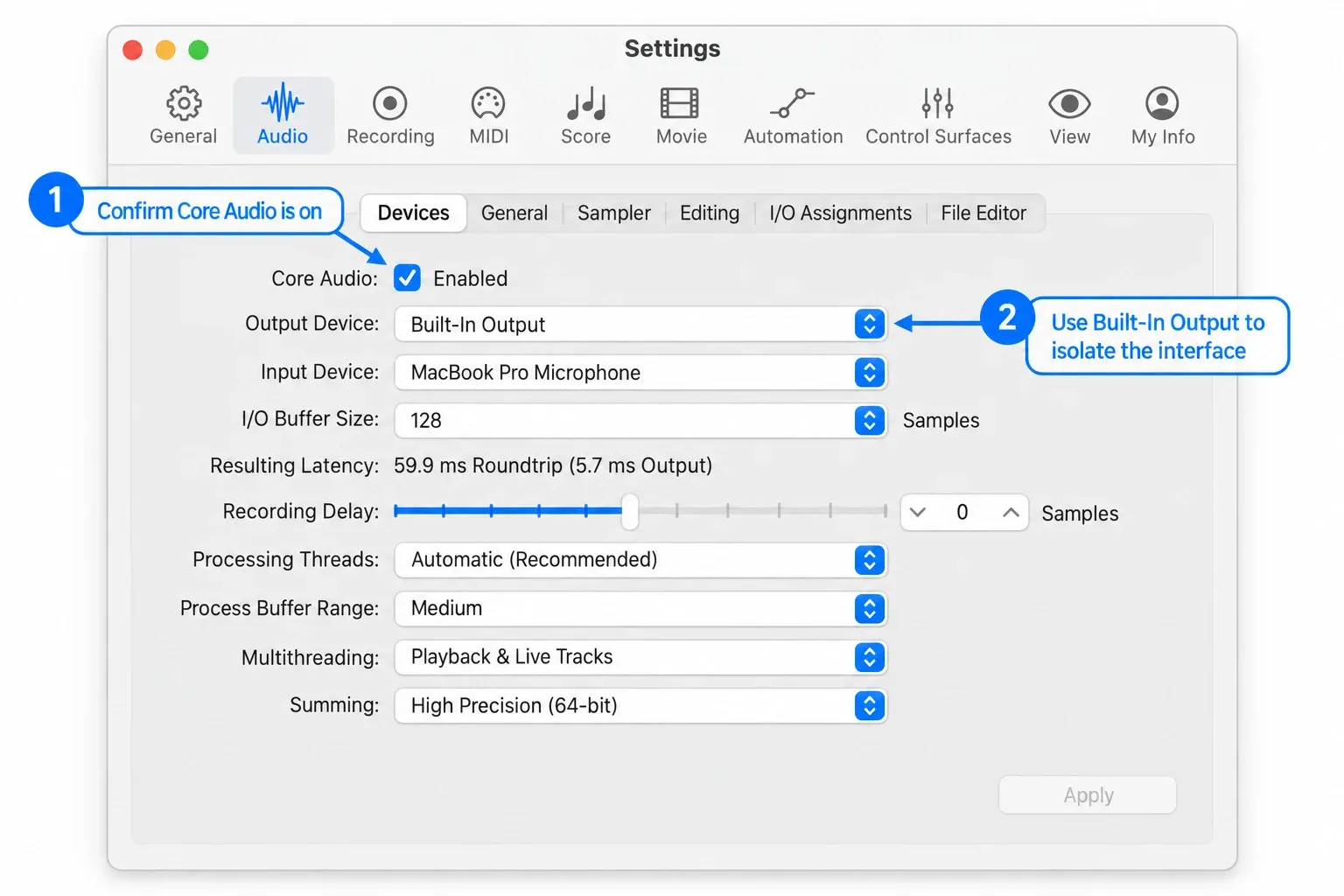
- Stop playback and turn down the monitors before disconnecting the external interface.
- In Logic Pro > Settings > Audio > Devices, choose Built-In Output. If the Mac uses a different label, choose the Mac's own speaker output rather than the interface.
- Select the Mac’s built-in input too, if available, then play the same project. Raise the listening level gradually.
If the project plays through the Mac, it can produce audio on that route. Reconnect the interface with the monitors turned down and check its power, cable, macOS compatibility, driver or firmware, control application, monitor mix and output pair. If built-in playback is also silent, confirm the Mac output is audible in another app or a browser stereo test, then continue with the project route.
3. Follow the route from the track to Stereo Out
Open the Mixer with X using the default key commands. Follow the track’s Output assignment rather than its position on screen; channel strips can be rearranged:
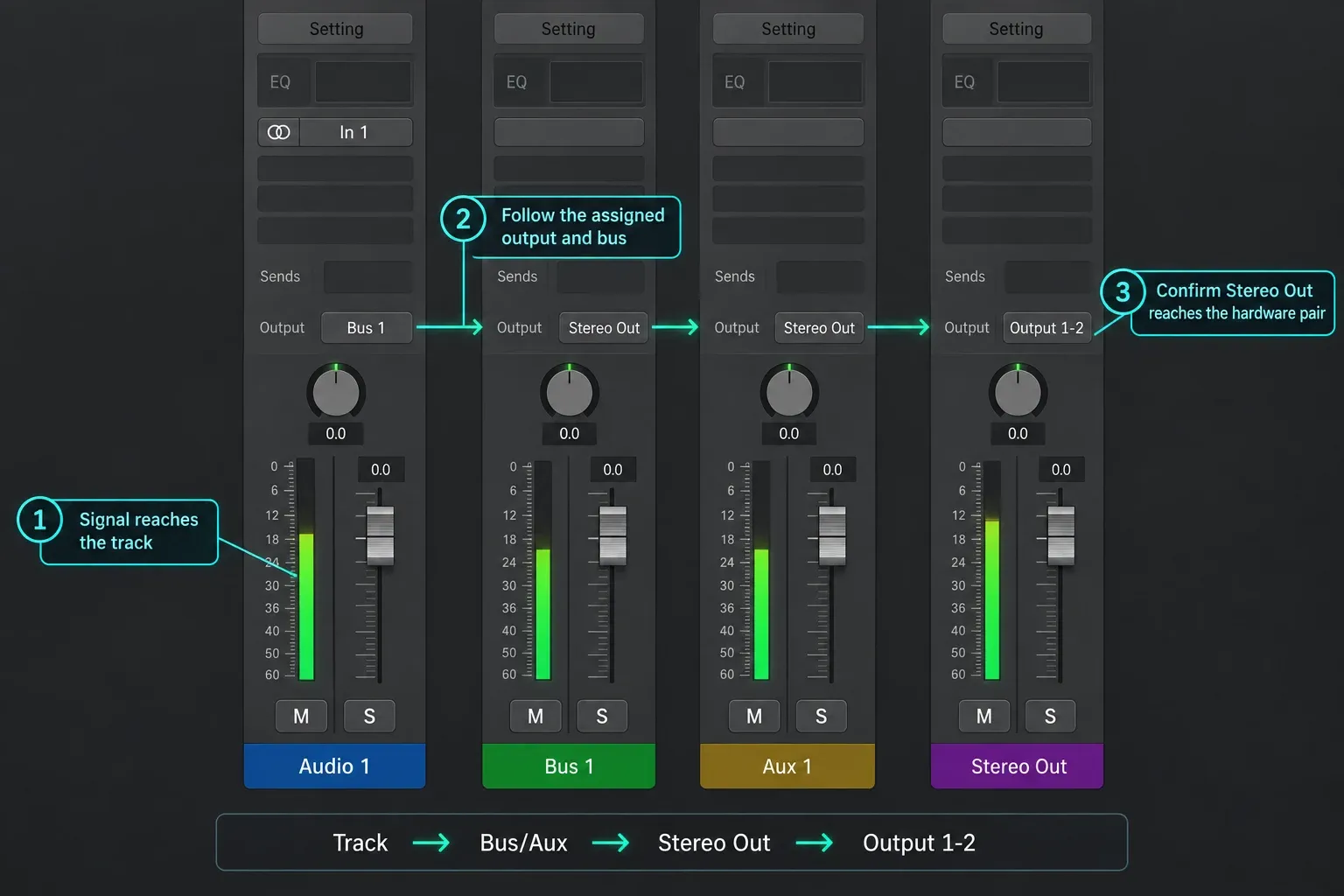
- Clear unintended Mute and Solo buttons.
- Confirm the track's Output slot.
- If it feeds a bus, find the matching aux and check that aux's Output.
- Check the output channel strip’s fader, mute state and any output-level control. Turn listening volume down before bypassing processing that might change the level.
- Temporarily bypass plug-ins on the silent path, one stage at a time.
- Check volume automation for sudden moves to silence.
A moving meter is not a guarantee of audible output. With pre-fader metering, the meter reads before the volume fader, so check Mix > Pre-Fader Metering and the fader itself. If a track feeds an unused output or an aux with no onward route, follow that assignment. If Stereo Out moves, check its controls and physical output assignment before assuming the fault is in the speakers.
If one track won’t play while the others do
Look at that track’s regions in the Tracks area before you change any routing. Apple’s guide to muting tracks shows how each of these states looks:
- Regions gray, region names still in color: the track is muted, or another track is soloed. Muting works on the channel strip, so every track that uses the same strip goes silent with it. If the track’s Mute button flashes blue, a solo elsewhere is the cause, and the Clear/Recall Solo button above the track headers unsolos every soloed track at once.
- Regions and their names gray: the track is turned off. Click the On/Off button in its track header. If you can’t see that button, choose Track > Configure Track Header and select On/Off under Buttons. Apple’s turn-off guide notes that live playing stays audible on a software instrument track that’s turned off, so a keyboard that sounds fine doesn’t rule this out.
- One region and its name gray, with a small colored dot before the name: only that region is muted. Select it and press Control-M, or deselect Mute in the Region inspector.
If the regions look normal and the track is armed, check R and I together as described in section 4. With both on, an audio track’s existing regions stay silent.
A dimmed channel strip in the Mixer isn’t a fault by itself. Apple’s note on dynamic plug-in loading explains that Logic dims tracks whose plug-ins and instruments aren’t needed for playback, and loads those plug-ins when you select the track. A track that has been made inactive is different: on a track with audio regions, that also turns the regions off, and the track stays inactive after you close and reopen the project. To bring it back, click the track’s On/Off button, or click an empty Audio Effect slot on its channel strip in the Mixer and choose Activate Channel.
If a software instrument plays when you start before a long note but stays silent when you start partway through it, the note began before the playhead. Apple’s Chase Events guide puts the setting under File > Project Settings > MIDI > Chase. Make sure the Notes checkbox is selected, so Logic sends a note when playback starts between that note’s start and end.
4. Fix a live input you cannot hear
Recording and monitoring are separate. A track can record correctly even when you don't hear the live input. You can also be hearing the interface's direct-monitor path while Logic receives nothing.
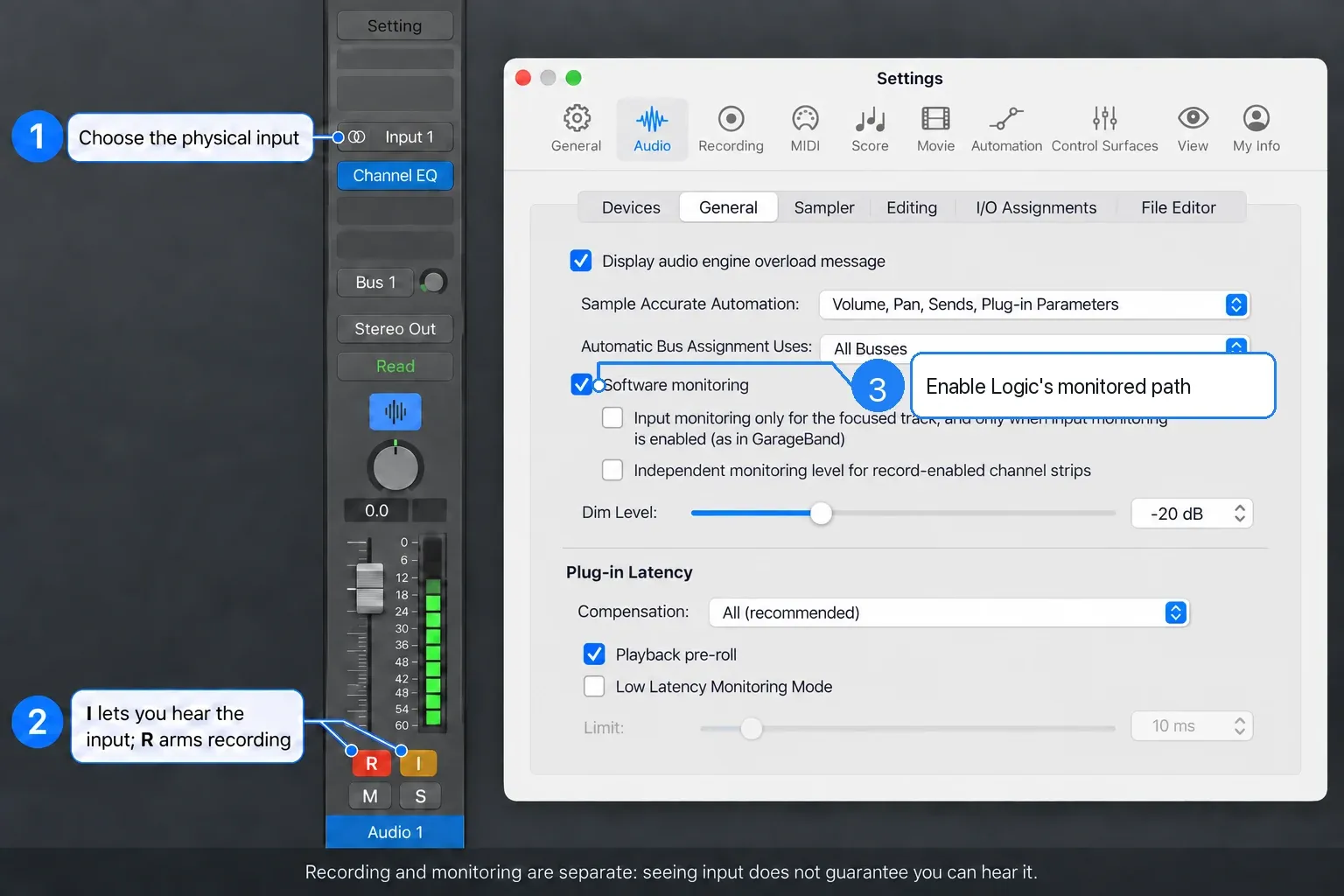
- Quit Logic before changing microphone access. On macOS Ventura or later, open System Settings > Privacy & Security > Microphone, allow Logic, then reopen it.
- Select the interface as Logic's Input Device.
- On the audio channel strip, choose the physical Input connected to the source.
- If you want to hear the signal through Logic, open Logic Pro > Settings > Audio > General and confirm Software Monitoring is on.
- Click the I Input Monitoring button on the track.
- If the interface supplies direct monitoring, choose either the interface path or Logic's software path so you do not hear a doubled signal.
Apple's microphone permission article explicitly includes built-in microphones, USB microphones and inputs on external audio interfaces. So a system-level denial can make an interface input look like a Logic routing problem.
If the I button is missing or dimmed, check the channel strip Input first. Apple’s input-monitoring guide describes a hidden button for No Input; its release notes also describe dimmed states. Select the physical input you actually use. If the meter moves but only the selected track can be heard, check “Input monitoring only for the focused track, and only when input monitoring is enabled (as in GarageBand)” in General Audio settings. With that option enabled, a non-focused track can show input level while its monitoring is inactive. Focus the intended track or change the option for the monitoring setup you need.
If an existing recording goes silent while the track is armed, check R and I together. Apple’s Logic Pro 11 release notes document existing regions being silent when both Record Enable and Input Monitoring are enabled. Turn off I and disarm the track to review the take. For punch recording, use Auto Input Monitoring instead of forcing I on, so monitoring can switch between the recording and live input.
5. Fix a silent software instrument or MIDI track
MIDI is performance data, not recorded sound. A software instrument track needs an instrument loaded in its instrument slot. An external MIDI track instead needs the hardware instrument and an audio return; connecting a keyboard by USB MIDI alone does not bring its own sound into Logic.
- Select a software instrument track, open Musical Typing with Command-K, and play the computer keyboard. If you use custom key commands, open Musical Typing from the Window menu.
- If it plays, investigate the external keyboard or MIDI routing with the MIDI keyboard troubleshooting guide.
- If it stays silent, load a known Logic instrument and preset.
- Check track and region mute, the channel strip Output and Stereo Out.
- Bypass MIDI FX and audio plug-ins one at a time.
- Test the same instrument in a new empty project.
If one third-party instrument is silent but a built-in Logic instrument plays, check that plug-in's Apple-silicon, macOS and Logic compatibility and authorization. Do not reinstall Logic to repair one vendor plug-in.
6. Check the physical interface and its control software
After checking Logic’s output controls, test the listening hardware:
- headphones are connected to the chosen interface, not another device;
- monitor and headphone volume controls are raised safely;
- the interface mixer sends software playback to the correct output pair;
- speakers are powered and connected to that pair;
- mute, dim and alternate-speaker controls are off;
- if the interface receives digital audio, uses an external clock or belongs to an aggregate device, confirm clock lock and matching sample rates. Apple treats a mismatch as an audio/MIDI sync-alert problem, not as the default explanation for every silent project.
Also check Logic Pro > Settings > Audio > I/O Assignments > Output. Apple’s stereo output assignment guide explains how Stereo Out can feed a physical pair other than Output 1-2. Match that pair to the interface’s monitor or headphone routing; use the manufacturer’s manual for your model. For AirPods or Bluetooth headphones, first test the Mac’s speakers or wired headphones on a known working output. If those play, return to the Bluetooth device connection and Logic’s Output Device selection rather than rebuilding the project.
7. If only one project is silent
Create a new empty project and play an available audio Apple Loop. If it plays through the same device, that basic route works; this does not rule out a plug-in or load-dependent fault in the original project. In a protected copy of the silent project, inspect:
- Mute and Solo states, including hidden tracks;
- track, bus, aux and output assignments;
- output and volume automation;
- disabled or missing plug-ins;
- project sample rate if Logic reports an audio/MIDI sync alert;
- the last change made before silence began.
For a project that opens but fails during playback, save a copy before removing anything. The Logic Pro backup workflow preserves the original while you isolate the fault.
8. If every project is silent after an update
Back up the app and project before another update, and confirm vendor compatibility first. Then work through the relevant tests from Apple’s troubleshooting sequence:
- Restart the Mac.
- Check interface, plug-in and control-surface support for the installed Logic and macOS versions.
- Install a Logic update only after checking compatibility and retaining a backup; do not update macOS just to test silent playback.
- Disconnect external devices one at a time.
- Test built-in audio.
- Quit Logic. Reopen it and immediately hold Control, then choose Launch Without Audio Units. Apple's current troubleshooting sequence uses this session-only test to bypass third-party Audio Units.
Use Launch Without Audio Units for the plug-in test, not Don’t Launch, which opens Logic without audio input and output. Test an Apple audio loop: a third-party instrument will not provide a useful playback test while its Audio Unit is bypassed. Apple puts these isolation checks before preference resets. They narrow the cause; they do not prove that every component is healthy.
Logic Pro no-sound checklist
- Watch the track and Stereo Out meters.
- Select the physical Output Device you are listening through.
- Test Built-In Output.
- Clear unintended Mute and Solo states, and click On/Off for any track that should be playing but has been turned off.
- Follow track → bus → aux → Stereo Out routing.
- For live input, check macOS permission, Software Monitoring, track Input and the R/I monitoring state.
- For MIDI, load a known built-in instrument and test Musical Typing.
- Test a new project to separate global from project-specific failure.
- After an update, isolate interfaces and Audio Units before resetting anything.
If Logic shows no input and records a flat line, continue with Logic Pro not recording audio. If sound is present but late, use the Logic Pro latency signal-path guide. If the interface is missing from the device list, use audio-interface detection checks.
Logic Pro no sound FAQ
Why do Logic Pro meters move but I hear no sound?
Check the faders, mute states and metering mode as well as the meters. Pre-fader metering can show signal before the volume control. If Stereo Out moves, inspect its physical output assignment, selected Output Device and interface routing. If only the track meter moves, follow its Output through any bus or aux.
Why is one track not playing in Logic Pro?
Read its regions in the Tracks area first. Gray regions with colored names mean the track is muted or another track is soloed. Gray regions with gray names mean the track is turned off, so click its On/Off button. One gray region with a small colored dot before its name is muted on its own. If the regions look normal, check R and I together; for a MIDI note that starts before the playhead, select Notes under File > Project Settings > MIDI > Chase. If none of these applies, follow the track’s Output through any bus or aux, as in section 3.
Why can I hear other Mac apps but not Logic Pro?
Logic can use a different output from the macOS system output. Select the intended device under Logic Pro > Settings > Audio > Devices, then test Built-In Output to isolate the interface.
Why can Logic record my mic but I cannot hear it?
Recording and software monitoring are separate. If you want to hear Logic's processed path, turn on Software Monitoring under Logic Pro > Settings > Audio > General, then use the track's Input Monitoring button. If the interface supplies direct monitoring, use that path instead and leave Logic monitoring off to avoid a doubled signal.
Why is the Input Monitoring button missing?
Check the channel strip Input first. Apple documents a hidden Input Monitoring button with No Input, and release notes also describe dimmed states. Select the physical input you use. A moving input meter with inactive monitoring can also result from the focused-track-only option in General Audio settings.
Why is my recorded region silent when Input Monitoring is on?
Apple’s Logic Pro 11 release notes document existing regions being silent when Record Enable and Input Monitoring are both enabled. Turn off I and disarm the track to review the recording. For punch recording, use Auto Input Monitoring instead of forcing the I button on.
Why is a MIDI region silent?
MIDI does not contain recorded audio. A software instrument track needs a loaded instrument and working output route; an external MIDI track needs its hardware instrument and audio return. Test Musical Typing on a software instrument track, then check mute states and routing.
Why did Logic Pro lose sound after an update?
An interface driver, firmware component or Audio Unit may not match the new Logic or macOS version. Restart, verify compatibility, disconnect external hardware, test built-in audio, then test without Audio Units.
Should I delete Logic Pro preferences to restore sound?
Not first. Identify whether the failure is the output, routing, project, interface or plug-in. Apple places device and Audio Unit isolation before preference reset in its current troubleshooting sequence.
Read the meters before changing anything
Change one thing, replay the same section, and keep the change only if it explains the result. A working new project points you back to the original session. A working Mac output points you toward the interface route. Stop when the intended playback and monitoring paths work; there is no benefit in resetting a repaired setup.
Return to the Logic Pro troubleshooting hub for the next symptom-led check.


