How to Fix Latency in Logic Pro: Follow the Signal Path
A signal-path fix for Logic Pro recording latency, from wired monitoring and I/O buffer size to plug-ins, direct monitoring and calibration.

Fast fix: use wired headphones and open Logic Pro > Settings > Audio > Devices. Choose the lowest I/O Buffer Size that records without clicks, pops or overloads. If delay appears after adding plug-ins, open Audio > General and enable Low Latency Monitoring Mode. For a microphone or guitar, an interface’s direct-monitoring feature lets you hear the input without waiting for its return through Logic.
Do not start by copying somebody else's “perfect” buffer number. Two interfaces can report different roundtrip latency at the same buffer because conversion, drivers and interface software are part of the path. Logic shows the resulting latency for the device actually selected.
Checked September 13, 2026, against Apple’s Logic Pro for Mac 12.3 user guide, current latency support pages and the vendor documentation linked below. The instructions here are for Mac; iPad controls differ.
First identify which delay you have
| Symptom | Likely path | Start here |
|---|---|---|
| Your voice or guitar comes back late in headphones | Audio input monitoring | I/O buffer, plug-ins, software/direct monitoring, Bluetooth |
| A software instrument feels late under your fingers | MIDI input plus audio output | I/O buffer, Low Latency Mode, output device and plug-ins |
| Playback tracks sound offset relative to one another | Plug-in delay compensation or routing | Set Compensation to All; isolate latency-inducing plug-ins |
| The take lands early or late after recording | Driver reporting or Recording Delay calibration | Return Recording Delay to 0 unless you measured an offset |
| The whole output feels late over wireless headphones | Bluetooth audio | Use wired headphones for tracking |
These problems can sound similar but need different fixes. Low Latency Mode can help a monitored performance. It isn't a universal repair for a badly calibrated Recording Delay value.
1. Replace Bluetooth with a wired output
Apple's current input monitoring latency guide lists Bluetooth headphones and speakers as a source of latency and recommends them for mixing or listening only. A tiny I/O buffer can't remove the delay added by a wireless audio path.
Connect wired headphones to the audio interface or Mac and test again. If that removes the delay, keep the wired output for tracking. There is no need to change the project’s timing settings to compensate for Bluetooth.
Bluetooth can also delay the input side of a software-instrument performance. Apple lists MIDI controllers connected through Bluetooth as another latency source. If a keyboard feels late, test its wired USB or MIDI connection before changing plug-in compensation.
2. Set the lowest stable I/O buffer size
- Choose Logic Pro > Settings > Audio.
- Open the Devices tab.
- Confirm the intended Input Device and Output Device.
- Choose a lower I/O Buffer Size.
- Record and play the busiest section you need for the take.
- If you hear clicks, pops or crackles, or Logic shows a system overload, move up one setting and repeat.
Start at the lowest buffer setting and increase it one step if the project overloads. There is no single correct value for every Mac and interface. Test with the tracks and plug-ins you need for this take, not only an empty project.
If an empty project still has abnormal delay, connect the interface directly to the Mac for the test. Apple's audio-interface setup guide advises against routing an interface through a hub or daisy-chain because that connection can add unacceptable latency.
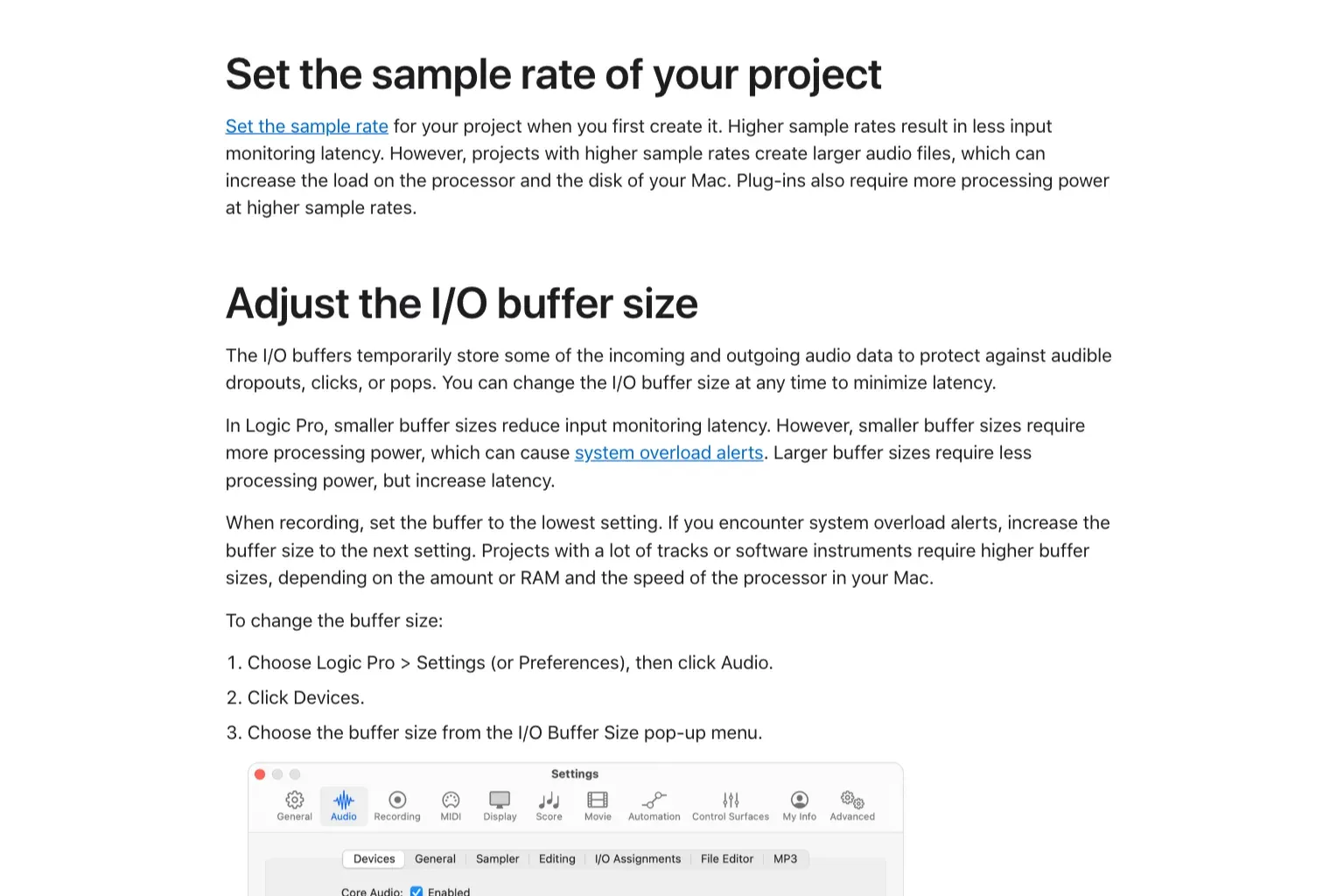
Read the Resulting Latency value shown below the buffer menu. Logic separates roundtrip and output latency. Roundtrip is the more relevant number when audio enters through the interface, passes through Logic and returns to your headphones. Output latency matters when playing a software instrument because its sound starts inside the application.
Buffer size alone doesn't produce a trustworthy millisecond figure. The simple buffer-duration calculation leaves out converter, driver and safety-buffer delays. Use Logic's readout for the selected hardware and confirm the feel with a short take.
3. Use Low Latency Mode when plug-ins are the problem
If a clean project feels responsive but a developed mix doesn't, the buffer may not be the main problem. Look-ahead limiters, linear-phase processing, oversampling and other latency-inducing plug-ins can add delay anywhere in the monitored signal path, including buses and the Stereo Out.
In Logic Pro > Settings > Audio > General, enable Low Latency Monitoring Mode and adjust its Limit slider. Apple’s current plug-in latency instructions use that full name; you will also see it called Low Latency Mode in tutorials. The limit applies to plug-in delay on the affected signal path, not to total interface roundtrip or Bluetooth latency. Hover over a plug-in slot to see its reported latency in a help tag.
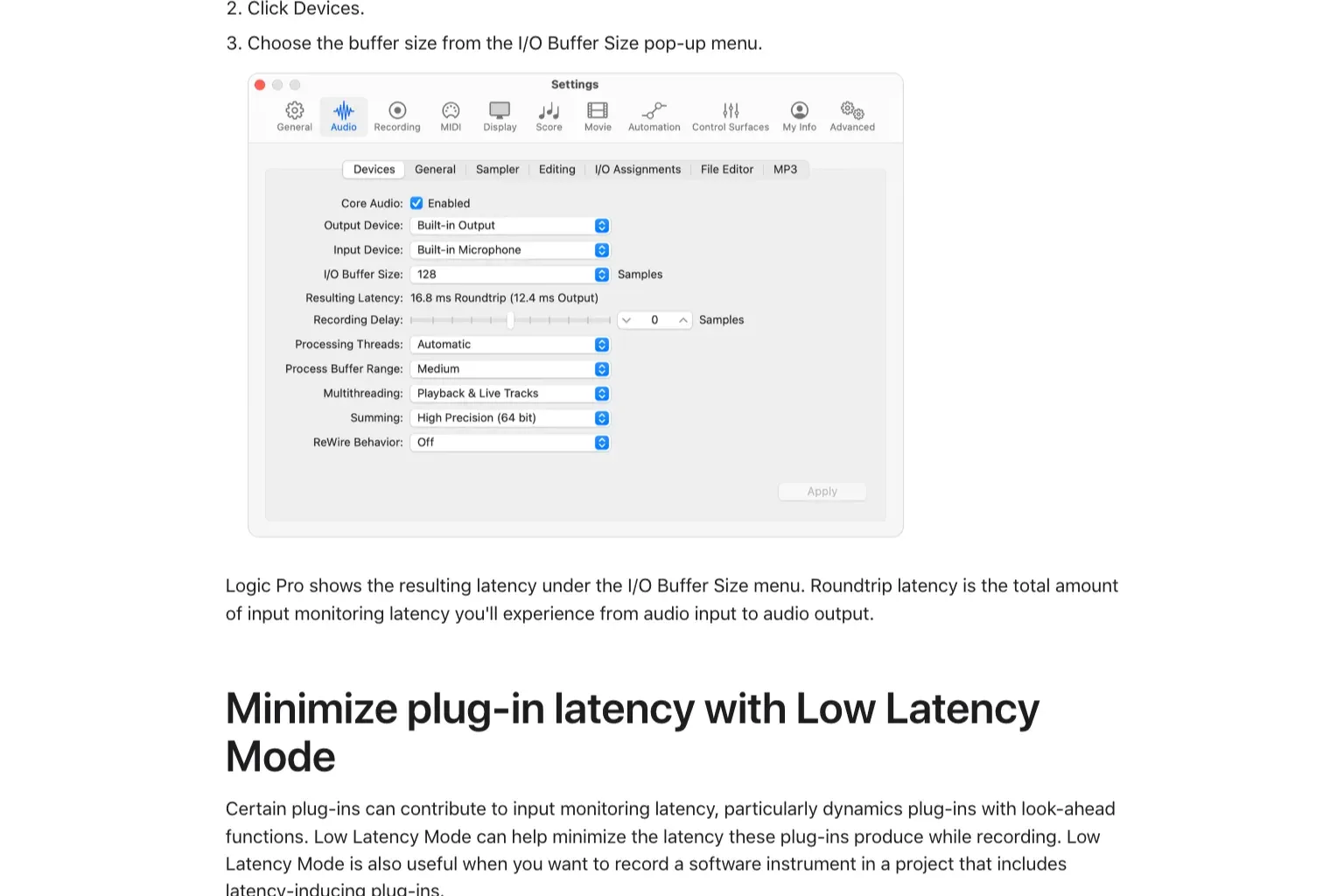
Low Latency Mode can change the monitor mix. On the focused instrument track and record-enabled or input-monitored tracks, Logic bypasses a plug-in when it pushes total plug-in latency above the Limit value, and turns off every Send slot on those affected tracks. The buttons turn gray with orange text. Nothing is deleted. A send that must remain audible can be marked Low Latency Safe from its shortcut menu, but its return path can add latency again.
Turn the mode off after tracking and listen through the full mix before exporting. It is inactive during a project bounce, so do not assume the bounce will sound like a monitor mix with bypassed effects. Apple also notes that the switch affects all open projects and stays set until you quit Logic.
4. Keep plug-in delay compensation on All for playback
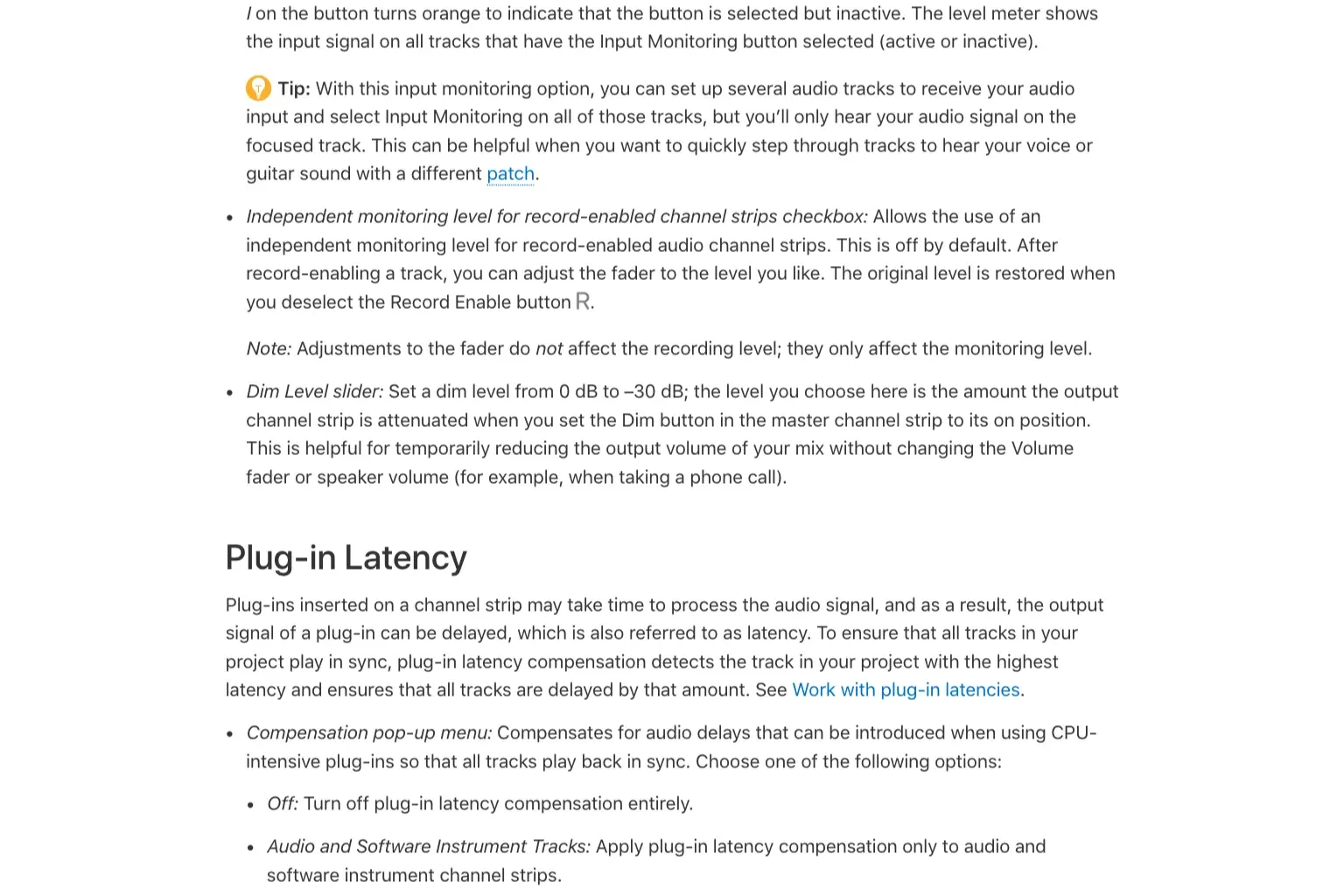
Plug-in delay compensation and Low Latency Mode solve different problems. Compensation keeps existing tracks aligned during playback by delaying other signal paths to match the most latent path. Low Latency Mode temporarily reduces the delay on the focused instrument track and record-enabled or input-monitored tracks while you perform.
Open Logic Pro > Settings > Audio > General. Apple's General Audio guide marks All as the recommended Compensation setting because it includes audio, software instrument, auxiliary and output channel strips. Turning compensation off isn't a sensible first fix for a normal session. It can make playback relationships worse.
If a particular path still sounds late with Compensation set to All, save a separate test copy. Check the track, the buses it feeds and the Stereo Out in that copy:
- Test the same passage with Low Latency Monitoring Mode on.
- Check the plug-in latency help tags on the track, its aux returns and output.
- If bypassing does not change the delay, remove the suspected plug-in from the test copy rather than only using its internal bypass.
- Restore or reload the unchanged original, then remove or replace only the confirmed cause in your tracking setup.
A plug-in’s own bypass can preserve its latency so that switching it on and off does not move the audio. For example, FabFilter documents latency-compensated internal bypass. An unchanged delay after pressing bypass does not prove that the plug-in is innocent. Keep the original project intact while testing.
5. Use direct monitoring for audio when the interface supports it
Software input monitoring sends the input through Logic and back to the output, so some delay is inevitable. Direct or hardware monitoring routes the live input through the interface's own mixer before Logic's monitored return. You still record into Logic, but you listen to the hardware path.
If the interface provides direct monitoring:
- Enable direct monitoring in the interface control app or hardware switch.
- In Logic Pro > Settings > Audio > General, deselect Software Monitoring. This stops the software-monitored return while you test the interface’s direct path.
- Blend the direct input with Logic playback in the interface mixer.
- Record a short test and confirm that you do not hear both paths at once.
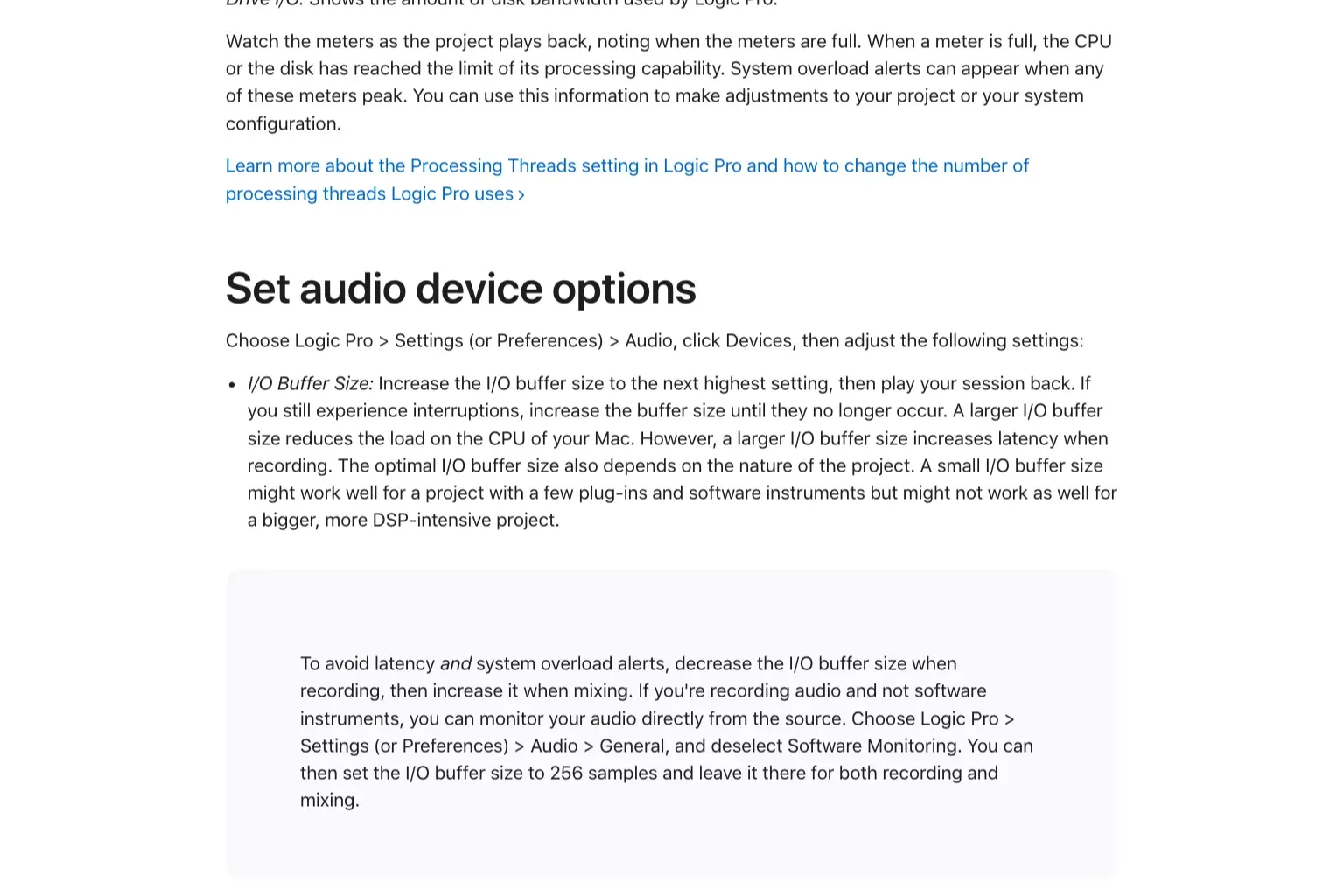
Direct monitoring cannot play a Logic software instrument or run Logic’s effects on the live input. An interface with onboard DSP may offer its own reverb or other processing, not the Logic plug-ins in your project. If you need a Logic amp simulator or effect, use software monitoring with a stable low buffer instead. For an echo or doubled voice, Focusrite’s direct-monitoring guidance explains how the direct signal and delayed DAW return can both reach the headphones. Test during recording as well as while stopped; the track’s I button alone is not the same as switching Software Monitoring off globally.
6. Do not change sample rate just to chase a smaller number
A higher sample rate shortens the time represented by the same number of samples, so it can reduce input monitoring latency. It also creates larger files and increases processor, disk and plug-in load. That extra load may force a larger buffer and erase the practical benefit.
Choose the project sample rate around the recording and delivery format before tracking. Apple's sample-rate guide warns against changing it after audio has been recorded or added because the files may no longer match the project. For music delivery, 44.1 kHz may be appropriate. Video workflows commonly use 48 kHz. Use higher rates only when the project and hardware justify them.
7. Treat Recording Delay as calibration, not a feel control
The Recording Delay slider shifts recorded audio by a fixed number of samples to compensate for delay caused by an audio driver. Apple's Devices guide says you shouldn't normally need to touch it.
If takes land early or late even though monitoring feels fine:
- Set Recording Delay back to 0 unless you have a documented calibration.
- Test a new empty project with no plug-ins.
- Check the interface maker’s compatibility notes for your macOS and Logic versions. If an applicable driver or firmware fix exists, save your work and follow the maker’s update instructions before testing again.
- Compare with built-in audio if it provides a suitable test input. If only the interface path has the offset, investigate its driver and routing.
- Only apply a sample offset after a repeatable loopback measurement.
Do not copy a Recording Delay value from a forum post. The correction is specific to the interface, driver and test path.
8. When a low buffer causes overloads
For a CPU-heavy project, freeze or bounce software-instrument tracks you do not need to edit during the take, and keep the original instrument tracks available. Check the Performance Meter first: Apple warns that freezing can worsen overloads caused by disk activity. Temporarily leave high-latency mastering processors out of the tracking copy. A larger I/O buffer is usually more practical once you are mixing rather than performing.
Do not confuse Process Buffer Range with I/O Buffer Size. Apple’s current Devices settings guide describes Process Buffer Range as advance processing for tracks that are not live; those playback tracks can be processed without additional latency. Its overload support article gives a broader warning about higher buffer settings. For a late monitored performance, start with the I/O buffer and plug-in path. For overloads, adjust one setting at a time and replay the same section.
Logic Pro latency checklist
- Use wired headphones.
- Confirm the correct input and output devices.
- Choose the lowest stable I/O buffer, not a universal number.
- Read Logic's Resulting Latency value.
- Turn on Low Latency Mode for a plug-in-heavy project.
- Keep plug-in Compensation on All for normal playback.
- Use direct monitoring for audio if the interface supports it.
- Leave Recording Delay at 0 unless a loopback test proves an offset.
- Raise the buffer again when tracking is finished.
If the problem is silence rather than delay, use the Logic Pro not recording audio signal-path guide. If Logic shows an overload instead of merely feeling late, follow the Logic Pro system overload checklist. A quiet but working input belongs in the quiet microphone guide.
Logic Pro latency FAQ
What is the best I/O buffer size for recording in Logic Pro?
Use the lowest value that plays and records without clicks, pops, crackles or system overload alerts. The correct setting depends on the Mac, interface, driver, sample rate and project, so 64 or 128 samples is not a universal answer.
What does Low Latency Mode do in Logic Pro?
Low Latency Monitoring Mode bypasses plug-ins that push the affected track’s plug-in delay above the Limit setting and turns off its sends unless marked Low Latency Safe. It affects the focused instrument track and record-enabled or input-monitored tracks. It can change the monitor mix, but does not remove Bluetooth or interface latency.
Should plug-in delay compensation be set to All?
Yes for normal playback and mixing. Apple marks All as recommended because it compensates audio, software instrument, auxiliary and output channel strips. Use Low Latency Mode to reduce tracking delay instead of disabling compensation globally.
Why does latency remain at a small buffer?
The buffer is only one part of the path. Converter delay, interface drivers and software, plug-ins, buses, the output device and Bluetooth can add latency. Check Logic's Resulting Latency readout and isolate the monitored path.
Can I record with Bluetooth headphones?
You can record, but Apple recommends Bluetooth devices for mixing or listening only because wireless output adds latency. Use wired headphones when timing matters.
Does direct monitoring affect the recorded audio?
Direct monitoring changes what you hear, not the ordinary input signal sent to Logic. Keep the track recording the intended physical input, not a loopback or processed mixer feed. Disable the extra software-monitored return so you do not hear the input twice.
Should I change the Recording Delay slider?
Usually no. Apple says the setting should not normally need adjustment. Return it to 0 unless a repeatable loopback test shows that the interface driver places recordings early or late by a consistent number of samples.
The next recording test
Keep the original session and record a short test with wired output and the lowest stable I/O buffer. If the delay appears only with the mix processing, try Low Latency Monitoring Mode or a clean tracking copy. For incoming audio, test hardware direct monitoring with Software Monitoring off. Judge recorded placement separately from what you hear live; only use Recording Delay after measuring a repeatable offset.
Return to the Logic Pro troubleshooting hub for symptom-led fixes, or use the beginner project workflow to build a clean recording template.


