How to Export Logic Pro as MP3
Use Logic’s Bounce window to make an MP3 without exporting the wrong range, cutting effect tails or losing the lossless master.

To export an MP3 from Logic Pro for Mac, choose File > Bounce > Project or Section (Command-B), select MP3 in the Destination list and set the range and encoding options. Confirm the settings, choose a filename and folder, then click Bounce to save the file. Logic calls the finished stereo file a bounce. File > Export is used for regions, tracks and interchange formats, so it’s the wrong menu for a normal stereo MP3.
Checked September 13, 2026 against Apple’s current Logic Pro for Mac 12.3 and Logic Pro for iPad 3.3 user guides. The main steps below are for Mac; the iPad export options are different.
This guide covers the final stereo file. If the project still needs editing, mixing or arrangement work, return to the Logic Pro tutorials workflow before printing a delivery copy.
Export a Logic Pro project as MP3
- Route every track you want to hear to the main output, normally Output 1-2, and check that none is muted by mistake.
- Decide whether you need the full song or a section. For the full song, turn Cycle off, deselect regions and check both Start and End in the Bounce dialog.
- Choose File > Bounce > Project or Section, or press Command-B.
- Select MP3 in the Destination area and click its name to reveal the encoding options. For a WAV copy too, select Uncompressed, choose File Type: WAVE and Format: Interleaved, then set the required bit depth and sample rate.
- Choose the Start and End positions, mode, tail and normalization options.
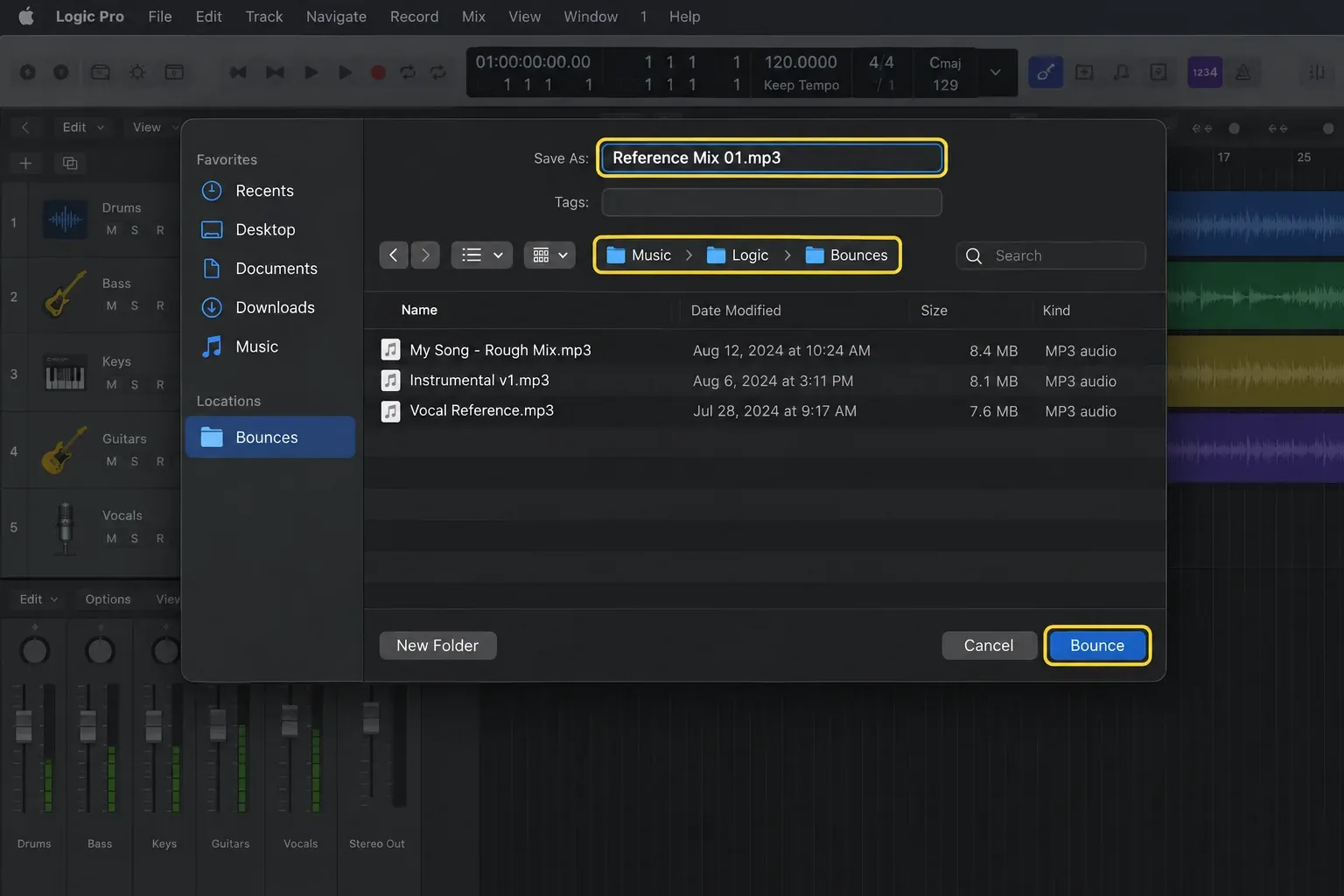
- Set the MP3 bit rate and encoding options. Confirm the settings with OK in the pictured dialog, then choose a filename and folder in the save window and click Bounce.
Apple’s current project bounce procedure confirms that Logic can create several destination formats at once. That’s usually safer than making an MP3 now and trying to turn it back into a WAV later. Conversion can’t restore audio that MP3 encoding already threw away.
Set the bounce range without cutting the song
The Start and End fields determine what Logic renders. With Cycle enabled, Logic initially uses the cycle area. With Cycle off, selected regions can still set a shorter range. Apple’s bounce-range instructions cover both cases. Check both ends of the range before exporting the whole song.
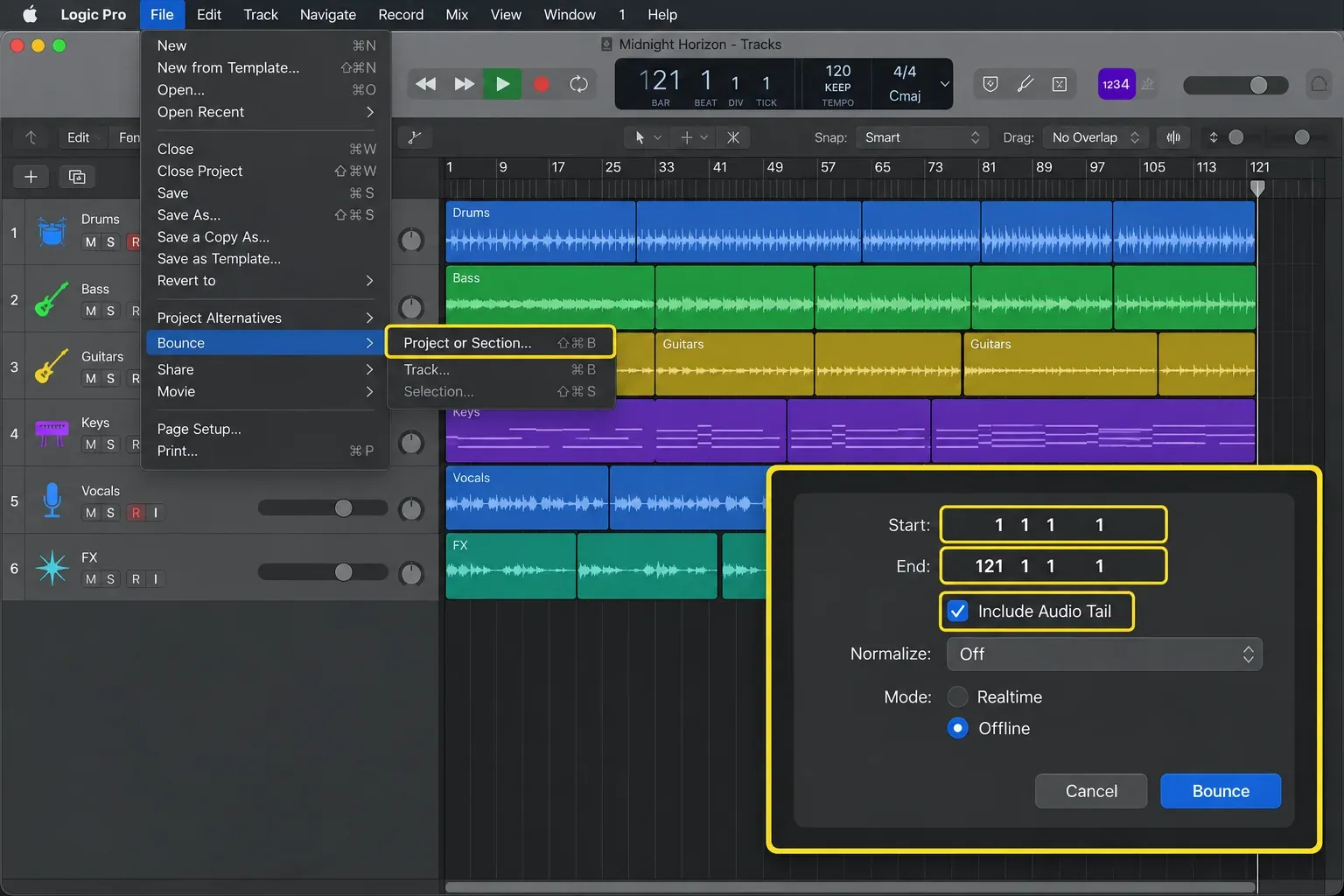
- For the full mix, turn Cycle off, deselect regions and check both Start and End positions.
- For one section, enable Cycle or type exact Start and End positions in the Bounce dialog.
- For a natural ending, use Include Audio Tail when the project needs instrument releases, reverb or delay after the last region.
- To include effects from the preceding cycle at the start, use Bounce 2nd Cycle Pass. For a loop you will edit or reuse in production, keep a lossless WAV or AIFF copy and test the join in the destination app.
Apple warns that Include Audio Tail can make a bounce too long when a plug-in continuously generates noise. Listen to the exported ending instead of automatically adding an arbitrary number of silent bars.
Best MP3 settings: choose for the destination
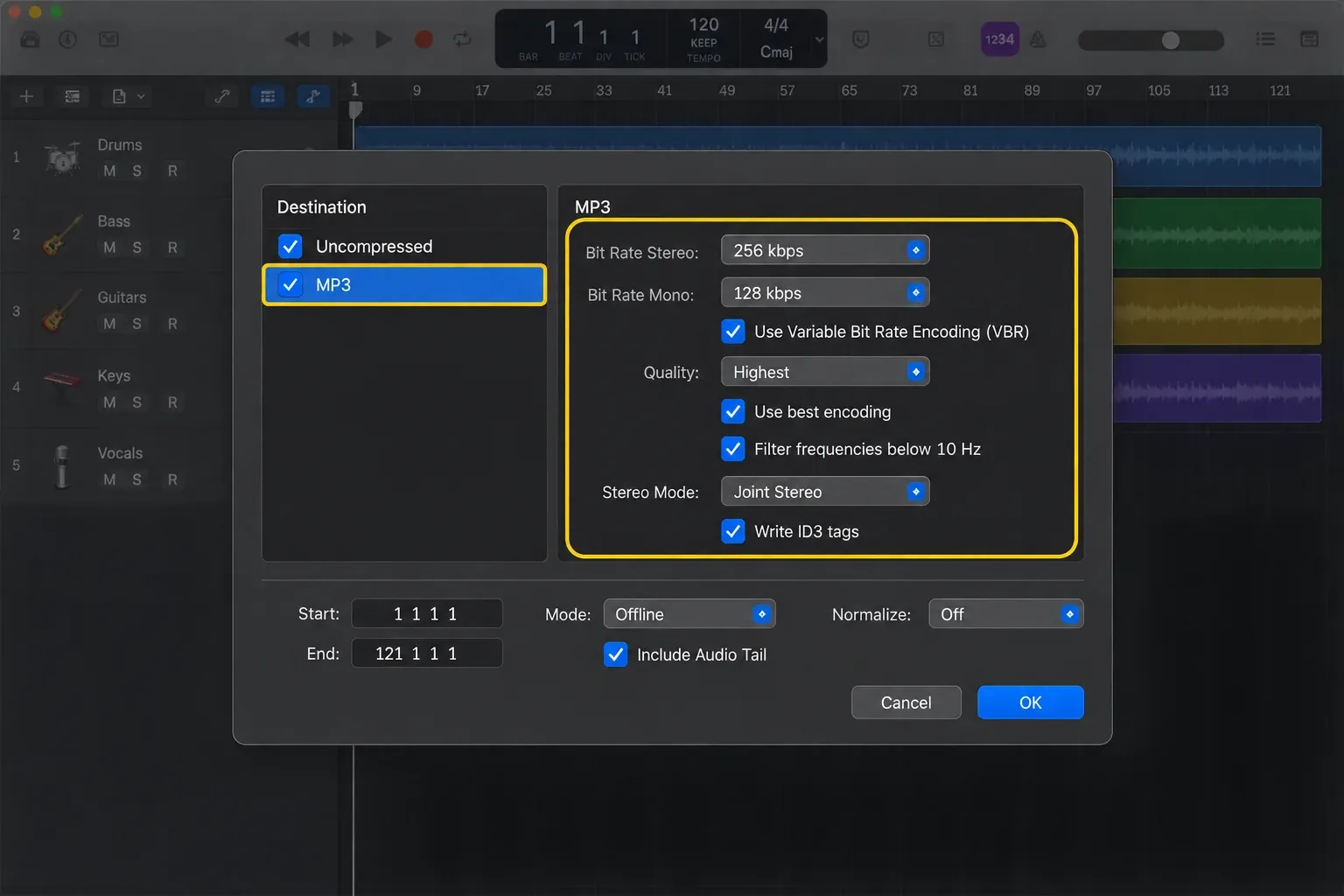
| Option | Practical choice | What changes |
|---|---|---|
| Stereo bit rate | 192 kbps for a compact reference; 256 or 320 kbps when size matters less. Estimate the result with the audio file size calculator. | Higher rates create larger files; Apple says improvement above 192 kbps stereo is nominal |
| VBR | On only when you know the target players decode VBR correctly; otherwise leave it off | VBR spends more data on complex passages, but Apple keeps it off by default for compatibility |
| Quality | Highest | Lower settings trade encoding quality for conversion speed |
| Use best encoding | On | Uses the higher-quality encoding path at the cost of time |
| Filter below 10 Hz | On for ordinary music | Stops inaudible subsonic content consuming encoding bandwidth |
| Stereo mode | Compare Joint and Normal if the file matters | Apple does not claim one always wins; the source determines whether a difference is audible |
| Write ID3 tags | On when title, artist and album metadata are useful | Embeds descriptive metadata in the MP3 |
Logic offers 32–320 kbit/s and defaults to 80 kbit/s mono or 160 kbit/s stereo. For a stereo reference, choose 192 kbit/s when file size matters or 256–320 kbit/s when you can send a larger file. Apple’s MP3 option reference notes that MP3 does not support sample rates above 48 kHz. If the chosen bounce rate is higher, Logic makes a temporary 48 kHz uncompressed copy for the MP3. You do not need to change the project sample rate to make that reference.
Normalize and bounce mode
For a mix whose level is already approved, choose Normalize: Off. This preserves the level produced by the Stereo Out chain. Overload Protection Only turns down a bounce only when it would exceed 0 dB. On scans the file and raises its highest peak to the maximum possible level.
Normalization isn’t a mastering substitute, and it won’t make a quiet mix competitively loud in a controlled way. If the bounce clips or lands at the wrong loudness, fix the mix or mastering chain and print again. The Logic Pro mastering guide separates peak control, loudness and delivery.
For Mode, Automatic lets Logic decide whether the project can bounce offline or requires realtime processing. Choose Realtime when external MIDI instruments, live audio inputs, external inserts or DSP hardware must run during the print. Offline can be faster for a project that Logic can render internally. Check that external instruments return audio to the bounced output; a MIDI connection alone carries no sound.
MP3 or WAV: make the master first
| Job | Preferred file |
|---|---|
| Quick approval, messaging, email attachment | MP3 at an agreed bit rate |
| Mastering engineer, archive, stems, later editing | WAV or AIFF at the project’s required resolution |
| Distributor or sync library | The exact lossless format in that service’s current delivery specification |
| One bounce for both purposes | Select Uncompressed and MP3 together |
Keep a WAV or AIFF master for later edits, mastering and archiving. An MP3 is useful for sending a smaller listening copy, but converting it back to WAV will not recover discarded audio. For a release, check the distributor’s current upload requirements before choosing the master format. In Apple’s uncompressed bounce settings, File Type: WAVE selects WAV and Format: Interleaved keeps the stereo channels in one file. Older tutorials call this destination PCM. Bit Depth and Dithering belong to the uncompressed output; Apple documents MP3 encoding before that dithering stage.
Verify the MP3 before sending it
- Play the first and last seconds to catch a wrong range or cut tail.
- Listen through the loudest section for clipping or a balance change.
- Check that the file is stereo or mono as intended; the result follows the output channel-strip format.
- Confirm the filename, extension, ID3 metadata and folder.
- Compare the bounce with Logic at matched playback volume.
By default Logic uses ~/Music/Logic/Bounces, but a folder chosen in the save dialog becomes the location for later bounces. Add the final lossless master and project to the project backup. An MP3 reference on its own isn’t a recoverable production archive.
Export MP3 from Logic Pro for iPad
Logic Pro for iPad 3.3 does not offer MP3 in its project-export options. Choose uncompressed AIFF or WAVE, or M4A. The iPad export guide lists these choices; its M4A settings let you choose AAC or Apple Lossless (ALAC). The M4A extension alone does not tell you whether the file is lossy.
If the recipient specifically requires MP3, export a lossless WAVE or AIFF file from iPad, then create the MP3 on a Mac or with a trusted converter. Do not convert an AAC M4A to MP3 when the lossless source is available. That would apply a second lossy encode. The Logic Pro for iPad guide covers project transfer to Mac.
Fix a wrong or incomplete MP3 bounce
- Only part of the song exported: check Cycle, selected regions and both Start/End positions.
- The ending is cut: extend End or use Include Audio Tail after checking for noise-generating plug-ins.
- The file is silent or missing parts: inspect mute states and routing to the bounced output.
- Hardware instruments are missing: use Realtime and route their audio back through Logic’s Mixer to the bounced output.
- The MP3 is louder or softer than expected: check Normalize and compare at matched monitor volume.
- You received several track files instead of one mix: use File > Bounce > Project or Section, not Export All Tracks as Audio Files.
- MP3 becomes unselected: check Surround Bounce under Uncompressed. Surround Bounce turns off MP3; use a stereo output for the stereo MP3 described here.
Logic Pro MP3 export FAQ
Where is MP3 export in Logic Pro?
On Mac, choose File > Bounce > Project or Section, then select MP3 in the Destination area. File > Export is for regions, tracks and interchange formats rather than the normal stereo mix.
What MP3 bit rate should I use?
Use the recipient’s specification. For ordinary stereo references, 192 kbps is compact and Apple calls it enhanced quality; 256 or 320 kbps is reasonable when a larger file is acceptable. Higher is not automatically required for every professional workflow.
Should Normalize be on or off?
Use Off when the mix or master already has its intended output level. Overload Protection Only reduces a file only if it would overload. On raises the highest peak to the maximum possible level, which may change the delivered level.
Can Logic export MP3 and WAV together?
Yes. Select MP3 and Uncompressed, then choose File Type: WAVE and Format: Interleaved for one stereo WAV file. Set the WAV bit depth and sample rate for its destination. Logic creates the MP3 from an uncompressed source; you do not need to convert the finished MP3 back to WAV.
Why did Logic export only part of the song?
Cycle sets the initial bounce range when enabled. Selected regions can also set a shorter range with Cycle off. For the whole song, turn Cycle off, deselect regions and check both Start and End before bouncing again.
Can Logic Pro for iPad export MP3?
Not directly. Current iPad project export supports AIFF, WAVE and M4A. Export a lossless file and convert that copy when MP3 is specifically required.


