Logic Pro Recording and Editing: Complete Workflow
Start with the job you need to do: record a clean take, build a comp, edit audio or MIDI, fix distracting timing, and choose the right file at the end.
Twenty-three guides, in working order
Choose the next job in your session
Start where the project is now. Each guide finishes one real job and hands the session to the next stage. You don’t need to open every guide before recording. Before the first take, decide whether the source belongs on a mono or stereo track. If the source is Mac playback rather than a microphone or instrument, use the BlackHole system-audio route, but only when an interface loopback isn’t available.
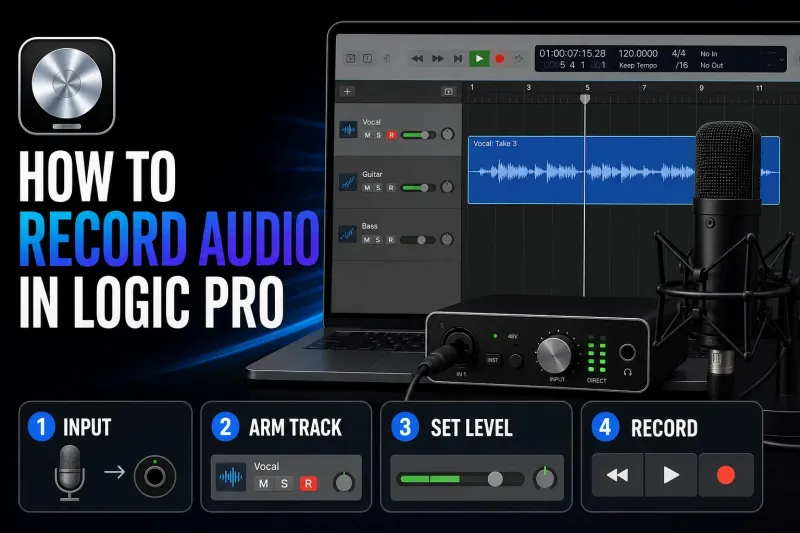
Record audio in Logic Pro
Open this when the project is empty, the input is uncertain, or you need a clean microphone, guitar, or hardware recording with monitoring that doesn’t distract the performer.
Set up and record audio
Best Audio Interfaces for Logic Pro in 2026
Choose an audio interface for the sources you record now, the headphone mixes you need, and the inputs you may add later.
How to Connect an Audio Interface to Logic Pro
Connect the hardware, choose the right Logic Pro devices and track input, then prove the complete signal path before you record a take.
Audio MIDI Setup for Logic Pro: Devices, Aggregate I/O and MIDI Ports
Choose the correct Mac audio or MIDI device, build Aggregate I/O without clock mistakes, map channels, and test ports before opening a session.
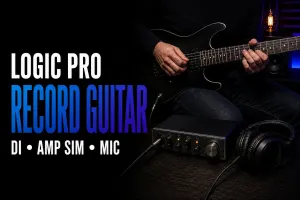
How to Record Guitar in Logic Pro
Choose the right guitar path, match a mono input, hear the tone you intend to record, and capture takes without clipping or doubled monitoring.

How to Record Vocals in Logic Pro: Setup to Comp
Set the microphone and cue mix, record vocal takes, then choose a comp without clipping or losing the original performance.
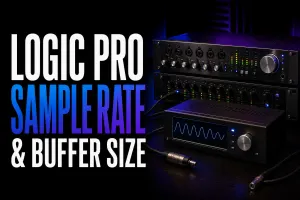
Sample Rate and Buffer Size
Use this before the first important take when delivery rate, imported audio, interface clocking, or live-monitoring delay still needs a deliberate setting.
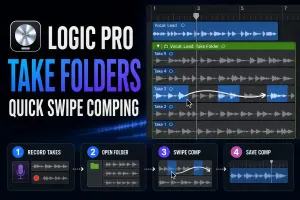
Take Folders and Quick Swipe Comping
Use this when several full passes are recorded and you need one believable, recoverable vocal or instrument comp.

Punch-In and Cycle Recording
Use this when one phrase is weak, or a difficult section needs repeated passes without damaging the performance around it.
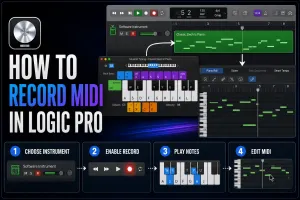
Record MIDI in Logic Pro
Use this when a controller, Musical Typing, or an external MIDI device is meant to produce a performance you can still reshape.
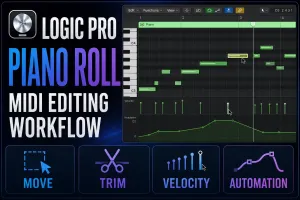
Logic Pro Piano Roll
Use this when the MIDI is recorded and pitch, position, length, velocity, sustain, or controller data needs a deliberate correction.
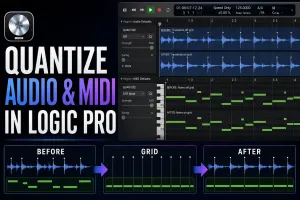
Quantize audio and MIDI
Use this when many events share the same timing problem and need a grid-related correction without erasing every useful variation.
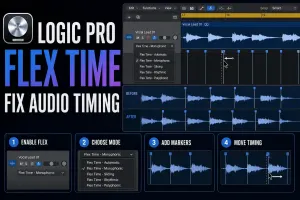
Flex Time in Logic Pro
Use this when one late word, note, or phrase must move while nearby attacks, breaths, sustain, and ambience stay put.
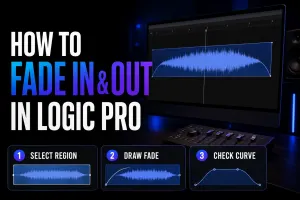
Fade in, fade out and crossfade
Use this when an audio region needs a clean entry, exit, or crossfade, or when a MIDI part or the full mix needs volume automation instead.
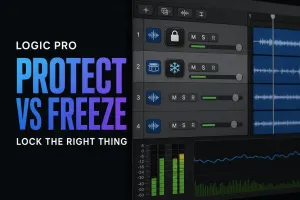
Track Protect vs Freeze in Logic Pro: Lock the Right Thing
Protect prevents accidental edits. Freeze renders temporary playback to lower CPU use. Choose the right control and preserve a clean revision path.
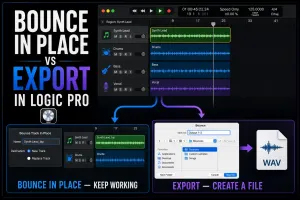
Bounce in Place vs Export
Use this when the edit is approved and you need audio inside the project, aligned handoff files, stems, or the final listener-facing mix.
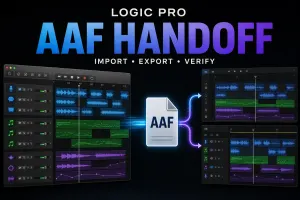
AAF in Logic Pro: Import, Export and DAW Handoff
Move an edited audio timeline between Logic Pro, Pro Tools and Premiere without confusing interchange metadata with a finished mix.
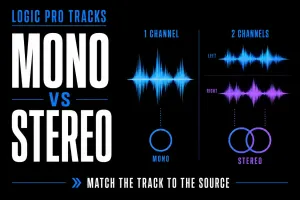
Mono vs Stereo Tracks in Logic Pro: Which to Use
Choose mono or stereo tracks by source channel count, recognize Logic's Channel Mode symbols, fix one-sided audio and check phase before delivery.
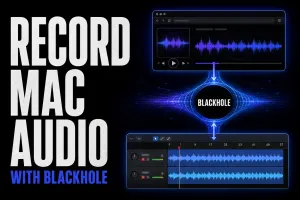
How to Record Mac System Audio in Logic Pro With BlackHole
Route Mac system audio through BlackHole into a stereo Logic track, keep monitoring audible and fix silence, doubled sound or clocking problems.
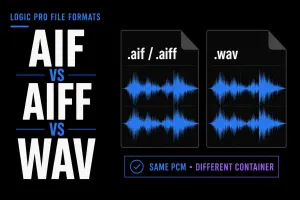
AIF vs AIFF vs WAV: What to Use in Logic Pro
AIF and AIFF are the same format. Compare AIFF, WAV/BWF and CAF by sound quality, compatibility, metadata, recording and Logic Pro delivery use.
What Is an ISRC Code? How to Get One for Your Song
Get an ISRC for a finished recording, avoid duplicate codes, and know when a remix, remaster or distributor change needs a different decision.

How to Upload Music to Spotify: Independent Artist Guide
Send a finished release to Spotify through a distributor, claim the right artist profile and pitch one unreleased song without missing the real deadline.
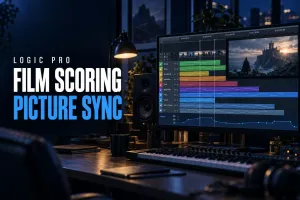
Logic Pro Film Scoring: Sync to Picture, Hit Points and Tempo Maps
Set up picture sync, mark the frames that matter, and build a musical tempo map for film scoring in Logic Pro.
The workflow in six decisions
- Protect the project.Save before recording and keep a recoverable version before destructive file-level work.
- Choose what you are capturing.Use an audio track for a microphone, instrument input, or external sound; use a software-instrument or external-MIDI track for note and controller events.
- Make monitoring comfortable.Set the input, gain, buffer, and cue mix before asking for the important take.
- Choose the recording mode.Use normal recording for a full take, cycle for alternatives, and punch recording for a defined replacement.
- Select before repairing.Build the comp and check edit boundaries before quantizing, stretching, or tuning the performance.
- Deliver for the destination.Use Bounce in Place to commit inside the project, export for external files, and a project bounce for the finished mix.
Apple’s current recording overview covers full takes, multitrack recording, take recording, comping, punch recording, and MIDI capture. The route above separates those jobs so you can open only the guide needed now. When the approved audio leaves the session, choose AIFF or WAV for the actual handoff, keep the ISRC with the finished recording, and use the Spotify release workflow only after the master and metadata agree.
Before moving into mixing
- The chosen take carries the performance without hidden alternatives doing the real work.
- Comp boundaries, fades, and crossfades survive solo and full-context playback.
- MIDI timing and velocity still sound performed rather than mechanically flattened.
- Flex or quantize edits have been checked for attacks, phase, and audible artifacts.
- The original recordings and a recoverable project version still exist.
Logic Pro recording and editing FAQ
Should I record audio or MIDI in Logic Pro?
Record audio for a microphone, instrument input, amplifier, or external sound. Record MIDI when note and controller events should play an instrument and remain editable after the performance.
Should I comp a take before using Flex Time?
Usually, yes. Choose the best performance and refine the comp boundaries first. Use Flex Time only for timing problems that remain.
What is the difference between cycle and punch recording?
Cycle recording repeats a section and can preserve several passes. Punch recording replaces a specific part of an existing performance, either on the fly or inside a predefined range.
Should I quantize MIDI while recording?
Use input quantization only when the grid and playback behavior are intentional. A safer general workflow is to capture the performance, listen, then apply nondestructive region or note quantization.
When should I use Flex Time instead of quantize?
Use manual Flex Time markers for a controlled local audio move. Use Flex-enabled audio quantization when many detected events need a shared grid-related correction. Always listen for artifacts.
Does Bounce in Place replace export?
No. Bounce in Place creates rendered audio inside the project. Export writes selected tracks or regions as external files, while a project or section bounce creates the output-channel mix.