How to Import MIDI Files Into Logic Pro
Bring in a single MIDI part or a whole arrangement without confusing the drop position, tempo map and instrument assignments.

To import a MIDI file into Logic Pro, drag the .mid file from Finder onto a software instrument track at the bar where you want it to begin. Or place the playhead first, then choose File > Import > MIDI File. For a complete MIDI arrangement whose tempo map and markers matter, use File > Open to open it as a new project.
The important decision comes before the import: are you borrowing a musical part for your song, or rebuilding the song contained in the file? I’d keep the existing project’s tempo for a drum groove or bass phrase. For an arrangement with tempo changes, I’d start from the MIDI file and choose instruments afterward.
Import a MIDI part into your current project
- Save the project. If the incoming file contains several parts, work in a separate copy until you know where they land.
- Create or select the software instrument track that should play the first part. Load a suitable patch.
- If your song should keep its tempo, choose Keep Project Tempo in the LCD’s Tempo menu before importing.
- Drag the MIDI file from Finder into the Tracks area. Release it over the intended track and bar.
- Check the new regions, their start positions and the assigned instruments before playing the whole arrangement.
Apple documents two different MIDI insertion positions: File > Import and the All Files Browser’s Import button use the playhead position, rounded to bars. Dragging uses the pointer’s release position, rounded to the nearest bar, and sets the destination of the file’s first track. Moving the playhead alone won’t change where a dragged file lands.
For a precise starting point, put the playhead on the required bar and use File > Import > MIDI File. Select the file in the dialog. This is easier than dropping a short groove into a crowded arrangement at a wide zoom level.
You can also choose View > Show Browsers, click All Files, locate the MIDI file and click Import. Apple’s All Files Browser controls include location buttons, a search field and list or column views. The Project Audio Browser is for audio assets. To find a MIDI file on disk, look in All Files.
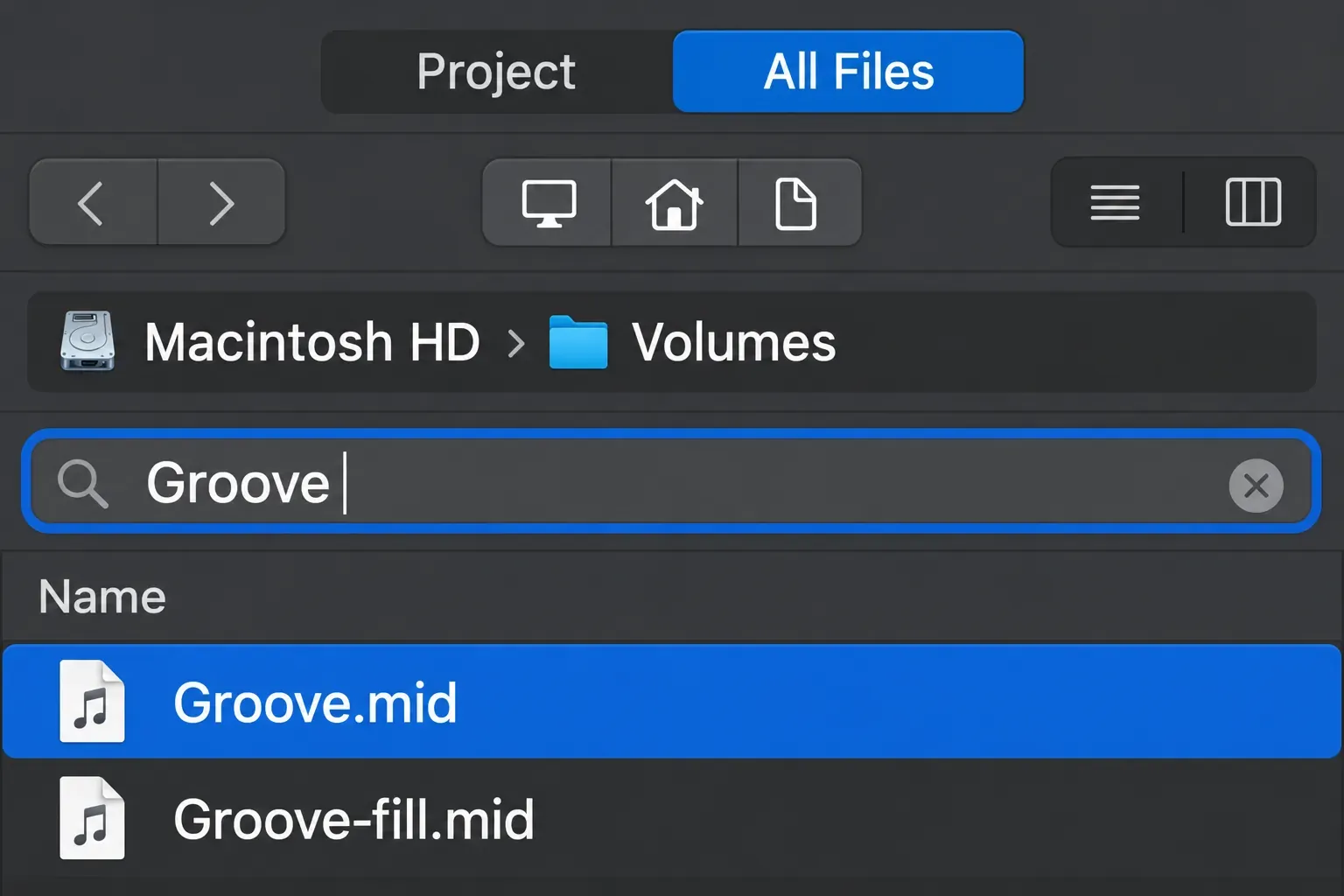
A multitrack file needs a little more care than a one-part groove. Inspect every resulting track. Don’t assume the entire file will play through the patch you selected. Keep separate musical parts separate until you understand their channels and instrument assignments.
Keep your song’s tempo or bring in the MIDI tempo
If the imported notes should follow your existing song, choose Keep Project Tempo. Click the middle of the Tempo display in the control-bar LCD and select it from the menu. In Apple’s Project Tempo mode documentation, Keep maintains the project tempo, while Adapt can change it to follow an imported MIDI file. Automatic chooses its behavior according to the musical tempo reference already present.
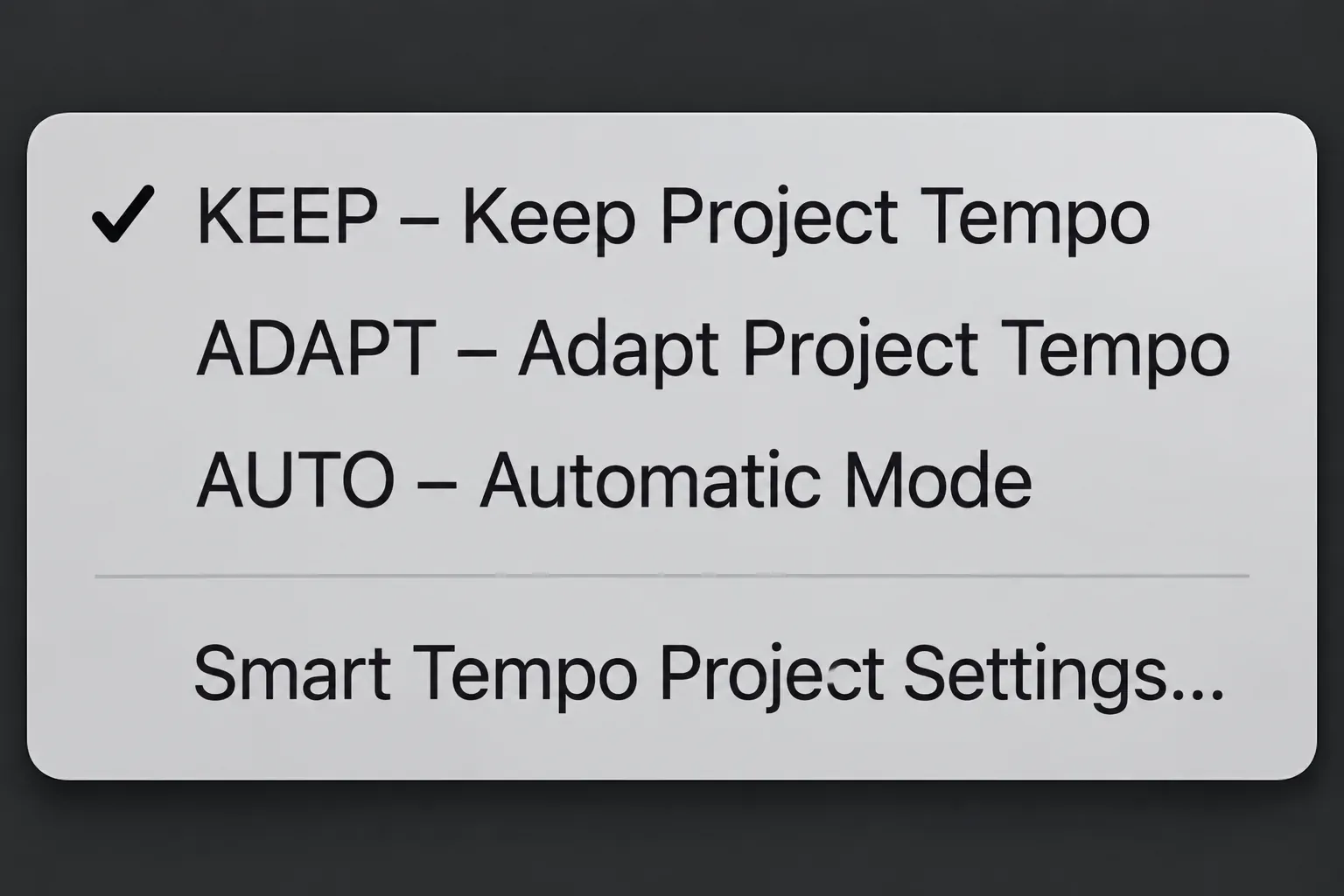
I prefer an explicit choice here. Auto can be useful, but an empty project and a developed arrangement don’t necessarily provide the same tempo reference. A different BPM in the file isn’t reason enough to use Adapt. Use it when you want the project tempo to change.
For example, bringing a groove into a 100 BPM song with Keep selected leaves the song at 100 BPM. The notes play against that timing. That doesn’t establish that every accent, swing choice or phrase length now fits the song. Listen to the result before quantizing it.
If the file is an entire composition with deliberate tempo changes, opening it as a new project is the clearer starting point. For later edits, the Logic Pro tempo guide covers fixed BPM, tempo changes and the consequences for existing material.
Open a complete MIDI arrangement as a new project
Choose File > Open and select the MIDI file. Apple’s Standard MIDI file opening behavior loads a new project with the file’s MIDI events, track names, marker names and positions, and tempo changes. These can only arrive if the source file contains them.
When another project is already loaded, Logic may ask whether to copy its environment or create a new one. Copy replicates the existing environment and assigns tracks to suitable instruments. New uses the default project template’s environment. Neither choice imports the original producer’s third-party sound library from the .mid file.
Opening a MIDI file normally creates software instrument tracks and assigns appropriate GarageBand instruments. To create external MIDI tracks instead, Apple specifies holding Option while opening the MIDI file. That’s an opening command. It isn’t a general promise that Option-clicking every Import dialog preserves an existing template.
Save the opened result as a Logic project before reorganizing it. Check the first musical entrance, any initial silence, the markers and the tempo changes against the arrangement you expect. A region beginning at bar 1 can still contain its first note later. The region edge and the first note are different positions.
Why the instruments sound different after import
MIDI carries performance instructions. It doesn’t carry the audio of the original piano, synth or drum library. Apple describes note events as triggers for software instruments or external sound modules. Change the receiving instrument and you change the sound, even when the notes are identical.
For a melodic part, choose an instrument that suits its range and articulation. For drums, check the note mapping: a note intended for a snare in one kit can trigger another sound in a different instrument. Don’t transpose the entire part to repair one wrong drum assignment.
If the region is visible but silent, start with the destination. A software instrument track needs a loaded instrument and an audible output. An external MIDI track needs the intended external device and an audio return you can hear. Then check mute, solo, channel-strip level, note range and the positions of the actual notes.
Controller input is a separate issue. You don’t need a connected MIDI keyboard to play an imported file. The MIDI recording guide explains the controller and recording path if you want to add a new performance afterward.
Use your template’s sounds without rebuilding the tempo map
For a score or multitrack arrangement, I’d keep the project opened from the MIDI file as the working starting point and bring selected sounds into it. This avoids treating a simple groove import as a complete project transfer.
- Open the MIDI file as a new project and save it.
- Choose File > Import > Logic Projects and select a saved Logic project containing the template tracks you need.
- In Track Import, select the required Plug-ins and, where appropriate, Sends or I/O. Leave Content unchecked if you do not want the source project’s regions.
- Click Add to add the selected track data. Move each MIDI region onto its intended instrument track, keeping its horizontal start position unchanged.
- Recheck routing and playback before removing any redundant tracks.
Apple’s Track Import documentation distinguishes Content, Plug-ins, Sends and I/O. For software instruments, the instrument plug-in comes with Plug-ins. I/O alone won’t bring it. Add creates tracks below the selected track. Replace changes the selected track and works with data from a single source row. I’d use Add while organizing an unfamiliar import.
Leave Keep Bus Number deselected if the source uses bus numbers already occupied in the destination. Logic can assign unused numbers to avoid routing conflicts. This imports chosen track data. It doesn’t reproduce a different DAW’s entire project or make missing plug-ins available.
When a MIDI import looks empty or changes unexpectedly
No region, or a region with no notes
Confirm that the source application exported a Standard MIDI File, rather than its native project file or an audio render. Extract an archive before importing the .mid file. Renaming a file’s extension does not convert its contents.
If a region exists, open it in the Piano Roll and inspect where the notes begin. Use the Piano Roll editing guide for note positions, pitch, duration and controller lanes. If there are no notes in the exported part, return to the source application and export the intended performance again. Importing an empty export over and over won’t restore missing notes.
The patch, volume or sustain changes during playback
Select the region, choose View > Show List Editors, then click Event. Apple’s Event List controls let you inspect the messages numerically and show or hide event categories. Check the relevant category filters before concluding that an event is absent. Program change events can select patches on connected MIDI devices, depending on the receiving device. Control change events carry messages such as volume, pan and sustain. A transferred part can therefore contain more than the notes visible in the Piano Roll.
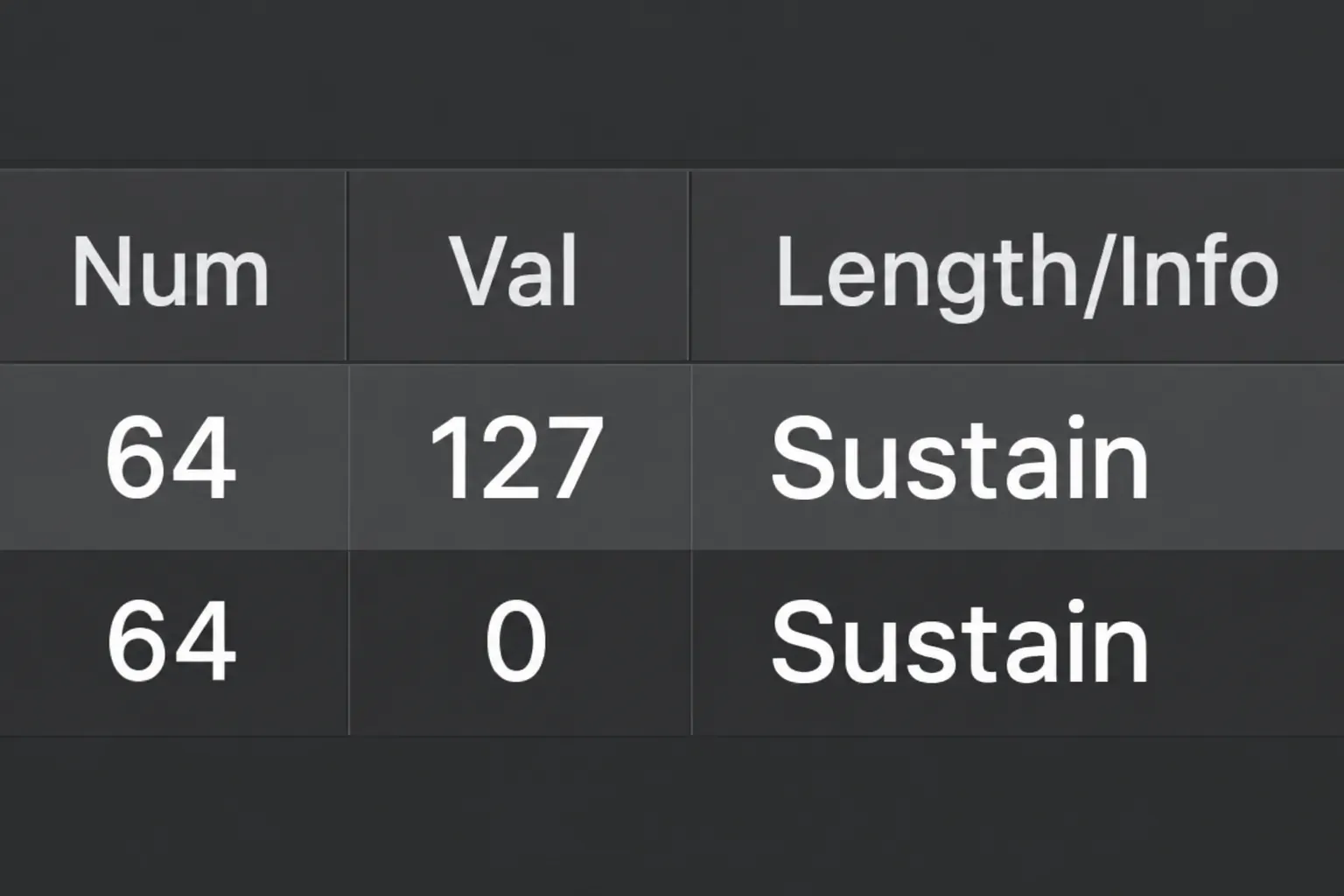
Keep an untouched project copy, identify the event that conflicts with your intended playback, then edit that event. Deleting all controller data may remove the expression you wanted to preserve. If sustain is the problem, inspect the pedal messages and the receiving instrument’s response together.
The file has one track, or the regions are no longer divided
Logic supports both Standard MIDI file formats: format 0, which contains the data in one track, and format 1, which can contain multiple tracks. Neither format preserves the source DAW’s division of a track into separate MIDI regions. A continuous region after import isn’t, by itself, evidence of corruption.
Ask for a format 1 export when separate source tracks are useful, but don’t prescribe format 0 as a universal Logic compatibility fix. Also ask for an audio reference if the original sounds or phrasing matter. The reference tells you what you’re trying to recreate. The MIDI supplies editable performance data.
Importing MIDI on iPad
The Mac menu paths above don’t apply to iPad. Apple’s current iPad media import instructions support dragging files from Files with Windowed Apps or Stage Manager enabled. Put Files and Logic side by side, then drag the MIDI file into the intended Tracks area position. The Logic Pro for iPad guide covers the broader platform differences.
Once the right notes, tempo and instruments are in place, save the project before editing the performance. The Recording & Editing library connects that next step to note editing, quantization and recording additional parts.


