How to Change Tempo or BPM in Logic Pro
Set a new project BPM, build tempo changes and ramps, and control what happens to existing audio when the tempo moves.

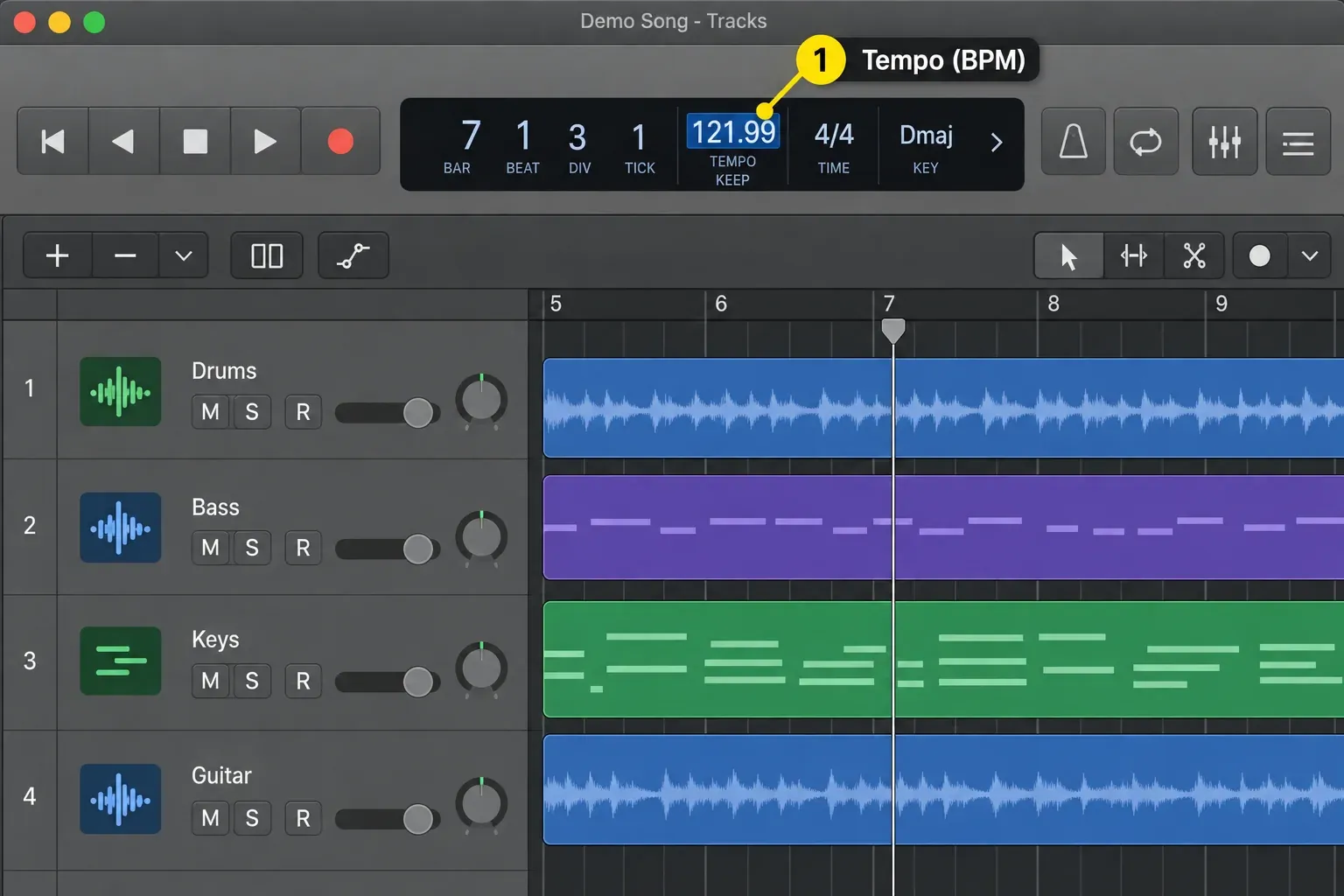
To change the BPM in Logic Pro for Mac, choose Beats & Project in the LCD display menu, double-click the tempo value, enter the new BPM and press Return. If the song already contains tempo changes, check its Tempo track too: changing one value does not remove the other tempo points.
Before typing a new BPM, decide what should happen to the recordings already in the project: should they follow the song's new speed, or keep their recorded timing? The steps below cover a constant BPM, a change in the middle of a song, a gradual ramp and audio that must stay aligned with a voice-over. For picture work, set the frame rate and hit points in the Logic Pro film-scoring workflow before drawing a tempo map.
Save the project, then choose File > Project Alternatives > New Alternative to keep a version of the arrangement before the tempo edit. Apple’s project alternatives guide notes that alternatives share the same assets; they are not independent backups of your audio files. Keep a separate backup before any file-level processing.
Choose the tempo job you actually need
| Your goal | Use this in Logic Pro | What to check |
|---|---|---|
| Set one BPM for the whole project | Tempo value in the LCD | Whether existing audio follows the new tempo |
| Change speed at a verse, chorus, or outro | Tempo track and tempo points | The exact bar where the new value begins |
| Build an accelerando or ritardando | Tempo curve between two points | The curve shape and transition density |
| Keep a recording at its original playback speed | Smart Tempo: Off; check Flex separately | Existing Flex edits, playback speed, gaps and overlaps |
| Keep a region at the same clock time | Lock SMPTE Position | Whether that fixed position is still useful later |
| Make the project follow a live performance | Smart Tempo | Downbeat, beat markers, and half/double-time detection |
Use the LCD or Tempo track when you already know the BPM you want. Smart Tempo answers a different question: what tempo is in this performance, and how should imported audio follow the project? If the pulse stays the same but the bar structure changes, edit the Logic Pro time signature instead of adding a tempo point.
How to change the BPM of the whole project
- Save the project and decide which existing audio should follow the new tempo. Check the Tempo track for later tempo changes before treating the project as one constant BPM.
- If the tempo is missing from the LCD, click the down arrow at the right side of the LCD and choose Beats & Project.
- Double-click the tempo number, type the BPM you want, and press Return. You can also click-hold the value and drag up or down.
- Play through the song. Listen to recorded audio, Apple Loops, Drummer or Session Player regions, and every edit point around a tempo-sensitive transition.
Apple’s project-tempo instructions give a range of 5–990 BPM. Enter the exact value you want. If the song has several tempo sections, inspect the map; changing the LCD value alone will not make them all the same speed.
What follows when you change the tempo?
Ordinary, unlocked MIDI events follow the musical grid. A four-bar part plays faster when you raise the BPM and slower when you lower it. There is an exception: SMPTE-locked MIDI events retain their absolute time positions when the project tempo changes. Check for that lock if a MIDI part does not respond as expected.
Audio has separate controls. In the Region inspector, Smart Tempo set to Off ignores the file’s tempo information; it does not turn off Flex Time. On uses the file tempo as a reference, while On + Align Bars and On + Align Bars and Beats add bar- or beat-level alignment. Apple’s Smart Tempo region-setting guide explains these choices. The separate Flex checkbox determines whether the region follows the project tempo with its quantization and manual Flex edits. Uncheck it to hear the original recorded timing, not the Flex-edited performance.
Also check the Project Tempo mode in the LCD. Choose Keep Project Tempo when you want subsequent recordings and imports to leave your chosen tempo map alone. That’s my default once a song’s map is set, because Adapt mode can rewrite the tempo when you record or move regions. This does not disable audio stretching: region settings still determine how audio follows the project. Apple’s Keep, Adapt and Automatic mode guide explains the distinction. Listen to loops, Session Player parts and tempo-synced effects after the change.
Change tempo without stretching or moving existing audio
A tempo edit can change two different things about a recording: how fast it plays and where it sits in absolute time. Check both before you move on:
- Playback timing: set the region’s Smart Tempo to Off and inspect Flex separately. If you want the unprocessed recording, disable Flex for that region too. If you need existing Flex edits, preserve them before turning Flex off.
- Keep the region at the same absolute time: use Functions > Lock SMPTE Position.
If the performance already has Flex edits you want to keep, first use File > Bounce > Regions in Place at the original tempo. Set Destination to New Track and Source to Leave or Mute, not Delete. Check Bypass Effect Plug-ins, Include Volume/Pan Automation and Normalize before bouncing. They decide what else gets printed into the new audio, and Logic recalls the last settings you used, which may be wrong for this job. Compare the bounce with the source. Then turn Smart Tempo and Flex off for the rendered region, and avoid running effects again if they were printed into it. Lock SMPTE position if the region must also stay at the same clock time. Keep the source track until you have listened after the tempo change.
- Save a Project Alternative or a separate backup.
- Select the audio regions that must keep their original speed.
- In the Region inspector, set Smart Tempo to Off. Check the separate Flex control: turn it off only if you do not need the existing Flex edits. If you need those edits, preserve a rendered copy at the original tempo before changing the project.
- If a region must remain at an exact timecode position, select it and choose Functions > Lock SMPTE Position.
- Change the project tempo.
- Inspect boundaries for new gaps, overlaps, and edits that no longer land on the intended beat.
Apple’s absolute-time position guide documents Functions > Lock SMPTE Position and Functions > Unlock SMPTE Position. A padlock marks locked regions. Copies do not inherit the lock, so check again after duplicating. Unlock when you want later tempo changes to move the region with the musical grid.
How to change tempo in the middle of a song
For a faster chorus, a slower breakdown or a switch at a particular bar, add a point in the Tempo track. Its BPM holds from that position until the next point or curve changes it.
- Choose Track > Global Tracks > Show Global Tracks, or press G.
- If the Tempo track is hidden, Control-click the global tracks header and enable Tempo.
- Click the target bar in the Tempo track with the Pointer or Pencil tool to create a tempo point.
- Drag the point vertically to change its BPM. For an exact value while creating a point, Control-Option-Command-click the target position, type the BPM, and press Return.
- Drag the point left or right if its change begins at the wrong musical position.
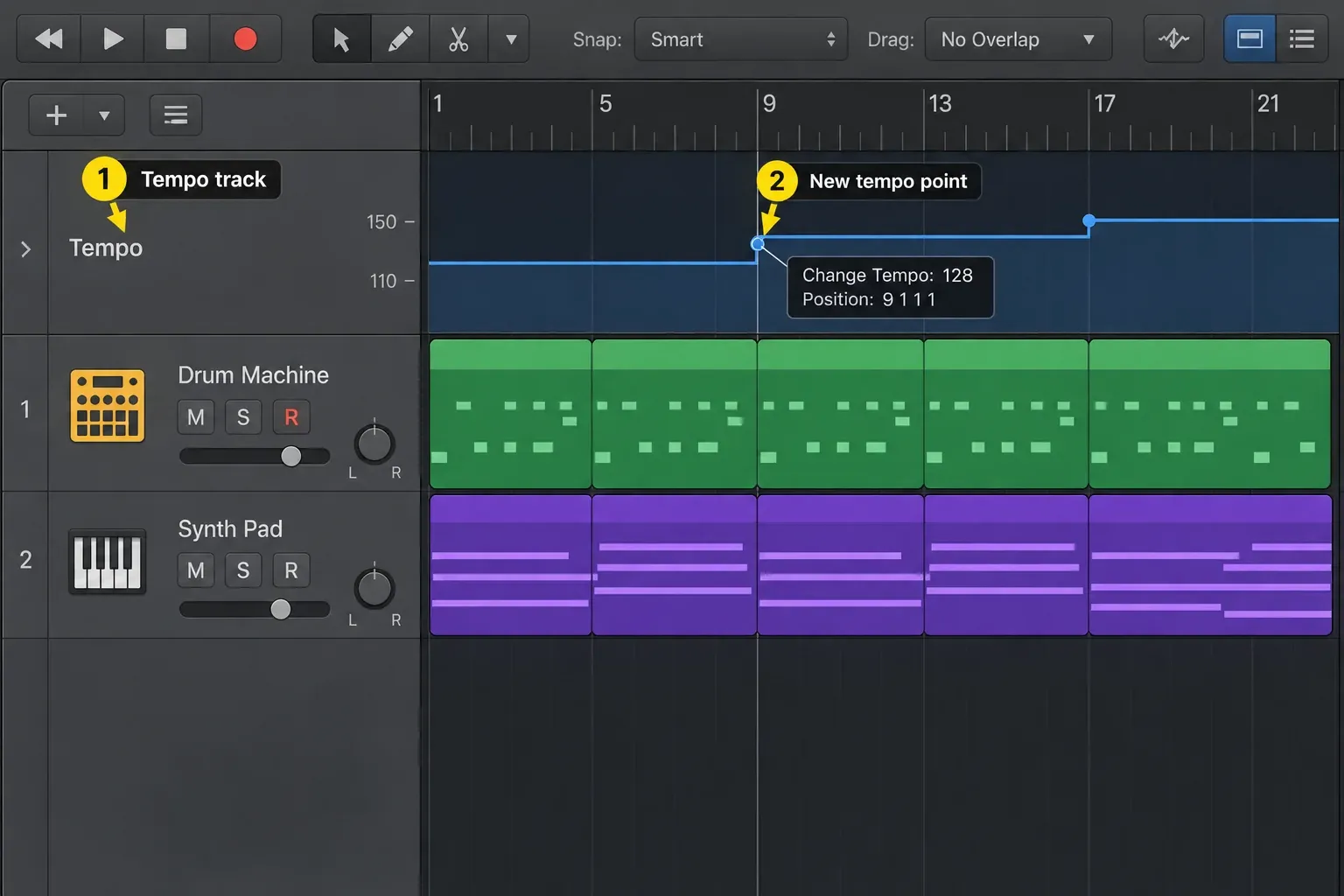
Apple’s tempo-point instructions describe vertical dragging for BPM and horizontal dragging for position; Logic restricts each drag to one direction. Hold Shift for finer value adjustments. To remove an unwanted change, select that tempo point and press Delete. Keep the saved alternative in case you need the original map.
Create a gradual tempo ramp
For an accelerando or ritardando, use two endpoint tempos and a curve between them:
- Create a tempo point where the ramp begins and another where it ends.
- Select both points.
- Drag the curve corner near the second point above or below the connecting line.
- Move the curve node to make the change arrive earlier, later, or more evenly.
- Use the Tempo track's Tempo > Snap setting if you need to control the density of performed tempo changes.
Apple’s tempo-curve guide confirms the two-point handle and explains how the Tempo track’s Snap value controls the number of tempo changes performed along the curve.
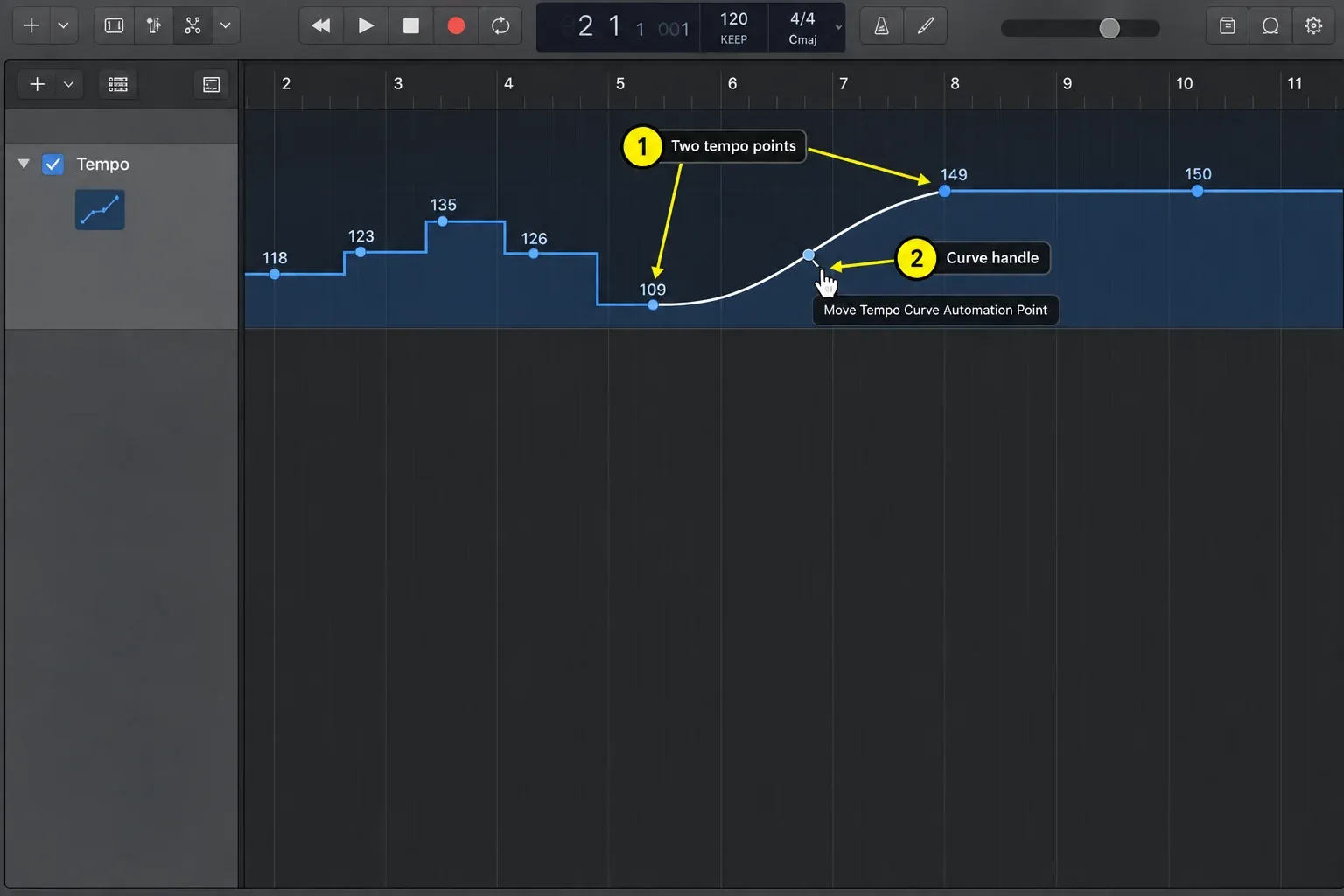
Play through the ramp with the surrounding section. Does the final tempo land on the beat you intended? Does stretched audio still sound usable? The curve can look smooth while either answer is no.
Tap a tempo instead of guessing the BPM
If you can feel the pulse but don't know its number, assign the Tap Tempo key command in Logic Pro's Key Commands window. Tap the assigned key steadily with the music. The first time you use it, Logic asks whether you want to turn on Tap Tempo. If you would rather find the number before opening the project, an online tap tempo counter does the same job in a browser.
Tap steadily for several beats and listen to the resulting metronome before accepting the value. A freely played recording may need a changing tempo map rather than one BPM. The Smart Tempo guide covers analyzing that performance and making the project follow it.
Fix common tempo-change problems
The audio suddenly sounds faster, slower, or stretched
Check both Smart Tempo and Flex in the Region inspector. Off stops Smart Tempo from using file-tempo information, but existing Flex edits can still affect the sound. Compare with your saved version. Do not remove approved Flex timing just to make the BPM display look right.
A MIDI part changed speed
Unlocked MIDI normally follows the project tempo. If only one audio recording should change speed, leave the project BPM alone and edit that recording instead. To stretch a single audio region, Option-drag its right edge: Logic stretches or compresses the audio by the change in length and replaces the region with a new audio file, and the drag follows the Snap setting in the Tracks area. Choose the algorithm first under Edit > Time Stretch > Time Stretching Algorithm. Universal is the default for most material, Percussive suits drum loops with reverb tails, and Beats Only in the Legacy submenu is meant for dry drum loops. If a MIDI cue must stay at a fixed clock time, use its SMPTE lock rather than relying on the musical grid.
An audio region stayed the same speed but moved against the picture or voice-over
If the movement came from the tempo edit, undo that edit, lock the region’s SMPTE position and try again. Check the padlock on any copied regions too. Tempo-following settings and absolute placement are separate controls.
If you wanted the region to speed up or slow down with the new BPM instead, select it, make sure the Flex checkbox in the Region inspector is selected and choose On from the Smart Tempo pop-up menu. Logic then uses the file’s tempo as its reference and flexes the region to follow the project tempo and later tempo changes. If that tempo information is wrong, correct it in the Smart Tempo Editor before you change the BPM.
Only one section changes tempo
Open the Tempo track and look for an extra tempo point later in the project. A new point overrides the earlier value from its position onward. If the graph does not make the cause clear, open Tempo List and enable Additional Info. Apple’s Tempo List reference says this shows all tempo-change events, including those on a curve. Compare their Position, SMPTE and Tempo values with the intended map before deleting anything.
The tempo value is missing from the LCD
Open the LCD display menu and choose Beats & Project. You can also enter tempo values in the Tempo List or use the Tempo track.
The detected tempo is exactly half or double what you expect
If Smart Tempo has detected a recording at half or double its intended BPM, inspect the analysis before changing the whole project to compensate. The Smart Tempo Editor has Double Tempo and Half Tempo buttons for the file or selection. Compare its beat markers and metronome with the recording; do not use those buttons merely because another BPM number looks more familiar.
Tempo questions
How do I change the BPM of a whole Logic Pro project?
For a constant-tempo project, show Beats & Project in the LCD, double-click the tempo value, enter the BPM and press Return. If the song already has tempo changes, check those points in the Tempo track too. Review audio-region Smart Tempo and Flex settings before expecting recordings to follow or stay unchanged.
How do I change tempo in Logic Pro without affecting audio?
Set the audio region’s Smart Tempo to Off, then check Flex separately: Off does not remove manual Flex processing. Preserve any timing edits you need before disabling Flex. Lock SMPTE Position as well if the region must stay at the same clock time. Compare playback with the saved original after changing BPM.
Can Logic Pro change tempo in the middle of a song?
Yes. Show Global Tracks, reveal the Tempo track, then add a tempo point at the bar where the new speed should begin. Drag it vertically or enter an exact BPM while creating it.
Can I create a gradual tempo change in Logic Pro?
Yes. Add two tempo points, select them, then use the curve handle near the second point to shape a gradual accelerando or ritardando between them.
Does MIDI follow tempo changes in Logic Pro?
Unlocked MIDI normally follows the project tempo. SMPTE-locked regions or events can retain their absolute time positions instead. Audio has separate Smart Tempo and Flex controls, so do not assume it behaves like MIDI.
Is changing BPM the same as using Smart Tempo?
No. Changing BPM sets or edits the project tempo. Smart Tempo analyzes recorded or imported audio so the audio can follow the project, or the project can follow the performance.
Once the tempo map works, the Create Music in Logic Pro hub covers the next arrangement decisions. If the remaining problem is timing within a recorded performance, use the recording and editing guides.


