How to Use Retro Synth in Logic Pro
Find the instrument, build a useful patch and understand the controls that change its tone, note shape and response to your playing.

In Retro Synth, start with the engine that suits the part, then work on the tone and the way each note begins and ends. You get four synthesis engines, a filter and a small set of modulation controls in one instrument, which makes it a good place to learn how a sound is built in Logic Pro.
To open it, create a software instrument track and choose Retro Synth from the channel strip’s Instrument slot. Searching the Library for the instrument’s name is a detour you don’t need. The Library can show patches, but the Instrument slot chooses the instrument itself.
Where to find Retro Synth
- Create or select a software instrument track. An audio track is the wrong starting point.
- Show its channel strip in the Inspector or Mixer.
- Click the Instrument slot. If an instrument is already loaded, use the arrows at the right of its slot to replace it with Retro Synth.
- Click the middle of the occupied slot to open the Retro Synth window.
- Play a few notes with a MIDI keyboard. Without one, open Window > Show Musical Typing, or press Command-K, to play from the Mac keyboard.
If you need to record the part, our MIDI recording guide covers the track, input and recording setup.
I’d save a copy of an existing sound before replacing its instrument. Compare sounds on a separate track: you keep the same MIDI phrase and don’t risk losing a patch you already like.
Choose Analog, Sync, Table or FM
The four buttons across the top select different engines. They change the oscillator controls, so a knob described in an Analog tutorial may be absent in FM. Apple’s Retro Synth overview identifies these starting points:
- Analog: classic synth basses, leads and pads. Start here to learn the relationship between waveform, filter and envelope.
- Sync: more aggressive basses and leads. Its oscillator synchronization gives you a different way to change the tone.
- Table: wavetable synthesis for digital tones, evolving pads and effects. The on-screen button says Table.
- FM: bells, electric-piano tones, clavinet-like sounds and sharper basses. Carrier/modulator relationships replace the familiar Analog tuning controls.
Retro Synth supports up to 16 simultaneous notes. For a single-note bass or lead, try the Mono and Legato choices in Settings. Keep polyphony available for chords.
Build the tone with the oscillators
In Analog mode, Shape 1 and Shape 2 choose the two waveforms. Mix balances them. The Semitones and Cents knobs tune oscillator 2 relative to oscillator 1. They aren’t the instrument’s global transpose controls. Those functions are described in Apple’s Analog oscillator guide.
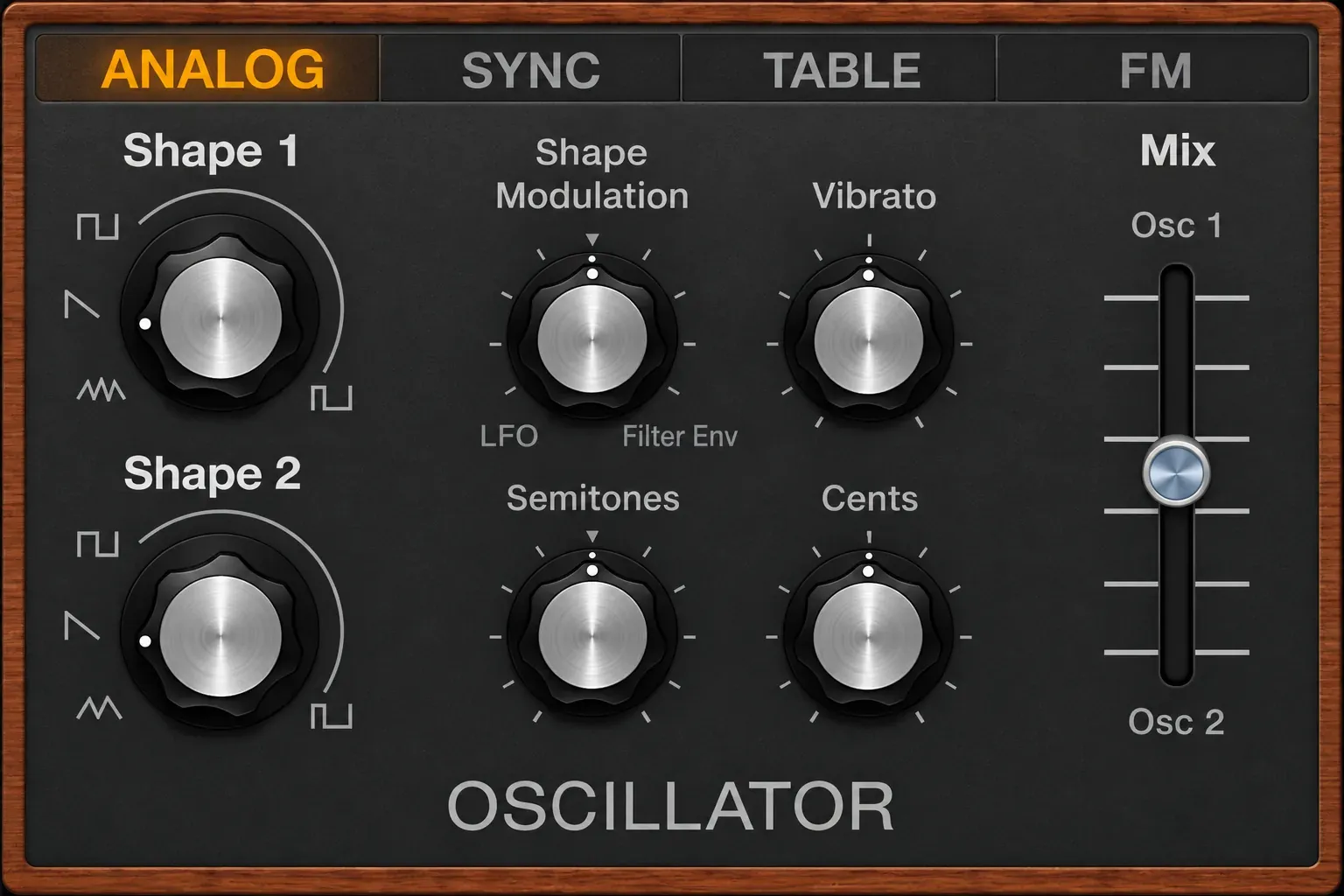
Move Mix toward Osc 1 while learning the first waveform. Bring oscillator 2 back in when you have a reason: a different shape, an octave relationship or a slight detune. Change both oscillators and several modulation controls together, and it gets much harder to tell what improved the sound.
Shape Modulation moves the waveform shape under control of the LFO or Filter Envelope. Its centered position disables that modulation. Vibrato controls pitch modulation. Leave both neutral until the basic tone works, then add movement on purpose.
In Sync mode, the Sync and Sync Modulation controls take over the relevant part of the oscillator panel. In FM, Apple describes a carrier/modulator engine with Harmonic, Inharmonic and Shape controls. Keep FM adjustments small at first. Shape can change the tuning relationship significantly, so it’s a poor choice for a subtle harmonic adjustment.
Use the filter without losing the note
Choose a lowpass filter to reduce upper frequencies while keeping the low end. For this filter type, raising Cutoff lets more high-frequency content through. On Retro Synth’s graph, drag horizontally for Cutoff and vertically for Resonance. Apple’s filter-control documentation also covers highpass, bandpass, band reject and peak types, where Cutoff has a different role.

Use a moderate resonance setting while deciding on the waveform. A pronounced resonant peak can dominate the tone and distract from the part. The Key slider controls how cutoff follows note pitch. Raise it when you want the cutoff to track higher and lower keys more closely.
Two controls can make the cutoff move even when you leave the graph alone. Env sets the amount of Filter Envelope modulation. LFO sets the amount of repeating LFO modulation. Start with those amounts neutral if you want to judge a static filter sound. Setting an LFO rate or drawing an envelope doesn’t replace setting its modulation amount.
If a bass retains a low sine tone after you close the filter, inspect Sine Level in the Amp section. Apple specifies that this sine signal is mixed into the output after the filter. Turn it down while diagnosing the filter. A cutoff adjustment won’t remove it.
Set note length and brightness separately
The Amp Env changes level over time. The Filter Env changes cutoff over time, according to the amount set by the filter’s Env knob. Both use the same ADSR envelope controls:
- Attack: time to reach the initial level.
- Decay: time to fall from that level to Sustain.
- Sustain: the level held while the key remains down. It is a level, not a duration.
- Release: time to fall away after the key is released.
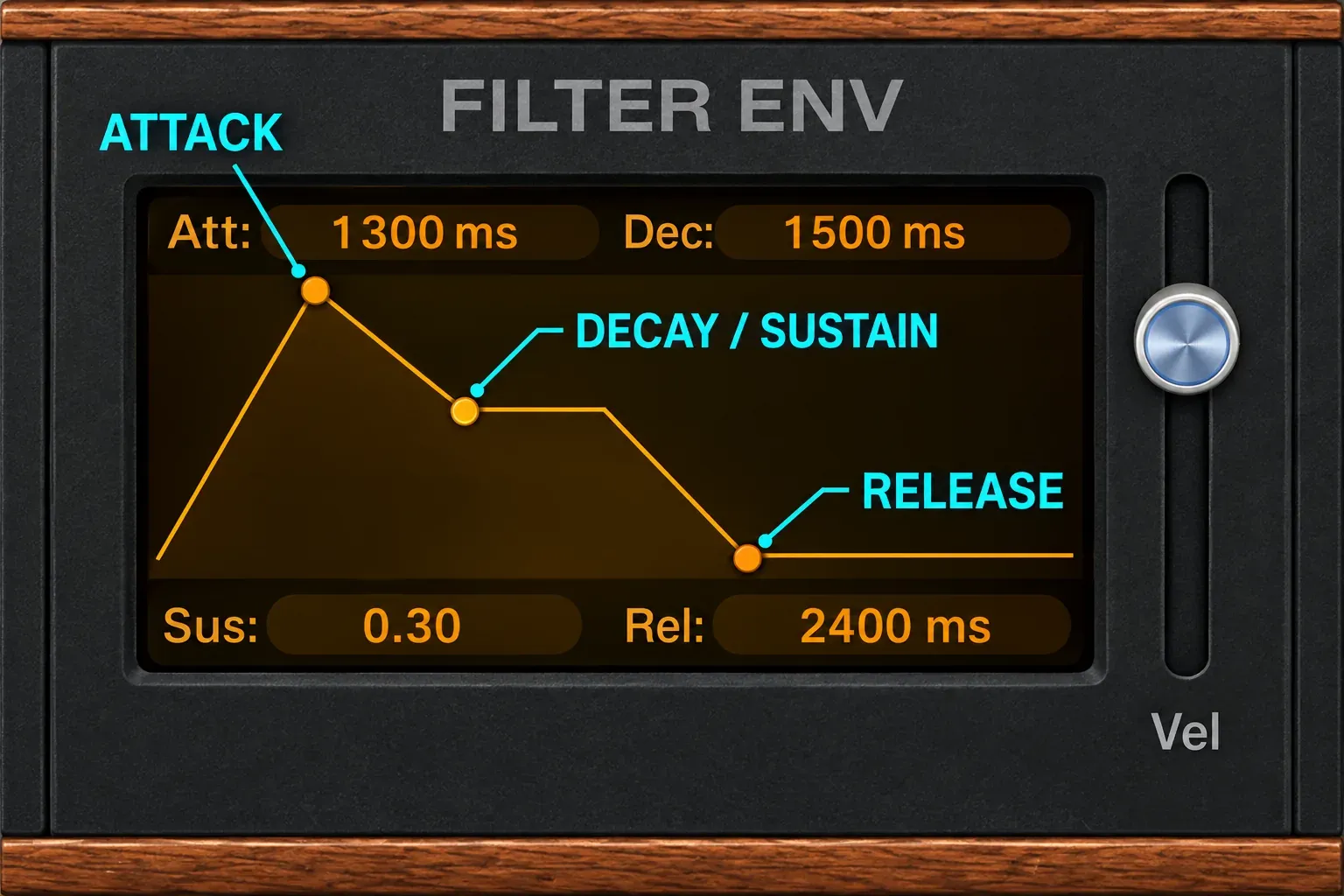
For a pluck, try a fast amp attack, a short decay and a low sustain level. For a pad, start with a slower attack and a longer release. These are sound-design starting points. They aren’t fixed presets, and the right timing depends on the tempo, MIDI note lengths and space around the part.
When a patch responds too strongly to how hard you play, inspect the envelope’s Vel slider. Apple documents zero as no velocity-dependent variation in its envelope output, while higher values give velocity more influence. Also check any Velocity assignment in Settings before blaming the controller.
Make a first patch you can reuse
I’d begin with a short MIDI phrase and change one section at a time. Replaying the same notes makes the differences easier to judge than improvising a new phrase after every adjustment.
- Select Analog and use the plug-in header’s Settings > Reset Setting if you want to clear the existing preset.
- Choose the first waveform with Mix toward Osc 1. Add oscillator 2 only after the first tone is useful.
- Choose a lowpass filter and adjust Cutoff. Add a little resonance if the part benefits from the emphasis.
- Set Amp Env for the part’s articulation. Use Filter Env and the filter Env amount for a brighter start that settles into a darker note.
- Choose the voice behavior in the instrument’s Settings panel. Keep chords polyphonic; use Mono or Legato for a single-note part.
- Add movement or effects, then set the Amp Volume so the sound leaves room in the arrangement.
For a bass, keep the first version simple and check it against the kick. For a pad, lengthen attack and release, then consider a small amount of chorus. A Sync lead is another useful direction once the basic Analog patch makes sense. You don’t need to stack all these choices into one sound.
The internal effect section offers Chorus or Flanger. Its Mix and Rate controls set effect balance and speed. Apple recommends separate Logic effects if you need more detailed control or both effects at once. Bypass the internal effect briefly when deciding whether the oscillator and filter tone works on its own.
Add movement, glide and controller response
For repeating tonal movement, choose an LFO waveform, set its Rate and give the target a modulation amount. Turn on the LFO’s Sync switch to follow project tempo. The separate Vibrato LFO is dedicated to pitch. Use it for a sustained note that needs pitch movement rather than a filter sweep.
Click the instrument’s Settings label to reveal Polyphony, Unison, Voice Detune, Stereo Spread and controller assignments. This label is inside the instrument. It’s separate from the preset Settings menu in the plug-in window header.
Mono and Legato both serve single-note playing, but their envelope behavior differs. Mono retriggers envelopes for staccato notes. With overlapping notes in Legato, the envelopes continue from the first note rather than restarting for every new key.
Enable the Glide/Autobend section, select Glide and adjust Time for sliding transitions. Apple’s Glide guide distinguishes this from Autobend, which bends a note when you strike the key. For legato slides, make the MIDI notes overlap. Our Piano Roll guide explains note-length editing.
Unison stacks voices, while Voice Detune and Stereo Spread change their tuning and placement. I’d add them after the patch works in the arrangement. A wider, louder sound can be exciting in isolation and still leave less room for the vocal or other instruments.
Create a custom wavetable in Table mode
Switch to Table, open the Wavetable menu and choose Create Wavetable from Audiofile. You can also drag a suitable audio file onto Shape 1. Apple’s custom-wavetable instructions recommend source sections with constant pitch, with silence separating multiple sections where needed. Very fast timbral changes can produce unpredictable results.
This creates a wavetable for an oscillator. If the aim is to trigger or play back a recording as a sample, use a sampler instead. The Quick Sampler workflow covers that task.
Expand the extended parameters using the disclosure arrow at the lower left of the plug-in window. Choose the Audio File Analysis algorithm that suits the source, then use Save Wavetable as to name and save it. In Table’s Shape mode, the Shape knobs select waves from the table. Formant mode changes how the waveform’s formant spectrum is stretched or compressed.
Save the sound without overwriting a useful preset
In the plug-in window header, choose Settings > Save Setting As and give the sound a useful name. Apple’s plug-in settings guide distinguishes that from Save Setting, which overwrites the existing setting. The project also stores its plug-in settings, but saving a named preset makes the sound easier to reuse elsewhere.
A Retro Synth preset and a whole channel strip are different things. If the finished sound depends on downstream delay, EQ or other inserts, keep that processing with the channel-strip setup as well. Name a patch by its job, such as Soft verse pad or Short mono bass, so you don’t end up with a pile of anonymous variations.
When the patch behaves differently than expected
- Retro Synth is missing: check that the track is a software instrument track and that you are opening the Instrument slot, rather than an Audio FX or MIDI FX slot.
- Chords lose notes: open Settings and inspect Polyphony. Mono or Legato will not play a full chord.
- The tone does not move: check the target’s modulation amount, not just the LFO rate or envelope shape.
- Notes hang after release: shorten Amp Env Release and check for sustained MIDI notes or sustain-pedal data.
- The filter closes but bass remains: lower Amp Sine Level while checking the filtered oscillator signal.
- Notes arrive late: first inspect Amp Env Attack. If even a fast-attack patch responds late, follow the Logic Pro latency diagnostic.
Retro Synth’s appeal is that you can follow these choices without disappearing into a huge instrument. Get the part working, save it, and return to the song. The Create Music hub connects that sound to the rest of the writing and arrangement workflow.


