How to Make Lo-Fi Beats in Logic Pro
Write mellow keys, loosen the hats and add character where it helps. A stock Logic Pro workflow that keeps the kick and bass clear.

To make a lo-fi beat in Logic Pro, start with a short electric-piano part, a sparse drum pattern and a bass line that follows the harmony. Give the hats some swing, soften the brightest sounds and add a little grit or pitch movement to the keys. Keep the kick and bass clear enough to carry the groove.
You can do that with Logic’s stock instruments and effects. I’d spend the first session on the notes and rhythm, then add character to individual tracks. A vinyl-noise loop can’t rescue a part that feels stiff.
This guide is for Logic Pro on Mac. If you need help creating tracks or entering your first drum hits, start with the basic Logic Pro beat-making workflow. Here the job is turning those parts into a mellow lo-fi beat, with enough movement to survive beyond an eight-bar loop.
Choose a small set of sounds
Try 78 BPM in 4/4 as a writing starting point. That’s a suggestion for this example, and lo-fi doesn’t require it. Choose the pace from the way the snare and melody sit together. A slower number won’t automatically make the beat relaxed.
Use four main parts: keys, drums, bass and one optional texture or melodic reply. Leave the texture muted until the first three work together.
For the keys, Vintage Electric Piano models Rhodes, Wurlitzer and Hohner electric pianos and includes its own effects. Pick a restrained sound before adding processors. A soft attack with a clear middle register is easier to fit around the snare than a huge, bright patch with a long tail.
For drums, choose a short kick, a snare or rim sound and a hat that doesn’t dominate the keys. A Drum Machine Designer kit lets you work on the sounds separately. Open its Track Stack when the hat needs darker processing but the kick already sounds right.
Write keys that leave room for the bass
A four-bar practice progression is Am7, Fmaj7, Cmaj7, G7, with one chord per bar. The notes are A-C-E-G, F-A-C-E, C-E-G-B and G-B-D-F. These are an original educational example. They aren’t taken from a released song.
Start by entering each chord, then move some notes up or down an octave to keep the part in a comfortable middle register. When two chords share a note, try leaving that note in place. Smaller movements can make the progression feel connected without a busy melody.
Keep the lowest part of the keyboard out of the way for now. Put a separate bass note on A, F, C and G under the corresponding chords, then shorten or remove notes where they blur the kick. If the keys already contain a heavy low root, move that note upward or leave it to the bass. You don’t have to thin out the entire keyboard sound with EQ.
Change the chord rhythm before adding another instrument. Hold the first chord, let the second arrive a little earlier, and leave a gap before the next phrase. A short upper-note reply in that gap can do more than another layer playing continuously. The chord-progression guide covers Piano Roll voicing and the Chord Track if you want to develop the harmony further.
Loosen the hats without losing the backbeat
Build a short pattern with a dependable snare on beats two and four. Keep the kick sparse enough to hear the bass phrase. Add quieter supporting hats around the main pulse rather than turning every step on at the same velocity.
In Step Sequencer, open its local inspector using the Inspector button or View > Show Local Inspector. Select Pattern, adjust Swing, and choose 8th or 16th for the timing subdivision. Those controls belong to the Step Sequencer Pattern inspector. You won’t find them in the main Tracks inspector.
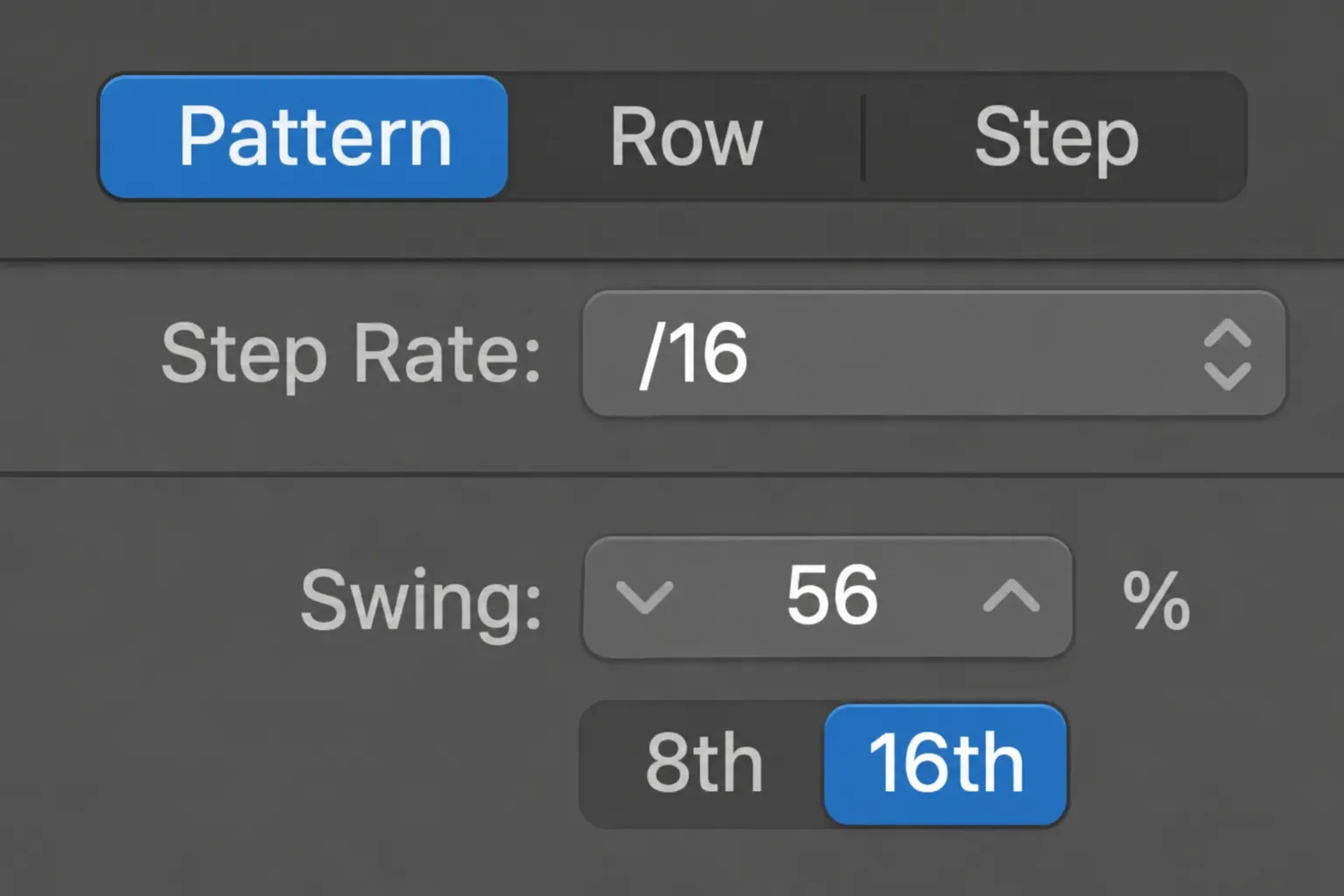
For a pattern with sixteenth-note hats, compare a modest swing setting such as 56% with straight timing. Listen with the keys and bass playing. If the part lurches, back off. If the snare still feels rigid, changing the hat velocities or simplifying the kick may help more than increasing swing.
In Velocity/Value mode, lower the supporting hits. Velocity can change tone as well as loudness depending on the instrument, so the useful values come from your kit. Avoid randomizing everything: keep the important accents, then make one or two quieter hits behave differently. Use the Step Sequencer guide for row settings and detailed pattern editing.
Add grit to the keys, then control the brightness
Insert Distortion > Bitcrusher on the keys channel. Leave it off the full drum kit and Stereo Out initially. You want to hear what the effect contributes to one part before it alters the bass or snare.
Apple’s Bitcrusher control reference distinguishes Resolution from Downsampling: Resolution changes digital precision, while Downsampling reduces the sample rate inside the effect. Downsampling doesn’t slow the performance or lower its pitch.
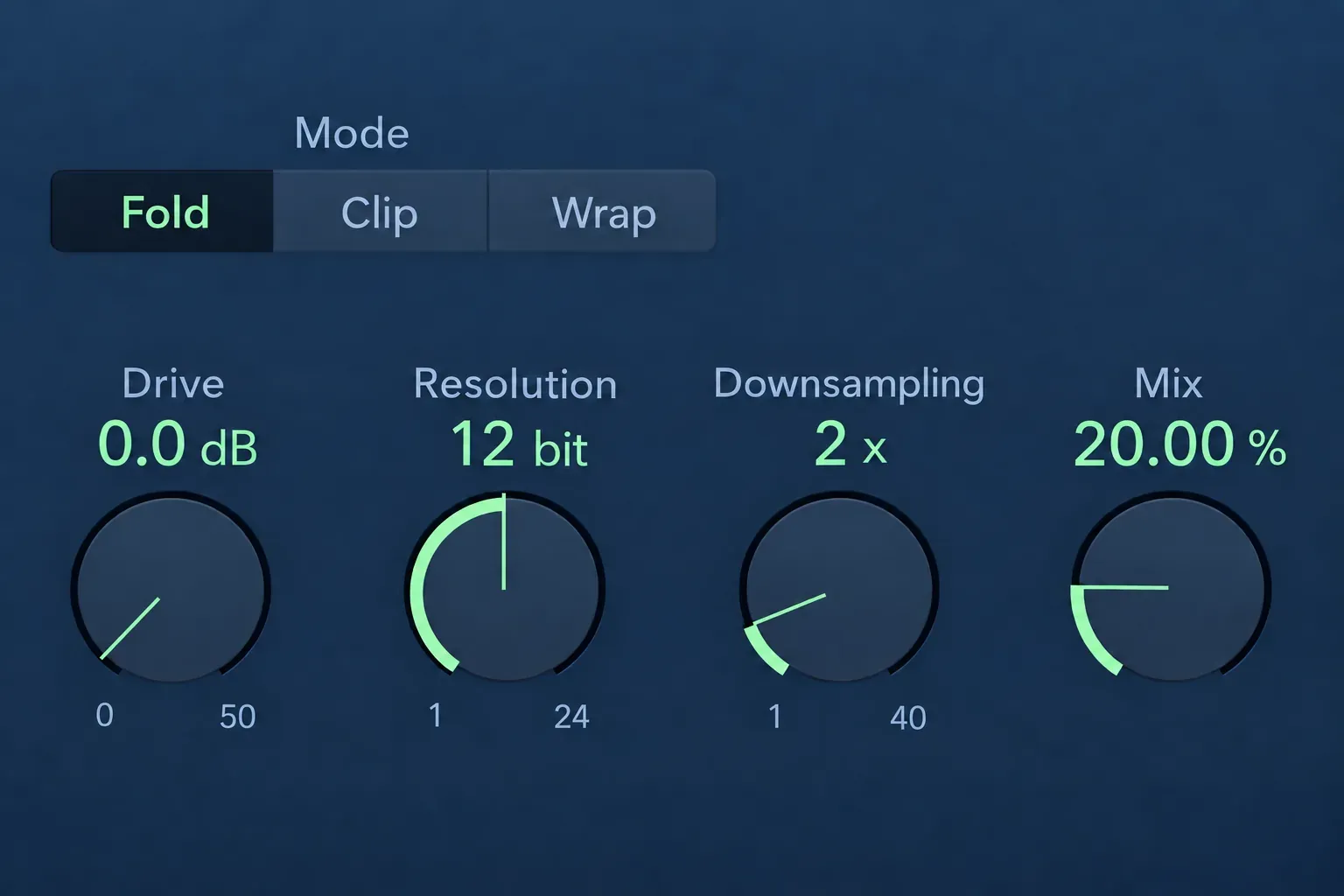
As a starting comparison, choose Fold, leave Drive at 0 dB, try 12-bit Resolution and 2x Downsampling, and keep Mix around 20%. These are suggested settings. They aren’t a universal preset, so toggle bypass while the beat plays. Raise Mix only if the roughness adds something useful.
If the result is harsh, reduce Mix or move Resolution toward its cleaner end before adding more distortion. Drive increases input gain and can increase clipping; Clip Level changes where the modes start processing peaks. Leave those controls alone until you know whether you want digital grain, stronger saturation or both.
Follow Bitcrusher with Channel EQ when the added brightness competes with the hats. Its high-shelf band cuts or boosts the upper frequencies, while band 8 is a low-pass filter. Start with a gentle high-shelf cut. Try the low-pass when the part needs a more pronounced dark edge. Sweep by ear rather than choosing a cutoff from the genre name.
Keep checking the snare and bass. If they disappeared only after processing Stereo Out, move the tonal effect back onto the keys or texture. Lo-fi character can come from a few worn-sounding elements surrounded by a solid rhythm section.
Give a sustained part some pitch movement
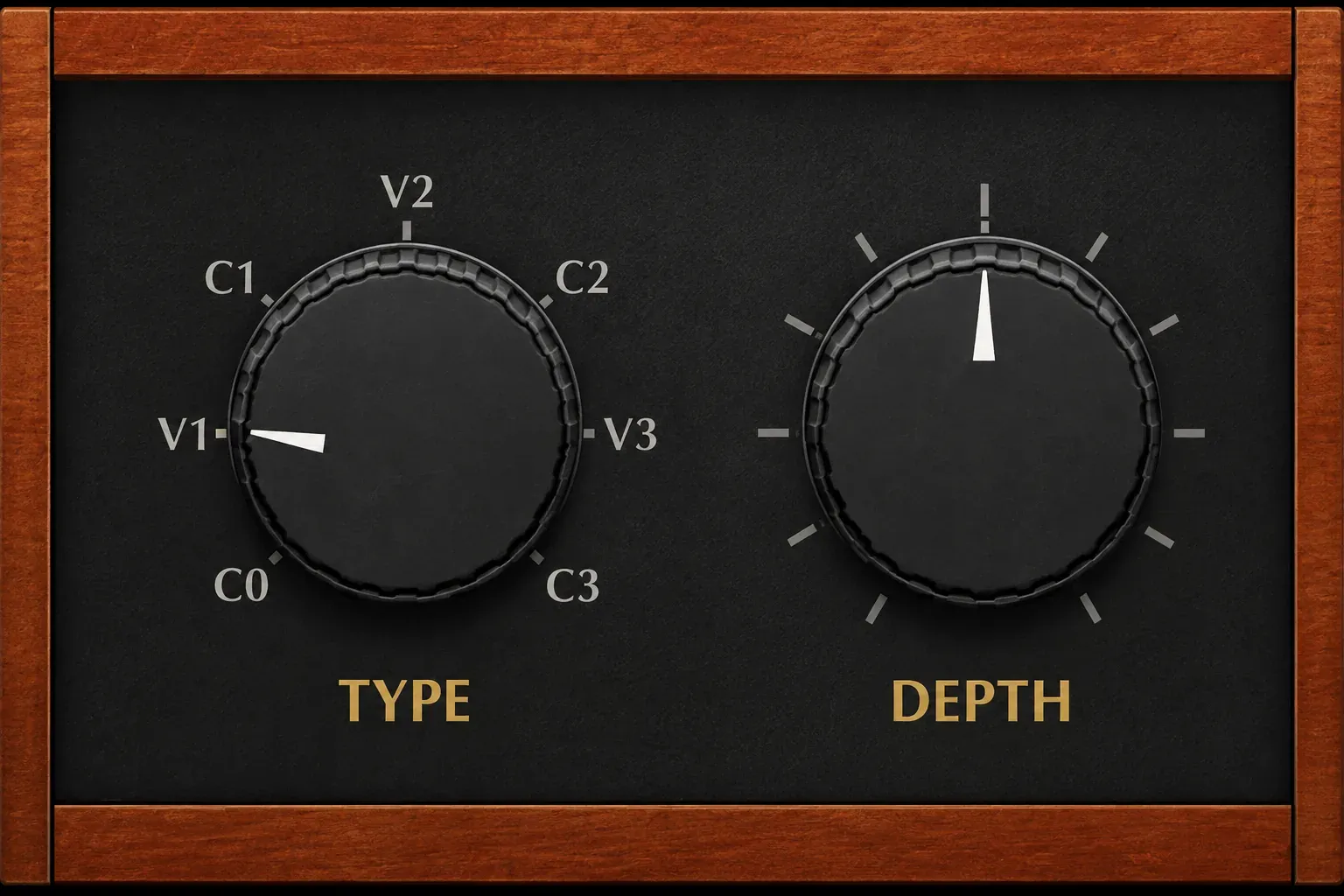
For a simple stock option, add Modulation > Scanner Vibrato to the keys and compare Type V1, V2 and V3. This effect models an organ-style scanner. It isn’t a cassette emulator, so use it when its movement suits the part and skip it when it doesn’t.
There’s a useful trap here: according to Apple’s Scanner Vibrato controls, Depth affects the chorus types, not the vibrato types. If V1 is too much, turning down Depth won’t solve it. Try a chorus type, adjust Depth there, or bypass the effect. C0 has neither chorus nor vibrato active.
Keep the bass unmodulated at first. The keys can move around a steady bass note. Moving both may make the harmony hard to judge. A part with short notes may not need pitch movement at all, and there’s no reason to keep an effect you can’t hear helping the phrase.
Use texture as background, not another lead
If you want room noise, rain or vinyl crackle, use your own recording or a file whose license permits the intended release. Put it on a separate audio track. Lower it until the notes and groove remain the first things you notice, then compare with the texture muted.
Trim conspicuous knocks or clicks that sound like accidental drum hits. Let the texture drop out for a phrase if the track feels crowded. Continuous hiss is optional. A dry, slightly grainy keyboard and restrained drums can already carry the sound.
For a chopped melodic phrase, the Quick Sampler workflow covers trimming and slicing your source. Keep sample editing there. Do not add a second chop simply because the arrangement has an empty track.
Turn the loop into a track with subtraction
Duplicate your working phrase into a short arrangement. Try an intro with keys and texture, bring in bass and drums for the main section, then remove one element for a contrasting phrase. These are writing options, and the bar counts are up to you.
Make the return noticeable with one change: a different final bass note, a quiet hat fill or a melody answering the chords. If every section adds another layer, the beat will become louder and busier without developing. Bring back the parts the listener missed.
Before bouncing, listen once with the texture muted and once with the character effects bypassed. The notes and rhythm should still make sense. Check the ending too: leave the space you want for sustained notes and effect tails instead of cutting at the last drum hit. Follow the bounce steps in the beat-making guide when you’re ready to export.
When the beat feels wrong
The mix is dark but does not feel lo-fi
Undo the blanket filter and revisit the keys and groove. Try shorter phrases, more space between chords and softer supporting hats. A dull mix with stiff notes is still a stiff beat.
The bass vanishes when I add character effects
Check whether Bitcrusher or the low-pass filter is on Stereo Out or a bus shared by the bass. Move it to the melodic part first. If the bass remains unclear, remove low keyboard notes before cutting more frequencies from the whole mix.
The groove feels unstable
Reduce swing and listen to kick, snare and bass without the other parts. Keep the main accents dependable, then bring the hats back. Repeated timing changes on every instrument can make the rhythm wander instead of relax.
Scanner Vibrato ignores the Depth knob
Check Type. Depth doesn’t change a V1, V2 or V3 vibrato setting. Choose a chorus type if you want its adjustable depth, or use C0 or bypass when the part works better without movement.
Save the version with the clearest musical idea. The Create Music hub has the next instrument, sampling and arrangement guides when a specific part needs more work.


