How to Write Chord Progressions in Logic Pro
Build a four-bar chord progression from scratch, make Keyboard Player follow it, or choose every note yourself in the Piano Roll.

To write a chord progression in Logic Pro, add chord symbols to the global Chord track, then have a Keyboard Player region follow them. If you want to choose every note and inversion yourself, build the progression in a MIDI region instead. Both routes work without an external chord-generator plug-in.
I’d start with four bars, a plain piano sound and one chord per bar. That leaves you room to hear whether the harmony works before an elaborate performance distracts from it. The example here is C → G → Am → F in C major. It’s a sketch to change, and your song doesn’t have to follow it.
This is the Mac workflow. If you already have a recording and want Logic to identify its chords, use our separate guide to Session Players and Chord ID. Here, you’re choosing the harmony from scratch.
Chord track or MIDI notes: choose what you want to control
The Chord track stores the harmonic instructions for the song: chord names, where they start and how long they last. A Keyboard Player or Bass Player can follow those instructions and generate a performance. It’s the useful starting point when you want accompaniment that responds to chord changes.
A MIDI region holds the actual notes. Use it when the exact voicing, register, rhythm or synth part matters more than an automatically generated performance. Writing C in the Chord track doesn’t, by itself, put C, E and G into an empty MIDI region.
Apple documents global chords and region chords as separate chord sources. That distinction matters later: a Session Player region with its own chords can follow those rather than your global progression.
Build a four-bar progression in the Chord track
- Set the project key. For this example, use C major and 4/4. With the playhead at the project start, choose Beats & Project from the LCD display menu and set its key field to C major. Apple’s key-signature instructions explain where that field lives. Setting the key first also gives newly added chords the appropriate tonic and major or minor type.
- Show the lane. Choose Track > Global Tracks > Show Chord Track. You can also press G to show global tracks and enable Chord from their header options.
- Add the first chord at bar 1. Place the playhead there and click the + button in the Chord track header. Double-click the chord to open Edit Chord and enter C in the Chord field.
- Enter the next changes. With Edit Chord open and Snap set to Smart, press Tab to advance to bar 2 and enter G. Repeat for Am at bar 3 and F at bar 4.
- Check the boundaries. The first three chords should each occupy one bar. Set the final F to end at bar 5 if necessary, then use a four-bar cycle to hear the complete phrase.
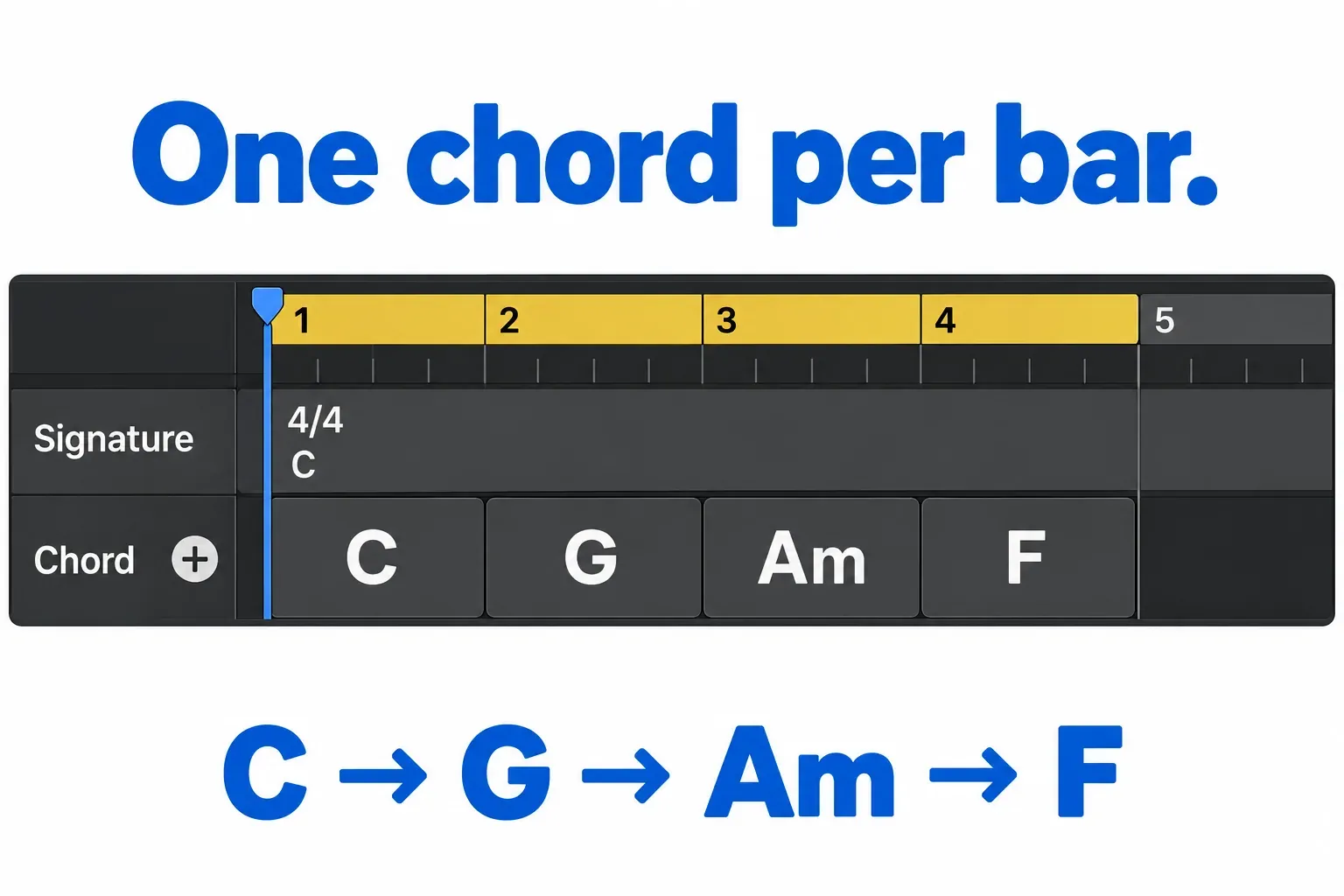
The Tab behavior follows Snap: Smart advances chord entry by bars. If you move on without entering a different chord, Logic extends the existing chord. So when you see one long C block, check your chord entry before assuming the progression is missing.
You can avoid Tab entirely. Place the playhead at each intended change, add a chord with the header + button, then edit its name. That’s often easier when the changes fall halfway through a bar.
Read and edit the chord names
A bare letter means major, so C is C major. The m in Am means A minor. Double-click a chord to change its name, root, type or extensions in Edit Chord. The dialog’s Preview button lets you hear an example of the chosen chord.
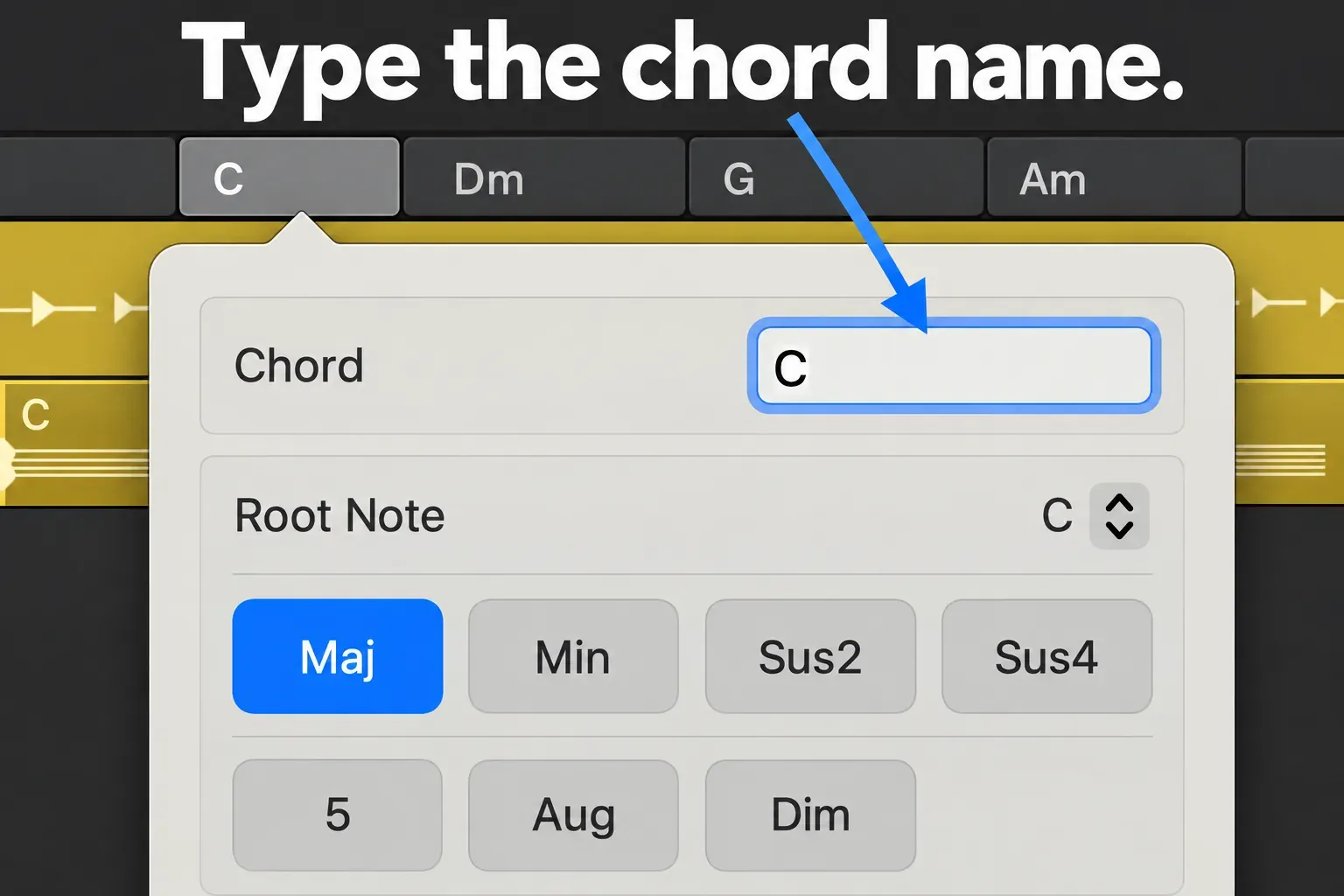
In Apple’s chord-symbol notation, a slash selects a different bass note: C/E asks for a C chord with E in the bass. That’s different from simply moving one piano note up an octave. Leave extensions and alternate bass notes alone until the basic four chords support your melody.
Make the progression play with Keyboard Player
The Chord track isn’t an audio instrument. To hear a generated accompaniment, add a Keyboard Player track through Track > New Tracks, choosing Keyboard Player in the Session Player options. Apple describes the Keyboard Player and Bass Player as following chord sources. Drummer supplies the rhythmic part.
Make the player region cover your four bars. Select it, open the Session Player Editor and choose Chords > Follow Global Chord Track from its menu bar. The player will use C, G, Am and F from the global lane.
This is the first place I’d look if playback seems to ignore your edits. By default, a region containing its own chords follows those local chords. Apple’s chord-source controls let you choose the global track explicitly. Changing that source is more useful than repeatedly retyping the same global chords.
Start with a restrained keyboard performance. Once the progression supports the song, adjust the player’s style and complexity in the Session Player workflow. The chord names define the harmony. The player settings decide how it’s performed.
Use a preset when you want a starting point
Control-click an empty part of the Chord track and choose Chord Progressions, then a progression from the submenu. The entries use Roman numerals because they describe chords relative to the key. In C major, I → V → vi → IV corresponds to C → G → Am → F, and the lowercase vi is minor.
Logic adapts a preset progression to the key at its insertion point. Set the intended key before inserting it. Don’t assume a later key-signature edit will rewrite every manually chosen chord or MIDI note in the project.
You can also choose a preset from Chords > Chord Progressions in the Session Player Editor. That replaces the region’s existing chords. Keep a separate copy if you want to compare it with your original. A shorter region plays only the portion that fits; a longer region repeats the progression to fill its length.
Preset harmony is a draft. Change the chord that fights your melody, or hold a chord longer where the lyric needs space. You don’t have to keep the stock sequence just because the player performance sounds polished.
Write the same chords as MIDI notes
For a piano, pad or synth part with exact note control, choose a software instrument track and load the sound you want. Control-click an empty area of that track and choose Create MIDI Region, as described in Apple’s region-creation instructions. Extend it to four bars and open it in the Piano Roll.
Place three notes at the start of each bar and let them last for that bar. These are the notes to enter:
- Bar 1, C major: C, E and G.
- Bar 2, G major: G, B and D.
- Bar 3, A minor: A, C and E.
- Bar 4, F major: F, A and C.
Use the Pencil tool to enter a note and drag to set its length. Apple’s Piano Roll note-entry guide covers that operation. Our Piano Roll editing guide goes further into selection, note lengths, velocity and timing.
You can keep the notes closer together instead of jumping to a new root-position stack every bar. Try the stacks (C, E, G), then (B, D, G), then (C, E, A), then (C, F, A), reading each stack from low to high. Choose octaves that keep those stacks near each other. These are the same four chords with different note arrangements. Putting B at the bottom of the G chord changes its inversion, but the chord is still G major.
Listen against the melody before adding sevenths or spreading the notes across several octaves. A dense low-register voicing can obscure the bass part. Moving the keyboard voicing higher or leaving more space may help more than adding another chord.
Try holding a melody D across the G → Am change above. It’s the fifth of G major, but it’s outside the A minor triad’s A, C and E. Above A, D adds a fourth or eleventh. That change in tension can be useful. If it distracts from the phrase, compare a shorter D, a later Am entrance, or a more open accompaniment voicing. You’re deciding how the melody and chord interact. A non-chord note isn’t automatically a mistake.
If you prefer to begin with a player performance, duplicate its region before choosing Convert > Convert to MIDI Region. Apple documents that conversion makes individual notes editable. From there, the converted region is your note-editing version of the part. Replacing it with a Session Player region again discards the MIDI edits, so keep the original when you want both approaches.
Change the timing and reuse the progression
Once the notes are right, change when the harmony moves. A two-bar C followed by shorter G and Am changes can support a phrase differently from four equal bars. The progression is more than its chord names.
On the Chord track, drag from the middle of a chord to move it, or drag a lower edge to resize it. Watch its neighbors. Apple’s move and resize rules let adjacent chords adjust, and overlap can overwrite part of another chord. Check the complete phrase after changing a boundary.
Select the four chords, Control-click a selected chord and choose Group Chords. You can then move, copy or loop the sequence as a unit using chord groups. This keeps the harmony together when you repeat a verse or try it under another section.
To reuse the harmonic instructions on another Session Player region, use Chords > Copy All Region Chords and Chords > Paste All Region Chords. To take global chords into a selected region, choose Chords > Apply Chords from Global Track. Apple’s chord-copy commands distinguish those operations from copying the generated notes.
Save the project containing your custom sequence. Grouping chords makes them reusable in the project, but it doesn’t by itself create a named entry in the factory Chord Progressions menu. For the rest of the writing process, see the Create Music guides.
Chord progression questions
Why does the progression make no sound?
Chord symbols need a part to perform them. Add a Keyboard Player region following the global track, or enter the notes in a MIDI region with an instrument loaded. If a player is sounding the wrong harmony, check for region chords and its chord-source setting first.
Can I make chord progressions in an older Logic Pro X setup?
If your version does not offer the Chord track, use the manual MIDI route. You can still enter and arrange chord notes in the Piano Roll. Chord Trigger is another route for performance: Apple’s Chord Trigger MIDI effect assigns chords to trigger keys, which serves a different purpose from laying out a global harmonic timeline.
Will changing the project key transpose every part?
Don’t assume it will. Apple says the effect of key changes on MIDI regions and Apple Loops depends on their Pitch Source setting. Preset progressions adapt when inserted; an existing song can contain manually entered chords and notes with different behavior. Check the chord names, bass and melody together after any key change.


