Logic Pro Keyboard Shortcuts: 40 Essential Commands
A current, workflow-first Logic Pro shortcut guide with verified U.S. defaults, command conflicts, custom sets and printable assignments.

The Logic Pro keyboard shortcuts worth learning are the ones that keep a recording or editing decision moving: Space to play or stop, R to record, Command–S to save, Command–Z to undo, C to toggle Cycle, U to loop a rounded selection, Command–T to split, and Option–K to verify any assignment.
Checked September 12, 2026 against Apple’s current Logic Pro documentation cited in this guide. The tables use the U.S. default key-command preset. Imported command sets, older Logic installations, different keyboard languages, and window focus can make the keys on your Mac differ from the defaults below.
If only one thing on this page sticks: when an internet shortcut doesn’t work, do not reset Logic. Press Option–K, search for the command by name, and inspect the assignment in your active set.
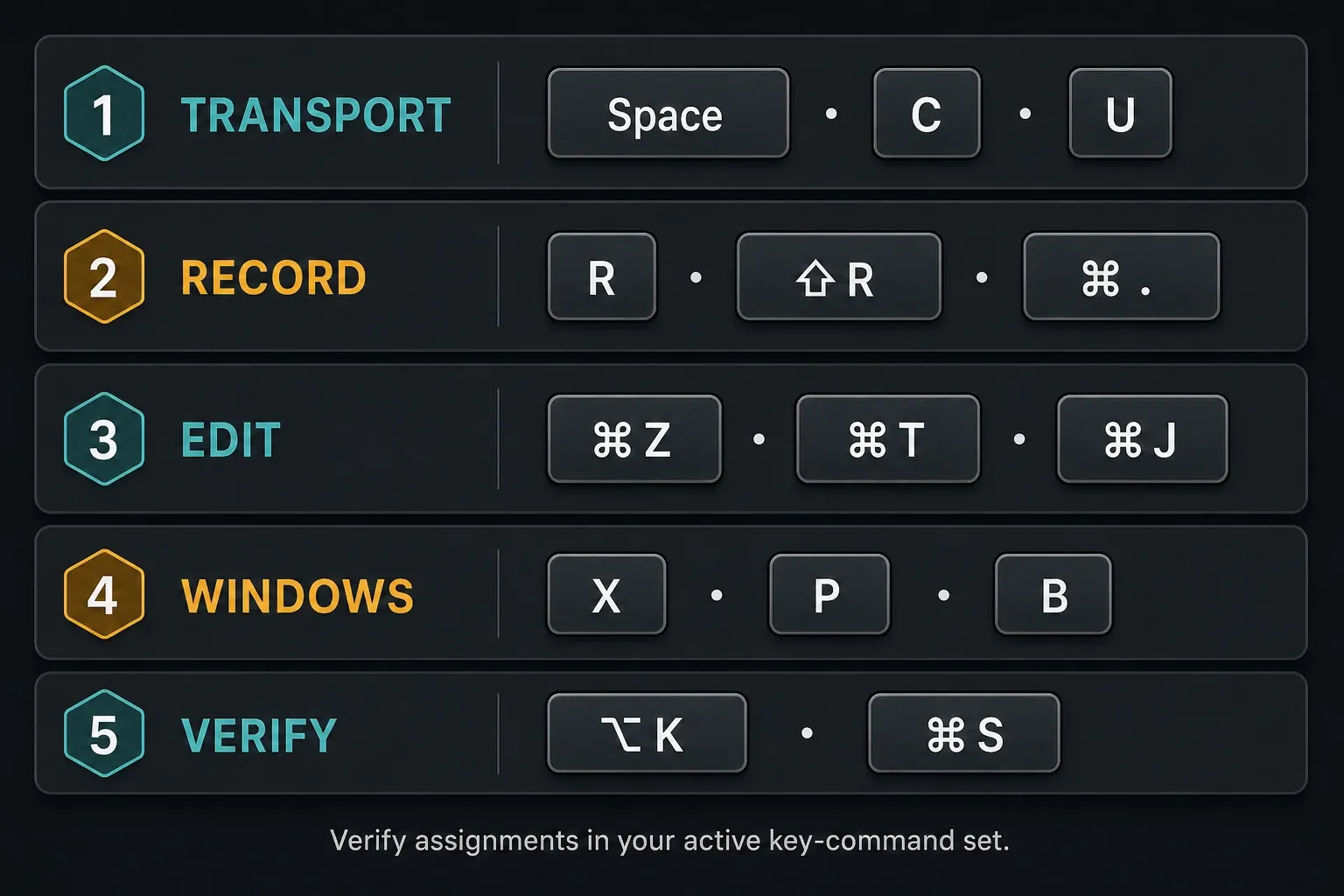
Logic Pro shortcut symbols
Apple’s tables often use symbols instead of spelling out modifier names. Read them as follows:
| Symbol | Key name | Also called |
|---|---|---|
| ⌘ | Command | Cmd |
| ⌥ | Option | Alt on some keyboards |
| ⇧ | Shift | Shift |
| ⌃ | Control | Ctrl |
| ↩ | Return | Not the separate keypad Enter key |
| ⌫ | Delete | Backspace on some keyboards |
On an extended keyboard, some commands specifically require a numeric-keypad key. Apple marks those separately in its tables. A laptop’s regular number row isn’t always an equivalent substitute.
The 40 essential Logic Pro keyboard shortcuts
The four tables cover 40 commands for real sessions. Rewind and Forward share one row because they form a directional pair. Every listed assignment appears in Apple’s current Logic Pro tables for the U.S. preset, grouped by the job it speeds up. Undo History has conflicting shortcuts in Apple’s own pages; its row follows the U.S. command table, with a menu fallback explained below.
Transport, recording and auditioning
| Shortcut | Current command | Use it when |
|---|---|---|
| Space | Play or Stop | You need the basic transport toggle. |
| R | Record | The intended track is record-enabled and the signal path is ready. |
| Shift–R | Flashback Capture as Recording | A playable idea occurred before you pressed Record and Logic had enough valid input history to recover it. |
| Command–. | Discard Recording and Return to Last Play Position | A take is definitely unusable and you want to restart from the previous position. |
| K | Toggle Metronome Click | You need the click on or off. |
| Shift–K | Toggle Count-in | You need preparation time before recording begins. |
| C | Toggle Cycle Mode | You want looped playback across the current locator range. |
| U | Set Rounded Locators/Loop by Regions/Events/Marquee and Enable Cycle/Loop | You want a selection loop aligned to musical boundaries. |
| Command–U | Set Locators/Loop by Regions/Events/Marquee and Enable Cycle/Loop | You want locators based on the selection without the rounded variant. |
| Shift–Space | Play from Selection | You want to audition from a selected region, event, or marquee range. |
| , / . | Rewind / Forward | You need transport movement without dragging the playhead. |
| Return | Go to Beginning | You need the project start immediately. |
U and Command–U are easy to mix up. Apple’s current Global Commands table assigns U to the rounded locator command and Command–U to the non-rounded selection command. Decide which boundary behaviour you need instead of treating them as interchangeable. For Shift–R, audio and MIDI have different capture conditions: audio Flashback Capture requires project playback with incoming audio; it cannot recover audio played while stopped. MIDI Flashback Capture can also capture while stopped. Keep the appropriate track focused and check that the capture button is active.
Editing regions and MIDI
| Shortcut | Current command | What to check first |
|---|---|---|
| Command–Z | Undo | The last eligible edit is actually the change you want to reverse. |
| Shift–Command–Z | Redo | You have not made a new edit that replaces the redo path. |
| Control–Option–Command–Z | Undo History | U.S. table assignment; see the documentation conflict below. Use Edit → Undo History if it differs on your Mac. |
| Command–X | Cut | The correct region, note, event, or text field has focus. |
| Command–C | Copy | The intended object is selected. |
| Command–V | Paste | The destination area and playhead position are correct. |
| Command–A | Select All | The focused window is the one whose contents you intend to select. |
| Command–T | Split Regions/Events at Playhead Position | The playhead crosses the selected material at the intended edit point. |
| Command–J | Join Regions/Notes | The selected items should become one joined result. |
| Command–R | Repeat Regions/Cells/Events | The correct source material and repeat destination are selected. |
| Q | Quantize Selected Regions/Cells/Events | The current quantize value is appropriate for the performance. |
| Control–M | Mute Notes/Regions/Cells/Folders On/Off | You mean the selected objects, not the whole channel strip. |
Focus explains many apparent failures. Command–A can select regions in the Tracks area, notes in the Piano Roll, or text inside a field. The same goes for a region command, which needs an eligible selection. Click once in the area you intend to control, then retry the command before changing its assignment.
Apple’s current Tracks and Various Editors table confirms Command–T, Command–J, Command–R, Q, and Control–M. These commands save time only when you know what’s selected. Speed without selection awareness is how edits land on the wrong material. For Undo History, Apple’s U.S. Various Windows table lists Control–Option–Command–Z, while its Undo History instructions say Option–Command–Z. Use Edit → Undo History or check that command in Option–K; do not change your setup just to match either page.
Windows, editors and the mixer
| Shortcut | Current command | Best use |
|---|---|---|
| X | Show/Hide Mixer | Move between arrangement and channel-strip work. |
| P | Show/Hide Piano Roll | Edit MIDI notes below the Tracks area. |
| B | Show/Hide Smart Controls | Reach mapped performance and sound controls. |
| A | Show/Hide Automation | Expose track or region automation curves in a supported area. |
| O | Show/Hide Loop Browser | Search and audition Apple Loops. |
| Y | Show/Hide Library | Choose patches and settings for the focused track. |
| V | Show/Hide All Plug-in Windows | Clear or restore a crowded plug-in workspace. |
| Command–K | Show/Hide Musical Typing | Use the computer keyboard as a temporary musical input. |
| M | Toggle Channel Strip Mute | Mute the selected track or channel strip. |
| S | Toggle Channel Strip Solo | Isolate the selected track or channel strip. |
| Control–I | Toggle Channel Strip Input Monitoring | Monitor an audio input on the selected channel strip. |
M and Control–M are deliberately separate. One toggles channel-strip mute. The other mutes selected regions, notes, or folders in an eligible editor. Press the wrong one and Logic may be doing exactly what the command says, but at a different level than you intended.
Project safety and command management
| Shortcut | Current command | Why it belongs in the essential set |
|---|---|---|
| Command–S | Save | Creates a current saved state and contributes to Logic’s project-backup history. |
| Shift–Command–S | Save Project As | Creates a separately named project when that is the intended workflow. |
| Command–B | Bounce | Opens the project bounce workflow; check range and output settings before committing. |
| Option–K | Open Key Command Assignments | Search, verify, assign, import, save, copy, and print commands. |
Command–S deserves a place beside every flashy editing command. Apple’s current Project Handling settings say the Auto Backup menu controls how many recent backups are saved whenever you use Save. Before cleaning assets or reorganising a large session, add an external copy with our Logic Pro project backup workflow.
Tool menu shortcuts are two-stroke commands
Press T to open the Tool menu at the pointer, then press the tool’s letter while the menu is visible. In Apple’s current Tool Menu table, common assignments include:
| Sequence | Tool | Typical job |
|---|---|---|
| T, then P | Pencil | Create or draw eligible objects. |
| T, then I | Scissors | Cut regions or events at a clicked position. |
| T, then E | Eraser | Remove eligible objects with the pointer. |
| T, then Q | Quantize | Apply the current quantize setting by clicking material. |
| T, then A | Fade | Draw or adjust fades on eligible audio regions. |
| T, then R | Marquee | Select a time range across material. |
| T, then X | Flex | Work with Flex editing where available. |
The second letter is contextual. R normally starts recording, but R after opening the Tool menu selects Marquee. Apple’s current Tool Menu reference is the source of truth for the complete set.
How to verify, change and back up a shortcut
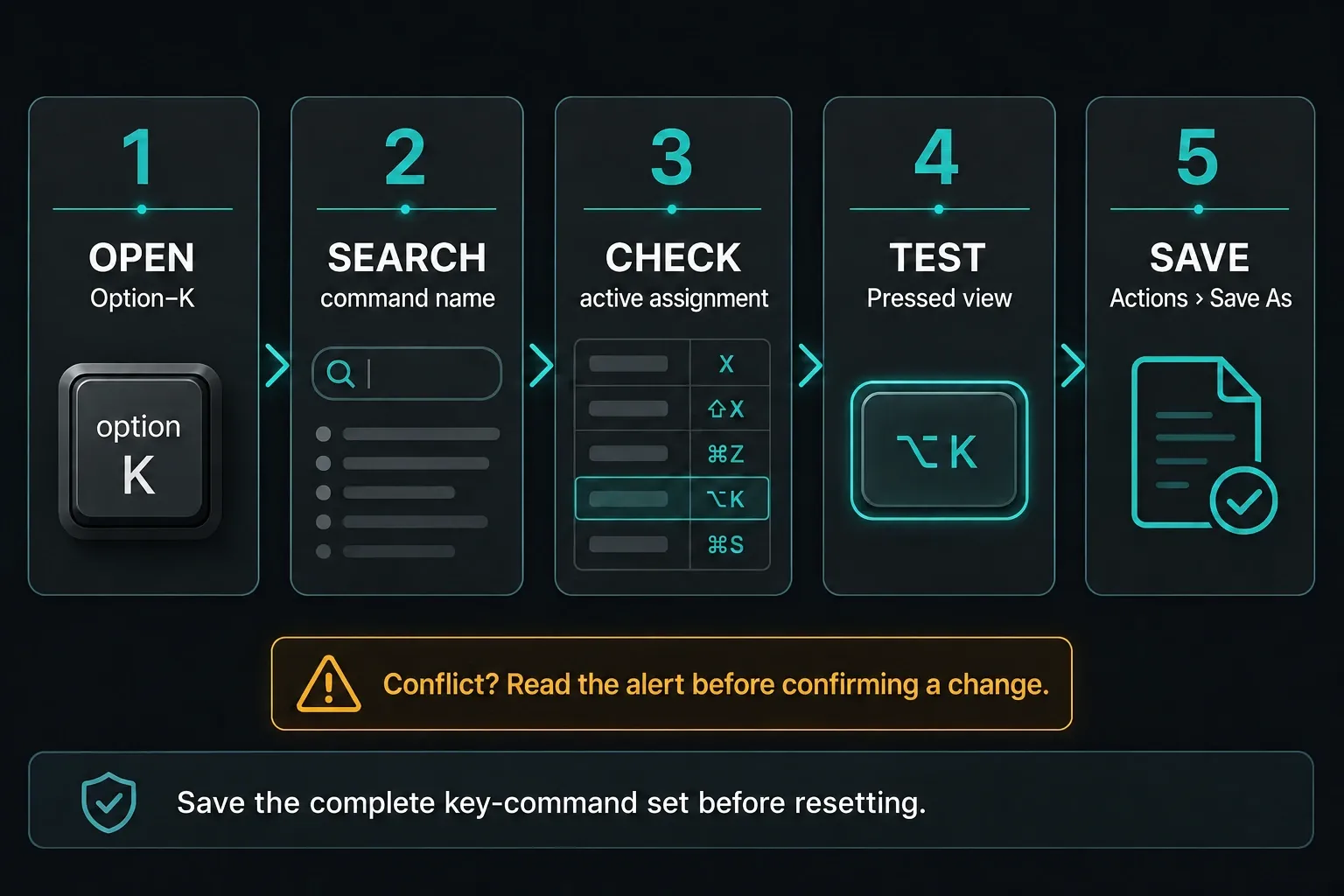
- Press Option–K, or choose Logic Pro → Key Commands → Edit Assignments.
- Before changing assignments, open the Action pop-up menu and choose Save As. Save a named copy of the complete current set so you can restore it.
- Click All and search for the function by command name, not by the shortcut you expect.
- Read the assignment shown for the active key-command set. To identify what a combination already controls, clear the search, engage Pressed, and press that combination; turn Pressed off before searching by name again.
- To create an assignment, select the command, click Learn by Key Label, and press the new combination.
- If a conflict alert appears, use Cancel to leave the assignment alone, Replace to remove the previous assignment, or OK to retain it and add the new assignment. Check the command scope before keeping two functions on the same keys.
- Click Learn by Key Label again to turn Learn mode off. Test the command with the intended window and selection in focus.
- Use Action → Save As to save the revised set under a new name, keeping the original backup separate.
Apple’s assignment instructions specify both turning Learn mode on and turning it off. For migration, the import and save menu distinguishes Import Key Commands, which overwrites the destination set, from Import Key Commands to Selection and Merge Key Commands. Back up the destination Mac’s set before importing. A picture of your assignments cannot be imported as a command-set file.
Print the assignments you actually use
A generic PDF may not match your setup. In the Key Commands window, open the Action pop-up menu and choose Copy Key Commands to Clipboard. Apple’s current copy-and-print instructions confirm that you can paste that list into a document and print it. That gives you a reference built from your active set, including custom assignments, instead of an anonymous preset from the web. Clear the search first if you want the complete list; Apple also supports copying only commands matching a search. To keep a PDF, paste the list into a document and use that app’s PDF print option.
Why a Logic Pro shortcut does not work
The sheet and your active preset are different
Open Option–K and search the command. An imported set can carry assignments that differ from the current U.S. defaults, and any custom set can differ by design. Search by command name first; the key combination is the part most likely to vary.
The wrong window has focus
Click the Tracks area, editor, or Mixer you intend to control. Close any search field, rename field, or modal dialog that may be receiving the keystroke. If the command now works, the assignment was never the problem.
macOS or another utility captures the combination
Check System Settings → Keyboard → Keyboard Shortcuts when the same keys trigger a macOS action. Accessibility utilities, macro apps, keyboard remappers, and hardware drivers can also intercept a combination before Logic receives it.
The command is contextual or unassigned
Some Logic functions exist only as key commands, and some have no factory key assigned. Click the Unused filter in the Key Commands window to see unassigned functions; do not type “Unused” as a command search. Turn Learn mode off before testing an assignment. Logic can assign only functions present in its command list, not an arbitrary new multi-step action.
The issue is not a shortcut issue
If recording produces no region, verify microphone permission, track record-enable, input selection, and interface routing rather than remapping R. Use the Logic Pro not-recording checklist. If playback, menus, and plug-in windows also behave incorrectly, start with the Logic Pro troubleshooting hub.
Three shortcut workflows to practise
Record and recover
- Press Command–S before the take.
- Toggle the click with K and count-in with Shift–K.
- Press R to record.
- If the take is unquestionably bad, press Command–. to discard it and return.
- If the performance happened before Record, try Shift–R only when Flashback Capture had valid material to recover.
Edit and audition
- Select the region or marquee range.
- Press U for a musically rounded Cycle range, or Command–U when the unrounded selection boundary is what you need.
- Press Shift–Space to play from the selection.
- Split at the playhead with Command–T, then undo with Command–Z if the cut is wrong.
- Listen through both sides of the edit before moving on.
Navigate without losing context
- Use X for Mixer, P for Piano Roll, and B for Smart Controls.
- Use V to clear all plug-in windows when the workspace becomes obscured.
- Press Option–K when a command differs from your expectation.
- Save the active set before experimenting with broad remaps.
Practise each sequence in a disposable project copy. Learn the commands that remove a repeated interruption from a real session; the rest can wait. For a structured first project, continue with the Logic Pro beginner tutorial or browse the ordered Logic Pro tutorials hub.
Frequently asked questions
What is the shortcut for Key Commands in Logic Pro?
Press Option–K to open Key Command Assignments. Search by command name, inspect pressed combinations, create assignments, and save or import complete key-command sets there.
Why are my Logic Pro shortcuts different from a cheat sheet?
The sheet may use another preset, keyboard language, Logic version, or a writer’s custom set. Window focus also changes what some commands control. Verify the command by name in Option–K.
How do I reset Logic Pro keyboard shortcuts?
Save the current set before resetting anything. In the Action pop-up menu, Initialize Selection resets only the selected commands; Initialize All Key Commands resets the whole set to its defaults and removes custom assignments. Use the smaller reset for a single problem after checking focus and conflicts.
Can I move my Logic Pro shortcuts to another Mac?
Yes. Use Action → Save As to save the complete key-command set, then move that file to the other Mac. Back up the destination set first: Action → Import Key Commands overwrites its assignments. Use the selection-only or merge options only when that is the change you intend.
Can I print my own Logic Pro shortcut list?
Yes. Choose Copy Key Commands to Clipboard from the Action menu, paste the list into a document, format it, and print it. This is more reliable than printing a generic sheet if you use custom assignments.
What shortcuts should a Logic Pro beginner learn first?
Start with Space, R, Command–S, Command–Z, C, U, Shift–Space, Command–T, T, and Option–K. Add another command only when a repeated mouse action interrupts real work.


