GarageBand Loops: Where to Find Them and Can You Use Them Commercially
Open the Loop Browser on Mac or in Tracks view on iPhone and iPad. Apple Loops are royalty-free in your own songs, but not as standalone samples or shared Content ID reference material. Find, filter, add, download and make your own loops.

GarageBand’s loops are in the Loop Browser. On a Mac, click the Loop Browser button in the control bar or choose View > Show Loop Browser; on iPhone and iPad, open Tracks view and tap the Loop Browser button in the control bar. You can use the loops royalty-free in your own original songs and soundtracks and broadcast or distribute those songs, but Apple’s license forbids distributing the loops on their own or repackaging them as samples, sound libraries, sound effects or music beds.
If the browser looks thin, the free Sound Library fills it: GarageBand > Sound Library > Download All Available Sounds on a Mac, and the Get button on each pack on iPhone and iPad. Below are the loop types, the fastest filters, adding loops so they fit the song, the license in detail, Content ID, third-party and free loop sites, and making your own Apple Loops.
How do GarageBand loops work on Mac, iPhone and iPad?
The same Apple Loops idea runs on both, but the controls differ. The steps below match GarageBand 10.4.14 for Mac, which needs macOS 15.6 or later, and GarageBand 2.3.20 for iPhone and iPad, which needs iOS or iPadOS 27. Both are free from the GarageBand Mac App Store page and the GarageBand page for iPhone and iPad.
| Job | Mac | iPhone and iPad |
|---|---|---|
| Open the loops | Loop Browser button in the control bar, or View > Show Loop Browser | Loop Browser button in the control bar, in Tracks view only |
| Narrow the list | Keyword buttons or columns, Sound Packs menu, Scale, Loop Types, search field | Instruments, Genres, Descriptors, search field, Filter by |
| Get more loops | GarageBand > Sound Library > Download All Available Sounds | Sound Library, tap a pack, tap Get |
| Add a loop | Drag it below the existing tracks for a new track of the right type | Drag it to an empty part of Tracks view; it fills to the end of the section |
| Make it repeat | Drag the upper-right edge of the region, or press L | Extends to the end of the section or the next region |
| Tempo and key | Loops play at the project’s tempo and key | Loops change with the song’s tempo and key |
| Third-party Apple Loops | Drag them from the Finder to the Loop Browser | Import them through the Files tab of the Loop Browser |
| Your own loops | Drag a region to the Loop Browser | Record into a Live Loops cell |
What is in the GarageBand Loop Browser?
Apple’s Apple Loops overview for Mac calls them “prerecorded musical phrases or riffs,” and the color tells you what you’re getting:
- Audio loops (blue) are audio recordings. You edit them like any audio region.
- MIDI loops (green) are note data. You can edit the notes in the Piano Roll and change the instrument that plays them.
- Drummer loops (yellow) hold a Drummer performance. You can change the drummer in the Library and its parameters in the Drummer Editor.
I’d reach for a green MIDI loop whenever a part needs changes, because you can rewrite its notes and give it a different sound, while a blue loop is a recording whose notes you can’t rewrite one by one. On iPhone and iPad the same three colors apply, with green for Touch Instrument loops, as the iPhone loop guide notes.
On a Mac, the Loop Browser page lists its parts: view buttons for button or column view, a pop-up menu that limits the list to one pack or your own loops, a search field, keyword buttons, category columns, the results list and a volume slider for previews. In Live Loops on iPhone and iPad, loops go into cells instead: tap an empty cell in an Audio Recorder or Amp row and tap Loops, or tap the Add Row button below the track headers and tap Loops, as the Live Loops loop guide shows.
How do you find the right loop quickly?
Set the song’s tempo and key before you browse. Apple’s loop preview page says a loop “plays back in the project’s tempo and key,” and in sync when the project is playing, so you audition every loop as it will sound in your song. New projects start in C major, per the key and scale page, and the tempo page allows 5 to 990 bpm.
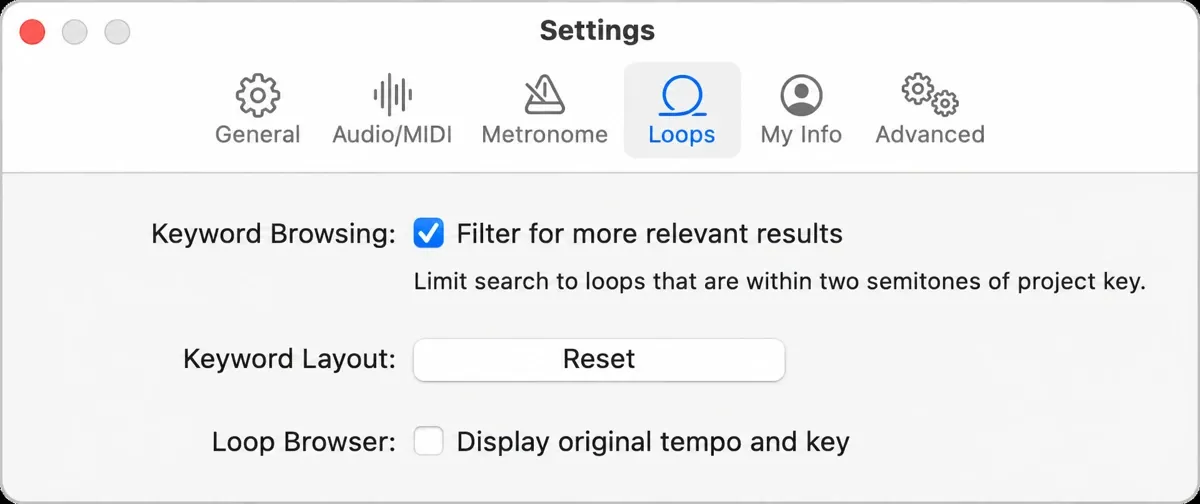
Then open GarageBand > Settings (Command-Comma), click Loops and turn on two options from Apple’s Loops settings page:
- Filter for more relevant results. Apple’s search guide specifies MIDI loops in keys within two semitones of the project key. I’d keep it on when browsing MIDI parts, then check the displayed original key and audition the result; it is not a promise that every audio loop shown needs at most a two-semitone shift.
- Display original tempo and key. It adds Tempo and Key columns with each loop’s original values. I’d keep this on too, because the Tempo column shows how far a loop will be stretched to reach your tempo, and a click on any column header sorts the list by it.
Now narrow the list. Apple’s loop search page covers the main routes:
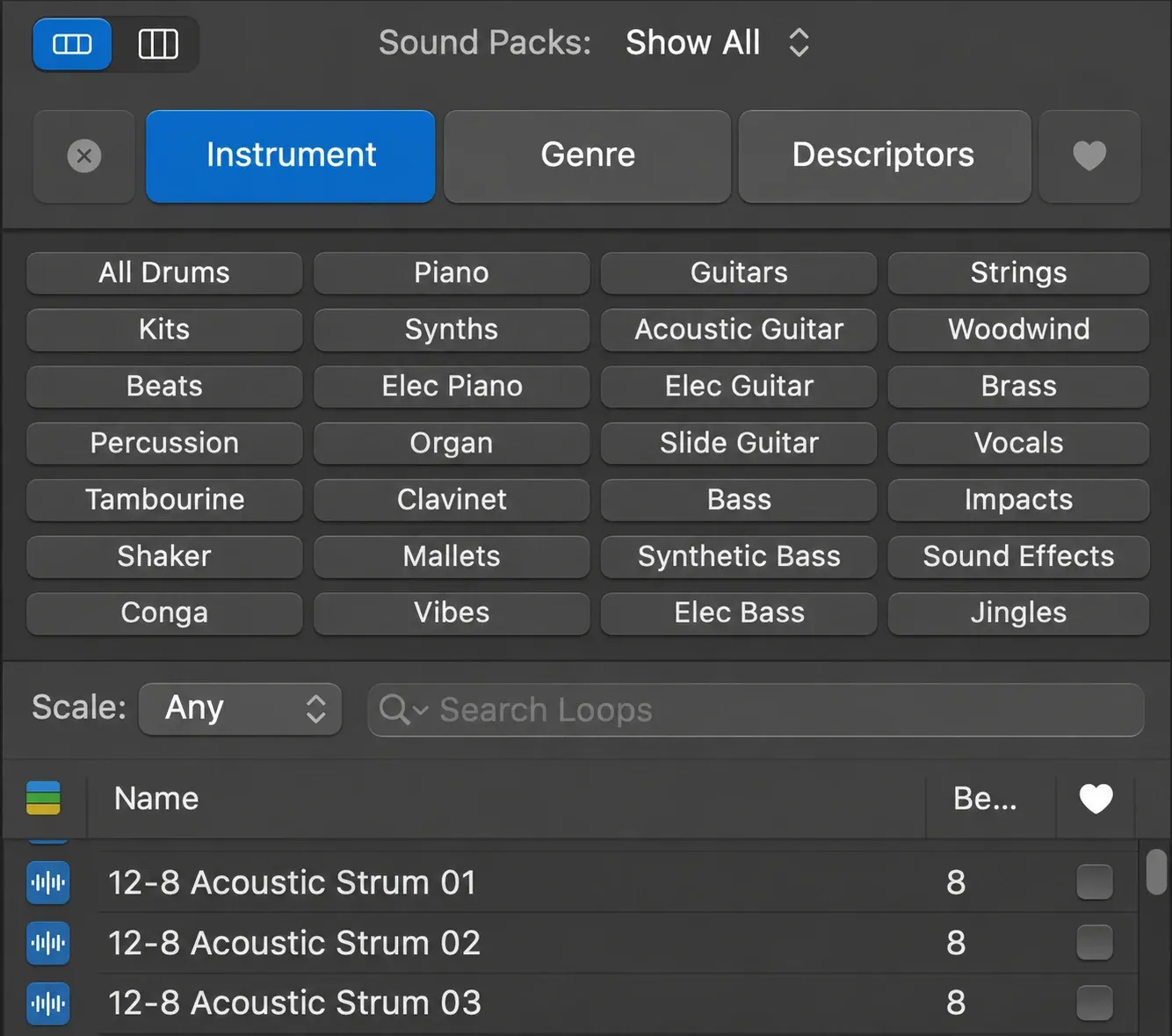
- Button view: click a category button, then the keyword buttons. Shift-click several categories for more keywords. A dimmed keyword has no matching loops.
- Column view: pick All, Favorites, Genres, Instruments or Descriptors on the left, then a category and a keyword.
- Sound Packs menu: limit the list to one pack or collection, such as a Jam Pack.
- Search field: type a name and press Return; the magnifying glass shows recent searches.
- Scale and Loop Types: on the Loop Browser customization page, Scale offers Any, Minor, Major, Neither or Both, and the Loop Types button (the color bars next to Name) shows all loops or only audio, MIDI or Drummer loops.
Click a loop to hear it and click it again to stop. When one fits, select its Favorites checkbox; the Favorites button in button view, or Favorites in column view, brings your picks back in any project, per the favorites page. The Reset category button clears every keyword when a search runs dry.
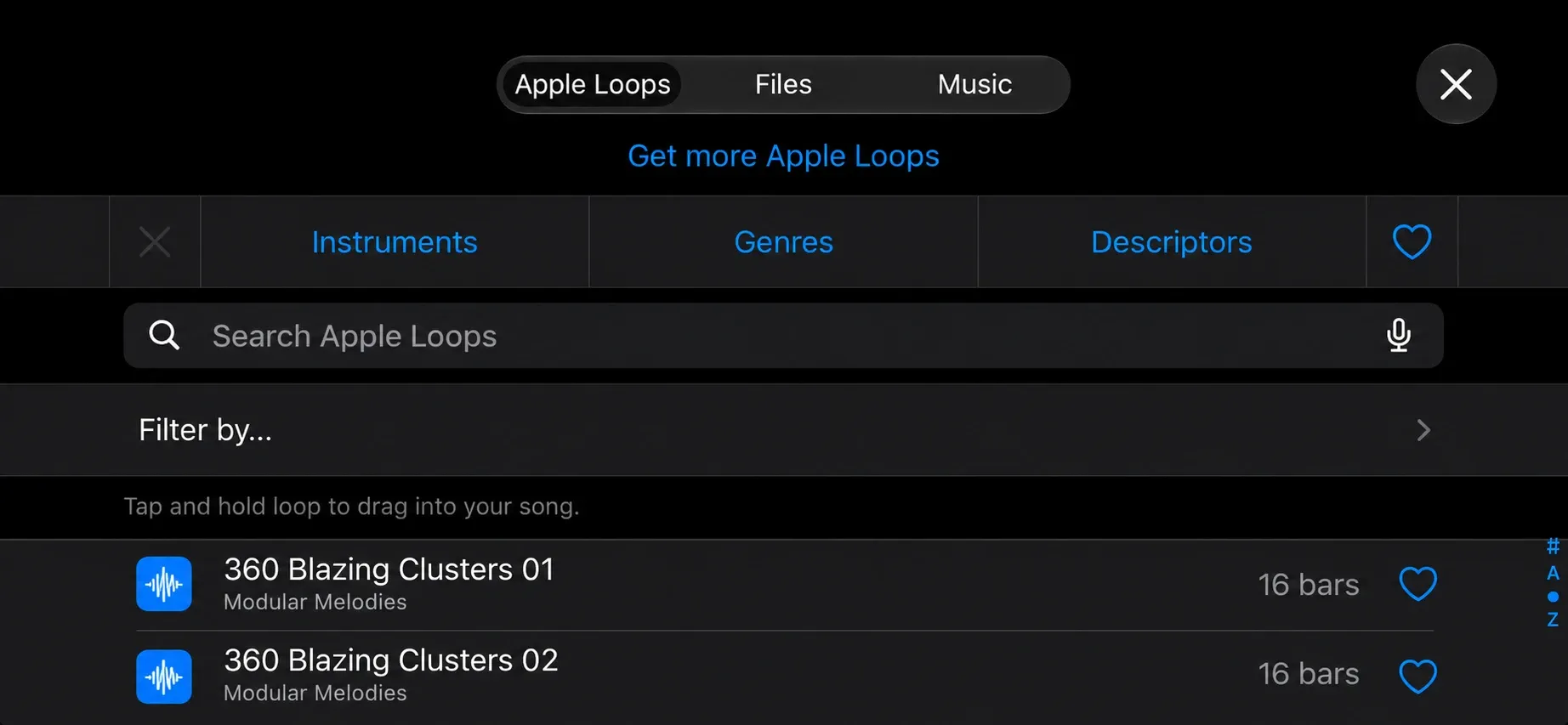
On iPhone and iPad, tap Instruments, Genres or Descriptors; descriptors come in contrasting pairs, and the results match every keyword you select. Tap Filter by to limit the list by Sound Pack, Type or Scale, then tap Reset Filter to go back. Tap a loop to preview it, tap its Favorite button to keep it, and tap Reset on iPhone or Reset Keywords on iPad to clear the keywords.
How do you get more loops in GarageBand?
From Apple’s free Sound Library. On a Mac, choose GarageBand > Sound Library > Download All Available Sounds and click Get. Items that still need content show a Download button in the Library and the Loop Browser, and GarageBand asks when a task needs more content, per Apple’s page on getting more sounds and loops. If the library is damaged or stops working, GarageBand > Sound Library > Reinstall Sound Library puts it back.
On a Mac I’d run Download All Available Sounds once, because it fetches everything in one pass instead of one Download button at a time, and GarageBand stops interrupting a session to ask for missing content. The full set is large: Apple’s GarageBand for Mac page promises “thousands of loops from popular genres like EDM, Hip Hop, Indie, and more.”
On iPhone and iPad, open the Sound Library: tap the Browser button, swipe left or right and tap Sound Library, or tap a numbered badge. Tap a pack, tap Preview to hear it and tap Get to download it. Apple’s Sound Library guide for iPhone lists three kinds of content packs:
- Sound packs with Apple Loops, Live Loops grids, drum kits, Drummers and more.
- Producer packs, made by well-known producers and artists, whose sounds you can use in your own songs.
- Remix sessions with the original tracks of popular songs in a Live Loops grid, available for a limited time.
Here I’d take packs one at a time. Manage Packs in the upper-left corner of the Sound Library shows the total space your packs use and the size of each one, and Apple put it there to free up storage. A pack with an exclamation point badge is needed to open a song you already have, so leave that one installed. The iPad Sound Library guide works the same way.
How do you add a loop so it fits the song?
Drag it from the results list into the Tracks area. Apple’s page on adding loops on a Mac gives the rules:
| Drag this | To | Result |
|---|---|---|
| Any loop | The empty area below the existing tracks | A new audio, MIDI or Drummer track with the loop on it |
| Audio loop (blue) | An audio track | Audio region |
| MIDI loop (green) | A software instrument track | MIDI region you can edit |
| MIDI loop (green) | An audio track | Converted to an audio loop |
| Drummer loop (yellow) | A Drummer track | Drummer region |
| Drummer loop (yellow) | A software instrument track | Converted to a MIDI loop |
| Drummer loop (yellow) | An audio track | Converted to an audio loop |
“The added Apple Loop always matches the project tempo,” and the region plays in the project’s key. To make it repeat, drag the upper-right edge of the region for the number of repeats you want, or press L to loop it continuously. On the loop regions page, Control-click > Loop repeats a region to the end of the project or the next region on the track.
Many loops belong to a family, such as Classic Rock Guitar 01 and Classic Rock Guitar 02, and Apple says loops in the same family work well together. I’d swap through the family before searching again, because the up and down arrows in the upper-left corner of a loop region list its relatives in place, and the one you pick replaces the original without moving it.
On iPhone, drag a loop left or right to show Tracks view, then drop it on an empty part of the screen. On iPad, drag from the results list to an empty part of Tracks view. Align the loop’s left edge with the bar or beat where it should start. It extends to the end of the current song section or the next region on the track. You can also drag a loop onto a matching track (an Audio Recorder or Amp track for an audio loop, a track with the same Touch Instrument or drummer for the others), but I’d do that only over an empty stretch, because a loop dropped on a track replaces any regions in that part of it. When you change the tempo or key of the song later, the Apple Loops follow.
Can you use GarageBand loops commercially?
Yes, inside your own music. The GarageBand for Mac license agreement lets you use Apple’s and third-party content, “including individual samples, sound sets, audio loops,” on “a royalty-free basis, to create your own original soundtracks for your video and audio projects,” and adds: “You may broadcast and/or distribute your own soundtracks that were created using the Digital Materials.” The GarageBand for iPhone and iPad license agreement uses the same wording. So you can release, stream or sell a song built on loops without paying Apple a royalty.
| Use | Allowed? | Where it says so |
|---|---|---|
| Loops in your own original songs and soundtracks | Yes, royalty-free | Both license agreements |
| Broadcasting and distributing those songs | Yes | Both license agreements |
| Sounds from Producer packs in your songs | Yes | iPhone and iPad Sound Library guide |
| Distributing the loops on their own, free or paid | No | Both license agreements |
| Repackaging loops as samples, sound libraries, sound effects or music beds | No | Both license agreements |
| Remix sessions outside the GarageBand app | Personal and non-commercial by default; outside-app use needs prior written consent | iPhone and iPad Sound Library guide |
| Training or testing machine learning or AI models with the content | No | iPhone and iPad license agreement |
The line that matters most: the content “may not be commercially or otherwise distributed on a standalone basis, nor may they be repackaged in whole or in part as audio samples, sound libraries, sound effects or music beds.” I wouldn’t sell a track built mostly from loops as a stock or production music bed, or put loops in a sample pack, because both turn the loops themselves into the product you’re selling, and that’s the repackaging the license rules out.
Three more details. The rights to the content belong to the content owner, so you get a license, not ownership, and Apple doesn’t promise any loop stays available. Remix sessions are “for personal and non-commercial purposes only,” and use or distribution outside GarageBand requires the copyright holders’ explicit prior written consent. Producer packs are different: Apple’s GarageBand page for iPhone and iPad says they let you “use royalty-free sounds in your songs.” Logic Pro’s loops come with near-identical terms in Apple’s royalty-free note for Logic Pro and MainStage, covered in using Apple Loops commercially in Logic Pro.
Can you use GarageBand loops on YouTube and with Content ID?
Yes for a video soundtrack, but shared Apple Loops are not eligible Content ID reference material. The license lets you broadcast and distribute your own music made with the loops. A Content ID reference requires separate attention to exclusive rights. YouTube’s Content ID eligibility rules say “You must have exclusive rights to the material in the reference file,” and list as ineligible “Content licensed non-exclusively from a third party” and “Sound effects, soundbeds, or production loops.”
I wouldn’t submit a loop-built track as an unqualified Content ID reference, because Apple licenses the same loops to other GarageBand users: your reference could claim their legitimate videos. If a distributor turns Content ID on by default, opt the release out or ask whether it can exclude the non-exclusive portions and accept only material you control exclusively. Do not claim the shared loops themselves. The rules also send royalty-free production music libraries to manual review before a claim.
Can you add third-party and free loops to GarageBand?
You can. An Apple Loop is an audio file with built-in tags such as genre, instrument, key and tempo, as Macloops explains, and GarageBand reads them to file the loop under the right keywords and match it to your project’s tempo and key. On a Mac, drag third-party Apple Loops from the Finder to the Loop Browser, and GarageBand reindexes them, per the third-party loops page. The Sound Packs menu can then show only those loops.
Plain WAV, AIFF, CAF, Apple Lossless, MP3 and unprotected AAC files import too: drag one from the Finder to an audio track or below the existing tracks, as the Mac import page describes. They carry no Apple Loops tags, so check the Follow Tempo and Pitch checkbox, which sets whether regions match the project tempo and key, in the inspector of the Audio Editor. On iPhone and iPad, the iPhone import guide is blunt: “With the exception of Apple Loops, imported audio files don’t follow tempo changes you make in GarageBand.” Set the song section to Automatic before importing so the whole file comes in.
For a WAV loop I’d set the project to the loop’s own tempo before importing it, because then it plays at the speed it was recorded at, and on iPhone and iPad it can’t follow a tempo change later anyway. Where to get more:
- Macloops advertises thousands of Apple Loops in AIFF format and 10 downloads with free membership. Its page still mentions Google+ sharing, so confirm the current signup and download terms before relying on that offer.
- Loopmasters sells royalty-free packs in Apple Loops format, “formatted and meta-tagged” for tempo-synced use, in 24-bit quality.
- Looperman hosts free user uploads for commercial and non-commercial use on a royalty-free basis, subject to its terms.
Read each upload’s description before you download it. Some uploads on Looperman’s GarageBand tag say “made in garage band”; another calls itself a “remake of an og garage band loop.” Using GarageBand to record an original performance is different from repackaging Apple’s supplied loops. I’d skip an upload that offers Apple Loops as samples unless its separate rights are clear; the uploader’s GarageBand tag alone does not establish infringement or permission.
How do you make your own Apple Loops?
On a Mac, drag an audio, MIDI or Drummer region from the Tracks area to the Loop Browser, or select it and choose File > Add Region to Loop Library. In the dialog, set the Name, Scale, Genre and Key, pick an instrument from the Instrument Descriptors list, click the mood buttons that fit and click Create. The loop joins the Loop Browser and the loop index, and the search field at the bottom of the Loop Browser finds it by name, per Apple’s custom Apple Loops page.
Two habits make your loops as usable as Apple’s. I’d trim the region to exactly one, two or four bars first, because a looped region repeats everything in it, including any silence you added at the end, so an extra beat pushes every repeat off the bar line. And I’d set the key and scale honestly, because those tags are what the Scale menu and the two-semitone key filter use to show the loop, or hide it, in your next project.
If you move your own loops from the User Loops folder to another drive, click Loops at the top of the Loop Browser and choose Reindex All Loops. On iPhone and iPad, Apple’s App Store description points to Live Loops instead: you “Create custom loops by recording directly into a cell using any Touch Instrument.”
How do GarageBand loops carry over to Logic Pro?
Logic Pro opens GarageBand projects, as covered in moving a GarageBand project to Logic Pro, and Apple Loops work there too. Our guide to using Apple Loops in Logic Pro covers ways to manage your own sample folders. In Logic Pro 13, Apple’s Browser locations let you add a large WAV collection and import legacy Untagged Loops folders.
Logic’s packs come from its own Sound Library, covered in using the Sound Library in Logic Pro, and the grid that GarageBand for iPhone uses has a Mac counterpart in Live Loops in Logic Pro. More guides on building songs are in the create music hub.
GarageBand loops FAQ
Are GarageBand loops royalty free?
Yes. Both GarageBand license agreements let you use the loops on a royalty-free basis in your own original songs and soundtracks, and broadcast or distribute those songs. The loops themselves are licensed, not sold, so you can’t share them on their own or repackage them.
Can I sell a song made with GarageBand loops?
You can, as long as you sell it as your own song. The license lets you distribute soundtracks you create with the loops. It doesn’t let you sell the loops on their own or as samples, sound libraries, sound effects or music beds, and Remix sessions are personal and non-commercial unless the copyright holders give the required separate permission.
Can I use GarageBand loops on YouTube?
In videos with your own music, yes. Do not submit the shared loops as Content ID reference material: YouTube requires exclusive rights and lists production loops and non-exclusively licensed content as ineligible. Ask your distributor about excluding non-exclusive portions, or opt the release out.
Why is my GarageBand Loop Browser almost empty?
Usually the Sound Library isn’t downloaded. On a Mac, choose GarageBand > Sound Library > Download All Available Sounds and click Get; on iPhone and iPad, open the Sound Library and tap Get on the packs you want. Also check that a Sound Packs filter, a Scale setting or the two-semitone key filter isn’t hiding loops.
Do WAV loops follow the tempo in GarageBand?
Not on iPhone and iPad, where only Apple Loops follow tempo changes after import. On a Mac, the Audio Editor’s Follow Tempo and Pitch checkbox sets whether selected regions match the project tempo and key. The safe route on both is to set the project to the WAV’s own tempo before importing it.


