How to Use the Sound Library in Logic Pro
Download only the sounds you need, keep packs current, and move the Logic Pro 12 library without teaching Logic the old relocation path.

Checked September 8, 2026 against Logic Pro for Mac 12.3.1 and Apple's current documentation linked below.
To use the Sound Library in Logic Pro, choose Logic Pro > Sound Library, open a sound pack, preview it, and click Get. Use Manage Packs when you want to download everything, install updates, or remove packs. In Logic Pro 12, moving the library is a different job: move Logic Pro Library.bundle in Finder, then point Logic to it in Logic Pro > Settings > General > Sound Library.
Sound Library, Library, and Loop Browser are three different places
The names are close enough to cause needless confusion. The Sound Library is where you download and manage Apple's optional content. A sound pack can include patches, Apple Loops, samples, drum kits, and other material. The Library inside the main Logic window is where you choose patches and channel-strip settings for the selected track. The Loop Browser is where you search and audition installed Apple Loops.
| You want to | Open | What happens there |
|---|---|---|
| Add or remove Apple's downloadable content | Logic Pro > Sound Library | Get, update, search, or delete sound packs |
| Change the sound on the selected track | Library in the main window | Choose an installed patch or channel-strip setting |
| Find a loop for the song | Loop Browser | Filter, preview, and place installed Apple Loops |
| Change where all Logic 12 content is stored | Settings > General > Sound Library | Show or locate the consolidated library bundle |
This guide stays with content management. If the packs are already installed and you want to find a musical phrase, use the separate Apple Loops workflow.
Download a Sound Library pack
- Open Logic Pro > Sound Library.
- Use Search or choose a category such as Sound Packs, Artist and Producer Packs, or Instrument Packs.
- Open the pack and use its preview before committing storage space.
- Click Get. Let the download and installation finish before disconnecting a drive or quitting Logic.
- Return to the Logic project, open the Library or Loop Browser, and confirm that the new content is available.
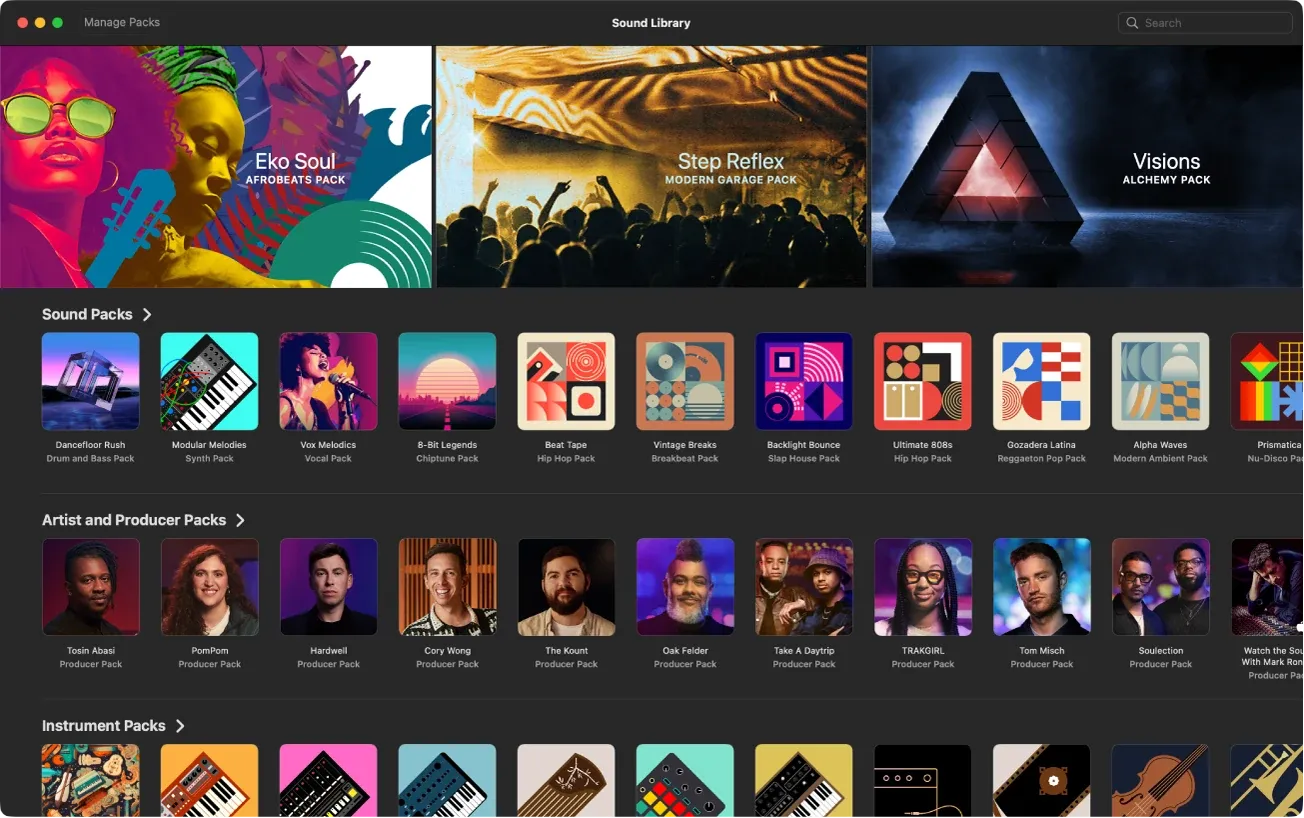
Apple's current Sound Library guide also notes that some packs are required when you open projects created in Logic Pro for iPad or GarageBand. If Logic asks for required content when opening someone else's project, install that content before deciding the project itself is broken.
Manage installed, available, and updated packs
Click Manage Packs in the upper-left corner of the Sound Library. The installed total and individual pack sizes help you decide what to keep. The main controls are:
- Get All next to All Available Packs downloads everything that is currently available.
- Update All next to All Installed Packs installs available updates for content you already have.
- Delete next to a pack removes that pack. Delete next to All Installed Packs removes all installed packs—check the row before clicking.
A red badge identifies new or updated packs. Treat it as a review cue, not an obligation to install every item. A small MacBook used for recording may be better with a focused library. A studio Mac with a large external SSD may benefit from Get All.
How much space does the full library need?
Apple still lists approximately 72 GB of free storage in its installation-troubleshooting article, but that page also describes the older Sound Library Manager. Do not treat 72 GB as an exact total for today’s Logic Pro 12 packs. Use the sizes in Manage Packs and any storage alert shown by your installed version; allow extra space for downloads and other work on the Mac.
Before Get All, check both your Mac’s free space and the drive containing Logic Pro Library.bundle. Start with the pack your project needs if storage is tight. Moving the installed library to an SSD is not a reason to fill the Mac’s startup disk.
Update or delete Sound Library packs
Use Manage Packs > Update All when installed packs have updates. Schedule content updates when you have time to test affected projects, not immediately before recording or delivery. An app update and a sound-pack update are related but not identical jobs. The Logic Pro update checklist covers the application, plug-ins, backups, and rollback planning.
To reclaim storage, open a pack, click Delete, and confirm. Deleting supplied content does not delete your Logic project, but a project can open with missing patches, samples, or loops if it depends on that pack. Test important projects before removing a large group. Content that remains available in Sound Library can be downloaded again later.
Move the Sound Library in Logic Pro 12
Starting with Logic Pro 12, Apple stores supplied content in one file named Logic Pro Library.bundle. Its default location is your Music folder:
~/Music/Logic Pro Library.bundle
The bundle can be large, but Finder treats it as one item. Do not open the bundle and rearrange its internal folders. Move the complete bundle and let Logic track the new location.
- If you already moved the library, use Show in Finder in Logic’s Sound Library settings to find the active copy. Finish downloads, then quit Logic Pro and MainStage before copying it.
- Connect the destination drive and confirm that it has enough free space.
- For the default location, choose Go > Go to Folder in Finder, enter ~/Music/, and locate Logic Pro Library.bundle. Otherwise use the active location you checked before quitting.
- Drag the complete bundle to the destination drive. If Finder copies it, keep the original for now.
- Open Logic Pro and choose Logic Pro > Settings > General > Sound Library.
- Click Locate and select the moved
Logic Pro Library.bundle. - Open a project and test several patches, loops, and sample-based instruments you actually use.
- Only after the new location survives a quit and reopen should you consider deleting the original copy.
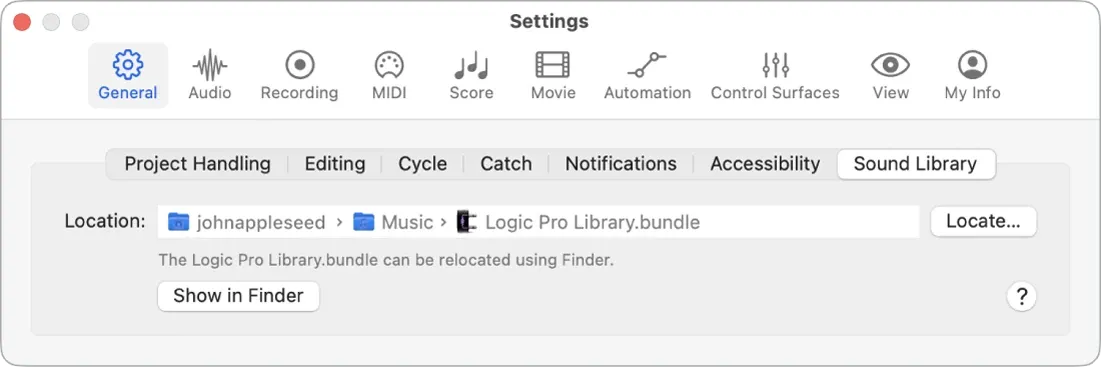
Apple's current Sound Library settings documentation shows the Location field, Locate, and Show in Finder. Apple's separate content-moving instructions confirm that the Logic Pro 12 branch uses the bundle in Finder rather than the old Relocate command.
Choose an external drive without creating a new problem
- Use a drive you can keep connected. A portable SSD that disappears between sessions turns every launch into a location decision.
- Use a direct, stable connection. A loose cable or underpowered hub can look like a missing library.
- Keep project backups separate. Moving the library is not a project backup. Back up recordings and any custom or third-party content separately, including files you have added to the bundle.
- Leave room for the transition. Apple's Logic Pro 12 migration notes say APFS can use cloning without consuming a second full copy during migration. Mac OS Extended and Windows-compatible formats require a copy and enough temporary storage for the old and new forms.
For a Mac-only SSD, APFS is usually the cleanest current choice. Do not reformat a drive that contains anything you need without a verified backup. Formatting erases the drive and is outside this Sound Library workflow. The no-extra-space cloning rule applies to the initial migration on APFS, not to every future sound-pack update or a copy to another drive. Keep the old-format library if you still use an older Logic Pro or MainStage version; those apps cannot use the new bundle.
Logic Pro 11.2.2 and earlier use the old Relocate command
If you're deliberately staying on Logic Pro 11.2.2 or earlier, the documented path is Logic Pro > Sound Library > Relocate Sound Library. Choose the destination in the relocation window and let Logic move the supported content. For that older workflow, Apple requires an administrator account and an APFS or Mac OS Extended (Journaled) destination that is not the Time Machine backup volume. Do not rename the volume after relocation.
Do not follow that menu path in Logic Pro 12 and assume the command is missing because the installation is damaged. Apple changed the storage model. Logic Pro 12 uses Logic Pro Library.bundle, Finder, and the Locate control in Sound Library settings.
Fix missing sounds and download failures
Logic cannot find Logic Pro Library.bundle
Reconnect the drive first. Then open Logic Pro > Settings > General > Sound Library and use Locate to select the complete bundle. If Logic presents a missing-library dialog, choose the existing bundle when it's available. Creating a new empty library is appropriate only when you intend to rebuild the supplied content from downloads.
A pack will not finish downloading
Check free space on both the Mac and the library drive, confirm your internet connection is working, and try one pack. Apple recommends smaller downloads when installing everything at once fails. In Logic Pro 12, use Get for an individual pack rather than the older checkbox-and-Install instructions on that support page. If a space alert persists, note the drive and amount it names before deleting anything.
A project opens with a missing patch or loop
Open Sound Library and look for required, deleted, or updated content. If the project came from Logic Pro for iPad or GarageBand, accept the required-pack download when the content is available. If the problem concerns an Apple Loop that is installed but difficult to find, continue with the Loop Browser search and filtering guide.
The drive is connected, but the library keeps disappearing
Use Show in Finder to confirm the active location, then test the cable, port, hub, and drive mount separately. Do not keep choosing a second copy of the bundle in a different folder. One verified location is easier to recover than two partial copies with similar names. If Logic was denied access to the external drive, quit it and open System Settings > Privacy & Security > Files & Folders > Logic Pro. Enable Removable Volumes if that control is listed, then reopen Logic and locate the bundle. Avoid resetting or deleting a library that is merely inaccessible.
Frequently asked questions
Where is the Logic Pro Sound Library?
In Logic Pro 12, supplied content is stored in Logic Pro Library.bundle, normally in your Music folder. Check the active path at Logic Pro > Settings > General > Sound Library, then use Show in Finder if you need to see the bundle.
How do I download all sounds in Logic Pro?
Choose Logic Pro > Sound Library, click Manage Packs, and click Get All next to All Available Packs. Review the displayed pack sizes and check free space on both the Mac and the library drive. Apple’s older 72 GB estimate is not a guaranteed total for the current collection.
Can I move the Logic Pro Sound Library to an external SSD?
Yes. In Logic Pro 12, move the complete Logic Pro Library.bundle to the SSD in Finder, then choose Logic Pro > Settings > General > Sound Library > Locate. Test representative sounds after reopening Logic before deleting the original copy.
Why is Relocate Sound Library missing?
The Relocate Sound Library command is the documented route for Logic Pro 11.2.2 and earlier. Logic Pro 12 uses a consolidated Logic Pro Library.bundle and the Locate control in Settings > General > Sound Library.
Can I delete Logic Pro sound packs?
Yes. Delete installed packs from Sound Library or Manage Packs to recover space. A project that uses deleted content can open with missing sounds, so test important projects first. Packs that remain available from Apple can be downloaded again.
What is the difference between the Sound Library and Apple Loops?
The Sound Library manages downloadable packs that can include loops, patches, samples, and drum kits. The Loop Browser is where you search and use installed Apple Loops inside a project.
Install the sounds you will actually use
Start with the sounds needed for your next project. Before removing or moving content, check which projects depend on it and keep a recoverable copy. For the application itself, the Logic Pro download and setup guide covers installation and system requirements.


