How to Update Logic Pro Safely
A low-risk Logic Pro update workflow: preserve the app and projects, verify compatibility, update manually, test, and roll back if necessary.

To update Logic Pro safely, back up the current app and active projects, verify every important plug-in and hardware driver, update manually from the Mac App Store, then test a copied session before opening deadline work.
This guide covers the Mac app, not Logic Pro for iPad. Keep a ZIP of the installed application and a separate backup of your projects. Restoring the app doesn’t restore missing recordings or undo a macOS update.
Apple’s Logic Pro release notes list 12.4, released September 29, 2026, as the newest Mac release.
If a session or delivery is due today, finish it before updating. Leave time afterward to open a copied project, check the plug-ins and audio interface, and make a test bounce.
Before you click Update
- Write down the working Logic Pro and macOS versions.
- Make a version-labeled ZIP of Logic Pro and copy it to separate storage.
- Consolidate and back up the projects you need, then check a copied project opens.
- Confirm that essential plug-ins and hardware support the intended update.
- Update Logic Pro manually, without changing the rest of the system at the same time.
- Test a copied session before returning to deadline work.
1. Record what works now and stop automatic installs
Open Logic Pro > About Logic Pro and write down the version. Record the macOS version from Apple menu > About This Mac too. If you ever need a rollback, “the previous one” isn’t precise enough.
Apple recommends turning off automatic installation so you can check compatibility before updating. Go to Apple menu > System Settings > General > Software Update, click the Info button beside Automatic Updates, then turn off Install macOS updates and Install application updates from the App Store. Leave unrelated update options alone. While these options are off, you’ll need to install macOS and App Store app updates manually.
If you only want to stop app updates, Apple also documents App Store > Settings > Automatic Updates. Deselecting it affects every App Store app, not just Logic Pro. Plan regular manual checks so the Mac doesn’t go unmaintained.
I wouldn’t combine a macOS upgrade, a Logic update, interface firmware, and a plug-in refresh in one session. If something stops working, separate changes make the cause easier to pin down.
2. Back up the Logic Pro application
Apple's current Pro App update procedure provides a restorable route:
- Quit Logic Pro after saving your work, then open the Applications folder.
- Control-click Logic Pro, choose Get Info, and note its version.
- Create a folder in Applications named with the app and the installed version number.
- Select the Logic Pro application, then choose File > Compress “Logic Pro”.
- Move the resulting Logic Pro.zip into the version-labeled folder.
- Copy that folder to an external drive or another independent backup location.
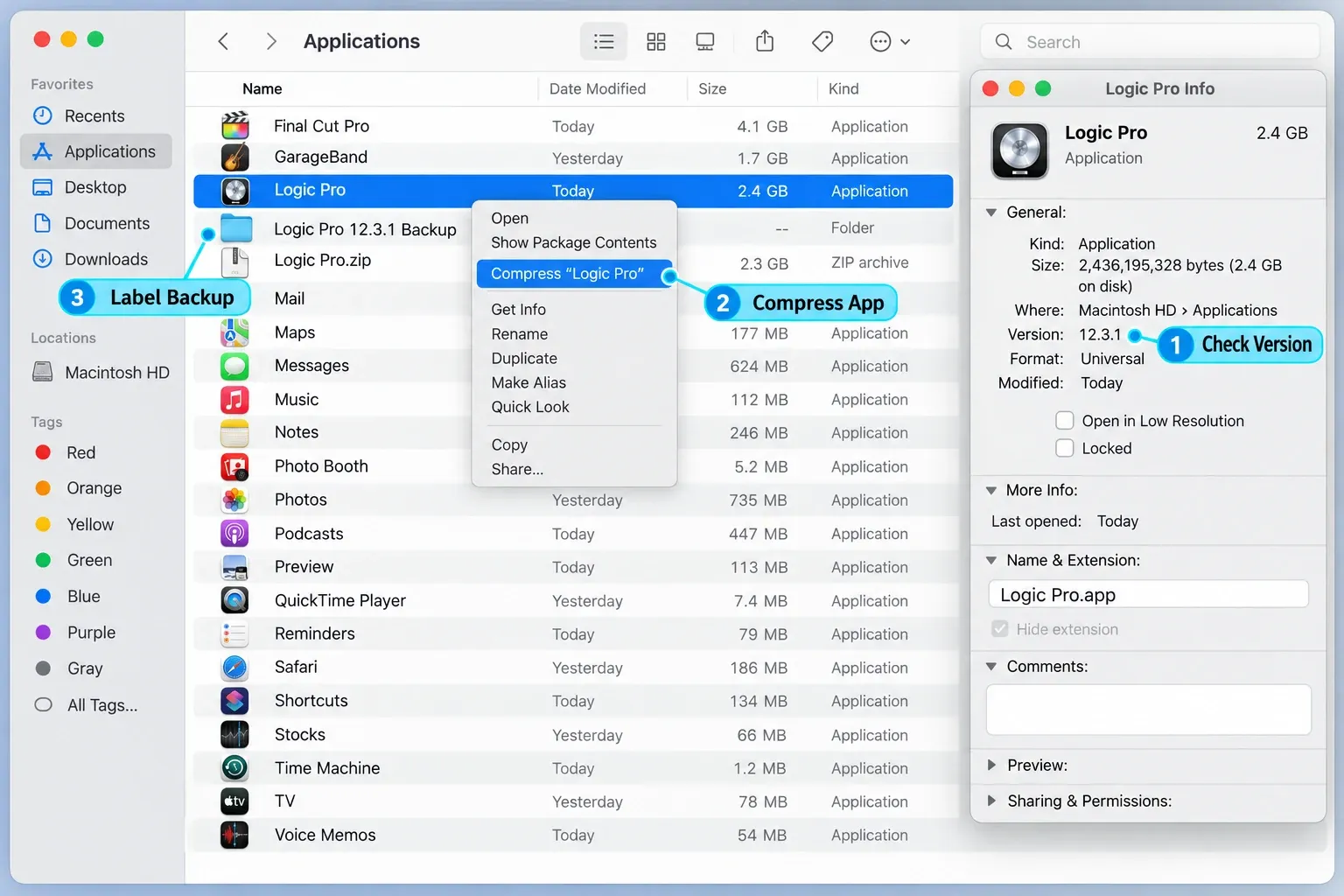
The ZIP isn’t a project backup, a plug-in backup, or an installer archive for every dependency. It preserves the application version so you can restore it if the new build interrupts your work.
3. Protect projects and the files they depend on
A Logic project can reference recordings, samples, impulse responses, video, and library content stored outside the project location. Copy only the project document and the backup may be incomplete.
- Open each active project in the working version of Logic.
- Choose File > Project Management > Consolidate.
- Select the asset types the project needs and confirm the consolidation.
- Close the project so all writes are finished.
- Copy the project package or project folder to separate storage, or verify it is included in a current Time Machine backup.
- Keep one duplicate specifically for the first post-update test.
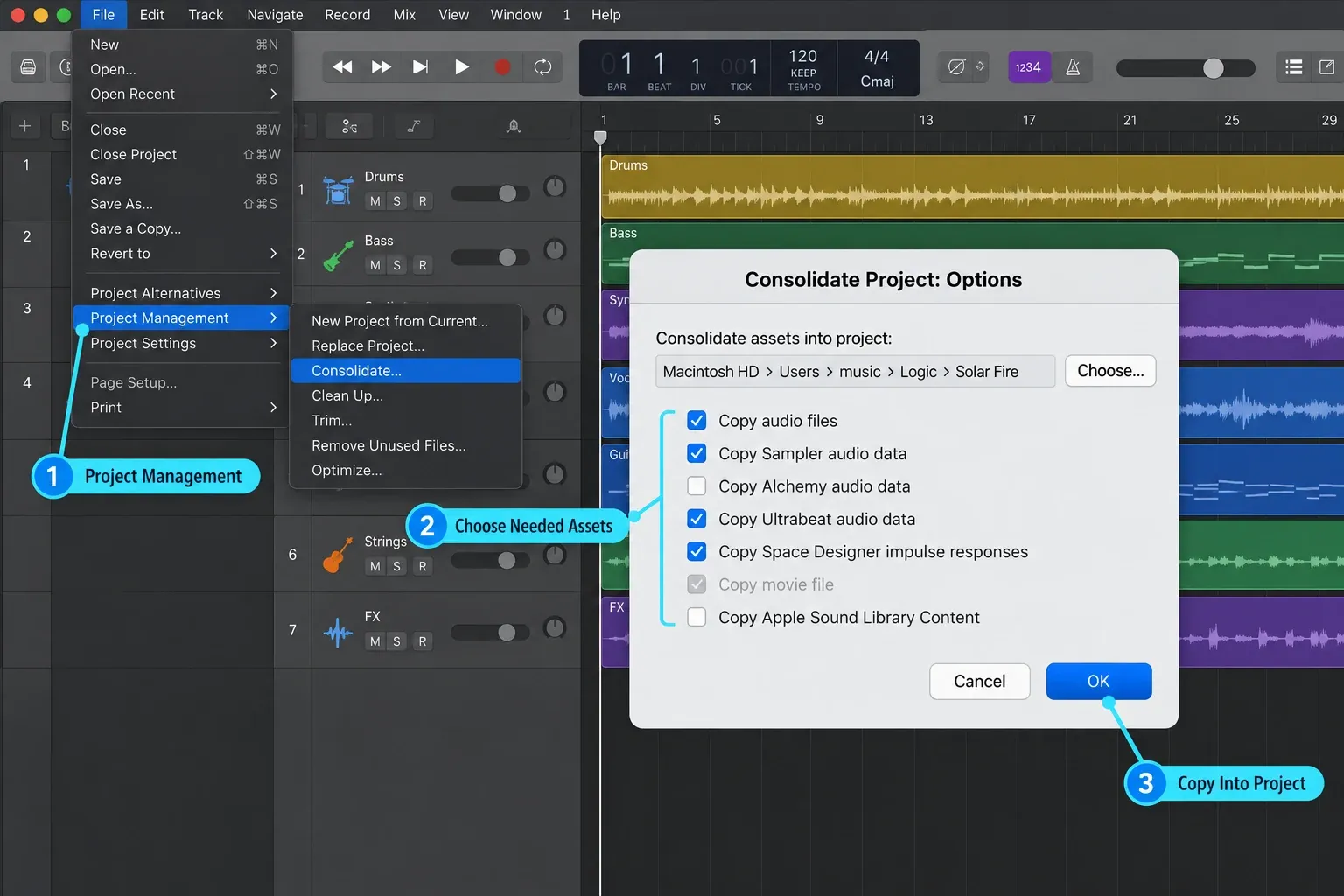
Apple’s Consolidate guide includes audio files, Sampler, Alchemy and Ultrabeat data, Space Designer impulse responses, video, and Sound Library content such as Apple Loops. The selected assets are copied into the project’s Media folder, including those used by project alternatives. Consolidating doesn’t install third-party plug-ins or transfer their licenses.
For a fuller check of project packages, external media and a restorable second copy, follow the Logic Pro project backup workflow.
Moving from Logic Pro 11 or earlier to 12?
Keep the old Sound Library if you might go back to the older app. Apple’s Sound Library migration guide says the new Logic Pro Library.bundle isn’t compatible with older app versions. If you delete the old library, an app ZIP alone won’t solve that problem.
On its first launch, Logic Pro 12 clones a library stored on the Mac or an APFS external drive without needing extra space for the clone. On an external drive formatted as Mac OS Extended, FAT or ExFAT, it copies the library instead and needs room for both versions. That doesn’t mean the app update, backup ZIP or new sound downloads need no free space.
4. Check plug-ins, audio hardware, and macOS support
Build the compatibility list from the session you can’t afford to lose. Plug-ins it never loads can wait. Check:
- Audio Units used in active projects;
- audio-interface drivers and control software;
- MIDI device drivers and editors;
- license managers and hardware keys;
- video components used by scoring projects;
- security or utility software that injects into audio workflows.
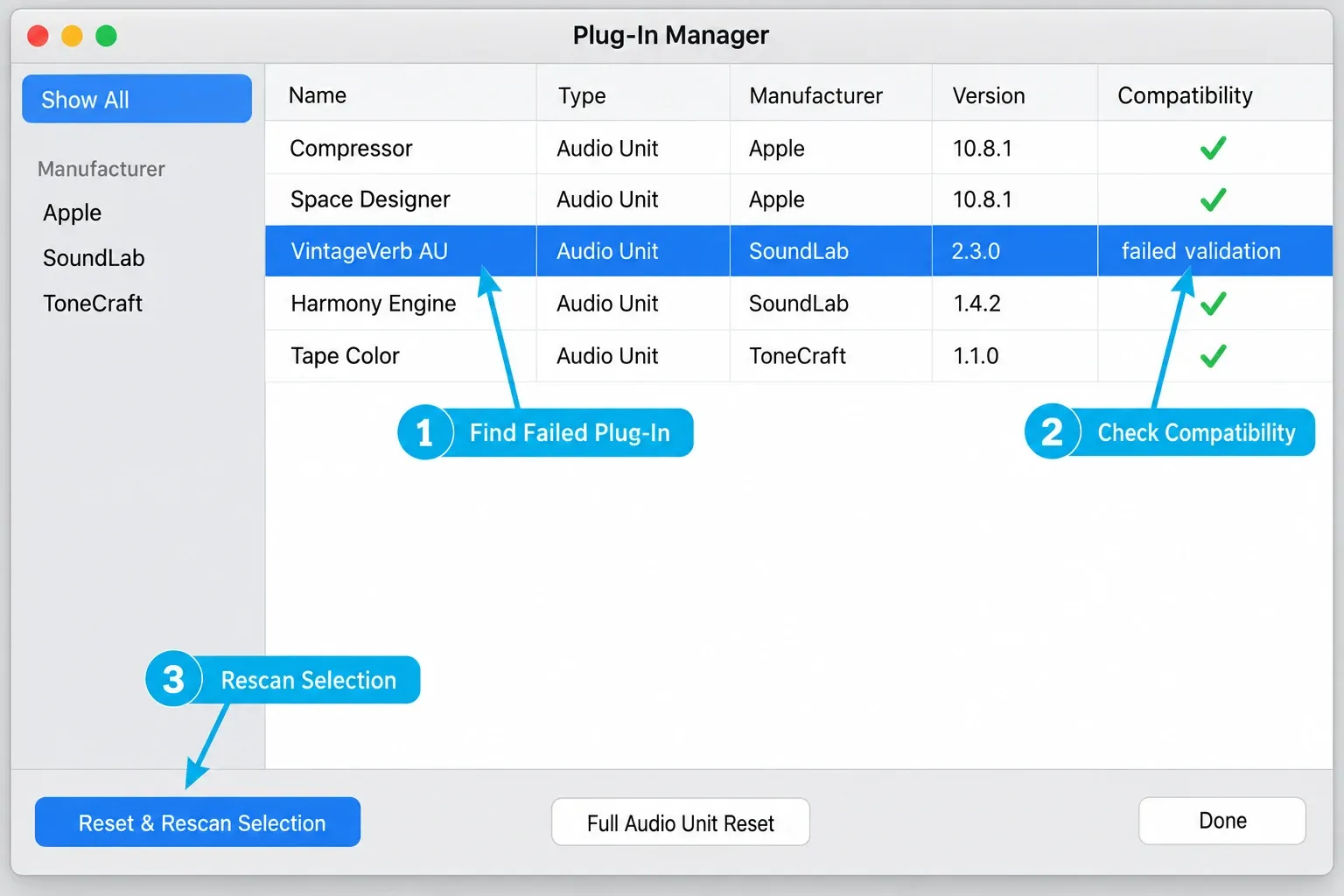
Check each developer’s support information for the exact Logic Pro and macOS versions you plan to use. Apple silicon support on its own doesn’t confirm support for a particular update. Apple’s post-update compatibility guidance covers Audio Units, hardware drivers and other third-party software. If an essential component is unsupported, postpone the update or line up a tested replacement.
Check the Logic Pro system requirements before installing. If the update needs a newer macOS, make that its own compatibility and backup decision. The Logic Pro 12.4 and 12.3 change guide covers both releases. For later fixes that affect your work, use Apple’s current release notes.
5. Update Logic Pro manually
- Quit Logic Pro.
- Confirm that the app ZIP and project copy exist outside their live locations.
- Open the Mac App Store.
- Click Updates in the sidebar.
- Click Update beside Logic Pro. Avoid Update All if you are trying to isolate one change.
- Let installation finish before launching Logic.
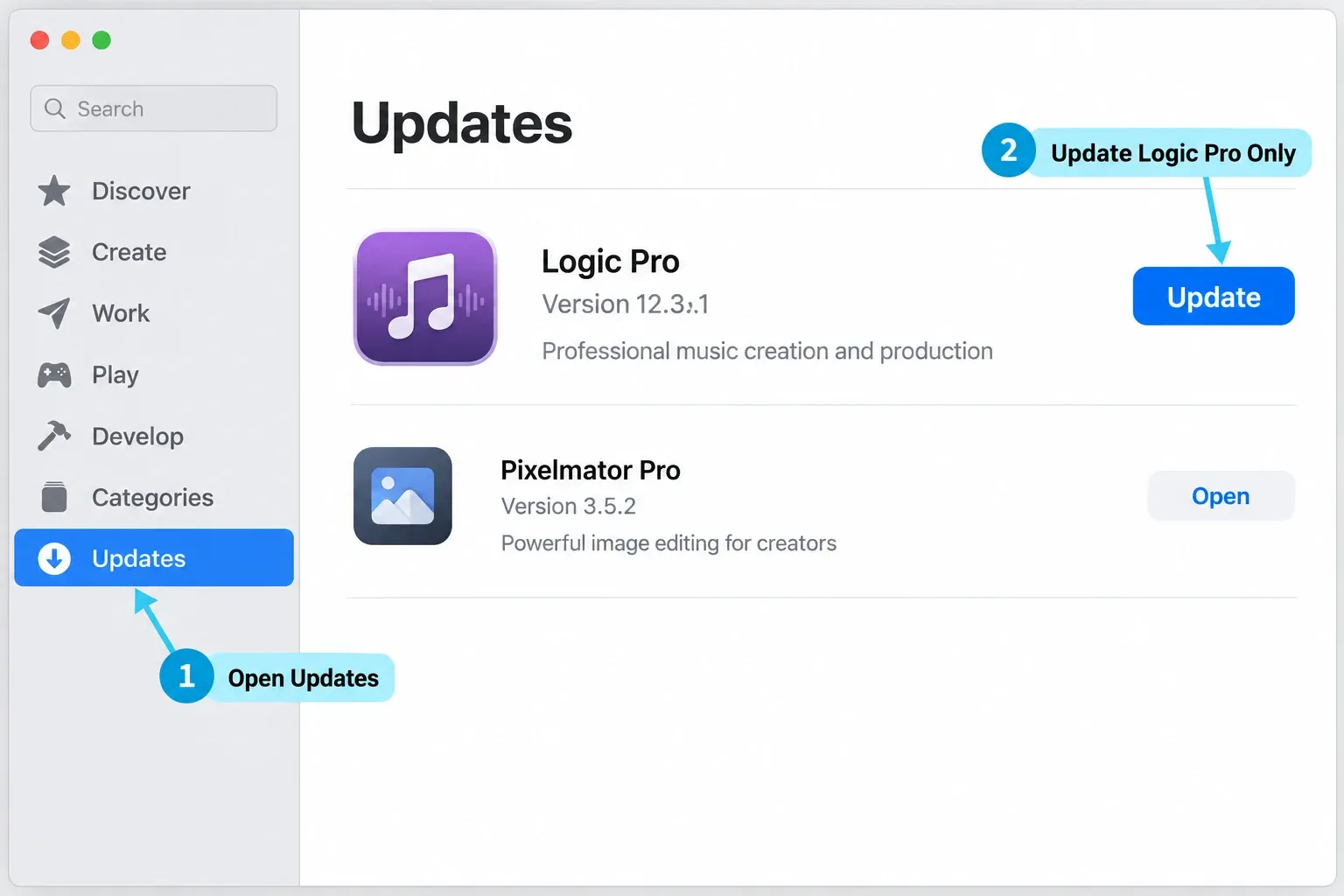
Apple’s manual App Store instructions confirm the Updates-sidebar route. For a purchased copy, use the Apple Account that bought the app. After installation, check Logic Pro > About Logic Pro to confirm which version opened.
6. Test before opening real work
Launch the new version without a critical project. If Logic normally reopens your last project, keep that original backed up and do not save changes to it. Open your test duplicate instead and check the things your sessions depend on:
- Confirm Logic launches and that any Audio Unit validation finishes.
- Open the copied project and check for missing audio, instruments or plug-ins.
- Check the audio device and project sample rate before recording.
- Record a short audio take and a short MIDI take on spare tracks.
- Play automation, tempo changes, software instruments, and third-party effects.
- Save the test copy under a new name, close it, and reopen it.
- Bounce a short section and listen for missing parts, changed levels or timing problems.
Do not resave every active project immediately. Apple’s current project-opening guide says projects saved in Logic Pro aren’t backward-compatible with earlier Logic Pro versions. Keep the untouched pre-update copy until you’ve committed to the new release.
Missing older factory patches after moving to Logic Pro 12? Apple documents restoring Logic Pro Legacy sound packs in Logic Pro 12.2 and later. Search for Logic Pro Legacy in the Sound Library and install the needed packs. Missing factory sounds and an incompatible third-party plug-in require different fixes.
If an Audio Unit is absent, use the plug-ins not showing troubleshooting guide. For a session that opens but records with unexpected delay, check the sample rate and buffer settings before changing more software.
Logic Pro update not showing in the App Store
Work through these checks in order:
- Open the App Store's Updates section and press Command-R to refresh it.
- Confirm the Apple Account is the one used to obtain Logic Pro.
- If the store shows a price instead of Update or Open, check ownership/account status before buying anything.
- If Logic came preinstalled with the Mac, check whether the Pro App purchase needs to be adopted to the account.
- Compare the newest Logic requirements with the macOS versions this Mac can run.
- Check Apple’s System Status if downloads or App Store access are failing generally.
Apple documents the account, preinstalled-app adoption, macOS compatibility and Command-R checks in its Pro App update guide. An empty Updates list doesn’t prove on its own that you have the newest release. Compare the installed version with Apple’s release notes and the version your Mac supports. Do not update macOS just to make an update button appear.
If the problem is App Store ownership or installation rather than compatibility, use the Logic Pro download and reinstall routes.
How to roll back after a bad update
If the update blocks work, stop using the only project copy. Apple’s Logic Pro backup and restore instructions restore the earlier app from its ZIP. Check that backup before removing anything:
- Quit Logic Pro and keep any post-update project separate from the original.
- Locate the pre-update ZIP and confirm you can uncompress a copy in a separate folder. Check the restored app’s version with Get Info; leave the backup ZIP intact.
- Move only the updated Logic Pro application from Applications to the Trash. Do not delete project folders, libraries or plug-ins.
- Open the Trash, Control-click that Logic Pro application, and choose Delete Immediately. Confirm the dialog refers to the app you intend to remove.
- Move the restored earlier Logic Pro application into Applications.
- Open the untouched pre-update project copy. Check its sounds, plug-ins and hardware before continuing.
Apple’s Pro App procedure says to empty the Trash, but that deletes every item in it. macOS also supports deleting one item from the Trash, which keeps this removal limited to Logic Pro. Delete Immediately is still permanent. Do not use it until your backup is verified.
This restores the application only. It doesn’t downgrade macOS, plug-ins or drivers, restore a deleted old Sound Library, or reverse changes saved in a newer project. If you didn’t keep the earlier app, check an existing backup before removing your installed copy. The App Store isn’t a version picker for an arbitrary older release.
Logic Pro update FAQ
How do I update Logic Pro on a Mac?
Open the Mac App Store, click Updates in the sidebar, then click Update next to Logic Pro. Before doing that, compress a copy of the current app, back up active projects, and confirm third-party compatibility.
Should I back up Logic Pro before updating?
Yes. Apple recommends backing up the installed Logic Pro app and project files. Compress the app in Applications, label the ZIP with its version, and store a second copy separately.
Why is a Logic Pro update not showing in the App Store?
Confirm that you are signed in with the Apple Account that owns the app, click Updates, and press Command-R to refresh. The newest Logic Pro may also require a macOS version your Mac cannot run.
Do I have to pay again to update Logic Pro?
For a purchased Mac copy, the App Store should recognize the Apple Account that bought it and show Update or Open rather than a purchase price. If it shows a price, check the account first. This is not a promise that every future release will have the same licensing terms.
Can a Logic Pro update break third-party plugins?
An update can expose incompatibility in Audio Units, drivers, license tools, or connected hardware. Check each developer's support information for the exact Logic Pro and macOS versions before updating.
How do I roll back a Logic Pro update?
First verify the pre-update app ZIP. Remove only the updated application, restore the older app to Applications, and open an untouched pre-update project copy. Keep the old Sound Library if returning from Logic Pro 12 to an earlier version. Restoring the app does not downgrade macOS or plug-ins.
For help with recording, editing or exporting after the update, choose the relevant guide in Logic Pro Tutorials.


