Logic Pro Plugins Not Showing Up: Fix Missing Audio Units
Fix missing Logic Pro plug-ins by checking the AU format, correct slot, Plug-in Manager status, authorization, Apple silicon compatibility and rescan order.

If a Logic Pro plug-in is not showing up, check three things before rescanning anything: did you install the Audio Unit version, are you looking in the correct plug-in slot, and does the plug-in appear in Logic Pro > Settings > Plug-in Manager? Those answers tell you whether the problem is installation, menu placement, validation or authorization.
Documentation checked September 12, 2026 against Apple’s missing Audio Unit instructions and Logic Pro User Guide. Start with the symptom below; the sections separate installation, menu placement, authorization and failed scans so you do not reset every plug-in to fix one missing entry.
If the plug-in appears but makes Logic quit, use the Logic Pro crash-isolation guide. If every plug-in loads and playback merely stops, use the system overload guide. This page is specifically for an Audio Unit absent from Plug-in Manager or a channel-strip menu.
Start with the symptom: absent from where?
First check where the plug-in is missing. An absent entry in Plug-in Manager needs a different test from an entry that passed validation but is not in the menu.
| What you see | Likely layer | Next check |
|---|---|---|
| Even built-in effects and instruments are absent from menus | Core Audio may be disabled | Audio settings > Devices > Core Audio Enabled |
| No entry in Plug-in Manager | Format, installation, architecture or discovery | Confirm AU build and installed location |
| Entry says not authorized | Vendor license | Complete the vendor’s license steps, then rescan |
| Entry says not compatible or failed validation | Validation or version compatibility | Check compatible updates, then Reset & Rescan Selection |
| Entry has a checkmark but is absent from a menu | Hidden/ignored state or wrong slot | Show All, then check Hide, Ignore and type |
| Plug-in loads but the project crashes | Runtime stability, not discovery | Open without Audio Units and isolate a copy |
Save your work and restart the Mac once if the plug-in was just installed or updated. Apple puts a restart first in its missing-plug-in instructions. If even built-in effects and instruments have disappeared from the menus, check Logic Pro > Settings > Audio > Devices and turn on Core Audio Enabled. Apple’s Audio Devices reference confirms that disabling Core Audio removes audio effects and software instruments from the plug-in menus. That is a different problem from one third-party AU failing validation.
Confirm the installer included an Audio Unit
Logic Pro loads Audio Units, not VST or VST3 directly. Seeing a VST3 file on disk does not mean the installer also installed AU. Check the developer’s compatibility requirements for your macOS version and Mac processor, then run its supported Mac installer and choose AU or Audio Units. The Logic Pro plug-in installation guide explains format selection and installation. The build must be 64-bit: Apple states that 32-bit plug-ins are not compatible with Logic Pro or MainStage.
Apple’s current Audio Units guide distinguishes the two Mac formats. AUv2 plug-ins live in a Library Audio/Plug-Ins/Components directory. AUv3 Audio Unit Extensions install as apps in Applications and show “(AU3)” beside the version in Plug-in Manager.
For AUv2, Apple’s installation-location reference documents both /Library/Audio/Plug-Ins/Components and ~/Library/Audio/Plug-Ins/Components. Built-in Logic effects don’t appear there. Do not drag a random VST file into Components or rename its extension. Use the signed installer supplied by the developer.
Check the correct Audio FX, Instrument or MIDI FX slot
Look for the product’s effect version in an Audio FX slot and its instrument version in the Instrument slot on a Software Instrument channel strip. Some products supply both, so check which version you installed. A Logic-compatible MIDI effect belongs in MIDI FX above the Instrument slot. Apple’s plug-in slot instructions distinguish those three locations. Open Audio Units for third-party audio effects; instrument menus can show AU Instruments and AU Generators. Custom categories can change where a product appears.
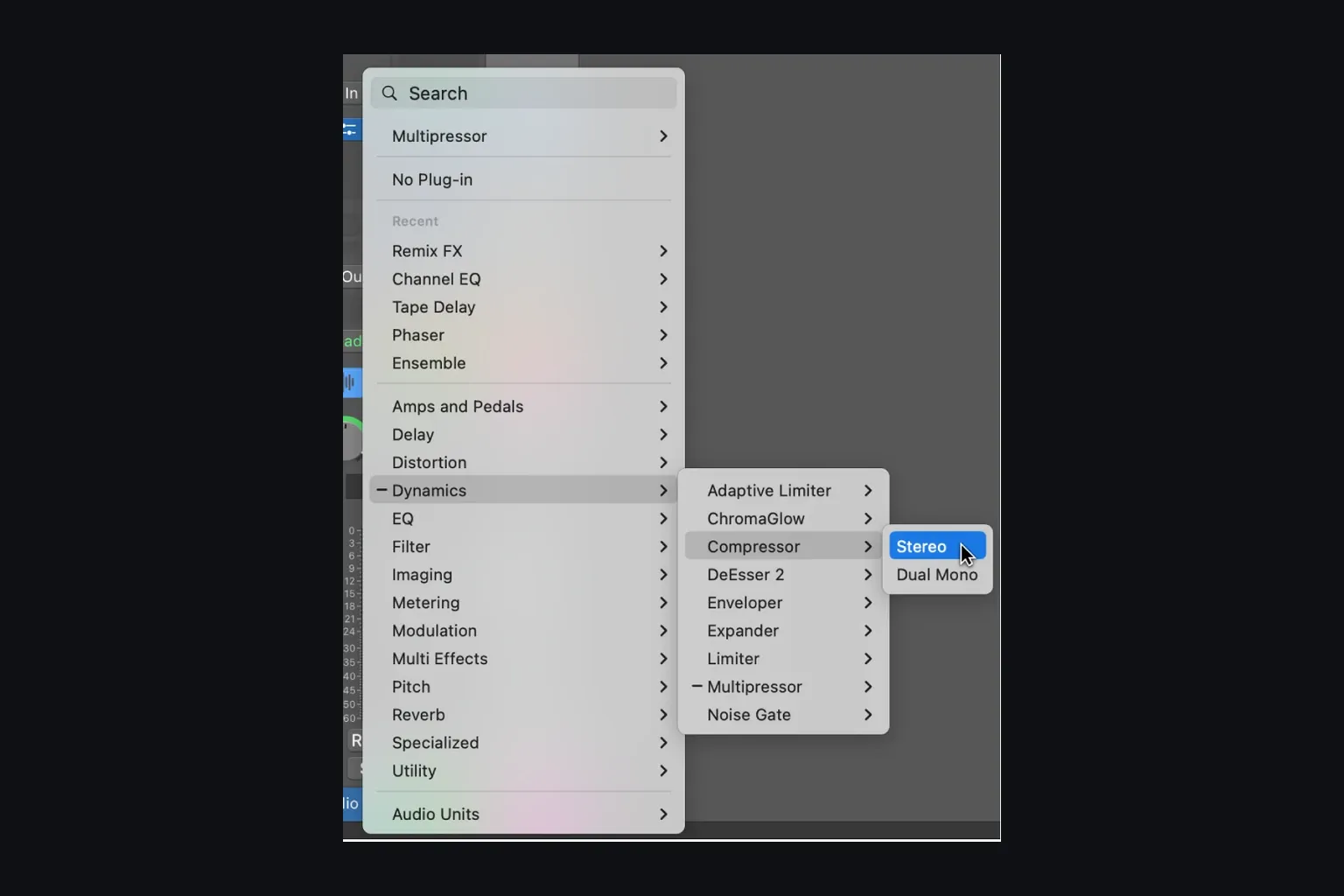
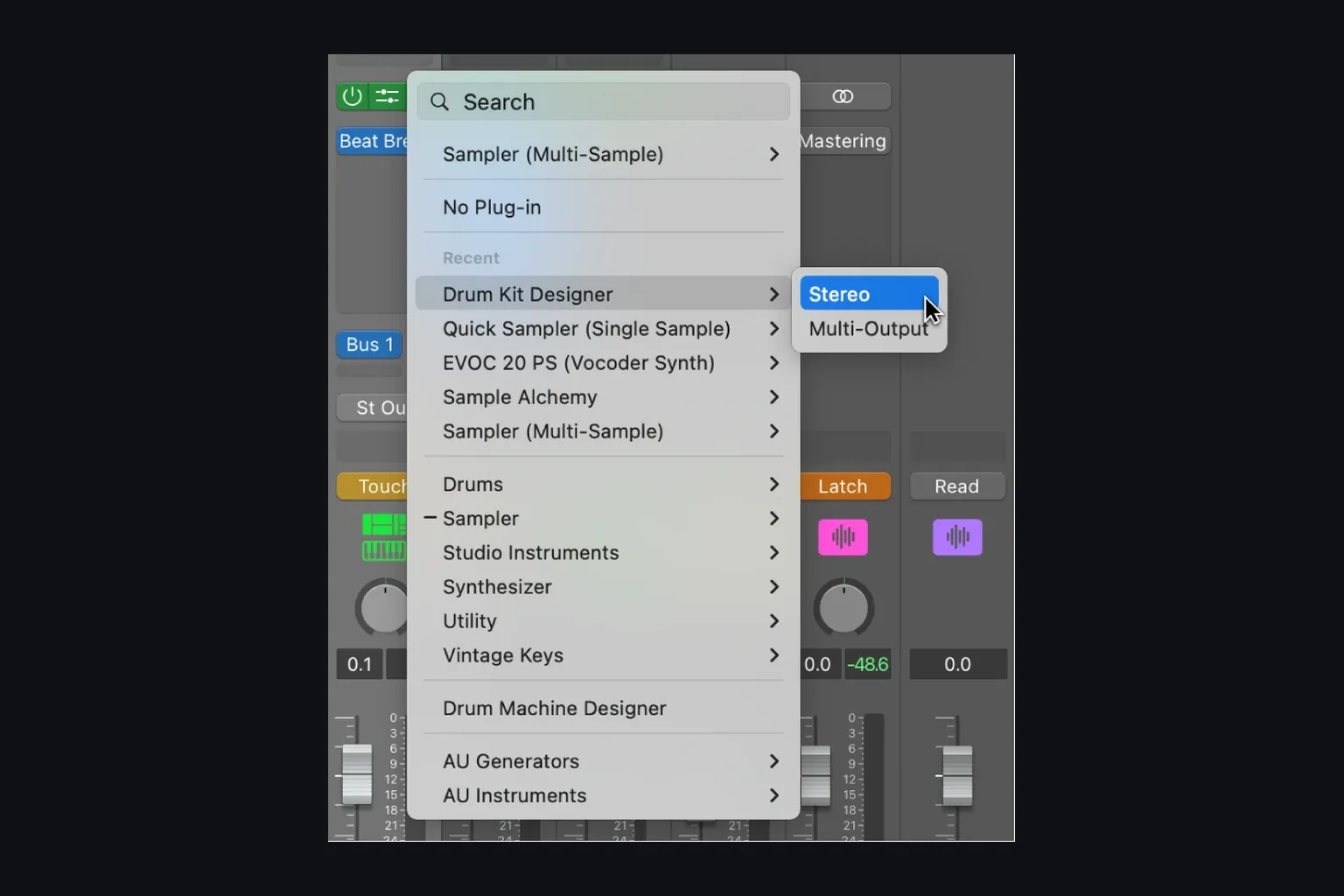
Channel format can also change which variation shows up. Some effects offer mono, stereo or dual-mono choices depending on the strip. Check the plug-in type on the developer’s product page before treating a missing menu entry as failed validation.
Read Plug-in Manager before choosing a reset
Open Logic Pro > Settings > Plug-in Manager and select Show All. Enter the plug-in name in Search and press Return, or select its manufacturer on the left. Apple’s Plug-in Manager guide says the Compatibility column shows a checkmark when the scan found no issue, “not compatible” when it found a problem, or the number of times an Audio Unit has quit unexpectedly.
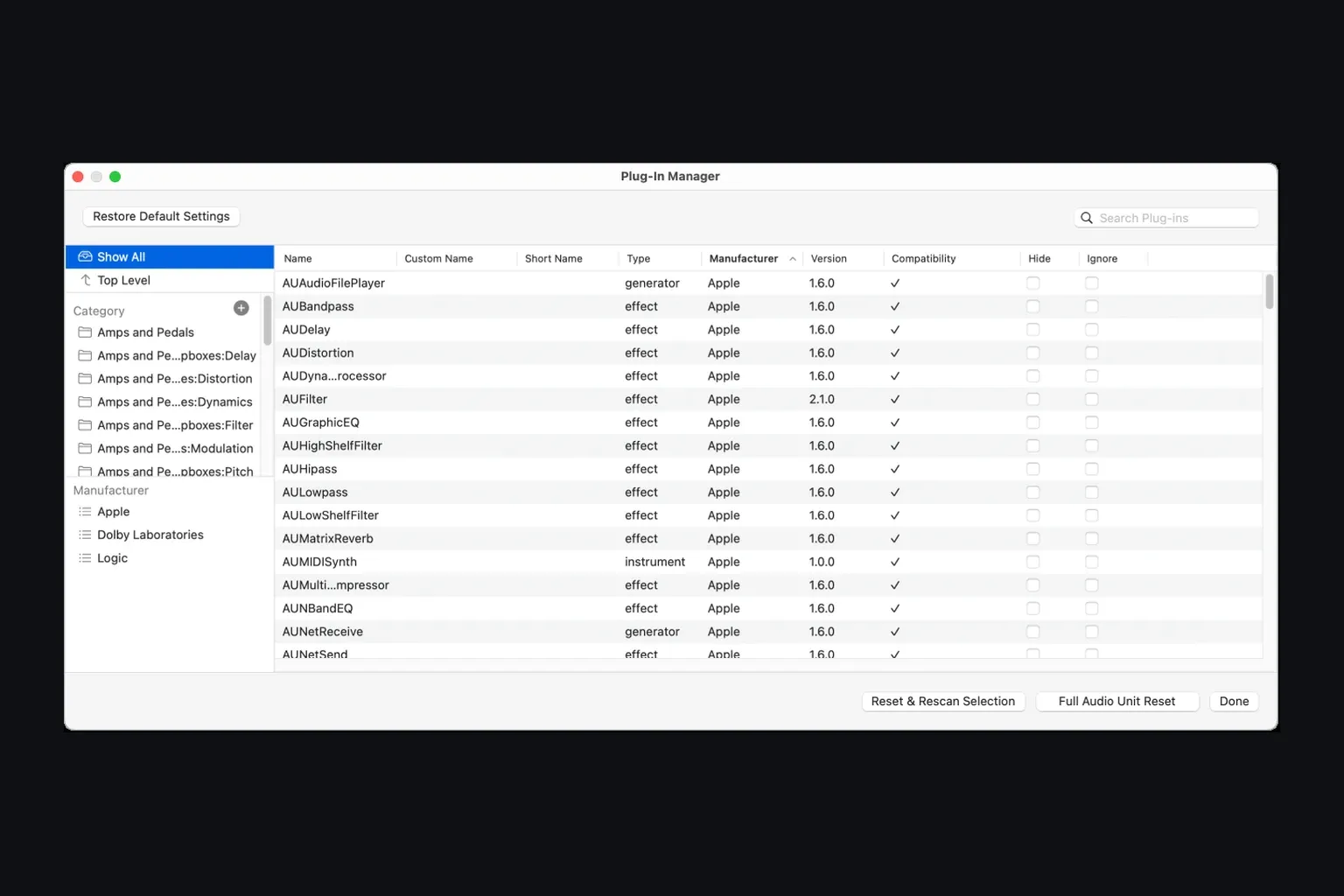
A hidden or ignored plug-in can be absent from the menu even though it is installed. Hide removes it from the Insert menu but still allows it to load with a project and be scanned. Ignore removes it from the menu and excludes it from scanning. Clear the relevant checkbox for the plug-in you want to use, close the window and recheck the correct slot.
Fix authorization before rescanning
If Plug-in Manager says not authorized, complete the developer’s license steps before rescanning. Depending on the product, that may mean entering a serial, signing into its license manager, or activating the Mac or a connected license device. Confirm that the license covers the exact installed product version, then restart Logic and rescan that entry.
Use the developer’s current instructions for that product; license systems do not all work the same way. Do not copy someone else’s license files or disable macOS security controls to fix authorization.
Use Reset & Rescan Selection for one known entry
When the plug-in appears in Plug-in Manager but is unavailable or marked failed validation, select that entry and click Reset & Rescan Selection. Check the result. If it passes, try loading it from the correct slot. If validation fails again, Apple recommends checking the manufacturer’s macOS compatibility information and available updates. Install a build supported on your setup, not simply the newest installer you can find.
A scan result isn’t a quality guarantee. It only tells you that the Audio Unit passed Logic’s validation at that point. If the plug-in later crashes during playback or when a preset opens, test the runtime failure separately on a copy of the project.
Use Full Audio Unit Reset when the entry is absent
If the Audio Unit is correctly installed but doesn’t appear anywhere in Plug-in Manager, there’s nothing to select for a targeted rescan. Click Full Audio Unit Reset, close Logic Pro, and reopen it. Logic will rescan installed Audio Units, and Apple notes that this reset also affects MainStage on the same Mac.
This does not uninstall .component files. Let validation finish before judging the result; scanning a large collection may take a while. If the product remains absent, check the vendor’s compatibility notes and reinstall the supported AU build rather than repeating resets indefinitely.
Apple silicon, Intel-only Audio Units and Rosetta
Apple says Logic Pro on Apple silicon supports most AUv2 and AUv3 plug-ins whether or not they were built natively for Apple silicon. An Intel-only Audio Unit can be recognized after Rosetta is installed. Apple’s Apple silicon compatibility page provides the current Rosetta installation path.
Installing Rosetta does not mean you should run Logic itself under Rosetta for every Intel plug-in. Apple says that normally should not be necessary; third-party ARA integration is an exception. Check the developer’s instructions for the specific product and version. Rosetta does not make an unsupported plug-in compatible with every macOS release. For the host requirements, see the Logic Pro system requirements guide.
Check blocked installers; leave manual cache removal until last
If macOS blocks an installer, read the exact warning and look for an updated copy directly from the developer. Apple’s guide to safely opening Mac software distinguishes an unverified developer from a damaged-app or malware warning. A limited System Settings > Privacy & Security exception may be available for software you have verified as trustworthy and unaltered. Do not treat “will damage your computer” or a damaged-app warning as a routine obstacle to bypass, and do not strip quarantine attributes from unknown downloads.
Apple lists manual removal of files inside ~/Library/Caches/AudioUnitCache as a last resort when its earlier checks have not resolved the problem. Save your work and quit Logic and other apps that use Audio Units. Move the cache files into a holding folder so they can be recovered, restart the Mac, then reopen Logic and let the rescan finish. Apple warns that other Audio Unit apps may be unavailable during scanning. For a plug-in absent from Logic’s manager, try Full Audio Unit Reset before this manual procedure. Clearing a cache cannot install a missing AU or supply a license.
If Logic will not open, isolate Audio Units instead of rescanning blindly
Quit Logic, open it and immediately hold Control, then choose Launch Without Audio Units. This disables Audio Units for that launch. If the problem disappears, Audio Units are a lead to investigate; the test does not identify the particular plug-in. Follow Apple’s remove-or-disable procedure to isolate it.
If that launch succeeds, quit and reopen Logic normally before saving and editing a project copy. Close the original and remove one Audio Unit at a time from the copy, testing after each change. If Logic cannot open normally, do not overwrite the session with its plug-ins disabled; use the crash-isolation guide for file-isolation steps. If disabling Audio Units does not help, return to the wider Logic Pro troubleshooting workflow. The cause may be outside plug-in discovery.
When a plug-in disappears after a Logic Pro or macOS update
Do not assume the update deleted the plug-in. Check whether its AUv2 component or AUv3 app is still installed, what Plug-in Manager reports, and whether the developer supports your new macOS and Logic versions. If validation fails again after an update, contact the manufacturer. Reinstalling an incompatible build repeatedly will not resolve a compatibility restriction.
If an older project depends on the missing product, protect the session before substituting or removing anything. Make a project copy and preserve the previous working application before updating. The Logic Pro backup guide covers both. A replacement effect may keep the project moving, but it won’t recreate proprietary settings from an unavailable plug-in.
When contacting support, include the exact Logic Pro build, macOS version, Mac model, plug-in version and Compatibility message. List the checks you have completed and their results, including whether the entry is missing from Plug-in Manager or only from an insert menu.
Logic Pro missing plug-ins FAQ
Why is my plug-in not showing up in Logic Pro?
Check the AU format, correct plug-in slot, Hide and Ignore in Plug-in Manager, validation, authorization and compatibility with your macOS and Logic versions. If even built-in audio effects and instruments are absent from the menus, check Core Audio Enabled in Logic Pro > Settings > Audio > Devices.
Does Logic Pro support VST or VST3 plug-ins?
Logic Pro does not load VST or VST3 directly. Install the vendor’s Audio Unit version: AUv2 is normally delivered as a component in a Library Audio Plug-Ins Components folder, while AUv3 is installed as an app-based Audio Unit Extension.
How do I rescan one plug-in in Logic Pro?
Open Logic Pro > Settings > Plug-in Manager, select the affected plug-in, then click Reset & Rescan Selection. If the entry says not authorized, fix its license with the vendor first and then rescan.
What does Full Audio Unit Reset do in Logic Pro?
Full Audio Unit Reset makes Logic Pro rescan installed Audio Units after you close and reopen the app. It does not uninstall the component files, but it also resets Audio Units for MainStage on the same Mac.
Why is a validated plug-in still missing from the Insert menu?
Select Show All in Plug-in Manager and check Hide and Ignore. Look in Audio FX for effects, Instrument for instruments, and MIDI FX for compatible MIDI effects. If all audio effects and instruments are missing, including built-in ones, turn on Core Audio Enabled in Audio > Devices. Quit and reopen normally if you launched Logic without Audio Units for a diagnostic test.
Do Intel-only Audio Units work on Apple silicon Macs?
Apple says most AUv2 and AUv3 plug-ins work on Apple silicon. An Intel-only Audio Unit can be recognized after Rosetta is installed; Logic Pro itself normally remains in native mode unless a specific ARA workflow requires Rosetta.


