Logic Pro Metronome Not Working? Fix the Missing Click
A moving metronome icon does not prove the click reaches your headphones. Follow the mode, sound source and output path to find the missing step.

If Logic Pro’s metronome isn’t working, check three things first: when the click is enabled, whether Audio Click is on, and where the Click channel sends its sound. A lit metronome icon doesn’t prove the click reaches your headphones. And a click that stops the moment recording starts usually points to a mode setting, which is a different problem from a click that’s silent everywhere.
This guide covers the built-in metronome in Logic Pro for Mac. If the whole project is silent, start with the Logic Pro no-sound diagnostic instead. Hearing a directly monitored microphone doesn’t prove Logic’s output works; play an existing region as the comparison.
Check the click without resetting the project
- Lower the headphone or monitor level, then confirm that an existing audio or instrument region plays through the intended output.
- Turn on the Metronome button in the control bar. Its default key command is K.
- Control-click that button, choose Simple Mode, and start playback. In this mode, the on/off button controls the click for playback, recording and count-in.
- If it is still silent, choose Metronome Settings from that shortcut menu, or open File > Project Settings > Metronome. Check the audio source, level and output as described below.
- If playback works but recording does not, turn Simple Mode off to inspect the separate playback, recording and count-in options.
Apple’s metronome instructions separate these modes explicitly. I’d get an audible click with this short check before touching buffers, reinstalling Logic or rebuilding a session.
Match the mode to the missing click
With Simple Mode off, inspect the following options in the Metronome shortcut menu or project settings. Apple’s mode definitions explain why the same project can click during playback and stay silent during recording.
| What you hear | What to check |
|---|---|
| Click during playback, silence during recording | Enable Click while recording. Playback and recording have separate settings. |
| Click before the take, then silence | Clear Only during count-in if you want the click throughout the take. Keep Click while recording enabled. |
| Click while recording, silence on playback | Enable Click while playing if you also want it when listening back. |
| No click in any transport state | Check Audio Click, the Click channel and the output route next. |
Only during count-in is available only when Click while recording is selected, and it stops the click on purpose once the actual take begins. A gray Metronome button with a purple icon can also mean recording-only behavior, so don’t read its color alone as a fault.
Simple Mode disables the other mode choices. Pick either the plain on/off workflow or the separate conditions on purpose, rather than trying to set both at once.
Enable the audio source and find the Click channel
In Metronome project settings, enable Audio Click (Klopfgeist) for Logic’s internal click. Set a usable Volume level and enable the rhythmic events you want to hear, such as Beat for a regular beat click. Check that their velocity values are not set to silence.
The Audio Click controls govern the instrument on the dedicated Click channel. MIDI Click is a different route entirely: it sends notes to an external MIDI sound module. Its Port menu picks that MIDI destination, not the headphone output for Klopfgeist, so setting Port to All won’t repair an audio click.
- Open the Mixer and select All in its menu bar.
- Find the channel named Click, to the right of the software instrument channels. It has no assigned track, so a track-only Mixer view can hide it.
- Check that Click is not muted and its fader is at an audible level. The metronome settings’ Volume slider adjusts this same fader.
- Inspect the instrument slot. For the standard sound, Klopfgeist should be present and active, rather than bypassed or replaced with a silent instrument.
- If the existing Click strip’s instrument slot is empty, load Klopfgeist from the instrument menu’s Utility subfolder. Preserve the rest of the strip’s routing while checking it.
Apple documents the hidden Click strip and its default solo-safe state. By default, soloing another channel leaves the click audible. If its solo-safe state was changed, Control-clicking the strip’s Solo button toggles that protection, as Apple’s channel-strip solo instructions describe.
If the click is there but hard to pick out, adjust Tone and Volume at a sensible listening level. Klopfgeist’s Tonality and velocity-sensitive level controls change its character and response. Turning up the whole monitor mix is a poor substitute for balancing the click itself.
Follow the output to your headphones
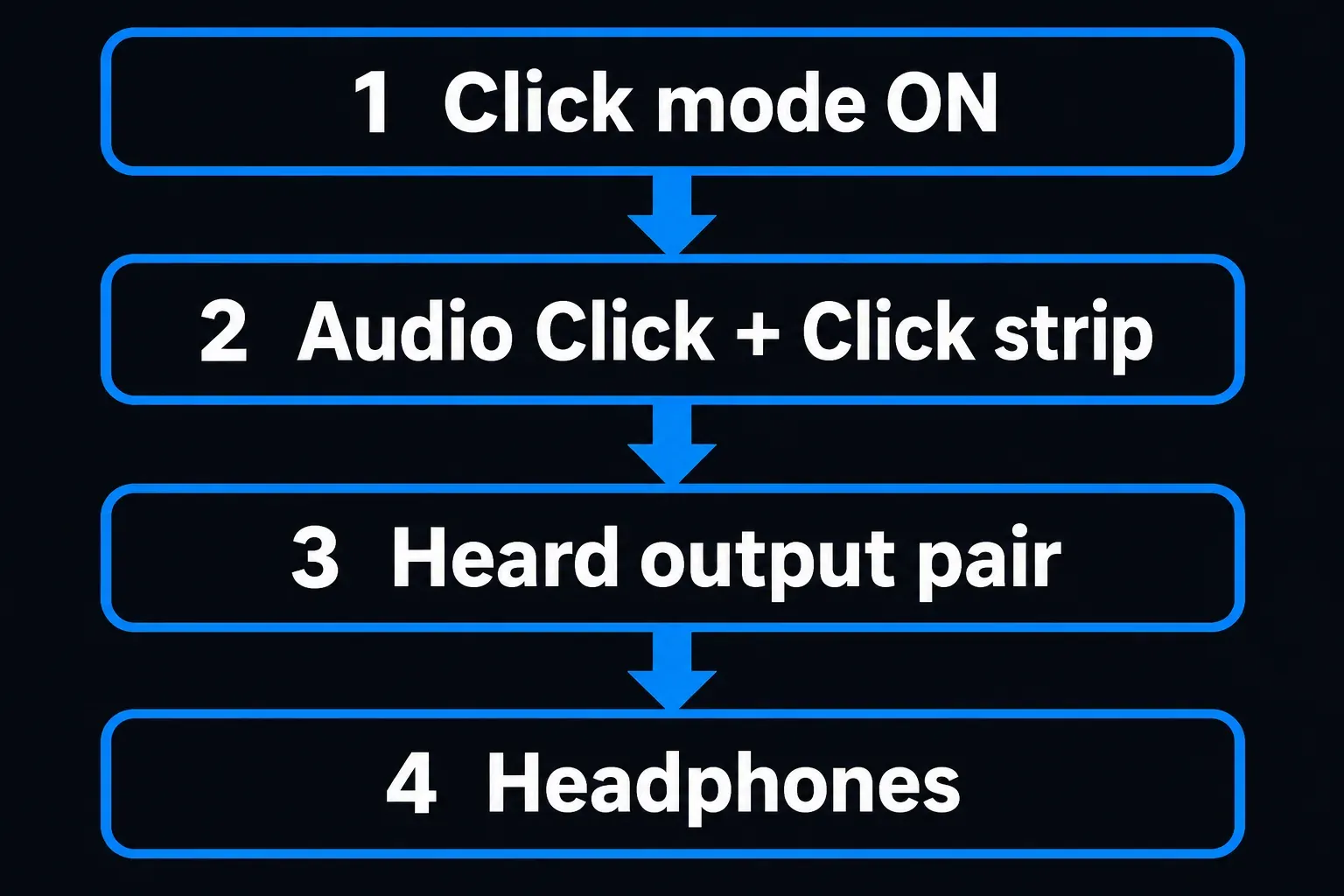
In Metronome settings, the Output menu can send the Click channel to another hardware output pair when the device has multiple outputs. Match that pair to the one feeding your headphones or cue mix. Do not assume Output 1-2 and the headphone socket always share a route; check the interface’s own mixer or routing panel.
Then check Logic Pro > Settings > Audio > Devices > Output Device. Apple’s Audio Devices reference identifies this as the selected Core Audio playback device. The project’s Click output pair and the interface’s headphone routing still have to lead to the same listening destination.
If the Click meter moves but your headphones stay silent, trace the downstream route before changing the sound generator. If the click reaches the main speakers but not a performer’s headphones, look at the cue mix. A hardware direct-monitor path can carry the microphone without carrying Logic’s playback return.
Before trying a different Output Device, note the original settings and turn the listening level down. Choosing an output device that also has inputs can change Logic’s Input Device too, so recheck both menus before you go back to the recording setup.
Repair a missing count-in
The count-in has its own switch. Turn on the control bar’s Count-in button, whose default command is Shift-K, and choose a duration under Record > Count-in. You can also set bars or beats in File > Project Settings > Recording.
For a quick diagnostic, select a one-bar count-in, turn the metronome on, and use either Simple Mode or Click while recording. Then start a real recording on a suitable armed track. Pressing Play alone doesn’t test the recording count-in. If track arming or capture is also failing, the audio recording guide covers it.
Check for None as the selected duration and for an active Pre-roll setting. Apple’s Recording project settings distinguish a bars-and-beats count-in from a pre-roll measured in seconds; the selected pre-roll duration replaces the count-in duration. Use headphones when recording a microphone so the audible click does not spill into the take.
Isolate project-specific failures
If none of this brings the click back, save your work and compare a genuinely new empty project, not another instance of the same custom template. Turn its metronome on and test playback. A working click there points to the original project’s settings, Click strip or routing; silence in both sends you back to the shared source and device settings.
Before changing the template or replacing channel-strip settings, keep a protected project copy with its saved assets. If the dedicated Click strip is missing, or the failure persists after reopening Logic, compare a known working project copy and collect the exact Logic version, device, mode settings and Mixer All view for support. Don’t delete the arrangement to chase a cause you haven’t identified.
A click that speeds up, slows down or feels off the grid is a different diagnosis. The metronome follows the project tempo, including a Smart Tempo map, so check the project BPM and tempo map or the Smart Tempo mode before you touch the click’s audio route.
Once it works, verify playback, count-in and the actual take separately, then save and reopen the project to confirm the behavior holds. Note any source change too: Apple stores the metronome source setting in Logic preferences, so it applies across loaded projects. If the symptom goes beyond the click, the Fix Logic Pro hub covers broader playback, interface and recording faults.


