How to Back Up Logic Pro Projects Safely
A verified Logic Pro backup workflow covering assets, saved versions, external copies, cloud storage, and safe recovery.

To back up a Logic Pro project, consolidate its audio and other assets, save and close it, then copy the complete project to separate storage. Keep an off-site copy too. Test the copy before relying on it: a project that opens on the same Mac may still be reading files from the original location.
Documentation checked September 12, 2026 against Apple’s current project-saving, consolidation, Time Machine and recovery instructions. This guide covers Mac project backups; the package-format section explains the extra limits when moving a project to iPad.
Back up a Logic Pro project
- Save the project and stop recording.
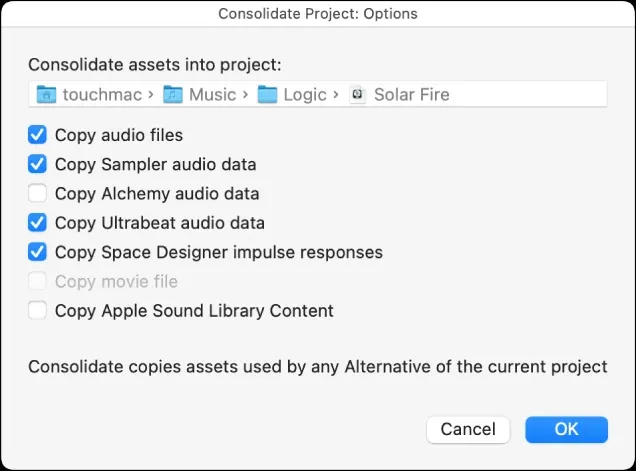
- Choose File > Project Management > Consolidate.
- Select the asset types the project uses, complete the consolidation and save the project.
- Close Logic Pro so the project is not changing during the copy.
- Copy the complete project package or the entire project folder to an external drive, or back up that location with Time Machine.
- Keep another copy away from the Mac and primary backup drive.
- Open the destination copy and check its audio, instruments and plug-ins. Use the independence check below before assuming all required media was copied.
Apple’s Logic Pro backup instructions recommend consolidating assets before using Time Machine or copying the project to external storage. The 3-2-1 model described by NIST adds protection against a lost device or location: three copies in total, including the working original, on two media types, with one copy off-site.
For an independence check, open the copy from its destination in Finder, not the Recent Projects menu. Listen across the song and check the parts that use samples or third-party instruments.
If the original media is on an external drive, close Logic and safely eject that source drive after other apps and transfers have finished, then test the copy again. Do not disconnect the backup destination or a drive the system is using. Another option is to test on a separate Mac with the required software installed. Do not delete or rename the originals to force a test. If neither check is practical, treat a successful same-Mac playback as a partial check, not proof that the archive is self-contained.
Backups, crash recovery, and Project Alternatives are different
Logic’s built-in protections solve different problems:
| Tool | What it protects | What it does not protect |
|---|---|---|
| Current project save | Your latest deliberate save | A lost drive, deleted file, or damaged project |
| Revert To backups | Earlier saved versions of the current alternative | The Mac or storage device itself |
| Project Alternatives | Named cuts, arrangements, or mixes sharing project assets | A lost or corrupted project container |
| Time Machine or external copy | A separate copy outside the working project | Off-site protection if kept beside the Mac |
Apple’s Project Alternatives and backups guide says each File > Save or Command-S creates a saved backup of the current alternative, up to ten backups per alternative. Open them from File > Revert To. Alternatives are created deliberately with File > Project Alternatives > New Alternative and share the project’s assets. They are useful for a radio edit, instrumental, or alternate arrangement, but they remain inside the same project.
Consolidate Logic Pro project assets before copying
A project can reference media stored elsewhere: recorded audio, imported files, Sampler or Alchemy source audio, Space Designer impulse responses, video, or Apple Loops. Copying only the project container can leave those sources behind.
- Open the project you intend to archive.
- Choose File > Project Management > Consolidate.
- Select the asset categories used by the project.
- Click OK and allow Logic to copy those assets into the project’s Media folder.
- Save, close, and then copy the project.
Apple’s Consolidate Project guide lists audio files, Sampler, Alchemy and Ultrabeat audio data, Space Designer impulse responses, video, and Sound Library content such as Apple Loops. Consolidation also copies assets used by any alternative in the project.
Consolidation does not back up the installed plug-ins. Beside a long-term archive, record the Logic and macOS versions, sample rate, plug-in versions and required sample libraries. Preserve presets and installers where their licences permit. Store account passwords and licence secrets securely, not in a project folder you may share.
For parts that rely on a plug-in you may lose access to, render audio while it still works. Bounce in Place creates audio from supported tracks; keep the editable original too. For external MIDI hardware, capture its audio in real time. Apple’s External Instrument instructions explain routing the hardware’s audio into Logic. Freezing is not a universal archive method for external instruments.
Keep a finished mix in WAV or AIFF beside the project. Apple’s bounce guidance warns against using lossy MP3 in production when the same audio is available losslessly. You can also export an MP3 reference mix for convenient listening. A mix preserves the sound, not the editable tracks, so it supplements the project backup rather than replacing it.
Use Time Machine and a separate external copy
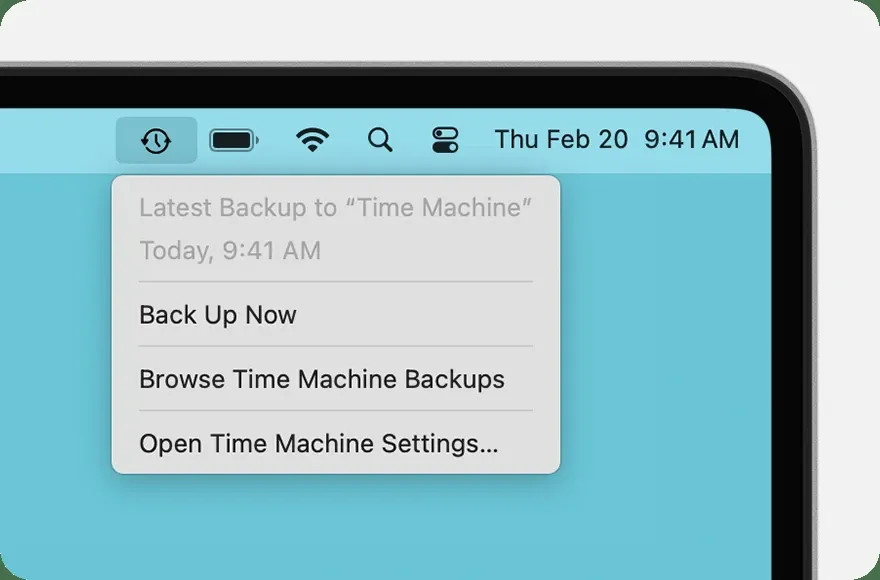
Time Machine provides automatic backups to a separate destination. Apple’s Time Machine guide describes hourly backups for the past 24 hours, daily backups for the past month and weekly backups for earlier months; older backups are removed when the destination fills. Frequency can be changed in Time Machine settings. macOS also keeps local snapshots on the startup disk, roughly hourly for about 24 hours when space allows. Those snapshots can help undo a recent mistake, but cannot protect you when that disk fails or the Mac is stolen.
- Open System Settings > General > Time Machine.
- Choose Add Backup Disk or the add button, select the intended destination and click Set Up Disk. Setup may offer to erase it. Stop if it contains anything you have not already backed up and verified elsewhere; never erase your only project copy to create a backup disk.
- Confirm that the project and required media locations are not excluded from the backup.
- Let the initial backup finish.
- For a restore test, first copy the current project to a safe holding location, then restore an older version with Time Machine and open it. Restoring returns the item to its original location.
Keep the password for an encrypted Time Machine backup somewhere you can recover it without this Mac. Let the backup finish and eject the disk before disconnecting it. For a milestone, you can also keep a dated copy, for example Song_Title_2026-08-15_PreMaster.logicx. A second folder on the same physical drive is not protection against that drive failing. Do not overwrite the only known-good archive with a damaged project.
Back up Logic Pro projects to iCloud or another cloud service
Cloud storage can provide the off-site copy, but sync and backup are not identical. A synced deletion or damaged file may propagate, depending on the service and its version history. Keep Time Machine or a separate external archive even when projects are stored in the cloud.
Apple’s Mac and iPad project guide supports iCloud Drive for sharing projects between those devices and recommends compressing projects before sharing through third-party cloud services. First make sure the project and its assets are downloaded locally. In iCloud Drive, Apple documents Download Now and Keep Downloaded for that purpose.
Consolidate and close the project, compress the whole package or project folder, upload the ZIP and let the transfer finish. Download a copy into a different, nonsynced folder, expand it and perform the independence check above. Copy files out of iCloud Drive rather than moving the originals: a move out removes them from iCloud Drive on your other devices.
Avoid editing the same project on two devices at the same time. Let syncing finish before opening it elsewhere, and preserve milestone ZIP files rather than relying only on one continuously changing copy.
Package vs folder: which format should you back up?
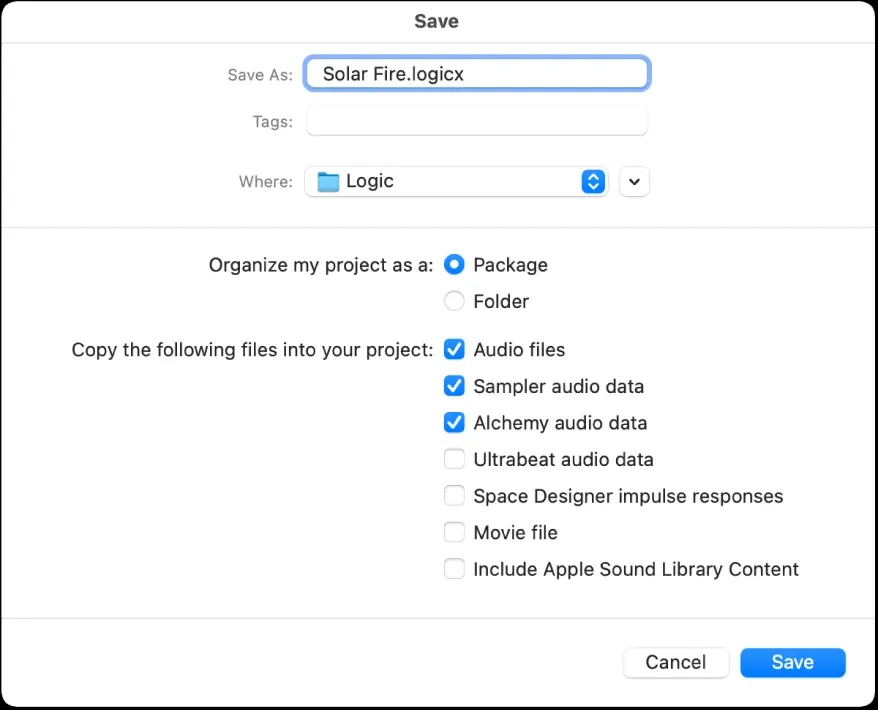
Logic can organise a Mac project as a package or a folder. A package appears in Finder as one .logicx item. A project folder contains the project file and its asset folders. Copy that entire folder, not just the .logicx file inside it. Either format can still reference external media if you did not include it when saving; consolidate and test the copy.
Apple’s Mac and iPad project instructions say Logic Pro for iPad opens package projects, not projects saved as folders. A package does not make every Mac plug-in or project feature compatible with iPad. Check those restrictions before a handoff and preserve the Mac original. On Mac, choose a folder when direct access to the media structure helps your workflow; both formats still need a separate backup.
When to use Save a Copy As or a Project Alternative
Use File > Save a Copy As when you need a separate project copy for a milestone, handoff or move. Apple’s project-saving guide says recordings are copied with the asset types already saved in the original project. It does not promise to collect every external dependency automatically: consolidate first, then test the destination copy. Saving it beside the original on the same drive still leaves both exposed to that drive failing. Once the backup is verified, the Logic Pro recording and editing guides cover comping, timing repair and delivery.
Use a Project Alternative for named arrangement or mix versions inside one project. Alternatives share assets, so do not treat one as protection against destructive changes to shared audio files. If the project container is lost, its alternatives are lost too. Keep a separate copy before changes you may need to undo.
How to recover a Logic Pro project safely
- If a drive shows hardware errors or keeps disconnecting, stop using it and consider professional recovery before repeated read or write attempts. If files were deleted, avoid writing new data to that drive.
- For a damaged project on otherwise healthy storage, copy it to a healthy destination if possible and troubleshoot that copy. Do not put recovery files back on a drive you suspect is failing.
- For an unwanted edit, open File > Revert To and inspect the dated backups for the current alternative.
- For a missing or overwritten project, preserve any current item at the original path in a safe holding location before restoring the selected Time Machine version.
- If the copy reports missing media, locate and reconnect the original files or use a consolidated archive. After relinking, consolidate again and make a new copy to test independently.
- Open the recovered copy, listen across the timeline, and check third-party instruments before replacing anything.
Apple’s Time Machine restore guide says restored items return to their original location. If a project still exists there, preserve it in a holding folder or on another drive before restoring. Open and test the restored project before discarding either version.
Compare recovery candidates by date and size, but do not assume the newest is healthy. Test copies, save recovered work under a new name and leave the source backups untouched until you have verified the session and its audio. Stop if the device starts showing hardware errors; these project-level steps are not a procedure for recovering a failing drive.
Back up the Logic Pro app before a major update
Project backup and application backup are separate. Before updating Logic, Apple recommends compressing the current Logic Pro application in the Applications folder and storing the ZIP with the version number. This provides a rollback copy of the app if an update causes a compatibility problem. Back up the project before opening and saving it in a newer Logic version too, because Apple warns that a project saved in a newer version cannot be opened in an earlier version. Keep project copies as well; an older app does not restore a missing session or media file. For release context, see what changed in Logic Pro 12.3.
Before updating macOS or Logic Pro, also confirm the current requirements in our Logic Pro system requirements guide and finish critical deliveries before changing the production machine.
Logic Pro backup FAQ
How many backups does Logic Pro keep automatically?
Apple says Logic keeps up to ten saved backups per Project Alternative. Each File > Save or Command-S creates a backup of the current alternative, available through File > Revert To.
Can I back up Logic Pro projects to iCloud safely?
Yes, as one layer. Download the project and assets, let transfers finish, and verify a downloaded copy outside the synced folder. Check that it does not depend on the original media location. Keep Time Machine or another independent archive because syncing can also propagate deletion or damage.
Should I save Logic Pro projects as a package or folder?
Both work on Mac when the required assets are included. For folder projects, copy the entire project folder, not only its .logicx file. iPad requires a package, but that does not guarantee compatibility with every Mac plug-in or feature.
What is the difference between crash recovery and Project Backups?
Crash recovery helps after an interrupted session. Project Backups are earlier deliberate saves listed under File > Revert To. Neither replaces a copy on another storage device.
How do I recover a Logic Pro project after a crash?
Reopen the project. Apple says Logic may offer the autosaved version after an unexpected quit; declining it opens the last manually saved version. If the recovered state is wrong, inspect File > Revert To. Duplicate the project before deeper troubleshooting.
What does Save a Copy As do in Logic Pro?
It creates a separate project copy with recordings and the asset types already saved in the original. Consolidate external assets first and test the destination copy. A copy on the same physical drive does not protect against that drive failing.
How do I restore a Logic Pro project from Time Machine?
Preserve any current project at the original path in a safe holding location. Open that location in Finder, enter Time Machine, select the earlier version and click Restore. The item returns to its original location. Open and test the restored project before discarding either version.


