Logic Pro Missing Audio Files: Relink and Recover
Recover missing Logic Pro audio files without choosing the wrong take: locate the original source, reconnect the project and verify every restored region.

When Logic Pro says an audio file is missing, the project still remembers the region and its original file reference. The job is to find that exact source, restore the reference, and verify the result before saving over anything. Do not choose a similarly named take simply because it makes the warning disappear.
Checked September 21, 2026 against Apple’s Logic Pro for Mac User Guide. This guide is for a project that opens with missing audio or silent regions. A project that opens normally but is not self-contained needs the separate Logic Pro backup workflow.
What the missing-file warning means
Logic is looking for an audio file at a stored location and cannot currently find the source there. The file may have been moved, renamed, placed on an unmounted external drive, deleted, or left outside the project when the session was copied. Apple’s project-management overview separates the project itself from the assets it references, which is why a region can remain on the timeline even when its source file is unavailable.
Write down the filename Logic reports and the track or region that should contain it. If several files are missing, keep the whole list. A filename alone is weak evidence when a session contains alternate recordings, comp takes, duplicate exports, or files copied between folders.
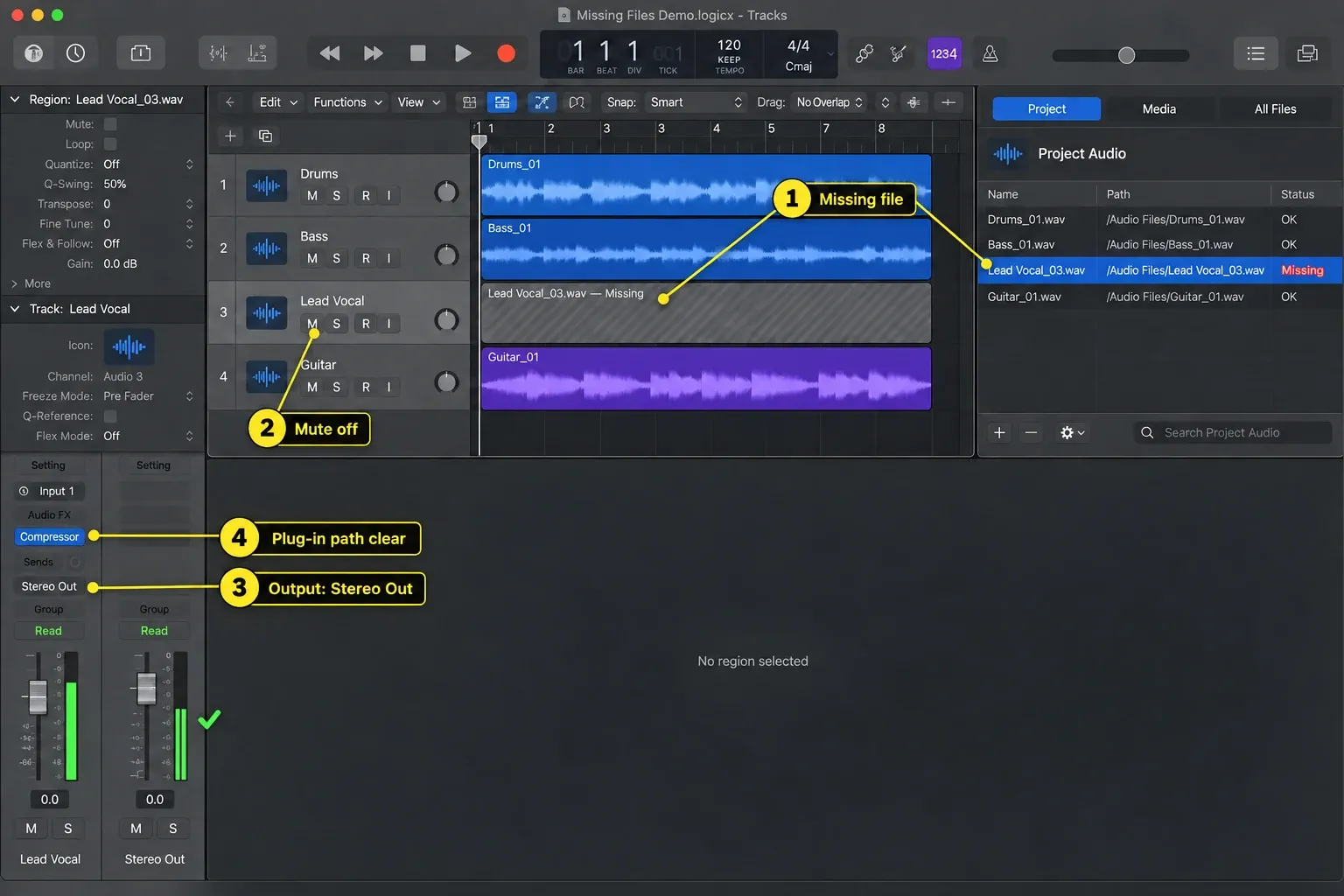
Use the missing-file dialog when it appears
- Open the project without deleting or replacing regions.
- Read the missing filename carefully, including the extension and take number.
- Choose the action that lets you locate or browse for the missing source.
- Navigate to the folder that contains the original recording and select the exact file.
- If Logic offers to resolve other missing files from the same folder, review those matches before accepting them.
- Play the restored region from its first transient through its end. Check the waveform, timing, take and surrounding edits.
The dialog’s wording can differ by Logic Pro version. Follow the action that reconnects the original source rather than importing a new file onto the track. If you dismissed the warning, close the project without overwriting your recovery copy, reopen it from Finder, and watch for the dialog again.
Find the original source without guessing
Search locations that could realistically contain the recording:
- the project’s Audio Files or Media folder;
- the external drive used during recording;
- an earlier project copy or handoff archive;
- a Time Machine or other dated backup;
- the recording folder used before the project was moved;
- a copy made before the files were renamed or reorganized.
Use Finder to search the exact filename, then compare more than the name. Check file type, duration, modification date, take information, sample rate where available, and audible content. Two files called “Vocal_03” can be different performances. A bounce, MP3 reference, or trimmed copy may play but still be the wrong source for the region.
Logic’s Project Audio Browser shows audio files known to the project and supports adding files or creating regions. Removing a file from that browser is not a relink step. Do not press Delete while investigating a missing source.
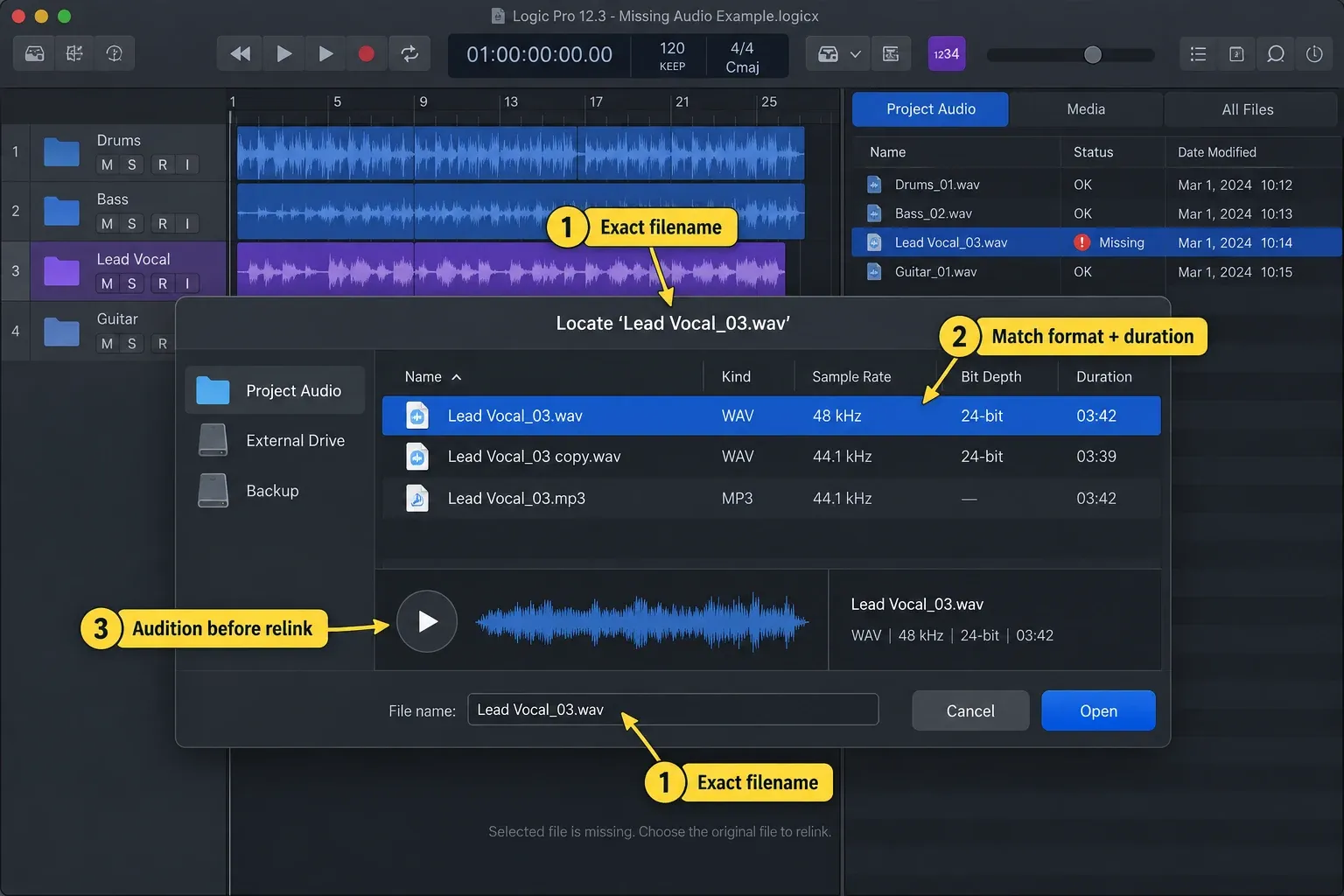
If the file is on an external drive
Reconnect the drive directly, wait for macOS to mount it, and confirm its name in Finder before opening the project. If the drive or a parent folder was renamed, the recording may still exist even though Logic’s stored path is no longer valid. Point Logic to the original file when the locate dialog returns.
Do not format, repair, rename, or reorganize the drive while recovering the session. If the drive will not mount, work from a known backup or a storage-recovery copy before changing the project. Repeated locate attempts inside Logic cannot recreate a deleted recording.
If you only have a copied .logicx project
A .logicx project can still reference audio stored elsewhere. Copying the project item does not prove that every recording traveled with it. If the original project still opens with its audio, use File > Project Management > Consolidate and select the asset types the session needs. Apple describes Consolidate as the command that copies project assets into the project’s Media folder.
After consolidation, save and close the project, copy the complete package or folder, and open that copy from its new location. Consolidation improves future portability. It does not recover an audio file that has already been deleted unless another copy or backup still contains it.
Do not import a substitute over the missing region
Dragging a similarly named file onto the track creates or replaces content according to the drop and edit mode. It does not prove that the original region reference has been restored. The shortcut can change the performance, timing, edits, crossfades, or phase relationship while hiding the real problem.
Use a substitute only after deciding that the original cannot be recovered and treating the result as a new edit. Keep the pre-change project copy, label the replacement, and record what was substituted. For a multitrack recording, recover the related files together before judging timing or phase.
Verify the relink before consolidating
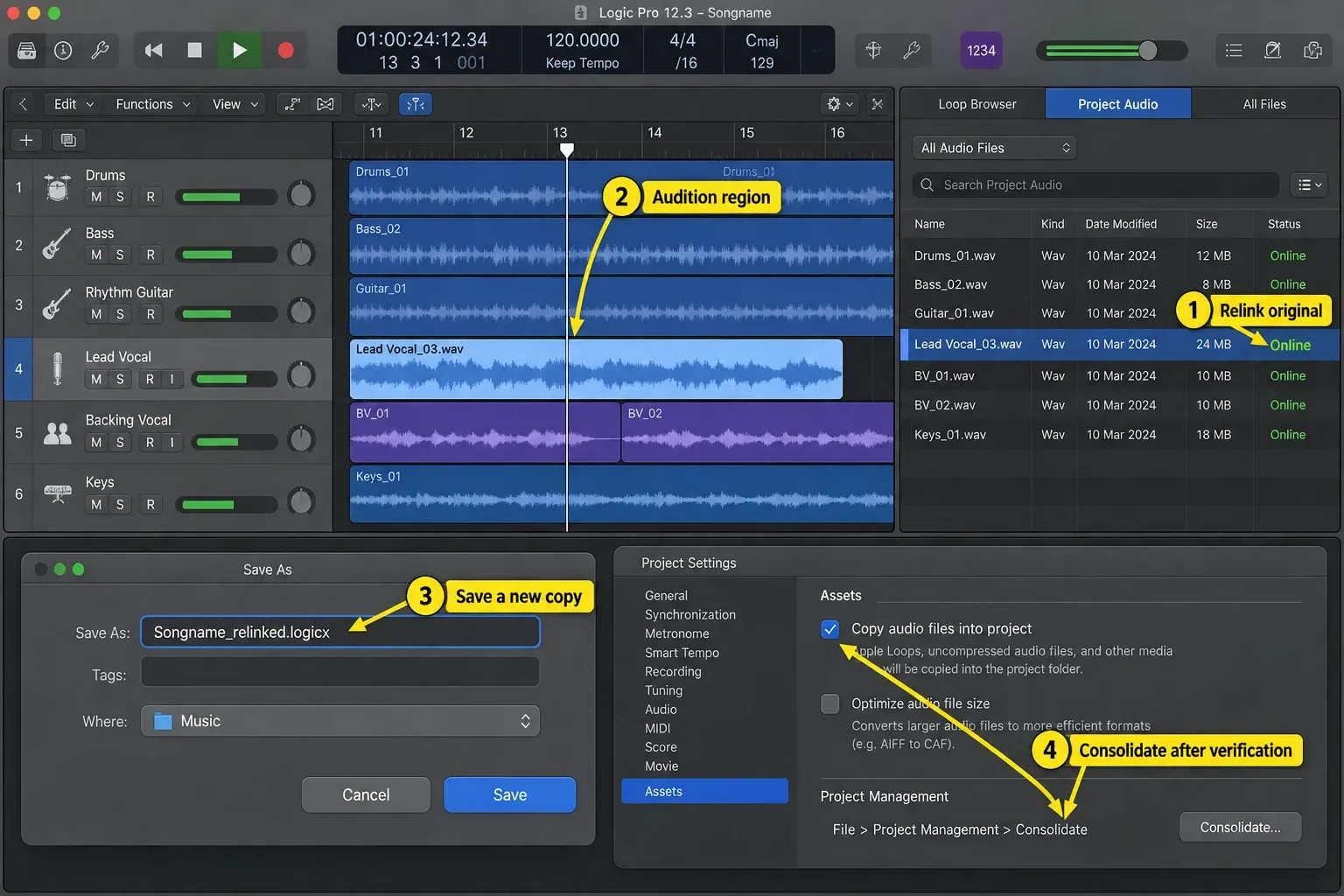
- Play every restored region, including quiet sections and material under crossfades.
- Confirm the source name, duration, take and alignment.
- Save the repaired project as a new copy with a clear filename.
- Close Logic and reopen that copy from Finder.
- Confirm that the warning does not return and that every expected region plays.
- Consolidate the assets before sending or archiving the repaired project.
If the project needs its media moved into a new folder structure, use Logic’s documented command to move audio files used by regions after the correct sources are restored. Moving files before the relink can create another path change while the first one is still unresolved.
Quick diagnosis
| What happened | Best next step |
|---|---|
| The project opens with a missing-file warning | Record the exact filename and use the dialog’s locate or browse action. |
| Several files from one session are missing | Find the original folder or reconnect its drive, then review every proposed match. |
| The project was copied to another Mac | Recover the source files or consolidate the original project before copying again. |
| A similar file makes the region play | Stop and compare the take, duration, timing and waveform; playback alone does not confirm the match. |
| Only one region is silent and there is no warning | Inspect that region’s source, track mute state, region mute and routing before diagnosing missing media. |
| The original drive will not mount | Work from a backup or recovery copy before changing the project. |
FAQ
Is a silent region always a missing audio file?
No. A region can be silent because the region or track is muted, its output is wrong, automation lowers it, the source starts elsewhere, or a plug-in blocks the signal. A missing-file warning or an unavailable source in the project is stronger evidence than silence alone.
Can Logic relink several files from one folder?
It may resolve additional missing references after you locate one file in the original folder. Review each match. Files with similar names can belong to different takes or sessions.
Does copying a .logicx project include all audio?
Not automatically in every project. A project can reference media stored outside the package. Consolidate the required assets, close the project, copy it, and reopen the copy to verify that it is self-contained.


