How to Install Plugins in Logic Pro: AU Setup
Install third-party Audio Units in Logic Pro, verify the component or extension, confirm Plug-in Manager validation, and load it in the correct slot.

To install plugins in Logic Pro for Mac, use the developer’s Audio Units build. Logic has no internal “install plug-in” button: download the Mac installer from the developer, include the AU or Audio Units option, finish any license authorization, then reopen Logic. Check the new plug-in in Logic Pro > Settings > Plug-in Manager before you try to use it.
If the download offers VST, VST3, AAX and AU, Logic needs AU. Install only VST3 and the plug-in won’t show up in Logic at all. This guide covers Logic Pro for Mac. The old name “Logic Pro X” still turns up in older documentation and search results, but the installation route is the same Audio Unit workflow.
Documentation checked September 8, 2026: Apple’s Logic Pro User Guide and Audio Units support guidance.
Choose the right plug-in format before downloading
A vendor may package several formats in one installer. Pick the Mac build the developer says is compatible with your macOS version, your Mac processor and the current Logic Pro release. Then include AU in the format list. If you haven’t chosen the software yet, the free and paid Logic Pro plug-in guide separates useful free and paid choices from tools that duplicate strong stock options.
| Format in the installer | Will Logic Pro for Mac load it? | What to do |
|---|---|---|
| AU / Audio Units / AUv2 | Yes | Install this format for Logic. |
| AUv3 / Audio Unit Extension | Yes, when the extension supports Mac | Install the app or extension as the developer instructs. |
| VST or VST3 | No, not directly | Choose AU as well; VST3 alone is for other hosts. |
| AAX | No | This is not the Logic plug-in format. |
| Standalone app | Not by itself | Confirm the package also includes an AU component or AUv3 extension. |
Check more than the word “Mac” on the download page. The build must be a 64-bit Audio Unit supported on your macOS version and Mac processor; check the developer’s Logic and license-manager requirements too. Apple’s missing-plug-in guidance confirms that 32-bit plug-ins are not compatible with Logic Pro or MainStage. Follow the developer’s installation instructions, as Apple recommends in its Audio Units guide.
How to install a plug-in in Logic Pro
- Save any open project, then quit Logic Pro. Finish the installation before reopening the app.
- Download the installer from the plug-in developer or its authorized account page. Avoid repackaged installers from download sites.
- Choose the Mac version and include AU or Audio Units. Omit other formats only if the installer offers that choice and the developer does not require them. Keep formats needed by other DAWs you use.
- Run the vendor installer. Keep its default AU destination unless the developer documents a different method. Complete any required sign-in, serial, license-manager or hardware authorization.
- Reopen Logic Pro and let validation finish. Do not force-quit the app while the new Audio Unit is being scanned.
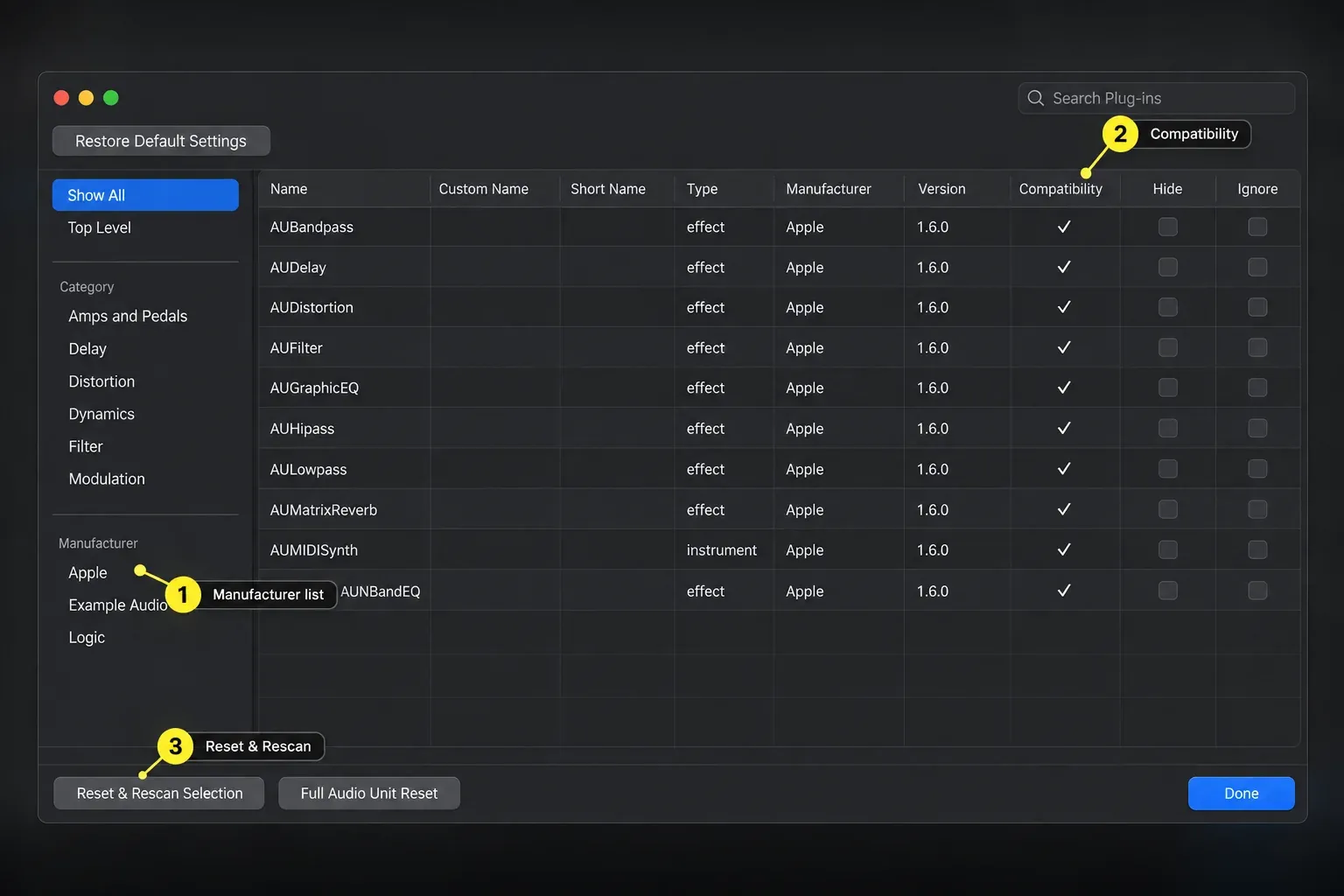
- Open Logic Pro > Settings > Plug-in Manager. Select the manufacturer, or enter the plug-in name in Search and press Return. Confirm that Compatibility shows a checkmark.
- Load it from the correct slot. Use an Audio Effect slot for processors such as EQ, compression, reverb and delay; use the Instrument slot for a synth, sampler or drum instrument.
- Test and save. Pass audio through an effect or play notes into an instrument, change one obvious control, save a small test project, close it and reopen it to confirm the plug-in and its setting recall correctly.
The final test matters. A plug-in can appear in the menu yet still be unauthorized, fail to produce sound or forget its state. Finding that in a disposable project is safer than discovering it inside an important mix.
If macOS blocks the installer, read the warning before proceeding. For an unverified developer, check for an updated installer and ask the vendor. Do not treat a damaged-app or “will damage your computer” warning as a routine installation step to bypass. Apple’s guide to safely opening Mac apps explains the different warnings. There is no need to disable Mac security for every plug-in installation.
If the installer gives you a .component file
Install most commercial plug-ins with the developer’s package. It may also place presets, support files and license components. Use manual placement only when the developer supplies a standalone .component file and explicitly supports that method.
Apple documents two Audio Unit component folders:
/Library/Audio/Plug-Ins/Components: the system Library, normally used when the plug-in should be available to users of that Mac.~/Library/Audio/Plug-Ins/Components: the current user’s Library. The tilde means your home folder.
With Logic closed, open Finder and choose Go > Go to Folder. Paste one of the paths above, click Go, and place the vendor-supplied component in that folder. Do not overwrite an existing component without the developer’s update instructions. Reopen Logic and check Plug-in Manager. Apple’s Audio Unit folder reference confirms both locations and explains that Logic’s built-in effects and instruments are not stored there.
Keep the AUv2 .component in one of those scanned Library folders. A vendor may let you park its sample library, presets or other content on an external drive, but that doesn’t move the component itself. Use the vendor’s content-location control instead of dragging installed plug-in files by hand.
AUv3 works differently: Apple’s current guide says Audio Unit Extensions are installed in the Applications folder, while AUv2 plug-ins use the Components directory. Do not drag an AUv3 app bundle into the Components folder.
Confirm that Logic validated the plug-in
Open Logic Pro > Settings > Plug-in Manager. Select the manufacturer on the left, or enter the plug-in name in the search field and press Return. Apple’s Plug-in Manager guide says a checkmark in Compatibility means the scan found no issue; “not compatible” means it found a problem. Apple Support also documents “failed validation” and “not authorized.” For a failed scan, select the entry and use Reset & Rescan Selection. For an authorization error, complete the developer’s license steps before rescanning.
Select Show All in the upper-left corner to inspect the Hide and Ignore columns. For the plug-in you want to use, clear either checkbox if selected. Hide removes the plug-in from the Insert menu but still lets it load with an existing project and be scanned. Ignore removes it from the menu and excludes it from scanning.
Do not click Full Audio Unit Reset as part of a normal installation. If one installed entry needs another scan, select that entry and use Reset & Rescan Selection. If the plug-in is absent, unauthorized or repeatedly fails validation, follow the narrower Logic Pro missing plug-in diagnostic instead of deleting caches or bypassing macOS security at random.
Load an effect or instrument in the right place
Choose View > Show Mixer (X) to see your channel strips. Load the Audio Unit on the appropriate track:
- Audio effects process a signal that already exists. Click an empty Audio Effect slot, open Audio Units, choose the manufacturer, then the plug-in.
- Software instruments create sound from MIDI. On a Software Instrument track, click an empty Instrument slot and choose the Audio Unit instrument. If the slot already contains an instrument, hover over it and click the arrows on its right to choose a replacement. Clicking the middle opens the instrument already loaded.
- MIDI effects process or generate MIDI before the instrument. Use the MIDI Effect slot above the Instrument slot on a Software Instrument channel strip, only when the developer supplies a Logic-compatible MIDI effect.
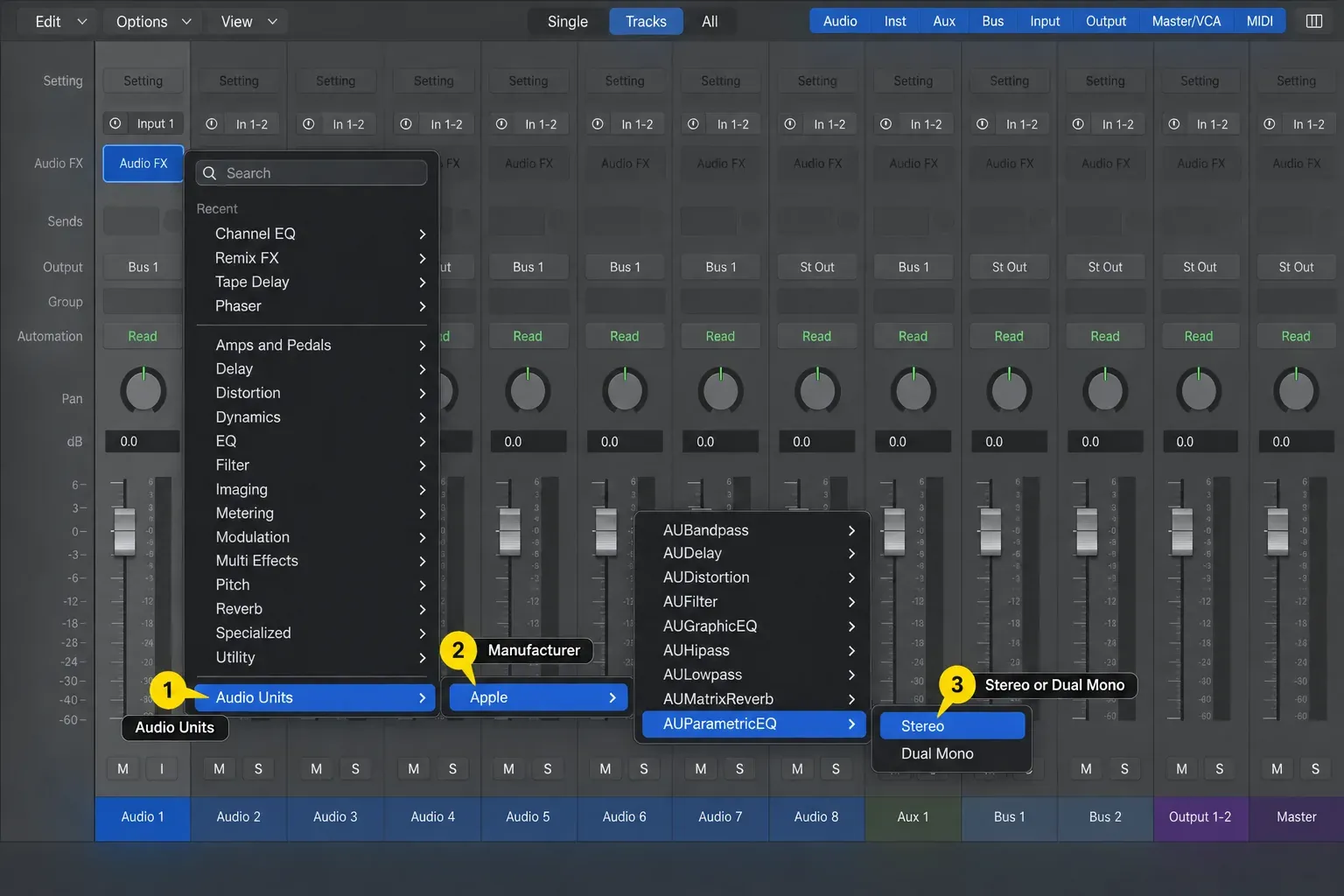
Look for the instrument version of a synth in the Instrument slot, not the Audio Effect menu. An audio processor such as a compressor belongs in an Audio Effect slot. Apple’s plug-in slot reference explains both menus and the arrows used to replace a loaded plug-in.
Apple silicon, Intel plug-ins and Rosetta
Prefer a current Apple-silicon or universal build when the developer offers one. If the only supported build is an Intel Audio Unit, Apple says an Apple-silicon Mac needs Rosetta installed before Logic can recognize that plug-in. That does not mean you should run Logic itself with “Open using Rosetta” for every older plug-in.
Apple says Logic generally should not need to run under Rosetta. Third-party ARA integration can be an exception; follow the developer’s instructions for that specific product and version. Apple’s Apple-silicon Audio Unit guidance also gives the Rosetta installation steps. Rosetta does not make an unsupported plug-in compatible with every macOS or Logic release. Apple’s page on using Intel-based apps on a Mac with Apple silicon says Rosetta is available through macOS 27; from macOS 28 it is planned only for certain older games. Treat an Intel-only Audio Unit as a temporary bridge and ask the developer about a native build.
If the new plug-in does not appear
Keep the first checks narrow:
- Confirm that the AU build was installed rather than a VST3-only or AAX-only build.
- Check the Audio Effect slot for an effect and the Instrument slot for an instrument.
- Search for the plug-in in Plug-in Manager, press Return, and check the manufacturer. Check Hide and Ignore under Show All.
- Finish the vendor’s authorization and confirm current macOS and Logic compatibility.
- Restart the Mac once. Apple’s recently installed plug-in support page puts a restart before rescans and full resets.
- If the entry exists but failed, select only that plug-in and use Reset & Rescan Selection.
Stop there before broad resets. The complete missing Audio Unit troubleshooting path covers validation states, authorization, Full Audio Unit Reset, startup isolation and cache removal in the order that limits collateral damage.
Logic Pro plug-in installation FAQ
Can Logic Pro use VST or VST3 plug-ins?
Logic Pro for Mac does not load VST or VST3 directly. Install the Audio Units version supplied by the same developer. A multi-format installer can place AU for Logic and VST3 for another DAW on the same Mac.
Where is the Logic Pro plug-in folder?
Third-party AUv2 components can be in /Library/Audio/Plug-Ins/Components or ~/Library/Audio/Plug-Ins/Components. AUv3 Audio Unit Extensions are installed in Applications. Logic’s built-in effects and instruments are not stored as removable files in those third-party Components folders.
Do I need to restart Logic or the Mac after installing a plug-in?
Finish the installation with Logic closed, then reopen it so the new Audio Unit can be validated. A full Mac restart is not required after every successful installation, but Apple recommends restarting as the first check when a recently installed plug-in does not appear.
Why does my synth not appear in the Audio Effect menu?
Load the synth’s instrument version on a Software Instrument track from the Instrument slot. If another instrument is already loaded, hover over the slot and click the arrows on its right to choose a replacement. Audio Effect slots are for processors such as EQ, compression and reverb.
Should I put a .component file in the system Library or user Library?
Follow the developer’s supported installation method. When manual placement is explicitly supported, /Library/Audio/Plug-Ins/Components makes the component available at the system level, while ~/Library/Audio/Plug-Ins/Components is inside the current user’s home Library. Do not manually split a vendor package unless its documentation tells you to.
How do I know whether Logic accepted the plug-in?
Open Logic Pro > Settings > Plug-in Manager. Select the manufacturer, or enter the plug-in name in Search and press Return. A checkmark in Compatibility means the scan found no issue. Then load the plug-in in a small test project, pass audio or MIDI through it, save, close and reopen the project to confirm recall.
For a first test session, follow the Logic Pro beginner project to set up audio and software-instrument tracks. You can then use the Logic Pro tutorials to work through recording, editing, mixing and export.


