Logic Pro Beginner Tutorial: First Project to Bounce
A current, practical Logic Pro beginner workflow from an empty project to a checked audio bounce without fake rules or copied plug-in settings.

Build a small Logic Pro project with drums, a loop or MIDI part, optional recorded audio, and a mix you can play outside the app. Start with one musical idea; you can add more tracks once it plays from beginning to end. When you have a setup worth reusing, save it as a Logic Pro project template.
Checked September 13, 2026, against Apple’s current Logic Pro for Mac documentation. These steps are for the Mac app, not the iPad interface. Older courses may call it Logic Pro X and use different menu names. If you already have a project and need help with one stage, the Logic Pro tutorials hub links to the individual workflows.
Logic Pro beginner tutorial: the whole workflow
- Create an empty project and save it before recording.
- Learn the four areas you will actually use.
- Add a Drummer or other Session Player region.
- Add an Apple Loop or write a short MIDI part.
- Record audio only if the project needs it.
- Turn the idea into sections rather than endlessly looping eight bars.
- Balance the tracks before reaching for plug-ins.
- Bounce the project and listen to the file outside Logic.
That is a complete first project. Sound design, vocal comping, automation, buses and mastering become much easier once this basic route makes sense.
1. Create and save the project
Choose File > New from Template, or press Command-N. In the Project Chooser, select New Project, then Empty Project, and click Choose. In the New Tracks dialog, select MIDI with Software Instrument, choose Default Patch in Details, and click Create. This gives you a track to use for the MIDI part later. Apple’s project creation guide distinguishes this route from File > New (Shift-Command-N), which creates an empty project directly.
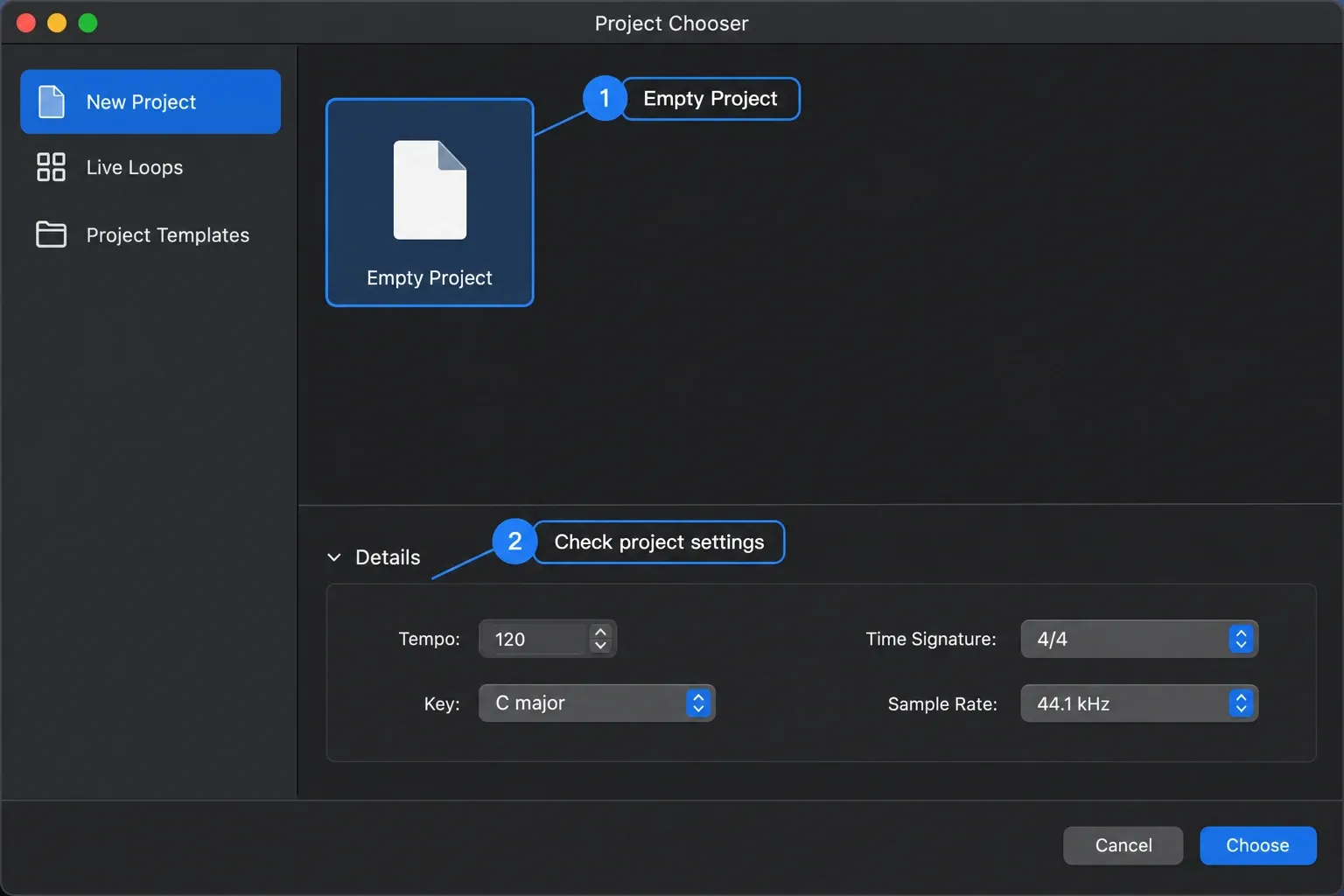
In the Project Chooser’s Details area you can set tempo, time signature, key and sample rate before clicking Choose. Use the song’s tempo if you know it; otherwise leave the default while you find an idea. These settings can change later, but set the sample rate before recording or importing audio.
To set the sample rate in an open project, choose File > Project Settings > Audio and use the Sample Rate menu. Apple’s sample-rate guide identifies 44.1 kHz as the CD standard and 48 kHz as common for video. Follow a client or delivery specification when one exists. Higher rates use more storage and processing; changing the rate after adding audio can require conversion.
Press Command-S, enter a project name and choose its location. Select Organize my project as: Package if you prefer one project package, then select the asset types to copy, including Audio files, and click Save. A package alone does not guarantee that external files are included: Apple’s project-saving documentation makes this depend on the selected asset types. Before moving the session, check File > Project Settings > Assets and keep the originals until a copied project opens and plays correctly. Autosave recovery is separate from your last manual save, so press Command-S after edits you want to keep.
2. Learn four parts of the Logic Pro window
You do not need to memorize the whole interface. Four areas carry nearly all of this project:
- Tracks area: the timeline where audio, MIDI, loops and Session Player regions become the arrangement.
- Control bar: play, stop, record, cycle, tempo and other project controls.
- Inspector: settings for the selected region or track, plus its channel strip.
- Editors and Mixer: detailed note, audio and Session Player editing below the Tracks area; channel levels, routing and plug-ins in the Mixer.
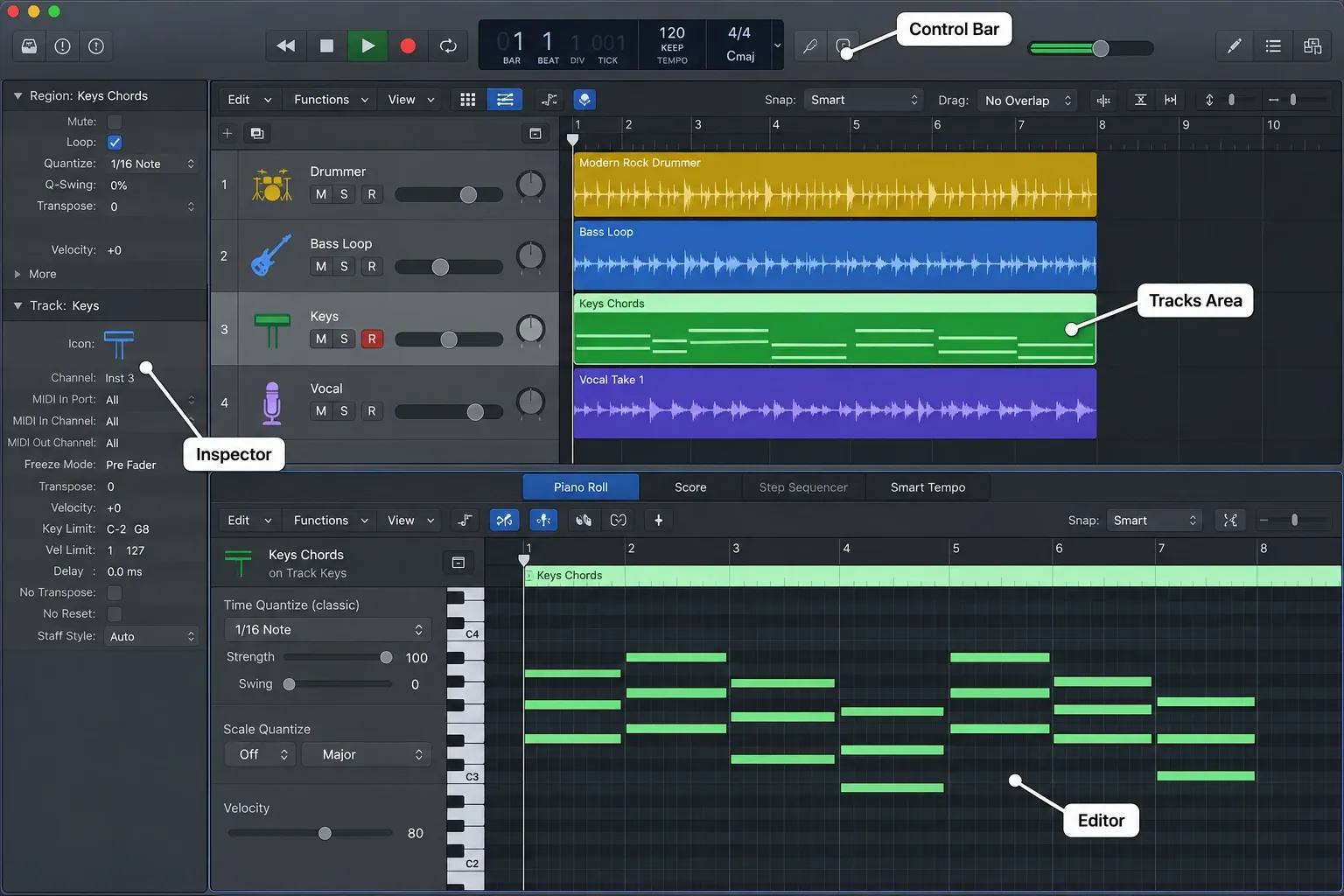
After you add a region, click its track header and then the region itself. Track settings describe the track; region settings affect the selected piece of audio or MIDI. Use Command-Z to undo an unwanted edit.
3. Add a Drummer track without programming every hit
A Session Player is a fast way to give the project a musical pulse. Click the Add Tracks button, choose Session Player, select Drummer, then click Create. Depending on the current cycle area or arrangement markers, Logic may create one region or regions that follow those sections.
Double-click the yellow region to open the Session Player Editor. Start with three decisions: choose a style or preset, move the complexity and intensity controls until the part supports the idea, and reduce fills if they distract from the phrase. Do not keep a busy part merely because it sounds impressive in solo.
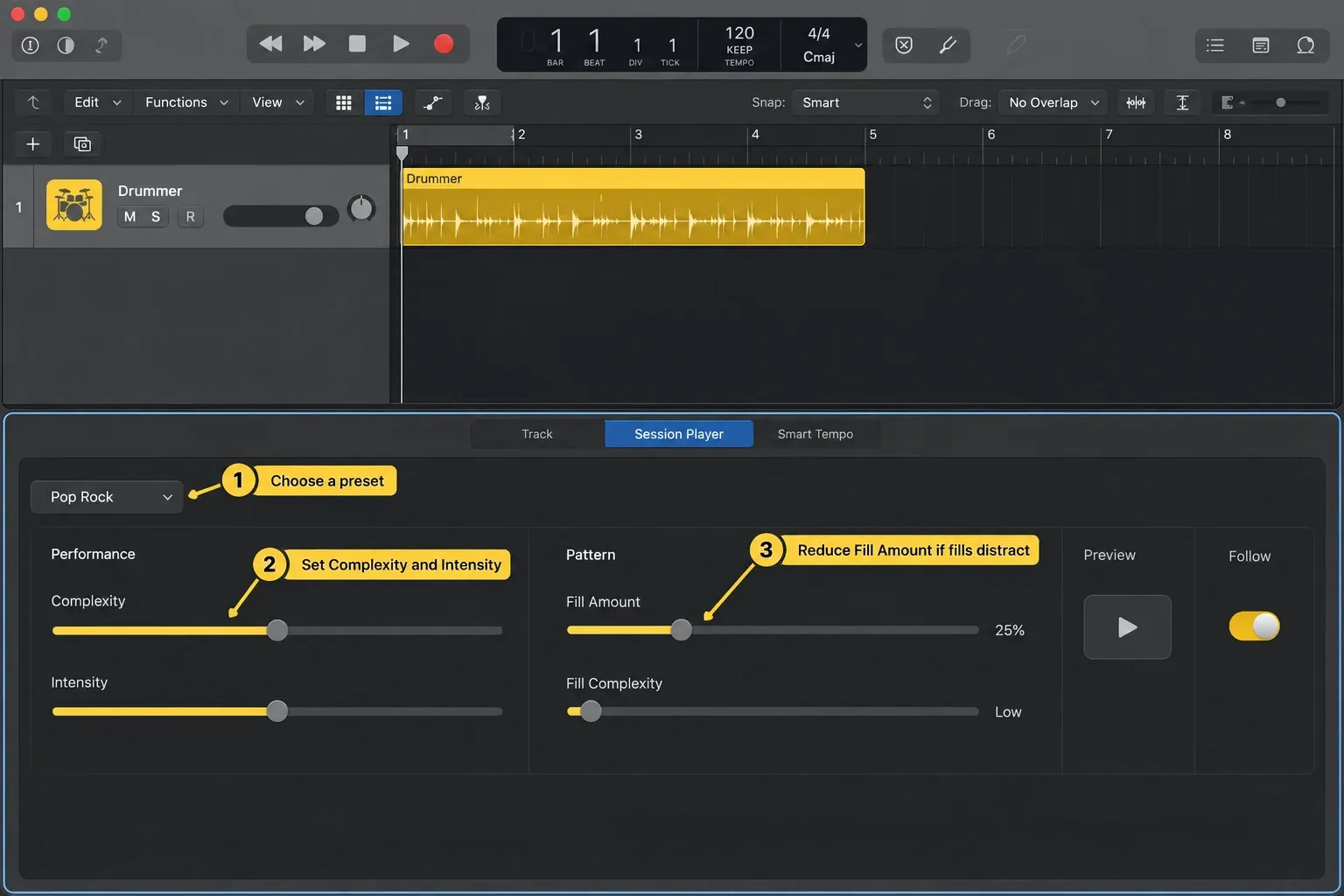
Apple's Session Players overview explains that these regions can use different styles in different sections and can later be converted to MIDI or pattern regions. For a first project, keep the region editable as a Session Player until the arrangement is stable.
4. Add an Apple Loop and understand what Logic changes
Press O to open the Loop Browser. Search by instrument, genre or descriptor, click a result to preview it, then drag the chosen loop into an empty part of the Tracks area. Logic creates a suitable track if needed.
Current Logic Pro has four Apple Loop types:
- blue audio loops;
- green MIDI loops;
- violet pattern loops for Step Sequencer;
- yellow Session Player loops.
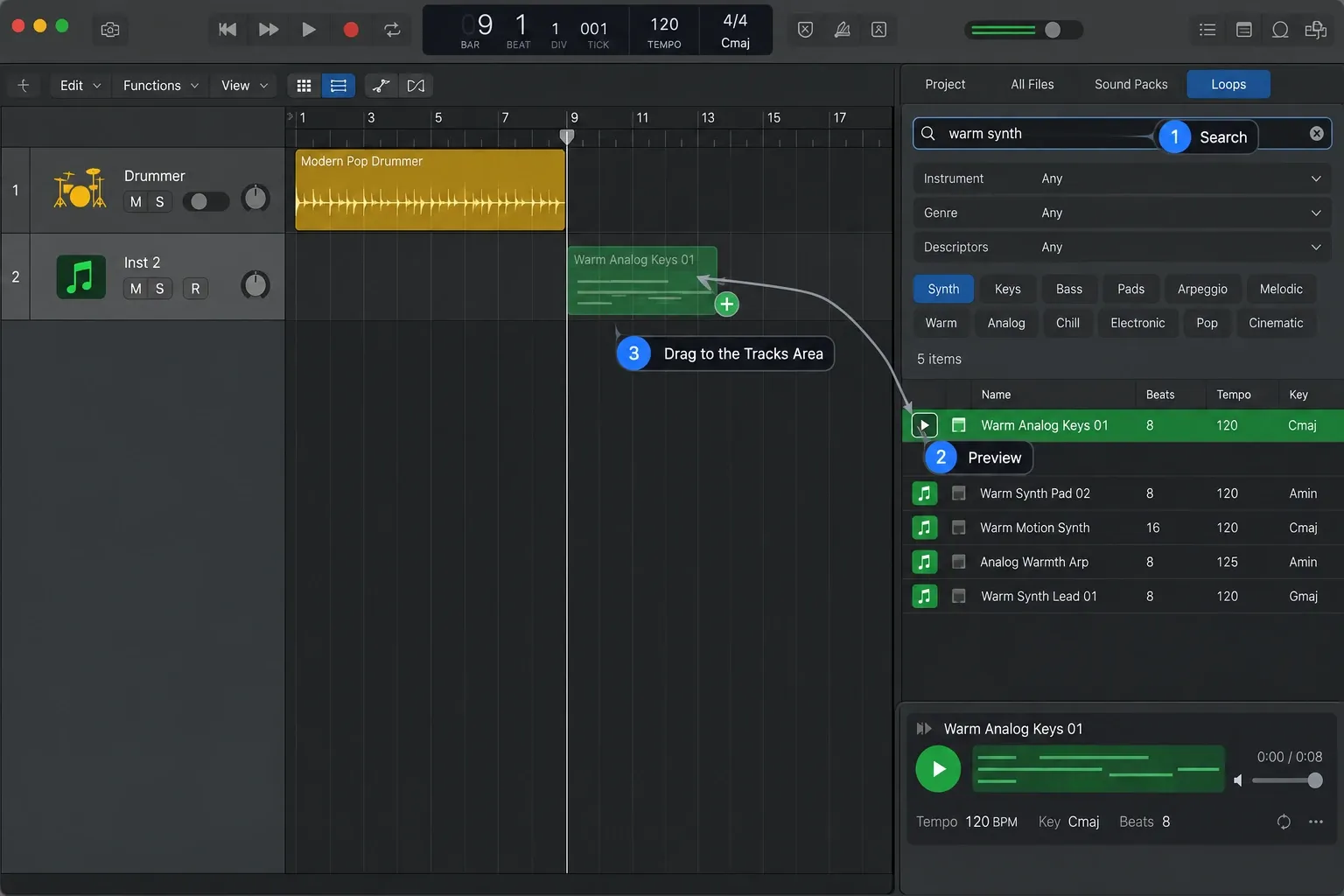
Apple Loops normally follow the project's tempo and key, but there is one important first-project exception. Apple's current loop documentation says that when an Apple Loop is the first content added to a new project, before any audio or MIDI, the project tempo and key change to match that loop. Check both values after adding the first loop. Once the project already contains material, added loops conform to the existing tempo and key instead.
Matching tempo and key does not guarantee that two loops belong together. Listen for clashes in rhythm, register and harmony. One convincing part is better than five loops competing for the same space.
5. Write or record a MIDI part
Select the software-instrument track created in step 1. To add another, click Add Tracks, choose MIDI with Software Instrument, choose Default Patch in Details, and click Create. Press Y to open the Library and choose a sound. You can now record a performance or draw notes:
- With a MIDI keyboard: select the track, place the playhead at an empty bar, click the control bar’s Record button, play a short part, then press Space to stop. Return to the start of the new region and press Space to listen.
- Without a MIDI keyboard: choose Window > Show Musical Typing. Select the instrument track, place the playhead at an empty bar, click the control bar’s Record button, play the keys shown in Musical Typing, then click Stop. Playing the keys without starting recording auditions the sound but does not create a recorded region.
- To draw notes: Control-click an empty area of the software-instrument track in the Tracks area and choose Create MIDI Region. Double-click that region to open the Piano Roll. Choose Pencil from the editor’s Tool menu and click in the grid to add notes; switch back to Pointer when you want to select or move them.
In Musical Typing, Z and X move the playable range by octaves; C and V lower or raise velocity. Use the on-screen controls while this window has focus: C here changes velocity rather than toggling Cycle. Apple’s software-instrument recording guide shows the record, play and stop sequence. For a drawn part, its empty MIDI region instructions cover the starting region.
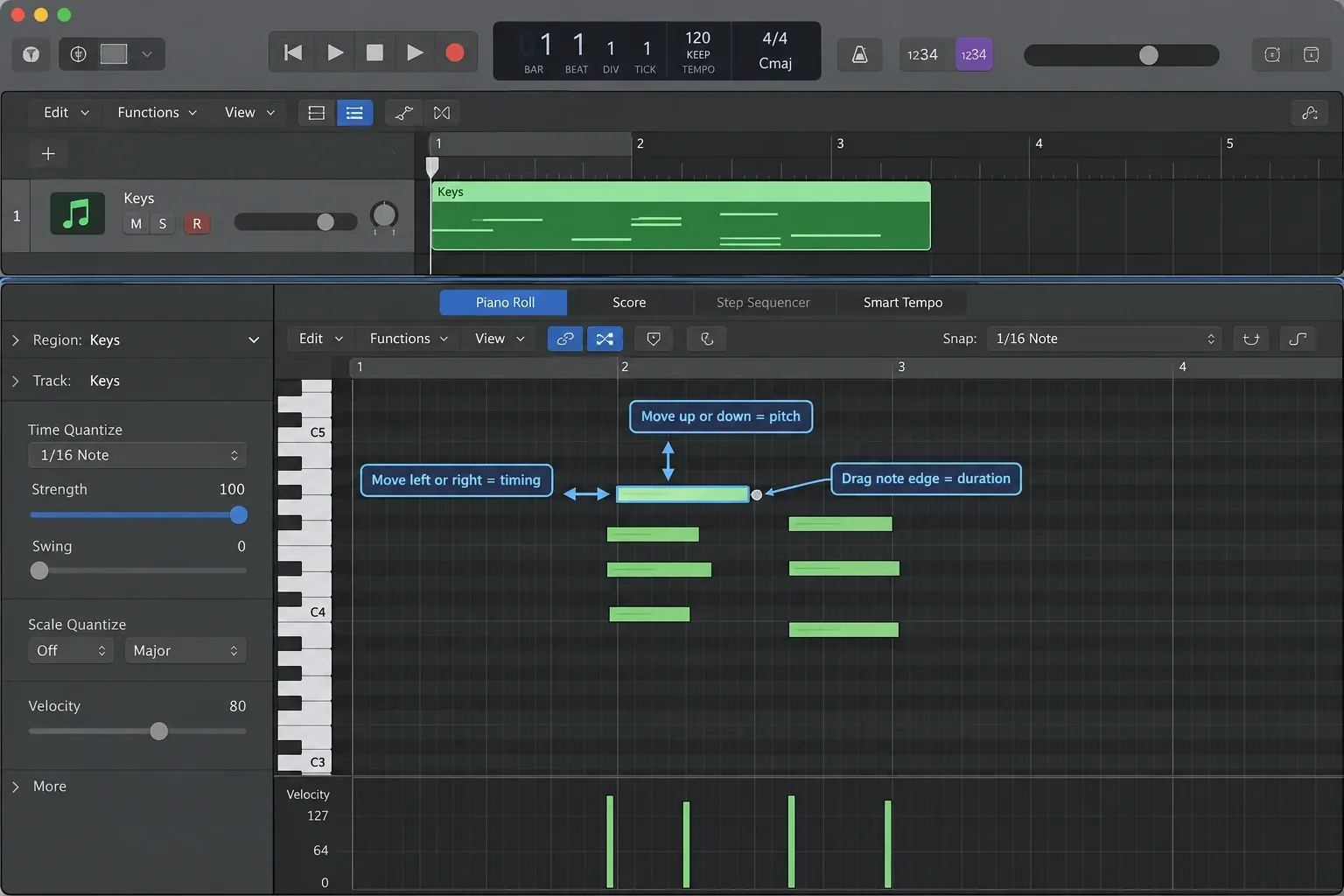
In the Piano Roll, drag a note left or right to change its timing, up or down to change pitch, and drag an edge to change duration. Apple's current note-copying guide also documents Option-drag to copy notes. Quantize only the notes that need correction and choose a grid that matches the part; forcing a loose performance to the wrong division can make it less musical. For a deeper recording pass, use the Logic Pro MIDI recording guide.
6. Record audio and reduce monitoring delay
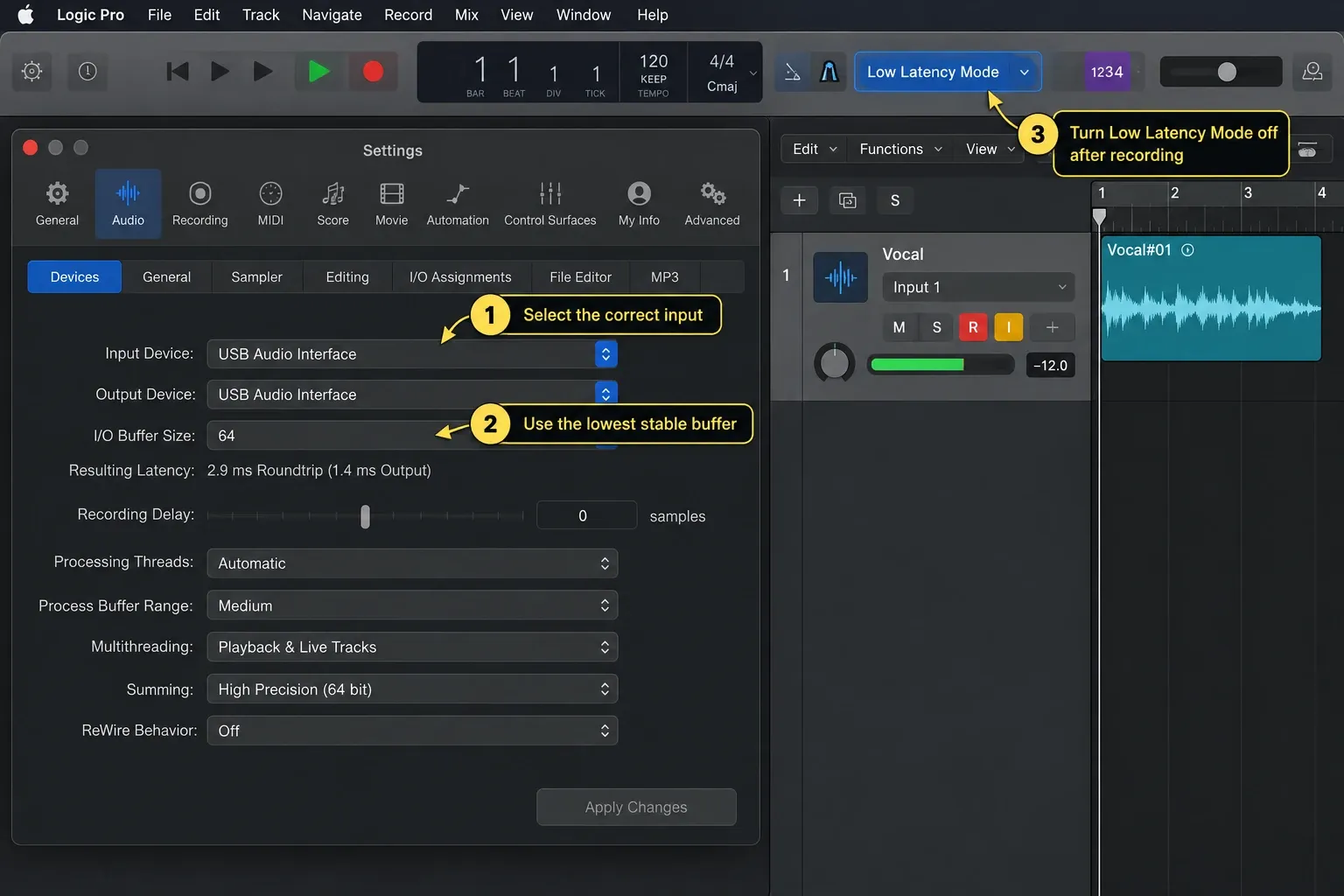
Audio recording is optional for this project. Use a Mac with a built-in microphone, a compatible USB microphone, or an audio interface for an XLR mic or electric instrument. In Logic Pro > Settings > Audio > Devices, select the intended Input Device and Output Device, then apply the changes if prompted. Click Add Tracks > Audio > Mic or Line, choose the connected input in Details (a single mono input for one microphone), enable Record Enable, and click Create. Use headphones to avoid feeding the speakers back into the microphone.
Set recording gain at the microphone, preamp or interface, not with Logic’s track fader. Perform the loudest part and lower the input gain if the input clips. Select the audio track, put the playhead at an empty section, press R to record, then Space to stop. Return to the start and listen to the recorded region before continuing. For another attempt, use a new empty section or track so you do not accidentally replace a take you want to keep.
If you hear delay, use wired headphones. Apple explicitly warns that Bluetooth output adds latency. In Logic Pro > Settings > Audio > Devices, choose the lowest I/O buffer size that remains stable on this project. If overload alerts appear, move to the next higher size. There is no universal “best” buffer for every Mac and session.
For plug-in delay during recording, choose Record > Low Latency Mode. Apple’s latency guide explains that this can route around latency-inducing plug-ins to keep the current monitored path below the configured limit. The sound can change, and converter, interface or Bluetooth delay remains. Turn Low Latency Mode off after recording and replay the mix before bouncing. If no audio reaches the track, quit Logic, open System Settings > Privacy & Security > Microphone, allow Logic Pro, and reopen it, following Apple’s audio-input permission steps. If that does not help, use the Logic Pro recording checklist.
7. Turn the loop into an arrangement
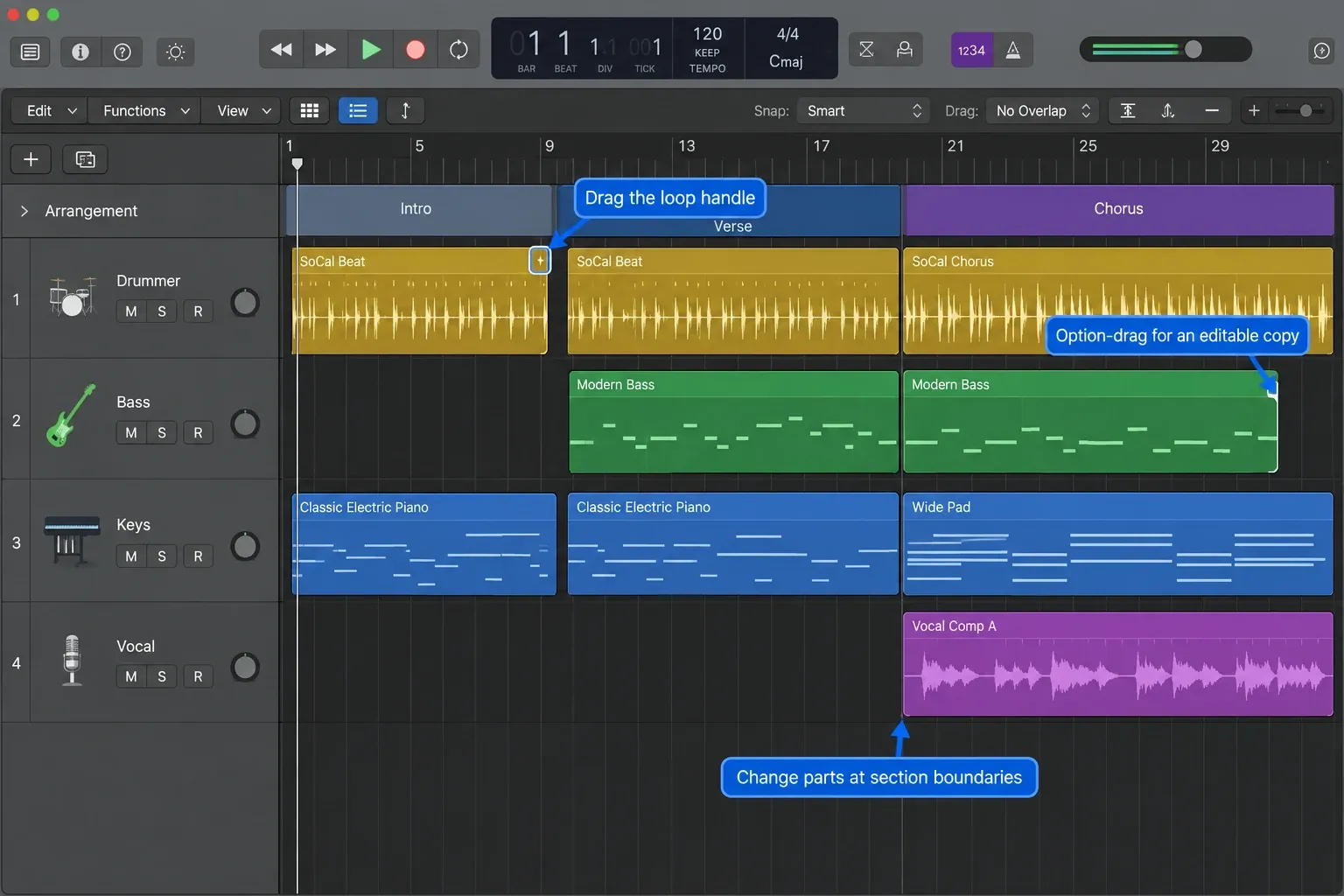
Extend a region by dragging its upper-right edge to the right when the loop pointer appears. For a separate copy you can edit, Option-drag the region to an empty place in the same track. Build a rough song length, then vary the parts: leave bass out of the intro, bring the MIDI part into a later section, or simplify the final drums. Listen across each transition rather than adding more sounds immediately.
Double-click a track name and give it a useful label, such as Bass or Lead Vocal. Keep regions aligned to the intended grid, but zoom in before moving recorded audio: a breath or pickup note may start before the bar. Use Cycle to compare a transition, then turn it off and listen through the arrangement.
If the project now needs comping, fades, timing repair or take management, the recording and editing hub continues from this point.
8. Make a basic mix before adding effects
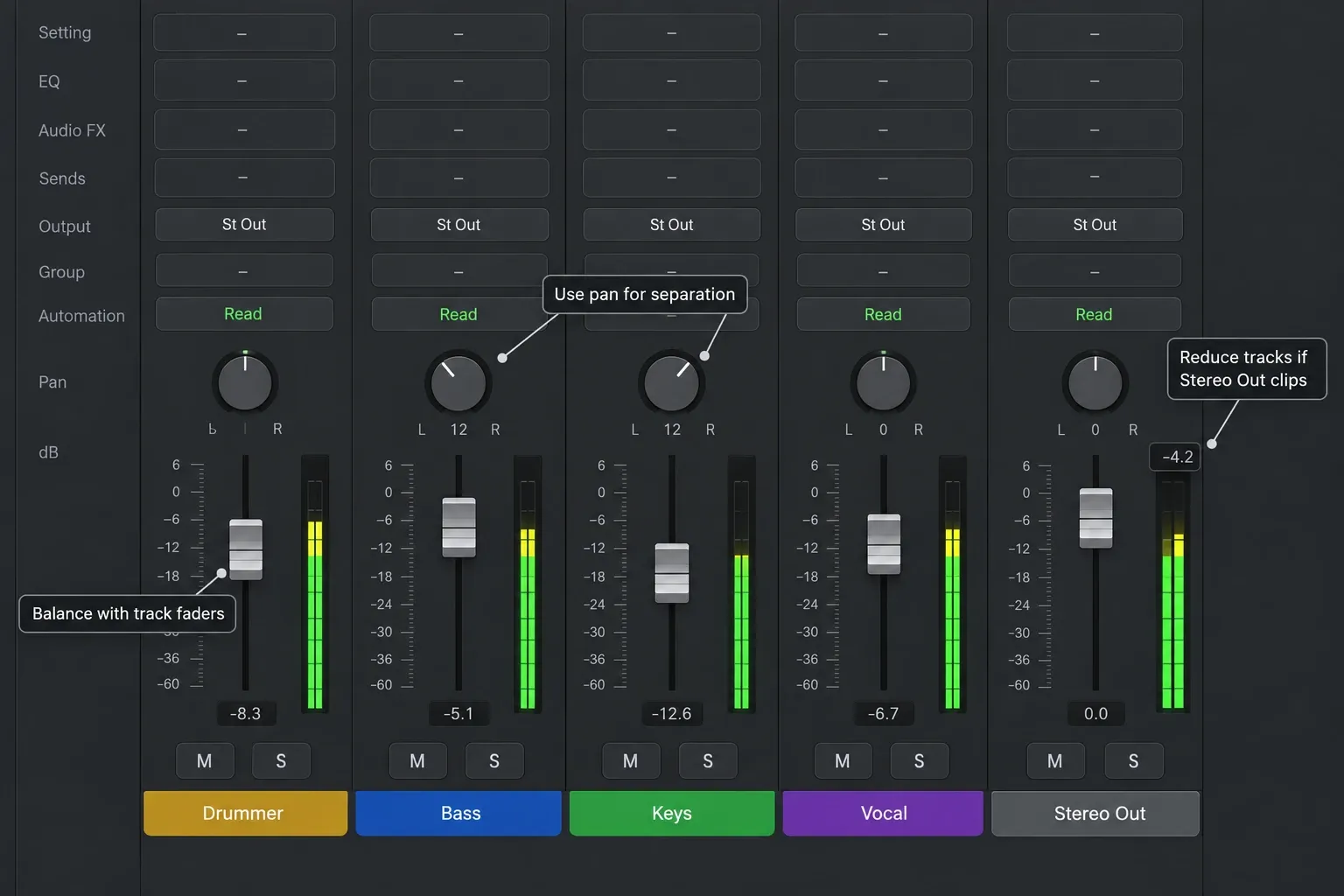
Press X to open the Mixer. Lower the faders for the individual instrument and audio tracks, then rebuild the balance during playback around the most important part. Leave the main output and any aux returns alone for this first balance. Watch the output meter and reduce the contributing tracks if the output clips. This is an order for making mix decisions, not a description of the channel strip’s signal-flow order.
Then make one decision at a time:
- Volume: can every important part be heard at a sensible listening level?
- Pan: move a mono supporting part left or right if it needs separation. On a stereo channel the default knob balances its left and right sides; that is different from repositioning a stereo image with Stereo Pan.
- EQ: is there a specific frequency problem you can identify? Do not high-pass every track by habit.
- Compression: does the part need a more controlled dynamic range? Do not copy a ratio, threshold or attack time without listening to what it changes.
- Reverb or delay: does the arrangement need space? A send to an aux lets several tracks share one effect and gives you one return level to control.
Apple's channel-strip reference identifies the send slot as the route to an aux channel strip and the send knob as the amount sent. The dry track continues to its output unless you deliberately change that routing. The Logic Pro mixing hub covers gain staging, EQ, compression, buses, sidechain compression and mastering as one connected workflow.
9. Bounce the finished project
Play the project from beginning to end once. Check for muted tracks, accidental solos, clipped output, a count-in you did not mean to include and reverb tails cut off by the project end.
Then choose File > Bounce > Project or Section. Logic includes unmuted tracks routed to the chosen output, along with their effects and automation. If Cycle is on, the cycle range becomes the bounce range; otherwise check the Start and End values yourself.
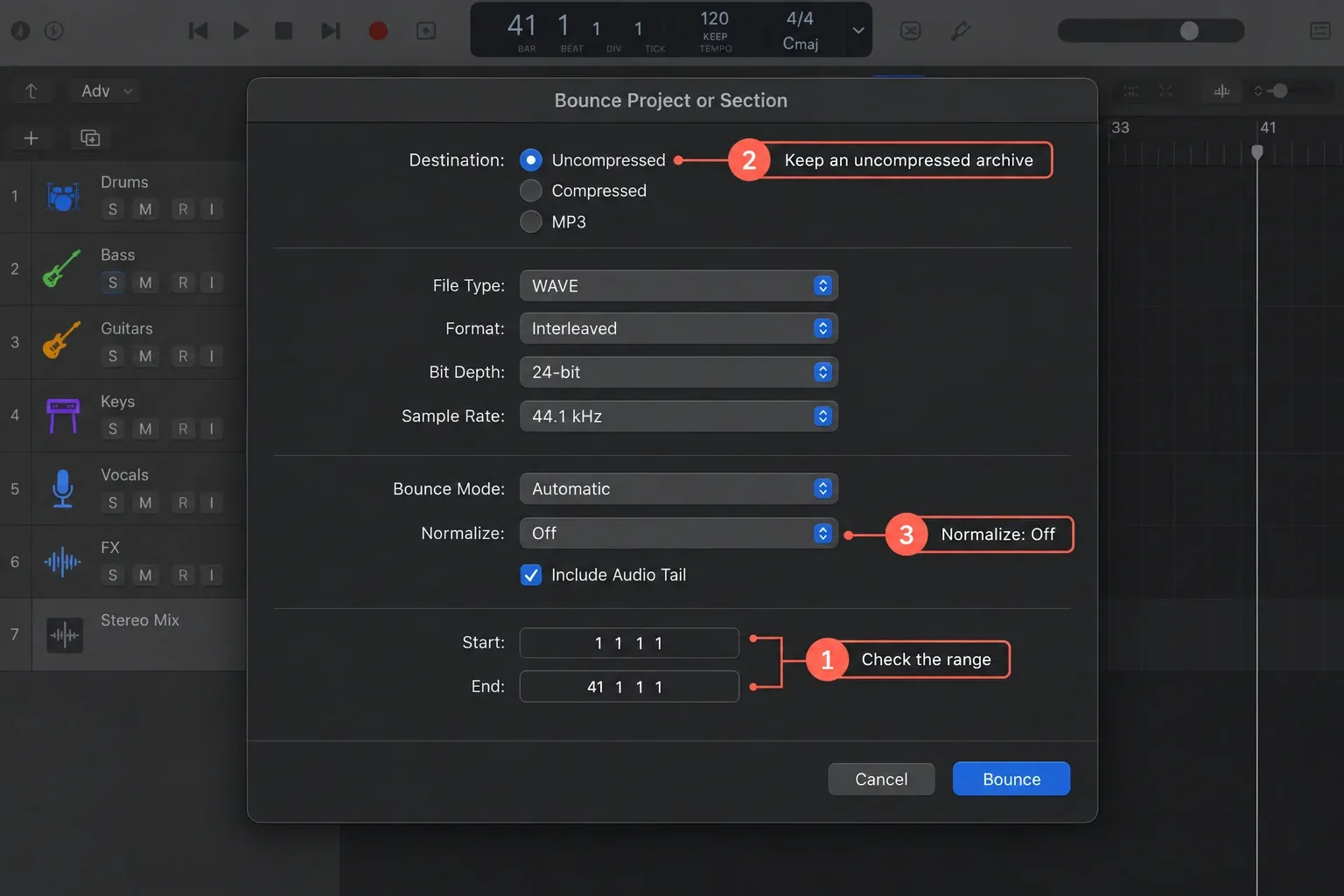
Select Uncompressed in the Bounce dialog’s Destination area, then choose WAVE from File Type and Interleaved from Format for a single stereo WAV file. Older versions label the destination PCM. Set Bit Depth and Sample Rate to the recipient’s specification. Apple’s uncompressed bounce options explain these controls. Keep an uncompressed archive, and make an MP3 or M4A separately if you need a listening copy. No single sample rate and bit depth is mandatory for every streaming distributor.
Automatic bounce mode is a sensible default because Logic chooses offline or real-time processing based on the signal path. Use real-time bounce when external instruments or hardware inserts must be heard during the render. Review Include Audio Tail if the ending uses reverb or instrument releases, and leave Normalize off unless the next step explicitly requires normalization. Apple's bounce documentation explains each mode and normalization choice.
Enter the filename in Save As, choose a folder you can find, and click Bounce. Then open that file in another player and listen to its beginning, loudest section and ending. Check that it contains the intended tracks and that the tail is not cut off. If you need a compressed listening copy, the Logic Pro MP3 export guide covers that narrower job.
Beginner problems: check these before rebuilding the project
| Problem | First checks | What not to assume |
|---|---|---|
| No sound | Check the selected output device, track/output routing, mute and solo states, and the main output meter | That reinstalling Logic is the first fix; use the no-sound checklist |
| Recording has delay | Use wired monitoring, lower the buffer to the lowest stable value, try Low Latency Mode or direct hardware monitoring | That one buffer value works on every Mac |
| System overload | Raise the buffer while mixing, close unnecessary software, identify heavy instruments or plug-ins | That the project has exceeded a fixed track limit |
| Nothing records | Confirm the correct input, record-enable state, macOS microphone permission and device connection | That the track fader controls input gain |
| Files disappear after moving the project | Check the asset types selected for copying; verify a saved copy opens and plays before moving or deleting originals | That every imported file is automatically embedded |
| Bounce misses the ending | Check Cycle, Start/End values and effect-tail options | That Logic always guesses the musical endpoint |
Logic Pro shortcuts worth learning first
| Key | Job |
|---|---|
| Space bar | Play or stop |
| R | Start recording |
| C | Turn Cycle on or off |
| Command-S | Save the project |
| Command-Z | Undo the last edit |
| X | Show or hide the Mixer |
| O | Show or hide the Loop Browser |
| Option-K | Open the Key Commands window |
These are default commands for the main window; tools, editors and Musical Typing can use keys differently. Open the Key Commands window with Option-K to check your assignments. The Logic Pro shortcuts guide groups more commands by recording, editing and mixing task.
Logic Pro beginner FAQ
Is Logic Pro free for beginners?
No. The standalone Logic Pro app for Mac is a paid one-time App Store purchase. Apple's current trial route is a free one-month Apple Creator Studio trial for eligible new subscribers. Prices, eligibility and renewal terms vary by country and account, so check the current offer shown by Apple before accepting it.
Do I need an audio interface to use Logic Pro?
No. You can write MIDI, use software instruments and arrange loops without one. For recording, a built-in microphone on a Mac that has one or a compatible USB microphone can work directly. An interface provides connections for XLR microphones, electric instruments or line-level equipment, plus options such as multiple inputs and hardware monitoring.
Can I use Logic Pro without a MIDI keyboard?
Yes. Choose Window > Show Musical Typing to play a software instrument from the Mac keyboard, draw notes in the Piano Roll, use Step Sequencer, add Apple Loops or work with Session Players. A MIDI controller can make performance more expressive, but it is not required to finish a project.
What is the difference between Bounce and Export in Logic Pro?
Bounce renders the chosen output or project section as a finished audio file, including the audible mix, effects and automation routed there. Export is normally used for separate tracks, regions, MIDI or other project elements. Use Bounce for the stereo song and Export when another engineer or app needs individual parts.
What buffer size should a beginner use in Logic Pro?
Use the lowest buffer that records or plays a software instrument without overloads, then raise it when a larger mix needs more processing headroom. Smaller buffers reduce monitoring latency but increase CPU demand. The correct value depends on the Mac, interface, sample rate, plug-ins and project.
What sample rate should I choose for a Logic Pro project?
Choose the rate required by the work. 44.1 kHz remains common for music and CD-derived workflows, while 48 kHz is common for video. A client, camera workflow, mastering engineer or distributor may specify another rate. Set it before recording when possible and avoid unnecessary changes later.
Why is there no sound when I press play?
Check the output device in Logic Pro Audio settings, the output assignment of the tracks, the main output meter, mute and solo states, and the Mac's physical output path. If meters move but you hear nothing, focus on routing and the selected playback device. If meters do not move, inspect regions, mute/solo and track routing first.
What format should I bounce for streaming?
Follow the receiving distributor's current specification. A WAV file at the project's native sample rate and an accepted bit depth is a common uncompressed delivery choice, but no single rate and bit depth is mandatory for every service and workflow. Keep an uncompressed archive and make MP3 or M4A files separately for listening.
How often should I save a Logic Pro project?
Save when the project is created and after any edit you would not want to repeat. Logic has autosave recovery, but manual saves define reliable checkpoints. Before destructive editing, moving the session or exchanging it with someone else, save a copy with the required assets included.


