How to Quantize Audio and MIDI in Logic Pro
Fix distracting timing while keeping the phrasing, flams, controller moves, and phase relationships that make the performance work.

To quantize in Logic Pro, select a MIDI region and choose a grid from Quantize in the Region inspector. For individual MIDI notes, use Time Quantize in the Piano Roll. For audio, first choose a Flex Time mode for the track and enable Flex for the region, then choose its Quantize value. Start with a short passage so you can hear what changed.
The practical rule is simple: quantize the smallest useful selection, start from the musical subdivision rather than the tightest grid, and keep the lowest correction that fixes the audible problem. A late kick that weakens the downbeat needs help. A piano chord whose notes arrive a few milliseconds apart may just be the performance.
The Mac menu paths and parameter descriptions below were checked against Apple’s documentation on September 12, 2026. The Q-Range section flags a conflict between two Apple pages rather than treating either description as a rule for every context.
First decide what you are quantizing
| Material | Best control | What moves | Main risk |
|---|---|---|---|
| Whole MIDI performance | Region Inspector Quantize | Notes in the selected MIDI region during playback | Wrong grid shifts pickups, flams, or chord spreads. |
| Selected MIDI notes | Piano Roll Time Quantize | Only the selected note events | Notes move but related controller data may need inspection. |
| Single audio performance | Flex Time plus Region Quantize | Audio timing through the selected Flex algorithm | Bad transients, wrong Flex algorithm, or large moves create artifacts. |
| Multimic drums | Grouped, Quantize-Locked Flex tracks | All microphones together from Q-Reference timing | Independent timing changes can damage phase relationships. |
If the performance hasn’t been captured yet, work through the dedicated guides for recording MIDI in Logic Pro or recording audio with clean levels and latency control. Quantization should repair a take worth keeping, not become the recording plan.
A safe quantization workflow
- Save a separate project copy with its audio assets before file-level transient edits or flattening takes. A duplicated region is useful for comparison, but is not an independent audio-file backup.
- Listen with the arrangement and identify the problem: a late backbeat, uneven sixteenths, a rushed fill or loose chord attacks.
- Choose the scope: a MIDI region, selected MIDI notes, one audio region or a phase-locked audio group. Group multimic recordings before editing.
- Choose a straight, triplet, swing or mixed grid that includes the smallest subdivision intentionally played.
- For audio, choose a suitable Flex mode and inspect the important transients. For grouped drums, follow the Q-Reference preparation below before quantizing.
- Apply Quantize or Time Quantize to the selected regions or notes.
- Reduce Q-Strength or test Q-Range if the correction moves notes you wanted to leave alone.
- Check note order, controller events, attacks, artifacts and the timing relationship between microphones.
- Compare Quantize Off with the corrected result. Off removes quantization, not every separate manual edit; use the saved copy to compare the full original.
- Listen across the edit boundaries and through the full section before keeping the change.
Use File > Save a Copy As and check that the required recordings and assets are included. Apple’s project-saving guide distinguishes copied assets from externally referenced files. Then choose the grid from the rhythm you hear, not simply from how the notes look.
Choose the grid from the performance
Set the grid to the smallest intentional subdivision, not the shortest accidental note. If a bass part plays eighth notes, start at 1/8 even when one note was released early. A hi-hat pattern with intentional sixteenths needs 1/16. A shuffle or a triplet fill wants a triplet, swing, or mixed value instead of a straight grid.
Apple’s current Quantize parameter reference includes normal, triplet, swing, odd, and mixed grids. Mixed values combine straight and tuplet divisions, so they can preserve a passage that contains both. They also demand accurate playing, because Logic then has more plausible target points to choose from.
| What the part contains | Starting grid | Listen for |
|---|---|---|
| Quarter-note chords or kick | 1/4 | Pickups being pulled onto a downbeat. |
| Eighth-note bass or guitar | 1/8 | Syncopations landing on the intended offbeat. |
| Sixteenth hats or keyboard | 1/16 | Accents and alternating strokes retaining motion. |
| Triplet fill or 12/8 phrase | Matching triplet value | Straight notes that should remain outside the tuplet feel. |
| Straight and tuplet material together | Suitable mixed value | Notes choosing the wrong neighbouring target. |
| Deliberate shuffle | Swing grid or Q-Swing | Whether drums and melodic parts share the same feel. |
Don’t reach for a finer grid as a gentler correction. A 1/32 grid creates more target points; it doesn’t mean “less quantize.” Use Q-Strength for less movement.
Use a groove template when a fixed grid is wrong
A fixed straight, triplet, or swing grid is not always the musical target. If another performance already has the timing you want, select that audio or MIDI region and choose Quantize > Make Groove Template in the Region inspector. Apple’s current groove-template workflow requires Flex on an audio source; a MIDI source uses its note timing.
The template appears near the bottom of the Quantize menu. Select the target audio or MIDI region and choose that template. Keep the source region in the project: Apple says deleting it leaves the template name in the menu but stops it from working. Use a source whose rhythmic events match the target part, then compare a lower Q-Strength if the correction is too strong.
Quantize a whole MIDI region
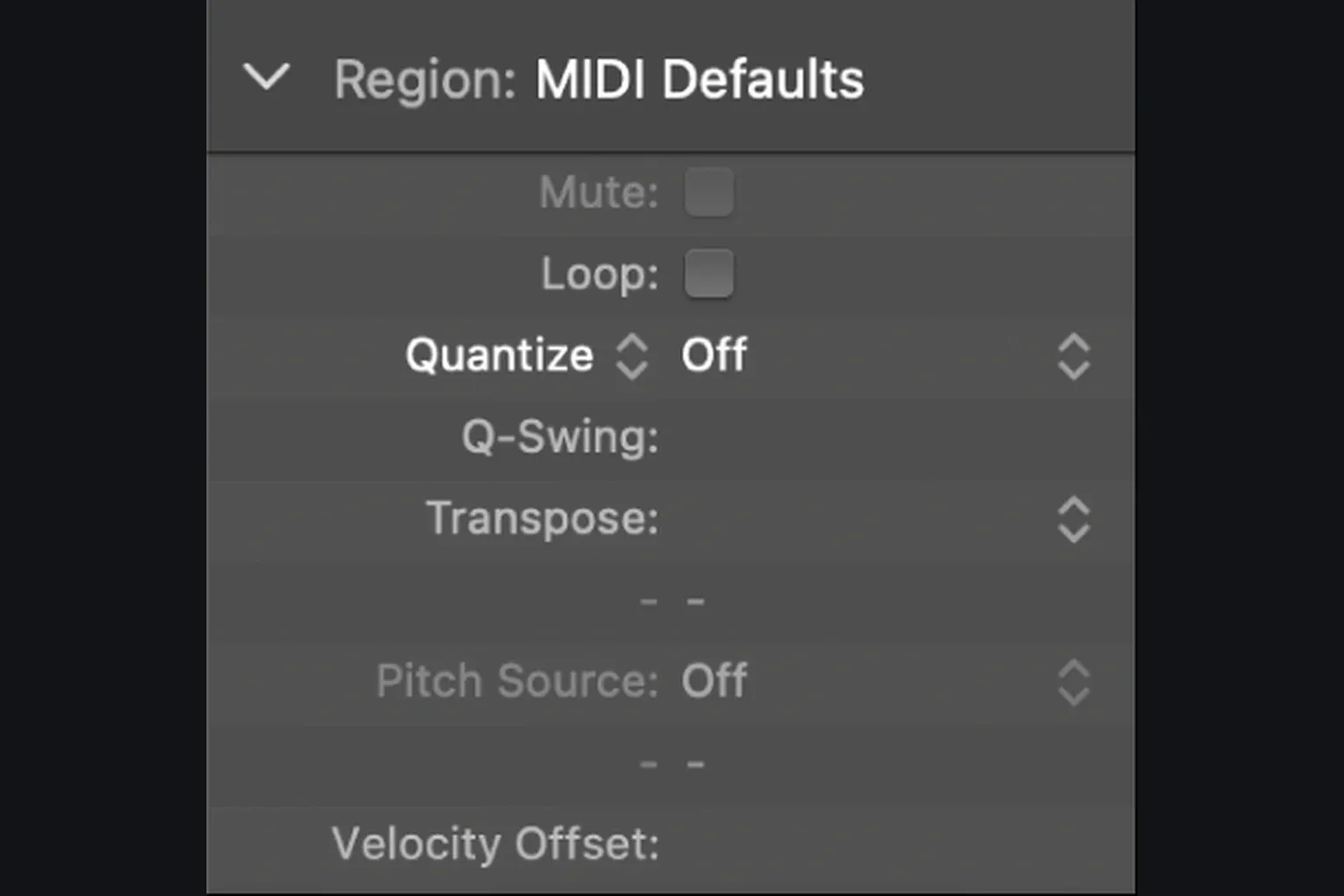
Select the MIDI region in the Tracks area, open the Region inspector, and choose a value from Quantize. Apple confirms that this MIDI region parameter is non-destructive: the original event positions stay stored, and setting Quantize back to Off recalls the original timing.
Region quantization works when the entire take shares one rhythmic language. It’s the wrong scope when only a fill, a pickup, or one chord needs repair. Split the region into musically sensible sections, or select the problem notes in the Piano Roll, instead of forcing several feels through a single setting.
One detail matters when a MIDI region starts away from the bar: Apple’s region quantization guide says the MIDI quantization grid begins at the region start. Misalign the region and the internal grid goes with it. Place the region correctly before you diagnose every note as late.
Classic Quantize or Smart Quantize?
Click the Quantize label in the Region inspector to choose the MIDI algorithm:
- Classic Quantize moves notes toward the nearest grid positions according to Quantize, Q-Strength, and the advanced settings. Use it for intentionally rigid drum triggers, step-like bass lines, and parts where every note is meant to answer the same grid.
- Smart Quantize analyzes nearby MIDI events around a weighted reference point, moves them proportionally, and preserves their order. Apple’s current MIDI quantization types guide specifically includes note-off, pitch-bend, and control-change data in that preserved relationship.
Try Smart first for played piano, strummed chords or drum flams when you want to retain the spacing between nearby events. Classic is useful when individual notes should meet the grid. Compare both against Off: the algorithm cannot decide whether a rushed note was intentional.
Quantize selected MIDI notes in the Piano Roll
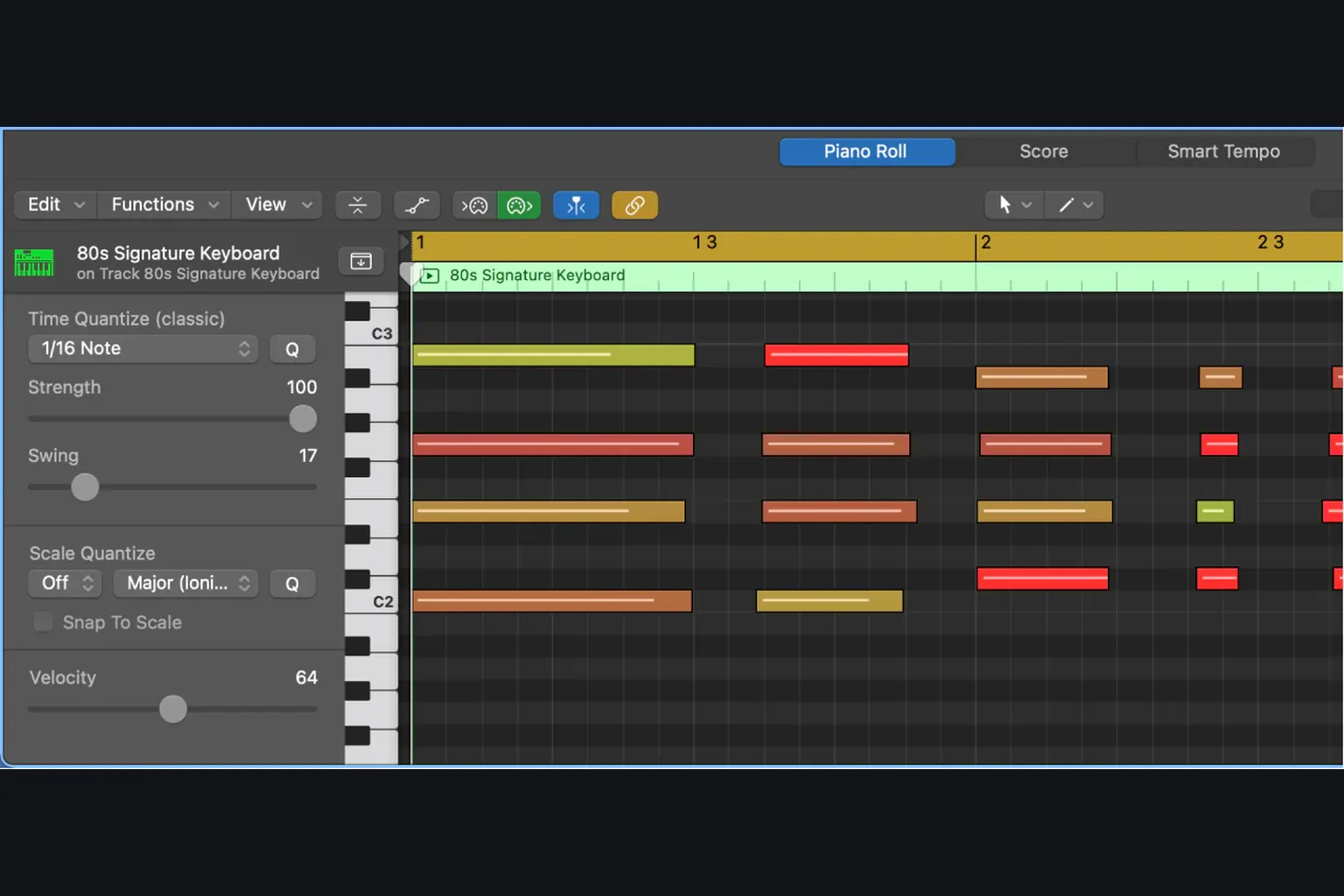
- Double-click the MIDI region to open the Piano Roll.
- Select only the notes whose starts need correction.
- Choose a value from Time Quantize.
- Adjust Strength and Swing while listening in context.
- Set Time Quantize to Off to compare the stored original timing.
Apple’s Piano Roll timing guide describes Time Quantize as a non-destructive playback adjustment. It lets you correct selected notes without quantizing the whole region. The Quantize tool applies the active value when you click a note or selected group, or drag across notes; check that value first.
Listen to note lengths and accents as well as starts. If a phrase changes unexpectedly, inspect its sustain-pedal and pitch-bend events rather than assuming the note positions explain everything. The Piano Roll editing guide covers note-level editing.
Quantize audio with Flex Time
Audio quantization uses Flex Time and transient detection. The selected algorithm determines how the sound moves: Slicing shifts slices at their original playback speed, while other modes can stretch the audio. Incorrect transient markers can make Logic move the wrong part of an attack.
- Save a separate project copy including the audio assets before editing source-file transients.
- In the Tracks area, choose Edit > Show Flex Pitch/Time. Choose a suitable Flex Time mode for the track and check the region’s Flex checkbox in the Region inspector.
- Inspect the important transient markers for missing attacks or false detections. Use the grouped-drum procedure below for multimic recordings.
- Select the audio region and choose its Quantize value in the Region inspector.
- Check the white quantize flex markers and listen to the affected attacks.
- Listen for softened attacks, double hits, gaps, chopped tails or warbling.
- If the result is worse, lower Q-Strength, test Q-Range, correct the markers or adjust a smaller passage manually.
When a Quantize value appears to do nothing, check the region’s Flex state and the track’s Flex mode. Apple’s current audio-region documentation says the Flex checkbox decides whether region quantization and manual Flex edits reach playback.
Apple’s Flex Time algorithm guide recommends Slicing for drums and percussion. It moves slices without time-stretching them and offers controls for gaps. Monophonic suits a relatively dry single-note source; Polyphonic suits chords and complex material. Choose by the sound and audition the result. The Flex Time guide covers manual markers and algorithm settings in more detail.
Quantize multitrack drums as one performance
Kick, snare, overhead, room, and tom microphones captured the same kit at the same moment. Quantizing them independently shifts the timing relationship between microphones, and that can turn a solid kit into comb filtering, a hollow snare, or unstable cymbals.
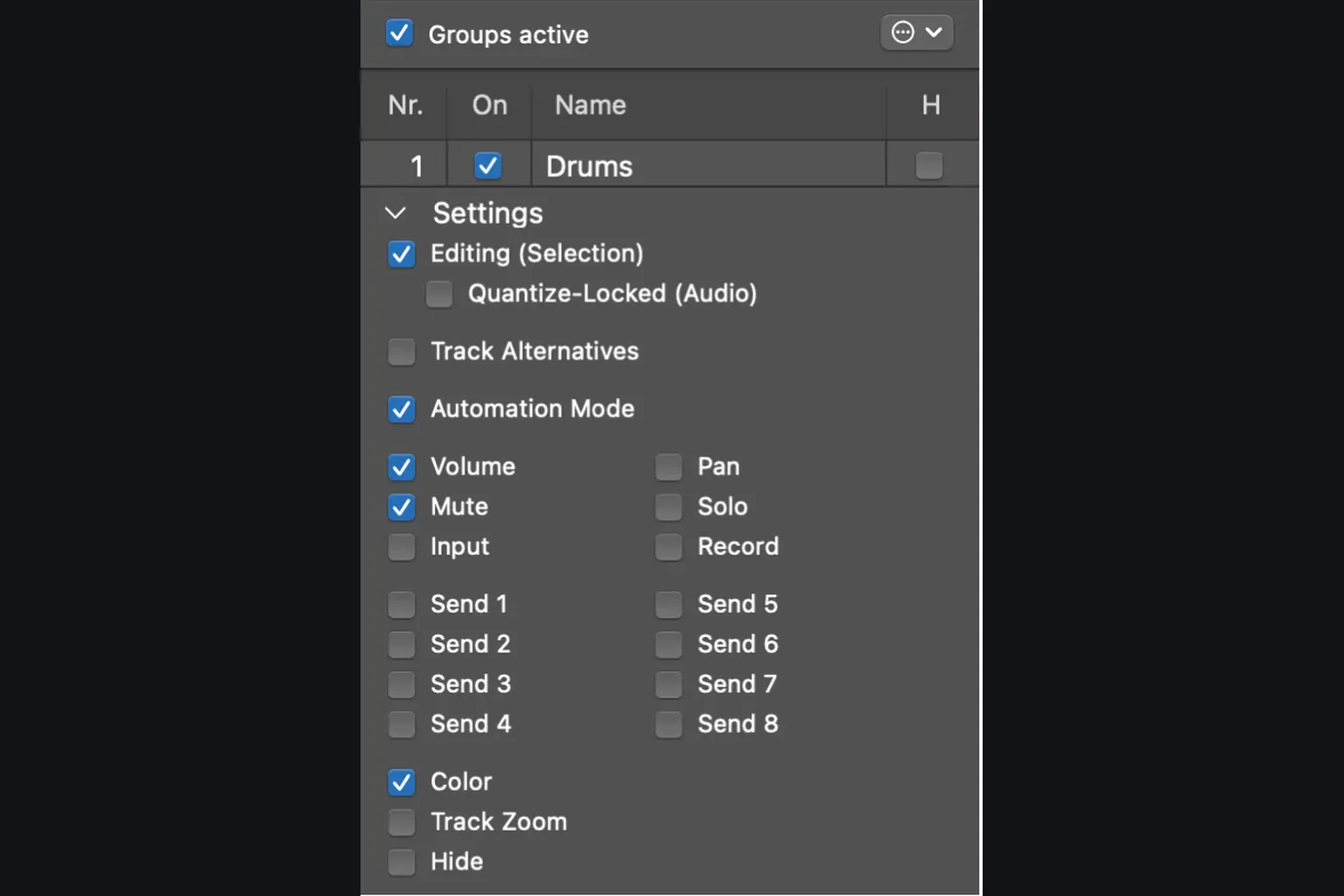
- Save a separate project copy with the audio files. Create one group for the drum microphones before editing or comping, and enable Editing and Quantize-Locked. Enable Record too if recording the group together.
- Edit the microphones as a group. When the comp is finished, choose Flatten and Merge from the Take Folder menu in the working copy. Apple uses this to give the grouped tracks the same start position and length.
- Turn off Q-Reference on every track in the group, then disable the group using its On checkbox.
- Open a timing-reference track in the Audio File Editor and choose Audio File > Detect Transients. Check and correct its transient markers. Repeat for the other reference track; one kick and one snare microphone are common choices.
- Turn the group back on, then enable Q-Reference only for the tracks whose transients you checked. If you need further Audio File Editor edits, turn Q-Reference off first.
- Choose a Flex Time mode from a Q-Reference track’s Track inspector to enable it across the group. Apple suggests Slicing as a starting point for drums.
- Apply quantization or manual Flex adjustments through the reference tracks. Listen to the full kit in mono and stereo, including cymbal decays and edit boundaries.
Follow Apple’s multitrack drum procedure in that order. It explicitly warns that transient edits made while Q-Reference is enabled will not carry into subsequent timing adjustments. The reference tracks determine timing for the other microphones; do not select every microphone by default. If you are still choosing takes, use the Take Folder and Quick Swipe guide before flattening the working copy.
Use Q-Strength and Q-Range for selective correction
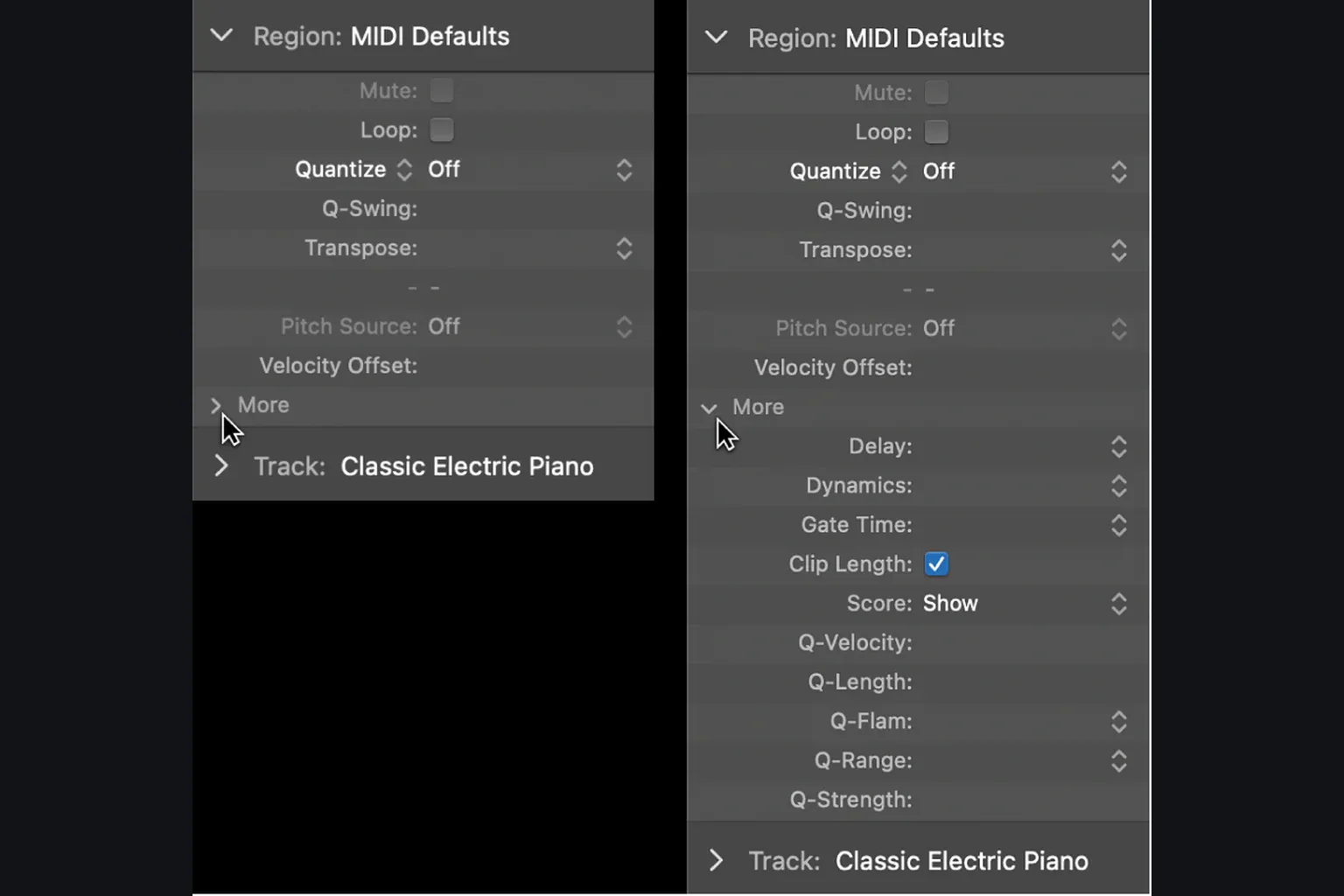
Q-Strength controls the amount of timing correction. With Classic Quantize, 100% moves eligible notes to their targets; 0% leaves their timing unchanged. Smart Quantize moves weighted groups while retaining relationships between nearby events, so 100% does not mean every individual note lands exactly on a grid position. Compare several amounts while the rest of the arrangement plays.
Q-Range selects events by distance from the grid. Apple’s MIDI region reference and audio region reference describe signed values this way: zero includes all events, positive values affect those outside the range, and negative values affect those inside it. Q-Strength then controls the amount of correction.
However, Apple’s multitrack drum article describes note-value Q-Range with the opposite inside/outside wording. Do not use a memorized sign rule for a critical drum edit. Test a short copied passage containing an event close to the grid and another farther away; change Q-Range and inspect which events move or receive quantize flex markers. Keep the setting only when it selects the events you intended.
Use Q-Range to select the events needing correction, then Q-Strength to adjust how far they move. Lowering Strength does not change the grid, and choosing a finer grid does not necessarily make correction gentler.
Swing and the other advanced MIDI parameters
Q-Swing shifts every second point of the current grid. Fifty percent is straight, and values above 50 push that second point later. Apple’s preset mapping is exact:
| Preset | Swing | Use it as |
|---|---|---|
| Swing A | 50% | Straight reference |
| Swing B | 54% | Very light delay |
| Swing C | 58% | Moderate swing |
| Swing D | 62% | Pronounced swing |
| Swing E | 66% | Near a two-to-one feel |
| Swing F | 71% | Strong lilt; verify against the song |
Don’t assume every track needs the same percentage. A drummer may articulate swing through velocity and note length as much as through timing. Start by matching the main groove source, then decide whether bass, percussion, and keys sit exactly with it or create a controlled push and pull.
Apple’s MIDI region parameter reference explains the other controls:
- Q-Velocity uses a MIDI groove template’s velocities. At 0%, notes keep their own velocities; at 100%, they take the template values. It is not a general timing control.
- Q-Length uses the corresponding note lengths in a MIDI groove template. At 0%, lengths stay unchanged; at 100%, they match the template. Listen for unwanted changes in articulation.
- Q-Flam spreads notes that share a start position. Positive values spread them upward in pitch; negative values downward. Leave it unchanged unless you want that spread.
Change one control at a time so you can hear whether timing, velocity or note length caused the improvement—or the problem.
When quantization sounds worse
| Symptom | Possible cause | Fix |
|---|---|---|
| Pickup lands on the downbeat | Grid or selection is too broad. | Deselect the pickup, split the region, or choose the correct subdivision. |
| Chords lose their natural spread | Classic Quantize stacks note starts. | Compare Smart Quantize or select only the leading note. |
| Drum flam disappears | Both hits target the same grid point. | Use Smart Quantize, Q-Range, lower Strength, or exclude the grace note. |
| Sustain or pitch bend feels late | Note movement and controller relationship diverged. | Inspect controller events or compare Smart Quantize. |
| Audio attack becomes soft or doubled | Wrong transient or too much stretching. | Repair markers, reduce the move, or use a more suitable Flex mode. |
| Cymbals sound hollow | Multimic tracks were not moved together. | Revert and quantize a grouped, Quantize-Locked drum set. |
| Region still feels late | Wrong grid origin or the whole phrase is offset. | Check the region start and musical pickup before changing individual notes. |
| Part is exact but lifeless | Strength, scope, or swing is wrong for the phrasing. | Compare Off, lower Strength, protect good notes with Range, or restore the take. |
When the problem is monitoring delay rather than an inconsistent performance, quantization only treats the symptom. Fix the recording path with the Logic Pro latency diagnostic before you record another take.
Final timing checklist
- The selected grid matches the smallest intentional subdivision.
- Pickups, flams, strums, tuplets, and syncopations remain intentional.
- The narrowest useful regions or notes are selected.
- MIDI controller data and note order still support the phrase.
- Audio transient markers sit on real attacks.
- The Flex mode suits the source and produces no obvious artifacts.
- Multimic tracks are grouped, Quantize-Locked, and driven by verified Q-References.
- Q-Strength fixes the timing issue without forcing unnecessary movement.
- Q-Range affects the intended events in this Logic Pro version.
- The corrected version wins against Quantize Off in the full arrangement.
For the surrounding workflow, use the Recording & Editing guides. The beginner tutorial follows a first project from setup to bounce; Logic Pro Tutorials lists the other learning topics.
Frequently asked questions
How do I quantize in Logic Pro?
Select the MIDI or Flex-enabled audio region, open the Region inspector, and choose a Quantize value that matches the smallest intended rhythmic subdivision. For selected MIDI notes, open the Piano Roll and use Time Quantize. Compare the result with Quantize set to Off before committing.
Can Logic Pro quantize audio?
Yes. Choose a Flex Time mode for the track, enable Flex for the region and verify the important transients before applying a region Quantize value. Slicing moves audio slices at their original speed; other algorithms can time-stretch the sound. Listen for artifacts after each change.
What is the difference between Classic and Smart Quantize?
Classic Quantize moves MIDI notes toward the nearest grid according to the quantize settings. Smart Quantize groups nearby MIDI events around a weighted reference point and preserves their order and proportional relationships, which can retain chord spreads, flams, and related controller movement.
Should I quantize to 1/8 or 1/16 note?
Choose the smallest subdivision that the part intentionally plays. An eighth-note bass line may need 1/8; a hi-hat part or syncopated keyboard line may need 1/16; triplet phrasing needs a triplet or suitable mixed value. Audition the grid before changing Strength.
What does Q-Strength do in Logic Pro?
Q-Strength controls the amount of timing correction. With Classic Quantize, 100% moves eligible notes to the grid and 0% leaves their timing unchanged. Smart Quantize retains relationships within weighted event groups, so full strength does not put every individual note exactly on a grid position.
What does Q-Range do in Logic Pro?
Q-Range decides which events are eligible for quantization according to their distance from the grid. Because Apple documentation uses different wording across current parameter and multitrack-drum pages, verify the sign and range behavior on a duplicate region by watching which events receive movement or flex markers.
How do I quantize multitrack drums without phase problems?
Group the microphones before editing, enable Editing and Quantize-Locked, and preserve a separate copy before flattening takes. Disable Q-Reference and the group before checking source-file transients. Then re-enable the group and the checked reference tracks, choose a suitable Flex mode and apply timing changes through those references. Listen to the whole kit after each change.
Can I undo quantization in Logic Pro?
For MIDI Region Quantize and Piano Roll Time Quantize, Off recalls the timing stored before that playback adjustment. It does not undo other edits you made. For audio, Quantize Off removes region quantization but is not an undo for manual Flex or source-file edits. Keep a separate project copy with the audio assets before that work.


