Logic Pro System Overload: Find the Bottleneck and Fix It
Use Logic’s meters to separate a processing spike from a disk bottleneck, then apply the fix that matches the failing resource.

A Logic Pro system overload means the audio engine missed a real-time deadline. Don’t start by changing every performance setting. Open Logic’s Performance Meter, replay the same section, and watch which side peaks: Processing Threads or Drive I/O. The two bottlenecks need different fixes, and some common “optimizations” move load from one side to the other.
If Processing Threads peaks, test a larger I/O buffer, select an empty audio track and isolate heavy plug-ins or instruments. Freeze settled parts that must keep playing; turn off tracks you do not need in playback. If Drive I/O peaks, inspect project and sample storage, streaming and competing disk activity. Freezing more instruments can make that bottleneck worse. For missing audio, crashes or device failures alongside the alert, use the Logic Pro troubleshooting map.
Documentation checked September 12, 2026 against Apple’s Logic Pro support guidance and User Guide. An overload interrupts playback or recording; it is not the same as Logic unexpectedly quitting. The checks below separate processing load from disk activity before you change settings or buy hardware.
Logic Pro system overload: the short diagnostic path
| What peaks | Test first | Avoid as the first move |
|---|---|---|
| One Processing Thread | Select an empty audio track; bypass the heaviest plug-in or instrument on the live path. | Buying RAM or moving the project before proving a memory or disk problem. |
| Several Processing Threads | Raise I/O Buffer Size; use a Large Process Buffer Range for mixing; freeze settled CPU-heavy tracks. | Keeping a recording-size buffer during a dense mix. |
| Drive I/O | Check project/sample storage, competing disk activity and Sampler Virtual Memory statistics. | Freezing more software instruments, which creates more audio to read. |
| No obvious meter peak | Repeat the same bar, isolate plug-ins, test a copy with the interface driver and project sample rate noted. | Deleting preferences, caches or project files without a reproducible test. |
An overload alert tells you the audio engine could not finish its work in time, not which component caused the delay. A short project can contain one demanding live instrument, while a larger audio-only project may play comfortably. Compare the same section after each change rather than judging the session by track count.
Open the Performance Meter before changing settings
Apple’s current system-overload guidance uses the Performance Meter as the first split. In the control bar, choose a Custom display so the CPU and HD meters are visible, then double-click either meter. Play the section that triggers the alert and watch the vertical bars.
- Processing Threads shows the processing load on each thread. A full bar points toward real-time processing, instrument, plug-in or buffer pressure.
- Drive I/O shows the disk bandwidth Logic is using. A full meter points toward project audio or sample streaming that storage is not delivering in time.
Reproduce the same bar at least twice. A meter captured after the alert may already have fallen, and an intermittent plug-in spike can look different from a sustained dense mix. Note the selected track, buffer size, sample rate and the exact bar where playback stops. Those four details make the next test meaningful.
Raise I/O Buffer Size one step at a time
Open Logic Pro > Settings > Audio > Devices. Increase I/O Buffer Size to the next value, apply the change, and replay the failing section. A larger buffer gives the Mac more time to process each block of audio, reducing processing pressure. The cost is higher monitoring latency. Apple’s current Audio Devices settings reference defines the same trade-off and shows the resulting latency reported for the selected device.
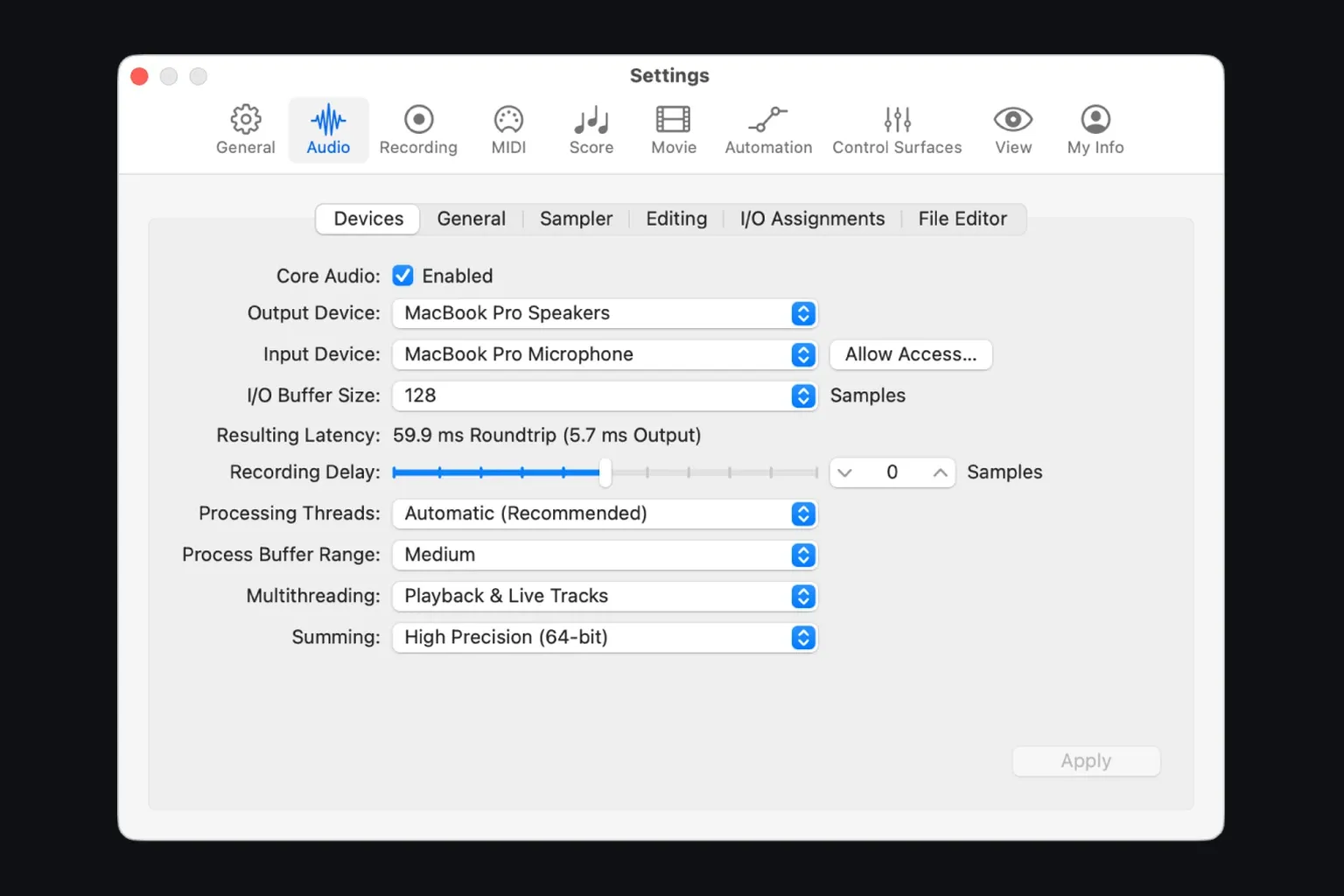
No single buffer size fits every Mac, interface and project. Start with the lowest stable setting when monitoring a microphone or playing a software instrument. For mixing, increase it and test again. If a larger value does not help, compare another supported value with the same project and devices, then investigate the other branches below; do not assume the largest number must solve it. The Logic Pro latency guide covers the recording side of that trade-off.
For audio recording through an interface’s direct-monitoring path, Apple suggests disabling Software Monitoring under Audio > General and gives 256 samples as a setting for recording and mixing. Treat that as a starting point for that specific workflow, not a promise that every project will run at 256. Direct monitoring does not generate a software instrument’s sound: that sound still passes through Logic’s processing and audio output, so playing the instrument may require a smaller I/O buffer.
Use Process Buffer Range and Processing Threads carefully
For a heavy mix, try Process Buffer Range > Large. Apple’s overload article recommends it, but do not confuse this control with I/O Buffer Size. The current Audio Devices reference describes Process Buffer Range as the buffer for playback tracks that are not in Live mode; those tracks can be processed in advance without additional playback latency. The overload support article uses broader latency wording. Use the current guide’s playback/live distinction, and judge monitoring delay with I/O Buffer Size and the actual monitored signal path.
Leave Processing Threads on Automatic for the first pass. Apple’s current processing-threads guidance calls Automatic the recommended default and warns that selecting the highest available number is not always best. Manual thread counts are an experiment for a documented project or for sharing CPU with another demanding app, not a generic speed switch.
Multithreading offers Playback Tracks and Playback & Live Tracks. Apple’s Multithreading explanation says Playback & Live Tracks can distribute work when a stack contains several live software-instrument strips or several audio tracks are recording. It can also add overall load. It does not promise to divide every serial plug-in chain across all cores. Note the original value, test each option on the same section and keep the one that improves playback without introducing another problem.
Why one processing thread can overload
A project doesn’t divide perfectly by track count. The selected live software-instrument path must be calculated in time for live input, and a chain of dependent plug-ins can’t always be spread evenly across every available core. That’s why one bar can hit the top while other bars remain low.
During playback, select an empty audio track instead of the software instrument or track-stack header. If the rightmost Processing Thread falls and the alert stops, the selected live path is a useful lead. Keep the recording and Input Monitoring states unchanged for that comparison. Selecting an empty track does not remove every other record-enabled or input-monitored path from Live mode.
If the spike stays, bypass the most demanding instrument or plug-in on the suspect track and replay the same bar. Continue one item at a time. Do not bypass an entire project and then guess which change helped. For a plug-in that repeatedly spikes, confirm its current version and Apple-silicon compatibility. If it’s missing, failing validation or unstable, use the Audio Unit troubleshooting guide.
Freeze, bounce or turn off tracks for processing headroom
Freeze renders the processing selected by its mode to a temporary audio file. Apple’s Freeze instructions describe two choices:
- Source Only freezes the instrument or source while leaving effects available for live changes.
- Pre Fader includes the track’s effects in the freeze file and removes more live processing.
To render, choose the mode in the Track inspector, click the track’s Freeze button, then press Play. Unfreeze before editing the regions or processing that the mode froze. Apple says Freeze is not available for multi-output software instruments. The freeze-track guide covers the controls and limitations. Choose Bounce in Place when you want new editable audio, keeping a recoverable original. For a track you do not need in playback, click its normal On/Off button to deactivate its plug-ins and release their CPU and memory load. Do not Option-click: Apple’s track On/Off guide says that variant leaves the plug-ins loaded. Turning a track off also removes its part from playback; it is not a silent substitute for freezing a part you still need to hear.
Do not freeze blindly when Drive I/O is peaking. Apple warns that freezing software instruments increases disk playback and can make a storage bottleneck worse. Freeze is a processing fix that spends more disk bandwidth.
Reduce repeated effects and unnecessary live work
If several tracks need the same reverb or delay, put one instance on an aux and feed it with sends. Apple recommends this to reduce repeated processing. Keep separate inserts when the tracks need different processing or routing. A shared aux is not automatically a cure for a single live-path peak: the live signal and its returns still have to be processed in time. The buses, sends and aux guide explains how to set up the shared effect.
If the project has no automation, or its automation doesn’t need sample accuracy, Apple also recommends limiting Logic Pro > Settings > Audio > General > Sample Accurate Automation to the parameters you use or turning it off. Keep it enabled where timing at sample resolution is part of the sound. This is a targeted processing test, not a default for every project.
Reduce a software instrument’s maximum voice count only as far as the part allows, then listen for notes or release tails being cut off. Apple recommends using the lowest required count, but that does not mean every synth constantly processes all unused voices. For Alchemy, Apple’s performance guidance recommends trying Quality > Good while working, restoring Great or Ultra for an offline bounce, and avoiding I/O buffers below 64 samples. Those are Alchemy-specific recommendations, not universal settings for every instrument. Use a different plug-in’s draft-quality or oversampling option only as its developer documents, and restore the intended sound before the final bounce.
Higher project sample rates increase both processing and storage demand. Do not change a production’s sample rate casually, but choose it deliberately when creating the project. A 192 kHz session has a different performance budget from a 44.1 or 48 kHz session even when the track list is identical.
Fix Drive I/O and Sampler streaming bottlenecks
When Drive I/O peaks, check the project audio and sample-library storage, its connection and competing disk activity. Apple recommends a dedicated USB-C SSD for high-track-count projects and sample libraries, using APFS or Mac OS Extended (Journaled). Do not assume an external drive is faster than the Mac’s internal storage: test the actual drive and connection with the same session. Copy the project and required media, verify that the copy opens, and retain the originals. Formatting a drive erases its contents, so back up and verify the backup before changing its format. A disk-format change is not the first diagnostic test.
For Apple’s Sampler, open Logic Pro > Settings > Audio > Sampler > Virtual Memory. The setting changes where the work happens: with Virtual Memory active, the attacks are held in RAM and the rest streams from disk. With it off, more of the library must fit in memory.
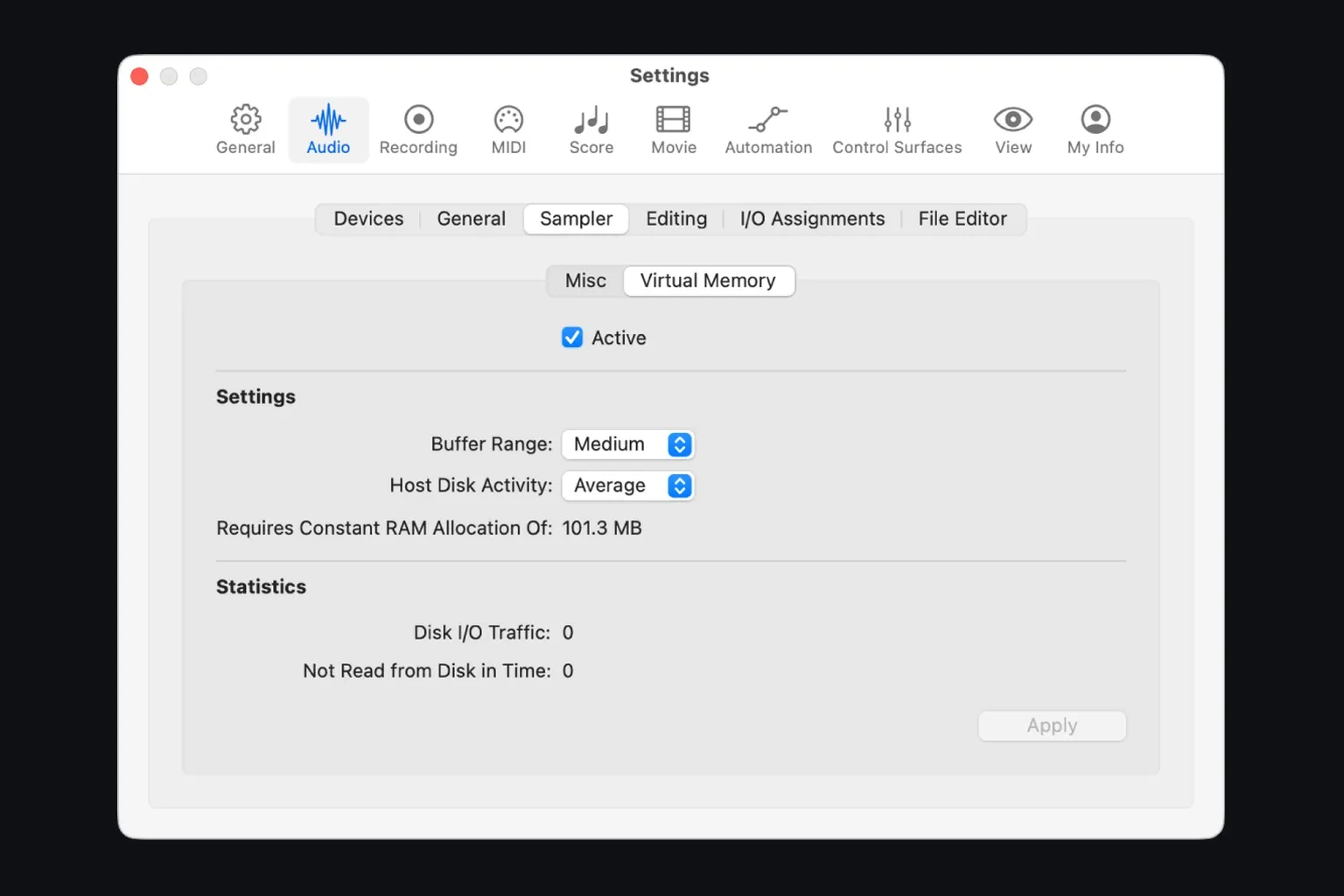
Apple suggests enabling Sampler Virtual Memory when overloads coincide with Processing Threads peaks, and trying it off when Drive I/O is the limit. The second option needs enough physical RAM for the samples. Apple’s Sampler settings reference warns that disabling it without enough RAM makes Sampler swap data to disk and degrades performance; project loading also takes longer. Watch Disk I/O Traffic and Not Read From Disk in Time during the failing section. An increasing missed-read count supports a streaming diagnosis, but does not by itself prove the drive hardware is faulty.
Sampler Virtual Memory settings affect all Sampler instances in all projects, not just the selected instrument. Note the original values. Its Buffer Range controls sample processing; it is separate from I/O Buffer Size and Process Buffer Range. Host Disk Activity describes the other audio work competing for the drive: Less for little non-Sampler audio, Average or Extensive as that recording and playback activity grows. Test the changed setting in another representative project before leaving it in place.
Rule out the interface, plug-ins and background load
Quit other apps that are doing substantial CPU or disk work, but leave required interface control software running. Note the input/output devices and check the interface developer’s supported driver or control-app version. Start with the same devices for a buffer comparison. If you then test another device or connection, change only that part of the setup and replay the same section.
If the overload began after an update, save a project copy and isolate suspect third-party plug-ins one at a time. Check the exact installed versions against the developers’ compatibility requirements. Read Apple’s Logic Pro release notes for a matching fix; for example, the 12.3.1 notes mention improved performance with tracks containing many regions, not a cure for every overload. Back up the working app and projects before installing a compatible update. If Logic itself is quitting, collect the report and follow the crash diagnostic path instead.
Do not delete Logic preferences, Audio Unit caches or project assets as a first response. Those actions are broader than the symptom and can create a second problem. The meter split and a controlled project copy usually provide a safer next test.
When hardware is actually the limit
A faster Mac, more memory or faster storage can raise the ceiling, but only after the failing resource is known. More RAM helps large resident sample sets. It doesn’t prevent a single live processing chain from missing its deadline. Faster storage helps streamed audio and samples. It doesn’t make an inefficient plug-in use less processing.
Before spending money, test the remedy for the meter that is peaking: a different buffer or less live processing for CPU pressure; suitable storage and sample-streaming settings for Drive I/O. Do not run every change just to complete a checklist. If the same workload still exceeds the available resources, use the Mac selection guide for Logic Pro to compare the hardware you actually need. A new Mac is not the first way to diagnose one incompatible plug-in.
Logic Pro system overload FAQ
What causes a system overload in Logic Pro?
A system overload means Logic could not process or read the audio needed for the next playback deadline. The cause can be a full Processing Thread, saturated Drive I/O, an undersized buffer, a demanding live software-instrument path, a plug-in spike, a high sample rate or sample streaming that the storage cannot sustain.
What I/O buffer size should I use to stop overloads?
Start by increasing I/O Buffer Size one step and replaying the failing section. Smaller settings reduce monitoring latency but demand faster real-time processing; larger settings can reduce that pressure but add latency. If increasing it does not help, compare another supported value and investigate the live track, plug-ins and storage. There is no buffer size that fixes every project.
Why does Logic Pro overload with only a few tracks?
Track count is not a reliable measure of real-time load. One live software instrument or one demanding plug-in chain can fill a processing thread, and a sample instrument can create a storage bottleneck. Select an empty audio track, reproduce the problem with the Performance Meter open, then disable suspect plug-ins one at a time.
Should I freeze tracks when Drive I/O is peaking?
Usually not as the first move. Freezing renders a software instrument or plug-in chain to an audio file, which reduces processing demand but increases disk playback. Apple specifically warns that freezing software-instrument tracks can worsen an overload when the Drive I/O meter is the resource peaking.
Does more RAM fix Logic Pro system overload errors?
More RAM can help projects that load large sample libraries, but it does not fix every overload. A single processing thread can still peak, a plug-in can still spike, and the disk can still miss streamed samples. Use Logic’s meters and Sampler statistics before treating a memory upgrade as the answer.


