How to Freeze Tracks in Logic Pro and Save CPU
Freeze a heavy instrument or effect chain without committing it permanently, and choose the right freeze mode for the job.

A heavy synth or plug-in chain doesn't need to run live while you finish the rest of a Logic project. Click the settled track's snowflake Freeze button, press Play, and Logic Pro renders a temporary audio file for playback. Click the snowflake again when you want the original instrument, regions and plug-ins back.
To freeze tracks in Logic Pro, show the Freeze button, choose Source Only or Pre Fader in the Track inspector, click the snowflake, then press Play. That last step matters. Clicking the button arms the track. Play triggers the render.
The Logic Pro for Mac 12.4 release notes list no freeze changes, so Apple's current freeze steps below still apply.
How to freeze a track in Logic Pro
- Show the Freeze control. Choose Track > Configure Track Header, or press Option-T. Enable Freeze in the Buttons section if the snowflake is not already visible.
- Select the track. Open the Inspector with I if it is hidden, then expand the Track section.
- Choose the mode. Set Freeze Mode to Source Only or Pre Fader. The next section explains which one fits the job.
- Click the snowflake. The Freeze button is in the track header, beside the other track controls.
- Press Play once. Logic Pro creates the freeze file before playback continues.
- Listen at the problem section. Confirm that the part, automation and effect tails behave as expected.
To unfreeze, click the active snowflake again. Make the edit, then repeat the same process. Apple's current Freeze instructions describe the same click, choose mode, Play, and unfreeze sequence.
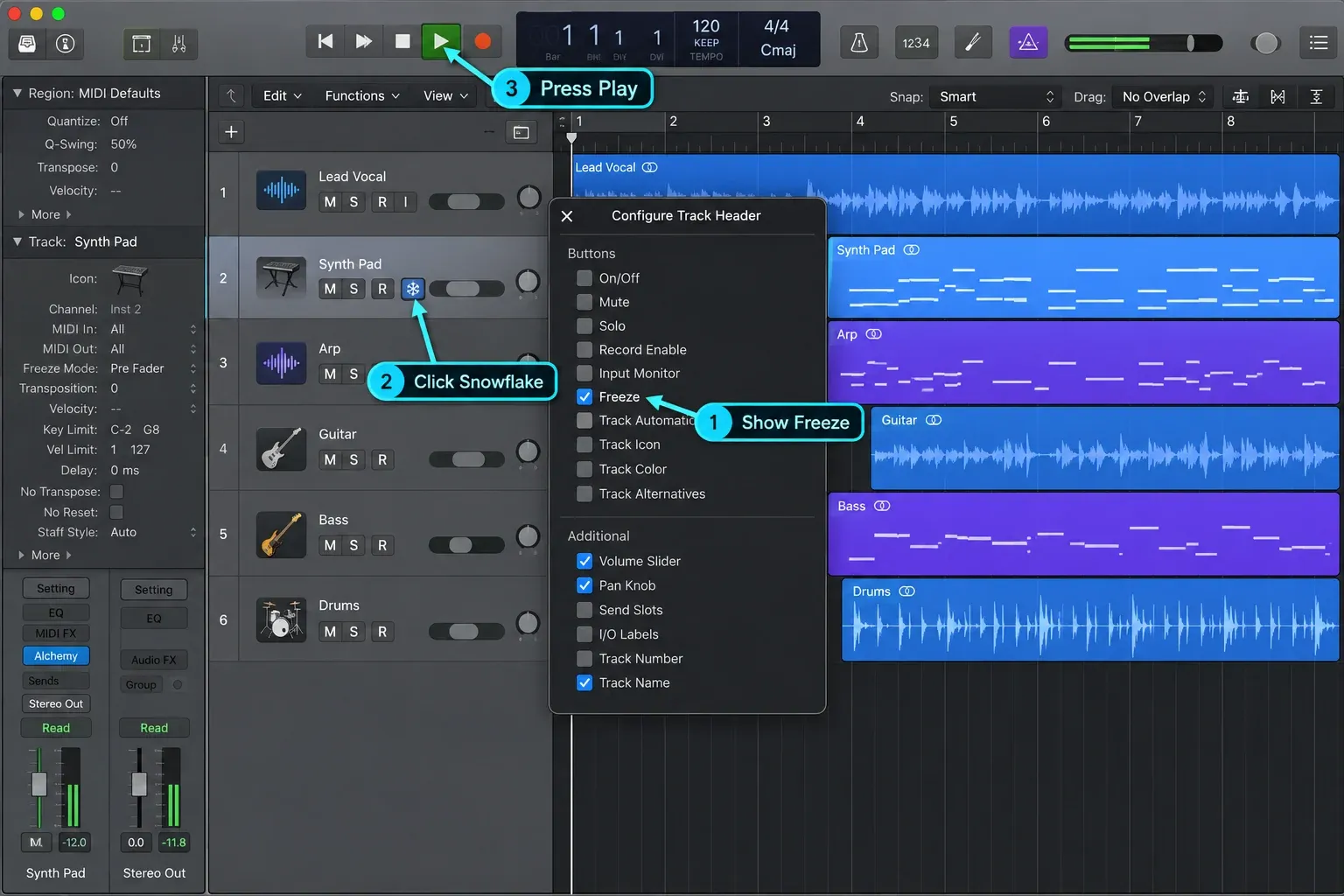
If you want to freeze several tracks, click and hold one Freeze button, then drag up or down across the other track headers. Apple documents this swipe as a way to switch multiple Freeze buttons to the same state. Press Play after the tracks are armed so Logic can render them.
Source Only vs Pre Fader: choose by what must stay editable
The two modes do different work. “Pre Fader” doesn't mean “before all processing.” It means the rendered point sits before the channel fader, after the track's insert effects.
Source Only (green in Logic Pro 12.3) freezes the source signal, such as a software instrument or Flex processing. Track effect plug-ins stay live. Choose it when you want to reduce the source processing but still adjust EQ, compression or other inserts.
Pre Fader (blue in Logic Pro 12.3) includes the source and track effect plug-ins in the freeze file. Choose it when both the sound source and insert chain are settled. The fader remains outside the frozen processing.
I'd start with Source Only when the sound source is the problem but the mix is still moving. A sampled instrument, a dense synth patch or heavy Flex Time processing can be printed temporarily while the inserts remain available.
Choose Pre Fader when the full channel-strip sound is stable. Logic then includes the effect plug-ins in the freeze file. That's usually the better mode for a finished amp-sim chain, a CPU-heavy vocal track or a virtual instrument whose sound design and inserts are no longer changing.
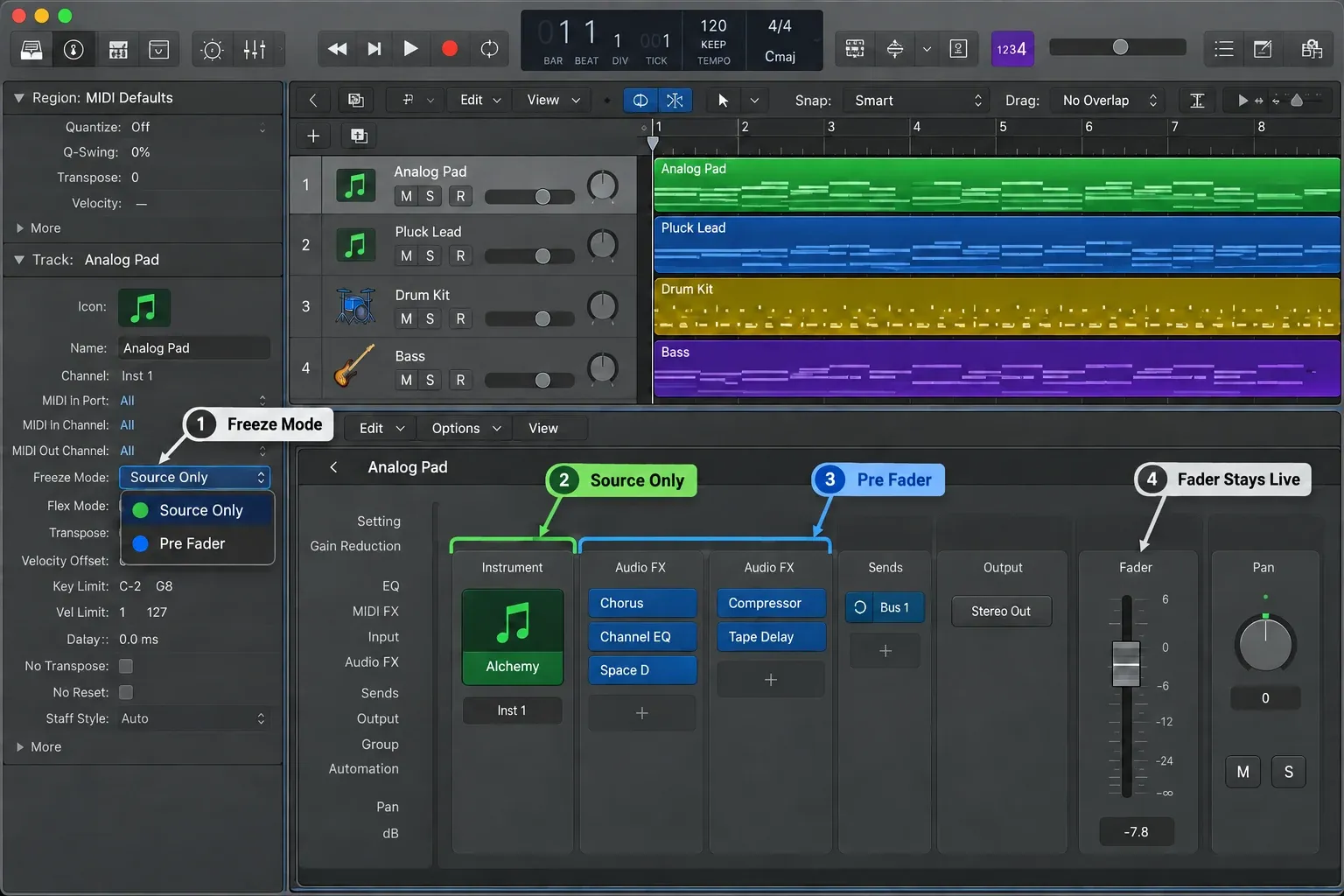
Do not identify the mode from an older tutorial. Use Apple's current Freeze guide and the current Track inspector: both show Source Only in green and Pre Fader in blue.
What Logic Pro does when it freezes a track
Logic Pro creates a temporary audio freeze file and plays that file instead of calculating the original track in real time. The original track isn't deleted. Unfreezing restores region editing and the processing that the selected mode froze. Source Only leaves the effect inserts live throughout. Freeze reduces live processing. If the real job is preventing accidental edits, compare Track Protect and Freeze before committing the track.
Apple says the freeze file includes the output of the processing chosen by the mode and track automation. While the track is frozen, track controls such as mute and solo remain available, but the track content can't be edited. You can't move a region, change a MIDI note or mute one region until you unfreeze.
That restriction is useful when a part is genuinely settled. It's irritating when the arrangement is still changing every few minutes. Freeze the expensive tracks you're unlikely to touch for the next stage, not every track by habit.
A track you don't need to hear at all, such as an unused alternate part or a parked synth layer, doesn't need a freeze file. I'd turn it off instead, because there's nothing to render: click its On/Off button in the track header, and Logic deactivates all of the track's plug-ins, freeing the CPU and memory they were using. If the button isn't showing, enable it in Configure Track Header. Turning the track back on reloads its plug-ins, which can take a moment, as Apple's Turn off tracks steps point out.
Does freezing tracks really save CPU?
Yes, when the bottleneck is processing that your chosen mode freezes. Source Only takes the software instrument or Flex processing out of live playback, but the effect inserts still run. Pre Fader also renders those inserts. Logic then plays the freeze file from storage instead of recalculating the frozen processing. Apple also lists a second use: playing back a project built on a Mac with more CPU power than the one you're using.
That trade explains why Freeze isn't a universal system-overload cure. In the control bar display, open the Display Mode menu and choose Custom, then double-click the CPU or HD meter to open the Performance Meter. Watch the same section that fails:
- If Processing Threads peaks, freeze the heaviest settled instrument or effect chain and test again.
- If Drive I/O peaks, do not keep freezing software instruments blindly. Apple warns that extra disk playback can make that bottleneck worse.
- If neither meter reproduces the problem, check the audio buffer, selected live instrument, plug-in behavior and interface path before blaming track count.
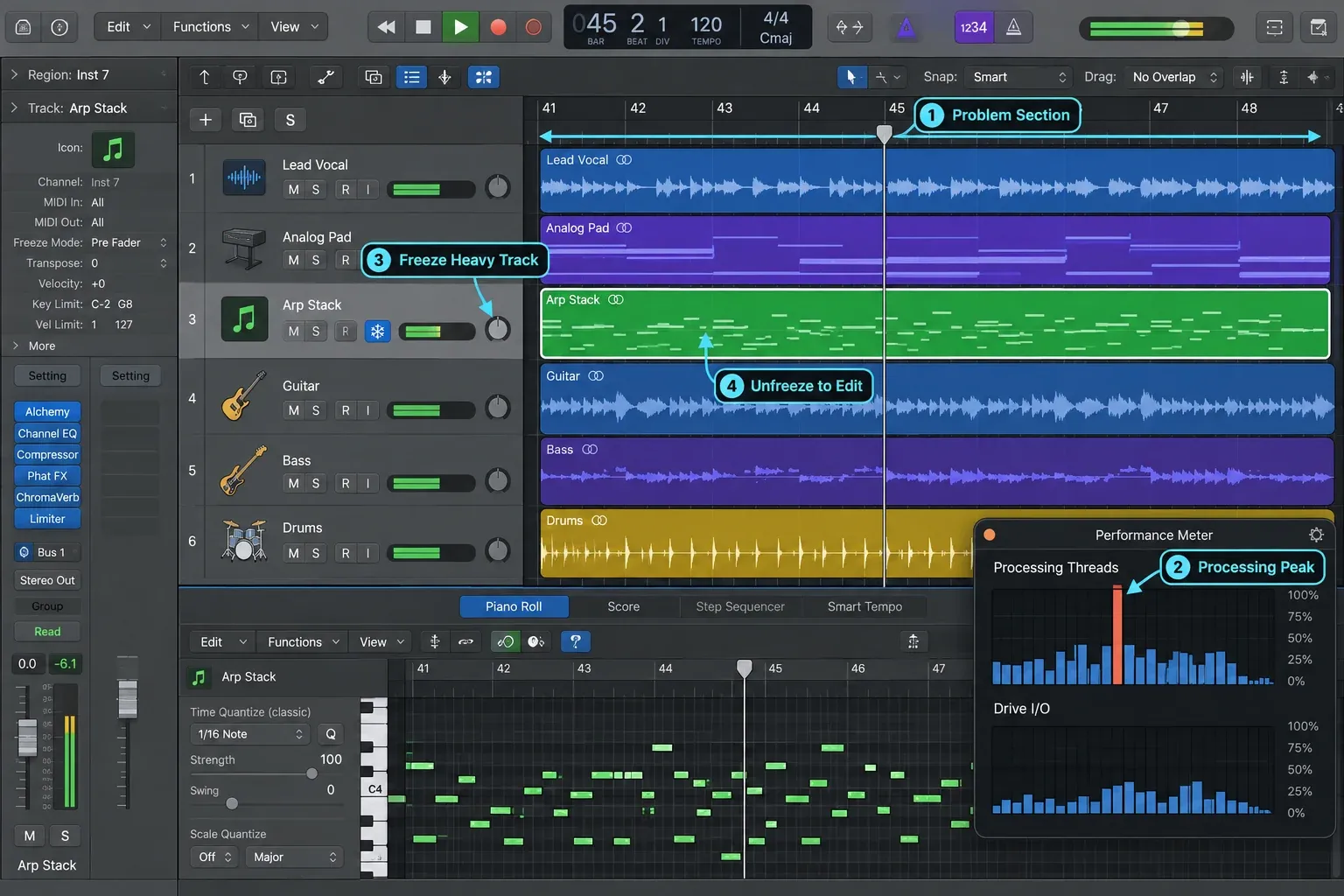
The full decision tree belongs in our Logic Pro system overload guide. Freeze is one precise fix inside that process.
Freeze vs Bounce in Place
Both features render live processing to audio, but they solve different jobs.
Freeze creates a temporary playback file and gives you an easy way back to the original track: click the snowflake again. Choose it for CPU relief while keeping the option to revise the part.
Bounce in Place creates an audio track or region you can edit inside the project, with options for handling the source. Choose it when you want to work directly with the rendered audio.
Apple's current Bounce in Place overview says Freeze is easier to return to the original state. It also notes that freeze files use 32-bit floating point, while Bounce in Place creates 24-bit audio at the project sample rate. Neither format is a reason to expect Freeze to sound “better,” so choose by workflow.
Use Freeze when you need less CPU load now but may want to edit the original part later. Use Bounce in Place when audio itself is the next working format, perhaps for chopping, reversing, handoff inside the session or a deliberate commitment. Our Bounce in Place vs Export guide covers the render choices without mixing them into this tutorial.
A practical freeze workflow for a busy project
- Find the expensive track. Reproduce the overload and watch Processing Threads rather than guessing from the number of plug-ins.
- Save the project. Freeze is reversible, but a normal save gives you a clear recovery point before changing several tracks.
- Freeze one candidate. Start with the dense instrument or insert chain that is musically settled.
- Choose the least restrictive useful mode. Use Source Only if you still need live inserts. Use Pre Fader if the full chain is stable.
- Replay the exact failure point. Check both the sound and the Performance Meter.
- Stop when the project is stable. Leaving a few active tracks editable is often faster than freezing everything and repeatedly waiting for new renders.
Fix the common Freeze problems
The snowflake button is missing
Press Option-T or choose Track > Configure Track Header. Enable Freeze in the Buttons section. You can also Control-click a track header and open its Track Header Components menu. The current Track Header guide documents both routes.
I clicked Freeze, but nothing rendered
Press Play. The snowflake marks the track for freezing, and the next Play command creates the file. If you armed several tracks, Logic renders each one before ordinary playback continues.
I cannot edit the frozen track
Region editing is locked while the track is frozen. Click the snowflake again before moving regions or changing MIDI notes. With Pre Fader, unfreeze before editing the rendered plug-ins too. With Source Only, the effect inserts remain live and can still be adjusted.
Freeze is unavailable on this instrument
Check whether the track uses a multi-output software instrument. Apple's current documentation says Track Freeze isn't available for these instruments. Keep the routing intact. If you need an audio version, check the Bounce in Place or export options for the outputs you use, and keep the original track until you've checked the result.
The system overload still happens
Confirm which meter is peaking. More freeze files won't repair a Drive I/O bottleneck, and a single selected live software instrument can still dominate one processing thread. Return to the Logic Pro troubleshooting hub and follow the symptom rather than adding more changes at random.
The frozen version sounds different
Unfreeze and compare the same passage at the same playback level. Check the selected Freeze Mode and which processing remains live. If the result isn't right, leave the track unfrozen while you investigate. A lower CPU meter isn't worth a changed mix. For a setup involving external hardware, check the render method before committing to audio: Apple's Bounce in Place overview distinguishes offline rendering of internal sources from real-time rendering when audio or MIDI is routed to external sources. Bounce in Place isn't available for external MIDI tracks.
Logic Pro Freeze FAQ
Does freezing tracks reduce CPU use in Logic Pro?
Yes, when live instruments or effect plug-ins are the bottleneck. Logic Pro plays a temporary audio freeze file instead of calculating the frozen processing in real time. That shifts work toward disk playback, so freezing can be the wrong fix when the Drive I/O meter is already peaking.
What is the difference between Source Only and Pre Fader freeze?
Source Only freezes the source signal without the track's effect plug-ins, which keeps those inserts available for changes. Pre Fader includes the effect plug-ins in the freeze file and usually removes more live processing. In Apple's Logic Pro 12.3 User Guide, Source Only is green and Pre Fader is blue.
How do I unfreeze a track in Logic Pro?
Click the active snowflake Freeze button in the track header. Logic Pro restores the original track and its plug-ins so you can edit it, then you can freeze it again after the change.
Why is the Freeze button missing in Logic Pro?
Press Option-T or choose Track > Configure Track Header, then enable Freeze in the Buttons section. If Freeze is still unavailable, check the track type: Apple states that track freeze is not available for multi-output software instruments.
Should I freeze or bounce in place in Logic Pro?
Freeze when you want temporary CPU relief and an easy return to the original instrument, plug-ins, and automation. Use Bounce in Place when you deliberately want a new editable audio track inside the project.
Can I edit a frozen track in Logic Pro?
You can use track controls such as mute and solo, but you cannot edit the regions or other track content while the track is frozen. Source Only leaves the effect inserts available for changes. Unfreeze before editing regions or processing included in the freeze file, then freeze again when ready.
Freeze the expensive track you are not about to edit, check playback, and keep the rest of the session easy to change.


