Why Logic Pro Bounce Sounds Different From Playback
Find why a Logic Pro bounce differs from project playback by checking the output path, range, bounce mode, normalization and listening chain.

If a Logic Pro bounce sounds different from playback, compare both through the same signal path before changing the mix. Most mismatches come from a different bounce range, the wrong output, normalization, a realtime-only source, or extra processing in the app used to play the exported file.
Checked September 21, 2026 against Apple’s current Logic Pro User Guide. Logic Pro includes an Automatic bounce mode that chooses offline or realtime according to the channels and plug-ins in the project. Realtime remains useful for external sources and controlled comparison, but it is not automatically higher quality.
Start with a fair comparison
Do not judge the bounce while Logic is playing louder, from a different start point, or through another output. A small level difference can make one version seem wider, brighter, or more detailed even when the mix balance is unchanged.
- Bounce a short section that makes the problem obvious.
- Leave Normalize off for the first comparison.
- Import the bounced file into a new audio track in the same project.
- Route that track directly to the output used for the bounce.
- Bypass plug-ins on the imported-file track and avoid sending the mastered file through the master chain again.
- Match playback level before comparing tone, dynamics, width, or transients.
If the imported file matches but sounds wrong in Music, QuickTime Player, a browser, or another app, the bounce is no longer the leading suspect. Check that player’s EQ, volume normalization, spatial-audio settings, sound enhancement, and output device.
Check the output path before the bounce settings
Logic renders the signal that reaches the selected output channel strip. Output 1–2 is the usual stereo destination, but a project can contain alternate outputs, aux channels, external inserts, and monitor-only paths. A track that reaches the speakers through one route may not reach the output selected in the Bounce dialog.
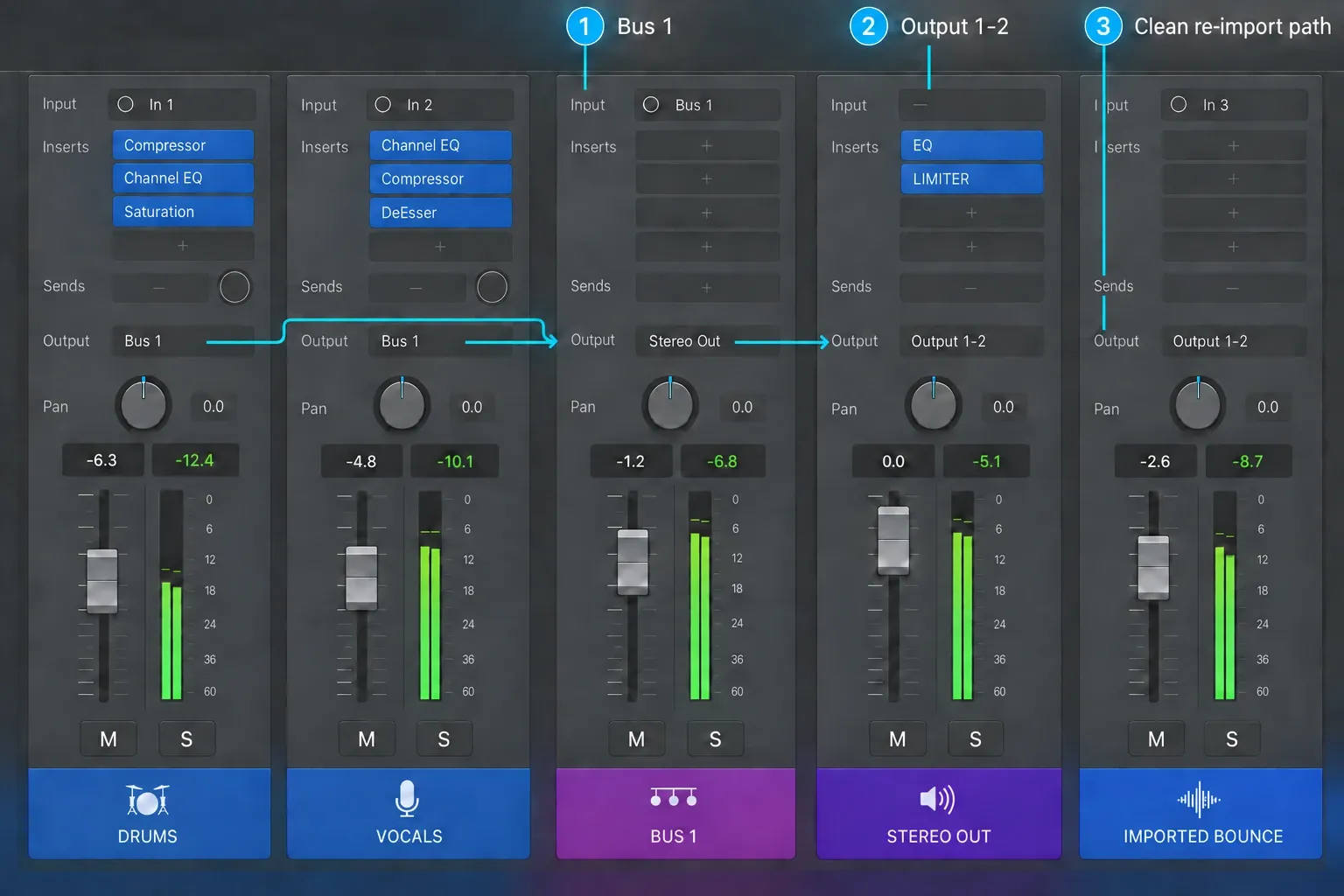
Open the Mixer and trace the problem track through these points:
- The track is not muted and its output assignment is correct.
- Any bus feeding an aux channel reaches the same final output.
- The output channel strip contains the processing you expect to print.
- No alternate output or hardware-monitor path contributes only during playback.
- An external insert or I/O plug-in has a live return when the bounce runs.
If you need separate files for delivery, use the dedicated Logic Pro stem-export workflow. A stereo bounce and a group of stems answer different routing questions.
Make the bounce range match what you heard
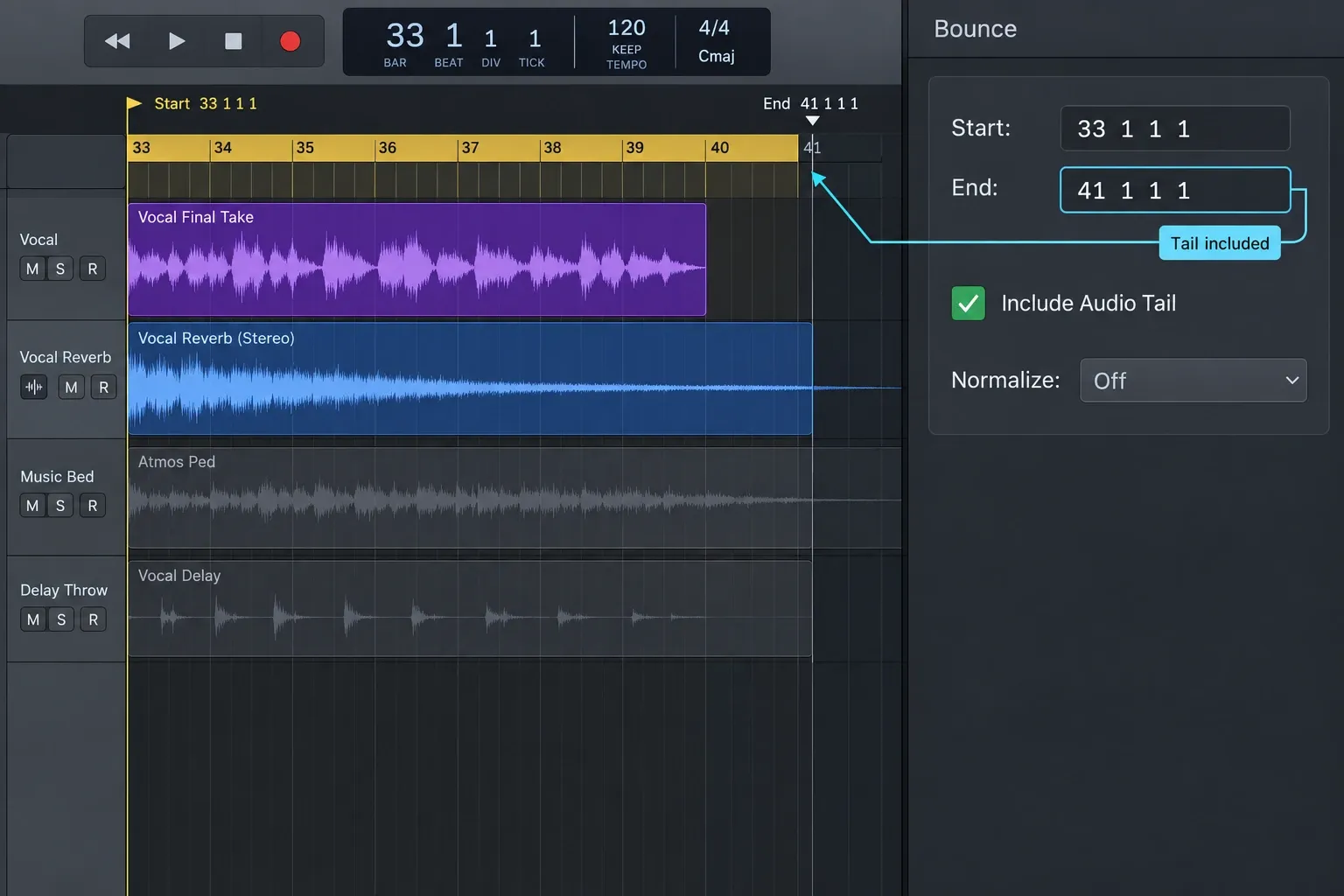
The Cycle area and Bounce dialog locators decide where the file starts and ends. Apple’s bounce-range guide explains the relationship between the Cycle range and project locators. A file can seem softer or less spacious because it starts after a pickup, cuts off a release, or excludes the effect tail heard during playback.
Set the Cycle area around the exact comparison passage, then confirm Start and End before bouncing. If the section begins with reverb or delay from an earlier passage, include the earlier material or use a second cycle pass. If the final chord or instrument release extends beyond the locator, use Include Audio Tail when that tail belongs in the file.
Apple’s current Logic Pro bounce guide also notes that some plug-ins can keep generating signal. Inspect the ending instead of leaving Include Audio Tail on by habit.
Use Automatic, Offline, and Realtime for the right job
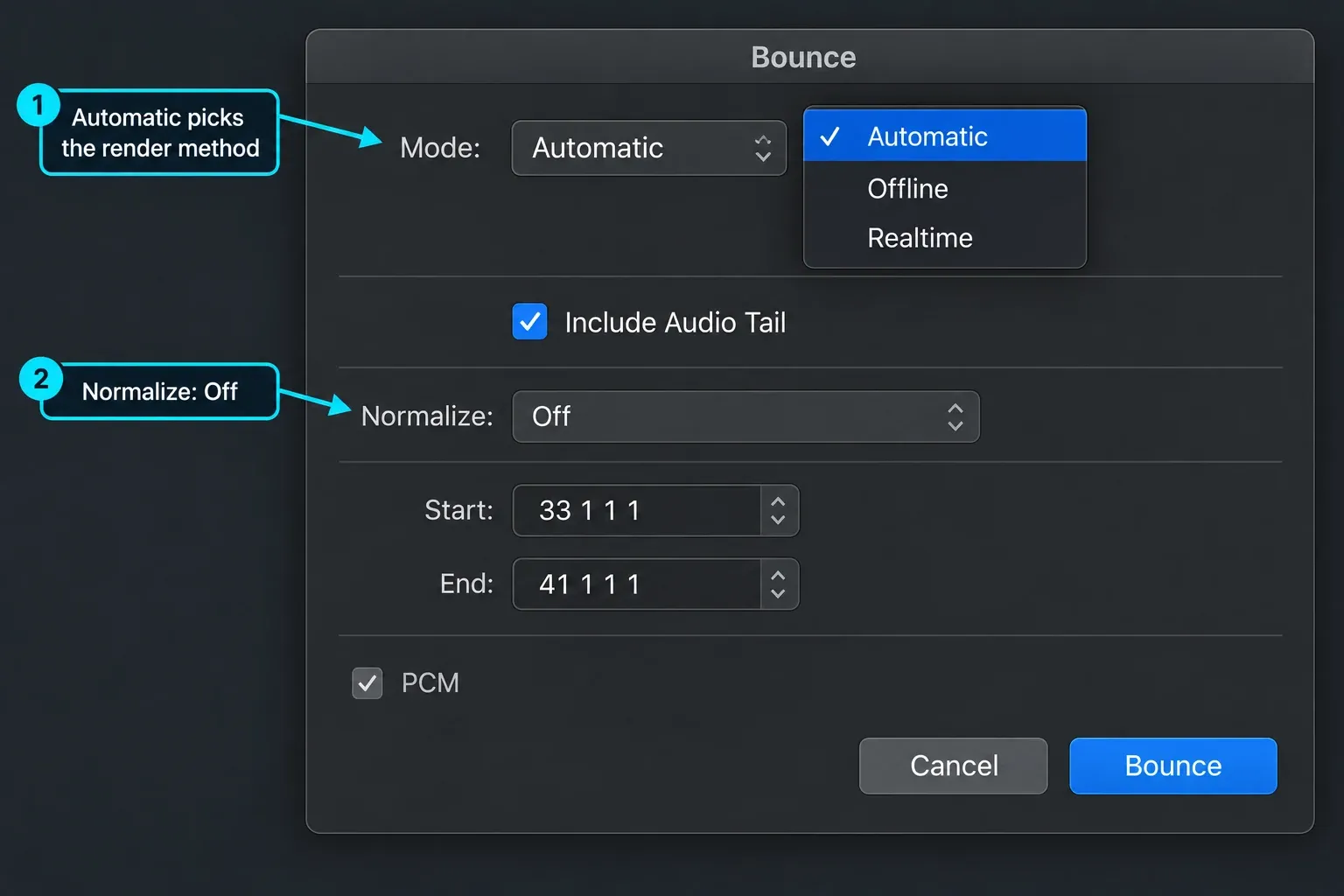
Apple’s current Bounce a project to an audio file instructions describe Automatic as a mode that can render offline when the project permits it and switch to realtime when a channel requires live processing. It is a sensible default for many current projects because it follows the routing requirements.
Choose realtime when the bounce depends on an external MIDI instrument, live audio return, external insert, or another source that must run with the clock. For an internal project, realtime is still a useful diagnostic. If realtime and offline differ consistently, narrow the test to the instrument or plug-in that changes between passes.
Do not diagnose a broken offline bounce from one different performance. Random modulation, free-running oscillators, round-robin samples, generative MIDI, modeled noise, and unsynchronized effects can create small differences on every pass. Bounce the same short range more than once and look for a repeatable omission or level change.
Turn Normalize off while troubleshooting
Normalize changes level after the bounce calculation. Apple documents three useful states: Off applies no normalization, Overload Protection Only lowers the file when an overload is detected, and On raises or lowers the result toward a normalized peak.
The exported file can therefore feel less punchy or simply quieter even when its internal balance is intact. Use Normalize Off for diagnosis. If the output clips, fix gain staging or limiting deliberately instead of using normalization to conceal the overload.
For a compressed listening copy, export after verifying the unnormalized master. The Logic Pro MP3 export guide covers that format step without mixing it into the bounce diagnosis.
Watch for double processing after re-import
A re-imported bounce can sound different for the opposite reason: it may pass through the same master processing a second time. If the stereo file already contains the output limiter, EQ, or saturation, sending it through that chain again changes it.
Use a clean comparison path. Temporarily bypass output processing while the imported file plays, or route it to an unused clean output that reaches the same monitors. Keep the level matched. The goal is to hear the rendered file once.
The same distinction applies to Bounce in Place versus export. Bounce in Place can render a track or region at another point in the signal flow, while a project bounce is created from the selected output. The files are comparable only when their routing and included processing match.
If only one instrument changes
When the rest of the mix matches, isolate that instrument instead of rebuilding the project. Bounce a short passage with only its channel and dependent effects, then compare two passes with the same range and mode.
- If every pass differs slightly, look for random or free-running behavior.
- If only offline differs, check the instrument or plug-in documentation for realtime requirements and offline-render settings.
- If both modes omit the same effect, inspect the bus and output route.
- If the first note or final release is missing, correct the bounce range and tail handling.
- If the external player is the only place that sounds different, inspect that playback chain.
Freeze or Bounce in Place can help identify the stage where the change enters the signal, but keep an editable project copy. The purpose is to isolate the cause, not to replace every instrument with audio before the routing is understood.
A repeatable bounce checklist
- Save a new project version before changing routing or plug-ins.
- Choose the intended output, normally Output 1–2 for a stereo mix.
- Confirm every required track, bus, aux, and external return reaches that output.
- Set Cycle or Start/End to the exact musical range.
- Use Include Audio Tail only when the release or effect tail belongs in the file.
- Leave Normalize off for the diagnostic bounce.
- Use Automatic for a normal current workflow; choose realtime when a live external path requires it.
- Re-import the file, avoid double processing, and match level.
- Compare the same section through the same output.
- Only then isolate a specific plug-in or instrument.
If the file matches inside Logic, the bounce is doing its job. The remaining difference enters after export. If it fails inside the project, the order above narrows the cause to range, routing, mode, normalization, or a changing source. For more signal-flow decisions, use the Logic Pro Mixing hub.
FAQ
Is realtime bounce higher quality?
No. Realtime is required when the bounce depends on a live external source or a plug-in that cannot render offline. For a fully internal project, offline and realtime are two processing modes; realtime is not an automatic quality upgrade.
Why does the file match in Logic but sound different in Music or QuickTime?
The player can use another output device, level, EQ, spatial-audio mode, or sound-enhancement setting. Compare the file at matched level through the same device before changing the mix.
Can two bounces differ without either being broken?
Yes. Random modulation, round-robin samples, generative MIDI, free-running effects, and modeled noise can vary between passes. Treat a repeatable missing element, routing error, or level shift as the stronger fault signal.


