How to Export Stems in Logic Pro Without Mistakes
A reliable Logic Pro stem and multitrack workflow, including routing, export settings, file naming, AAF options and a re-import quality check.

Exporting “stems” from Logic Pro can mean two different deliverables. A mixing engineer usually wants multitracks: one audio file for every recorded or instrument track. A mastering engineer, remix client, or live playback system may want stems: grouped files such as Drums, Bass, Music, Lead Vocal, Background Vocals, and FX.
Checked September 12, 2026 against Apple’s current Logic Pro 12.3.1 documentation cited in this guide. Ask the recipient which deliverable they expect before touching the Export menu. Logic can batch-export individual tracks, but grouped “as-heard” stems with aux returns and shared bus processing need a different workflow.
Fast answer: for individual multitracks, select only the required tracks, export one agreed range, use 24-bit WAV unless the recipient asks otherwise, and leave Normalize off. Use All Tracks as Audio Files only when every eligible track belongs in the delivery. For grouped stems, bounce each approved group through its intended routing, then check the files in a new project.
Stems versus multitracks
| Deliverable | What each file contains | Best Logic workflow |
|---|---|---|
| Multitracks | One file per individual track | Export selected tracks or All Tracks as Audio Files |
| Grouped stems | Several related tracks combined, such as all drums | Route groups deliberately and bounce each stem |
| Mix reference | The full stereo mix | Bounce Project or Section |
| AAF handoff | Audio regions with track positions and volume automation references | Export Project as AAF File when the receiving app supports it |
The distinction matters because All Tracks as Audio Files doesn’t automatically recreate every relationship you hear at the stereo output. Shared reverbs, delays, summing-stack processing, sidechains, and master-bus dynamics can make a batch of exported tracks sound different when recombined.
Prepare the project before export
Confirm the brief
Ask for the required file type, sample rate, bit depth, start point, wet or dry processing, grouped stems or individual tracks, and whether a reference mix is required. If the answer is “send stems” with no detail, send a proposed list before exporting. An agreed group list is better than a folder the recipient did not expect.
A useful one-message brief is:
Do you need individual multitracks or grouped stems? Please confirm WAV/AIFF, sample rate, bit depth, common start point, wet or dry source inserts, whether volume/pan automation should be printed, how shared reverbs and delays should be delivered, and whether you also want MIDI, AAF, tempo/key notes, and a reference mix.
Save a protected copy
Do not flatten, rename, freeze, or reroute the only working project. Use a dedicated handoff copy and follow the Logic Pro project backup workflow before destructive cleanup. If the delivery includes the complete Logic session, use the separate project-sharing checklist. The export copy can then be organized without risking the production session.
Set a common start and end
Every file must line up when dragged to the same timeline position. Use the same cycle or project range for every export, beginning at bar 1 or at another start point agreed with the recipient. Leave enough space after the final musical event for releases, reverbs, and delays when those tails belong in the deliverable.
Rename tracks for another human
Replace generic names with unambiguous labels such as Kick In, Kick Out, Snare Top, Bass DI, Lead Vocal, and Vocal Double L. Avoid slashes and unusual symbols that may cause filename trouble outside macOS. Apple’s current Logic Pro release notes also confirm that Group Name is available as a filename element when exporting tracks, which is useful when your groups are already named clearly.
Remove what should not leave the room
Do not rely on Hide to exclude guide vocals, unused ideas or duplicate prints. Apple confirms that hiding a track does not affect playback. For individual-file delivery, select only the tracks you intend to export rather than assuming a muted or hidden track will be omitted by All Tracks. For a grouped bounce, solo the intended sources and check the output by ear. Inspect the resulting folder before sending anything private or unfinished.
How to export individual tracks in Logic Pro
- Open a protected handoff copy of the project.
- Select only the tracks the recipient needs. Use the all-tracks command only when the complete set belongs in the handoff.
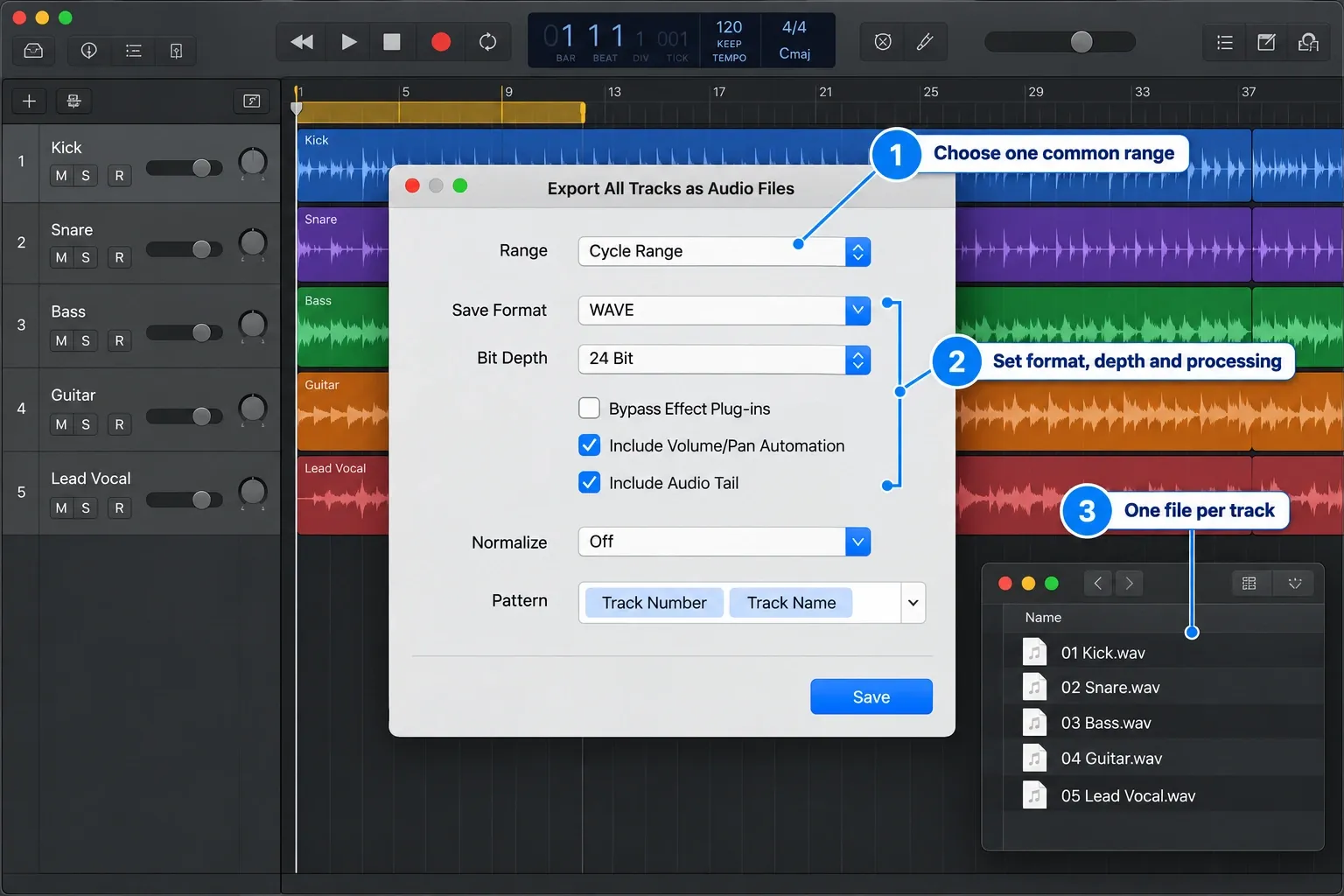
- Choose File → Export → 1 Track as Audio File for one selected track; the selected-track command reflects the selection count. For the whole set, choose File → Export → All Tracks as Audio Files.
- Choose Save Format and Bit Depth. Keep the project’s sample rate for this handoff unless you have agreed on a separate conversion step.
- Where the Range menu is available, choose the cycle range for the agreed start and end, or extend silence to the project end. Check the exported files’ actual start and duration; do not assume every dialog or tail setting produces identical lengths.
- Configure plug-ins, automation, tails, multi-output behavior, and normalization deliberately.
- Drag Track Number and Track Name into the filename Pattern field, choose a new destination folder, and click Save.
- Re-import the complete folder into a blank project at the same sample rate. Check timing, missing parts and the agreed processing against the reference; dry multitracks will not reproduce a mastered mix unchanged.
Apple’s current track-export documentation describes the selected-track and all-tracks commands separately. It lists Range under selected-track export, so check the dialog in your installed version rather than treating one option list as universal. For the sample rate, inspect File → Project Settings → Audio; Apple warns against changing an established project’s rate casually. If the recipient needs another rate, agree on a conversion of delivery copies, not a change to the production original.
Export settings that change the result
Bypass Effect Plug-ins
Leave this unchecked when the channel-strip inserts are part of the sound you’re delivering. Check it only when the recipient explicitly wants the track without those plug-ins. This setting concerns plug-ins on the source track. It doesn’t guarantee that shared aux returns are printed into that track file.
Include Volume/Pan Automation
Enable it when you’re delivering a production decision that should arrive at the same level and position. Disable it when a mix engineer wants control over fader balance and panning. Apple specifically notes that exporting without performed volume and pan automation is generally preferable for external mixing or editing.
Include Audio Tail
Use it when an instrument release or source-track effect extends beyond the last region. Do not rely on it as a cure for every shared reverb return. If the reverb lives on an aux, test the exported result rather than assuming the tail followed the source. Tails can make files end at different times without changing their common start. If the delivery requires identical lengths, use a sufficiently long fixed end for all files and verify it after rendering. For grouped project bounces, Apple also warns that noise-generating plug-ins can make Include Audio Tail produce an excessively long file.
Normalize
For a professional handoff, Off is the least surprising default. “On” changes every file based on its own peak and destroys the original level relationship. “Overload Protection Only” can turn down files that exceed 0 dBFS, but that still changes gain. Fix clipping in the project instead of asking normalization to conceal it.
Multi-output software instruments
One File per Track combines the instrument’s multi-output signals with its main output for each track. One File per Channel Strip can create additional files for aux channel strips fed by that instrument. Choose based on whether the recipient needs a usable instrument print or separate output control.
Include Tempo Information
Apple documents Include Tempo Information as selected by default. Leave it on when the receiving workflow needs the project’s tempo metadata, or turn it off by agreement. Still supply the BPM or tempo-map notes: metadata is not a substitute for confirming how the recipient imports the files.
How to create grouped stems that preserve the mix
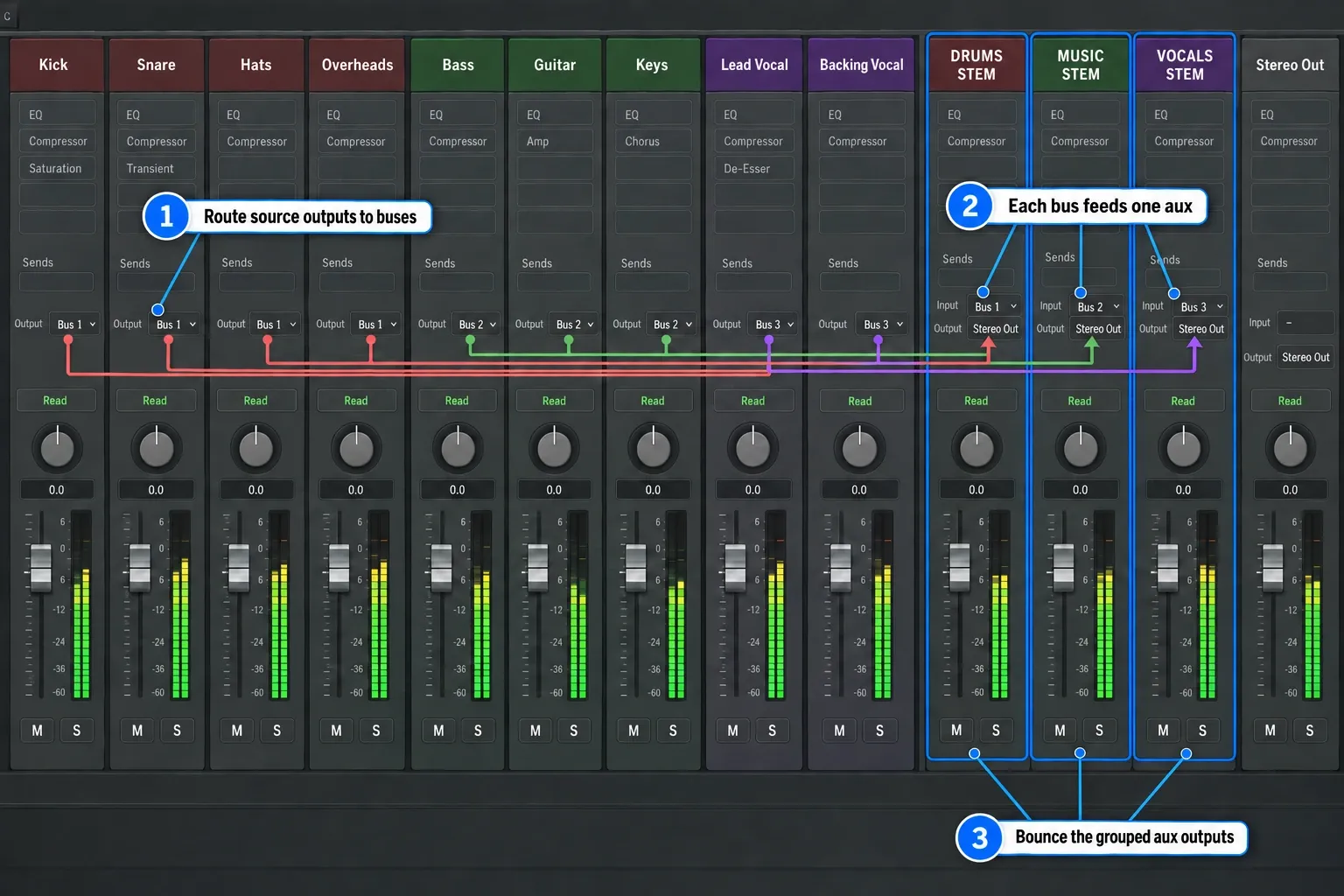
If you need to know how to bounce stems in Logic without losing group processing, start with routing, not the Bounce dialog. For Drums, Bass, Music, Vocals, and FX stems, create or verify intentional group routing first: send the relevant channel-strip outputs to a bus, receive that bus on an aux channel strip, and confirm where shared effects return. Then print each group through the path that must be preserved:
| Routing element | Question before printing | Safe action |
|---|---|---|
| Summing stack or subgroup | Does all source audio reach the intended group bus? | Solo and listen to the group before bouncing it. |
| Shared reverb or delay | Does the return contain signals from more than one stem group? | Deliver it as a separate FX stem or create dedicated returns by agreement. |
| Sidechain key | Will the compressor or gate react differently when other groups are muted? | Keep the required key signal active or document that the stem is a reconstruction, then compare. |
| Mix-bus processing | Is the processor linear, or does its behaviour depend on the full mix? | Do not assume soloed passes will add back to the approved stereo mix. |
| External instrument or hardware insert | Does the signal leave the computer? | Use a real-time bounce and monitor the pass. |
- Define the stem list and make sure every audible source belongs to exactly the intended group.
- Solo the first group and include only the aux returns that belong in that stem.
- Choose File → Bounce → Project or Section, or use Bnce on the intended output strip. Set the same Start and End values for every stem. In the current dialog, choose Uncompressed, then WAVE, the agreed bit depth and sample rate; use Interleaved for a normal single stereo file.
- Set Normalize to Off and choose Realtime when external hardware is involved. Click Bounce, name the file with project, version and group (for example, SongTitle_v4_DRUMS.wav), choose the delivery folder, and confirm Bounce.
- Repeat for each group without changing the bounce range or output format.
Apple’s current bounce guide states that a project bounce records parameters, effects, and automation on unmuted tracks routed to the selected output. That’s why a controlled solo-and-bounce workflow is safer when the stem must sound like the approved mix. The uncompressed bounce options define WAVE, bit depth, sample rate and Interleaved; older tutorials may label that destination PCM.
Practically, batch track export can capture the source channel with its inserts and optionally its performed fader/pan automation, but it doesn’t promise to fold shared aux returns and master-bus behavior into every “as-heard” stem. Treat that routing difference as a reason to test the files, not as a reason to guess which export option sounds closest.
Why soloed stems may not add back to the full mix
A linear gain or EQ on the stereo output behaves predictably, but a compressor, limiter, saturator, dynamic EQ, sidechain processor, or time-varying effect reacts to the signal present during each pass. When you solo Drums, the processor no longer receives the same full-mix input it received during the approved bounce. Adding the soloed Drums, Bass, Music, and Vocal files later can produce a different result.
If exact reconstruction is required, agree on the method before printing. Recording dedicated group outputs together can preserve simultaneous sidechain and return behavior, but it does not divide a nonlinear processor on the shared Stereo Out into independent stems. Supply the approved stereo reference, identify any omitted mix-bus processing, and compare the summed stems before promising an exact match.
Use real-time bounce when the signal leaves Logic
Apple’s bounce documentation distinguishes offline rendering from real-time bounce. External MIDI sound sources routed through aux channels and hardware-dependent paths need real-time playback. Choose Realtime, listen for the complete pass, and do not leave a hardware stem to an unattended offline batch.
Should you export AAF instead?
AAF can be useful for moving a project to a compatible DAW such as Pro Tools because it carries used audio regions, track and time-position references, and volume automation. It does not carry the complete Logic session: plug-ins, software instruments, routing, and automation beyond the supported volume data still need another handoff method.
When the receiving engineer requests AAF, follow Apple’s AAF export instructions and include a reference mix plus a small set of consolidated audio backups. The recipient should never need your plug-in collection just to hear where the vocal enters.
Quality-control the folder before sending it
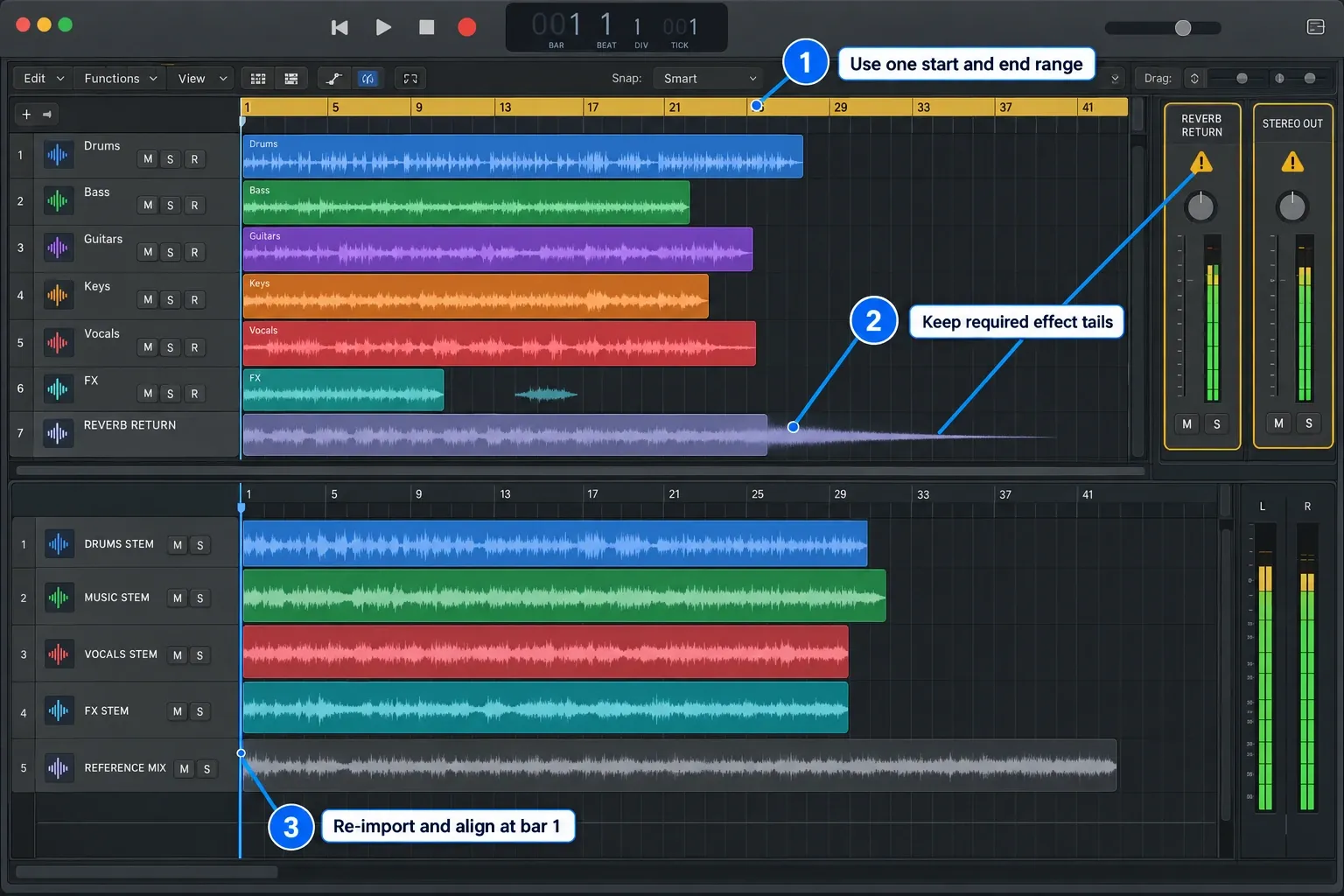
- Create a blank project at the intended sample rate.
- Import every exported file at the same start position.
- Check that the full set plays in sync from beginning to end.
- Compare at matched listening loudness, allowing for deliberately omitted inserts, fader automation or mix-bus processing. For dry multitracks, judge timing and completeness, not a perfect match to the mastered reference.
- Solo each file for clipping, missing tails, unexpected silence, and wrong processing.
- Confirm that mono sources have not been exported as unintended stereo files and that no channel is missing.
- Include a text note with tempo, sample rate, bit depth, start point, version, and any intentional exceptions.
Use a delivery manifest
Put a short README.txt beside the audio folder so the recipient does not have to reverse-engineer decisions from filenames. A useful manifest contains:
- song title, mix/version name, export date, tempo map or fixed BPM, and key if useful;
- file format, sample rate, bit depth, common start point, and intended import position;
- whether source inserts, volume/pan automation, aux returns, and mix-bus processing are included;
- which file is the approved reference mix and its level relationship to the deliverables;
- any external hardware, missing plug-in, deliberate print, count-in, pickup, or tail exception;
- your contact name and the exact stem/multitrack list the recipient approved.
Before compression or upload, compare the file count in the manifest with the folder. Open several files from the transfer copy as well as the original export location to catch a damaged or incomplete archive.
If you also need a listening copy, create it separately with the Logic Pro MP3 export workflow. Do not substitute an MP3 for WAV multitracks. For extracted parts from an existing stereo file, the job is different. Use the Logic Pro Stem Splitter guide.
More export and handoff workflows are organized in the Logic Pro tutorials hub.
Frequently asked questions
What is the best format for Logic Pro stems?
Use 24-bit WAV at the project’s native sample rate unless the recipient requests another format. WAV is widely compatible and avoids the quality loss of MP3 or AAC.
Should Normalize be on when exporting stems?
Usually no. Set Normalize to Off so Logic does not change each file’s gain independently. Repair clipping in the project and preserve the intended level relationship.
Do Logic Pro track exports include plug-ins?
They include source-track plug-ins unless Bypass Effect Plug-ins is selected. Shared aux returns, group processing, and master-bus behavior need separate routing and verification.
Should every stem start at bar 1?
Every delivered file should share one agreed start point, commonly bar 1. This lets the recipient align the files by placing them all at the same timeline position.
Are stems and multitracks the same thing?
No. Multitracks are usually one file per individual track; stems are grouped files such as Drums, Bass, Music, Vocals, and FX. Confirm which deliverable the recipient means.
Why do my Logic Pro stems sound different when added together?
Shared aux returns, sidechains, summing-stack processing, and nonlinear mix-bus plug-ins may react differently during soloed or batch passes. Audit the routing, compare the re-imported files with the reference, and document processing that cannot be reconstructed exactly.


