How to Export Mono Vocals in Logic Pro as One-Channel Files
A practical route to one-channel vocal files: select the right export command, check the signal path and confirm the result before sending it to a mixer.

A mono vocal can sit perfectly in the center and still arrive as a two-channel file. When a mixer has asked for one-channel WAVs, a vocal that only sounds centered isn't enough.
For separate vocal tracks, use File > Export > 1 Track as Audio File, or All Tracks as Audio Files for a batch. Check the channel format and effects before exporting, then inspect the finished file's channel count. For a single mix or submix, a project bounce follows the output channel strip instead. Logic Pro's default Output 1-2 is stereo, so an ordinary project bounce won't give you a mono file simply because the source vocal is mono.
This guide follows Apple's current Logic Pro for Mac documentation. Older searches often call the app “Logic Pro X”; the underlying one-channel handoff problem is the same, but the controls you see may differ by version.
First decide what the engineer needs
If the request is “send each vocal separately,” use Track Export. Apple's track export instructions distinguish a selected track from all tracks and create one audio file per track. Keep the lead, doubles and harmonies as separate files when the engineer is meant to mix them.
For one combined vocal submix, use an output bounce with the right routing and output format. File > Bounce > Project or Section is for the project routed to the main output. The Bnce button on a particular output channel strip can isolate that output. Neither one replaces exporting several independent vocal tracks.
The recorded material and the resulting file are two different things. A mono recording has one audio channel, but a stereo track or stereo effect can create a two-channel signal later in the chain. Our mono-versus-stereo track guide covers channel modes in more detail.
Export a separate mono vocal track
- Select the vocal track, then choose File > Export > 1 Track as Audio File. For a batch, choose File > Export > All Tracks as Audio Files and inspect every resulting file rather than assuming they all share a format.
- Choose the requested Save Format and Bit Depth. If the recipient has specified WAV and a bit depth, match that delivery request; these controls do not themselves decide whether a file has one or two channels. Leave Normalize at Off unless the mixer asks for it. The On setting also raises quieter files, so a soft double wouldn't keep the level it has in your session.
- Decide whether the recipient wants processed or dry vocals. Bypass Effect Plug-ins removes the source track's plug-in processing from this export. Include Audio Tail keeps releases and effect tails when you do want them.
- Set Include Volume/Pan Automation according to the handoff. Apple's description of that checkbox says that selecting it performs volume and pan automation into the exported file; otherwise that automation is copied but not performed. Ask the mixer before printing your fader rides or pan moves. Apple's guide adds that files going to another app for mixing or editing are generally better exported without that automation.
- Save the export, then check its channel count before sending it.
Do not expect Include Volume/Pan Automation to work as a universal mono switch. It affects the result of that automation, but the actual channel format also depends on the track and processing path. A mono recording can pass through stereo-producing effects. Bypassing those effects may change both its sound and its channel configuration. If the width is part of the requested sound, keep the stereo result. Otherwise I'd agree on a dry mono delivery and a separate stereo effects return.

For selected-track exports, Apple's instructions list a Range control for the cycle range, the project end or trimming trailing silence. Check that setting before delivering vocals that need a common timeline start. Set the filename pattern for a clear batch handoff. For instruments and groups, see our Logic Pro stems guide. That task comes with different routing decisions.
Bounce one mono vocal mix or submix
Apple's project bounce guide ties the resulting mono, stereo or surround file to the output channel strip's format. Output 1-2 is stereo by default. Panning a vocal to the center doesn't change that output strip to mono.
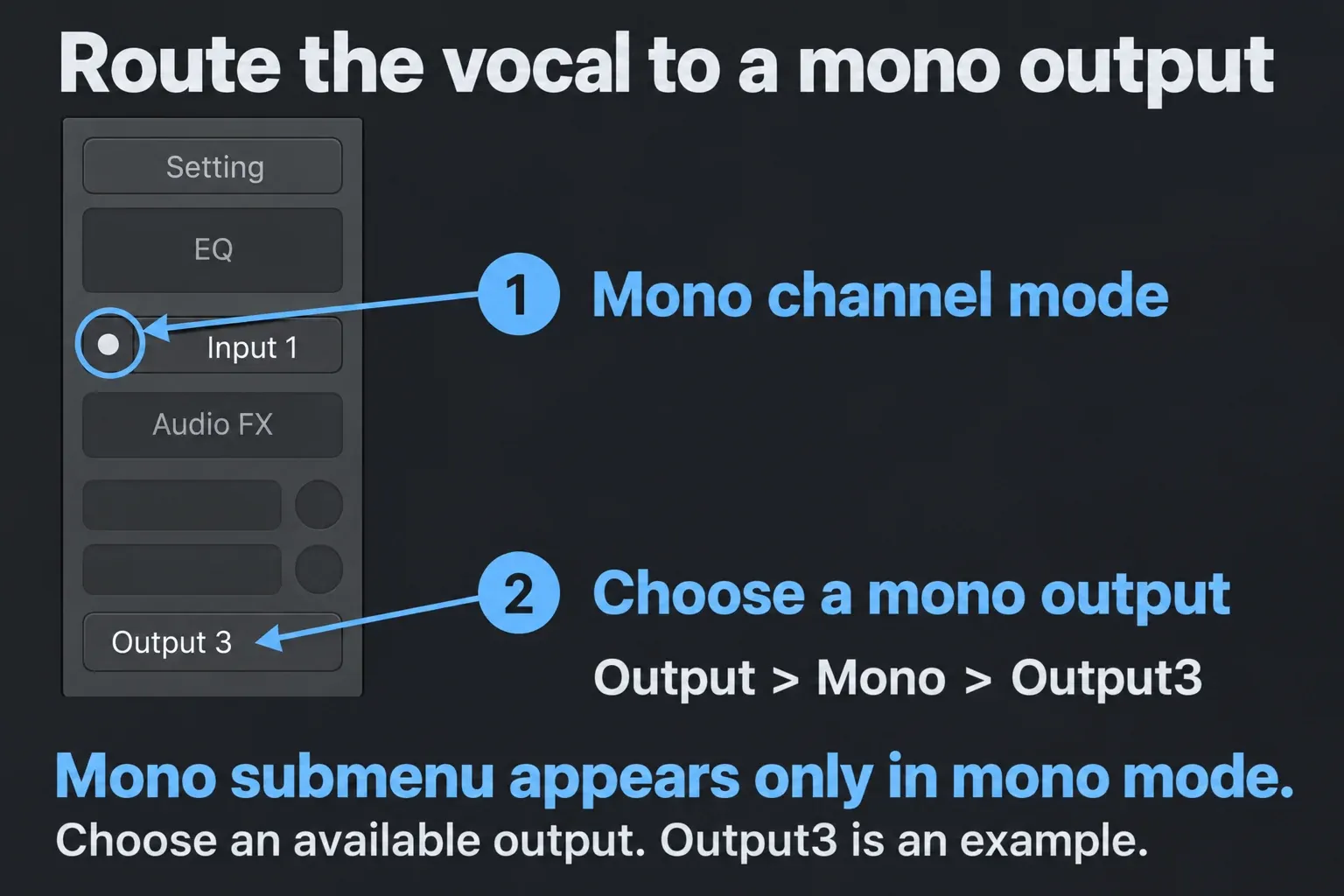
Start on the vocal track or aux channel strip that you want to route to a mono output. In the Mixer, find its Channel Mode button. Apple identifies one circle as mono and two interlocked circles as stereo. Set this source strip to mono, then click its Output slot and choose Output > Mono > the intended mono output. Apple's mono-output instructions add the catch: the Mono submenu is visible only when that channel strip's mode is mono.
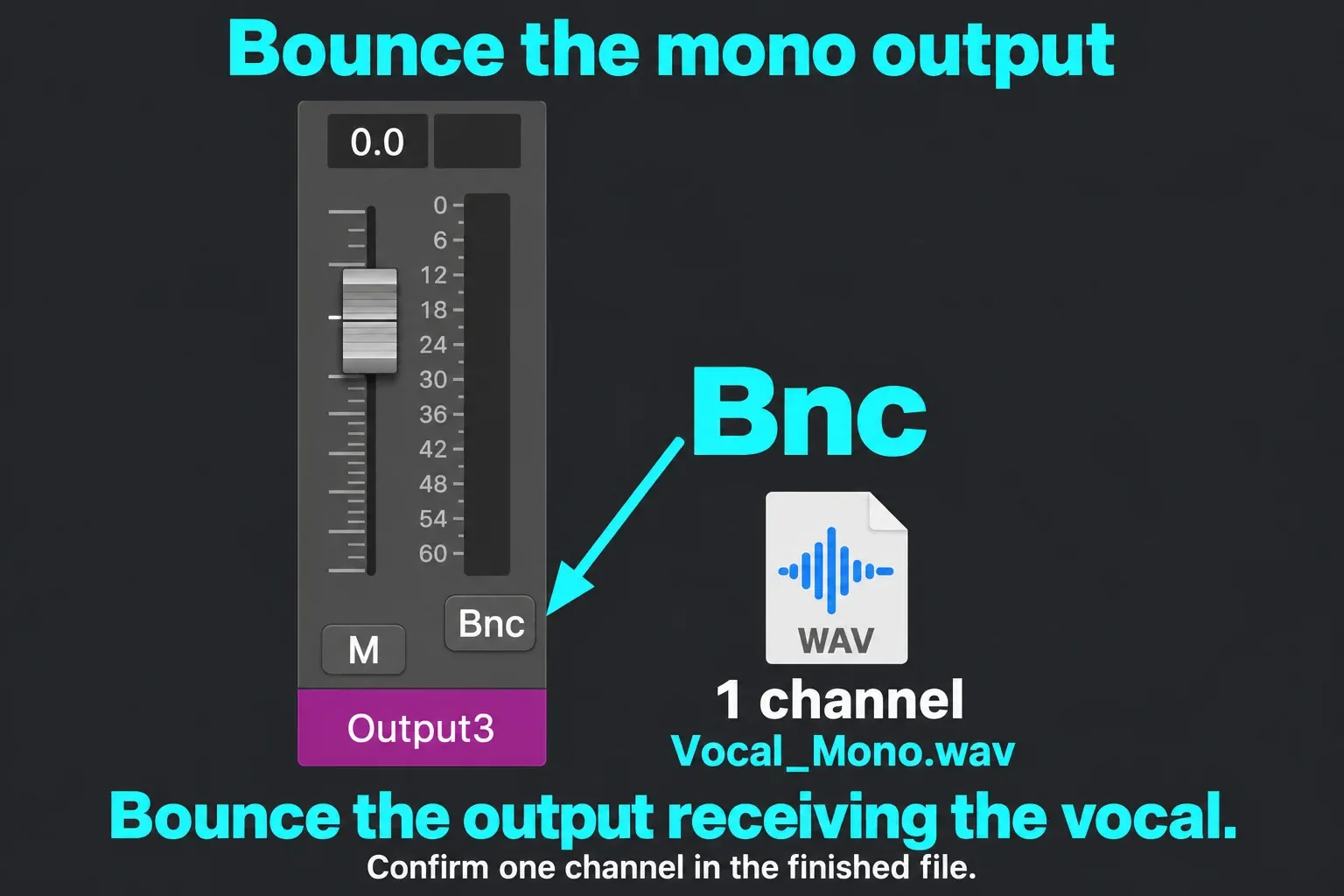
Route only the material meant for this vocal submix to that output. Use the Bnce button on its output channel strip to bounce that specific output. For the main output path, choose File > Bounce > Project or Section instead. Apple says that bounce includes unmuted tracks routed to Output 1-2. Confirm the bounce range and allow room for a wanted reverb or delay tail.
Choose an available mono output for this route. Output 3 below is only an example, so you don't need that exact destination. Confirm that the output strip receiving the vocal is mono before pressing Bnce.
Check effects before changing the output format. Apple's output-strip documentation says output inserts cannot use plug-ins that require mono-to-stereo conversion: mono output strips use compatible mono processing. A stereo delay or reverb return may need its own stereo file if the engineer wants that width. Do not silently collapse a stereo effects bus and call it the same mix.
Why did the export still come out stereo?
You bounced the main Output 1-2. That strip is stereo by default. Use a verified mono output path for a single submix, or Track Export when the deliverable is individual vocal files.
The signal became stereo before export. Inspect the channel mode and effects path, especially wideners, stereo reverbs, delays and routed returns. A centered pan position isn't proof of one channel. If the processing matters musically, keep it and deliver stereo where agreed. Otherwise, prepare a separate dry mono export.
You changed the automation option and expected a channel conversion. That checkbox decides whether track volume/pan automation is performed during export. It is not a documented command to downmix any stereo track into one channel.
You chose split stereo as a shortcut. Splitting a stereo file gives you separate left and right channel files. It doesn't decide which of two different signals should become your single vocal mix. If the source really contains different left and right material, agree on the downmix or deliver both channels as requested.
You used Bounce in Place to solve a delivery problem. That command creates a new region or track inside the project. It's useful for committing processing, but it isn't the final check on a handoff file's channel count. Our Bounce in Place versus Export guide covers the distinction.
Verify the file before sending it
Open the finished WAV in an audio-file inspector or editor that reports its number of channels. The result you want is 1 channel. A stereo file reports 2 channels, even when both sides contain the same centered vocal. On a Mac, the built-in Terminal command afinfo /path/to/your-vocal.wav prints audio-file information. Look for 1 ch in the data format. A convincing waveform or what you hear from two speakers isn't enough on its own.

Check one lead and one processed backing vocal separately if they followed different signal paths. If either file reports two channels, trace that track's channel mode, plug-ins and export route before rerunning the whole batch. Name the corrected files clearly and tell the recipient when a stereo effects return is intentional.
The handoff is complete when each requested vocal is its own file, the printed processing and automation match the agreement, and the file metadata reports the expected channel count. That's a stronger test than whether the voice sounds centered.


