Mono vs Stereo Tracks in Logic Pro: Which to Use
Choose mono or stereo tracks by source channel count, recognize Logic's Channel Mode symbols, fix one-sided audio and check phase before delivery.

Choose a mono track for one incoming channel and a stereo track for two channels that contain meaningful left/right differences. A single vocal microphone, guitar mic, bass DI or one hardware input is mono. A stereo keyboard output, two-microphone stereo array, stereo loop or printed stereo effect is stereo.
Do not choose stereo because you want the sound in both speakers. A centered mono track already feeds both sides of a stereo output. Track format describes the source channels, not where the sound sits in the mix.
Control names follow Apple’s Logic Pro for Mac documentation. The menu names below are in English.
Mono vs stereo in Logic Pro: the quick rule
| Source | Logic input | Track format |
|---|---|---|
| One microphone | Input 1, 2 or another single input | Mono |
| Guitar or bass DI | One instrument input | Mono |
| Stereo keyboard | Input 1-2 or another paired input | Stereo |
| Stereo mic pair | Two matched inputs | Stereo, or two mono tracks when separate control is needed |
| Imported stereo loop or mix | Two-channel file | Stereo |
| Imported file with identical L/R | Duplicated mono inside a stereo file | Can remain stereo, but contains no real width |
If you remember one test, count the channels before they enter Logic. Don't record one physical channel through stereo Input 1-2 just to make the channel strip look wider.
What mono and stereo mean inside Logic
A mono signal carries one channel. Logic can pan that one channel anywhere across a stereo output. At center, equal amounts reach left and right, so the sound appears in the middle.
A stereo signal carries two channels. Differences in microphone timing, room reflections, effects or level can create a stereo image. If both channels contain exactly the same signal at the same level, there is no left/right width to recover. This is different from a split-stereo file pair: those two mono files can contain different left and right signals.
The channel-strip input-format guide identifies the Channel Mode symbols below. The meter-column descriptions apply before any plug-in changes the channel format; a Mono→Stereo insert produces two output channels even though the recorded input is mono.
- one circle: mono input, one meter column;
- two interlocked circles: stereo input, two independent meter columns;
- Left or Right: use only that side of a stereo file as a mono signal;
- Surround: a multichannel format outside this mono/stereo decision.
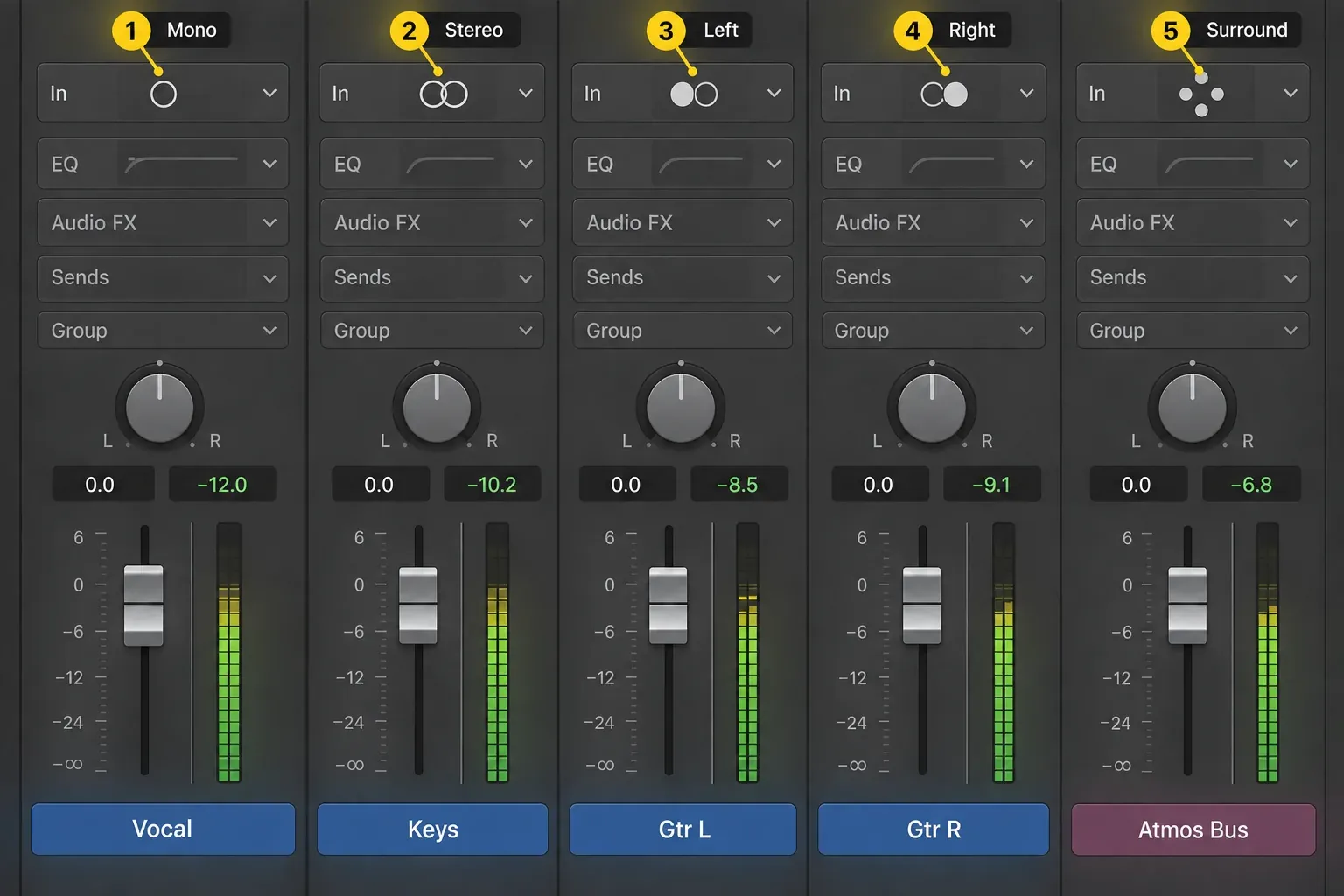
Choose the channel format before you record
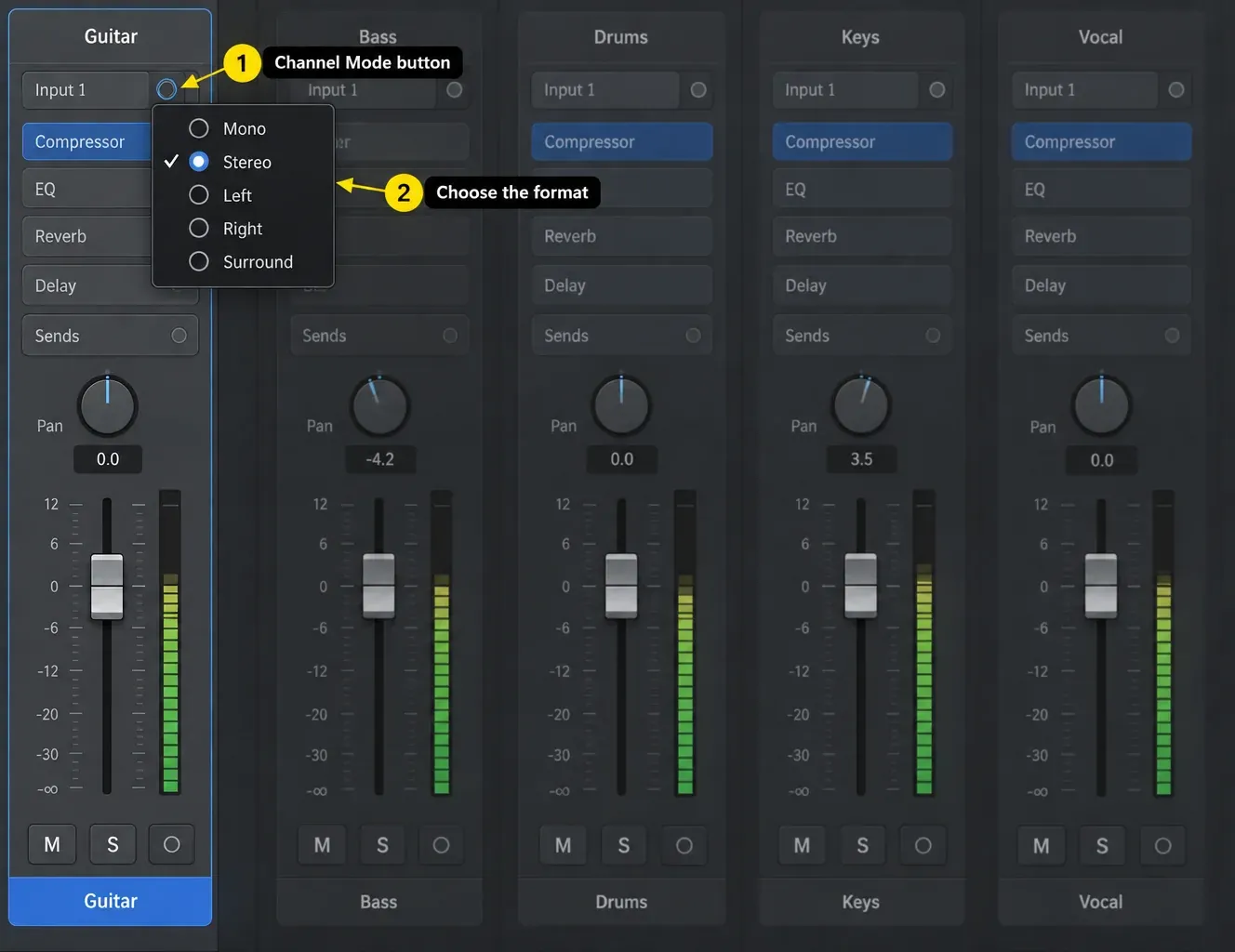
Create an Audio track, then match its format and input to the source. For one microphone connected to interface Input 1, choose a mono track with Input 1. For a stereo device connected to Inputs 1 and 2, choose a stereo track with Input 1-2.
A common mistake is recording one microphone through stereo Input 1-2. Input 1 feeds the left channel and Input 2 feeds the right, so an unused second input can leave the performance on the left only. Keep the take: choosing its recorded Left channel can recover a usable mono performance. It cannot recover a second microphone perspective that was never captured.
For device selection, permissions, monitoring and record enable, follow the complete Logic Pro recording setup. Two unrelated sources, such as a vocal microphone and a guitar DI, normally need two separate mono tracks with their own inputs, not one stereo track just because two cables are connected.
Run a three-second input check before the take
- Use a plain Audio track with no inserts or sends for this input check. Turn on its Record Enable (R) button, make sound into the source and watch the meter. Without inserts, a stereo effect cannot disguise the incoming channel count.
- For one source channel, choose Mono and the connected input, such as Input 1. Confirm that the single meter responds. Do not select Input 1-2 for one microphone.
- For a stereo pair, choose Stereo and the matching pair, such as Input 1-2. Check each source side separately and confirm that it reaches the intended left or right channel.
- Record three seconds as a quick test, then stop. Turn off Record Enable (R) and Input Monitoring (I). Mute the live direct-monitor input in the interface’s monitor mix, if used, while leaving DAW playback audible.
- Rewind and play the recorded region. Check each side with Pan or Balance, then restore the intended position. Listen for the expected channels and stereo differences; two moving meters alone do not prove width.
This short test separates the recording from what you hear live. Apple’s input-monitoring instructions explain why an enabled I button keeps incoming audio audible. An interface’s direct-monitor path is separate again. Check the saved region before deciding that a one-sided signal requires another take.
Which sources should be mono or stereo?
Usually mono when captured through one channel
- lead or backing vocal from one microphone;
- electric guitar from one microphone or DI;
- bass DI;
- kick, snare or tom from one microphone;
- one output of a hardware instrument;
- a single-channel field recorder or lavalier mic.
Genuinely stereo when two channels matter
- a keyboard or synth using its left and right outputs;
- drum overheads configured as a stereo pair;
- spaced, XY, ORTF or mid-side microphone workflows after correct routing or decoding;
- stereo room microphones;
- a stereo loop, mix, reverb return or printed stereo instrument;
- a stereo hardware processor whose channels differ.
The instrument name doesn't decide the format. A piano recorded with one microphone is mono. The same piano recorded with a stereo pair is stereo. A synth patch may be mono until its chorus or delay creates different left and right output channels.
Mono does not mean center, and stereo does not mean wide
Channel count and placement are separate decisions. A mono track can be panned left, center or right. A stereo track can be narrowed, balanced to one side or contain almost identical channels.
Logic’s panning guide distinguishes three controls:
- Pan places one mono signal in the stereo field.
- Balance, the stereo default, lowers one side relative to the other.
- Stereo Pan moves and narrows the left/right image as a pair.
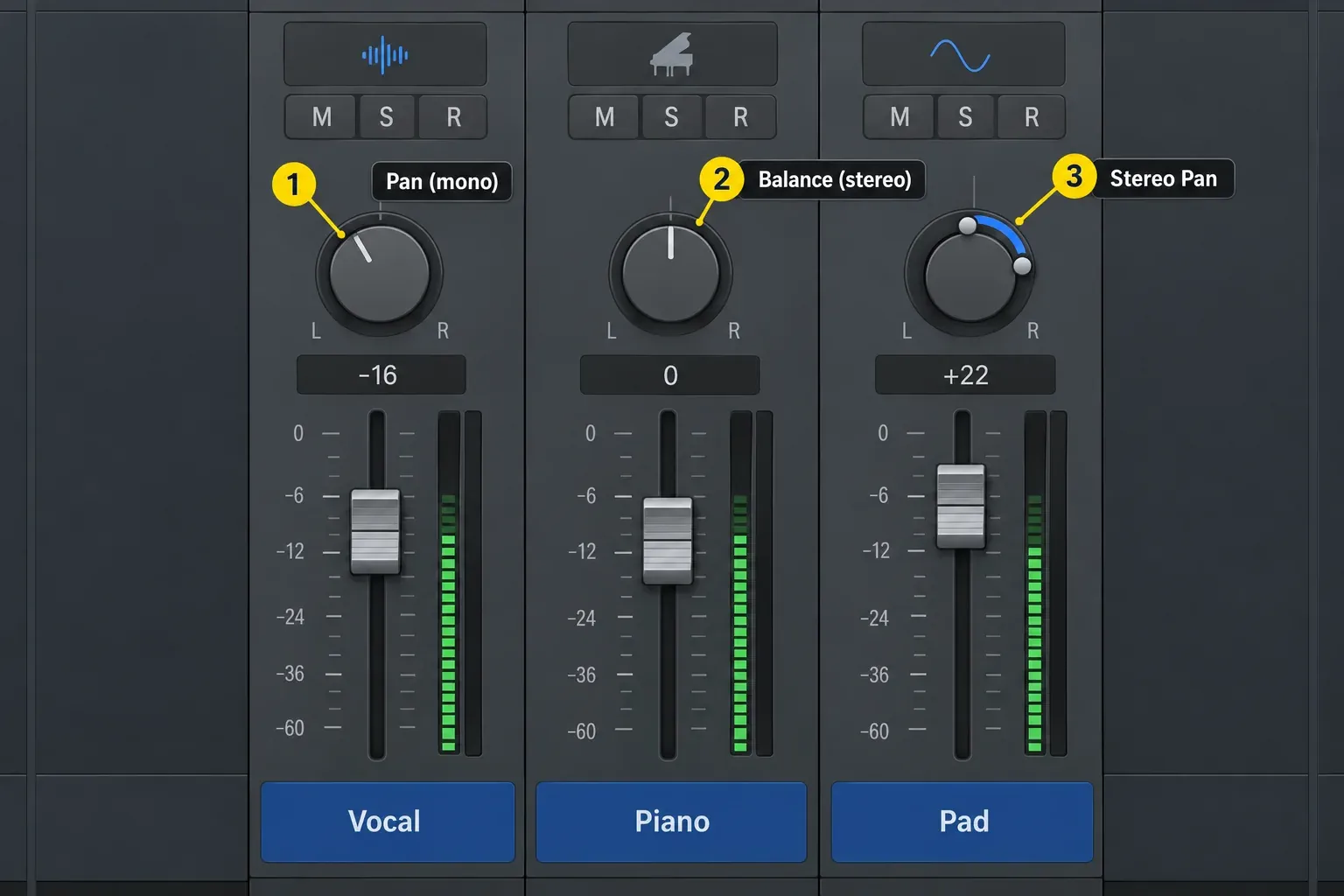
On a stereo strip, Control-click the Pan/Balance knob and choose Stereo Pan. Drag the ring to change spread and the center to move the image; Option-click the control to reset it. The Logic Pro piano-panning guide applies that distinction to a recorded instrument.
Does changing a mono track to stereo create stereo?
No. Switching the Channel Mode button gives the strip two-channel routing, but it can't invent different left and right content from one recorded channel. Duplicating the same waveform to both sides still produces a centered mono image.
A plug-in can create stereo output from mono input. Apple documents Mono→Stereo plug-in instances, often described as mono to stereo processing. The channel is mono before the insert, and the plug-in produces two-channel output that changes the strip format from that point forward. Stereo delay, reverb, modulation or an actual double can create differences between the sides.
That can be useful, but it's added processing. It doesn't turn a one-mic recording into the missing second microphone perspective.
How to use a stereo recording as mono
First decide whether you need one side or a sum of both:
- Choose Left or Right from the Channel Mode menu when one side contains the clean signal you want. Apple confirms that these modes play only the selected channel as mono.
- Sum both sides when both contain useful compatible information. Insert Utility → Gain as a stereo instance and enable Mono. Apple’s Gain documentation says the Mono button outputs the summed mono signal on both sides.
Listen for a level change, comb filtering or lost ambience after summing. Two channels can reinforce or cancel depending on their timing and polarity. Lower the level if needed and compare at matched loudness.
Gain’s Mono button sends the sum to both output channels. That is mono monitoring inside a stereo path, not automatically a one-channel file. Apple’s project-bounce guide says the bounce file’s channel format follows the output strip. Verify the required output format and inspect the delivered file; do not assume that pressing Mono in Gain changed it.
One stereo track or two mono tracks for a microphone pair?
| Use one stereo track when | Use two mono tracks when |
|---|---|
| The pair should be edited and processed as one image | Each microphone needs separate EQ, timing or level |
| The left/right relationship is already correct | You need to repair polarity or phase on one side |
| A single region and fader make the workflow clearer | The pair may be panned or automated independently |
| The source arrives as an interleaved stereo file | The recorder delivered two discrete mono files |
With an interleaved stereo file, both channels live in one file. A split-stereo pair stores them in separate files, and that layout says nothing about whether the two signals are identical. My default is one stereo track for a stable pair, because linked editing keeps the image intact. Switch to separate mono tracks when one side needs its own control.
When importing a split pair such as Keys.L.wav and Keys.R.wav, Logic automatically brings in both sides and converts them to interleaved stereo, even if you drag only one file. For independent mono tracks, preserve the originals, give working copies distinct names before the .L/.R suffixes (for example, KeysLeft.L.wav and KeysRight.R.wav), then import each separately. Apple’s split-stereo import instructions describe this naming requirement.
Join two mono tracks into one stereo region
Two mono tracks that hold the left and right sides of one source, such as a split pair you imported as separate tracks, can go back into one region. Apple’s Join regions guide covers this case: when you combine audio regions from two or more tracks, each track’s current pan and volume settings carry into the result. Set the sides hard left and hard right first; otherwise the new region keeps whatever pan positions the tracks had.
- Save the project, so you can return to the separate tracks if the joined region isn’t what you expected.
- Pan the left-side track fully left and the right-side track fully right.
- Set both volume faders to the balance you want in the joined region. Their current values carry over along with the pan.
- Select both regions, then choose Edit > Bounce or Join > Join.
- Play the new region against the original sides before you delete anything. If it’s wrong, Edit > Undo restores the original regions, and when Logic has written a new file it asks whether to keep or delete it.
Apple notes that with the two tracks panned to opposite sides, Logic doesn’t calculate a new mixdown, because the result would be identical to the original files. Other pan or volume settings produce a genuine mixdown, which Logic scans at 32-bit resolution to keep the highest level it can without clipping.
If you only want fewer regions and each track should stay separate, don’t run Join on a selection that spans several tracks. Choose Edit > Bounce or Join > Join per Tracks instead. Apple says it joins the selected regions on each track into a single region on that same track. When the goal is only to process a stack of mono parts together, such as backing vocals, a bus is the better route: every part stays editable, and the guide to buses and sends shows the routing.
Choose the plug-in format deliberately
Logic may offer Mono, Stereo, Dual Mono and Mono→Stereo versions of the same effect. Match the instance to the signal flow:
- use Mono when one channel should remain one channel;
- use Mono→Stereo when a mono source should feed a stereo effect;
- use Stereo when left/right input differences must be processed together;
- use Dual Mono when you need separate mono processing instances for the two channels; inspect the plug-in’s linking controls rather than assuming every parameter must stay independent.
Changing instances can alter levels, modulation, phase and CPU use. Pick the instance the effect needs. Stereo isn’t the more advanced choice by default.
Check stereo tracks in mono before delivery
Mono compatibility matters because a wide stereo part can lose level, tone or entire elements when left and right are summed. Insert Metering → Correlation Meter on the stereo output or soloed stereo track. Apple’s Correlation Meter guide explains that values below zero indicate out-of-phase material that may cancel in mono.
The meter only flags a risk, so confirm it by ear. Sum the mix to mono, listen through the important sections and compare level-matched. Pay attention to vocals, bass, kick, snare, lead hooks and any widened effect that carries essential information.
For the listening check, put a stereo Utility > Gain instance after the processing you want to assess and enable Mono. Read Correlation Meter before that mono-summing stage, otherwise it is measuring the already-summed signal. After listening, turn Mono off or bypass that temporary check instance before a stereo bounce, and confirm that stereo playback has returned.
If the problem starts with levels rather than channel format, return to the Logic Pro gain-staging workflow. If routing changed the strip unexpectedly, the buses, sends and aux guide explains mono and stereo paths through shared effects.
Mono and stereo troubleshooting
My new recording is only on the left
Keep the original take and save the project before changing it. If the performance was recorded in the left channel of a stereo file, choose Left from the Channel Mode menu to play that side as mono; use Right for a right-only take. For the next recording, use a separate mono Audio track with the actual hardware input. Retake only if necessary. If known stereo material also plays through one side only, check output routing, Balance and the headphone connection before blaming the recording format.
My mono track plays through two speakers
That's normal when the mono track is centered and routed to Stereo Out. Mono describes one source channel. The pan control distributes it across the stereo output. Its level can shift as you move it, because the Pan Law setting in Logic’s General Audio settings decides how much a centered signal is turned down so it doesn’t sound louder than a hard-panned one.
My stereo file has no width
Listen to each side and compare the signal, not just the waveform outline or moving meters. If left and right are identical, the file carries a centered mono image in a stereo container. Stereo Pan can change placement, but it cannot recover missing differences between the channels.
The stereo plug-in option is missing
Check the channel format and the plug-in submenu. A mono strip may offer Mono or Mono→Stereo rather than a plain Stereo instance. The available formats depend on both the strip and the plug-in.
Join or Flatten and Merge made my mono audio stereo
Apple doesn’t document which channel format a merged file gets, so check what the command did before you redo the edit:
- Join with regions from more than one track selected combines them into one region, with each track’s pan and volume carried into it. Undo it and use Join per Tracks if every track should keep its own region.
- Flatten and Merge replaces the take folder with the comp regions and then merges them into a new audio file, according to Apple’s Flatten and Merge instructions. When you don’t need one continuous file, choose Flatten, which leaves the comp as separate regions. The take folder guide compares both finish commands.
- Bounce Regions in Place renders the track’s active plug-ins and automation, so a Mono→Stereo insert gives you a two-channel file. Apple’s Bounce Regions in Place guide lists a Bypass Effect Plug-ins checkbox for printing the regions without those effects. The Bounce in Place guide covers the rest of that dialog.
If both sides of the new file are identical, it still plays as a centered mono image, just in a two-channel file. To work with one channel again, choose Left or Right from the Channel Mode menu, as in the section on using a stereo recording as mono.
The practical Logic Pro decision
Before the next take, confirm the source, input assignment and recorded playback. Use Pan or Stereo Pan for placement, and use an actual stereo effect when you want new left/right differences. Keep mono compatibility checks separate from the choice of delivery-file format.
Match the track to the source first. Width, placement and effects come after the recording is correct. The Recording & Editing hub connects this decision to the full capture, editing and delivery workflow.
Frequently asked questions
Should vocals be mono or stereo in Logic Pro?
A vocal recorded with one microphone should use a mono track and one hardware input. Use stereo only when the source truly provides two different channels, such as a deliberate stereo microphone technique or a printed stereo vocal effect.
Why does a mono track play through both speakers?
A centered mono channel sends equal signal to the left and right sides of Stereo Out. Mono means one source channel, not one playback speaker.
How can I tell whether a Logic track is mono or stereo?
Read the Channel Mode button for the input format: one circle is Mono, two interlocked circles are Stereo, and Left/Right select one side of a stereo file. A Mono→Stereo insert changes the downstream format, so two meter columns do not by themselves prove that the recording was stereo. Check the input assignment and the recorded file too.
Can I turn a mono recording into stereo?
You can route it through a Mono→Stereo plug-in that creates different left/right output, but switching the track mode or duplicating the same signal does not create genuine stereo information.
Should I choose Left, Right or sum when converting stereo to mono?
Choose Left or Right when one side is the correct isolated source. Sum both when both channels contain useful compatible information, then check level and phase because summing can reinforce or cancel content.
Are two mono tracks the same as one stereo track?
They can carry the same two channels, but the workflow differs. A stereo track links editing and processing; two mono tracks allow independent level, pan, timing, polarity and plug-in choices.


