How to Pan Piano in Logic Pro Without a Lopsided Mix
Place a stereo piano without losing one side, choose width by musical role, balance reverb, and verify the result in mono.

For a mono piano, use Pan to place the signal. For a stereo piano, use Stereo Pan when you need to move the image or change its width; Balance changes the relative level of its existing left and right channels. Start with the full mix playing, then check the piano alone to separate a placement problem from an uneven recording.
There is no universal pan percentage. I’d keep a piano that carries the song broad and centered, since the arrangement is built around it. A supporting part may need less width or a small offset. Neither move fixes phase problems or vocal masking on its own, so check those separately.
Start with the piano you actually have
A mono piano recording is one signal. Its Pan control places that signal between the speakers. A stereo piano is two related channels that may already contain low-to-high keyboard spread, room reflections, microphone distance and a player or audience perspective. Moving a stereo channel with the wrong control can turn down one side rather than move the whole image.
Two microphone tracks or a missing Stereo Pan option
Stereo Pan is available only on stereo channel strips. If the option is missing on a mono piano track, use its normal Pan control; do not change the recording format merely to reveal a menu. A mono source has no captured left-right width to recover.
If the piano arrives as two separate microphone tracks, check each recording and their combination first. Set the two mono pans to the intended perspective, then route both Output slots to the same unused bus. Confirm that the receiving aux is stereo and that its Output reaches the main mix. You can now use Stereo Pan on that aux for the pair. Apple’s mix-subgroup instructions describe this Output routing; adding parallel sends would leave the original path playing too.
Pan, Balance and Stereo Pan are different
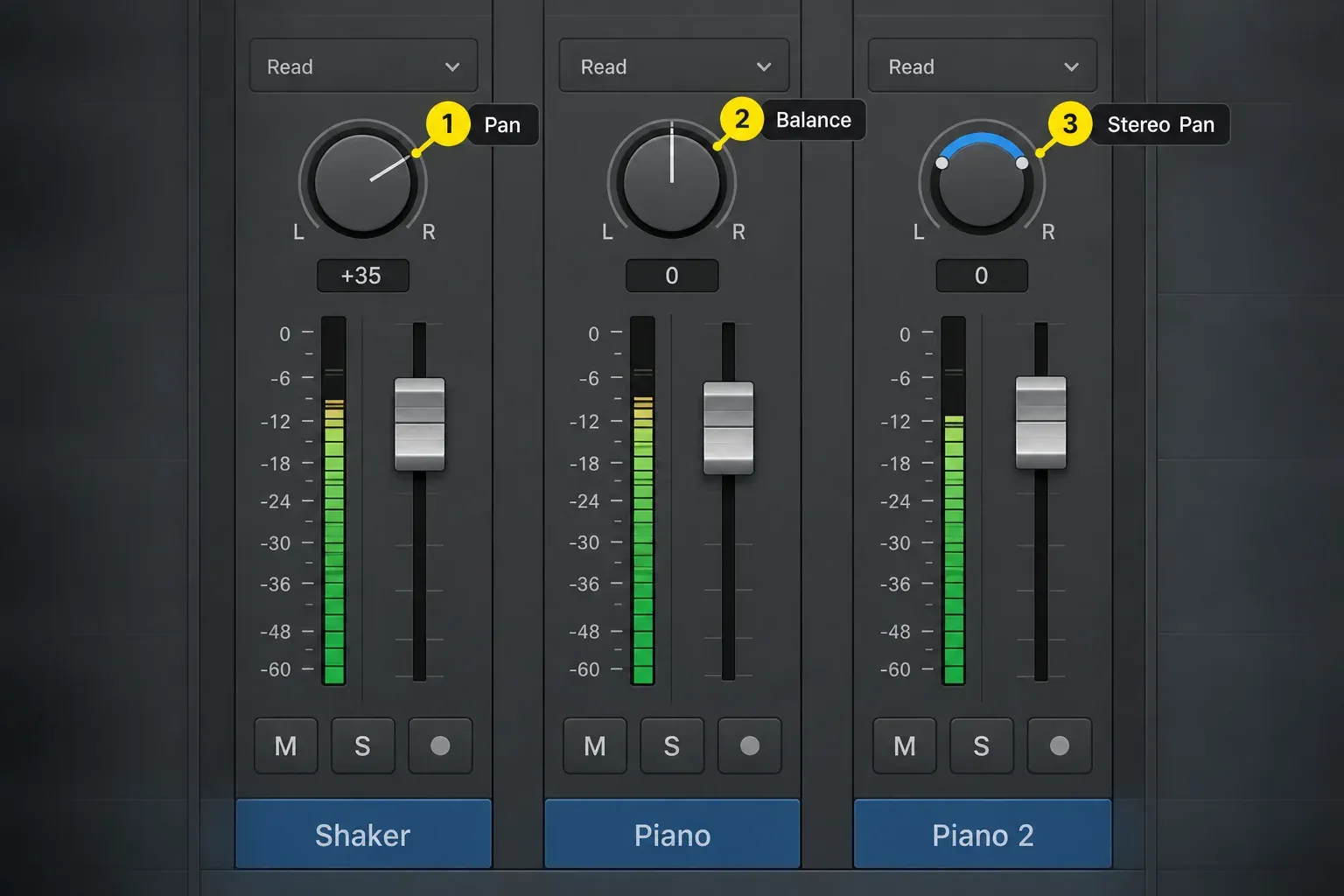
Apple's current panning guide draws the useful distinction:
- Pan: places a mono signal left, center or right.
- Balance: changes the relative output levels of an existing stereo signal. Turning left lowers the right channel; turning right lowers the left.
- Stereo Pan: controls the position and spread of the stereo image.
If the piano’s internal balance sounds right but the image belongs slightly left of the vocal, try Stereo Pan. Balance would lower the right source channel; it does not simply move both recorded channels together. Balance only changes playback level, so the recording itself stays intact.
Save the project and note the current pan and width before experimenting. Option-click resets the control to its initial values; it is not a recall button for your previous custom setting.
Choose Stereo Pan on the piano channel
- Open the Mixer and select the stereo piano channel, or the stereo aux receiving its two microphone tracks.
- Control-click that channel’s Pan/Balance knob and choose Stereo Pan.
- Drag the center of the Stereo Pan knob vertically to move the center of the image.
- Drag the green or orange ring vertically to change the overall spread. A white handle changes the position of one source channel without moving the other.
- Compare the change in the full arrangement, including the piano’s reverb; adjust level separately if the comparison becomes louder.
- Check mono tone using the temporary output-monitoring method below, then restore stereo. Keep the pan and width only if both the arrangement and mono playback still work.
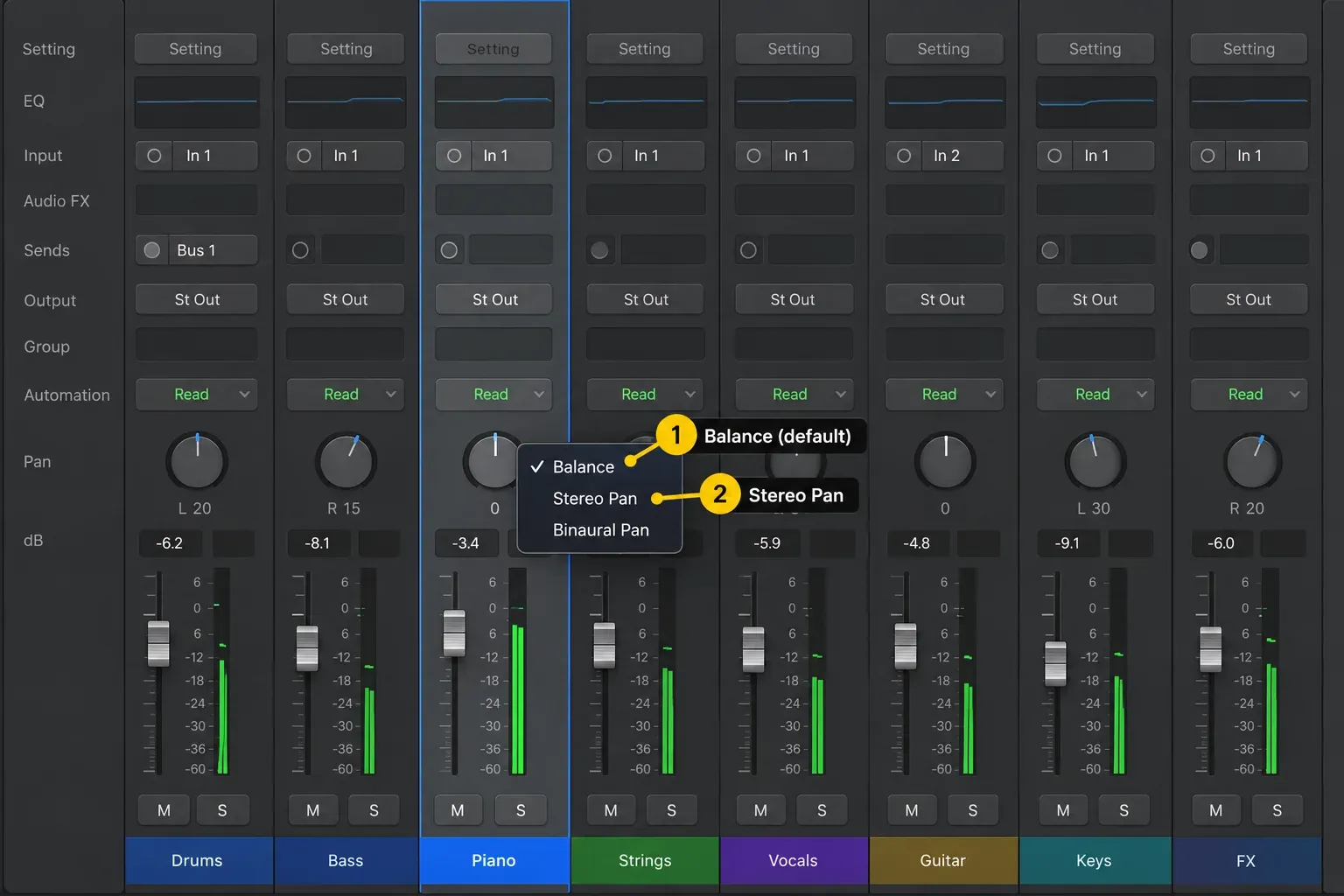
In the menu above, Balance is still checked. Choose Stereo Pan, directly below it, to switch the knob to Stereo Pan mode.
Choose the piano's role before its width
| Role | Starting image | Main check |
|---|---|---|
| Solo piano | Wide and centered, preserving the recording's perspective | Natural center, room balance and mono tone |
| Piano-led vocal ballad | Try moderate width with a centered vocal | Lyrics remain anchored while piano fills the sides |
| Dense pop or rock arrangement | Narrower, with a small position move if needed | Check overlap with guitars, vocal, bass and snare |
| Rhythmic piano opposite a guitar | Compact image placed against the guitar | Arrangement stays balanced when either part stops |
| Ambient piano texture | Potentially wide, but lows controlled | Mono compatibility and stable low-frequency center |
Make the decision with the full arrangement playing. A piano that sounds impressive alone can occupy every gap needed by the vocal, guitars, cymbals and reverb.
Player perspective or audience perspective?
Player perspective commonly places low keys toward the player's left and high keys toward the right. Audience perspective may reverse that relationship, depending on where the listener is imagined. Neither is a mixing law.
If you need to swap the source channels, Command-click inside the Stereo Pan knob or ring. Apple’s panning guide describes the ring changing between green and orange. A library’s own perspective switch may do more than swap channels, so compare the actual sound before choosing either method.
Fix a piano that already leans to one side
- Listen to the dry piano, then bring its reverb and other returns back in. Identify which path introduces the lean.
- Compare low notes, high notes and sustained chords. Different registers or microphone tones can pull attention sideways without an incorrect pan setting.
- Compare the left and right source levels before adding width processing. Use Balance or channel-specific gain only when that level difference needs correction.
- Try a centered Stereo Pan position and a narrower spread, one change at a time. Keep the change only if it improves the full mix.
- Sum to mono to hear tonal cancellation or level changes. A centered mono image does not identify why the stereo version leaned.
- Recheck sparse and dense sections; the opposite-side guitar may not be playing throughout the song.
Do not correct a bright right side by automatically panning left. The brightness may be treble-key content, not a displaced acoustic center. EQ, performance register and pan solve different problems.
Use Direction Mixer when width changes by frequency
Insert Imaging > Direction Mixer on the stereo piano and set Input to LR for a normal left/right recording. Apple's Direction Mixer guide says Spread 1 is neutral, Spread 0 produces summed mono, and values above 1 extend the stereo base beyond the speakers.
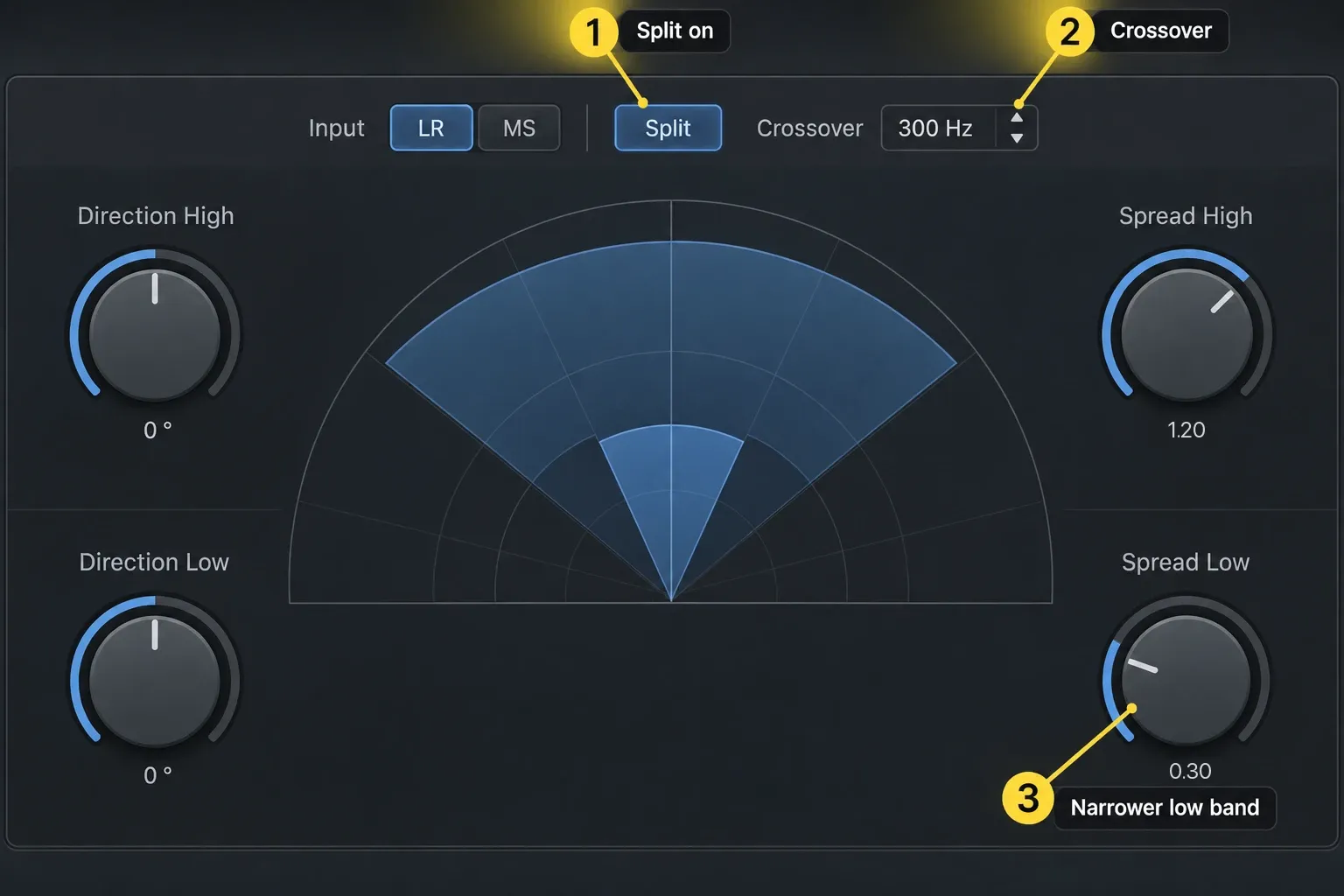
The Direction Mixer example above uses LR input, Split on, a 300 Hz crossover, Spread High at 1.20 and Spread Low at 0.30. Those numbers show the idea of a narrower low band; they are not a piano preset.
With a normal LR input, enable Split only if the low and high ranges need different treatment. Set Crossover by listening; the current guide names separate Direction High/Low and Spread High/Low controls. Start with centered direction and restrained low spread, then compare the upper range. There is no universal crossover or width value for every piano.
Keep the arrangement balanced when parts enter and leave
A piano can balance a guitar in the chorus and feel exposed when the guitar drops out. Compare those sections before committing to one pan setting. If a deliberate change between sections helps, use a small pan or width automation move and replay the transition. The automation guide covers safe editing and playback modes.
Once pan automation exists, the track’s Automation Mode decides whether the knob answers you. In Read, Logic plays back the written moves and you can’t change pan by moving the control, which can make a Stereo Pan adjustment seem to do nothing. Switch to Touch or Latch to override it, or add Trim to either one to offset the existing pan curve by the amount you move the knob.
Narrowing a centered piano can put more of it in the vocal’s space, not less. Check level, voicing and register first; compare width and a small offset rather than assuming one fixes the other. Use the Channel EQ workflow when you hear a specific frequency overlap.
Choose width in the arrangement
Solo piano
For solo piano, start with the recorded perspective and listen through the low and high registers. Equal left/right meter readings are not the goal. Keep the width if the instrument and room sound natural; investigate the source or effects if important notes lose body in mono.
Vocal and piano
With a centered vocal, compare the piano at its original width and a narrower setting at similar loudness. If narrowing makes the words harder to hear, undo it. Try a lower piano level, a different voicing or a small offset before making a large pan move. Check the quiet verse as well as the chorus.
Piano inside a full band
For a supporting band part, try a compact image opposite a guitar or keyboard that plays at the same time. If that counterweight drops out, check the exposed piano again. Keep the low register from competing with bass and kick through voicing, level and tone choices; stereo width is only one control.
Place the piano and its reverb as one scene
Bring the piano’s reverb return into the comparison. An asymmetric reflection pattern, a loud return or an independently panned send can make a dry piano seem misplaced. Bypass or lower the return briefly to identify the cause before changing the dry track. If you deliberately need the send in a different position, use these controls:
- Open the piano’s Send pop-up menu and choose Independent Pan for the intended reverb send.
- From that send’s menu, choose Sends on Faders. The channel fader now controls send level, and the Pan knob controls the send’s pan type and position.
- Adjust that send while listening to piano and reverb together. Do not confuse the send’s pan with the aux return’s own pan.
- Turn Sends on Faders off using its On/Off button in the Mixer menu bar before adjusting the main channel again. Confirm that the control is back on the dry channel.
Use this only when the send needs a different position from the dry piano. Apple’s Independent Pan instructions explain the mode; the buses, sends and aux guide covers the surrounding routing. For a mono piano that needs space, try a stereo reverb while keeping a clear dry position rather than assuming a width knob can recover a stereo recording.
Check mono and Correlation Meter
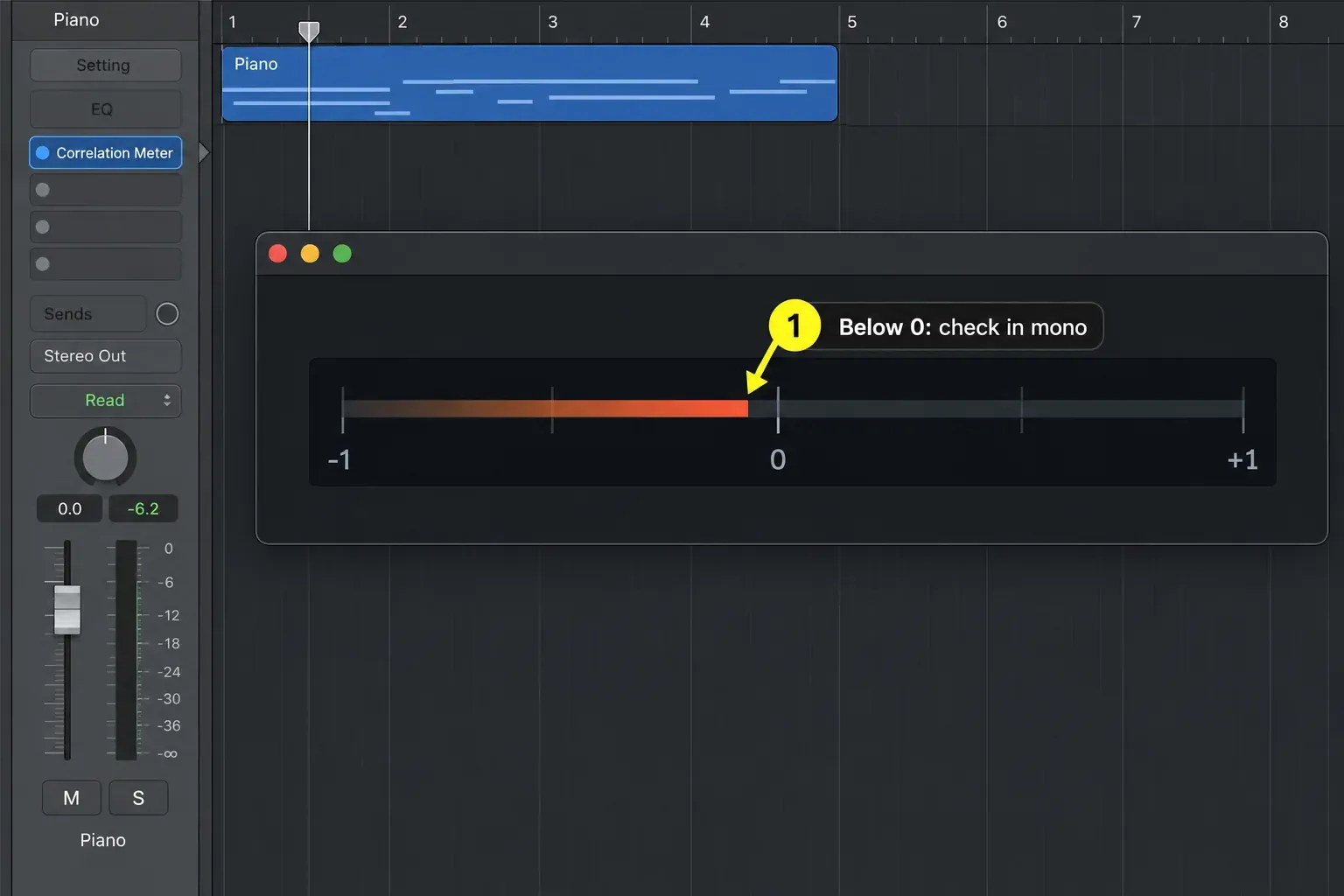
Place Metering > Correlation Meter on the stereo output that receives the piano, after any mix-width processing. Solo the piano and include its return when checking the complete sound. This measures the result after the piano channel’s panner; a meter inserted on the piano channel before its panner cannot show a later pan change. Apple’s Correlation Meter guide recommends output-strip checking for stereo piano microphones.
The meter runs from −1 to +1. Readings toward +1 indicate stronger positive correlation; negative values warn of material that may cancel in mono. Correlation is not a left-right level meter, and a positive reading does not prove the piano is balanced. Use the meter to locate a suspect passage, then listen to it.
For a deliberate mono check, use Apple’s Gain plug-in. Its Mono button is available in the stereo instance; do not substitute the mono-format instance and then look for the same controls.
- At the end of the Stereo Out insert chain, after Correlation Meter, add a stereo instance of Utility > Gain. Leave its gain at 0 dB and its balance centered for this check.
- Enable Gain’s Mono button. It sums left and right and sends that sum to both outputs. Listen for missing notes, a hollow attack or disappearing reverb, not merely a change in loudness.
- Turn Mono off or bypass this temporary Gain instance before a stereo bounce. Replay in stereo and confirm the monitoring state before exporting.
Do not assume narrowing will restore tone lost when the source channels are summed. Bypass widening effects and compare the unprocessed source, then listen to each microphone separately. With a problematic pair, test polarity or timing changes in a project copy and keep only a heard improvement; do not apply a fixed delay or automatic polarity flip to every piano. If the pair will not combine usefully, one good microphone may be the better choice.
iZotope’s piano-mixing tutorial discusses both phase checks for two microphones and using one microphone when the pair will not blend. Work through those before you touch width.
Compare speakers, ordinary stereo headphones and a deliberate mono monitor setting. Headphone crossfeed or spatial processing changes the comparison, and a phone is not automatically a mono device. Keep the test controlled, then return to the stereo mix.
Common piano-panning mistakes
- Using Balance to move both sides of a stereo piano, then lowering one recorded side unintentionally.
- Narrowing the piano to make vocal space without checking whether it masks the vocal more.
- Treating a centered mono sum or positive correlation as a diagnosis of the original stereo lean.
- Changing dry pan while an unbalanced reverb return is the actual cause.
- Leaving Sends on Faders active and changing send pan when you meant to move the dry channel.
- Leaving the temporary Mono monitor enabled for a stereo export.
Frequently asked questions
Should piano be panned left or right?
There is no fixed side. A featured piano can stay centered; a supporting part may fit slightly left or right. Listen with the other instruments and check sections where the opposite-side part stops.
Should I use Stereo Pan or Balance for a stereo piano?
Use Stereo Pan to place the two source channels or change their spread. Use Balance when you deliberately need to lower one existing side relative to the other. Stereo Pan is available only on stereo channel strips.
How wide should piano be in a mix?
Choose the width with the arrangement playing. A solo part may keep its recorded width; a supporting part may need less. Narrowing is not an automatic fix for vocal masking or mono cancellation, so compare both before committing.
Should low piano notes be left and high notes right?
That is a common player perspective, but libraries and recordings can use audience perspective or reversed channels. Inspect the actual source and choose the orientation that supports the record.
Why does my piano get thin in mono?
Phase differences between the source channels or added width effects can cancel useful tone when summed. Compare the source and bypass the effects before deciding on a fix. Narrowing alone may not repair it, and a loudness change by itself is not proof of phase cancellation.
Do I need Direction Mixer for piano?
Only when Stereo Pan does not provide enough control. Direction Mixer is useful for narrowing the image or treating low and high spread separately, but it should solve a heard problem.
Piano panning checklist
- Identify mono, a stereo file or a pair of microphone tracks before choosing the control.
- Use the Stereo Pan center, ring and single-channel handles for their different jobs.
- Judge width with the lead, bass and other parts playing, including sparse sections.
- Include the reverb return and verify which pan control you are editing.
- Check the mono sum and source separately; do not rely on width or correlation alone.
- Return Sends on Faders and temporary mono monitoring to the intended state before delivery.
Continue through the Logic Pro Mixing hub for EQ, compression, routing and mastering workflows.


