Buses, Sends and Aux Channels in Logic Pro
A practical map of Logic Pro sends, bus routes, aux returns, subgroups, Summing Stacks and pre/post-fader behavior.

In Logic Pro, a send controls how much signal leaves a channel, a bus is the route that carries it, and an aux channel strip receives and processes that route. Use a send when you want a parallel copy—typically for reverb, delay, or parallel compression. Change the channel’s Output to a bus when the whole signal should pass through one subgroup.
This guide was fact-checked against Apple’s current Logic Pro documentation on August 7, 2026. It uses “bus” for the route and “aux” for the receiving channel strip, even though producers often use the words interchangeably in conversation.
Routing belongs between the static balance and shared processing in our complete Logic Pro mixing workflow. Use the hub first when you’re deciding whether the session actually calls for routing, EQ, compression, automation or a return to the arrangement.
Fast answer: click an empty Send slot, choose an unused bus, and Logic creates an aux channel for that route. Put the shared effect on the aux, set a conventional reverb or delay return fully wet, then balance each source with its send knob and the whole return with the aux fader. For a subgroup, route each source’s Output—not its Send—to the same bus.
Send, bus, aux and output: four different jobs
| Object | What it is | Question it answers |
|---|---|---|
| Send | A controllable branch from a channel strip | How much of this channel goes to the parallel route? |
| Bus | An internal signal path identified by a bus number or name | Which internal route carries the signal? |
| Aux channel strip | A mixer channel that receives a bus input | Where is the routed signal processed, balanced, and sent next? |
| Output | The channel’s main destination | Where does the entire channel go? |
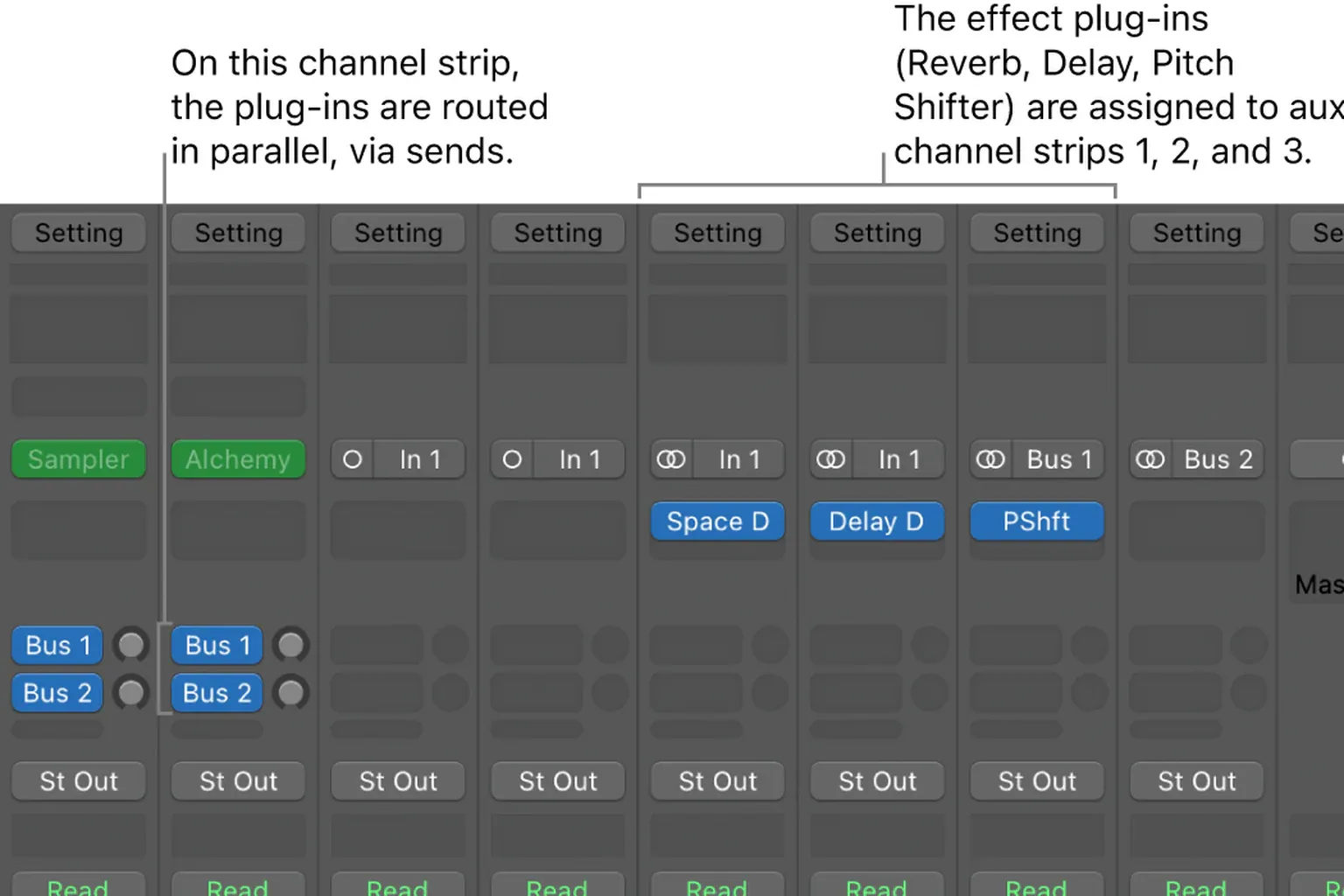
Apple’s channel-strip guide describes aux strips as the place for send returns, grouping, and distribution to multiple destinations. It also explains why a modern Logic project doesn’t usually show a separate “bus channel strip”: aux channel strips handle those routing functions.
Choose a send or change the Output
The fastest routing decision is whether the dry channel should continue on its original path.
| Goal | Routing move | Why |
|---|---|---|
| Add shared reverb or delay | Send → Bus → Aux | The dry channel remains audible while a controllable copy becomes wet. |
| Blend parallel compression or distortion | Send → Bus → Aux | The processed return mixes beside the original. |
| Process all drum tracks as one kit | Track Outputs → Bus → Aux subgroup | The complete drum signals pass through the subgroup. |
| Build an alternate headphone mix | Pre-Fader Sends → Bus → Aux/physical output | Monitor balance can remain independent of the main mix. |
| Control several channels without rerouting audio | VCA or Mixer Group | Control changes without creating another audio-summing path. |
| Organize and process tracks inside one visible parent | Summing Stack | Logic builds the bus/aux subgroup and exposes it as the stack’s main track. |
If the routing already arrives too hot, fix the source and processor handoffs with the Logic Pro gain-staging workflow instead of using an aux fader to hide upstream overload.
Build a shared reverb aux
- Open the Mixer with X and select the first source track.
- Click an empty Send slot and choose an unused bus.
- Find the aux channel Logic creates with that bus as its Input.
- Rename the aux by purpose—such as Vocal Plate—and rename the bus when useful.
- Insert ChromaVerb or Space Designer on the aux.
- Set the reverb’s wet/dry control to 100% wet for this conventional parallel return.
- Raise the source send until the amount of reverb supports the mix.
- Assign other tracks to the same bus and give each its own send amount.
- Use the aux fader to balance the complete shared return.
Why fully wet? The source channel already supplies the dry signal. If the aux reverb also returns dry audio, you add another correlated copy, which often makes the mix louder or shifts its tone before you’ve judged the reverb itself. A recent wave of Logic user questions comes from exactly this unexplained level increase.
Filter and shape the return after the reverb when the effect builds mud, repeats sibilance, or occupies too much space. Process the effect, not the original vocal by accident. The stock vocal-mixing guide shows this dry/aux split in a complete vocal chain.
Understand Post Pan, Post Fader and Pre Fader
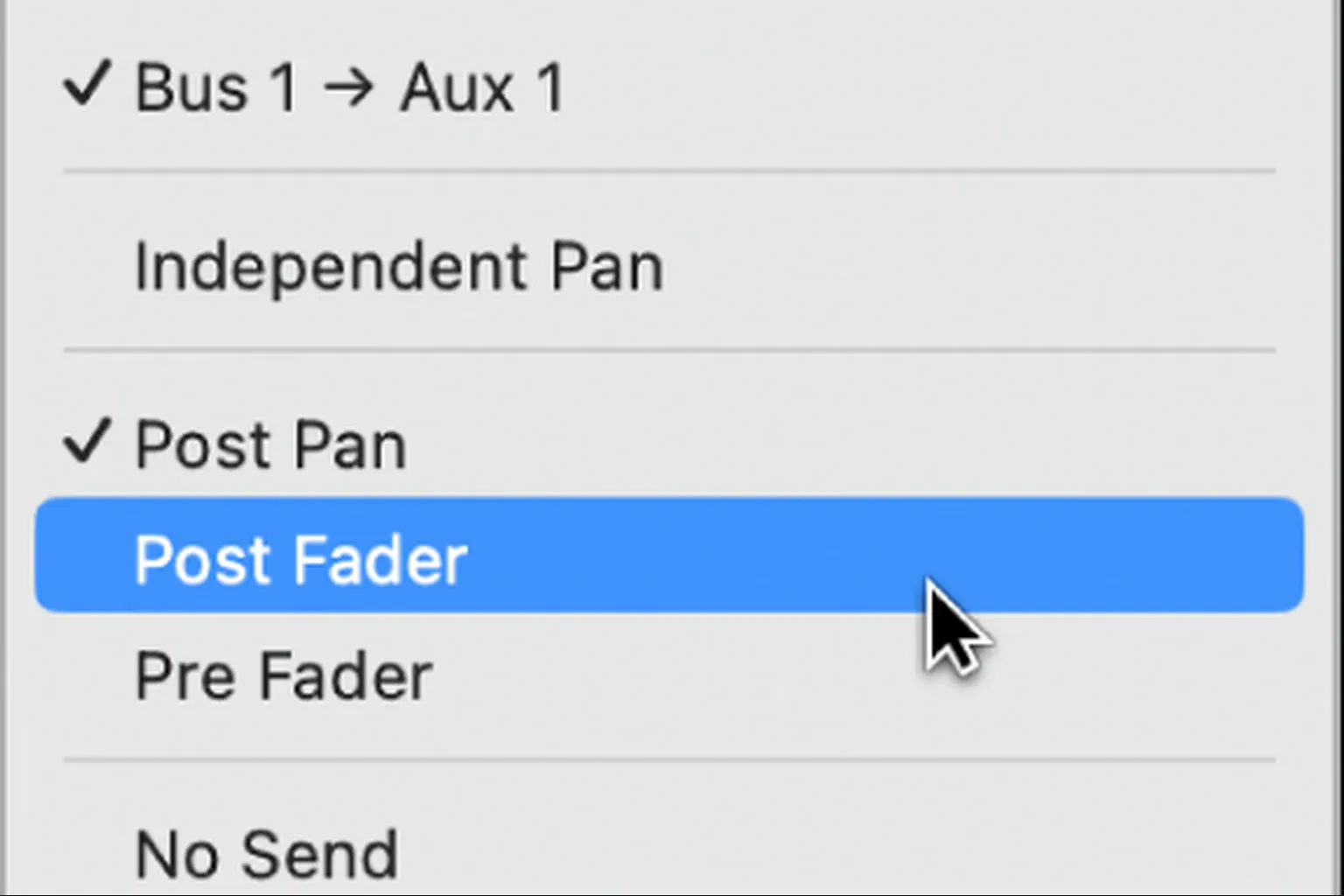
The send tap point determines which later channel controls affect the branch. Apple documents three modes in the Send pop-up menu:
| Send mode | What it follows and when to use it |
|---|---|
| Post Pan | Fader: yes. Pan: yes. Use for natural shared effects that should follow both balance and stereo placement. |
| Post Fader | Fader: yes. Pan: no. Use when effect level should follow volume while its pan position stays independent of the source pan. |
| Pre Fader | Fader: no. Pan: no. Use for independent headphone mixes, special effects, or parallel feeds that must survive source-fader moves. |
Post Pan is usually the least surprising reverb choice: lower the source and its reverb contribution falls with it. Pan the source and the feed follows. Post Fader still follows level but taps before the pan control. Pre Fader ignores both, so muting the source with a very low fader can leave the effect return audible.
Choose the mode from the Send pop-up menu rather than trusting a remembered default. When an effect seems detached from a moving source, inspect the send mode first.
Use Independent Pan when the send needs its own position
Logic can pan a send independently of the main channel. Apple’s Independent Pan documentation shows how to enable the mode and use Sends on Faders so the fader controls send level while the Pan knob controls that send’s position. That’s useful for headphone mixes, surround routes, and deliberately placing an effect somewhere other than its source.
Create a drum or vocal subgroup
A subgroup uses a bus too, but the sources don’t keep a separate direct path. Route each source channel’s Output to the same bus. The destination aux becomes the only shared route onward, so its fader, mute, automation, and plug-ins affect the complete group.
- Select the related channel strips, such as all close drum mics and overheads.
- Change their Output slots from Stereo Out to the same unused bus.
- Confirm that Logic creates or uses one aux whose Input matches that bus.
- Rename it Drum Subgroup rather than leaving Aux 7.
- Keep the aux Output routed to Stereo Out or the intended next subgroup.
- Add shared EQ, compression, or saturation only when the whole group needs it.
- Check that no source still reaches Stereo Out through an unintended duplicate route.
Apple’s mix-subgroup guide confirms this structure: multiple channels route through one bus to one aux, which provides one control and processing point for the group.
Summing Stack versus manual bus
A Summing Stack is Logic’s organized track-area version of an audio subgroup. When you create one, Logic routes the subtrack outputs to a bus and assigns the receiving aux to the main stack track. Apple documents that exact relationship in its Track Stacks overview.
Choose a Summing Stack when you want the parent and children visible together, collapsible organization, stack-level processing, and convenient automation. Choose a manual aux subgroup when tracks should stay in their existing layout, when sources are spread across different stacks, or when you need a routing layer that isn’t also an arrangement folder.
A Folder Stack is primarily organizational and doesn’t create the same summed audio-processing path. A VCA changes the level of assigned channels without summing their audio into a new aux. Those differences matter when a compressor, meter, or print route must actually receive the combined signal.
Build parallel compression without accidental doubling
- Create a send from the source or subgroup to a new bus.
- Insert Compressor on the receiving aux.
- Process the return aggressively enough to provide the intended density or sustain.
- Match or manage the compressor output so the return does not win solely by being louder.
- Start with the aux fader down and raise it under the dry signal.
- Check transients, low-end phase, noise, and mono translation.
The compressor itself may provide a Mix control, but a dedicated aux offers independent return EQ, automation, mute/solo, and routing. Do not assume a 100% wet compressor return is automatically correct. The dry/parallel balance comes from the source path and aux fader, while internal behavior depends on the processor. The Logic Pro Compressor guide explains its Mix, Make Up and Output controls.
Create an aux track for automation
Aux and output channel strips normally appear in the Mixer, not as region tracks in the Tracks area. That’s expected. If you want to automate the return, select the aux in the Mixer and choose Options → Create Tracks for Selected Channel Strips, or press Control-T.
Apple’s signal-flow track instructions confirm that these tracks contain no regions. They expose the existing aux or output strip for automation and arrangement access. Creating that track doesn’t create a second audio return.
For effect throws, automate the source send level when only selected words or hits should feed the effect. Automate the aux fader when the whole existing return—including its tail—should move. The Logic Pro automation guide explains the safe Read, Touch, and Latch workflow.
Keep a large routing system readable
- Name the aux by purpose: Vocal Plate, Quarter Delay, Drum Crush, not only Bus 3.
- Use I/O Labels when bus numbers no longer explain the route.
- Color related returns consistently without reusing the exact source color for unrelated paths.
- Put time-based effects, parallel returns, and subgroups in predictable Mixer order.
- Create Tracks only for auxes you need to see or automate in the Tracks area.
- Check every aux Output; a return routed to No Output or the wrong subgroup will appear dead.
- Avoid routing a subgroup back into itself or into a downstream bus that returns to it.
When preparing stems or handing a project to another mixer, routing decisions determine whether shared effects, subgroup processing, and sidechain relationships survive. Use the Logic Pro stem-export checklist before assuming “all tracks” includes every aux return.
Troubleshoot buses, sends and aux channels
| Symptom | Likely cause | First check |
|---|---|---|
| Effect makes the source much louder | Aux plug-in returns dry signal as well as wet | Set a conventional reverb/delay return fully wet and re-balance the aux. |
| Aux receives no signal | Send bus and aux Input do not match, send is down, or source is inactive | Shift-click the send to flash its destination, then inspect the matching Input. |
| Effect stays audible after lowering the source fader | Send is Pre Fader | Change to Post Fader or Post Pan if the effect should follow source level. |
| Reverb does not follow source panning | Send is Post Fader or independently panned | Use Post Pan or inspect Independent Pan. |
| Reverb disappears while recording | Low Latency Monitoring disabled the send | Inspect Low Latency Mode and use Low Latency Safe only for a suitable monitoring send. |
| Aux is visible in Mixer but not Tracks | Signal-flow strips do not get tracks automatically | Select the aux and press Control-T. |
| Subgroup processing seems doubled | Sources still reach Stereo Out beside the subgroup | Route their Outputs—not parallel Sends—to the subgroup bus. |
| Muting one return kills unrelated effects | Multiple auxes share one bus input unintentionally | Inspect every receiving aux Input and allocate separate buses where needed. |
Logic’s Low Latency Monitoring documentation says sends on monitored or record-enabled tracks can be turned off when the mode is active. Eligible monitoring routes can be marked Low Latency Safe. If the larger recording setup is delayed, use the Logic Pro latency troubleshooting guide.
Final routing audit
- Solo the source and identify every place its signal arrives.
- Confirm whether the route should be parallel or replace the main Output.
- Match each send bus to the intended aux Input.
- Verify Post Pan, Post Fader, or Pre Fader behavior by moving the source fader and pan.
- Check every effect return for unintended dry signal.
- Follow subgroup and aux Outputs to Stereo Out.
- Test mute, solo, automation, Low Latency Mode, and export behavior.
- Rename the route so the next session can explain it without guessing.
More signal-flow, mixing, and delivery workflows are organized in the Logic Pro tutorials hub.
Frequently asked questions
What is the difference between a bus and an aux in Logic Pro?
A bus is the internal route; an aux is the channel strip that receives that route and provides plug-ins, a fader, pan, sends, and an output destination.
What is the difference between a send and an output?
A send creates a controllable branch while the main channel path continues. Changing Output redirects the complete channel signal to the selected destination.
Should reverb on an aux be 100% wet?
For a conventional parallel reverb return, yes: the source channel already supplies dry audio, so the aux should return only the effect. Creative routings can differ, but watch for accidental dry-signal doubling.
Should I use Post Pan, Post Fader or Pre Fader sends?
Use Post Pan when the effect should follow source volume and pan, Post Fader when it should follow volume but not source pan, and Pre Fader when the send must remain independent of both.
Why is my aux channel not visible in the Tracks area?
Auxes are signal-flow channel strips and normally live in the Mixer. Select the aux and choose Options → Create Tracks for Selected Channel Strips, or press Control-T, when you need a track for automation.
Is a Summing Stack the same as a bus?
A Summing Stack uses bus routing: subtrack outputs feed a bus whose destination aux becomes the main stack track. The stack also adds visible hierarchy, organization, and stack-level controls.
Why does my send effect disappear in Low Latency Mode?
Logic can disable sends on monitored or record-enabled tracks in Low Latency Monitoring mode. Check the mode and mark an appropriate monitoring send Low Latency Safe only when needed.


