Logic Pro Track Stacks: Folder vs Summing Stacks
Choose the right Logic Pro Track Stack, create it safely, understand its routing, and avoid the mistakes that break group processing.

A Folder Stack keeps related tracks together and gives you one place to mute, solo or change their level without rerouting their audio. A Summing Stack sends the subtracks to a bus and uses the receiving aux as its main track. Choose Folder to organize tracks with existing outputs. Choose Summing when they need shared plug-ins or a layered instrument sound. If you’re undecided, I’d start with Folder: Logic can convert it to a Summing Stack later, and Apple documents no command for the reverse.
This walkthrough follows Apple’s current track stack creation and editing guide and routing overview. The steps below are for Logic Pro for Mac.
If you want to collapse ten backing-vocal tracks but keep their existing outputs, choose Folder. If you want one compressor or EQ across those vocals, choose Summing.
Folder Stack vs Summing Stack
| Question | Folder Stack | Summing Stack |
|---|---|---|
| Does Logic change the subtrack outputs? | No | Yes, to a shared bus |
| What is the main channel strip? | A stack master that works like a VCA master fader | The aux receiving the subgroup bus |
| Can the main track process the combined audio? | No shared audio path | Yes |
| Can you record MIDI on the main track? | No main-track regions | Yes, when the subtracks are software instruments |
| Can you save the whole stack as a patch? | No patch for the main track | Yes |
| Best fit | Arrangement and group control | Submixing, layered instruments, shared processing |
Use a Folder Stack when routing should stay untouched
A Folder Stack places a main track above its subtracks. The disclosure arrow opens and closes the group. Its stack master can control volume, mute, and solo for the subtracks, but each subtrack keeps its existing output assignment.
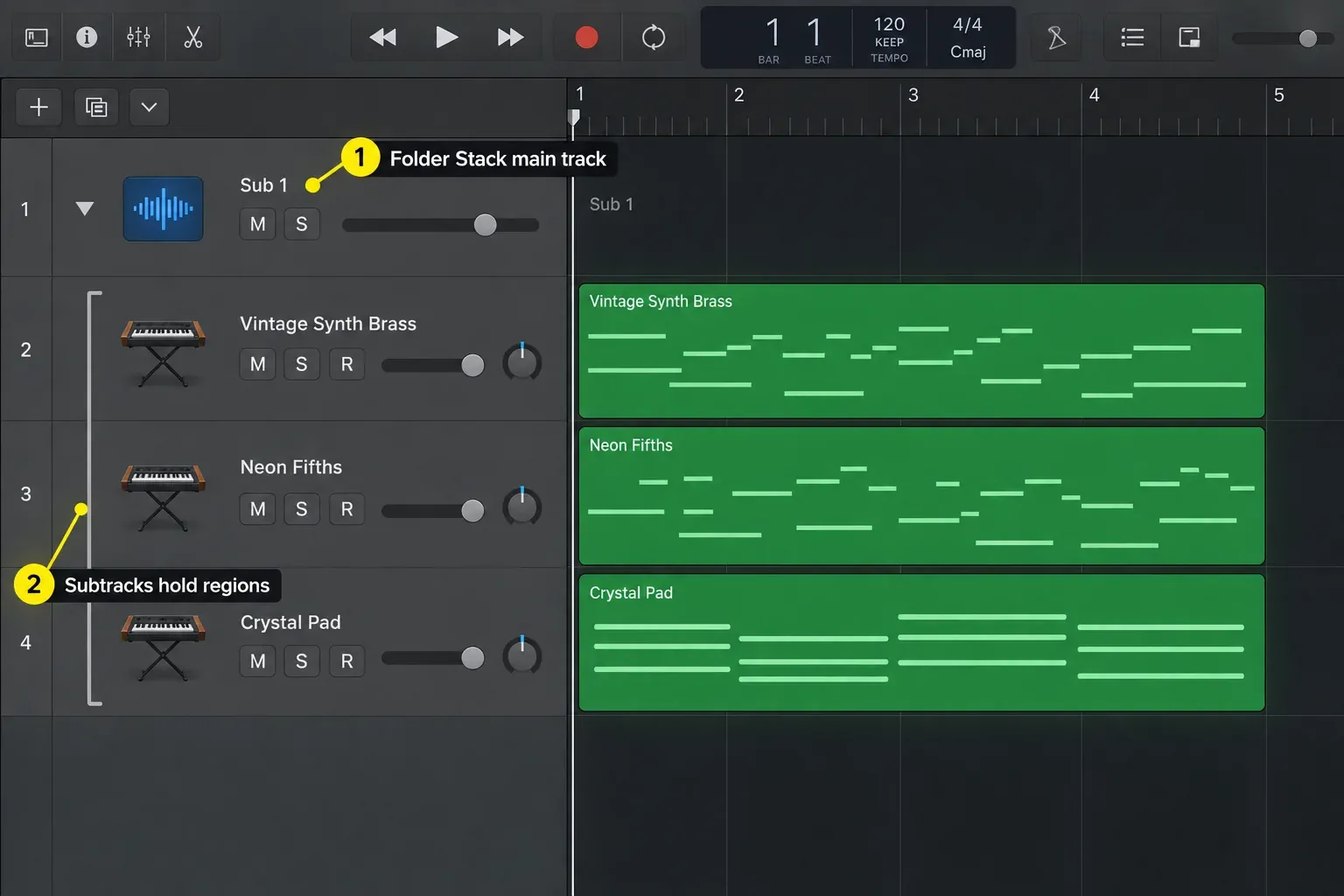
Choose Folder for sections you need to navigate as one block but don't want to submix. A common example is a set of sound-design tracks that already feed different outputs. You can close the stack to clear the Tracks area, then open it when you need to edit one layer.
The main Folder track has no regions and no shared audio path for insert processing. Apple's Track Stacks and Library guide also confirms that no patch is available or savable when the Folder Stack's main track is selected. Selecting a subtrack still gives you the normal controls and Library choices for that track type.
Use a Summing Stack when the group needs one signal path
When you create a Summing Stack, Logic routes the selected subtracks to a bus. The destination aux becomes the stack's main track. Plug-ins, sends, level changes, mute, and solo on that aux affect the combined subgroup.
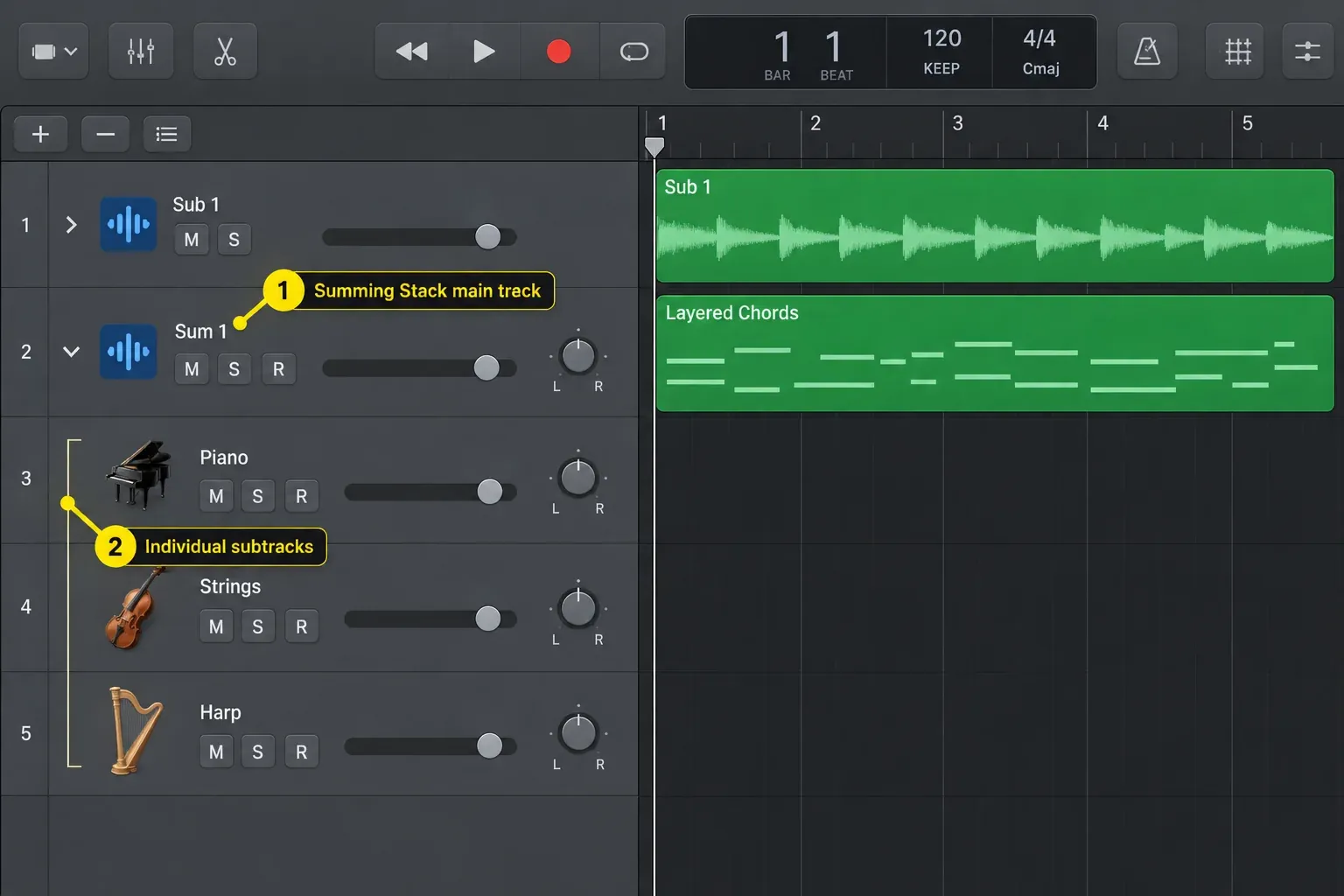
That's the right choice for a multi-mic drum kit, stacked backing vocals, doubled guitars, or several software instruments that need one group chain. Balance the subtracks first, then use the main aux to place the group in the mix.
To layer software instruments, put their tracks in a Summing Stack and record a MIDI region on the main track. Logic sends those MIDI events to the instrument subtracks. Record on an individual subtrack instead when only that instrument should play the part.
A layered Summing Stack can also use the main track’s Smart Controls as a compact control surface. Apple’s Track Stacks overview allows mappings to channel-strip or plug-in parameters on the main track and its subtracks; choose the targets you need rather than expecting automatic mappings. A Folder Stack’s main track has no Smart Controls, although its individual subtracks can have them. The MIDI controller setup guide explains the separate hardware-to-screen assignment.
How to create a Track Stack in Logic Pro
- Select the tracks. They can be adjacent or nonadjacent. Logic moves nonadjacent selections together when it creates the stack.
- Open the command. Choose Track > Create Track Stack, press Shift-Command-D with the default assignment, or Control-click one selected track header and choose Create Track Stack.
- Choose the type. Select Folder stack or Summing stack, then click Create.
- Name the main track. Use a name you will recognize in the Mixer, such as “Backing Vocals,” “Drum Bus” or “Layered Synth.”
- Check the outputs. Open the Mixer and inspect the subtracks’ Output slots. A Folder Stack should keep their previous destinations. In a new Summing Stack, those outputs should feed the same bus that appears in the main aux’s Input slot. Check that the main aux itself feeds your intended output, then play the group and confirm signal reaches it.
If a shortcut does something else, use the Track menu. Apple’s creation guide and U.S. default key-command table disagree about the direct Folder Stack shortcut. To check your own assignment, open Logic Pro > Key Commands > Edit Assignments (default: Option-K) and look for Create Folder Stack or Create Summing Stack. Do not reset your custom shortcuts just to follow this guide. Before Logic Pro 12.4, creating a stack with a key command could send the playhead back to the start of the project. The 12.4 release notes list that as fixed.
Convert a Folder Stack to a Summing Stack
Select the Folder Stack's main track or one of its subtracks, then choose Track > Convert Folder Stack to Summing Stack. The same command appears in the Control-click menu for the main track and its subtracks.
Conversion changes the signal flow. Logic turns the Folder Stack's VCA-style control into an aux-based subgroup and converts main-track VCA automation to volume automation on that aux. Play the loudest section afterward and check the subtrack outputs, group level, sends, and automation.
Apple documents Folder-to-Summing conversion, but not a matching Summing-to-Folder command. If you need to remove a Summing Stack, inspect the routing and automation before flattening it.
Add, remove, nest, and flatten without losing track of routing
Add or remove a subtrack
Drag a track header between two subtracks to add it. In a Summing Stack, Logic changes the added track's output to the bus feeding the main aux. Drag a subtrack above the main track or below the last subtrack to remove it. Logic then changes its output from the stack bus to the main output, normally Stereo Out.
Do not treat either move as visual housekeeping when a Summing Stack is involved. Listen again and confirm the output field.
Nest stacks only when the hierarchy remains readable
A Folder or Summing Stack can sit inside either stack type. To enclose an existing stack, select its main track and choose Track > Create Track Stack, then choose the outer type. You can also drag a stack between subtracks of another stack. An outer Summing Stack adds another audio subgroup, so check both levels of routing.
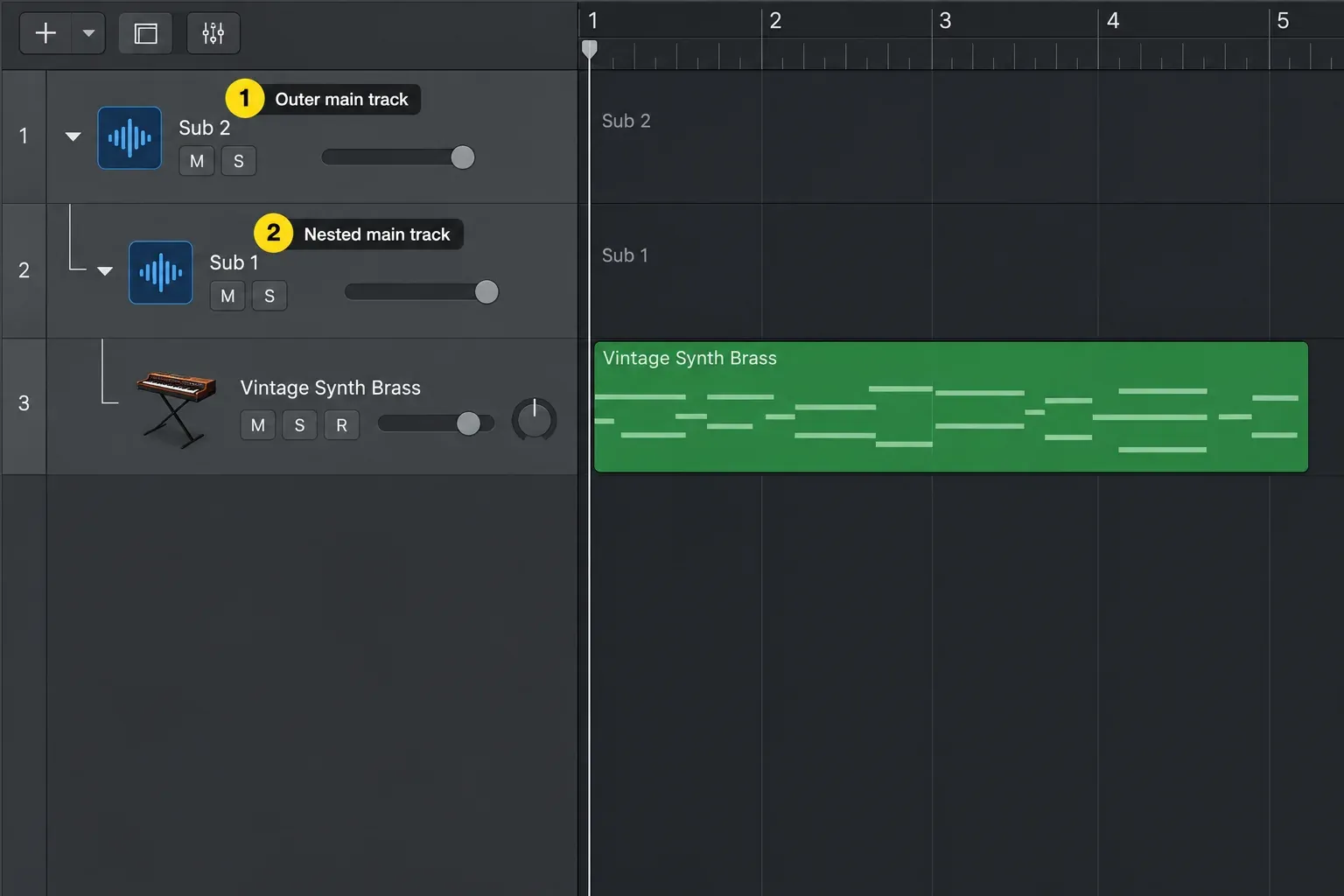
Keep nesting shallow unless the project genuinely needs more levels. If you have to expand several arrows and open the Mixer to learn where a sound goes, the structure isn't helping anymore.
Flatten only after checking what Logic will retain
Choose Track > Flatten Stack or Control-click a main track or subtrack and choose Flatten Track Stack. The subtracks become normal tracks again.
- For a Folder Stack, Logic deletes the main track only when its fader is at 0 dB and it has no automation.
- For a Summing Stack, Logic retains the audio subgroup unless the main aux has no plug-ins, a 0 dB fader, neutral Pan/Balance and no automation. When all those conditions are met, Logic routes the subtracks or their subgroups to the main output and deletes that aux.
Save the project before flattening a stack that carries automation or group processing. Then compare the loudest section before and after.
Summing Stack vs a manually created bus
A Summing Stack uses a bus and aux, so its audio subgroup follows the same core routing idea as a manual subgroup. What it adds is the Tracks-area organization: the subtracks stay under one collapsible main track, and layered software instruments can receive MIDI from that main track.
Use a manual bus when sources need to live in different parts of the arrangement or when the routing shouldn't dictate the visible track hierarchy. The Logic Pro buses, sends, and aux guide explains that routing in detail.
A Mixer group serves a different job: linking controls or edits across tracks. Open Mix > Group Settings and choose what the group should follow. Apple’s Group Settings reference distinguishes Volume, Mute, Solo and Editing (Selection), among other settings. For phase-locked audio group editing, Apple specifies both Editing (Selection) and Quantize-Locked (Audio). Putting tracks in one stack isn’t the same as enabling those editing options.
Save a Summing Stack for another project
Select the main track of the Summing Stack, not one instrument inside it. Open the Library with Y using the default key assignment. In the inspector, make sure the blue triangle points to the Setting button, then click Save at the Library’s lower right and name the patch. Apple’s custom patch instructions place saved patches in User Patches.
Recall it from User Patches on a suitable track in another project. A Summing Stack patch can retain the main track, subtracks and their channel-strip and plug-in settings. Save through the Library for that whole setup. A single Channel Strip Setting isn’t a replacement for the stack patch. A Folder Stack’s main track can’t be saved this way. Keep the original project and any required samples or third-party instruments as well.
Track Stack mistakes that cause real confusion
- Choosing Folder, then looking for group inserts. The main Folder track has no combined audio signal. Convert it to Summing when the tracks need shared processing.
- Ignoring output changes. Adding or removing a track from a Summing Stack changes its output assignment.
- Routing a subtrack outside the stack. Logic allows it, but the main track's channel strip no longer controls that rerouted subtrack.
- Flattening before checking automation. Logic's result depends on the main track's processing, fader, pan, and automation state.
- Using a Summing Stack for every folder. A bus is useful only when the tracks belong on one audio path. Folder Stacks keep unrelated routing intact.
- Nesting without a naming system. Names such as “Stack 1” and “Sum 3” hide the signal path. Name the musical job or destination instead.
If a Summing Stack is silent, follow its signal path in the Mixer: a playing subtrack, its Output bus, the receiving main aux and that aux’s output. Check mute states and look for an unintended output change before replacing instruments or plug-ins. If only one subtrack has bypassed the bus, its audio will also bypass the stack’s shared processing.
For the EQ or compressor on the subgroup, follow the Logic Pro mixing path. To change the group’s volume over a song, select the main track and use the track-volume workflow in the automation guide.
Frequently asked questions
How do I collapse or expand all Track Stacks?
Option-click the disclosure arrow on any stack’s main track to show or hide the subtracks of all stacks in the project. A normal click affects that stack alone. If the subtracks are still absent after you open the stack, follow the track visibility checklist before changing routing.
Why can’t I save my stack as a patch?
Check which track is selected. A Folder Stack’s main track has no savable Library patch. Select a Summing Stack’s main track to save the whole stack, or select an individual subtrack to work with that track’s patch. Use Save in the Library instead of Save Channel Strip Setting As.
What is the shortcut for creating a Track Stack in Logic Pro?
With the default assignment, Shift-Command-D opens the Track Stack dialog. Choose Folder or Summing there. For a direct command, check Create Folder Stack or Create Summing Stack in Key Commands; Apple’s current pages disagree on the direct Folder shortcut, and your own assignments can differ.
Why does my MIDI part play only one instrument in the stack?
A MIDI region on an individual software-instrument subtrack plays that instrument. In a Summing Stack, put the region on the main track when it should play the software-instrument subtracks together. An audio subtrack does not become a playable MIDI instrument just because it is in the stack.
Is a Summing Stack the same as a bus?
Its audio subgroup uses the same bus-to-aux routing idea. The Track Stack also keeps the related tracks together in the Tracks area and lets you collapse them under one main track.
What happens when I remove a track from a Summing Stack?
Logic changes that track's output from the stack's bus to the main output, normally Stereo Out. Check the output and level after removing it.
Can Track Stacks be nested in Logic Pro?
Yes. Either type can contain another Folder or Summing Stack. Select a stack’s main track and create an enclosing stack, or drag it between subtracks of an existing stack. Check the audio routing when a Summing Stack is involved, because nesting can change where the audio goes.
Browse the Logic Pro Features hub for the next feature-specific workflow.


