Parallel Compression in Logic Pro: Drums, Vocals & Buses
Blend dry punch with a heavily compressed path using Logic's Mix control or a flexible bus and aux workflow.

Parallel compression blends a dry signal with a more heavily compressed version of the same signal. The dry path keeps the original attack and dynamics. The compressed path adds density, sustain, room tone, or low-level detail. In Logic Pro, use Compressor's Mix control for one fast parallel blend, or a bus and aux when the wet path needs its own fader, EQ, saturation, automation, or multiple source tracks.
The technique works because you hear both paths together. If you listen only to the compressed path, you lose the dry contribution that makes the blend parallel. Leaving a dry contribution inside an aux Compressor can accidentally create three paths: the main dry track, another dry copy on the aux, and the compressed copy.
One track, one compressor, fast result: use Mix. Several tracks or independent wet-path processing: use a bus and aux. On an aux, set Compressor to 100% wet and blend with the aux fader.
What parallel compression does to a mix
Serial compression replaces the uncompressed signal with the compressor output. Parallel compression keeps a dry path and adds a compressed path beside it. This can raise quieter parts and sustain without forcing every transient through the aggressive settings.
The dry path doesn't guarantee punch. If the compressed return is too loud, its softened transients and longer sustain can mask the attack you meant to preserve. The blend matters more than an impressive amount of gain reduction on the wet path.
It's also different from sidechain compression in Logic Pro. Parallel describes two audible paths being mixed. Sidechain describes which signal controls the compressor detector. A parallel compressor may use its own input or an external key, but the two ideas stay separate.
Method 1: use the Mix knob in Logic Pro Compressor
This is the fastest setup for a single vocal, bass, drum loop, instrument, or bus:
- Insert Dynamics > Compressor on the source channel. Start at a comfortable monitoring level.
- Turn Auto Gain off, then open the Output section.
- Set Mix fully wet while setting the compressed sound.
- Lower Threshold and increase Ratio until the compressed path has the density you want.
- Adjust Attack and Release while listening to a representative phrase or drum pattern. Check whether Auto Release is active on the selected model.
- Use Make Up to set the compressed signal level, then move Mix toward dry until the added body supports the source.
- Use Output Gain to match the overall blend level against Compressor bypass. Make Up changes the compressed contribution; Output Gain changes the overall output.
- Compare loud and quiet sections at matched loudness, then save the project if the blend helps.
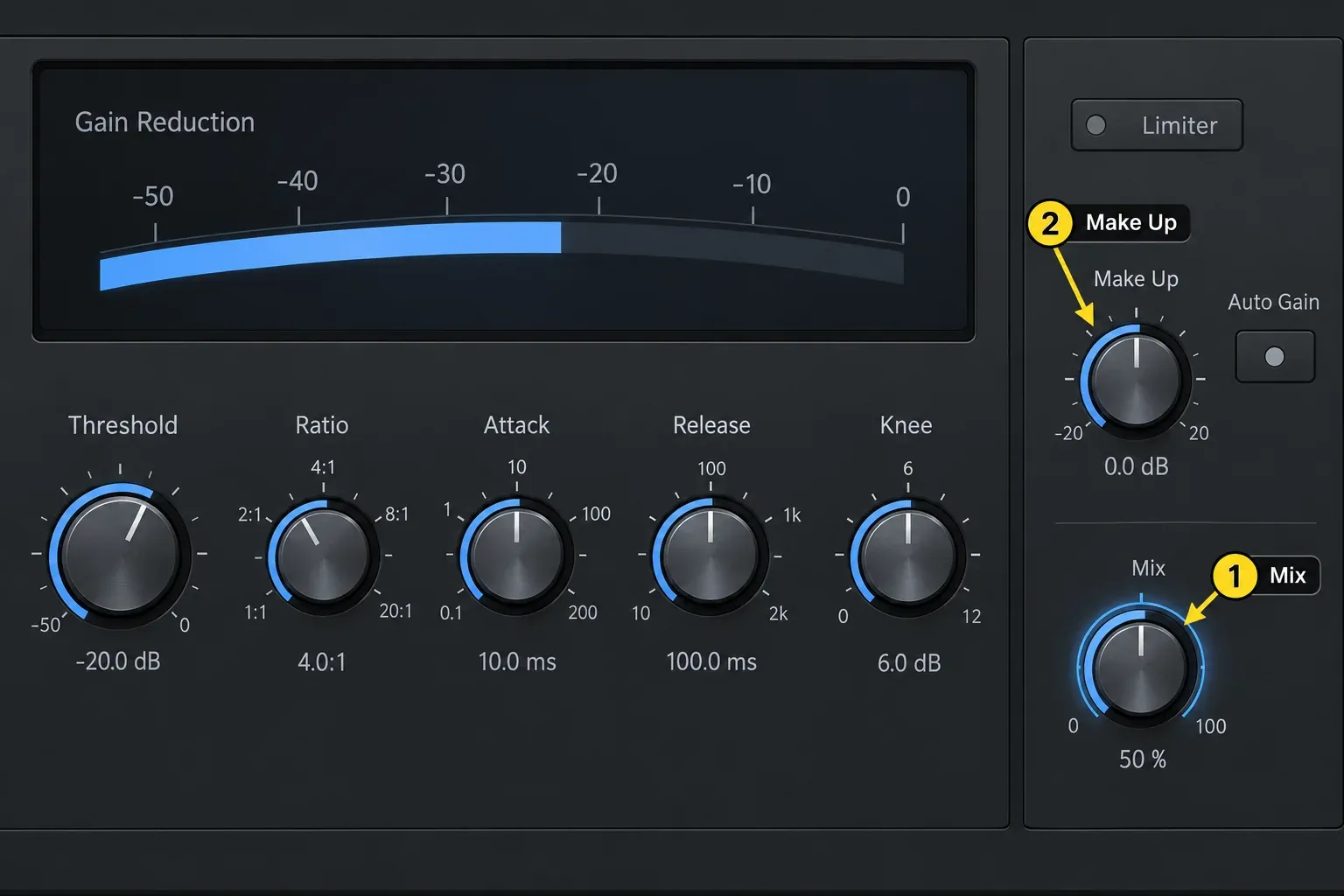
Apple's current Compressor Output reference defines Mix as the balance between dry source and wet effect signals. This method keeps routing compact and makes automation simple. The limitation: the compressed part can't have a separate channel-strip fader or an independent chain outside the plug-in. Apple’s main Compressor controls distinguish Make Up on the compressed signal from overall Output Gain.
Method 2: build a parallel compression bus and aux
Use an aux when several tracks should feed one compressed return, or when the wet path needs its own EQ, saturation, imaging, mute, automation, or output route:
- Save the project before changing its routing. On the source channel, click an empty Send slot and choose an unused bus. Keep the source’s main Output route: this must be a split, not a replacement.
- Logic creates an aux channel strip automatically when the chosen bus isn't already another channel strip's input. Find the aux receiving that bus, confirm its Input bus number, and name it Drum Parallel or Vocal Parallel. Start with its fader down to avoid an unexpected level jump.
- Route the aux Output to the same downstream destination as the dry path—Stereo Out for a simple setup, or a shared downstream mix bus. Never route the wet return back into its own input bus or into an upstream bus that sends to it.
- Check the aux channel format and pan against the source. For a stereo drum bus, preserve the stereo path; for a mono source, check that adding the return does not move its apparent position.
- Insert Dynamics > Compressor on the aux. Turn Auto Gain off, open Output, and set Mix fully wet so the aux does not add another dry copy.
- Loop a representative section. Raise the send until Compressor receives a useful, unclipped signal, then leave the send steady while setting the compressor.
- Raise the aux fader cautiously until the processed contribution is audible. Adjust Threshold, Ratio, Attack, Release and Make Up while listening; an aux left at silence cannot be judged by ear.
- Lower the aux fader again, then bring it up in the full mix until the compressed path supports the dry signal. Use the aux fader as the main blend control.
- For the dry-only comparison, mute the aux return—not just its Compressor insert. Compare at matched overall loudness; bypassing the insert leaves an extra uncompressed copy playing.
- Check loud hits, quiet sections and mono playback. Confirm both paths reach the intended output without clipping, then save the project.
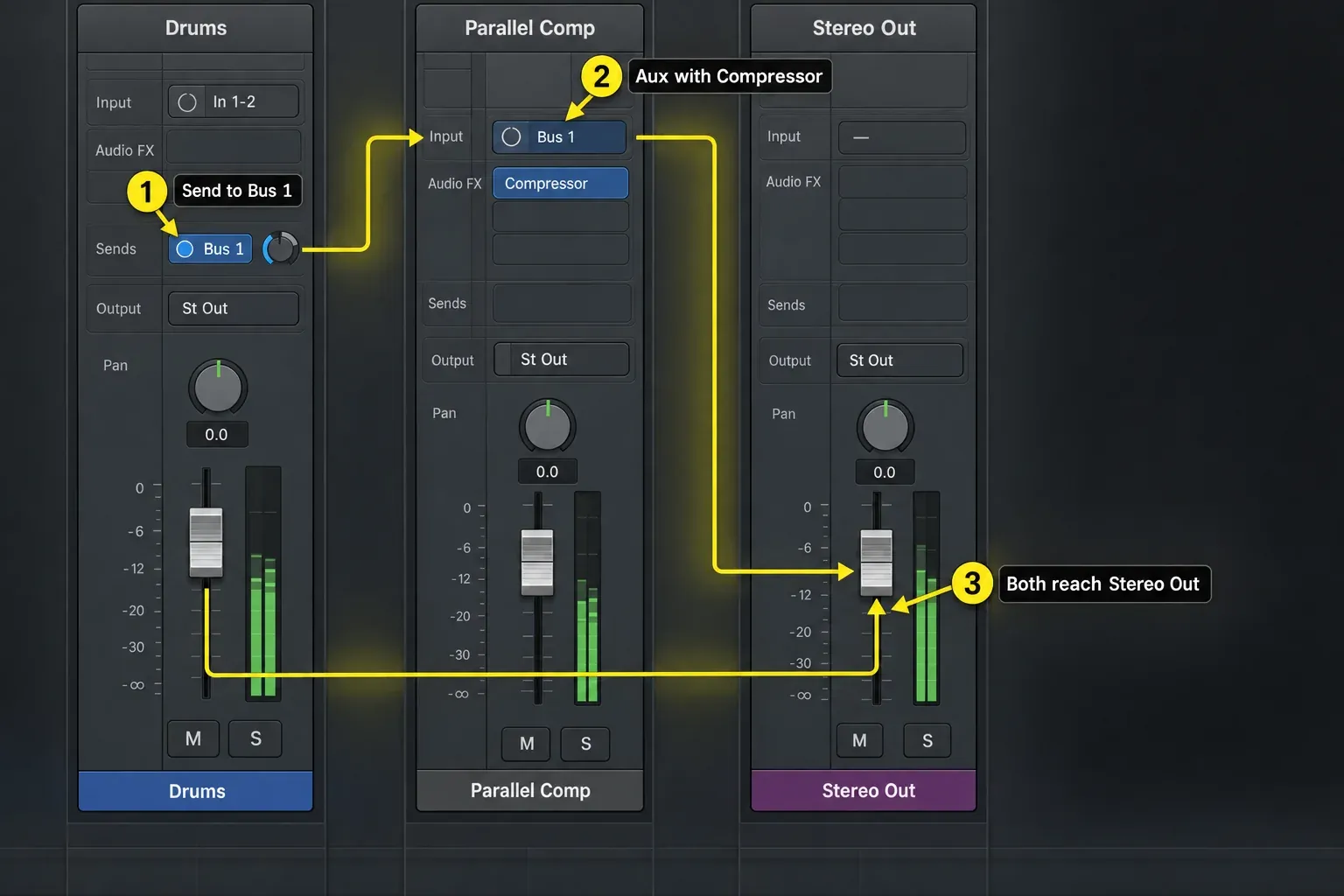
Apple describes a send as a split: the channel's main signal continues to its output, while another part travels through a bus to an aux. Our Logic Pro buses, sends and aux guide covers the routing concepts in depth. For parallel compression, the practical rule is simpler: keep the main path audible, keep the aux compressor fully wet, and blend with one control.
Choose Post Pan, Post Fader, or Pre Fader deliberately
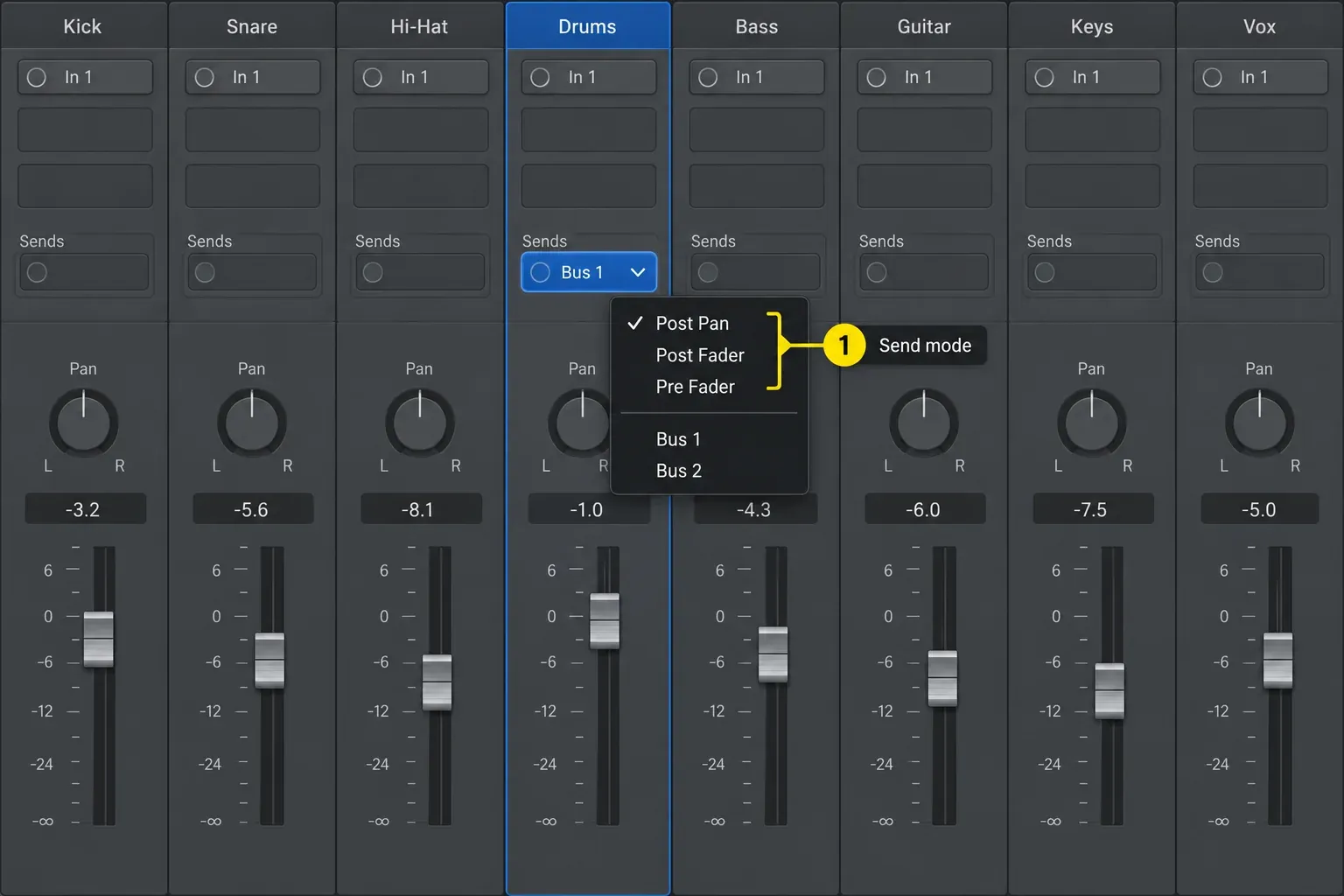
Post Pan follows both the source fader and pan. It's my default when the compressed return should track normal balance moves and stereo placement, because a source fader or pan move then carries the wet feed with it.
Post Fader follows source level but receives the signal before the Pan knob, so source pan changes don't affect the send position in the same way.
Pre Fader ignores source fader and pan changes. It can be useful when you want independent dry and wet level rides, but it's easier to break the balance by accident: lowering the dry fader leaves the compressed feed unchanged.
These behaviors come directly from Apple's current parallel send-routing guide. There's no universal best mode. Choose what the wet path should follow, then test a source-fader and pan move before mixing further.
A post-fader send follows the source level, but it also changes the level hitting the compressor and therefore the gain reduction. It does not lock the dry/wet ratio. If you need one level ride without changing the compressor feed, route the dry and wet outputs to a separate downstream bus and automate that bus after establishing the blend. Do not send this combined bus back to the parallel compressor.
Set the compressor for a useful wet signal
Listen to the compressed path at a safe level while adjusting it, then judge its contribution with the dry signal playing. Start from these settings and adjust them by ear:
- Ratio: try 4:1 to 12:1. Stronger ratios make the difference between dry and wet easier to hear.
- Threshold: lower it until the wet path has stable density through the representative section. Ten or more decibels of gain reduction can be useful on a parallel path, but it is never a requirement.
- Attack: faster values soften transients on the wet path; slower values let more attack through. The dry path already carries the original transient, so both can work.
- Release: set it so gain reduction recovers with the groove. Too slow can keep the return compressed; too fast can create pumping or distortion. Auto Release changes this behavior when active, and available controls vary by circuit model.
- Auto Gain: leave it off while comparing. Make Up adjusts the compressed signal; Output Gain adjusts the overall output. Recheck the blend after changing either.
The stock Compressor's circuit models also change tone and timing. Start with Platinum Digital when you want a clean reference, then compare character models at matched loudness. The Logic Pro Compressor workflow explains threshold, ratio, attack, release, knee, and circuit choice without turning one preset into a rule.
Blend from silence, not from an impressive solo
- Loop a section containing both typical and loud hits or phrases.
- With the aux method, mute the wet return or lower its fader to silence. Keep the source feeding the compressor.
- Play the complete mix, not just the source in solo.
- Unmute the return at a low level and raise it until you hear useful body, sustain or stability.
- Mute the aux again for the dry-only comparison. Do not bypass Compressor on a still-audible aux: that adds a second dry copy.
- Match overall listening loudness before deciding. With the single-insert Mix method, compare against Compressor bypass using Output Gain to balance the processed version.
A good parallel return can feel underwhelming alone. It may sound crushed, dull, noisy, or overly sustained, because its job is to fill underneath the dry path. If you can clearly pick it out as a second copy in the mix, it's often too loud or too differently timed.
Check quiet sections. Heavy compression followed by make-up gain or a louder return can make room tone, headphone bleed, breaths, cymbal wash and amplifier noise more noticeable. Reduce or automate the return, edit the source, or gate carefully when those sounds distract from the performance.
Parallel compression for drums
Send either the drum bus or selected kick, snare, tom and room channels to the wet aux. To give several channels the same send in one move, Shift-click them in the Mixer, then choose the bus from the Send slot of one selected channel strip. Do not feed both the subgroup and the same child tracks unless you deliberately want that double contribution. Compress for useful sustain and kit movement, then blend the return beneath the dry drums.
If the kick drives too much compression across the kit, reduce its send when it has an individual feed. Alternatively, open Compressor’s Side Chain section, turn Filter on, choose HP and raise Frequency until the low end stops dominating the detector. Use Listen briefly to check the filtered detector signal, then turn Listen off to hear the processed audio again. A detector filter changes what triggers compression; an EQ inserted in the wet audio path also changes the tone you hear. Apple’s side-chain parameter reference describes those controls; availability depends on the circuit model.
For excessive cymbal wash, try less overhead or room feed, a darker wet-path EQ, or less return level. Audition release changes in both directions: shortening release is not a universal cure and can make pumping more obvious. Check the combined drums quietly and in mono before adding more processing.
Parallel compression for vocals
A vocal parallel can hold quiet words forward without forcing the main vocal through extreme serial compression. Send the edited lead or vocal bus to a wet aux, compress firmly, and blend low. Keep de-essing in mind because heavy compression can exaggerate consonants and breaths.
If the wet vocal sounds late or detached, check plug-in latency and remove high-latency processors during tracking. If it sounds phasey, bypass aux EQ, saturation, pitch, widening, and lookahead processors one at a time. The stock Compressor alone shouldn't require a duplicate audio region or manual nudge.
Use automation to pull the return down between phrases or in intimate sections. Keep the main vocal intelligible before adding the return. The Logic Pro vocal mixing guide places parallel compression beside clip gain, serial compression, de-essing, and sends.
Use parallel compression carefully on bass and the mix bus
On bass, the compressed path can add sustain while the dry signal retains attack. A character compressor or saturation stage may also add harmonics; clean compression does not automatically create that effect. Check low-frequency phase and mono compatibility before widening the wet path. If note balance is the problem, try editing, automation or serial compression first.
For the whole mix, the simplest route is Compressor’s Mix control on Stereo Out. If you need a separate wet aux, build the split upstream: route the mix through a mix aux, send from that aux to the parallel compressor, and let both outputs meet at Stereo Out or another downstream bus. Stereo Out is not the source of a send-and-return loop. Keep the wet return out of any upstream bus that feeds it, or you can create feedback. Start with a small blend and compare the loudest section with the quietest transition at matched loudness.
Fix latency, phase and Low Latency Monitoring problems
Parallel paths must arrive together. Logic Pro's plug-in latency compensation can keep channel strips synchronized. When latency-causing plug-ins sit on aux or output channel strips, Apple's current plug-in latency guide says to use Logic Pro → Settings → Audio → General → Compensation: All.
If the blend becomes hollow, comb-filtered or strangely wide, first confirm where the dry and wet paths rejoin and which processors each path passes through. Then bypass wet-path EQ, lookahead, oversampling, saturation and widening one at a time to isolate the change. Compensation can align reported processing delays; it does not undo an EQ’s phase response or a stereo-width change. Do not assume that every phase problem needs a manual track nudge.
Low Latency Monitoring affects the focused instrument track and tracks with Input Monitoring or Record Enable active—not every selected audio track. It can bypass plug-ins that push latency above the limit and turn off sends on affected tracks.
To keep a required send active, open the Mixer, click that Send slot and select Low Latency Safe from its shortcut menu. The button returns to blue. This keeps the route available; it does not make a slow processor latency-free. Turn Low Latency Monitoring off for the final mix comparison and recheck the blend: Apple states that this mode is inactive during bounce, so the exported mix can differ from the low-latency monitoring state.
Avoid the common parallel-compression mistakes
- Aux Compressor is not 100% wet: the return adds another dry copy and makes level decisions confusing.
- Wet path is judged alone: settings that sound exciting solo can flatten the combined groove.
- Auto Gain is on: loudness replaces tone and envelope as the deciding factor.
- Pre-fader send was chosen accidentally: lowering the source fader can leave the compressed return audible. Choose the send mode deliberately and check both paths after automation.
- Send level and aux fader are both chased: set a stable feed, then use the aux fader as the main blend control.
- Parallel is added before the dry mix works: extra density cannot repair poor balance, editing, or gain staging.
Keep headroom on both paths. A parallel return adds energy to the mix even when neither channel clips by itself. Our gain-staging guide explains how to compare processing without using arbitrary level targets.
Choose the simplest routing that solves the job
| Need | Method | Main control |
|---|---|---|
| One track, fast dry/wet blend | Compressor Mix knob | Mix |
| Several drums or vocals into one wet path | Bus send to aux | Aux fader |
| Independent EQ or saturation on wet path | Bus send to aux | Wet insert chain |
| Wet path follows source level and pan | Post Pan send | Source fader/pan plus aux fader |
| Independent wet level rides | Pre Fader send | Send level and aux fader |
Start with Mix when the task is simple. Move to an aux when routing freedom is the reason. The Logic Pro mixing hub connects parallel compression with EQ order, buses, gain staging, sidechain work, and mastering.
Keep the return only if it solves an audible problem: missing sustain, weak body, uneven quiet words or a drum room that needs more energy. Compare by muting the aux, or bypassing the single Mix-method insert, at matched loudness. If the only improvement is extra volume, lower the return and reconsider the settings.
Frequently asked questions
What is parallel compression in Logic Pro?
It is a blend of a dry signal and a more heavily compressed version of the same signal. The dry path keeps original dynamics while the wet path adds density, sustain, or low-level detail.
Should I use the Compressor Mix knob or an aux bus?
Use Mix for one fast, self-contained blend. Use an aux when several tracks share the compressed path or when the wet signal needs independent EQ, saturation, automation, panning, or routing.
What should the Mix knob be for parallel compression?
There is no fixed percentage. Set the compressed sound at 100% wet, then move Mix toward dry until the added body supports the source without masking its attack. Judge at matched output loudness.
Should a parallel-compression send be pre-fader or post-fader?
Post Pan or Post Fader lets the wet feed follow source-level changes, but those changes also alter how hard the compressor is driven. Pre Fader keeps the feed independent of the source fader, so you must manage the return level separately. A common downstream bus can control the combined level after the blend is set.
Why does my parallel compression sound phasey?
Check latency compensation for aux paths, the point where dry and wet rejoin, and any processing applied to only one path. Bypass wet-path plug-ins one at a time to isolate the cause. Compensation aligns reported timing delays; it does not reverse EQ phase changes or stereo widening.
Is parallel compression the same as sidechain compression?
No. Parallel compression mixes dry and compressed audible paths. Sidechain compression describes the signal that controls the detector, often another track such as a kick controlling a bass compressor.


