How to Widen the Stereo Image in Logic Pro
Choose the right stock tool for a stereo recording or a mono source, widen only what needs it and keep the mix intact in mono.

For an existing stereo recording in Logic Pro, insert Imaging > Direction Mixer, choose LR input and raise Spread gently above its neutral value of 1. For a mono source that needs new left/right differences, try Imaging > Stereo Spread instead. Finish either choice with a mono listening check.
I’d decide what needs to become wider before touching Stereo Out. A pad that crowds the lead, a narrow reverb and a finished stereo mix are three different jobs. The useful setting is the one that makes that part fit while the important notes and transients still survive on a mono system.
Choose the tool by the signal you have
- A stereo recording with useful differences between its sides: Direction Mixer adjusts the existing stereo base. Its Split mode can treat low and high ranges separately.
- A mono part that should occupy more space: Stereo Spread creates differences by distributing frequency bands between the sides. Stereo reverb, delay or modulation offers a different character.
- A part that simply belongs elsewhere: start with its pan control. Moving a mono source to the left places it; it does not make the source itself stereo.
Two copies of the same mono recording, with identical timing and processing, don’t become a wide performance just because you pan them apart. You need meaningful differences. Our mono and stereo track guide explains the channel-format decision. Keep that separate from this processing decision.
Balance is another distinction worth catching early. On a stereo strip it changes the relative levels of the existing channels. Apple’s Pan and Balance explanation describes that behavior. For placing or narrowing a stereo piano, the piano-panning workflow covers Stereo Pan in detail.
Widen an existing stereo track with Direction Mixer
Apple’s Direction Mixer reference distinguishes ordinary left/right input from an MS-encoded recording. Choose LR for a normal stereo file. MS is a decoding choice for middle/side material. It isn’t an extra-wide mode.
- Save the project and choose the stereo track or stereo subgroup that actually needs adjustment.
- Insert Imaging > Direction Mixer. For ordinary stereo material, set Input to LR.
- Start with Direction at 0 and Spread at 1. That leaves the center and stereo base at their neutral positions.
- Play a representative section with the arrangement. Increase Spread a little, then compare with the neutral setting at similar loudness.
- If only the upper range needs more space, enable Split. Choose a Crossover suited to the source, keep the two Direction controls centered and adjust Spread High and Spread Low separately.
- Listen in mono, then return to stereo. Check a sparse passage too; a setting that works against a busy chorus may sound exposed in the verse.
In LR mode, Spread below 1 narrows the image, and 0 produces a summed mono signal at both outputs. Above 1 extends the stereo base. The same numbers mean something else with MS input, so don’t carry an LR recipe into an MS decoder.
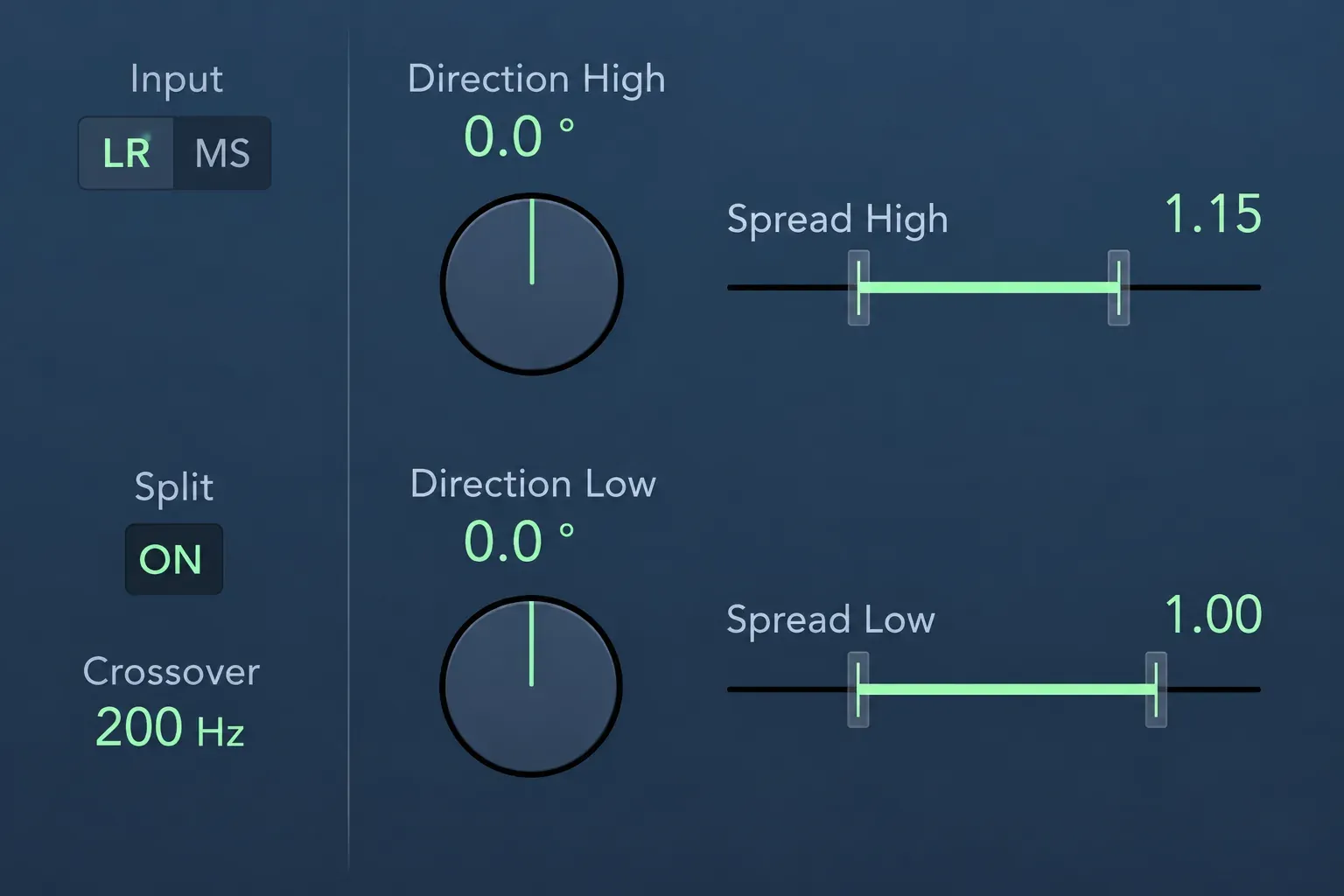
The example leaves Spread Low at 1.00 and raises Spread High to 1.15, with a 200 Hz crossover. Those values show independent control. They aren’t a universal mastering preset. Leaving the low band at 1 preserves its existing width and doesn’t make it mono. Lower that band only when you deliberately want it narrower.
Direction Mixer can’t recover a missing second microphone or manufacture a genuinely different side from two identical channels. If Spread seems ineffective on a dual-mono file, choose a width-creation method below instead of pushing the slider harder.
On a genuine stereo recording, Channel EQ can also make the top end feel wider without Direction Mixer. Insert it on the track and choose Side Only from its Processing pop-up menu, so its bands work on what differs between left and right, such as reverbs or backing vocals. Apple’s Mid-Side tips for Channel EQ suggest reducing the lows there and perhaps boosting the upper range, which cleans up the bottom end and enhances the stereo effects already in the signal. Keep that boost modest and run the mono check below.
Create width from mono with Stereo Spread
Stereo Spread distributes frequency bands alternately between left and right. That makes it a different tool from widening an already established stereo image. Its tonal effect can be useful on a background synth or texture, but listen carefully before giving it an exposed lead.
- Insert Imaging > Stereo Spread on the intended part. For a mono source, use its Mono→Stereo instance when offered so the effect has a stereo output.
- Choose the lower and upper frequency limits for the material you want redistributed.
- Keep Lower Intensity restrained and raise Upper Intensity from a low amount until the added space earns its place.
- Use Order to change the number of bands. Apple describes 8 as sufficient for many tasks and allows up to 12; more bands are not an automatic quality upgrade.
- Compare the full mix at similar loudness and check the mono sum. Reduce the intensity or bypass the effect if the attack or body suffers.
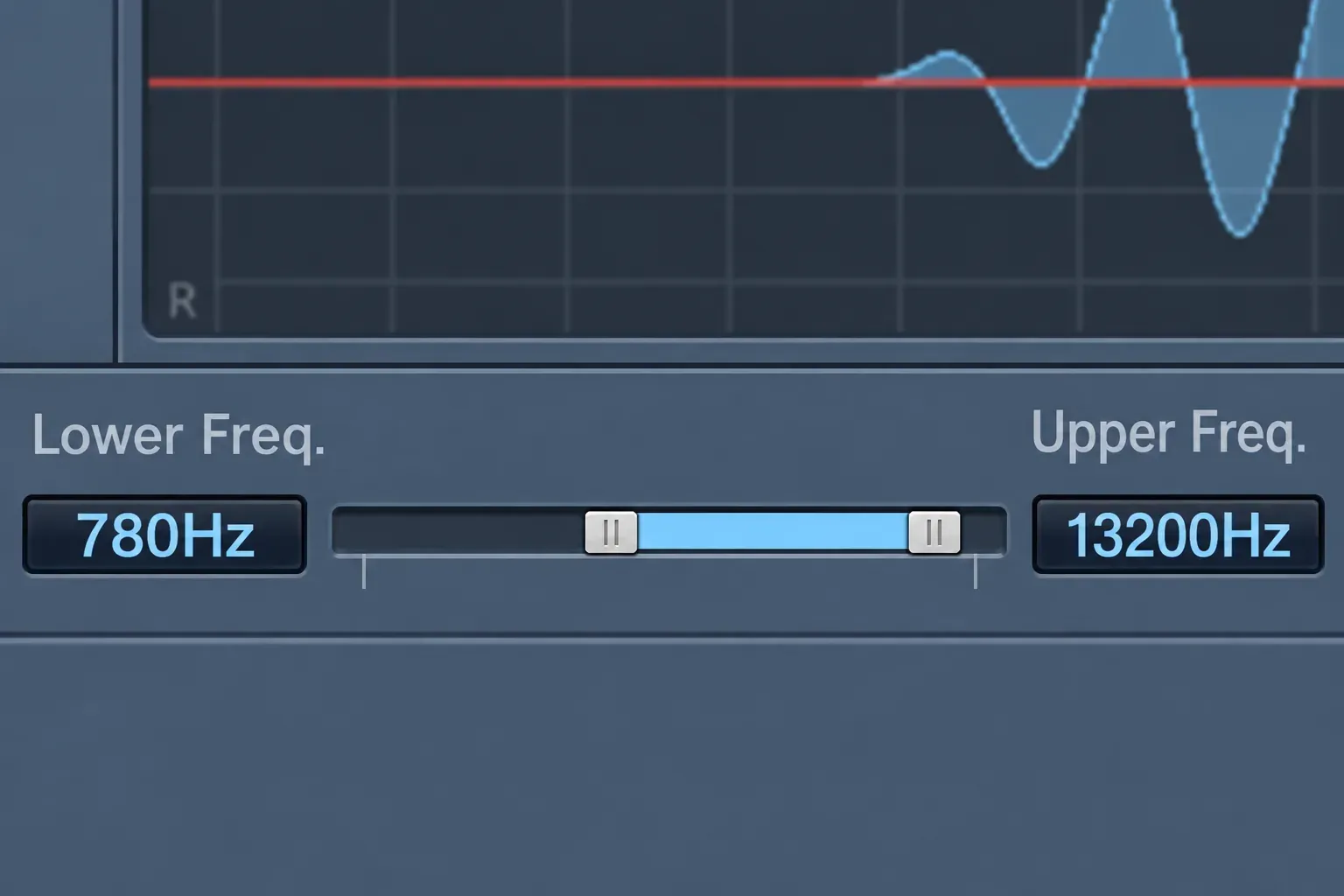
Apple specifically advises low Lower Intensity settings and avoiding a Lower Frequency below 300 Hz for this plug-in, because redistributing the low range can change the mix’s energy. That’s guidance for Stereo Spread’s band processing. It isn’t a rule that every stereo bass sound must be collapsed at exactly 300 Hz.
The pictured 780 Hz lower limit and 13200 Hz upper limit illustrate a restricted working range. Choose your range from what you hear. A frequency cutoff borrowed from another track won’t tell you whether this one has become thin or distracting.
Use delay or modulation when you want an audible effect
A short difference in timing can create a sense of separation, but it also changes how the channels combine. Sample Delay provides independent left/right delay values in samples or milliseconds. Link L & R keeps both values equal, which moves both sides together. A width experiment needs a deliberate difference instead.
I’d use that as a creative effect on a chosen part. I wouldn’t reach for it as an automatic master-bus fix. Keep a clear dry contribution if the sound needs a stable center, blend the effect in and listen to the mono result. No short-delay number guarantees that every source will sum cleanly.
For movement, Modulation > Spreader is a separate plug-in from Stereo Spread. Its Rate, Intensity, Channel Delay and Mix controls combine modulation and inter-channel delay. Choose it when that changing texture is part of the sound. For a shared stereo ambience, the buses and sends guide explains how to keep the dry track and effect return separately controllable.
Check the result in mono before calling it finished
Put Metering > Correlation Meter on Stereo Out, after the width processing you want to assess. Solo a suspect part to locate a problem, then listen with the full mix. Apple’s Correlation Meter guide explains that readings below zero warn of out-of-phase content that may change or cancel in mono. At -1, identical opposite-polarity channels cancel completely when summed.
Do not mix toward a perfect meter number. A positive reading isn’t proof that every important part retains its tone. Use it to find passages worth hearing in mono.
- After Correlation Meter, add a stereo instance of Utility > Gain as a temporary listening control.
- Leave Gain at 0 dB, Balance centered and both Phase Invert buttons off. Enable Mono.
- Listen for a hollow lead, lost low end, weakened snare or disappearing texture. Compare with the widener bypassed, keeping the listening level sensible.
- Turn Mono off or bypass that temporary Gain instance. Confirm stereo playback has returned before a stereo bounce.
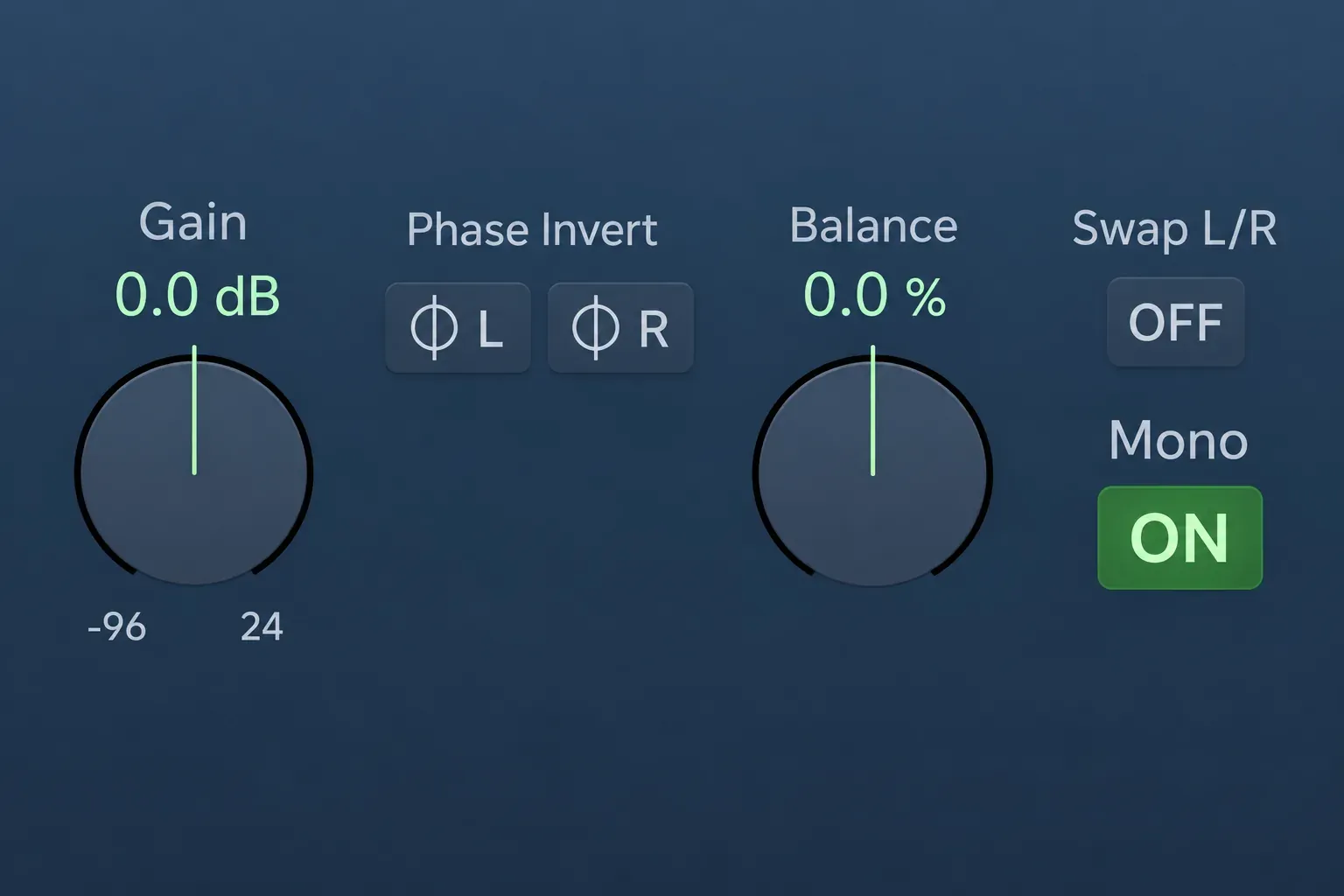
Apple’s Gain documentation says Mono sends the summed signal to both outputs. That’s a listening state inside the stereo path. It doesn’t by itself specify a one-channel delivery file. Keep Correlation Meter before that summing stage, or it’ll be inspecting the mono result instead of the stereo processing.
When a free third-party widener makes sense
You can cover the basic decisions with Logic’s stock tools. If you specifically want another mono-to-stereo character, Polyverse Wider is free, supports AU and includes low-frequency exclusion and a mono-check control. Polyverse describes its widening algorithm as mono-compatible. That claim doesn’t remove the need to check the rest of your processing chain.
Voxengo Stereo Touch is another free AU option built around mono-to-stereo processing. Pick an alternative for its sound or control. A narrow arrangement doesn’t automatically need another download. Current installation and validation steps belong in the Audio Units setup guide. Voxengo describes Stereo Touch as most effective on monophonic sounds without overly sharp transients. That makes a sustained mono texture a sensible candidate to compare before trying it on a sharp attack. Keep the same bypass and mono checks.
If widening makes the mix worse
- Nothing gets wider: check whether the source actually has different left/right information, whether the selected tool creates it, and whether a later Mono stage is summing the result.
- The image leans sideways: return Direction to center and inspect the source, Balance, delay and reverb returns before adding more spread.
- The sound gets hollow in mono: bypass the width effect and compare the source. Reduce the effect or choose another method; narrowing is not a guaranteed repair for an already problematic recording.
- The chorus loses impact: compare the low range and the dry center at matched loudness. Widen a supporting part or return instead of processing the whole output by default.
Keep the change when the intended part has room and the important musical information survives both stereo and mono playback. Then restore the monitoring state and continue through the Mix & Master workflow.


