How to Normalize Audio in Logic Pro
Use the right normalization command for the job. Set region levels without rewriting the source, protect file edits and keep bounce normalization from changing a deliberate mix.

To normalize audio in Logic Pro without rewriting the original recording, select the audio regions and choose Functions > Normalize Region Gain in the Tracks area. Choose a processing scope, select Peak or Loudness, set the target and click Apply. The shortcut is Control-Option-G.
That command is usually the right starting point for preparing recorded parts. Logic also has destructive file normalization and a separate Normalize setting in the Bounce dialog. They share a name but change different things. I’d choose the method before the target, because an accidental source-file edit is a much bigger problem than a quiet region.
Choose what you want to normalize
- Audio regions in your project: use Normalize Region Gain. Apple confirms that this region operation is nondestructive; the original audio file stays intact.
- The audio file itself: use Functions > Normalize in the Audio File Editor, after making a backup. The edit changes the stored source, so other regions using the edited passage can be affected.
- The exported mix: choose Normalize in the Bounce dialog. This controls the bounce file’s level rather than adjusting individual regions.
These instructions are for Logic Pro on Mac. The iPad version has its own touch workflow. Also make sure you’ve selected audio. A MIDI region holds note events and has no recorded waveform for these audio commands to process.
Normalize regions without changing the source file
- Select one or more audio regions in the Tracks area. Select the regions themselves; a track-header click selects its regions only when Select regions on track selection is enabled in the General editing settings.
- Choose Functions > Normalize Region Gain, or press Control-Option-G. You can also Control-click a selected region and choose Processing > Normalize Region Gain.
- In Process, choose whether the regions are adjusted together, together per track or individually.
- In Method, choose Peak or Loudness.
- Set Target Level: decibels for Peak, LUFS for Loudness. Click Apply, then listen to the result in the arrangement.
Apple’s Mac normalization instructions document those controls. They are different from the Audio File Editor’s Peak at fields, which take a percentage or dB.
Keep linked parts together when their balance matters
Processing all selected regions equally gives the selection a common gain adjustment. Processing equally per track keeps that relationship within each track. Individual processing gives each region its own adjustment, which can change the balance between regions.
For example, separate regions from a deliberately expressive vocal take don’t all need the same apparent size. Normalizing each phrase independently can bring a quiet line forward and pull a louder phrase back. That may help a rough edit, but it can also remove a musical distinction you wanted to keep. I’d process together first when the performance’s relative levels already make sense, then repair only the outliers.
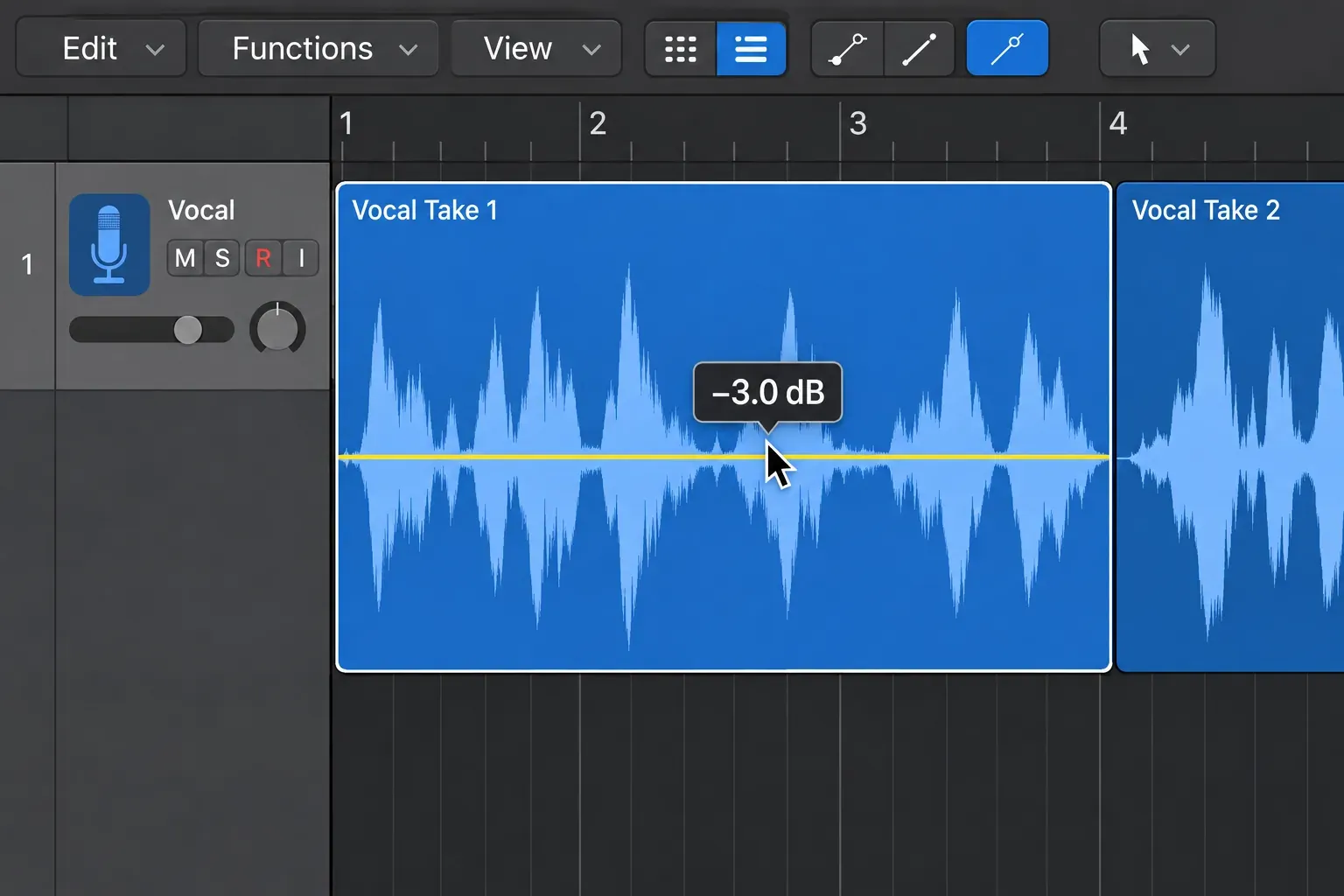
For a local correction, select the Gain tool and drag vertically over the region. Logic shows a yellow line and the gain in dB. A Marquee selection confines the adjustment to that portion. Apple’s Gain tool instructions also document Option-click to reset the edited region or selection to 0 dB.
Peak and Loudness answer different questions
Peak uses the highest amplitude as the reference. A sharp drum hit can reach the target while the rest of the region stays relatively quiet. Loudness uses a loudness target in LUFS, which is more useful when the task is to bring differently shaped recordings toward comparable overall levels.
Neither choice replaces listening in context. Two sounds with the same peak can have very different sustained energy. A loudness target also leaves peak level as a separate thing to check. It isn’t a limiter ceiling. Avoid using a region-normalization setting as an assumed streaming-master specification.
There’s no mandatory region target. Choose it for what happens next: further processing, a rough dialogue edit, sample preparation or another defined task. In a simple peak example, moving audio from −18 dBFS to −6 dBFS requires a 12 dB increase. That arithmetic says nothing about whether the new level suits your compressor or the song. The Logic Pro gain-staging workflow covers the rest of those level decisions.
Normalize an audio file only when you want a file edit
The Audio File Editor changes the source audio stored on disk. Apple warns that most of its editing functions are destructive and recommends working with copies. Duplicating a region in the arrangement does not give you an independent source-file backup.
- Select an audio region. Choose Window > Open Audio File Editor, default shortcut Command-6. Or double-click the region and click File at the top of the Editors pane.
- Before processing, choose Audio File > Create Backup, or press Control-B. Apple’s backup instructions say this creates a .dup copy beside the source file.
- Select the passage you actually intend to change in the waveform display. Check the boundaries, especially if several regions refer to parts of the same recording.
- Choose Functions > Function Settings and set the normalization target in either Peak at field, as a percentage or dB.
- Choose Functions > Normalize, or press Control-N. Listen across the selection boundaries as well as within the passage.
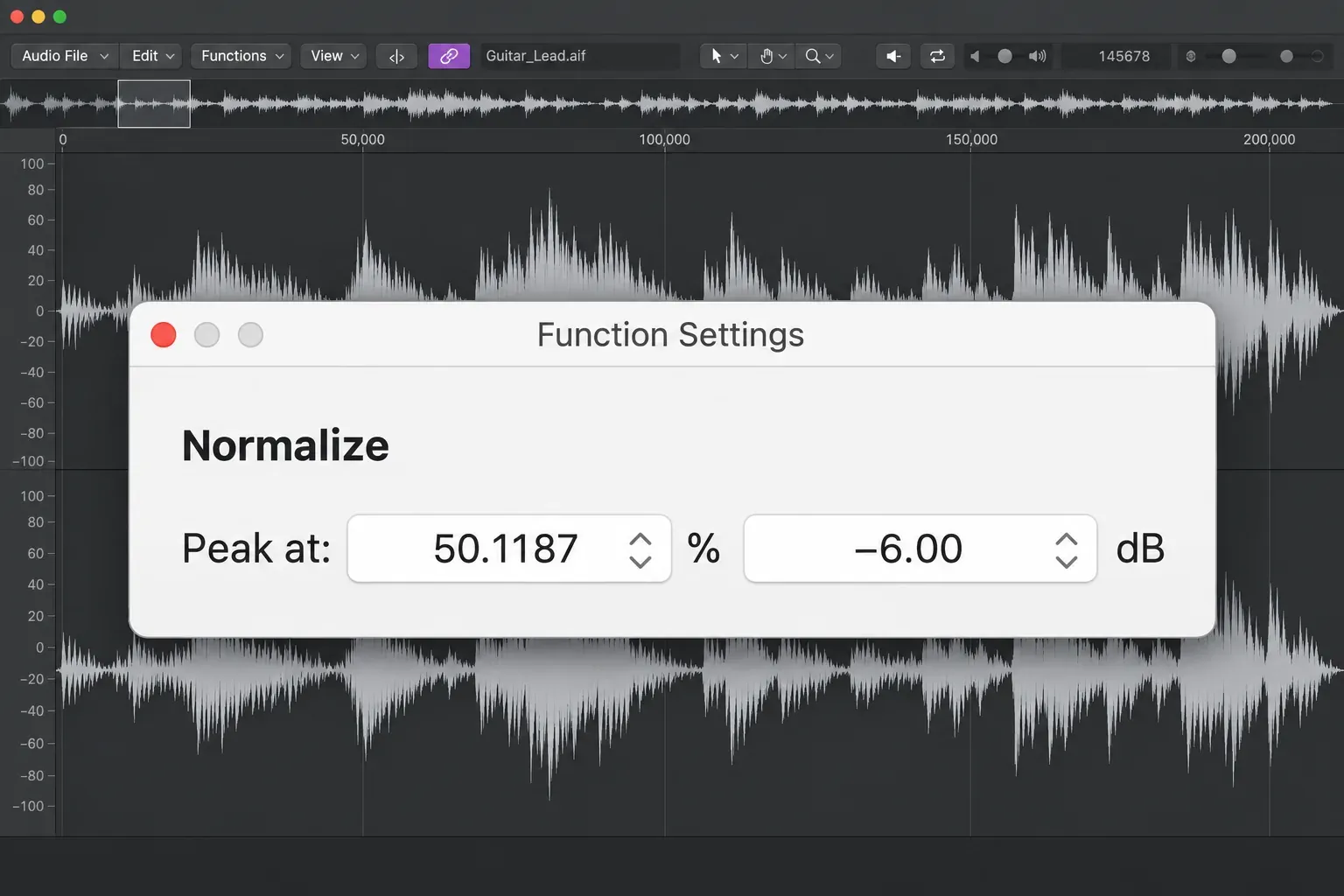
Apple describes file normalization as a uniform gain change across the selected passage: the dynamic relationships between its sample levels remain intact. It doesn’t compress the loud parts independently. The Function Settings are stored when you close Logic and apply across projects, so check the target before relying on a previous setup.
Leave room for later processing when it is needed. Apple suggests 3 to 6 dB or more of headroom for this file-processing workflow because a later EQ boost can push the signal higher. That’s guidance for preparing a file. It isn’t an instruction to make every finished mix peak at −6 dBFS.
Avoid starting or ending a destructive normalization selection in the middle of continuous audio. The newly adjusted section can jump in level at the boundary. Apple recommends boundaries around musical gaps. If you only need to balance a phrase in a project, region gain is the cleaner choice.
Choose Normalize deliberately when bouncing
Open File > Bounce > Project or Section and find the Normalize menu. Apple’s current bounce instructions distinguish three settings:
- Off: no normalization is applied.
- Overload Protection Only: Logic applies downward normalization when the bounce exceeds 0 dB. It does nothing to material below that level.
- On: Logic scans the project for the highest amplitude peak and adjusts the level toward the maximum possible peak without clipping.
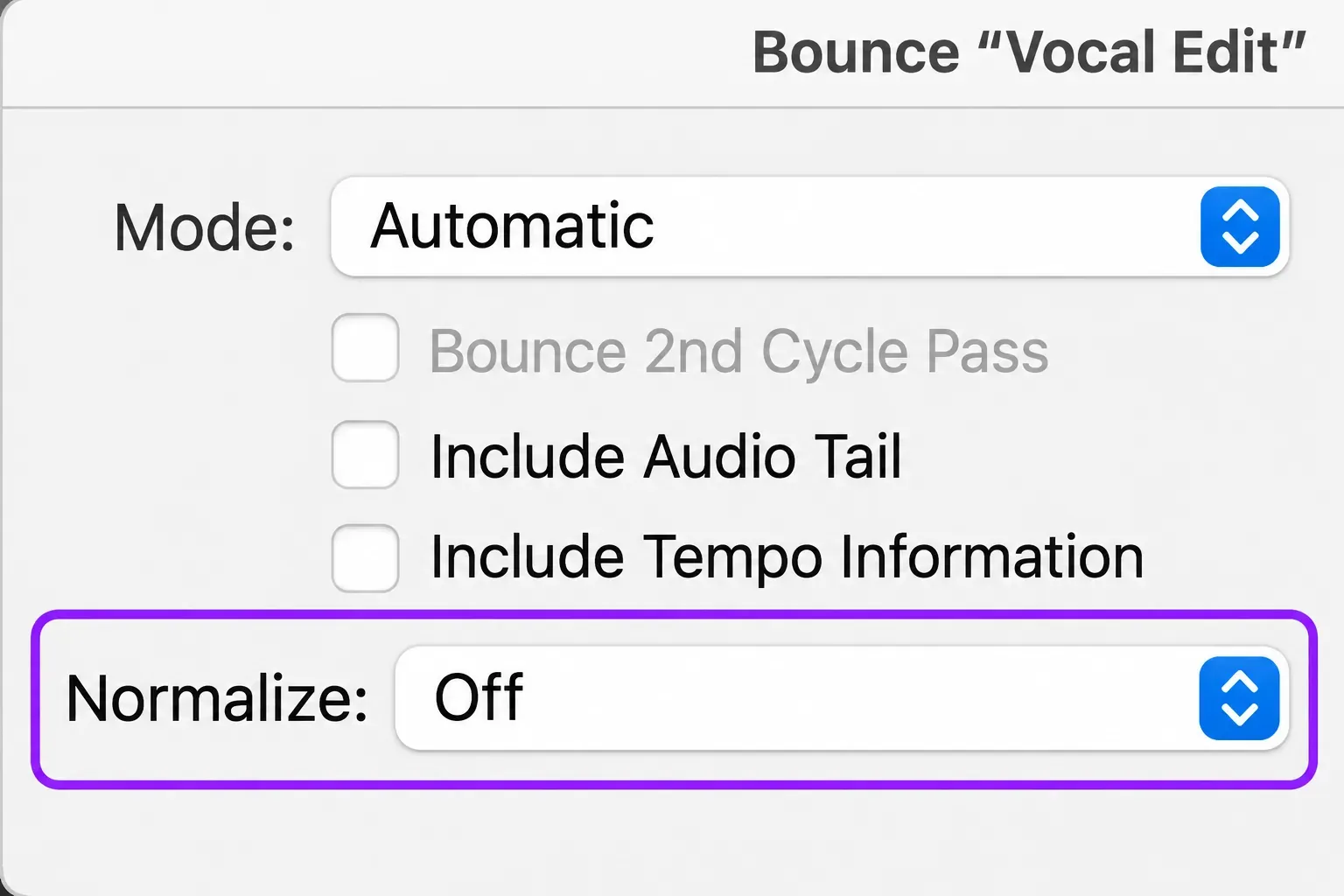
I’d use Off for a mix whose final level has already been set deliberately, or for a comparison between playback and an exported file. Otherwise, a normalization adjustment can make the export louder or quieter and complicate that comparison. The bounce versus playback troubleshooting guide covers routing, processing and player settings when the difference goes beyond level.
On is peak normalization, unlike the Region Gain dialog’s LUFS method. It doesn’t decide how dense, punchy or dynamically controlled a master should be. Overload Protection Only also isn’t a repair tool for distortion already printed into a recording or produced inside a processor. Fix that cause before exporting, and use the mastering workflow for final dynamics and delivery decisions.
Why normalization seems ineffective or unavailable
The highest peak reaches the target, but the audio still sounds quiet
A brief peak can determine the gain adjustment for a much quieter passage. If one click or transient dominates the region, making the target higher raises everything around it as well. Decide whether that peak needs editing, whether a Loudness target better fits the task, or whether you need deliberate dynamics processing. Repeated peak normalization won’t make a sparse performance dense.
The noise becomes more obvious
Normalization raises the noise along with the wanted recording. It doesn’t improve their ratio. A quiet recording with audible room noise may simply become a louder noisy recording. Stop increasing gain once that tradeoff becomes unhelpful, and handle recording quality or noise separately.
Normalize is unavailable in the Audio File Editor
Apple says the file Normalize command cannot be used on Apple Loops, surround files or regions on tracks with Flex Pitch enabled. Its documented alternatives are Normalize Region Gain, or bouncing the region in place and editing the resulting audio file. Do not change the original just to force an unavailable command.
The waveform does not look the way you expected
Check which function you used and what it analyzed. A peak anywhere in the selected passage can determine a common adjustment, so the quieter phrases won’t all grow to the same height. Apple also notes that the Gain tool’s change is visually reflected when the Audio Track Editor is open. Listen and inspect the gain setting before you take waveform size as proof that processing failed.
Undo the change that was actually made
For an unwanted region normalization, use Undo promptly. If you want to remove the region’s gain offset entirely, Option-click it with the Gain tool to reset to 0 dB. Those are different recovery goals: 0 dB won’t restore a custom −4 dB setting that existed before normalization. Note useful original gain values before batch adjustments. To put one back, double-click the Gain field in the Region inspector and type the value in dB.
For an Audio File Editor edit, Apple documents Edit > Undo or Command-Z. A file backup gives you another recovery route. Audio File > Revert to Backup completely replaces the current file with its backup, and Apple explicitly warns that this replacement cannot itself be undone. Check that the backup contains the version you want.
For unwanted bounce normalization, change the Normalize setting and bounce again. It’s an export decision, so resetting Region Gain is the wrong repair. Use the Record & Edit hub when the next job is source editing rather than final export.


