How to Split, Trim and Join Regions in Logic Pro
Cut at the playhead, trim without looping, and put regions back together. The right controls for audio and MIDI, plus the mistakes that make edits behave strangely.

To split a region in Logic Pro for Mac, select it in the Tracks area, put the playhead where you want the cut, and press Command-T. The menu equivalent is Edit > Split > Regions at Playhead. For several cuts under the same playhead, select all the regions you want divided first.
That’s usually enough for the first edit. The awkward part comes afterward: a corner starts looping instead of trimming, a cut lands slightly off the grid, or joining MIDI changes a sustained note. Here’s how to keep those decisions under control.
Make a clean split at the playhead
- Click the audio or MIDI region in the Tracks area. Check that the other regions you want to leave alone are not selected.
- Position the playhead inside the region. Zoom in if you need to see the exact beat or waveform position.
- Press Command-T, or choose Edit > Split > Regions at Playhead.
- Check the two new region edges before moving either piece. If the position is wrong, undo and set the playhead again.
Apple’s Tracks-area split instructions specify that the cut affects selected regions under the playhead. A region on another track doesn’t get divided merely because the playhead crosses it. If the command seems to do nothing, check the selection, then confirm that the playhead intersects it.
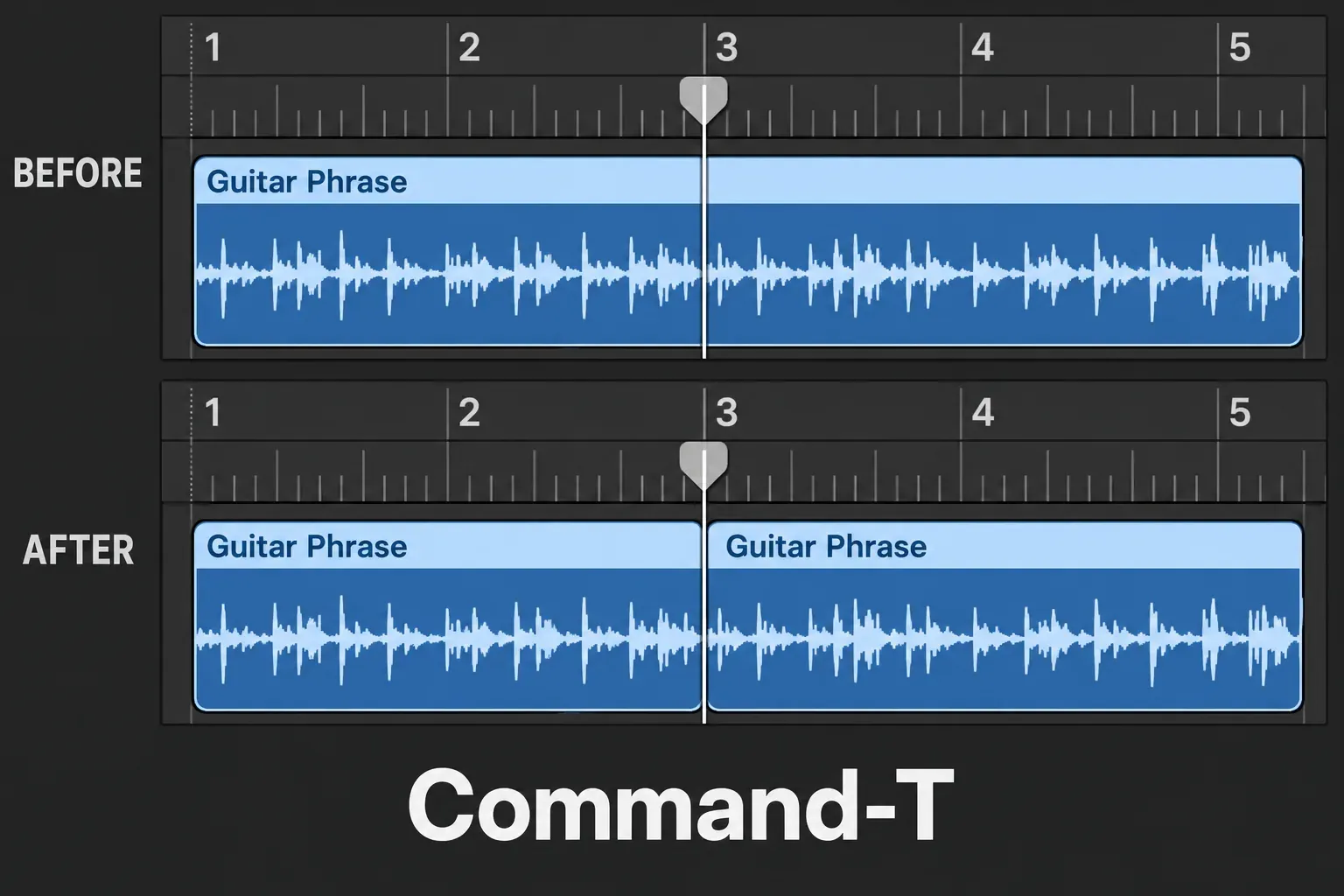
Command-T and Command-J are the defaults in Apple’s Main Window key-command table. A custom command set can differ. Use the named menu command if your shortcut does something unexpected. The Logic Pro shortcut guide covers the wider editing set.
I’d make the first cut with the playhead rather than guess with the mouse. Once you have a clear reference point, the Scissors tool is useful for working through the rest of a phrase.
Use Scissors for a point, or locators for a range
Choose the Scissors tool, then click and hold at the intended cut. Check the position in the help tag and release. Its movement follows the Snap grid, so a broad zoom and Smart snap may be too coarse for a small correction.
Hold Option while cutting with Scissors to divide the selected region into equal portions. The first segment sets the interval. For example, a 16-bar region starting at bar 1 can become eight 2-bar pieces by Option-cutting at the start of bar 3. Choose that first boundary carefully, because Option is a repeated-cut command. It isn’t a fine-positioning modifier.
For an audio cut that needs an audible cue, open the Audio Track Editor. Apple documents scrubbing across an audio region with the Scissors tool to find the point you want to cut. Use that editor workflow when the waveform alone is hard to judge. It’s separate from the Tracks-area click-to-cut and Option repeated-cut methods above.
To isolate a passage, set the left and right locators, select the region spanning them, and choose Edit > Split > Region(s) by Locators. Logic cuts at the two boundaries and selects the pieces between them. This is useful when you want the same range cut across several selected tracks.
You can define a range with the marquee ruler too. Choose View > Marquee Ruler in the Tracks area, drag in the thin marquee strip, then Control-click it and choose Split Regions/Events at Locators or Marquee Selection. Apple documents these range and equal-length splitting methods alongside the playhead command.
Splitting an arrangement region does not separate vocals, drums and bass inside a mixed recording. That is the separate Stem Splitter workflow.
Trim from the lower edge, not the loop corner
For a simple trim, use the Pointer tool and move to the region’s lower-left or lower-right edge. Wait for the Resize pointer, then drag inward to shorten the region. You don’t need to split and delete a piece every time you want a shorter start or ending.
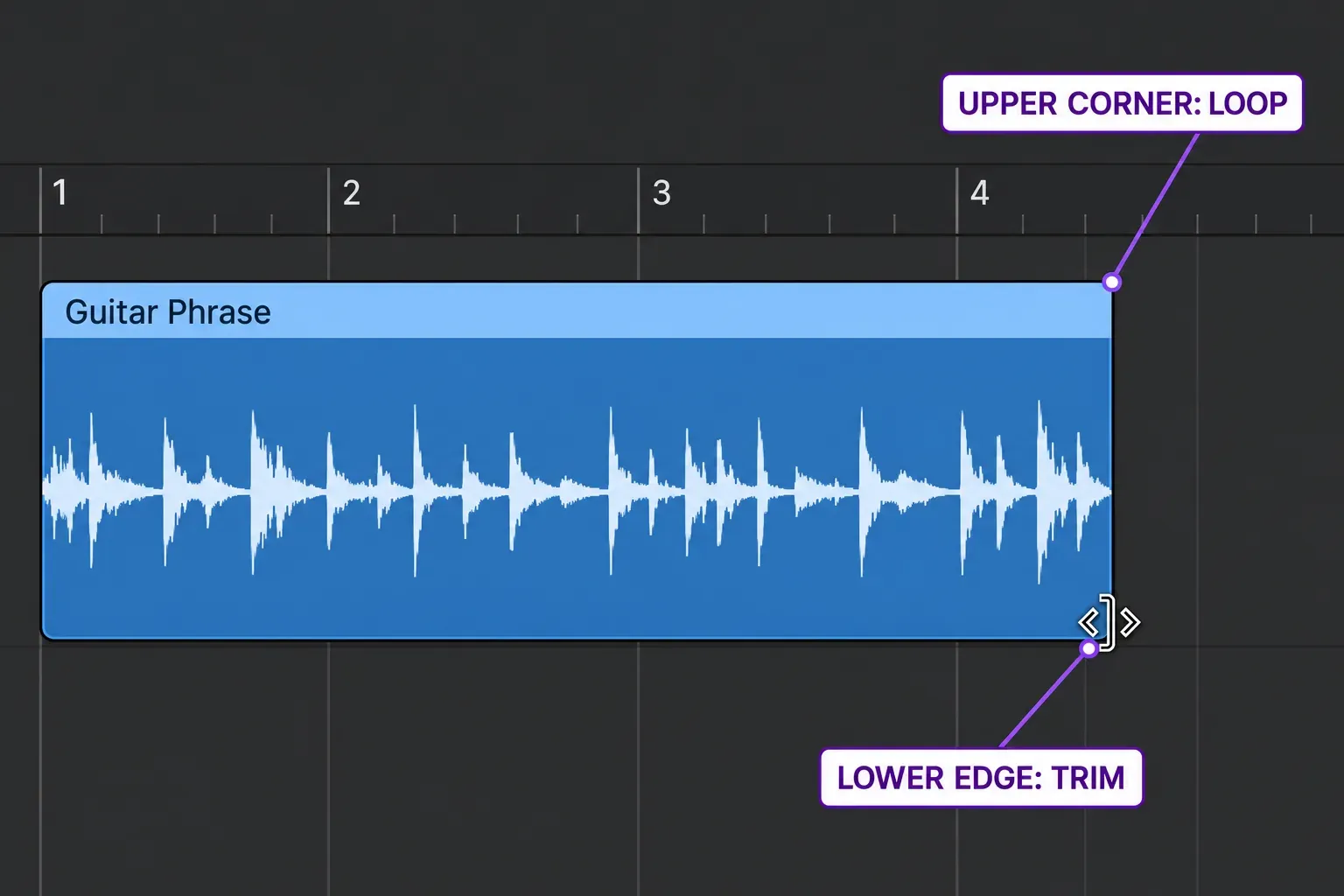
The upper-right corner is a common source of confusion. When there is a gap after the region, that corner gives you the Loop pointer. If dragging repeats the phrase, move down to the lower corner and look for Resize before dragging again.
Apple’s region-resizing reference also explains the length limits: MIDI regions can extend into silence, while audio regions can’t extend beyond their underlying audio file. If you trim an audio region inward, you can extend it back only as far as that source allows.
For two adjacent regions, place the Pointer or Pencil tool at the upper common edge. The Junction pointer lets you move the boundary while resizing both regions without opening a gap. This differs from dragging one lower corner, which changes that region alone.
If your goal is to move later material left and close a hole in the arrangement, use the gap-closing and Shuffle guide. Trimming, moving and removing project time are different edits. Choosing the wrong one can shift a phrase you meant to keep in place.
Choose the grid before you judge the cut
For a bar-aligned edit, set Snap to Bar and use Snap Regions to Absolute Value. For a beat boundary, choose Beat. Smart changes the effective editing increment with ruler divisions and zoom, so zooming can change how fine the edit feels.
Relative snapping preserves an existing offset from the grid. That is useful for a deliberately late phrase, but it can be confusing when you expect an edge to land exactly on the line. Apple’s Snap grid reference distinguishes Absolute from Relative and explains that sample-accurate edits require a high zoom level.
Audio has another consideration: a musical boundary may fall in the middle of a waveform. In the Audio Track Editor, Snap Edits to Zero Crossings helps place trimming and splitting edits at a zero crossing to reduce the risk of clicks. Apple documents that waveform-aware snapping option separately from the musical grid.
If an audio edit in that editor lands a little away from the intended line, check the zero-crossing option as well as grid Snap. Turning off the musical grid alone doesn’t tell you which waveform condition is active. Choose deliberately: exact alignment and a quiet edit boundary can require different positions. Listen across the edit, and don’t judge it by its appearance alone.
Decide what happens to MIDI notes at the boundary
An audio split divides a region that refers to recorded sound. A MIDI split also raises a note-length decision. Apple’s MIDI split behavior notes that notes at the split point are shortened and that overlapping notes can bring up a dialog with three choices:
- Keep: leave the notes unchanged. A note in the earlier region can continue beyond that region’s end unless Clip Length is active.
- Shorten: end the overlapping notes at the cut.
- Split: make two notes with the same pitch and velocity, sharing the original total length across the two regions.
Split creates two notes, so it can’t guarantee one uninterrupted held sound. For a sustained pad crossing an arrangement boundary, inspect the Piano Roll and decide whether the earlier note should continue, stop or restart. For a short drum pattern, the same decision may be much less audible.
Session Player regions have their own consequence: splitting can change the pattern depending on Fills, and the resulting segments can be edited independently. Check the transition after the cut. Don’t assume it will sound identical.
Join compatible regions when the edits are finished
Select the regions and press Command-J, or choose Edit > Bounce or Join > Join. Apple’s Join reference sets the basic conditions for audio: use adjacent, untransposed audio regions on the same track. Audio Apple Loops and transposed audio regions cannot be joined by this command.
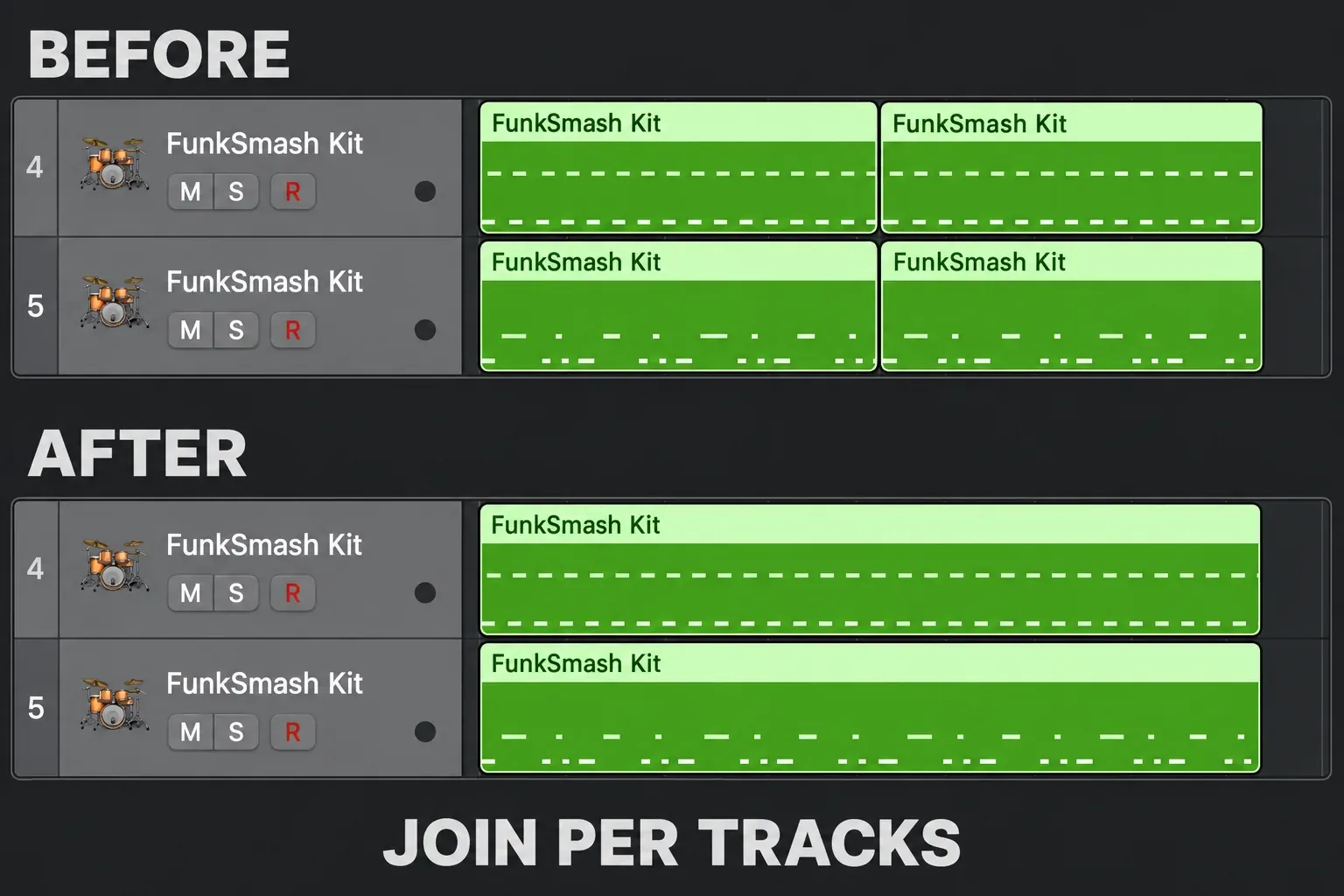
If you have selected pieces on several tracks and want to preserve the track layout, use Edit > Bounce or Join > Join per Tracks. It creates one joined region from the selected pieces on each track. Plain Join isn’t the command to choose casually for a multitrack consolidation.
Joining audio normally creates a new mixdown file and adds it to the Project Audio Browser. Under Apple’s no-mixdown exception, segments from the same original region can rejoin without a new file when they are on the same track and retain their original relative positions. After deleting unwanted sections, keep the unjoined edit and audition every former gap after Join. I wouldn’t take that same-source rejoin as proof that the gaps have been rendered as silence.
MIDI regions can join on the same track or adjacent tracks. The result takes the first original region’s name and track. If their Transposition, Velocity or Dynamics region parameters differ, Logic normalizes those differences before joining and gives the resulting region neutral parameters. Check the resulting notes and playback rather than comparing only the old region labels.
When an edit still behaves strangely
The region loops when I try to shorten it
Move the pointer to the lower corner. At the upper-right corner with a gap after the region, you are working with the Loop pointer. Start the drag only after Resize appears.
Command-T cuts more tracks than I expected
Check which regions are selected under the playhead. Select only the intended pieces before repeating the cut. For a deliberate multitrack edit, keep the selection explicit and inspect all resulting boundaries.
Join is unavailable, or it does not make the file I expected
Check region type, track, adjacency and transposition. An audio Apple Loop isn’t a normal joinable audio region. Segments restored to their original relative positions may join without a new mixdown file. If you need a rendered file with processing, that’s a bounce decision, and another split command won’t produce it.
The boundary clicks after I join audio
Joining isn’t an automatic cure for an audible boundary. Check the waveform edit and the crossfade settings. Apple’s Digital Mixdown crossfade controls are under Logic Pro > Settings > Audio > Editing. The preset Crossfade Time is 0 ms, which turns that crossfade off. Choose a suitable fade for the material and listen to the transition.
Leave the region pieces separate while you are still deciding where a phrase starts and ends. Join when the arrangement benefits from one region. The Record & Edit hub covers the next recording and editing tasks.


