How to Close Gaps Between Regions in Logic Pro
Pull regions together with Shuffle Left, keep gaps from opening while you edit, cut whole bars out of a song, or fill the space instead when the timing has to stay.

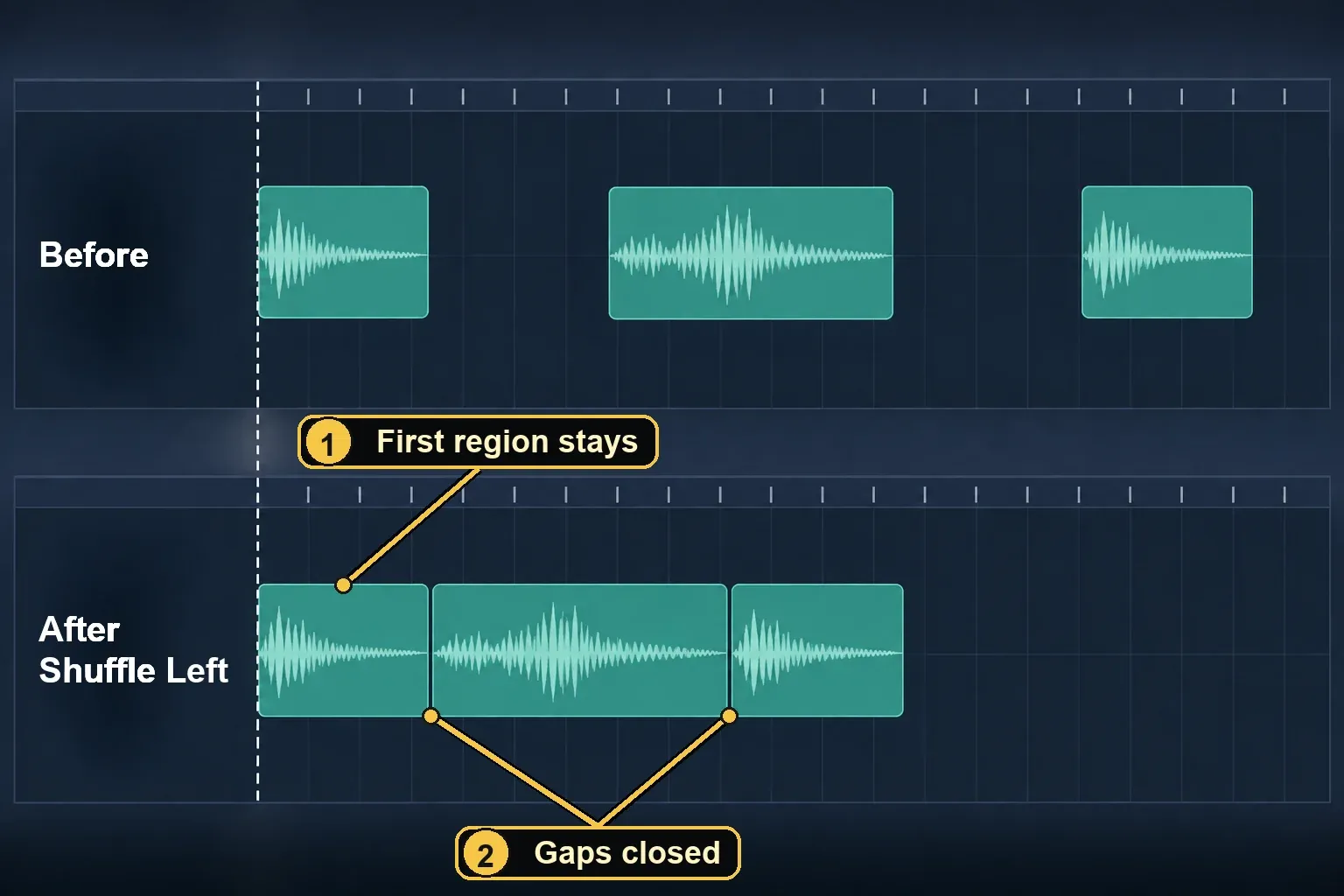
To close a gap between regions in Logic Pro, select the region before the gap and every region after it that should move, then choose Edit > Move > Shuffle Left, or press Option-Left Bracket ([) in the U.S. default key command set. The first selected region on each track stays where it is, and the selected regions after it slide left to close the space. Regions you didn’t select don’t move.
That handles the everyday case. Deleting a few bars so the rest of the song follows, letting regions grow into the space instead of moving, and taking the pauses out of speech each need a different command. They’re all below, along with the iPad steps.
Move the Regions or Fill the Space?
“Close the gap” can mean two different edits. You can move the later regions earlier so they touch the earlier ones, or you can leave everything where it starts and lengthen regions until the silence is covered. Pick the wrong one and the edit does exactly what it should, just not what you wanted.
| What you want | Command | What changes |
|---|---|---|
| Push regions together | Edit > Move > Shuffle Left | Selected regions move earlier; their lengths stay the same |
| Close gaps automatically while you edit | Shuffle L drag mode | A region dragged left snaps to the end of the one before it; resizing or deleting a region moves the regions that follow |
| Delete a region and pull the rest of the track in | Edit > Delete and Move | The regions that follow on the track move left |
| Remove bars from the whole song | Edit > Cut/Insert Time > Cut Section Between Locators | Everything after the right locator moves left, tempo and signature changes included |
| Keep every region where it starts | Edit > Trim > Region End to Next Region, or Fill within Locators | Regions get longer; nothing moves |
People mix these up all the time. In a 2015 Logic Pro Help thread, a user asked for a command that “automatically pulls regions together.” The first suggestion was Edit > Trim > Region End to Next Region, and the reply was “Nope that resizes it.” What they wanted was Shuffle.
Think about timing before you move anything. On music recorded to a click, moving a region moves it off the beat it was played on. Neil Spencer Bruce makes the same point in his ripple delete tip: “This isn’t really useful for music production, because you want your audio to stay in the same position because it is in time, but could be useful if cutting out a whole section of a song across multiple tracks.” My rule follows from that. Shuffle speech, sound design and loose material freely. In a song, cut whole sections across every track, or fill the gap instead.
Close a Gap With Shuffle Left on Mac
- Select the region just before the gap, then Shift-click every region after it that should move. You can also drag a rectangle around them.
- Choose Edit > Move > Shuffle Left, or press Option-Left Bracket ([).
- Play across each new join before you do anything else.
The selection decides the result. Apple’s guide to adding and removing gaps puts it in one sentence: “The first selected region on each track remains unchanged, and all subsequent selected regions are moved to the left.” Three things follow from that:
- Start the selection before the gap. If you select only the regions after it, the first of them becomes the fixed point and the gap in front of it stays open.
- Unselected regions stay put. Shuffle two regions in the middle of a track and the rest of the track doesn’t follow, which can leave a new gap further along.
- Each track closes up on its own. With regions selected on several tracks, Logic measures from the first selected region on each one. If the tracks had different gaps, they won’t line up afterward.
To select a whole track quickly, click its track header. To take everything to the right of a point, Apple’s page on selecting regions in the Tracks area lists Select All Following and Select All Following of Same Track in the Tracks area Edit menu. Selecting every region on a track and running Shuffle Left closes every gap on it, which is handy for a dialogue track and wrong for most music.
Shuffle Right works from the other end. Apple says the first selected region on each track moves to the right and the selected regions after it stay where they are.
Key Commands for Closing Gaps
These are U.S. defaults from Apple’s tables for the Tracks area and various editors, the main window Tracks area and global commands. An imported key command set or another keyboard language can change them.
| Command | U.S. default | Use it to |
|---|---|---|
| Shuffle Left | Option-Left Bracket ([) | Close gaps between selected regions |
| Shuffle Right | Option-Right Bracket (]) | Close gaps toward the right |
| Select All Following | Shift-F | Select everything after the current selection |
| Select All Following of Same Track/Pitch | Control-Shift-F | Select what follows on one track |
| Set Locators/Loop by Regions/Events/Marquee and Enable Cycle/Loop | Command-U | Set the locators from a selection |
| Select All Inside Locators | Shift-L | Select the regions between the locators |
| Cut Section Between Locators (Global) | Control-Command-X | Remove bars and close the gap on all tracks |
| Insert Silence Between Locators (Global) | Control-Command-I | Open a gap the length of the locators |
| Trim Region End to Next Region | Shift-Backslash (\) | Lengthen regions up to the next one |
| Trim Regions to Fill within Locators | Option-Backslash (\) | Lengthen regions between the locators |
| Remove Overlaps | Backslash (\) | Trim overlapping regions so they just touch |
| Join Regions/Notes | Command-J | Turn touching audio regions into one |
Delete and Move, Remove Silence and the Selection version of Cut Section Between Locators don’t appear in those tables, so they come without a default key. If one of them becomes part of your routine, give it a key yourself. Our Logic Pro keyboard shortcuts guide shows how to search, assign and back up key commands, and how to check what a combination already does.
Edit Without Leaving Gaps: Shuffle L Mode and Delete and Move
If you’re cutting a lot of material out of one track, you don’t have to tidy up after every edit. Open the Drag pop-up menu in the Tracks area menu bar and choose Shuffle L. Apple’s page on drag modes in Logic Pro describes what changes:
- Move: dragging a region left lines its start up with the end of the region before it, “so there is no space (gap) between them.”
- Resize: when you drag a region’s right edge, the regions that follow move by the change in length.
- Delete: the remaining regions on the track move by the length of the deleted region.
Two details catch people out. First, deleting a region in Shuffle L moves the rest of the track by that region’s length only, so any gap that was already there stays. Run Shuffle Left on those. Second, in both Shuffle modes, dragging one region over another swaps their positions. Shuffle R is the mirror image, with resizing a region’s left edge moving the regions before it. Set the Drag menu back to Overlap or No Overlap when you’re done, so a later trim or delete doesn’t pull the rest of a part along with it.
For a single delete, you don’t need the mode at all. Select the regions and choose Edit > Delete and Move. Apple’s page on deleting regions describes it as deleting the regions and moving all the regions that follow on the track. That’s the closest thing Logic has to the ripple delete you’d use in a video editor, and Shuffle L is the version that stays switched on.
The same page has two safety nets. Edit > Undo History takes you back to any earlier step, and a deleted audio region stays in the Project Audio Browser. If you delete a region you recorded since opening the project, Logic asks whether to delete its audio file too. Keep the file unless you’re sure.
Delete Bars and Close the Gap Across the Whole Song
To take a chorus out, or cut a four-bar dead spot from an intro, work with the locators so every track moves together:
- Set the locators around the bars you want to remove. Drag from left to right across the ruler, type positions into the locator fields, or make a Marquee selection over those bars and press Command-U.
- Choose Edit > Cut/Insert Time > Cut Section Between Locators, or press Control-Command-X.
- Play from a bar before the cut to a bar after it.
Apple’s example on the gaps page removes bars 17 to 20 on all tracks, so that “all regions (and bar changes, tempo changes, and global score symbols) from bar 21 on are moved four bars to the left.” Regions that cross a locator are split there, and the cut material goes to the Clipboard, so you can put it back somewhere else with Edit > Cut/Insert Time > Insert Section at Playhead.
The menu command and the Cut Section toolbar button act on every region between the locators, whatever is selected. To cut only selected regions, Apple points to the Cut Section Between Locators (Selection) key command, and when an edit is limited to selected regions, Logic asks whether to move global events such as bar changes and tempo changes too. Apple’s tip for making sure every track shifts, along with tempo, time signature changes and markers, is to select everything with Command-A before you cut. When a song has tempo changes, play the bars around the cut and check that the tempo still changes where it should.
Need the opposite? Insert Silence Between Locators (Control-Command-I) opens a gap the length of the locators and moves later material and tempo changes to the right.
If the song already has arrangement markers, deleting a section is quicker there. Select the marker and press Delete to clear the regions under it, then press Delete again to remove the marker. Apple’s page on editing arrangement markers says that when you move or delete a marker, “the sections to the right move left to fill the deleted section, closing up the empty space.” Turn off Lock on any locked tracks first. Also check that the Arrangement track doesn’t read Arrangement (suspended): Suspend Content Connection lets you move or delete markers without affecting the content under them. Our guide to arranging a song in Logic Pro covers marker editing in full.
Fill the Gap Without Moving Anything
When the space sits between parts that have to stay on the grid, keep the starts where they are and let the regions grow. Apple’s page on resizing regions covers both commands:
- Region End to Next Region. Select the regions and choose Edit > Trim > Region End to Next Region (Shift-Backslash). Each one is lengthened to end where the next region on its track starts.
- Fill within Locators. Set the locators, choose Edit > Select > All Inside Locators (Shift-L), then Edit > Trim > Fill within Locators (Option-Backslash). The selected regions grow to close the gaps between them. On each track, the last region inside the locators isn’t lengthened.
Both commands run into the same limit: “An audio region cannot be made longer than its underlying audio file.” A region that already plays to the end of its recording has nothing to grow into, so the gap after it stays. When there is more audio, lengthening brings back whatever was trimmed off, such as room noise, a breath or a count-in, so listen to the new tail.
Someone will suggest Option-dragging the region’s end. That’s time stretching, not trimming. Apple’s page on time stretching regions says Option-dragging the right edge of an audio region stretches or compresses the audio and replaces the region with a new audio file, and the stretch is limited to the current Tracks area grid setting. Every note in the region gets longer, so I’d keep it for pads, drones and ambience, not a part played in time.
One more kind of gap lives inside a region. If you flex a drum track with the Slicing algorithm, Logic moves slices without stretching them, so silence can open up between hits. Apple’s page on Flex Time algorithms says the Fill Gaps setting in the Track inspector fills those with a decay, and Decay sets its length. Our Flex Time guide covers the algorithms and markers.
Remove Pauses From Speech, Podcasts and Voiceover
Speech is where shuffling earns its keep. Logic does it in two steps: Remove Silence cuts the recording into pieces, and Shuffle Left closes the spaces.
- Control-click the audio region and choose Split > Remove Silence from Audio Region.
- Set Threshold and Minimum Time to accept as Silence while watching the region display, which updates as you change them.
- Use Pre Attack-Time and Post Release-Time so soft word starts and trailing endings aren’t clipped. Search Zero Crossings snaps each region’s start and end to the nearest zero crossing.
- Click OK. The track now holds separate regions at their original positions.
- Select the region before the first pause you want gone and the regions after it, then choose Shuffle Left.
Apple’s page on removing silent passages explains the two settings that matter most. A higher Threshold makes more, shorter regions. Very small Minimum Time values also make more regions, because short dips in level count as silence. Apple gives no starting values, just “Try different values.” Its page on uses for Remove Silence mentions dividing long spoken passages into sentences, words or syllables and moving them around in the Tracks area, which is this job.
Remove Silence on its own doesn’t close anything. It leaves every piece where it was spoken. That’s the right tool for a sung vocal: the silence is gone, the timing isn’t touched, and you never run Shuffle Left.
For an interview, don’t shuffle the whole file in one go. Taking out every pause also takes out the breaths and beats where a listener catches up or one person hands over to another, and the result sounds rushed. Shuffle one stretch, listen, then move on.
Listen to Every Join
Each closed gap creates a new edit, and an edit can click. Work through these:
- Overlaps. When two audio regions on the same track overlap, only the later one is heard. Edit > Trim > Remove Overlaps (Backslash) shortens the earlier region of each overlapping pair. Select only the earlier region of a pair and Apple says the later one is shortened instead.
- The cut point. Once two regions touch, put the Pointer tool over the upper edge where they meet. The Junction pointer lets you move the edit left or right, and both regions resize with no gap between them.
- Crossfades. A short crossfade helps where the waveform jumps. Our guide to fades in Logic Pro shows both ways: drag the Fade tool across the junction, or use the X-Fade drag mode and overlap the regions slightly.
- Join. Edit > Bounce or Join > Join (Command-J) turns touching audio regions into one. Apple’s page on joining regions says it works on untransposed audio regions next to each other on the same track, not Apple Loops, and writes a new audio file to the Project Audio Browser. Join can crossfade the seams, but the preset Crossfade Time is 0 ms, which means no crossfade. Set a time in Logic Pro > Settings > Audio > Editing before you join if you want one.
If the gap opened inside a comp, fix it in the take folder, not on the timeline. Our take folders and Quick Swipe Comping guide explains how to move a comp boundary without leaving silence.
Why the Gap Didn’t Close
- The first region didn’t move. That’s by design. Shuffle Left keeps the first selected region on each track in place. Start the selection one region earlier.
- Part of the track moved and part didn’t. Shuffle only moves selected regions. Use Select All Following of Same Track, or click the track header if every gap on the track should close.
- Tracks drifted out of sync. Shuffle works track by track. For a cut that must keep every part aligned, use Cut Section Between Locators instead.
- Tempo and markers stayed behind. Shuffle Left moves regions only. Cut Section Between Locators moves the tempo and signature changes as well.
- A region won’t get longer. It already plays to the end of its audio file, or it’s the last region inside the locators, which Fill within Locators leaves alone.
- The key command does nothing. Click in the Tracks area first, then press Option-K and search for Shuffle Left by name to see what your active set assigns.
- Deleting an arrangement marker left an empty space. Check for locked tracks, and check whether the Arrangement track reads Arrangement (suspended).
Edit > Undo reverses the last step, and Edit > Undo History takes you further back.
Close Gaps in Logic Pro for iPad
The iPad app uses the same Shuffle commands from a menu:
- Select the regions in the Tracks area.
- Tap one of the selected regions, then tap Move.
- Tap Shuffle Left. Shuffle Right is in the same menu.
Apple’s iPad guide to removing gaps describes the result as shuffling the regions “to remove all space between them and the preceding or following regions on the track or tracks.” For the rest of the touch workflow, see our Logic Pro for iPad guide.
Closing Gaps in Logic Pro: FAQ
Does Logic Pro have ripple delete?
Not by that name. Edit > Delete and Move deletes the selected regions and moves the regions that follow on the track. Shuffle L drag mode does the same on every delete and right-edge resize, and a region you drag left snaps to the end of the one before it, until you switch the mode off. For a cut across every track, use Cut Section Between Locators.
What is the shortcut to close gaps in Logic Pro?
Option-Left Bracket ([) runs Shuffle Left in the U.S. default key command set. Control-Command-X cuts the section between the locators and closes that gap on all tracks.
How do I remove the silence between words in a vocal or podcast?
Control-click the region, choose Split > Remove Silence from Audio Region, set the threshold, then select the pieces and choose Shuffle Left. For a sung vocal recorded in time, stop after Remove Silence so the timing stays.
Why didn’t the first region move?
Shuffle Left uses the first selected region on each track as the fixed point. Include the region before the gap in your selection, and the gap closes.
Once the edit plays cleanly, the next steps in the editing chain, from comping to Flex Time, are collected in the Recording & Editing hub.


