How to Record Multiple Audio Tracks at Once in Logic Pro
Capture separate live sources in one pass: the input map, R buttons, group settings and monitoring checks that make multitrack recording work.

To record several audio tracks at once in Logic Pro for Mac, give each track a different interface input, turn on its Record Enable button, then press the transport Record command. You should see a new region on every armed track. If enabling the second R switches off the first, check the inputs before changing anything else.
A vocal and guitar performance needs two separately routed input channels. Four drum microphones need four. A stereo keyboard uses two channels, even when you record it onto one stereo track. I’d write that input map before creating the tracks: it prevents a convincing headphone mix from hiding a missing recording.
This is simultaneous capture of live audio, with each source available for editing afterward. Recording another take of one part and layering software instruments are different jobs. For the complete first-time device, gain and recording-format setup, start with the Logic Pro audio-recording guide.
Map the sources to real input channels
Apple’s multitrack recording instructions require a multi-input audio interface for multiple input sources. Creating more tracks doesn’t give a one-channel device more independent recordings. A mixer that sends only its stereo mix over USB also can’t give Logic a separate track for every microphone connected to the mixer.
For a basic two-input interface, a useful map is Vocal → Input 1 and Guitar → Input 2, with both tracks mono. For a keyboard’s left and right outputs connected to inputs 3 and 4, use one stereo track assigned to that pair. These are examples. The numbers must match the channels your selected device exposes.
Open Logic Pro > Settings > Audio > Devices and choose the interface under Input Device. Choose the device feeding the headphones under Output Device, then recheck Input Device. Apple notes that selecting an output device with inputs can also change the input selection in its Audio Devices settings.
One USB cable can carry several separate channels from a multichannel interface. What counts is its recording I/O and routing. The number of cables entering the Mac doesn’t. If you combine devices or use custom interface-mixer routing, follow the actual channel map. The Audio MIDI Setup and Aggregate Device guide handles that configuration. You don’t need an aggregate merely because one interface has several inputs.
Create the tracks with ascending inputs
- Press Option-Command-N to open the New Tracks dialog.
- Choose Audio, then Mic or Line, or Guitar or Bass if you want that patch route. Open Details.
- Choose the first Audio Input and the Audio Output for your monitoring path.
- Enter the number in Number of tracks to create. For a run of mono inputs, select Ascending below Audio Input to assign successive channels.
- Click Create, rename the tracks for their sources, then inspect each channel strip’s Input slot.
The current track-creation guide documents Ascending and the option to enable recording in this dialog. Ascending saves repeated menu choices, but it doesn’t validate your cabling. Check every result, especially if your session mixes mono microphones and stereo sources.
For one microphone or one guitar cable, choose a mono input. A genuine left/right source needs the matching stereo pair. Apple’s channel-format reference identifies the one-circle mono and two-circle stereo buttons. Putting a vocal and guitar into the left and right sides of one stereo track is not the same arrangement as capturing them onto two independently routed mono tracks.
Make every required R button visible and active
Open Track > Configure Track Header, or press Option-T, and show Record Enable. Apple’s track-header instructions also let you show controls through the Control-click shortcut menu. The multitrack recording page specifically requires the R buttons to be visible.
Click R on every audio track you intend to capture. Each record-enabled button blinks red while waiting for recording. Selecting several track names doesn’t replace this check. Keep imported backing tracks unarmed so you don’t record over them.
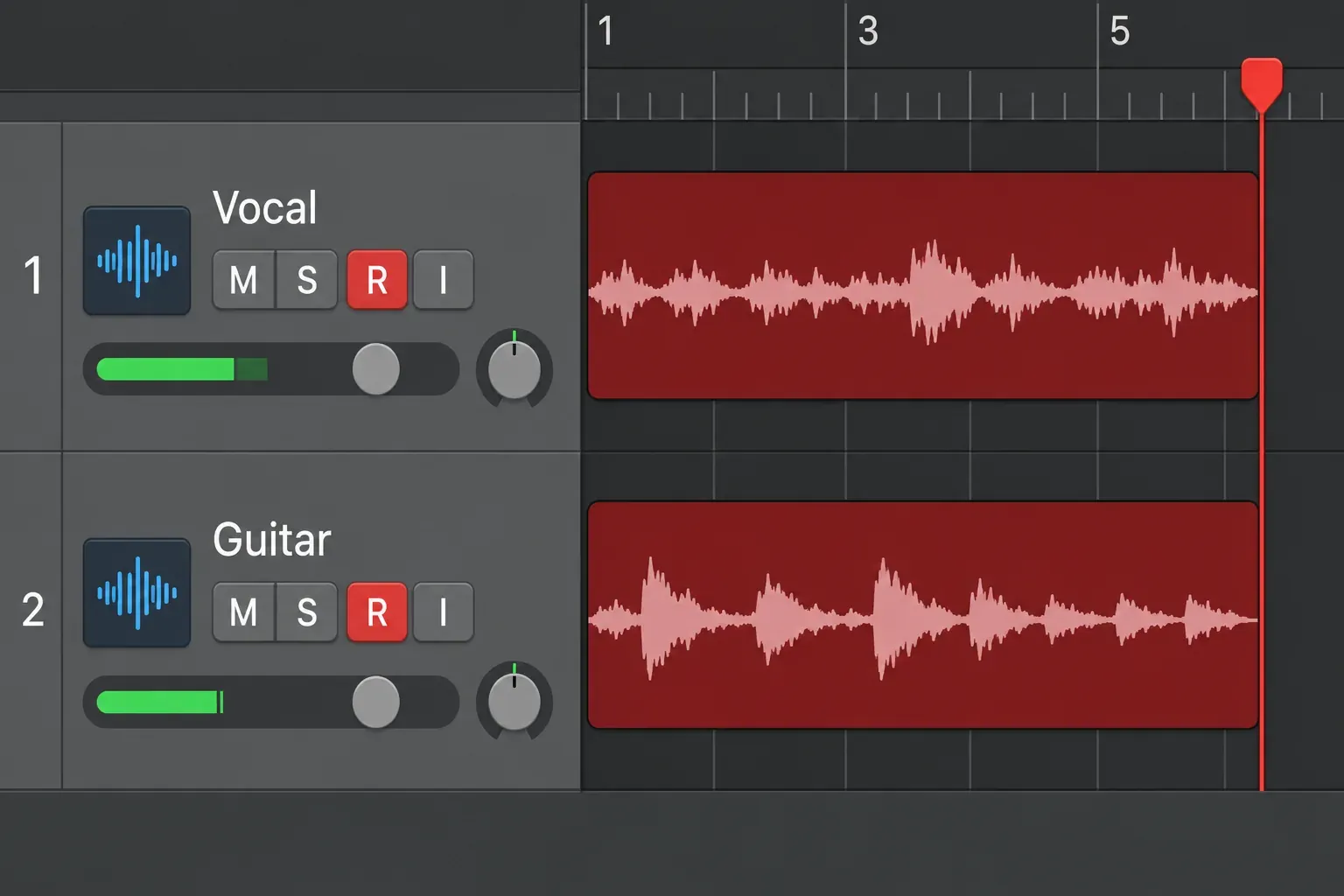
If only one R stays enabled, inspect the Input slots. Apple states in its Group Settings reference that multiple channel strips can be record-ready simultaneously only when they use different inputs. Assign the vocal to its channel and the guitar to its channel. Clicking the buttons again and again won’t fix two tracks aimed at the same input.
For one live source that you want to process two ways, I’d record it once, then copy the region to another track. That preserves the performance without creating an unnecessary live routing problem. Capturing separate dry and processed paths through buses is a different signal-flow job. It’s no reason to give two ordinary capture tracks the same hardware input.
Use a Mixer group when many tracks must arm together
Arming each track separately is enough for a small session. For a drum kit or recurring live setup, a Mixer group can make the record-ready state follow one control. This is optional. You don’t need to build a Track Stack to record several audio inputs.
In the Mixer, click a channel strip’s Group slot and choose a group marked (new), then assign the other participating channel strips to that same group. Open Mix > Group Settings, name the group and enable Record. Keep Groups active and that group’s On checkbox selected. Apple’s Mixer group overview explains how a group links selected channel-strip behaviors.
Select only the behaviors you want linked. For this job, Record is the relevant setting: changing one member’s record-ready state changes the others. Check each channel strip’s input assignment separately, and avoid linking Volume or Pan merely because the tracks belong to one performance.
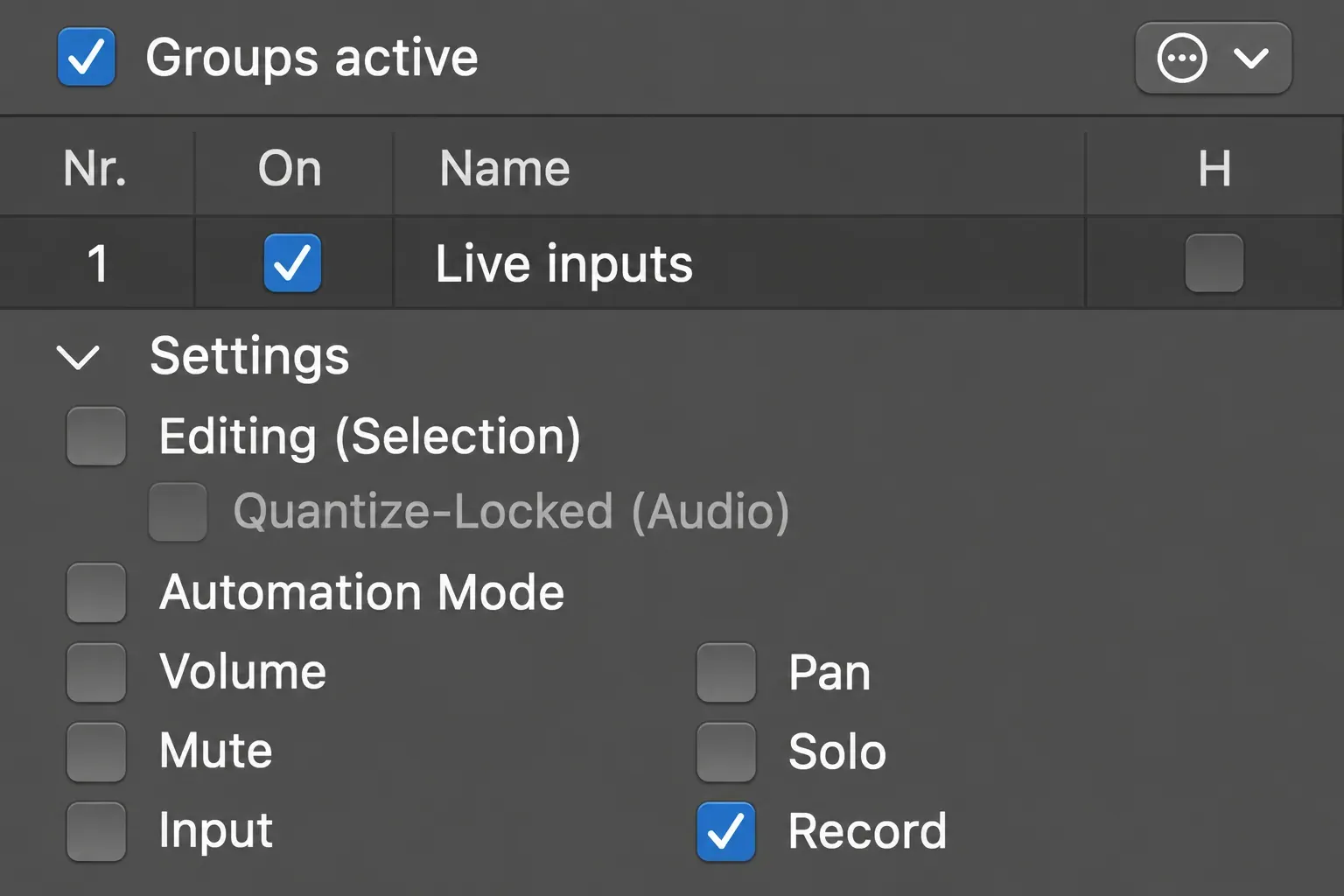
The distinct-input rule still applies inside a group. After changing any group setting, look across all R buttons. Don’t assume the group did what you intended. Editing (Selection) and Quantize-Locked (Audio) serve later editing decisions. They aren’t prerequisites for capture.
Hear every performer without confusing monitoring with capture
R arms; I monitors; transport Record captures. A track can be audible without being recorded. Conversely, direct monitoring through the interface can let a performer hear a source without Logic’s I button being on.
Choose one monitoring route for each live source. For direct hardware monitoring, turn off Software Monitoring in Settings > Audio > General. For a Logic headphone mix with plug-ins, enable Software Monitoring and the relevant I buttons, then disable the competing direct path. Apple describes this distinction in its General Audio settings.
If you hear only the focused track through Logic, check Input monitoring only for the focused track, and only when input monitoring is enabled in that pane. With it unselected, incoming audio is heard on all tracks whose Input Monitoring buttons are selected. This controls what you hear. It doesn’t decide which input belongs to each recording.
Use headphones around open microphones. Set each input’s gain at the interface or preamp while the performer plays the loudest expected passage. Turning down a Logic fader changes the monitoring level. It doesn’t lower the hardware input being recorded. If the software path feels late, the Logic Pro latency guide covers buffers and plug-in delay.
Record a short pass and check every track
For a straightforward continuous first pass, leave Cycle off. Place the playhead where recording should start, set a count-in if needed, and confirm that every required R is active and every source reaches its assigned track.
- Ask each performer to make a recognizably different sound in turn. Confirm the expected track responds; microphone bleed can make other meters move too.
- Click the control bar Record button or press R. A new audio region should appear on each record-enabled track.
- Record a short passage, then press Space to stop.
- Disable record readiness and input monitoring for playback, and stop the live sources. Solo each new region, then listen to the tracks together.
- Check for the wrong source, silence, clipping, one-sided stereo or doubled monitoring. Fix the affected channel before the full performance.
For repeated cycle passes, choose your overlap behavior deliberately in Settings > Recording > Overlapping Track Recordings. Apple’s multitrack page describes Create Tracks and Mute for Audio Cycle On. Take folders and newly created tracks answer different organizational needs. The punch and cycle recording guide handles those passes in detail.
Choose File > Save. When saving or collecting the project, include the audio assets you need to move with it, as Apple explains in its project-saving instructions. Keep the original recorded group intact before comping or timing edits. A meter that moved during the session is not a substitute for checking the saved recordings.
For a recurring group, keep a separate clean setup and choose File > Save As Template. Leave the performance in its saved recording project. The template should contain only the tracks, routing and group settings you want to reuse. Open it later from My Templates in the Project Chooser. After changing interfaces or cabling, repeat the physical-input check: a template doesn’t guarantee that the same channel number still carries the same source.
When the tracks do not record together
Only one track gets a region
Check every R button and Input slot. Show Record Enable in the track headers, assign different inputs, then arm them again. If a Mixer group is involved, check Groups active, the group’s On state and Record setting. Press the transport Record command, because Space starts ordinary playback.
Every track contains the same source
Trace the channel map from the physical connections through the interface’s mixer to Logic’s Input slots. Separate tracks cannot undo a microphone mix already combined before the signal reaches Logic. Check that the interface exposes individual channels rather than a shared mix or loopback feed.
One track is silent or only audible while recording
Check that source’s cable, input gain and selected channel first. For playback, stop the live source and turn off I so you hear the recorded region. If no recording was captured, use the recording signal-path diagnostic. When the region exists but you can’t hear it, check its mute/solo state and output route.
A few setup questions
Do I need two USB audio interfaces for vocal and guitar?
No, provided one interface exposes enough appropriate separate input channels. Use two mono tracks with different inputs. Combining two devices is a separate Aggregate Device setup with its own channel and clock considerations.
How many tracks can I record simultaneously?
For independent live sources, count the input channels actually available from the selected device and routing, then account for stereo pairs. The track count alone is not a useful hardware limit. Your Mac and session must also sustain the chosen recording and monitoring workload.
Does this work in Logic Pro for iPad?
Yes. Apple’s iPad multitrack instructions also require different inputs and a Record Enable button for every capture track. Use the iPad’s input and control-bar controls; the Mac menus above do not apply there.


