Logic Pro Stem Splitter: Requirements, Workflow and Quality
A practical Logic Pro Stem Splitter guide covering supported hardware, the six-part Mac and iPad workflow, greyed-out fixes and honest quality limits.

Can Logic Pro split stems? Yes. On a supported Mac or iPad, Stem Splitter can turn one mixed audio region into six controllable parts: Vocals, Drums, Bass, Guitar, Piano and Other. It is most useful when the multitrack session is gone and you need to rebalance a rehearsal, study an arrangement, replace drums or recover one part for a new production. It is not the same as receiving the original multitracks, and it does not make a copyrighted recording yours to reuse.
Checked September 13, 2026 against Apple’s Logic Pro 12.3 User Guide for Mac and Logic Pro for iPad 3.3 User Guide. The iPad hardware wording still differs between Apple’s guide and its App Store listing; the requirements section explains that limit.
Logic Pro Stem Splitter requirements
Stem Splitter needs an Apple-silicon Mac with M1 or later, running Logic natively. It is unavailable on Intel and in Rosetta. The original four-part tool arrived with Logic Pro 11 in May 2024. Apple’s May 2025 update announcement documents the addition of Guitar and Piano, presets, submix control and improved separation in Logic Pro 11.2. The current guide retains those six parts.
| Platform | What Apple currently says | Safe reading |
|---|---|---|
| Mac | M1 or later; unavailable on Intel and in Rosetta | An Apple silicon Mac running Logic natively is required. |
| iPad | User Guide: M1 or later. US App Store footnote: A17 Pro or later. | Apple’s guide documents M1-or-later iPad chips. For A17 Pro, confirm Stem Splitter specifically with Apple or test it in the installed app on that device. General app compatibility does not settle this feature requirement. |
| Audio | An audio region in the Tracks area | MIDI, Drummer and software-instrument regions must be bounced or recorded to audio first. |
The iPad discrepancy matters. Apple’s current User Guide says the feature is available on iPads with an M1 or later Apple silicon processor, while the current US App Store listing for Logic Pro attaches an “A17 Pro chip or later” footnote to Stem Splitter. Apple’s 2025 announcement still used M1-or-later wording. M-series iPads from M1 onward meet the guide’s chip requirement; the app’s other requirements still apply. If the purchase depends on an iPad mini with A17 Pro, ask Apple to confirm Stem Splitter support or test the feature in the installed app on that exact device before relying on it. The general App Store compatibility list alone does not confirm every feature.
If you’re checking a Mac before upgrading, use the broader Logic Pro system requirements alongside this feature-specific limit.
How to use Stem Splitter on Mac
- Put the source on an audio track. Import the audio file or select a recorded region, then save the project with its audio. Keep an untouched copy of irreplaceable material.
- Control-click the audio region. Choose Processing > Stem Splitter. Selecting only the track header is not enough; Logic needs an eligible region.
- Choose the parts you need. Select individual stems or a preset. If two or more parts are unselected and you want them together on one track, enable the Submix checkbox. Use More to exclude any unwanted parts from that submix.
- Click Apply. Logic analyzes the region and creates a summing stack below the source track.
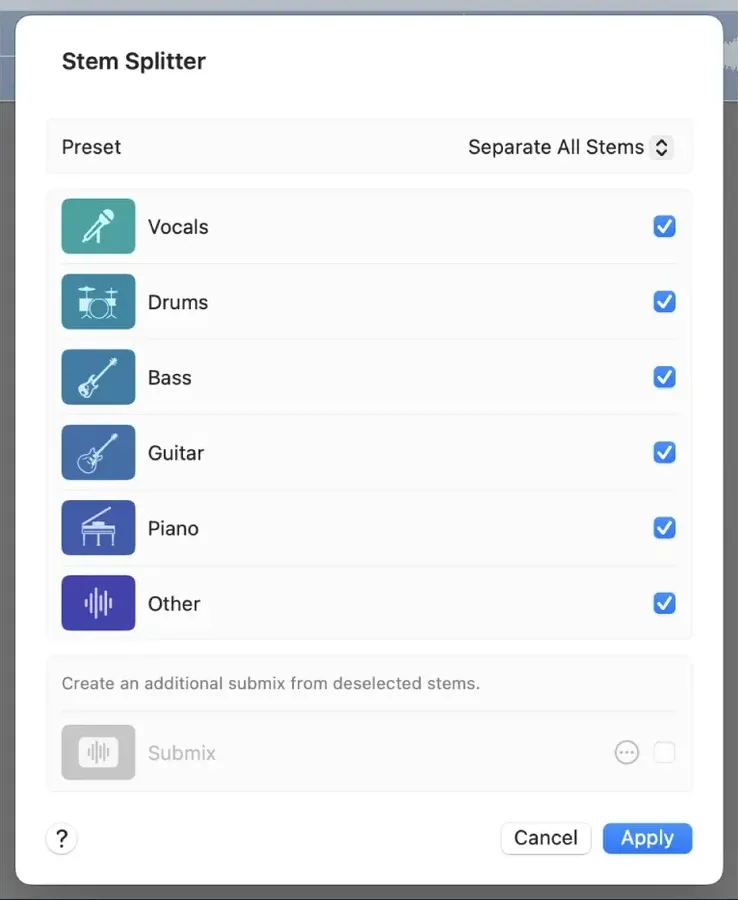
For a short repair, work on a copied passage rather than processing the whole song. For a full-song remix, keep the complete region and move extracted tracks together so their timing stays aligned. Stem Splitter preset commands also appear in the Key Commands window; Apple leaves them unassigned by default.
Six parts, presets and the submix
The six labels are separation categories, not six original studio tracks. Two singers can remain in Vocals together, and a drum kit stays in Drums rather than becoming separate kick and snare tracks. The table gives examples to listen for, not a guarantee of what the model will detect in every recording.
| Part | Likely content | What can still leak through |
|---|---|---|
| Vocals | Lead and backing voices | Reverb tails, instruments sharing the vocal range |
| Drums | Kit and percussion transients | Rhythmic guitar, room sound, sharp synth attacks |
| Bass | Bass guitar and low synth lines | Kick fundamentals and other low-frequency material |
| Guitar | Acoustic and electric guitars | Piano, synths and vocals in the same midrange |
| Piano | Acoustic and electric piano | Guitar or bright harmonic material |
| Other | Everything the named categories do not capture | Strings, horns, pads and effects may remain grouped together |
Acapella is a quick way to request the vocal. Instrumental removes the vocal from the selected output. Instrumental with Vocals keeps a useful combined bed while making the vocal separately controllable. A custom selection is clearer when you know the edit: for example, extract Vocals and Drums individually and let Bass, Guitar, Piano and Other remain together.
When two or more parts are deselected, Logic offers a combined submix. Enable Submix to extract it, then open More if you want to leave out any of its parts. With Submix off, those unselected parts are not included in the output. For six independent tracks, select all six categories.
What Logic creates after you click Apply
Logic doesn’t overwrite the source. It mutes the original region and puts the extracted tracks inside a summing stack underneath it. That layout gives you one parent fader for the separated result while keeping each part editable.
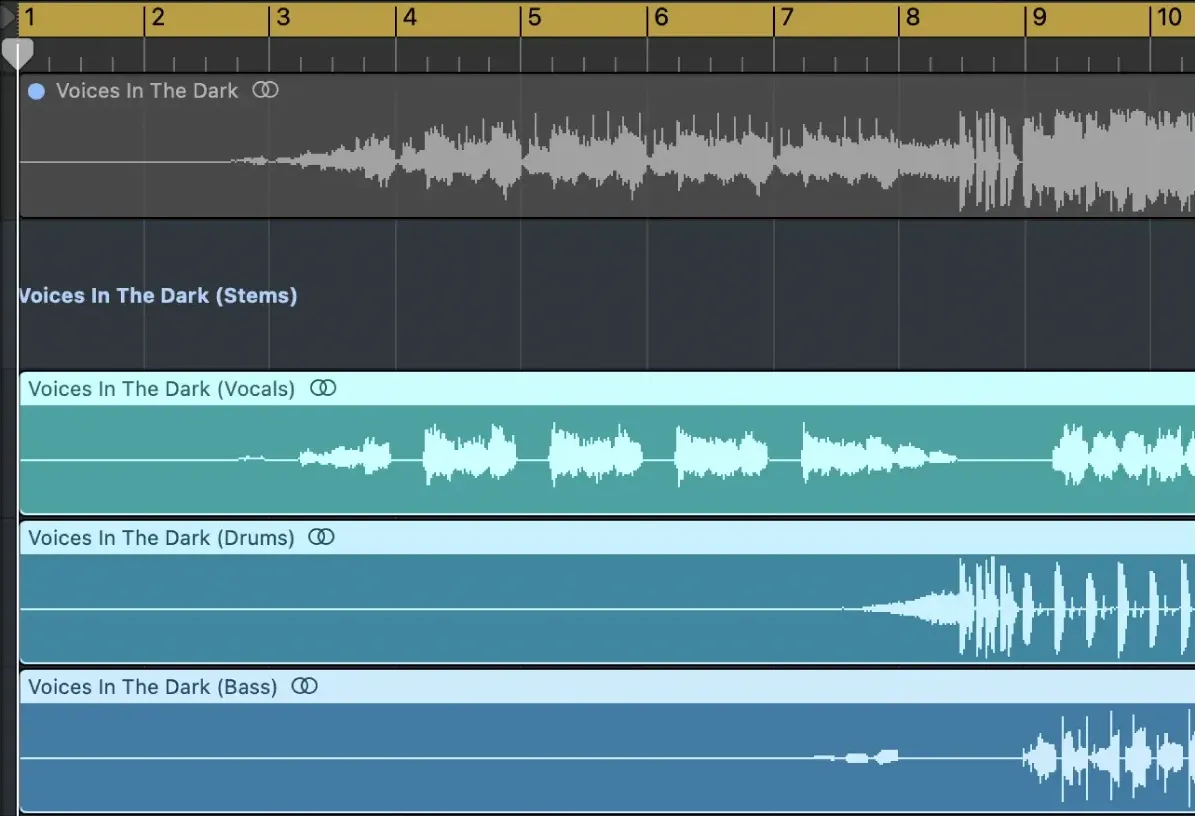
Do three checks before editing:
- Compare one version at a time. Unmute the original region, then alternate between the source track and the extracted stack using mute or solo. Do not play both together. Match their levels before judging the difference.
- Listen to the extracted part alone to locate bleed, then listen again in the new arrangement. An artifact that sounds ugly in solo may disappear under the replacement instruments.
- Save the project before destructive processing, and leave the original region available until delivery.
To deliver separate audio files, clean up the tracks first, then follow how to export stems in Logic Pro. Stem Splitter separates a mixed recording. Exporting stems is a different task: choosing which tracks or buses to print and how to deliver them.
Stem quality: where it works and where it breaks
Stem Splitter estimates the sources inside a finished mix; it does not recover the original multitrack session. Bleed and changed timbre can remain even when the combined stems sound close to the source. Keep the original mix for comparison.
Start with the best source recording available. Listen for bleed where guitars, piano, synth pads and stacked vocals share similar tones. Compare room sound and reverb tails in the original, the isolated parts and the combined stack. Check whether each tail stays with its source, leaks into another part or changes during separation.
The useful question isn’t “Does the soloed stem sound perfect?” It’s “Does it survive the job?” A vocal used as a quiet texture has a different threshold from an exposed acapella. A drum stem used only to trigger replacement samples can tolerate more artifacts than a drum stem placed at the front of a remix.
When a part sounds brittle, first compare it against the untouched source at the same level. Then try the separated track with the new backing. To compare another separator, process the original mixed recording in a tool such as RX 12 Music Rebalance. Try a small automation edit around an exposed artifact, then compare it with the unprocessed stem in context. If one exposed phrase remains unusable, change the arrangement or retain the original mix for that passage. Bringing the original back also brings back its other instruments, so check the level and tone. Do not assume that repeating the extraction will improve it.
Independent testing reaches the same practical conclusion. Sound On Sound’s October 2025 workflow guide shows practical remixing, archive and restoration uses, and notes that the summed result can still differ slightly from the original. A January 2026 MusicRadar comparison of 11 stem separators ranked Logic first after testing the same three songs, but its verdict still warned that no tool was perfect and that similar tones remained difficult to separate. Those tests are directional rather than universal: the sources, versions and scoring methods are limited.
Start with the best original recording available, using the original WAV or AIFF when you have it rather than a low-bitrate copy of a copy. Split an untreated copy as a baseline. If you try limiting, stereo widening or EQ before splitting, compare the extractions rather than assuming the processed input will work better.
Using Stem Splitter on iPad
On iPad, tap an audio region in the Tracks area to select it, tap it again, then choose Stem Splitter. Select a preset or the individual parts. To keep two or more unselected parts together, enable Submix and use More to refine its contents. Tap Apply. Logic creates a summing stack beneath the source and mutes the original region.
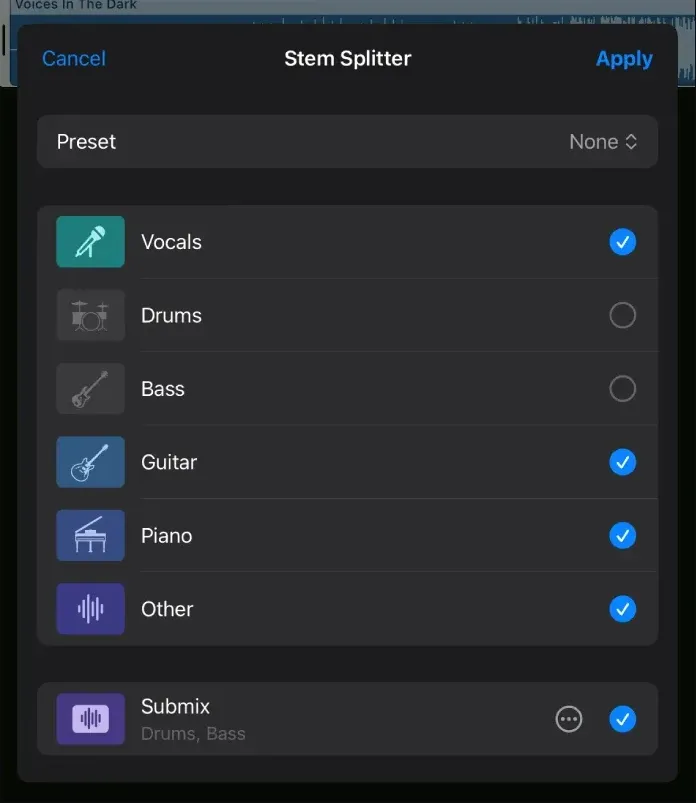
In the selection pictured above, Vocals, Guitar, Piano and Other are separate outputs; the enabled submix contains Drums and Bass. After processing, preserve the muted original and compare it with the extracted tracks one version at a time, at matched levels.
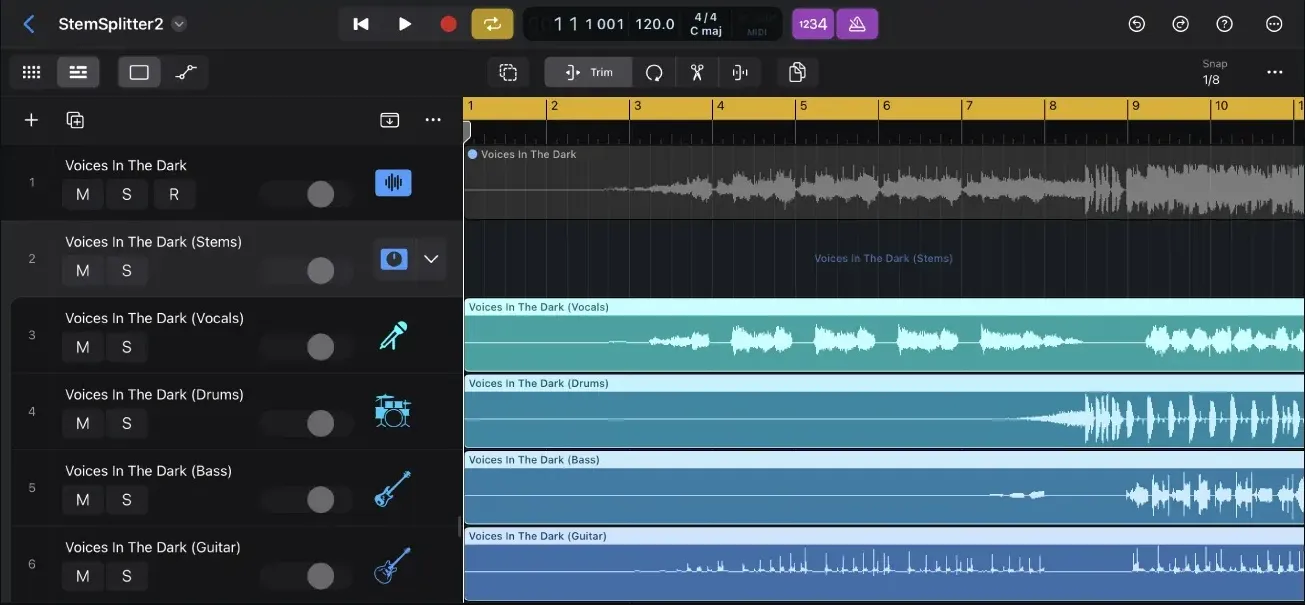
Apple describes Stem Splitter as processing on the device, not as a cloud-upload service. That describes the separation itself, not every installation or account requirement. Before an offline session, check that the installed app opens and processes your source without a connection.
Why Stem Splitter is missing or greyed out
Check hardware, launch mode and the selected region before reinstalling anything:
- Check the Mac processor. Choose Apple menu > About This Mac. Intel Macs cannot run Stem Splitter.
- Make sure Logic is not using Rosetta. Quit Logic, Control-click it in Applications, choose Get Info and deselect Open using Rosetta. Apple says Rosetta mode also disables ChromaGlow and some Mastering Assistant character presets. If an ARA plug-in requires Rosetta, first save a separate copy of the project and, while that processing is working, bounce or print the affected material to an audio track in that copy. Keep the original project and source regions intact, check that the rendered audio includes the edits, then reopen Logic natively and run Stem Splitter on the rendered audio.
- Select an audio region. The command does not process an empty track, MIDI region, Drummer region or live software instrument.
- Update Logic Pro. Stem Splitter did not exist before Logic Pro 11, and the six-part version arrived in 11.2.
- On iPad, check the exact device. Because Apple’s guide and App Store footnote use different chip wording, confirm Stem Splitter specifically with Apple or test the installed feature on that exact iPad. General app compatibility is not enough.
Apple’s support page on missing Logic Pro features confirms the Intel and Rosetta restrictions. If Logic behaves incorrectly after those checks, use the Logic Pro troubleshooting hub rather than deleting project files or preferences at random.
When a dedicated separator is the better tool
Logic’s built-in tool is the right first attempt for an Apple silicon user because there’s no export-upload-import detour. A dedicated separator becomes sensible when you need categories Logic doesn’t expose, want to compare several models, need batch processing, or must work on Intel or another platform.
Try the same difficult 30-second passage in each candidate and compare the part you need before paying. Ultimate Vocal Remover’s public project offers local separation with several models. Dedicated desktop tools and web services differ in setup and data handling, so check current requirements and privacy terms before uploading unreleased client audio.
A tool that wins on lead-vocal isolation may lose on drums or piano. Keep the test blind if possible, match loudness and don’t award the win to the brightest output.
Copyright, privacy and safe use
Source separation changes access to the audio, not ownership. Extracting a vocal from a commercial master does not grant permission to release the vocal, instrumental, remix or sample. The US Copyright Office explains that a sound recording and the underlying musical work are separate works. A release can involve rights in both. Check that the intended use is lawful, whether through permission, an applicable licence, public-domain status or a valid legal exception. Laws vary; a clean extraction does not itself grant reuse rights.
For private client material, Logic’s on-device design avoids the obvious upload step of a web separator. Still follow the client agreement, keep backups and restrict who can access the project. For your own recordings, Stem Splitter is a recovery tool, not a replacement for archiving multitracks and consolidated exports.
The Logic Pro features hub covers the app’s other built-in tools. For trimming, arranging and delivering the extracted audio, continue with the recording and editing workflow.
Logic Pro Stem Splitter FAQ
Can Logic Pro split stems?
Yes. On a supported Mac or iPad, the current Stem Splitter can separate one mixed audio region into Vocals, Drums, Bass, Guitar, Piano and Other. Logic introduced the original four-part version in Logic Pro 11 in May 2024.
Why is Stem Splitter missing or greyed out?
On Mac, the usual causes are an Intel processor, Logic Pro running in Rosetta, no audio region selected, or an older Logic version. Stem Splitter does not process MIDI, Drummer or software-instrument regions until they are rendered as audio.
Can Logic Pro split stems on an Intel Mac?
No. Apple lists Stem Splitter among the features unavailable on Intel Macs and when Logic Pro runs in Rosetta on an Apple silicon Mac. Intel users need a separate stem-separation tool.
How many stems can Logic Pro separate?
Six: Vocals, Drums, Bass, Guitar, Piano and Other. Stem Splitter launched with four categories in Logic Pro 11; Logic Pro 11.2 added dedicated Guitar and Piano stems in May 2025.
Does Logic Pro Stem Splitter work offline?
Apple describes the separation as on-device processing, not a cloud-upload service. That does not establish every installation or account requirement. Before relying on it offline, check that your installed app opens and processes the source without a connection.
Is Stem Splitter lossless?
No lossless or phase-perfect result is promised. Stem Splitter estimates the sources inside a finished mix, so bleed, warbling and tonal changes can remain. Keep the original region and judge each extracted part in the new arrangement.
Which iPads support Stem Splitter?
Apple’s current Logic Pro for iPad User Guide says M1 or later, while the current US App Store footnote says A17 Pro or later. For an A17 Pro model, confirm Stem Splitter specifically with Apple or test the installed feature on that device before relying on it. The general app compatibility list alone does not resolve the conflict.
What happens to the original audio after Stem Splitter runs?
Logic preserves the original region, mutes it, and creates the extracted parts in a summing stack beneath it. You can unmute the original for comparison or return to it if the separated version is not suitable.


