Track Protect vs Freeze in Logic Pro: Lock the Right Thing
Protect prevents accidental edits. Freeze renders temporary playback to lower CPU use. Choose the right control and preserve a clean revision path.

Use Track Protect to stop accidental recording and region edits without changing playback. Use Freeze to reduce the live processing load of a settled track by rendering temporary audio. Neither is a backup, a plug-in preset lock or a permanent audio delivery.
Track Protect vs Freeze at a glance
| Question | Track Protect | Freeze |
|---|---|---|
| Main job | Prevent accidental changes to track content | Reduce real-time processing by playing a temporary render |
| Saves CPU | No | Yes, for the processing replaced by the freeze file |
| Stops region edits | Yes | Yes while frozen |
| Stops recording | Yes | The original track is unavailable for recording while frozen |
| Renders plug-ins | No | Depends on Source Only or Pre Fader mode |
| Best stage | Any time a take or edit must not be touched | When a CPU-heavy sound is temporarily settled |
| Permanent delivery | No | No |
Show Protect and Freeze in the track header
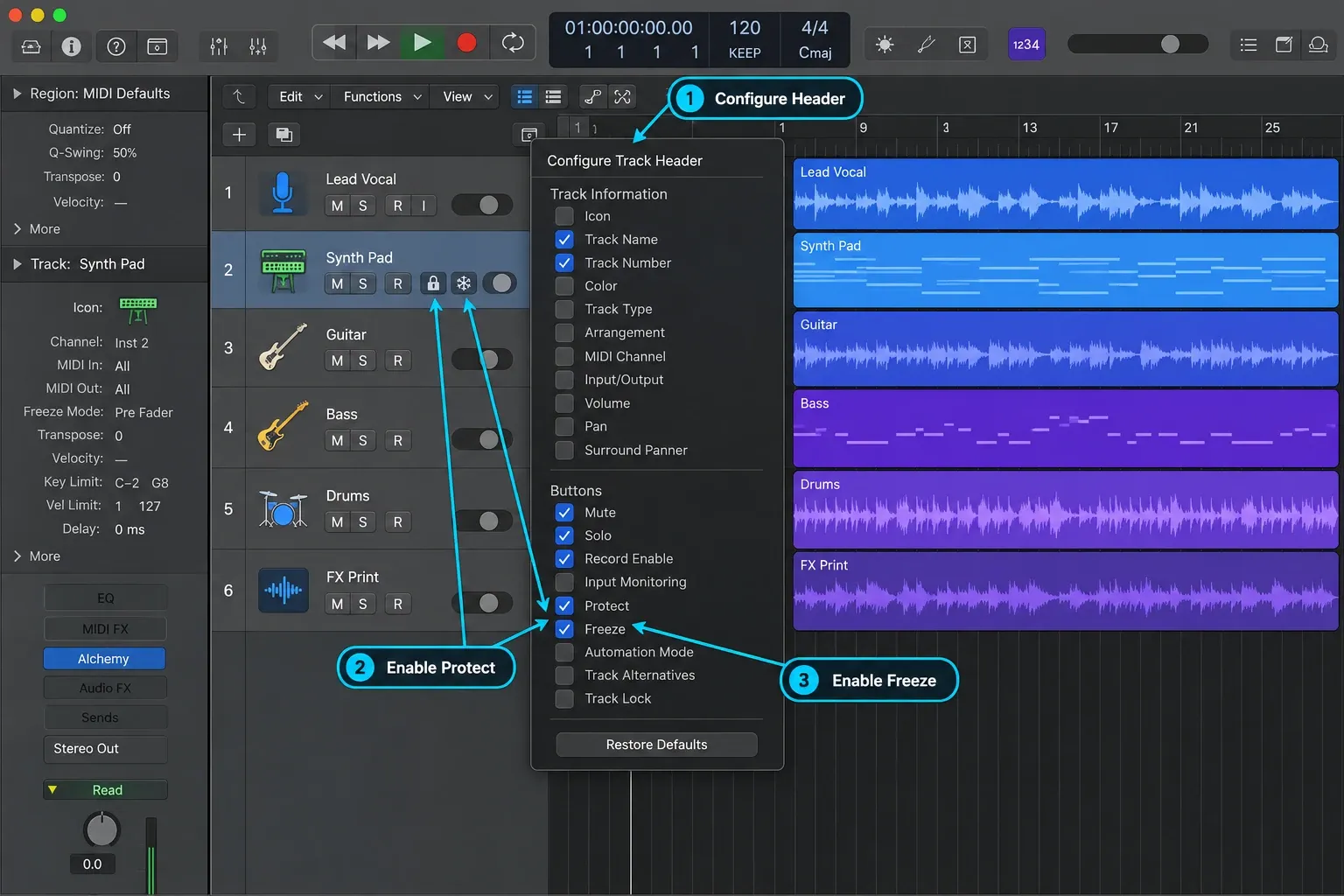
- Control-click a track header and choose Configure Track Header, or choose Track > Configure Track Header (Option-T).
- Enable Protect and Freeze in the Buttons section.
- Widen the track header if the controls are hidden.
Apple’s track-header controls guide also documents Control-click > Track Header Components for showing individual controls. Hiding a button doesn’t turn off its track state. Show it again before you try to edit.
What Track Protect actually locks
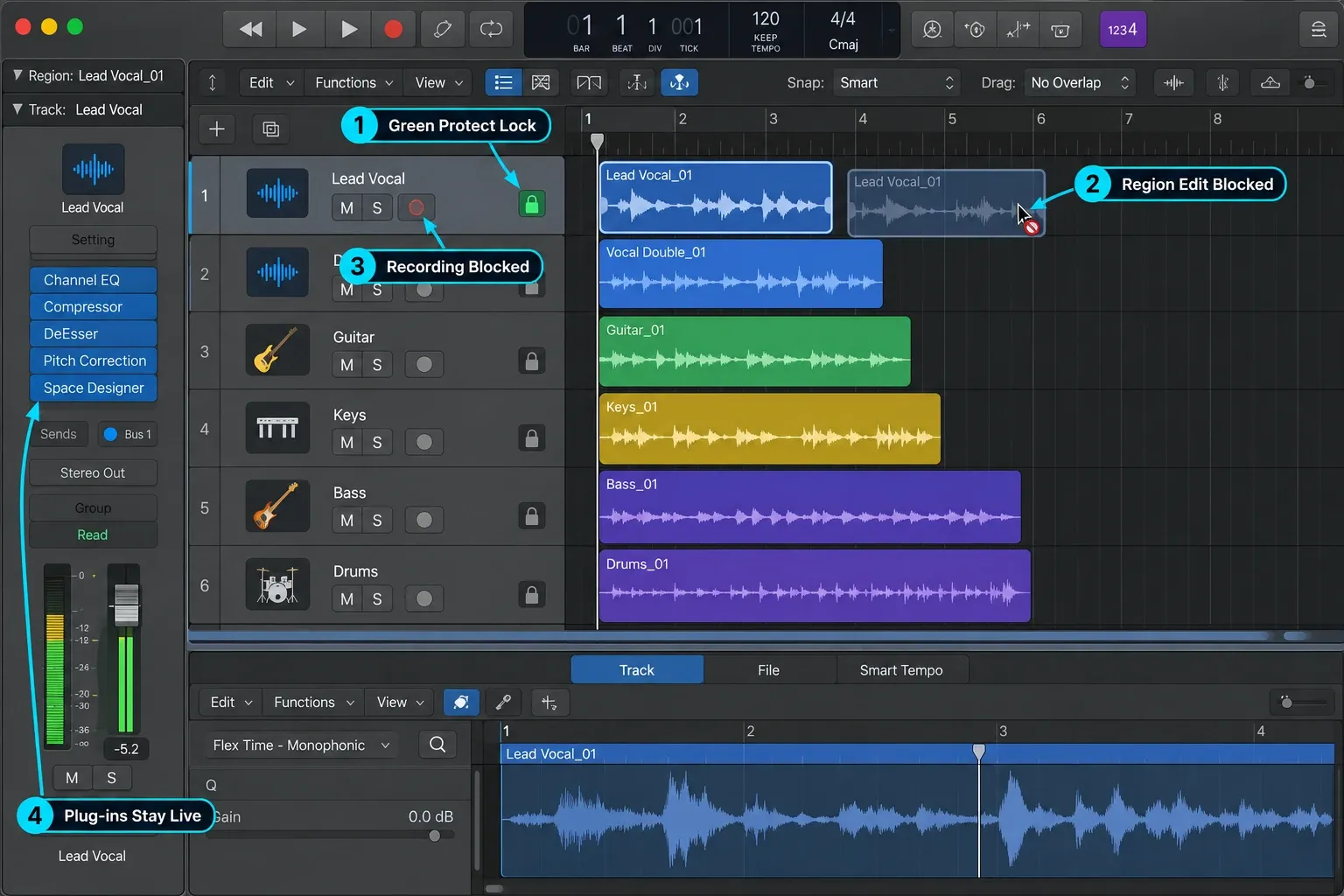
Apple's current Protect tracks guide defines three blocked actions: you can't record on the protected track, edit its regions or create new regions on it. Click the padlock button once to protect the track and the lock turns green. Click it again when a revision is intentional.
Track Protect is not Lock SMPTE Position
A protected track isn’t a substitute for locking sound to a movie frame. If the project tempo will change, use Lock SMPTE Position for regions or events that must stay at the same absolute time. Apple’s absolute-timecode guide explains this separate lock. Copies made by pasting or Option-dragging don’t keep the SMPTE lock, so check them again.
Protect isn't a plug-in preset lock, and it isn't a CPU tool. The instrument and effects still run in real time. If a synth patch is expensive to play, protection alone won't make the project lighter.
What Freeze actually renders
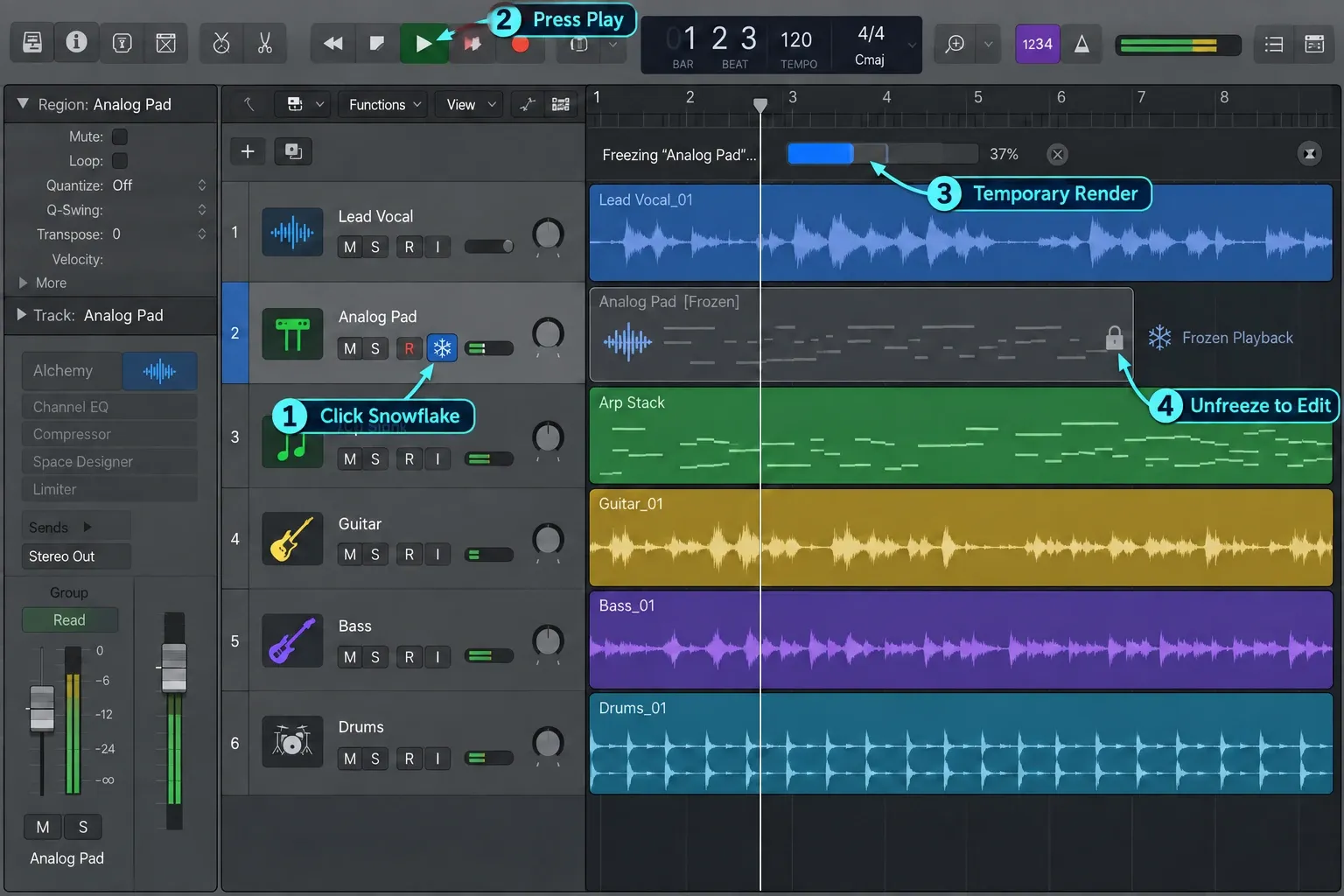
Apple's current Freeze guide says Logic bounces the track to a freeze file. That file plays in place of the temporarily deactivated original track and its processing. The control is most useful for demanding software instruments, Flex processing and complex effects when the part no longer needs constant editing.
Freeze doesn't make a final stem. Logic manages the temporary file as part of the freeze state. If another engineer needs an audio file, if you're archiving a project against future plug-in failure, or if you want to edit the rendered waveform, make a deliberate bounce or export.
A multi-output software instrument is an important exception: Apple's Mac guide says Freeze isn't available for it. Split or bounce the required outputs when that routing must be preserved.
Source Only vs Pre Fader
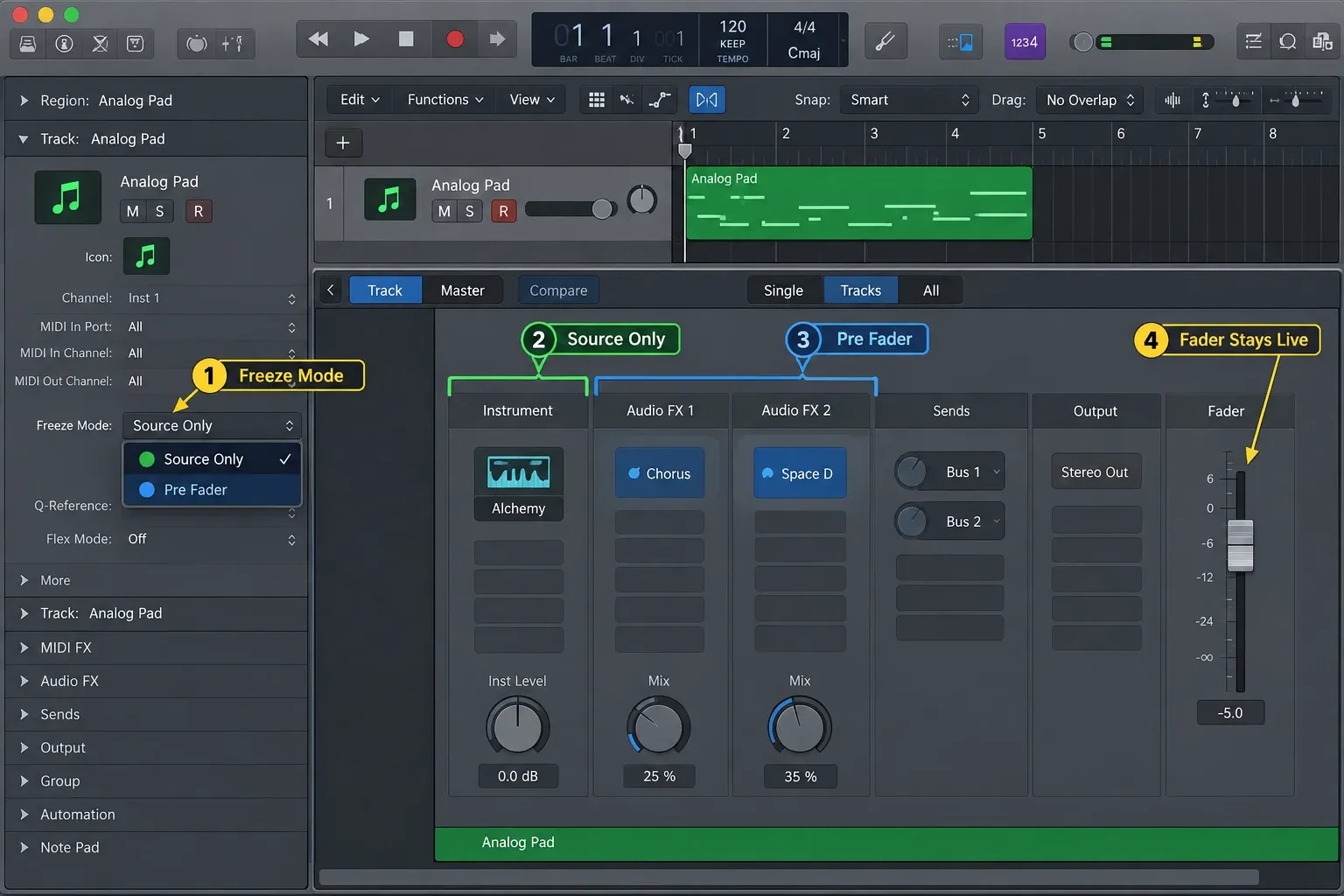
Select the track, open the Track inspector and choose the mode before starting playback:
- Source Only: renders the source without the track's effect plug-ins. Use it when the instrument or Flex processing is the expensive part but you still need to adjust insert effects.
- Pre Fader: includes the effect plug-ins. Use it when the instrument and insert chain are settled enough to render together.
Pre Fader means before the channel fader, not before all processing. Choose by the mode name in the inspector. Apple’s Mac guide shows a green Freeze button for Source Only and a blue one for Pre Fader. Audition the render, including automation and tails, before continuing.
Protect a finished edit without changing playback
- Save the project and confirm the region placement you want to keep.
- Click the Protect padlock in the intended track header; a green lock indicates protection.
- If you need to test the lock, use a disposable project copy. Try one region move: Logic should block it. If it moves, undo immediately and check the selected track and Protect state.
- Keep any track you still need to record on unprotected.
- To revise the protected material, click Protect again, make the intended edit, then re-enable protection.
Command-click a Protect button to protect all tracks, not just the visible ones. Command-click again to unprotect all. To change several specific tracks, click and hold one Protect button and drag vertically across the others. Apple documents both operations in its Protect instructions. Check the intended recording track afterward.
For a handoff, leave a track note explaining which take or edit is approved. The lock can prevent a region edit, but it can't tell the next producer which creative changes you've agreed to make.
Use Freeze when processing is the problem
Save, click Freeze in the track header, choose the required Freeze Mode in the Track inspector, then press Play to create the temporary file. Replay the part that overloaded and compare the sound, automation and tails. If you need to edit the rendered source or processing, click Freeze again to unfreeze first. To freeze or unfreeze several tracks at once, click and hold one Freeze button and drag up or down across the others.
The freeze-track tutorial shows the complete procedure and missing-button fixes. Check the Performance Meter before freezing more tracks: Apple warns that extra freeze-file playback can worsen an existing Drive I/O bottleneck. Freeze relieves CPU load, but it won’t cure every overload or low-memory problem.
What can you still change after freezing?
Apple allows channel-strip controls such as track mute and solo while a track is frozen. Region content is different: moving a region, changing its notes or muting an individual region requires unfreezing. Source Only keeps effect inserts outside the render. Pre Fader includes them.
- To change the instrument, regions or processing already included in the freeze file, unfreeze first.
- If Logic displays a frozen-track warning, cancel the attempted edit, unfreeze, make the intended change and refreeze.
- After a tempo, routing or automation change, compare playback again rather than assuming the previous render still fits.
Keep a separate backup of the project and media. Project alternatives share assets inside the same project. They preserve versions but give you no independent copy of missing source files. Export critical sounds when future plug-in availability matters.
When using both makes sense
Protect a keeper edit while working on neighboring tracks. When its instrument and processing are settled, Freeze can reduce playback load. Unprotect or unfreeze only for the change you intend to make, then restore the needed state. Before delivery, create named audio files instead of relying on these button states.
Protect, Freeze or Bounce in Place?
| Need | Use | Why |
|---|---|---|
| Stop accidental region movement | Protect | No render and instant return to editing |
| Lower real-time instrument or effect load | Freeze | Temporary rendered playback with easy recall |
| Create an editable audio region | Bounce in Place | Produces deliberate audio in the project |
| Send files to another system | Export tracks or stems | Creates named portable deliverables |
| Preserve a risky edit path | Project alternative plus separate backup | Versions share assets; an independent backup protects the source files |
Apple’s Bounce in Place overview says Freeze makes it easier to return to the original track and automation. Bounce in Place creates audio you can work with in the project. Use our bounce-versus-export guide when you need an editable region or portable files.
The track's On/Off button is a third option when a part can stay silent for a while. Apple's Turn off tracks guide says turning a track off deactivates all of its plug-ins and frees the CPU and memory they were using. Turning it back on reloads them, which can take some time, so unlike mute the switch can't be automated.
Examples: choose the control for the next task
A finished vocal comp during cleanup
Protect the keeper vocal comp while editing doubles on other tracks. Its inserts keep processing the vocal normally. If you still need to edit the keeper’s breaths or timing, unprotect that track for the edit.
A heavy software instrument during mixing
I'd start with Source Only when the instrument or Flex processing is expensive but you're still adjusting EQ or compression, because the inserts stay live. Use Pre Fader when the insert chain is settled too. A track with little live processing may offer little saving.
A sync session with approved sound effects
Protect approved sound-effect regions against accidental edits. If the music tempo will change, separately SMPTE-lock the timing-critical regions or events and check their positions against the movie. Keep the picture revision in the notes. Track Protect alone doesn't establish frame-accurate sync.
A project going to another producer
Keep the source project and media, then export the critical instrument parts and processed sounds as named audio. Track Protect doesn't transfer a creative brief, and Freeze doesn't guarantee that the receiver can reopen a missing third-party instrument. Our stem-export guide covers the delivery files.
Verify that the chosen control solved the problem
Check the result before moving on:
- For Protect, confirm the green padlock on the intended track; use a disposable project copy if testing whether an edit is blocked.
- For Freeze, replay the original problem section and watch processing and disk activity. Keep the render only if playback and the intended sound are correct.
- For picture, compare the actual time positions after a tempo change; do not infer SMPTE protection from the track padlock.
- For delivery, audition the exported audio and check its start, end, channels and tails.
Common mistakes
- Protect does not reduce instrument or insert processing.
- A freeze file and a project alternative are not independent backups of the source media.
- Source Only leaves effect inserts live; choose Pre Fader when those inserts are the intended CPU saving.
- Multi-output software instruments cannot be frozen. Plan a bounce that preserves the required outputs.
- All-track protection also blocks recording on the intended destination; unprotect it before recording.
- A hidden Freeze button is an unreliable guide to state. Show the controls and read the current Freeze Mode.
Frequently asked questions
Does Track Protect save CPU in Logic Pro?
No. Track Protect prevents recording and region changes. Use Freeze when you need Logic to replace expensive real-time processing with temporary rendered playback.
Does freezing a track lock it?
It prevents editing while frozen, but that is a consequence of using the temporary render. Its main purpose is processing relief; Protect is the control for accidental edits.
Does Protect lock plug-in settings?
Apple defines Track Protect around recording and track-region changes. Do not rely on it as a plug-in preset lock. Save the patch or channel-strip setting and use project versions for sound decisions.
Should I use Source Only or Pre Fader Freeze?
Use Source Only when the instrument or Flex process is expensive but insert effects still need adjustment. Use Pre Fader when the source and insert chain are settled enough to render together.
Can I edit a frozen track?
Not its regions or note data. Unfreeze, make the edit and refreeze. Track mute and solo remain available, and Source Only leaves effect inserts live; Pre Fader includes those inserts in the render.
Is a frozen track safe for long-term archiving?
Do not treat it as the only archive. Keep the Logic project and export named audio stems when future plug-in or system compatibility matters.
Final decision checklist
- Use Protect for accidental region edits, not CPU relief.
- Choose Freeze Mode by the processing you want rendered and the effects that must stay live.
- Audition the result and check whether processing or disk playback was the bottleneck.
- Use SMPTE position locks separately when tempo changes must not move picture-synced material.
- Keep an independent project/media backup and export permanent delivery audio separately.
Continue through the Logic Pro Recording & Editing hub for safer comping, region editing, MIDI and delivery workflows.


