How to Record a Podcast in Logic Pro
Give each speaker a track, keep the conversation natural, and check the whole episode before it leaves Logic. A practical Mac workflow from microphones to delivery.

To record a podcast in Logic Pro, create an Audio track for each speaker, assign each microphone to its own mono input, arm the tracks and press R. Save and play back a short recording before committing to the episode. Then edit the conversation, balance the voices, add any music, and measure the finished mix before exporting it.
The separate tracks matter more than a complicated plug-in chain. If the host laughs over a quiet guest, you want to adjust one voice without turning both down. This guide follows that idea from a Mac recording session to a finished episode file. The iPad version of Logic Pro has its own interface and recording workflow.
Set up a session for speech
For a solo show, one compatible USB microphone or one microphone through an audio interface is enough. For two people in the same room, I’d use two microphones into one interface with at least two separate inputs. A single mixed stereo feed gives you fewer options when one speaker needs repair. Wear wired headphones and keep loudspeaker playback out of the open microphones.
- Create an empty project. In Logic Pro > Settings > Audio > Devices, choose the interface or USB microphone as Input Device, and the device feeding your headphones as Output Device. Recheck both: selecting an output device with inputs can also change the input selection.
- Choose the project sample rate before recording in File > Project Settings > Audio. Use 48 kHz if this episode will accompany video, or keep an agreed 44.1 kHz audio workflow. Apple advises against changing the project rate after adding recordings.
- In Logic Pro > Settings > Recording, choose WAVE (BWF) and, if the interface supports it, 24-bit recording. Apple’s Recording settings distinguish the file format from the device’s actual bit depth.
- Press Option-Command-N, choose Audio > Mic or Line, and create the voice tracks. Clear Load Default Patch if you want to start without processing. Name the tracks Host and Guest, or use the speakers’ names.
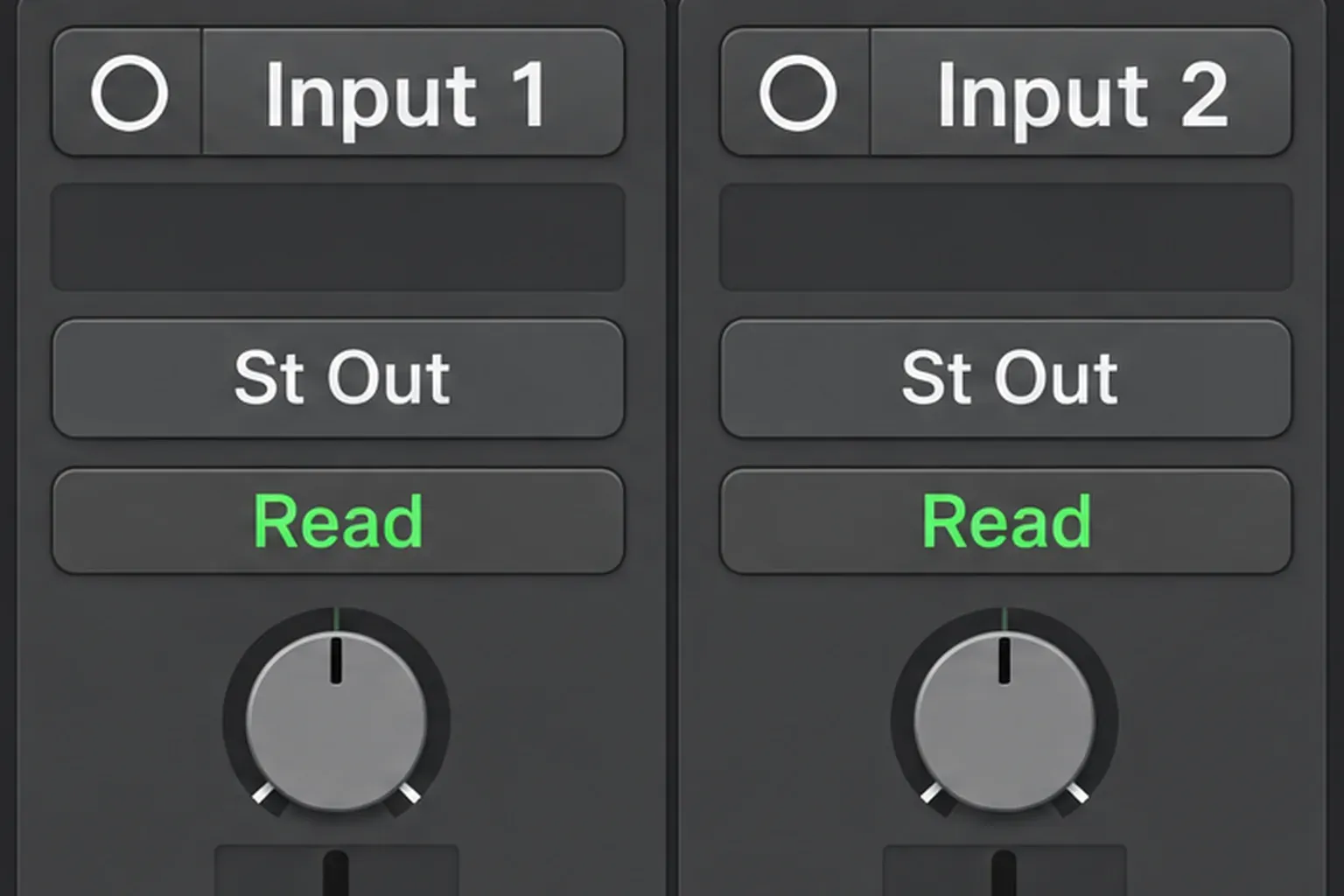
- Set Host to mono Input 1 and Guest to mono Input 2, matching the physical sockets. Keep both pans centered and route both to Stereo Out. One microphone uses one mono input; choosing Input 1-2 would combine two inputs as a stereo pair. Apple identifies mono by a single circle on the Channel Mode button.
Turn off the metronome, count-in and Cycle for a continuous conversation. Click the arrow beside the LCD and choose Time to follow minutes and seconds. That LCD setting is independent of the ruler’s display. It doesn’t change the recording’s speed.
Save the project with an episode name and include its audio assets. For cable types, microphone permission or an input that never moves, use the complete audio recording setup. Resolve those problems before inviting a guest into a long session.
Record and check every voice
Choose one monitoring path. With the interface’s direct monitoring, disable Logic’s Software Monitoring in Audio > General. To hear Logic effects while speaking, enable Software Monitoring and the track’s I button, and disable the interface’s direct path for that input. Apple’s recording preparation guidance explains the two routes. Hearing both together can sound doubled or delayed.
Ask each person to speak at normal volume and then give you their loudest likely laugh. Set the interface’s input gain with room below clipping. Don’t chase a waveform that fills the screen. The track fader controls playback volume, so pulling it down isn’t a cure for an overloaded microphone input. Keep macOS Mic Mode on Standard unless you deliberately want its input filtering.
Click Record Enable on every voice track. The red R arms a track, and the transport’s Record command starts capture. Apple’s multitrack recording procedure requires a different input for each source and an armed track for each recording.
Record about twenty seconds: name each speaker, speak in turn, then leave a short pause. Stop with Space, disarm the tracks and play the regions back. Solo each voice once. Confirm that Host really contains the host, Guest really contains the guest, neither is distorted, and the headphones did not disguise a room-noise problem. Our simultaneous audio recording guide covers the routing details if both tracks captured the same microphone.
For the episode itself, keep recording through minor mistakes. Pause, repeat the sentence cleanly, and note roughly where the replacement starts. Leave a little quiet room sound before or after the conversation for smoother edits. Save when the session ends, then keep an untouched copy of the recordings.
If the guest is remote
Collect a separate local recording from each speaker, or separate files from a recording service that supplies them. Import those files onto named tracks and align them against a shared reference recording. Check the alignment near the start, middle and end before editing. Keep the reference muted during the final mix.
Selecting your interface in Logic doesn’t, by itself, route a call’s incoming audio into a track. If capturing another Mac app is the missing step, use the separate Mac system-audio routing guide. Agree on the capture method and obtain permission before the conversation. Do not discover afterward that only your own microphone was recorded.
Edit the conversation while keeping the tracks aligned
Make a working copy before substantial editing. Listen through for the story first: repeated explanations, abandoned starts, private asides and long interruptions. Remove what distracts from the conversation, but keep breaths, meaningful pauses and useful acknowledgements. A show can be tidy and still sound like two people talking.
For a local repair, select the audio region, place the playhead at one side of the unwanted sound and press Command-T. Repeat at the other side. Delete the isolated piece, then trim the remaining edges without cutting the first consonant or final syllable. The default shortcut splits selected regions at the playhead, so check the selection first. Turn Snap off when the musical grid prevents an accurate speech edit. Add short fades at exposed edges, or a crossfade across a suitable join, then listen across the edit with the surrounding sentence. Apple documents both the Fade tool and Region inspector fade controls.
A gap left in one person’s track is different from time removed from the entire episode. If you cut ten seconds out of the conversation, move all later speaker regions and any cues that belong with them by the same amount. Closing the gap on Host alone would put the rest of Host’s conversation ahead of Guest. Check a later exchange after each structural cut.
After resolving any regions that cross the cut boundary, select the first remaining region after the removed passage in the Tracks area and use Select All Following. Check that every later voice and cue region you need is selected before moving them together by the cut’s duration. Select All Following of Same Track has a narrower scope. Shift-F is the project-wide command in the U.S. default key preset. Custom assignments may differ. The command selects regions only. It won’t pick up global markers, tempo events or all track automation, so check those dependencies separately and replay a later exchange.
Be careful with Shuffle drag modes: deleting a region can shift the remaining regions on that track. For a first multi-speaker edit, keep the movement explicit and watch every affected track. Music and ads should follow the final conversational structure. They shouldn’t dictate where you cut.
Remove Silence is optional. It creates regions from material above a threshold. It isn’t a general noise remover. Its pre-attack and post-release settings protect the beginnings and ends of phrases. If you use it, inspect quiet words and breaths before accepting the result. Do not borrow another podcaster’s threshold and apply it blindly to every speaker. To open Remove Silence, Control-click an audio region in the Tracks area and choose Split > Remove Silence from Audio Region. If short pauses between words turn into separate regions, raise Minimum Time to accept as Silence so brief dips below the threshold don’t count as gaps.
Balance the voices before chasing a preset
First make a quiet guest and a loud host comfortable to hear at one playback setting. Use the channel faders for the broad speaker balance. If a person turns away halfway through an otherwise good answer, adjust that passage with region gain or a Gain-tool selection, rather than lifting every breath on their whole track.
Then process each voice for an audible reason. Use Channel EQ to reduce distracting rumble or an obvious tonal problem, and bypass it to check that the voice still sounds full. Add Compressor for phrases that jump out after the basic balance is right. In Platinum Digital, start gently, switch Auto Gain Off, and lower Threshold until the louder phrases settle into the conversation without swallowing consonants or making the background pump. The compressor’s threshold, ratio and make-up controls do separate jobs. Compare the processed and bypassed voice at a similar listening level.
If sharp s sounds remain distracting, use DeEsser 2 only as much as the voice needs. Too much reduction makes speech unnatural. A noise gate can reduce noise between phrases, but it can’t remove noise while someone speaks. An aggressive setting can also clip quiet words. Fix microphone placement or persistent noise at the source wherever possible.
Keep censor bleeps, jingles and music on their own tracks. Do not normalize every tiny region to the final episode’s loudness target. A short bleep and a long answer have different jobs, and forcing both to the same integrated reading can produce a very unpleasant balance.
Fit the music around the words
Put your cleared intro, outro and any bed on separate audio tracks. Keep the voices centered. If music is stereo, preserve that width unless you’ve deliberately chosen a mono delivery. The microphones can remain mono inside a stereo episode.
Press A to show automation, choose Track automation and Volume on the music track, and use Read mode for playback. Add four points: the original music level, the lower level before speech, that lower level after speech, and the returning music level. Apple’s automation-point controls let you adjust both the timing and level of the ramps.
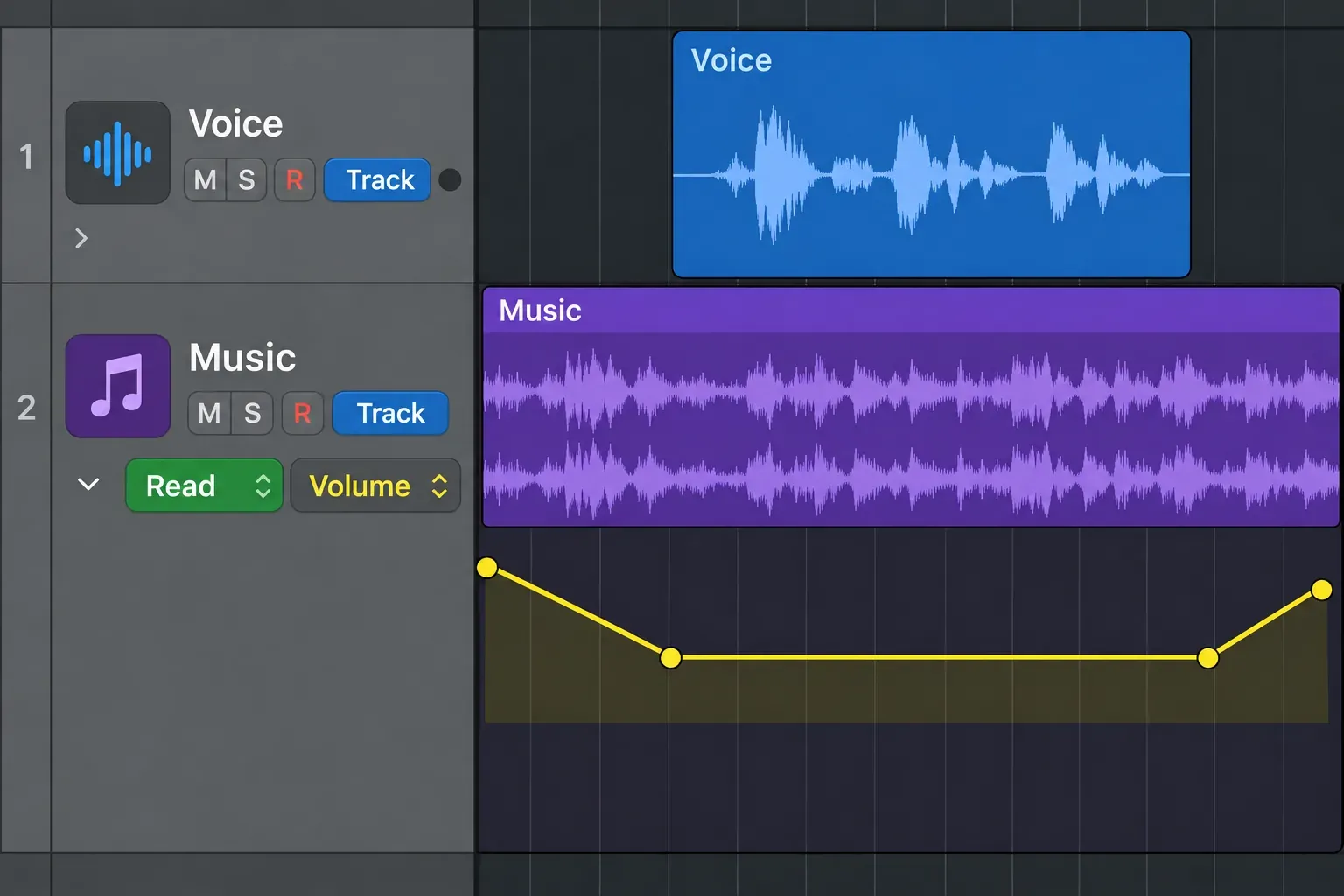
Lower the bed until every word is easy to follow at a modest listening volume. There’s no useful universal fader number: a dense music track can mask speech at a level where a sparse one doesn’t. The Logic Pro automation guide covers adjustments and modes if the curve isn’t playing back as expected.
Measure the whole episode, not a loud sentence
Balance first, then meet the delivery specification. For Apple Podcasts, Apple recommends overall loudness around -16 dB LKFS, with a ±1 dB tolerance, and true peaks no higher than -1 dBFS before encoding. That’s Apple’s recommendation. It doesn’t promise that every host or client uses the same target. LUFS and LKFS use the same numerical loudness scale, so the target is approximately -16 LUFS in Logic’s meter too.
- Route the episode’s audible tracks to the intended output. On Stereo Out, place any final level control or limiter before the meters. If you use Logic’s Limiter, select Precision, enable True Peak Detection and set Output Level to -1 dB or lower for the Apple target. Those are the Limiter’s documented true-peak controls.
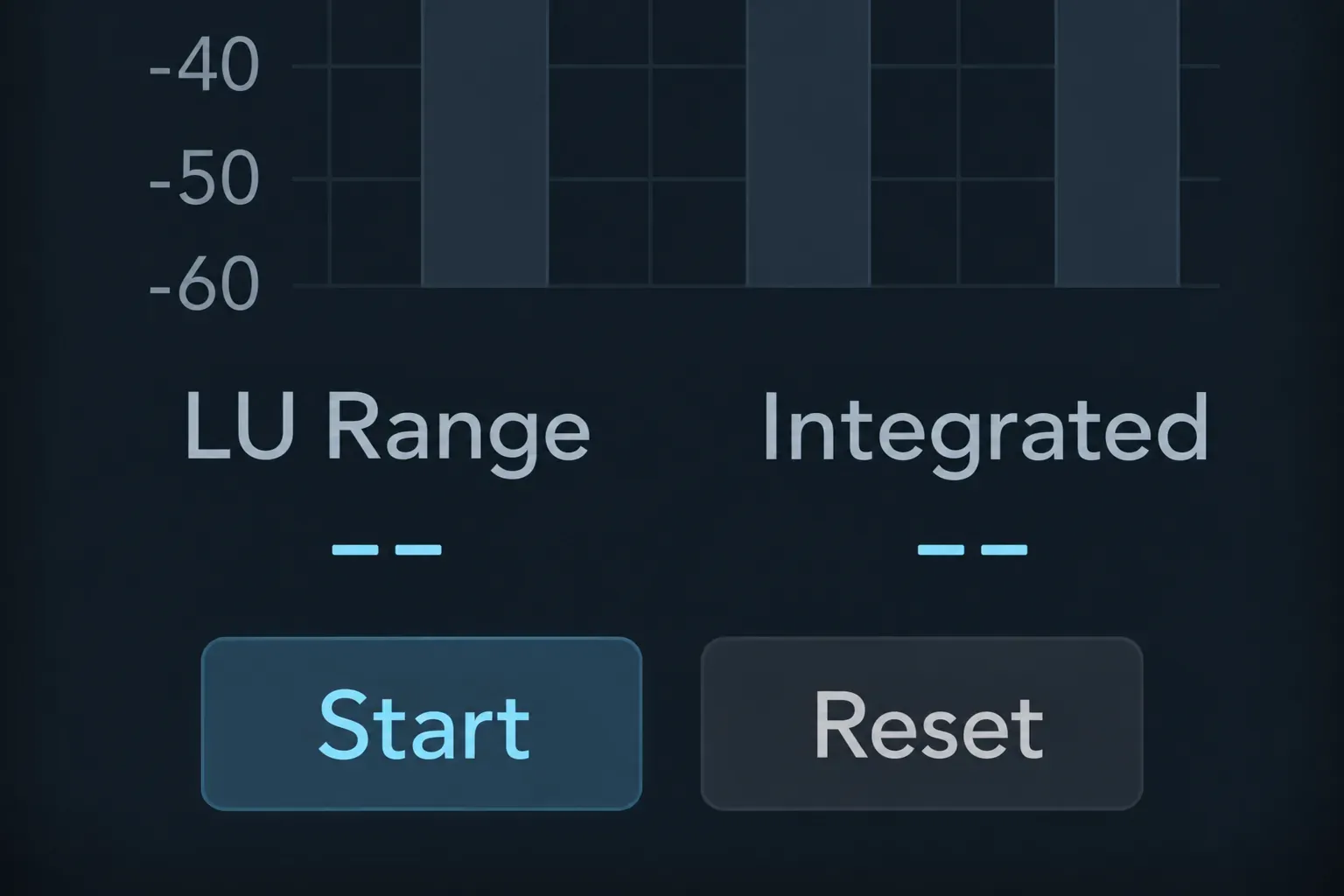
- Add Metering > Loudness Meter after processing. Click Reset, click Start, and play from the intended episode beginning to its end. Read Integrated, not just the momentary or three-second short-term value. Apple explains how Start/Pause and Reset govern that measurement.
- Use a separate Metering > Level Meter, set to True Peak mode, after the limiter too. Loudness Meter is not a true-peak meter. Keep Stereo Out at 0 dB for measurement and bounce; make loudness adjustments before the final limiter, then measure again.
- If you change the balance, gain or limiting, reset and measure the full episode again. If reaching the target makes the voice distort or the background surge, revisit the loud passages and compression instead of pushing harder into the limiter.
Bounce the episode and check the delivered file
Choose File > Bounce > Project or Section. Check the Start and End range, including the complete outro. If Cycle is on, Logic initially uses the cycle area for the bounce, which can leave you with a short excerpt of an otherwise finished show.
Keep a lossless master: select Uncompressed, WAVE, the project sample rate and 24-bit, with Interleaved for one stereo file. Those uncompressed bounce options are separate from the distribution copy. Set Normalize to Off when you have already established the output level and loudness.
Follow your podcast host’s upload requirements. Apple’s RSS audio requirements accept MP3 or AAC and strongly recommend AAC, so use it when your host takes it. The recommended range for stereo at 44.1/48 kHz is 128-256 kbps. For an MP3 stereo copy, 192 kbps is a reasonable starting choice within that range, with Quality set to Highest. Keep the WAV master so later revisions don’t require editing an already compressed MP3. The MP3 bounce settings explain encoding quality and ID3 tags.
Open the actual delivery file. Check its duration, channel balance, first words, edits, music transitions and complete ending, then listen through the episode. Measure the encoded file too if delivery compliance matters, because encoding can change peak behavior. Confirm any required tags, artwork and chapters in the delivery workflow. An editable Logic project isn’t the published episode.
Once that file is right, collect the project’s audio assets and archive the episode. Save a clean starting project as a template with speaker tracks, routing and reusable cleared music, keeping episode-specific recordings out of the template. Apple’s project-saving and template options support that distinction. The next episode should inherit your setup, not last week’s conversation.
For the surrounding workflow, the Recording & Editing hub connects microphone setup, takes, editing and delivery. Start with the stage that is holding the episode up.


