How to Record Mac System Audio in Logic Pro With BlackHole
Route Mac system audio through BlackHole into a stereo Logic track, keep monitoring audible and fix silence, doubled sound or clocking problems.

To record Mac system audio in Logic Pro, send the source app through a Multi-Output Device containing BlackHole 2ch and your listening device. Set Logic’s input to BlackHole 2ch and record a stereo Input 1-2 track. Keep Logic’s output on the physical speakers, wired headphones or interface, and turn Software Monitoring off in Logic’s Audio settings during capture. You hear the source through the Multi-Output Device, without a second copy from Logic.
Record only audio you created, licensed or have permission to capture. Start with a short test before recording anything you cannot replay.
The recording route
| Stage | Choose this device | Why |
|---|---|---|
| Mac system output | Multi-Output Device | Sends the source to BlackHole and your listening device |
| Logic input device | BlackHole 2ch | Makes the Mac system stream available as an audio input |
| Logic output device | Your speakers, wired headphones or audio interface | Keeps Logic playback out of the BlackHole capture loop |
| Logic audio track | Stereo Input 1-2 | Records both left and right channels |
| Logic Software Monitoring | Off in Settings → Audio → General | You already hear the source through the physical branch of the Multi-Output Device |
BlackHole receives audio sent to its output and makes it available at its input. It does not automatically capture every app. If the source uses a different output device, it will bypass this route.
Before installing BlackHole
- Save your work and note your current Logic input, output and Software Monitoring setting so you can restore them afterward. Close Logic, Audio MIDI Setup and other audio applications before installation.
- Choose Mac speakers, wired headphones or an audio interface for listening. Start with a wired device if you are troubleshooting.
- Use BlackHole 2ch for a stereo browser or media capture. Extra channels only help when you route separate audio streams. They don’t raise stereo quality.
- Choose a sample rate both devices support, usually 44.1 kHz or 48 kHz. Use a new empty stereo Logic project for the first capture so you do not have to change an existing session’s sample rate.
BlackHole’s developer describes it as a macOS virtual audio loopback driver for Intel and Apple Silicon. The project says the driver adds no extra latency, but that doesn’t make the complete Logic monitoring path latency-free. Logic’s buffer, output device and any plug-ins still matter.
1. Install BlackHole 2ch from the official project
Use the current installer linked by Existential Audio or the official Homebrew formula. The project’s installation instructions say to close audio applications before opening the package and restart when prompted. If you already use Homebrew, the documented command is brew install blackhole-2ch.
Reopen Audio MIDI Setup after installation. You should see BlackHole 2ch in the Audio Devices window with two inputs and two outputs. Do not continue with a similarly named old Soundflower device or an Aggregate Device left over from another tutorial. The names in the next steps need to match the devices you created.
2. Create a Multi-Output Device so you can still hear the Mac
- Open Applications → Utilities → Audio MIDI Setup.
- If the Audio Devices window is not visible, choose Window → Show Audio Devices.
- Click the + button at the bottom of the device list and choose Create Multi-Output Device.
- Rename it to something obvious, such as System Audio + BlackHole.
- Enable your physical listening device first: Mac speakers, wired headphones or the output of your audio interface.
- Enable BlackHole 2ch.
- Set the physical output as the primary or clock device. Enable Drift Correction for BlackHole.
- Confirm that both devices show the same sample rate.
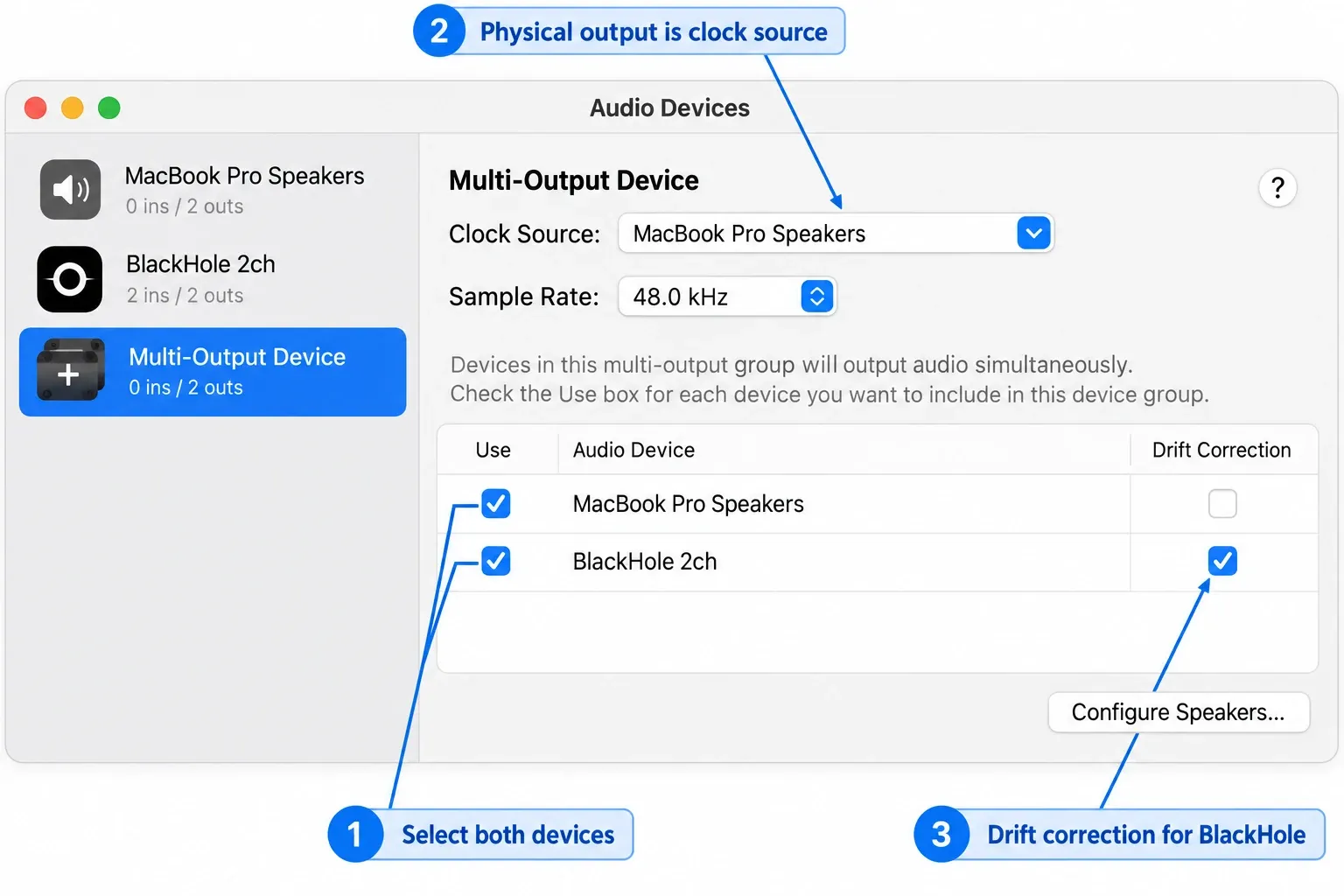
Apple’s guide confirms that a Multi-Output Device plays one stream through several output devices. BlackHole’s current Multi-Output instructions add the practical clocking detail: keep the speakers, headphones or interface as the clock source, enable drift correction for BlackHole and use matching sample rates.
For this system-audio-only route, you do not need an Aggregate Device. Multi-Output sends the same stream to BlackHole and your listening device. An aggregate does a different job and merges several devices’ channels into one device. The microphone section below uses an aggregate to give Logic both physical and virtual inputs.
3. Send Mac system audio to the Multi-Output Device
In Audio MIDI Setup, Control-click the new Multi-Output Device and choose Use This Device For Sound Output. You can also open System Settings → Sound → Output and select the same device.
Play a short source in the browser or media app. You should still hear it through the physical output. At the same time, the signal is reaching BlackHole. If the source app has its own output-device selector, set it to the system default or the new Multi-Output Device. An app pinned to a different interface will bypass the Mac system route.
Pause other apps that use the same output and silence notifications before recording. Their audio may be captured too; BlackHole does not isolate the browser tab you meant to record. Use a non-private test clip and check the recorded file for unwanted sounds.
The Mac’s normal volume keys may stop controlling volume while a Multi-Output Device is selected. That’s a macOS limitation documented by the BlackHole project. Adjust the physical device in Audio MIDI Setup, on the interface itself or with its control app. Disabled volume keys don’t mean the routing failed.
4. Set BlackHole as Logic’s input, but keep a physical output
- Open your capture project and choose Logic Pro → Settings → Audio → Devices.
- Set Output Device to your physical speakers, headphones or interface first. Don’t pick BlackHole, the Multi-Output Device or System Setting.
- Then set Input Device to BlackHole 2ch. Recheck both menus and click Apply if shown. Changing the output can reset the input selection.
- Open the General pane of these Audio settings and deselect Software Monitoring. Note its previous state. This setting affects monitoring beyond just the capture track.
- For a new empty capture project, choose File → Project Settings → Audio and set the agreed sample rate. Recheck BlackHole and the physical device in Audio MIDI Setup afterward.
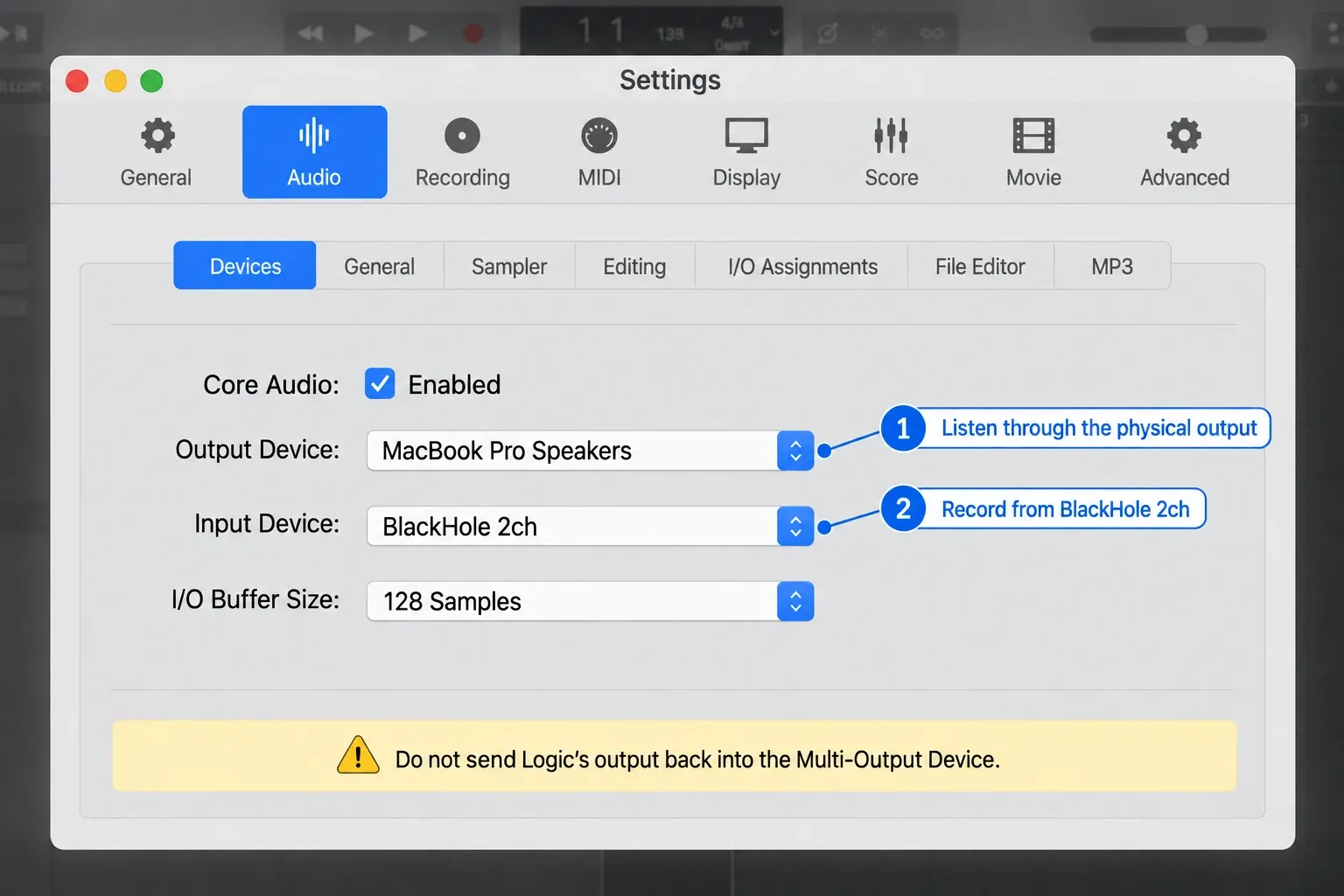
Using the Multi-Output Device as Logic’s output is tempting because it has the right name. It’s also how users accidentally capture Logic’s own playback. The safe route is different: other Mac apps use the Multi-Output Device, while Logic listens to BlackHole and plays through the physical output only.
The opposite job, putting Logic’s playback into OBS or a screen recording, reverses those roles. BlackHole’s guide to streaming a DAW into OBS sets the DAW’s output device to the Multi-Output Device and selects BlackHole 2ch as the recording app’s audio input. In the macOS Screenshot toolbar (Shift-Command-5), that input choice sits under Options → Microphone. Don’t record from BlackHole in the same Logic session, or Logic will capture its own playback.
Apple’s audio-device instructions locate the Devices pane, and its Aggregate Device guide notes that selecting an output can also change the input. Apple also warns against changing a project’s sample rate after recording or importing audio. Keep an existing session at its established rate, or capture in a separate empty project.
5. Create a stereo Input 1-2 audio track
- Press Option-Command-N or click the Add Tracks button.
- Choose Audio → Mic or Line and open Details if needed.
- Choose the stereo input pair Input 1-2 rather than mono Input 1. Confirm the track uses the stereo, two-linked-circle format.
- Deselect Load Default Patch for an empty track without plug-ins.
- Leave Input Monitoring deselected in the New Tracks dialog. Software Monitoring must also remain off in Audio settings.
- Create the track and enable Record Enable for it. Keep its I button off and disarm any other tracks you do not want to record.
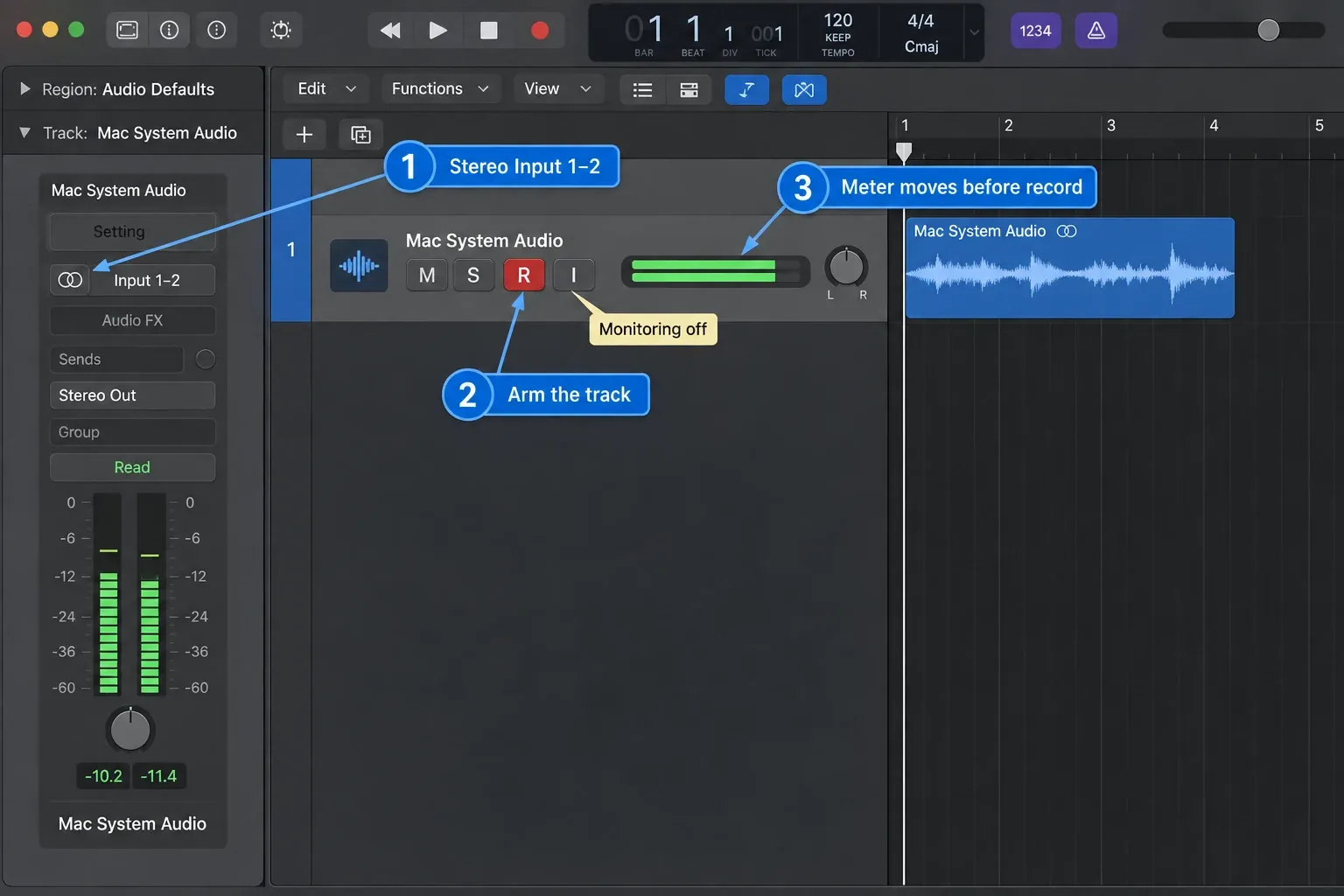
Input 1 records only the left side of BlackHole 2ch. That may look fine with a centered voice and fail with stereo music, panning or ambience. The two linked-circle stereo format and Input 1-2 preserve both channels.
The track’s I button is not a substitute for the global setting. Apple’s Software Monitoring control governs hearing audio through Logic while recording or monitoring. Turn it off for this route because you already hear the source directly. Keep Logic’s output physical as well: sending Logic back into the Multi-Output Device can recapture its playback and, with monitoring enabled, create feedback.
6. Check the meter, then record
- With the capture track record-enabled, play the source briefly and check its stereo input meter. If the Record Enable button is hidden, show it through Track → Configure Track Header.
- Record a short test. Stop the source, stop Logic, disarm the track and play the new region. Confirm that it contains the expected left and right channels, with no doubled sound or notifications. A centered or mono source may sound the same on both sides.
- For the full take, return the source to the beginning and record-enable the track again.
- Click Logic’s Record button or press R with the default key commands, then start the source. The short leading silence can be trimmed afterward.
- Stop the source, then stop recording in Logic with its Stop button or Space.
- Disarm the track and audition the recorded region with the source app paused. Save the project before restoring devices.
Capture onto an empty track before adding processing. If the source player is overloading the signal, lower its output and record again; pulling down Logic’s track fader changes monitoring, not the recorded input level. Turning down a file that is already distorted will only make that distortion quieter. Use a clean source instead.
To record a microphone and system audio on separate tracks
Keep the Multi-Output Device for the Mac’s system output. Then create an Aggregate Device that contains your microphone or audio interface plus BlackHole 2ch, and choose that aggregate as Logic’s input device.
Apple’s Aggregate Device instructions explain the detail that prevents wrong inputs: subdevice order determines channel numbers in Logic. If an interface with two inputs comes before BlackHole, the BlackHole stereo pair may appear as Input 3-4 rather than Input 1-2. Keep Audio MIDI Setup open and map the colored channel ranges instead of guessing. For the aggregate controls below, Apple’s current synchronization guide uses Sync Source and Sync where older macOS interfaces use Clock Source and Drift Correction.
- Use the most reliable physical interface as the aggregate clock source. Match its sample rate, BlackHole’s rate and the capture project’s rate.
- Enable drift correction for non-clock devices that are not hardware-synchronized. If your interfaces use separate word-clock cables, follow their clocking instructions instead of changing a working hardware-sync setup.
- Keep Logic’s output on the physical listening device; select the aggregate only as its input and recheck both menus.
- Create one mono track for the microphone input and one stereo track for BlackHole’s channel pair. Record-enable both tracks, then record a short test and verify each region separately.
- Keep Software Monitoring off. If you need to hear your microphone while speaking, use your interface’s direct hardware monitoring where supported; the microphone will not be monitored through Logic in this setup.
- Wear headphones so the microphone does not record the speakers as well.
For the broader device logic, channel mapping and recovery steps, use our Audio MIDI Setup for Logic Pro guide. The general Logic Pro audio-recording workflow covers gain, recording folders and takes from microphones and interfaces.
BlackHole and Logic Pro troubleshooting
The Logic meter does not move
Record-enable the capture track first. Check the route in order: Mac output is the Multi-Output Device; that device includes BlackHole 2ch; Logic’s input is BlackHole 2ch; and the track uses stereo Input 1-2. Check that the source app is playing and is not pinned to another output. If you deliberately chose an aggregate input, use its mapped BlackHole channel numbers instead.
If the route is correct, open System Settings → Privacy & Security → Microphone and allow Logic Pro. macOS groups access to audio inputs under Microphone even when the input is virtual. Apple documents the permission control in its Mac privacy guide.
BlackHole does not appear in Logic
Quit and reopen Logic after installing the driver. If it’s still absent, confirm BlackHole 2ch appears in Audio MIDI Setup, then restart the Mac as the official Logic-specific wiki recommends. Reinstall only after those checks. Repeated installation won’t fix an application that hasn’t reloaded the Core Audio device list.
The recording works, but you cannot hear the source
Your Mac is probably outputting to BlackHole alone. Select the Multi-Output Device and confirm that it contains both BlackHole and the physical listening device. When you’re finished recording, switch System Settings → Sound → Output back to the normal speakers, headphones or interface.
The source sounds doubled, hollow or phasey
Stop playback and turn off Software Monitoring in Logic Pro → Settings → Audio → General. Leave the track’s I button off too. Then confirm that Logic’s Output Device is the physical device, not the Multi-Output Device. Replay the test: if the doubling disappears, it was the direct source plus Logic’s monitored copy.
The capture clicks, crackles or drifts over time
Check that BlackHole, the physical output and the project use the agreed sample rate. Keep the physical output as primary and enable drift correction for BlackHole. If a USB interface or Bluetooth output still fails, test the Mac’s built-in output or wired headphones. BlackHole’s current setup guide allows physical interfaces, but its troubleshooting notes also describe configurations that need Built-in Output enabled and listed first. Not every device behaves the same here, so make another short capture before you rely on the revised route.
The recording is mono
With BlackHole 2ch selected directly as Logic’s input, replace mono Input 1 with stereo Input 1-2 and record again. With an aggregate input, select the stereo pair assigned to BlackHole instead. Changing a finished mono region’s track to stereo cannot restore a right channel that was never recorded.
Logic records its own playback
Set Logic’s Output Device to the physical speakers, headphones or interface. Leave the Mac system output on the Multi-Output Device. This keeps Logic’s playback out of BlackHole while other apps still feed the capture track.
If microphones or other ordinary inputs also fail, the Logic Pro not recording audio checklist covers permissions, track settings and interface checks. Find the related recording and editing guides in the Recording & Editing hub.
Frequently asked questions
Is BlackHole free?
Yes. BlackHole is an open-source macOS loopback driver released under GPL-3.0. Download it from Existential Audio or the official GitHub project rather than a repackaged installer.
Should I install BlackHole 2ch or 16ch for Logic Pro?
I’d install BlackHole 2ch for ordinary stereo Mac system audio, since a stereo source only fills one channel pair. The 16-channel build is for workflows that intentionally route several discrete channel pairs. It adds no quality advantage to a stereo browser or media capture.
Why is there no sound after selecting BlackHole?
BlackHole is a virtual destination with no speaker behind it. Selecting it alone sends the stream away from the physical output. Create a Multi-Output Device containing BlackHole and your speakers, headphones or interface so the same signal reaches both.
Do I need an Aggregate Device to record system audio?
No. BlackHole 2ch plus a Multi-Output Device is enough for this system-audio-only setup. Add an Aggregate Device when you also want a microphone or interface input on a separate Logic track. Aggregates have other uses, but are not required for this stereo capture.
Can BlackHole record audio from a browser or media app?
It can receive audio from an app that uses the Mac system output or the selected Multi-Output Device. Protected playback and app-specific routing can behave differently. Record only material you own, licensed or have permission to capture and reuse.
Why does BlackHole sound doubled in Logic Pro?
You may be hearing both the Multi-Output Device’s physical output and Logic’s monitored copy. Turn off Software Monitoring in Logic Pro → Settings → Audio → General, leave the track’s I button off, and keep Logic’s output on the physical device. Replay a short test to confirm the cause.
Restore normal audio when you finish
- Stop the source and Logic, save the project, and disarm the capture tracks.
- Switch the Mac sound output back to your normal speakers, headphones or interface.
- Restore Logic’s usual output device first and input device second; recheck both and apply the change.
- Only after restoring the devices, return Software Monitoring to its previous setting. Test your normal microphone or instrument at a low listening volume.
- Keep the Multi-Output Device for next time, or remove that specific device in Audio MIDI Setup if it is no longer needed. There is no need to uninstall BlackHole after each recording.
Before closing the capture project, play its saved recording once with the source app paused. Hearing the original app during setup proves that monitoring works; hearing the saved region proves that you recorded it.


