Logic Pro Keeps Crashing: Find the Cause and Fix It
Logic Pro keeps crashing? Use startup tests, project and plug-in isolation, real crash evidence, and safe reset steps to find the actual trigger.

If Logic Pro keeps crashing, note the action that makes it quit before changing anything. Protect the project, restart the Mac, then try that action again. If it still fails, use the symptom table below to choose a test: startup, one project, a plug-in or external hardware. Leave settings resets and reinstallation until you have checked those causes.
Checked September 12, 2026 against Apple’s Logic Pro troubleshooting guidance. The sections below group those checks by symptom; they are not a copy of Apple’s numbered sequence. These are documentation-based instructions, not a reproduction of your particular crash. Older supported versions may use Preferences where newer versions use Settings.
If Logic stays open and only playback stops, jump to the Logic Pro system overload guide. If the app opens but a plug-in is simply absent, use the Audio Unit validation guide. Got a different symptom? Start from the Logic Pro troubleshooting hub instead of applying crash fixes to the wrong fault.
Protect the project and identify the trigger
Work on a copy, not the only version of the project. In Finder, duplicate the project package or folder. If the session opens, use File > Save a Copy As, then close the original and open the copy. Check the media too: a project can reference audio or samples stored elsewhere. Apple’s project-saving instructions explain which assets are included. Preserve external files before removing media or disconnecting storage. The Logic Pro backup workflow covers the app and project backups needed before software changes.
Write down one reproducible trigger: “quits while opening this project,” “quits when I open this plug-in window,” or “quits when playback reaches bar 65.” “It crashes randomly” is hard to test. A repeatable action lets you change one variable and know whether the result means anything.
| What happens | First useful test | How to interpret the result |
|---|---|---|
| Logic quits before a project appears | Open with Option, then with Control | Startup action, Core Audio or Audio Units |
| Only one project quits | New empty project, then a copy of the affected project | A project-loaded asset or state |
| Crash follows one plug-in or preset | Launch Without Audio Units | Audio Units are a lead; isolate the specific plug-in |
| Crash begins when an interface is connected | Disconnect it and select built-in audio | Interface, cable, driver or control software |
| Logic stays open but playback stops | Performance Meter | Check for an overload alert and a CPU or drive peak |
Confirm whether this is a crash, a hang or a system overload
A crash closes Logic Pro. A hang leaves it open but unresponsive, often with the spinning wait cursor. A system overload normally leaves the app open and interrupts playback or recording. Check which happened before choosing a fix: buffer adjustments address processing load, while a plug-in compatibility problem needs its own test. An Audio Unit warning is not automatically a crash of Logic itself. Apple’s Audio Units guide describes protection against Audio Unit failures closing or hanging the app on Apple silicon, while warning that settings or data can still be lost. Record whether Logic actually closed or a plug-in reported a problem while the app remained open.
For an overload, watch Processing Threads and Drive I/O in the Performance Meter. A larger I/O buffer can reduce CPU pressure but increases monitoring delay; the latency guide explains that trade-off. Freezing tracks can help CPU load but add disk load, so it is not the first choice when Drive I/O is already peaking. Apple’s system overload instructions explain the distinction. For a hang, note the action and look for a spin report if one is available. If Logic actually quits, continue below.
Logic Pro crashes on launch: choose a startup test
Quit Logic Pro fully. For each separate test, open it from Applications and immediately hold the relevant key or keys until the dialog appears or Logic opens. Quit again before trying another mode:
- Option: prevents the automatic startup action, including loading the most recent project. If Logic opens, the last project or configured startup action becomes the first lead.
- Control, then Don’t Launch: opens Logic with Core Audio disabled, so there is no audio input or output. If that works, investigate the interface and its software, but do not rule out Audio Units: Apple also identifies a damaged or incompatible plug-in as a possible cause.
- Control, then Launch Without Audio Units: keeps Core Audio on but disables all Audio Units. If the crash disappears, isolate third-party plug-ins.
- Shift-Control: opens with only Audio Units that already passed validation. Apple positions this as Audio Units safe mode; it does not exclude a validated plug-in that fails during actual use.
Apple’s startup modifier reference describes what each mode disables. They are diagnostic modes, not permanent fixes. After testing, quit and reopen Logic normally to compare the same action. If the problem returns, that comparison helps identify what to isolate next.
If only one project crashes, isolate what that project loads
Press Shift-Command-N to make a new empty project, add a couple of Apple Loops, and repeat the same action. Apple recommends this comparison because it separates an app-wide problem from something the affected project loads. A clean empty project doesn’t prove the original file is corrupt. That file may still hold one bad plug-in instance, audio file, automation state or routing combination.
Open a duplicate of the affected project. After a normal launch, remove one third-party Audio Unit, save the copy, close, reopen and retest. If the crash happens at the same playhead position, inspect regions and automation around that point. If it happens while opening one window or preset, try that item in the empty test project. If it happens during bounce or export, record the exact command and settings and repeat that operation in the test project. Avoid deleting several things at once, or you will lose the ability to identify the trigger.
Isolate a third-party Audio Unit without blaming the wrong plug-in
If Launch Without Audio Units stops the crash, check the suspect plug-ins against their developers’ compatibility pages for your macOS and Logic Pro versions. Follow Apple’s remove-or-disable procedure: quit, reopen normally, save and open a project copy, choose No Plug-in from one occupied Effects slot, and test after each removal. Do not overwrite the original project with its plug-ins removed. A vendor workaround is relevant only when its product and symptom match; it is not a setting to change for every crash.
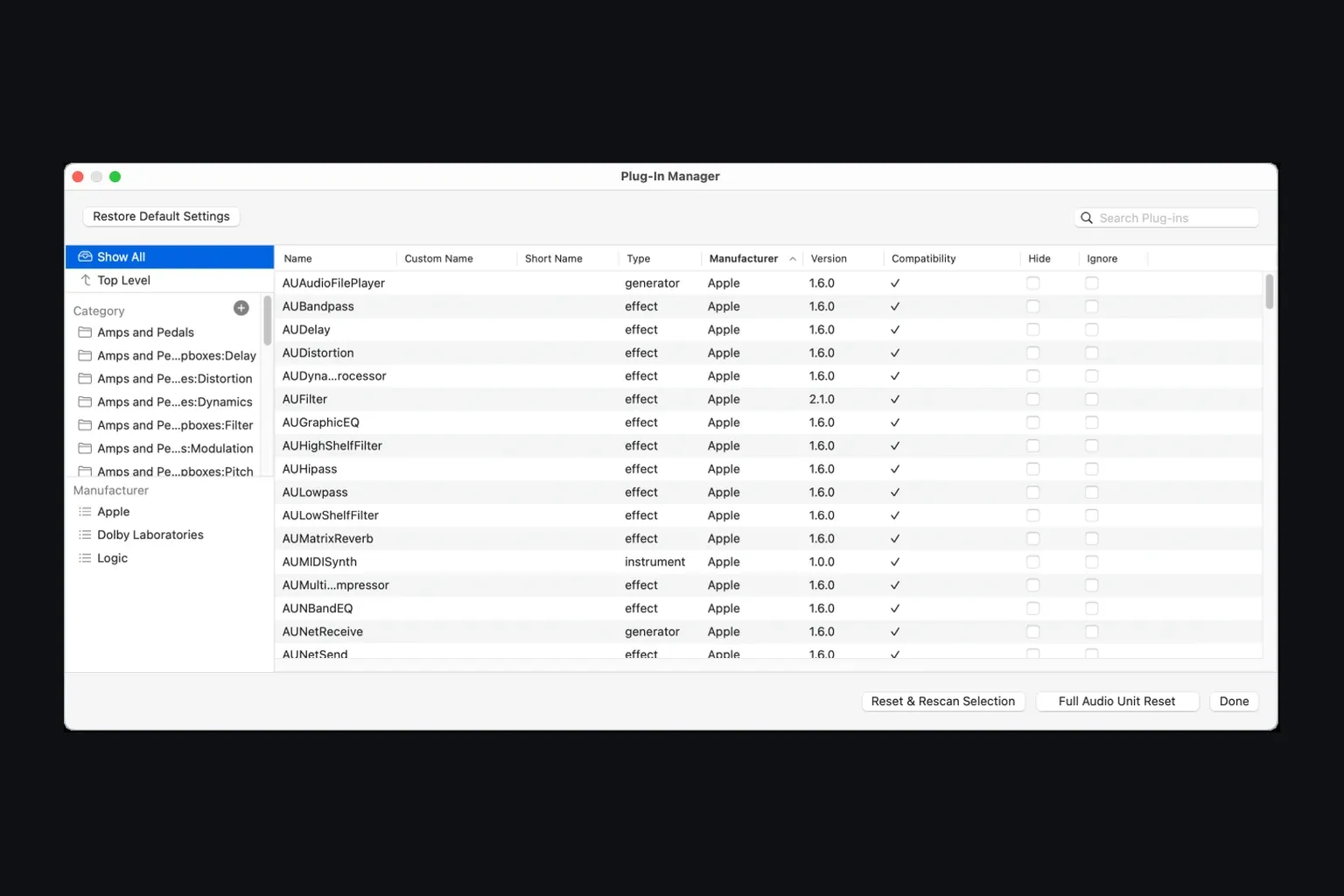
If Logic will not open normally, quit it and use Apple’s file-isolation procedure for Audio Units installed as .component files. In Finder > Go > Go to Folder, check /Library/Audio/Plug-Ins/Components and ~/Library/Audio/Plug-Ins/Components. Move the suspected component to a holding folder, restart the Mac and retest. Keep a note of its original location. If several components must be isolated, restore them one at a time, quitting and reopening Logic after each restoration. A file linked to the failure needs a compatible update, reinstall or vendor support. Do not delete the whole Components folder or clear caches as a first step. App-based Audio Unit extensions use a different installation route; follow the developer’s instructions for those.
Test the audio interface and external hardware as a separate layer
Save your work, quit Logic and lower the listening level before changing hardware. Disconnect interfaces, MIDI devices or control surfaces one at a time, then reopen and test. Before unplugging an external drive or a hub carrying storage, eject the mounted storage in Finder. Keep the test project and all required media available on another drive if you are testing without that disk. A missing-file error after unplugging project storage is not evidence that the storage caused a crash.
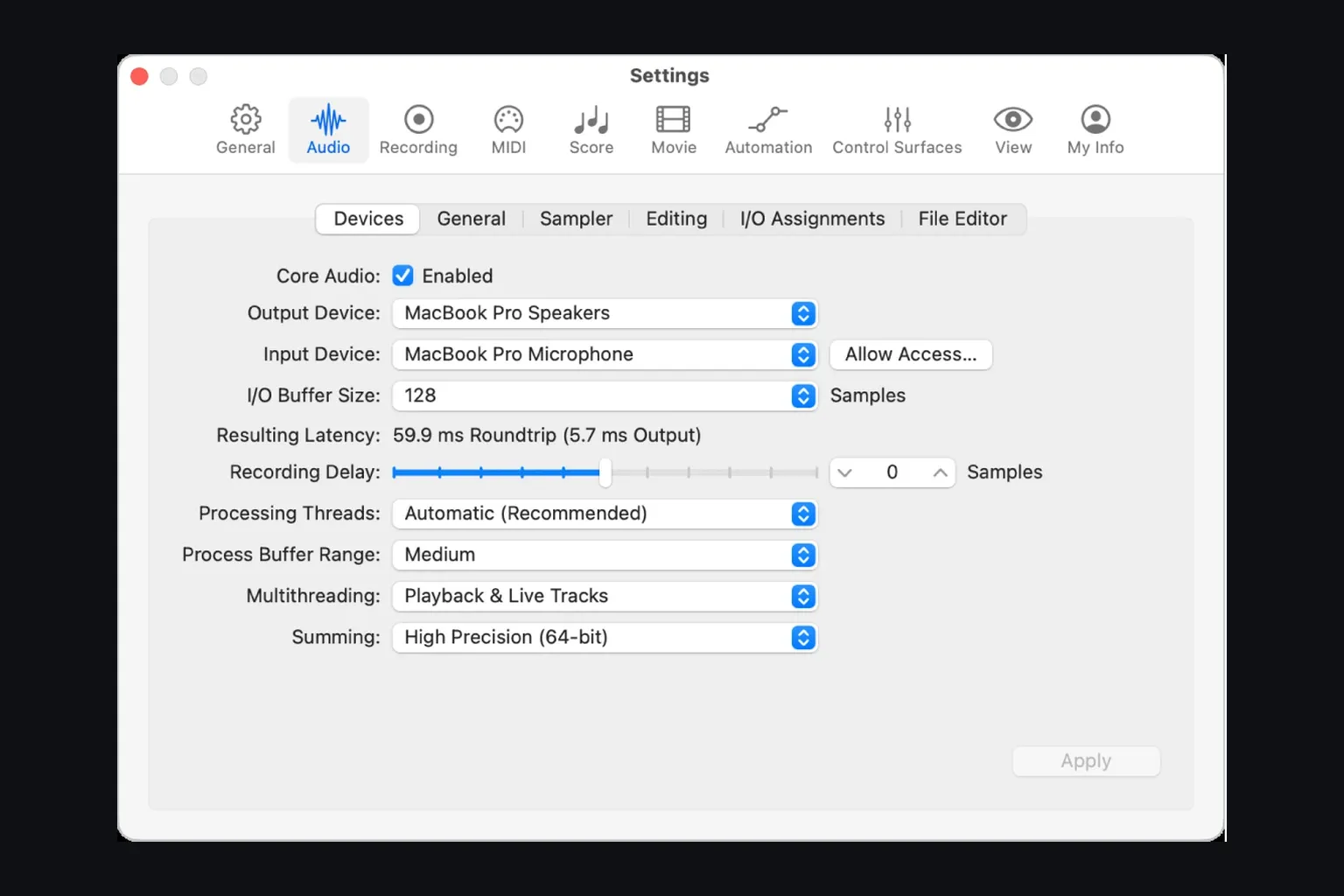
In Logic Pro > Settings > Audio > Devices, select the Mac’s built-in output for playback and an available built-in input if your Mac has one. Not every Mac has a built-in microphone. If playback works this way but fails through the interface, check the external connection, driver, control software and model-specific compatibility. That result does not prove the interface hardware is broken. The audio-interface detection guide helps when the device itself is missing from Logic.
Use crash reports as evidence, not a verdict
Open Applications > Utilities > Console and choose Crash Reports. Apple’s Console guide explains the report categories. Match the app name and time to the quit you are investigating; the newest report may belong to another process. If Logic only stopped responding, look under Spin Reports if a report was recorded.
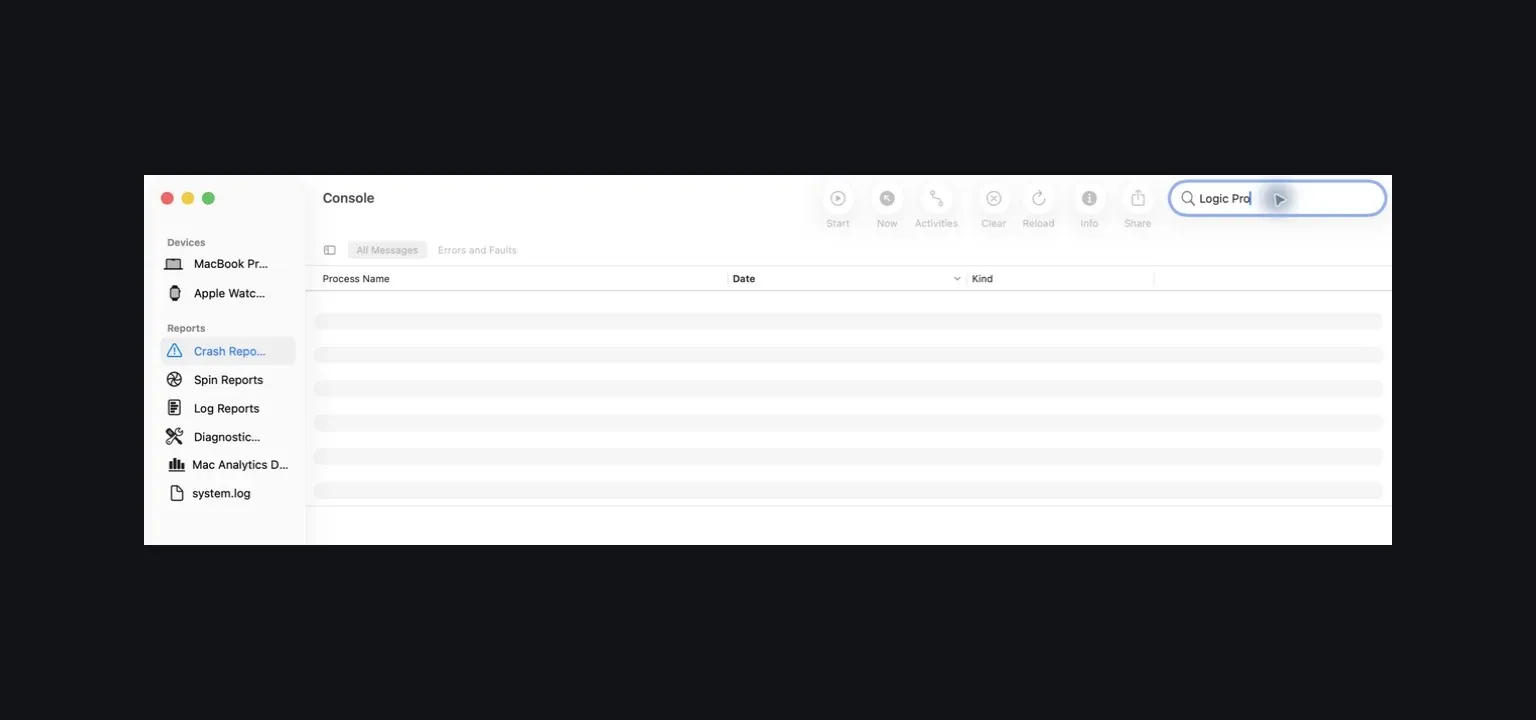
Record the exception and termination details, the crashed thread and any named third-party component. A name is a lead, not proof of blame. Apple’s crash-report analysis guidance explains why the complete report matters and why the failing thread may not contain the original cause. Test a suspected plug-in by updating or removing it in a project copy and repeating the same action. Keep the complete report for support, not just a screenshot of one line.
Check compatible updates, then test user settings
Check the installed macOS and Logic versions against each involved vendor’s compatibility requirements before updating. Read Apple’s Logic Pro release notes for a fix matching your trigger. For example, the 12.3.1 notes list fixes for quits when double-clicking a Chord Track chord and playing MIDI in a project with video. Those are specific fixes, not a promise to cure every crash. Back up the working application and projects first, then update only to a compatible setup and retest.
Before resetting preferences, try the same action in a new macOS user account. If it works there, settings or files in the original account may be involved. Record your custom settings before choosing Logic Pro > Settings > Reset All Settings Except Key Commands. Apple says this leaves project files, presets and patches intact, but resets custom preferences and several interface defaults; you may need to enable Advanced Settings again. If the fault is tied to a control surface, use Apple’s separate com.apple.logic.pro.cs procedure instead. That reset requires a restart and may require adding the controller or reconnecting Logic Remote.
Use a plist reset only after those checks. Note your custom settings, export custom key commands and quit Logic. In Finder, open ~/Library/Preferences and move the file for the app you are troubleshooting into a holding folder: com.apple.logic10.plist for the one-time-purchase version, or com.apple.mobilelogic for the Apple Creator Studio version. Apple lists those filenames in its settings and plist reset instructions. Do not reset the other app’s file just because both are present. Restart the Mac, reopen the project and retest. Keep the original file, and reapply custom settings one at a time if the reset resolves the problem.
Reinstall or contact support only after the scope is clear
If the fault persists in a new user account and a new project, without third-party Audio Units and using built-in audio, reinstalling Logic is a later step in Apple’s troubleshooting sequence. Preserve the app and project backups first. Reinstalling the app does not automatically remove third-party plug-ins or every user-level preference, so it is not a universal clean slate.
If the failure survives those tests, send Apple Support or the relevant vendor a compact reproduction package: Mac model, macOS version, exact Logic Pro version, interface and driver version, plug-in version, numbered reproduction steps, whether the issue occurs in a new project and user account, and the matching crash or spin report. For an Apple product defect, the Logic Pro feedback form accepts product feedback, but does not replace a support conversation about a specific failure. Keep an untouched copy of diagnostic reports. Before posting reports publicly, check for personal file paths or project details; use the support channel requested by Apple or the vendor for the complete report.
Logic Pro crashing FAQ
Why does Logic Pro keep crashing on my Mac?
Repeated crashes can come from a particular project, an incompatible third-party Audio Unit, an audio or MIDI device, damaged user settings, or a Logic Pro or macOS defect. Reproduce one exact trigger and change one thing at a time to narrow the cause.
How do I open Logic Pro without plug-ins?
Quit Logic Pro, open it from Applications, immediately hold Control, then choose Launch Without Audio Units. Logic Pro opens with Core Audio enabled but all Audio Units disabled, which tests whether plug-ins are involved.
Why does Logic Pro crash only in one project?
A crash limited to one project points to something that project loads or does, such as one plug-in instance, audio file, automation state or project setting. Work on a copy and remove or replace one suspect at a time.
Can a crash report tell me which plug-in caused the crash?
A report can identify a useful lead, but a component name in a crashed thread is not proof by itself. Confirm the lead by reproducing the crash and removing or updating that plug-in in a copy of the project.
Is a system overload the same as a Logic Pro crash?
No. With a system overload, Logic Pro normally stays open and playback stops or an alert appears. A crash closes the app; a hang leaves it open but unresponsive. Each symptom needs a different diagnostic path.
Should I reinstall Logic Pro when it keeps crashing?
Reinstall only after simpler isolation steps fail across a new project and a new macOS user account. Back up the Logic Pro app and projects first, and remember that reinstalling Logic Pro does not automatically remove third-party plug-ins or user-level settings.


