Audio Interface Not Showing Up in Logic Pro: Fix Detection First
A safe diagnostic path for an audio interface missing from Logic Pro, from macOS detection and drivers to Core Audio, permissions and routing.

If your audio interface is missing from Logic Pro, check Audio MIDI Setup first. If it is missing there too, start with the connection, power and manufacturer software. If it appears there, open Logic Pro > Settings > Audio > Devices and check Core Audio and the selected devices. A listed interface with no signal needs different checks from one that never appears.
Checked September 12, 2026 against Apple’s current Logic Pro for Mac and Audio MIDI Setup documentation. These are documentation-based diagnostic steps, not a hardware test of your particular interface.
Start with the symptom, not a random reset
| What you see | Check first |
|---|---|
| Missing from Audio MIDI Setup | Power, data cable, Mac port and model-specific software requirements |
| In Audio MIDI Setup but not Logic | Core Audio, device selection and reloading Logic’s audio driver |
| Listed in Logic, but no input meter movement | Physical source, interface gain/routing, microphone permission and track input |
| Input works, but playback is silent | Output Device, track output and interface monitor mix |
| Disappeared after an update | Compatibility with the installed macOS and Logic versions |
| Clicks, pops or a sync alert | Sample rate, clock setup, buffer size and plug-in load |
Save your project and turn down the monitor or headphone level before changing devices or power-cycling the interface. Change one thing, then test again. Do not uninstall drivers, reset Logic or lower Mac security just because a device is missing.
1. Check Audio MIDI Setup
Quit Logic, leave the interface connected and open Applications → Utilities → Audio MIDI Setup. Choose Window → Show Audio Devices if the audio window is hidden. Apple’s current Audio MIDI Setup guide says connected audio input and output devices appear in the list on the left.
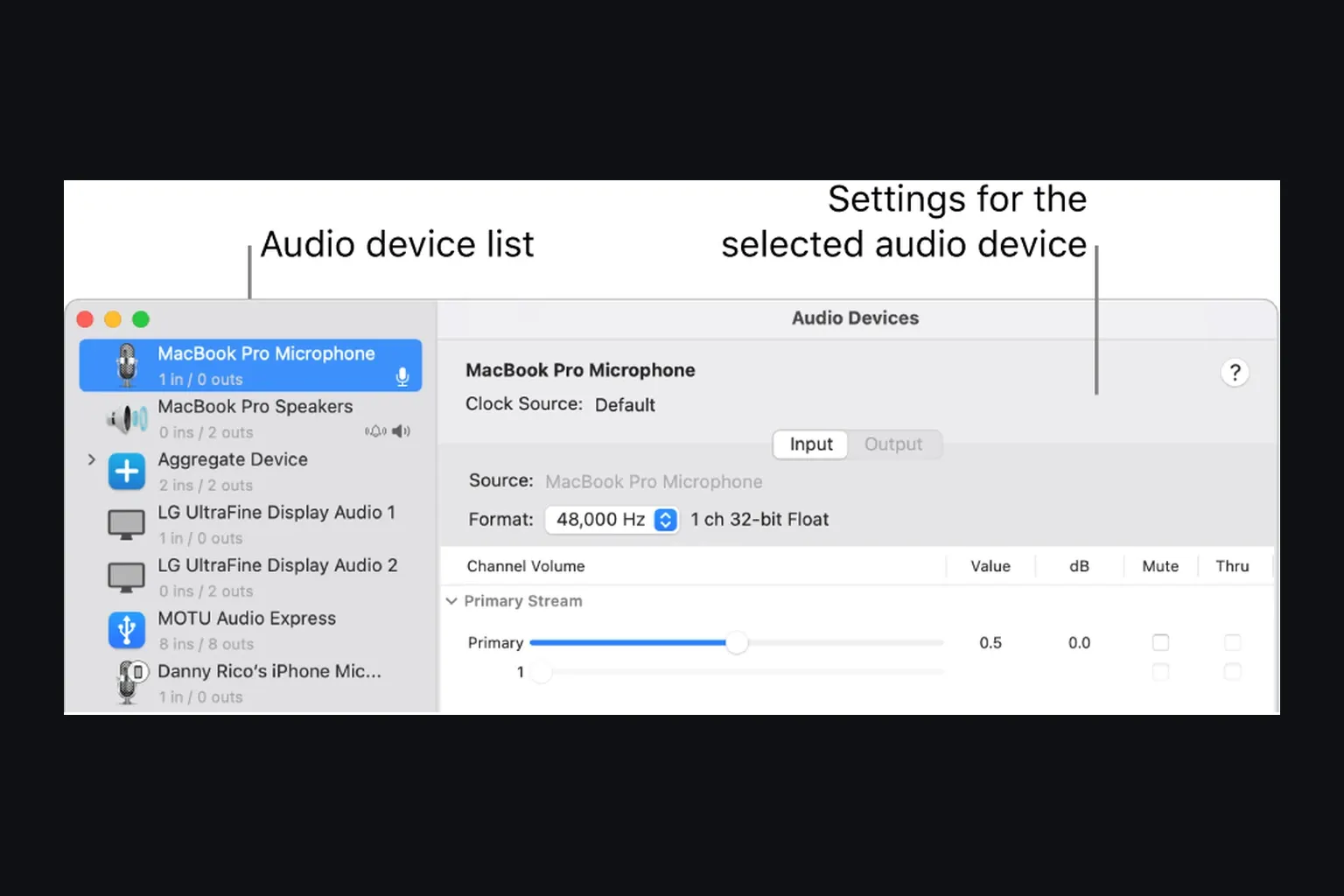
If the interface is present, select it and confirm that its input and output channels appear. The name may be the model, a vendor driver name or a class-compliant USB audio label. Go to the Logic settings step below.
If it is absent, stay outside Logic for now. For a USB or Thunderbolt interface, hold Option and choose Apple menu > System Information, then look under Hardware > USB or Thunderbolt. Apple’s port troubleshooting guidance uses this to check the hardware connection. Being listed here does not prove the audio driver works. If it appears here but not in Audio MIDI Setup, check the maker’s required audio software; if it is missing from both, test power, cable and port first.
2. Prove the cable, port and power path
- Save your work, quit Logic and lower the monitor volume. Follow the interface maker’s power-off and reconnection instructions, then turn the interface on again.
- Connect directly to a compatible Mac port for this test, bypassing the dock or hub. Save work and eject mounted drives before disconnecting a shared hub or adapter chain.
- Try a known-working cable that supports the interface’s required data connection. A power light proves neither a working data cable nor successful device recognition.
- Try another compatible Mac port. USB-C describes the connector, not the protocol: a Thunderbolt-only device needs a Thunderbolt-capable cable and port.
- For an interface with an external power supply, confirm the specified adapter is connected. Bus power may be insufficient through some hubs.
- Restart the Mac once with the interface disconnected, then connect it after login and check Audio MIDI Setup again.
Apple’s Logic Pro guide recommends connecting an interface directly rather than through a hub or daisy chain. Worth doing for the diagnostic test even when a powered dock normally works. Once detection is stable, add the dock and other peripherals back one at a time.
On a Mac laptop with Apple silicon, unlock the Mac and approve this interface if the accessory prompt appears. Apple’s accessory approval guidance says an accessory can still receive power after you choose Don’t Allow, while its data connection is blocked. Reconnect it to get the prompt again. You do not need to allow every unknown accessory globally for this test.
3. Check the manufacturer’s current driver instructions
Logic uses Core Audio. Some interfaces are class-compliant and don’t need a separate macOS driver. Others want a vendor driver, firmware updater or control application. Two models with near-identical names can have different requirements, so generic “install the latest driver” advice is unsafe.
Use the manufacturer’s instructions for the exact model and generation, installed macOS version and Mac processor. Check the Logic Pro system requirements separately: app compatibility does not establish driver compatibility. Install only the software required for your device, using the vendor’s download page, and follow its restart instructions.
After an update, check compatibility before changing more software. Apple flags third-party hardware and plug-ins in its Logic troubleshooting sequence. A vendor control app showing “No Hardware Connected” is not the same test as Audio MIDI Setup: Focusrite’s detection guidance first checks whether the interface model supports that control software. Do not lower Startup Security or approve an extension using instructions for another brand or generation.
4. Select the interface in Logic Pro Audio Devices
When Audio MIDI Setup sees the interface, open Logic Pro > Settings > Audio > Devices. Enable Core Audio. Choose the interface as Input Device for recording; choose the Output Device connected to your headphones or speakers. Select the same interface for both when it handles both jobs. Click Apply if available.
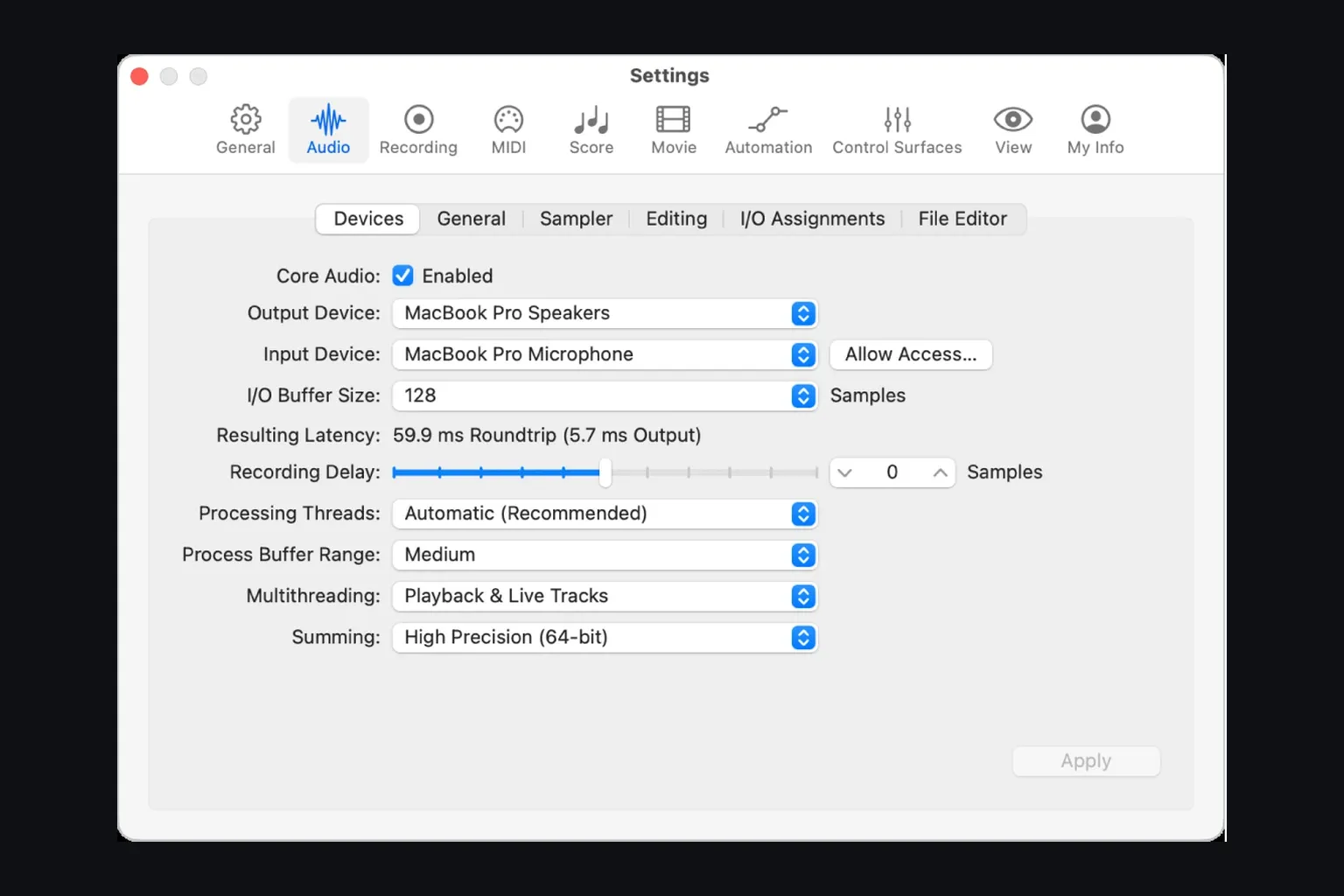
The Audio Devices settings let you choose input and output separately and reload the driver with Apply. Resulting Latency describes the selected setup, not a guaranteed delay for every interface. Do not copy an example number from the image as a target.
If the name is still missing here but present in Audio MIDI Setup:
- Temporarily select the Mac’s built-in output and an available built-in input, if your Mac has one. Apply, then reselect the interface. Keep the listening level low while switching outputs.
- After saving the project, turn Core Audio off and back on, then apply.
- Quit and reopen Logic after the interface is powered and visible in Audio MIDI Setup.
- As an isolation test, quit other audio applications and retest. Do not disable manufacturer driver services or required background components. Follow the maker’s instructions if its control software is the part that fails.
If playback works with built-in audio but not the interface, check the interface’s settings, compatibility and support options. Apple recommends contacting the maker about an update or service; this test alone does not prove a hardware fault or a corrupt Logic project.
5. If the interface is listed but there is no input
A listed interface can still have no incoming signal because of the microphone or instrument, cable, input gain, interface routing or app permission. Check the physical source and the interface’s input indicator first. Then quit Logic, open System Settings > Privacy & Security > Microphone, enable Logic Pro, and reopen it. Apple’s audio-input permission instructions cover external interface inputs too, not just microphones built into a Mac.
Choose the correct Input Device and the track input receiving your source. Use a mono audio track for one microphone or mono cable, or a stereo pair for a stereo source. Record-enable the track and watch its meter. To hear it through Logic, enable Software Monitoring in Settings > Audio > General and turn on the track’s Input Monitoring button. Focus that track too if monitoring is restricted to the focused track. Apple’s General Audio settings explain these options. If you use the interface’s direct monitoring instead, turn Software Monitoring off for this test to avoid a second delayed copy. Use headphones and a low listening level when testing a microphone. Hearing direct monitoring alone does not prove Logic is recording.
If the interface meter moves but Logic’s meter doesn’t, follow the complete Logic Pro not recording audio checklist. If Logic’s meters move but nothing reaches the speakers, use the separate no-sound diagnostic. Keeping those symptoms separate saves you an unnecessary driver reinstall.
6. Fix sample-rate or clock alerts without confusing them with detection
Apple links the audio and MIDI sync alert to an incoming sample rate that mismatches the project or fluctuates. Compare File > Project Settings > Audio with the interface’s rate in Audio MIDI Setup or its control app. The alert is not proof of one particular faulty cable or clock. Apple also recommends increasing the I/O buffer and freezing plug-in tracks when troubleshooting it.
If the interface has no external digital clock connection, its internal clock is normally the appropriate source; confirm that in its manual. With devices linked by ADAT, S/PDIF or word clock, use one primary clock and configure the others to follow it. Check the manufacturer’s instructions for the actual connections rather than turning on drift correction at random.
Clicks and dropouts can also happen when the buffer is too small for the project’s processing load. Buffer size affects latency and stability after device selection; it is not a way to make absent hardware appear. Use a low buffer that runs cleanly when monitoring a recording, and a larger buffer when mixing if needed. The Logic Pro latency guide covers that trade-off after detection works.
7. Use an Aggregate Device only after both devices work
An Aggregate Device combines inputs and outputs from multiple Core Audio devices. It can’t make an undetected interface appear. Both devices must already be listed and working in Audio MIDI Setup.
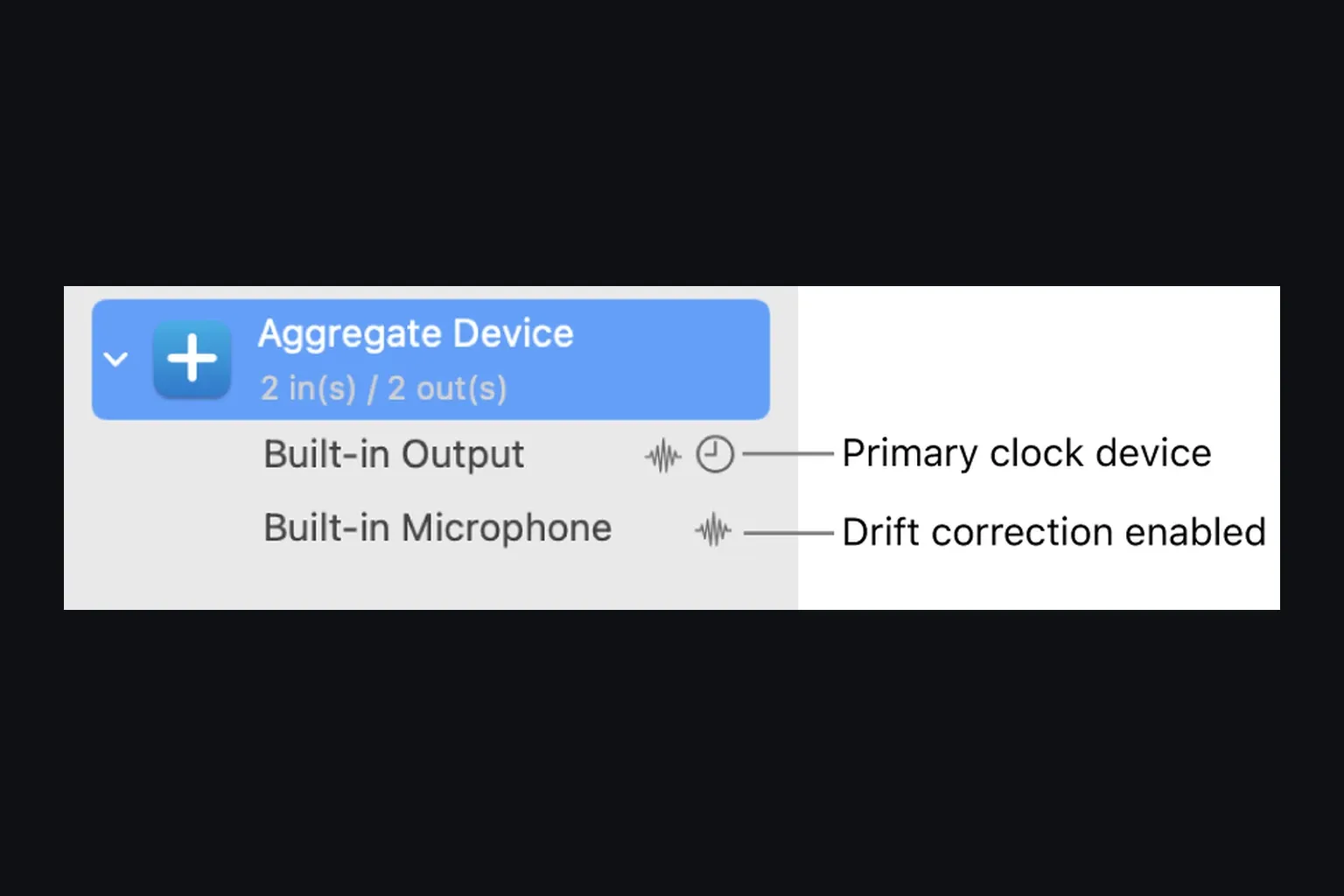
In Audio MIDI Setup, click the plus button and choose Create Aggregate Device, then select the devices to include. Set them to the same sample rate and choose the primary Clock Source. Apple’s aggregate settings guide explains drift correction: enable it for devices not synchronized through hardware; leave it off for devices locked to the shared hardware clock. Check the resulting input/output channel numbers, then select the aggregate in whichever Logic device menu needs those combined channels. Separate input and output devices do not automatically require an aggregate.
If a single interface is missing, don’t go creating or deleting aggregate devices. Go back to the cable/driver branch. If only a MIDI keyboard is missing, use the MIDI keyboard diagnostic. Audio MIDI Setup’s MIDI Studio is a different window from Audio Devices.
8. Safe last-resort tests
- Back up the project and the current Logic application before a major update or reset.
- Test the interface in another Core Audio app. Failure everywhere points away from a Logic-only setting.
- Test a new empty Logic project. If the interface works there, inspect the original project’s routing and plug-ins.
- Launch Logic while holding Control and choose Don’t Launch for audio input and output. If Logic opens only this way, Apple says the interface or an Audio Unit may need attention.
- Contact the manufacturer with the Mac model, macOS version, Logic version, interface revision, connection type and the point where the device disappears.
A settings reset changes your custom preferences, and removing drivers can disable a partly working setup. Use those procedures only when the evidence and the manufacturer’s instructions call for them. If Logic quits or will not open, use the Logic Pro crash diagnostic. Once the interface is detected, the audio interface setup guide takes you through a test recording and playback. The troubleshooting hub covers other symptoms.
Audio interface detection FAQ
Why is my audio interface not showing up in Logic Pro?
If it is also missing from Audio MIDI Setup, macOS has not exposed it as a Core Audio device; check the cable, port, power and exact driver compatibility. If it appears in Audio MIDI Setup, select it in Logic Pro → Settings → Audio → Devices and apply the change.
Why does Audio MIDI Setup see the interface but Logic does not?
Save the project, lower the listening level and check Core Audio in Logic’s Audio Devices settings. Select an available built-in device and apply, then reselect the interface. Quit and reopen Logic with the interface connected if the list remains stale. If only the external interface fails, check its current software and compatibility with the maker.
Why is the interface listed but not receiving audio?
Check the microphone or instrument, cable, interface gain and routing, macOS microphone permission for Logic, the selected Input Device and the track input. Record-enable the track. Use Software Monitoring and Input Monitoring only when listening through Logic; direct monitoring uses the interface’s own path. A listed device does not establish where the signal has stopped.
Does an audio interface need a driver on Mac?
It depends on the exact model. Some interfaces are class-compliant and use Apple’s built-in Core Audio support; others require vendor software or a driver. Use the manufacturer’s current instructions for that revision and macOS version.
Will changing the I/O buffer make a missing interface appear?
No. Buffer size changes monitoring latency and processing load after a device is selected. It does not make macOS detect absent hardware. Resolve detection first, then tune the buffer for clean recording.
Should I create an Aggregate Device to fix a missing interface?
No. An Aggregate Device combines devices that Audio MIDI Setup already detects. It cannot recover an interface missing from macOS. Fix the connection, power or driver problem first.


