MIDI Keyboard Not Working in Logic Pro: 9 Fixes
A symptom-first Logic Pro MIDI checklist for device detection, MIDI Activity, track routing, control-surface conflicts, Mono Mode and driver resets.

Press a key and watch Logic Pro’s MIDI Activity display. If it responds but you hear nothing, check that your keyboard’s port is enabled in Settings > MIDI > Inputs, then check the selected software instrument track. If it stays blank, test the connection in Audio MIDI Setup. A CoreMIDI alert at launch needs a different check, covered below. For a problem affecting more than the keyboard, use the Logic Pro troubleshooting hub.
Checked September 12, 2026 against Apple’s Logic Pro MIDI documentation. These instructions use Logic Pro 12 menu names. They are documentation-based checks, not a test of your particular keyboard or driver.
If MIDI activity returns but the instrument stays silent, continue with the Logic Pro no-sound checks. If only one third-party instrument fails, use the separate plug-in troubleshooting workflow.
Save your project before troubleshooting. Change one setting at a time and play the same few notes after each change. Stop when the keyboard works; a preferences reset is not routine maintenance.
| What you see | Check first |
|---|---|
| CoreMIDI or MIDI Services alert at launch | External MIDI devices, installed driver compatibility and whether MIDI Studio opens |
| No incoming notes in Audio MIDI Setup | Keyboard power, data cable, interface connection and model-specific driver requirements |
| MIDI Studio receives notes, but Logic shows no MIDI Activity | Logic’s MIDI driver communication and control-surface assignments |
| MIDI Activity responds, but no sound plays | Enabled MIDI input port, selected instrument track, channel and project note filter |
| Instrument plays, but no MIDI region records | Record-enabled track and MIDI recording setup |
Check Logic Pro's MIDI Activity Display
Before changing any settings, find out whether Logic Pro is receiving MIDI from your keyboard at all. Logic Pro has a built-in MIDI Activity display built for exactly this. Set the LCD in the control bar to Custom, then press a key on your controller.
The top line shows the last incoming MIDI message; the bottom line shows the last outgoing message. Notes played together can be displayed as a chord rather than a list of separate notes.
There is a catch: Apple says MIDI Activity displays messages even from disabled input ports. Activity confirms that Logic can see the messages, not that the port is enabled for playing or recording a track. Check the port’s On checkbox in MIDI settings before chasing an instrument problem. If MIDI Studio receives notes but this display stays blank, check driver communication and control-surface assignments.
Confirm Audio MIDI Setup Detects Your Keyboard
Open Audio MIDI Setup in Applications/Utilities and choose Window > Show MIDI Studio. Select your keyboard or MIDI interface, turn on Test MIDI Setup, and play a few notes. The up arrow for the corresponding MIDI out port highlights when the Mac receives them. Turn Test MIDI Setup off when finished.
A device icon alone is not proof that notes are arriving. If you use a five-pin MIDI connection, test the MIDI interface’s port; the keyboard need not appear as its own automatically detected USB device. Connect the keyboard’s MIDI Out to the interface’s MIDI In, as shown in Apple’s MIDI connection guide.
If a USB device is missing or dimmed, click Rescan MIDI, check power, and try a known-working data cable and another port. Try a direct Mac connection when possible. Save work and eject any mounted drives before unplugging a shared dock or hub. Some keyboards need manufacturer software; check your exact model and macOS version instead of installing a generic driver. The Logic Pro system requirements guide covers the app’s Mac requirements, not every controller’s compatibility.
If MIDI Studio receives notes, move to Logic’s input settings. If it does not, keep checking the cable, interface, keyboard mode and any required vendor driver before changing a Logic project.
Test a Stock Instrument With Musical Typing in Logic Pro
Create a new software instrument track, load a stock Logic instrument, select that track, and press Command-K to open Musical Typing. Play a few notes on the computer keyboard. If the existing project is complicated, repeat this in a new empty project.
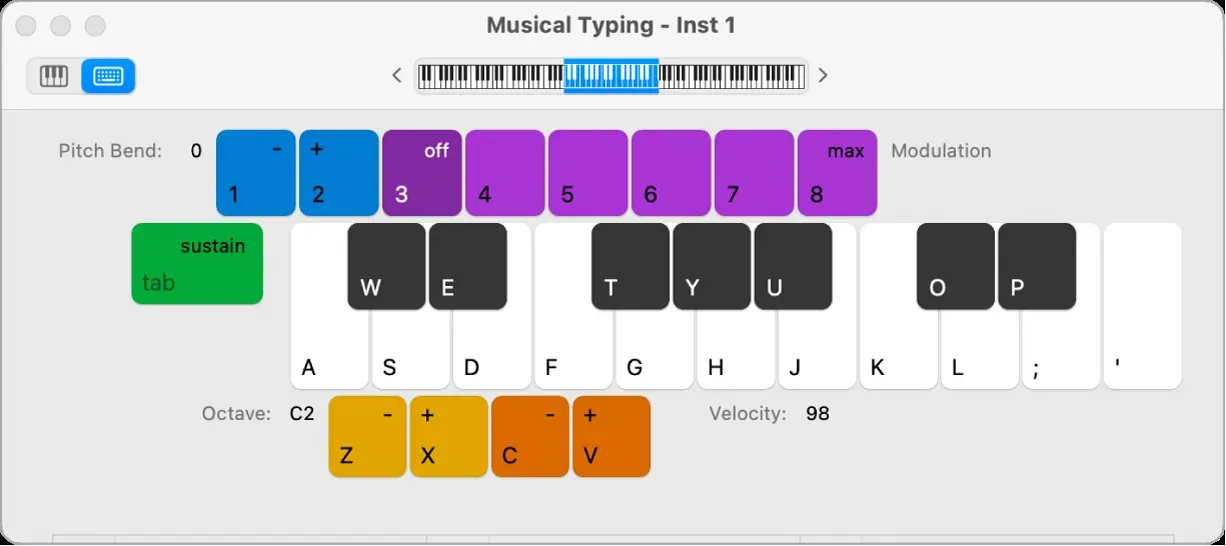
If Musical Typing sounds, that test track, its instrument and its output path work. This does not clear every track or plug-in in the original project. Try the hardware keyboard on the same selected track next. If Musical Typing is silent too, check the instrument and audio output before resetting MIDI drivers.
Keep the test simple: one selected software instrument track and one playable patch. Once it works, return to the original project to find which setting differs.
Fix “MIDI Core Services Not Available” in Logic Pro
“MIDI Core Services Not Available,” “MIDI Services not available,” and “Error Initializing CoreMIDI” all point to the same layer: Logic could not start normal MIDI communication. Apple’s Core MIDI framework connects apps to MIDI devices, but the alert by itself does not prove that macOS, the keyboard, or one driver is at fault.
Save the project, quit Logic Pro and every other MIDI app, and eject any mounted drive that shares the keyboard’s hub or dock. Disconnect external MIDI keyboards and interfaces, restart the Mac, then open Audio MIDI Setup and choose Window > Show MIDI Studio. Click Rescan MIDI, check device power, use a known-working data cable and another port, and confirm that any required vendor driver supports your macOS version. Reconnect one device at a time and test after each connection. This follows Apple’s troubleshooting order: isolate external devices and check compatibility before reinstalling Logic.
Use the full Audio MIDI Setup guide if the keyboard is missing or dimmed in MIDI Studio. If the device appears there but Logic still shows no input, continue to Logic’s MIDI input settings below.
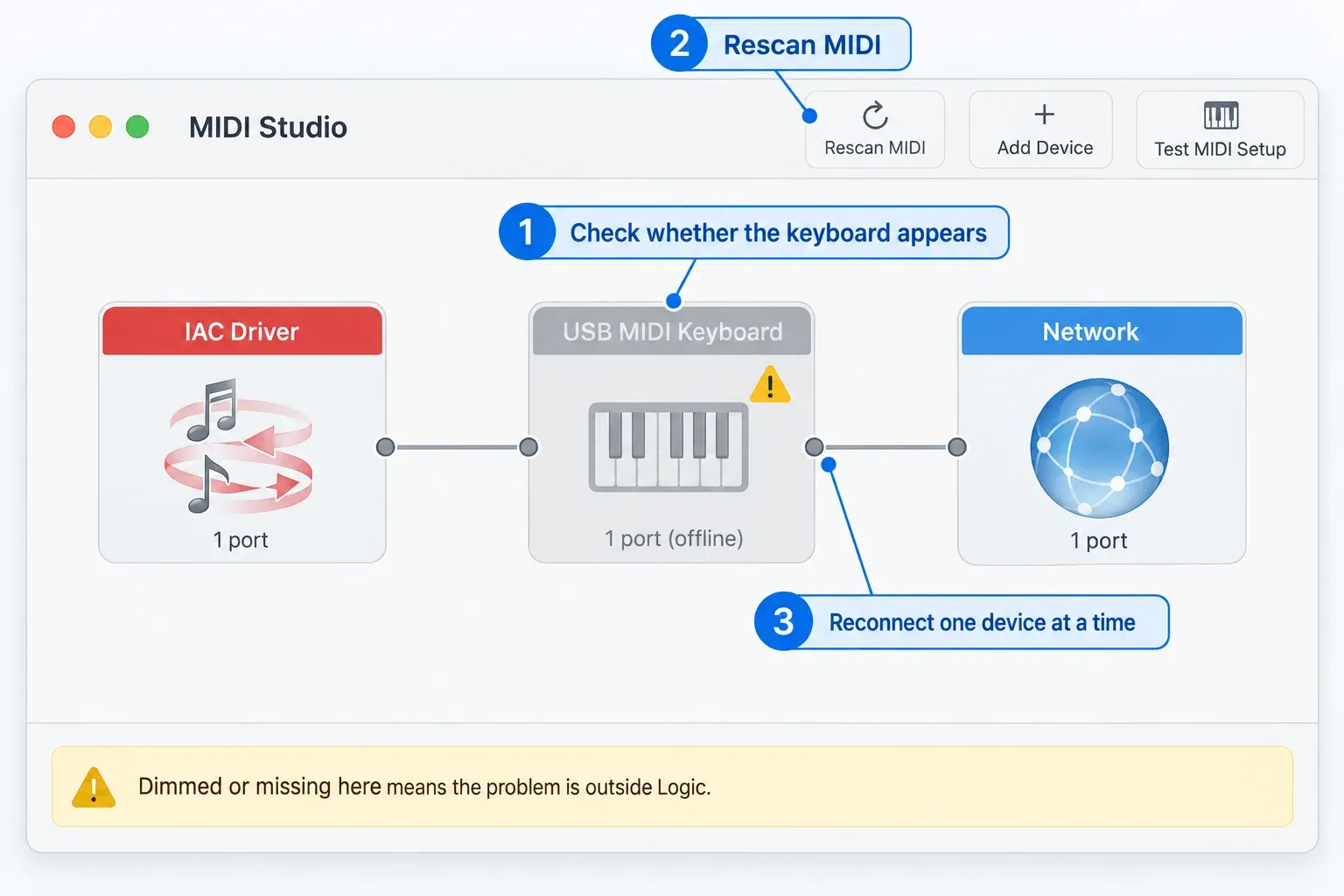
If MIDI Studio will not work even with external MIDI hardware disconnected, the fault is broader than one Logic project or track. Check installed MIDI utilities and vendor drivers, then contact Apple Support if it persists. Do not replace CoreMIDI frameworks or delete driver folders based on a forum workaround.
Enable the MIDI Input and Reset Drivers in Logic Pro
Once MIDI Studio detects the keyboard, open Logic Pro > Settings > MIDI > Inputs. Turn on the checkbox for the port that carries the keyboard’s notes. Avoid enabling every port: controller, DAW and bulk-data ports can serve different jobs. Apple’s MIDI Inputs settings distinguish ports Logic can monitor from ports enabled for tracks.
If the correct input is enabled but Logic still does not communicate, open Settings > MIDI > General and click Reset All MIDI Drivers. Use it once, then retest the same simple software instrument track. The reset restarts MIDI communication; it does not replace the need to enable the correct input port.
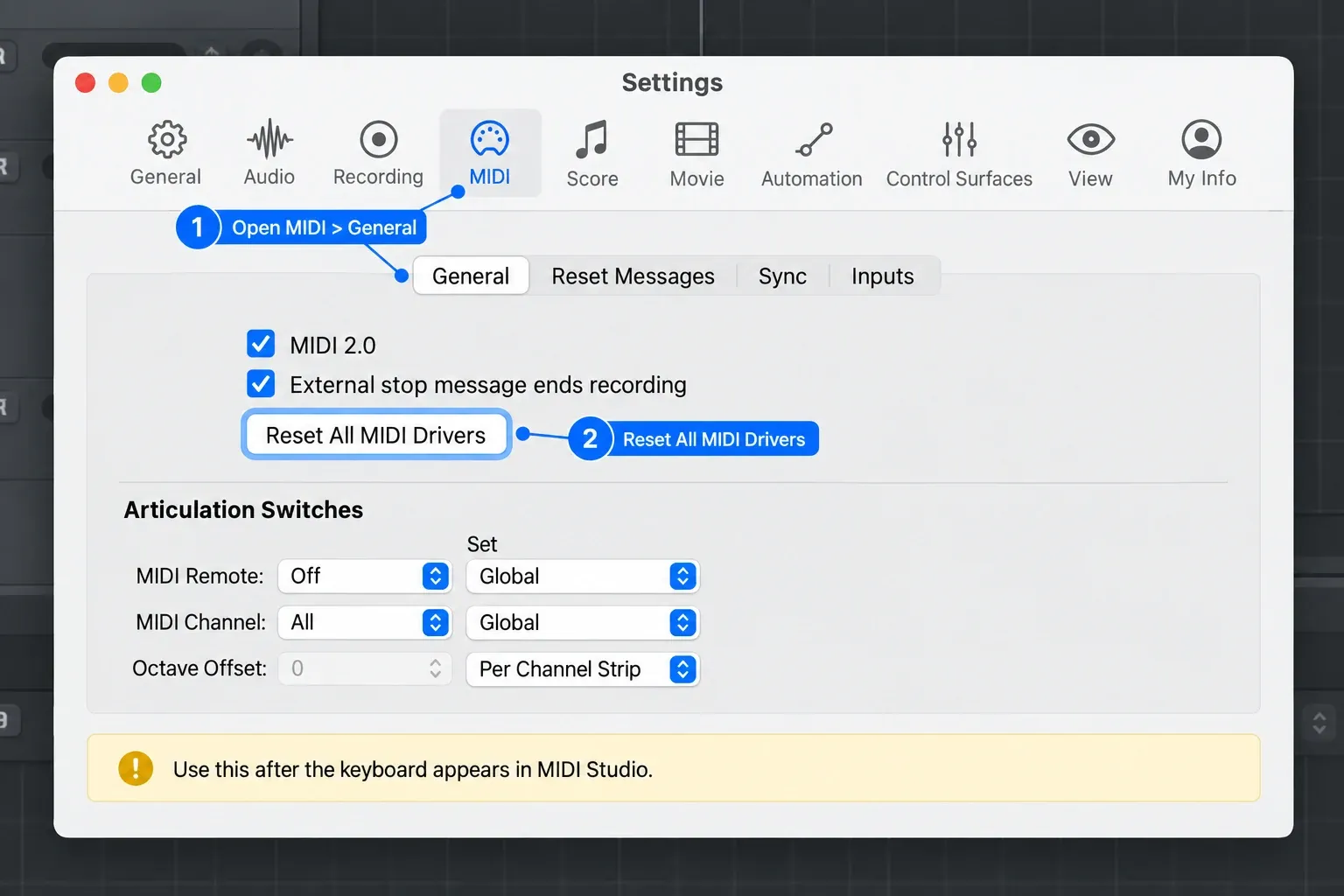
If the reset makes no difference, restart Logic and continue with the track and project checks below. Do not repeat resets indefinitely: the remaining steps identify whether notes are blocked by the track input, project filter, control-surface assignment, or legacy Environment routing.
Check MIDI Input, Channel and the Project Input Filter
With the keyboard’s port enabled, select the software instrument track you want to play and open its Track inspector.
The MIDI Input selector must accept your keyboard: choose its note port, or All for a simple test. Off blocks the track’s input; Musical Typing selects the computer keyboard rather than your hardware controller. Check In Channel too: use All for the test, or match the channel your controller sends.
Older instructions may call these MIDI In Port and MIDI In Channel. The current guide uses MIDI Input and In Channel. For recording several MIDI devices on separate tracks, assign each track its intended port and channel instead of leaving every track on All.
Next open File > Project Settings > MIDI > Input Filter. Leave Notes unchecked for normal keyboard recording. Checking it filters incoming note events in that project. This is a project setting, not a per-track repair.
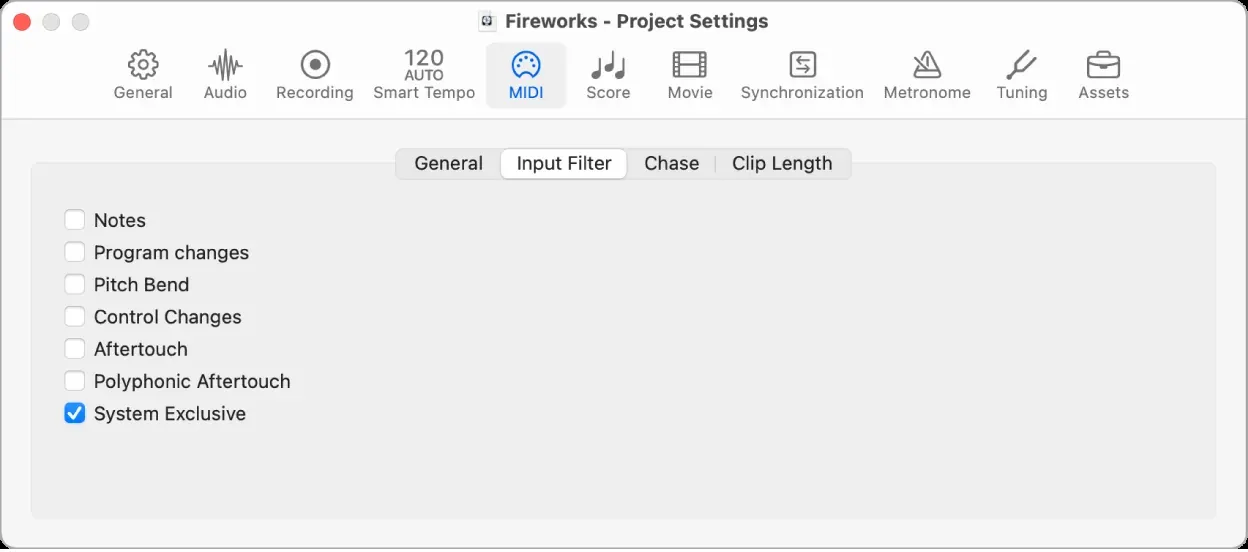
If only one track stays silent, compare its input source, channel and loaded instrument with the working test track. Also check whether its key or velocity limits exclude the notes you are playing. If every track fails only in this project, check the project filter and any custom routing.
Bypass Control Surfaces to Fix Logic Pro MIDI Conflicts
Control-surface assignments can use MIDI messages for commands instead of musical notes. Apple supports automatic controller assignments; a mismatched port or assignment is worth checking when pressing a key operates a control instead of playing the instrument.
Choose Logic Pro > Control Surfaces > Bypass All Control Surfaces and retest. If the keyboard now works, record your existing controller setup before editing it. Inspect Control Surfaces > Setup and Controller Assignments for the conflicting port or command. Correct only the identified conflict, then turn bypass off and test both notes and controller functions.
If the assignment remains faulty, Apple’s control-surface preferences reset is a later option: quit Logic, move com.apple.logic.pro.cs from ~/Library/Preferences into a backup folder, and restart the Mac. Keep the moved file. You may need to add control surfaces or Logic Remote again; this is not a consequence-free reset.
Fix a Project-Specific MIDI Environment in Logic Pro
If the keyboard works in a new empty project but not in an older one, compare MIDI Input, In Channel, key/velocity limits and the project Input Filter first. Inspect the Environment only if those checks do not explain the difference.
Apple's own documentation notes it's not essential to know about, or even open, the Environment to make music in Logic Pro, since new tracks automatically create and configure the objects they need. It's mostly relevant now for legacy or heavily customized projects.
If you do need to open it, hold Option and choose Window > Open MIDI Environment, or press Command-0. Find the layer containing the Physical Input and Sequencer Input objects, often labeled Clicks and Ports in older projects, though naming and layout can vary. Apple's MIDI signal path documentation describes Physical Input as representing your MIDI In ports and Sequencer Input as the entry point for incoming MIDI events.
Work on a duplicate project before changing cabling. Trace the keyboard’s Physical Input port through the existing chain to Sequencer Input. Apple specifies that the SUM output excludes inputs that are cabled separately. A SUM cable therefore does not prove every device reaches the track. Preserve intentional transformers, monitors and other processing; repair the identified break rather than adding a second path blindly.
Retest the duplicated project after the routing change. If it works, compare it with the original before replacing anything. Keep the original project so its custom MIDI processing remains recoverable.
Fix One-Note MIDI Mono Mode in Logic Pro
If notes arrive but a patch plays only one note of a chord, check its MIDI Mono Mode. Apple documents this for some patches receiving on a channel above channel 1. For a conventional non-MPE keyboard, reveal the instrument’s additional parameters and set MIDI Mono Mode to Off. Save the corrected patch under a new name if you want to keep it.
One important exception: turn MIDI Mono Mode off only if you're using a conventional, non-MPE keyboard. MIDI Mono Mode is what gives Logic Pro instruments MPE compatibility, sending each note and its control changes on a separate MIDI channel so you can bend or modulate individual notes in a chord. Apple lists Alchemy, EFM1, ES2, Quick Sampler, Retro Synth, Sampler, Sculpture, and Vintage Clav as the stock instruments supporting it. If you're using an MPE controller on purpose, keep Mono Mode on and make sure the controller and the instrument agree on the same common base channel and pitch bend range.
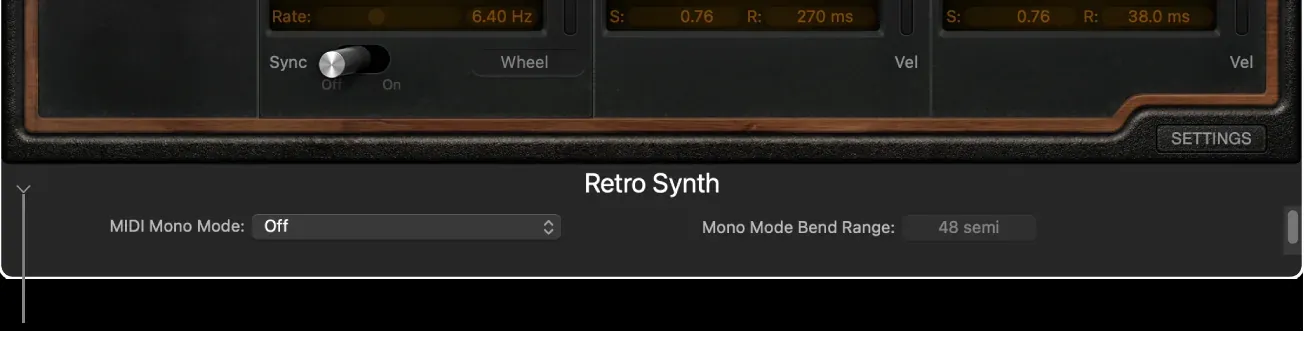
If no notes arrive, return to the input checks. Mono Mode explains a patch’s response to received notes, not a missing USB connection.
For a keyboard with its own sound engine, double-triggering is a separate case. It can happen when Local Control plays that engine directly and Logic sends the same MIDI notes back to it. Apple’s Local Control explanation describes this return loop. Follow your keyboard’s manual to turn Local off when using that routing; simply playing a Logic software instrument does not by itself establish this loop.
Reset Logic Pro Preferences or Reinstall as a Last Resort
Before resetting preferences or reinstalling, back up the Logic app and your projects, export custom key commands, and record settings you will need to restore. Apple’s troubleshooting sequence puts these steps after compatibility, device and project checks. Do not reinstall merely because one controller or one project fails.
Test in a new macOS user account. If the same setup works there, investigate user-level settings or files in the original account. For an identified control-surface problem, use the separate .cs reset above. To reset Logic settings while retaining key commands, choose Logic Pro > Settings > Reset All Settings Except Key Commands. This still changes your other settings.
If needed, follow Apple’s edition-specific preference reset: quit Logic, open ~/Library/Preferences and move the matching file into a backup folder. Apple lists com.apple.logic10.plist for the one-time purchase version and com.apple.mobilelogic for the Apple Creator Studio subscription version. Restart the Mac and retest. Keep the moved file so you can restore the previous preferences if the reset does not help.
Reinstall only after the earlier checks and backups. If the instrument already plays but you cannot create a MIDI region, follow the MIDI recording guide to check track arming and recording setup instead of repeating connection tests.
Logic Pro MIDI Keyboard FAQ
Why does my MIDI keyboard show up in Audio MIDI Setup but not in Logic Pro?
An icon does not prove notes are arriving. Test incoming notes in MIDI Studio, then check Logic’s MIDI Activity display. Even if Activity responds, enable the keyboard’s note port in Settings > MIDI > Inputs. Check the selected track’s MIDI Input and In Channel, its instrument, and the project’s Notes input filter. If MIDI Studio receives notes but Logic does not, check driver communication and control-surface assignments.
Does Logic Pro need drivers for USB MIDI keyboards?
Many USB MIDI keyboards are class-compliant and need no separate macOS driver, while others require software from the manufacturer. Check the documentation for your exact model, and confirm any driver you do install is updated for your current macOS version.
Why did my MIDI keyboard stop working after a Logic Pro or macOS update?
The timing alone does not establish the cause. Check your keyboard, interface and vendor software against the installed macOS version. Test incoming notes in MIDI Studio, then verify the enabled port and selected instrument track in Logic. Use a simple new project to separate a project problem from a broader failure. Back up before changing software or resetting preferences.
What do “MIDI Core Services Not Available,” “MIDI Services not available,” and “Error Initializing CoreMIDI” mean in Logic Pro?
They mean Logic could not start normal MIDI communication. Save your project, quit Logic and other MIDI apps, eject any drives on a shared hub, disconnect external MIDI devices, restart the Mac, and test Audio MIDI Setup > Window > Show MIDI Studio before reconnecting one device at a time. If MIDI Studio still fails with the hardware disconnected, check installed MIDI software compatibility and contact Apple Support. Do not delete CoreMIDI frameworks or driver folders.
Why does my MIDI keyboard only play one note at a time in Logic Pro?
Some patches respond this way with MIDI Mono Mode enabled and notes on channels above 1. For a conventional non-MPE controller, set MIDI Mono Mode to Off and save the patch under a new name. If you use MPE deliberately, keep the appropriate mode and match the controller and instrument’s common base channel and pitch-bend range.
Why does Logic Pro receive MIDI but not play my keyboard's built-in sounds?
MIDI sends performance data, not the keyboard’s audio. To capture its built-in sound, you need a separate audio connection. One route is its audio outputs into an audio interface that Logic can detect, then an audio track or the External Instrument plug-in. For External Instrument, set the hardware’s MIDI port and channel as well as the audio return input.


