iZotope RX in Logic Pro: AU, ARA and Standalone Workflows
RX can work as an insert, a clip editor, or a separate app. Choose the route your edition supports, keep native Logic when possible, and protect the original recording.

Use an ordinary RX Audio Unit when you want repair processing on a Logic channel strip. Use RX Spectral Editor in ARA mode when you need its clip-based spectral tools inside the project. Open the standalone RX editor when the job needs a module or file-editing workflow that the insert cannot provide.
Those are different routes, with different edition and Mac requirements. I’d keep Logic running natively for ordinary AU work and standalone editing, and switch to Rosetta only for an ARA job that justifies the tradeoff. This guide covers RX 12 with Logic Pro for Mac.
Choose the repair before the plug-in
A silent gap, a click during a word, and background noise throughout a take are different problems. Start with the smallest intervention that fixes yours. Trim unwanted gaps and add appropriate fades before reaching for restoration. A Noise Gate can quiet the spaces between phrases. It can’t remove noise while the voice is opening the gate.
| Your task | Start here | What to check |
|---|---|---|
| Repair processing while playing the track | A supported RX AU insert | The effect exists as an AU in your edition and supports the channel format. |
| Select a small time/frequency area inside Logic | RX Spectral Editor ARA | Standard/Advanced, first insert, supported audio region, and Rosetta on Apple silicon. |
| Use the standalone module set or prepare a repaired file | RX Audio Editor | Standard/Advanced, a protected working file, and a deliberate return to the timeline. |
RX 12 Elements is a plug-in-only edition. Standard and Advanced include the standalone editor and Spectral Editor. The current RX edition and format matrix separates plug-ins from standalone modules: a module being included in Advanced doesn’t mean it appears in Logic’s Audio FX menu. For example, Spectral Repair is an editor module, while the De-rustle plug-in format listed there is AAX AudioSuite, not Logic AU.
If you’re still choosing a purchase, the Logic Pro plug-in guide covers RX’s role alongside other tools. Here the question is how to get the repair into your session.
Use an ordinary RX AU insert
For an effect available as a Logic-compatible AU, select the channel strip, click an Audio FX slot, then choose Audio Units > iZotope > the RX effect. Choose the mono or stereo version appropriate to the strip. This is the standard iZotope insertion path in Logic.
An ordinary insert processes the channel’s audio. It doesn’t open the complete standalone editor. Pick the relevant effect instead of searching for one all-purpose “RX” window. Voice De-noise and De-click, for example, are separate entries when those AU components are installed and available in your edition.
Make the comparison on the actual passage that needs repair. Bypass the effect, listen again, and keep the correction only if the defect is less distracting without damaging the wanted sound. I’d do that before adding compression or reverb, which can make the decision harder. These are listening checks for your recording. They don’t promise that one setting will rescue every take.
An ordinary AU does not require running Logic itself under Rosetta just because it is an iZotope effect. Apple distinguishes Audio Unit compatibility from third-party ARA support on Apple silicon. If the expected AU is missing, use the plug-ins not showing up checklist to check installation and validation. Changing the external sample editor setting won’t install an AU.
Use Spectral Editor ARA for clip repair
RX Spectral Editor lets you work on selected audio in the Logic project. Its documented modes are Attenuate, Replace, Gain, De-click, and De-hum. That isn’t the whole standalone module collection. The RX 12 Spectral Editor requirements and workflow specify Standard or Advanced, Logic 10.7 or later, and Rosetta mode for Logic on Apple silicon.
Rosetta has a real cost here: Stem Splitter, ChromaGlow, and most Mastering Assistant presets are unavailable in that mode. If an ordinary AU or external editor solves the repair, there’s little reason to give up those native features for it. Intel Macs don’t have the Apple silicon Rosetta switch.
- Save the project. On Apple silicon, quit Logic, Control-click its app in Applications, choose Get Info, select Open using Rosetta, and reopen the project.
- On the required audio track, place RX 12 Spectral Editor (ARA) in the first Audio FX insert, ahead of other effects. Do not put it on a software instrument or bus.
- Select an audio clip on that track and start playback so Spectral Editor can load it. Choose the repair mode, make the smallest useful selection for the defect, adjust its controls, then click Process.
- Compare the result around the edit, including the surrounding phrase. If you move, trim, or otherwise change the region in Logic, stop and restart playback to refresh the editor’s view.
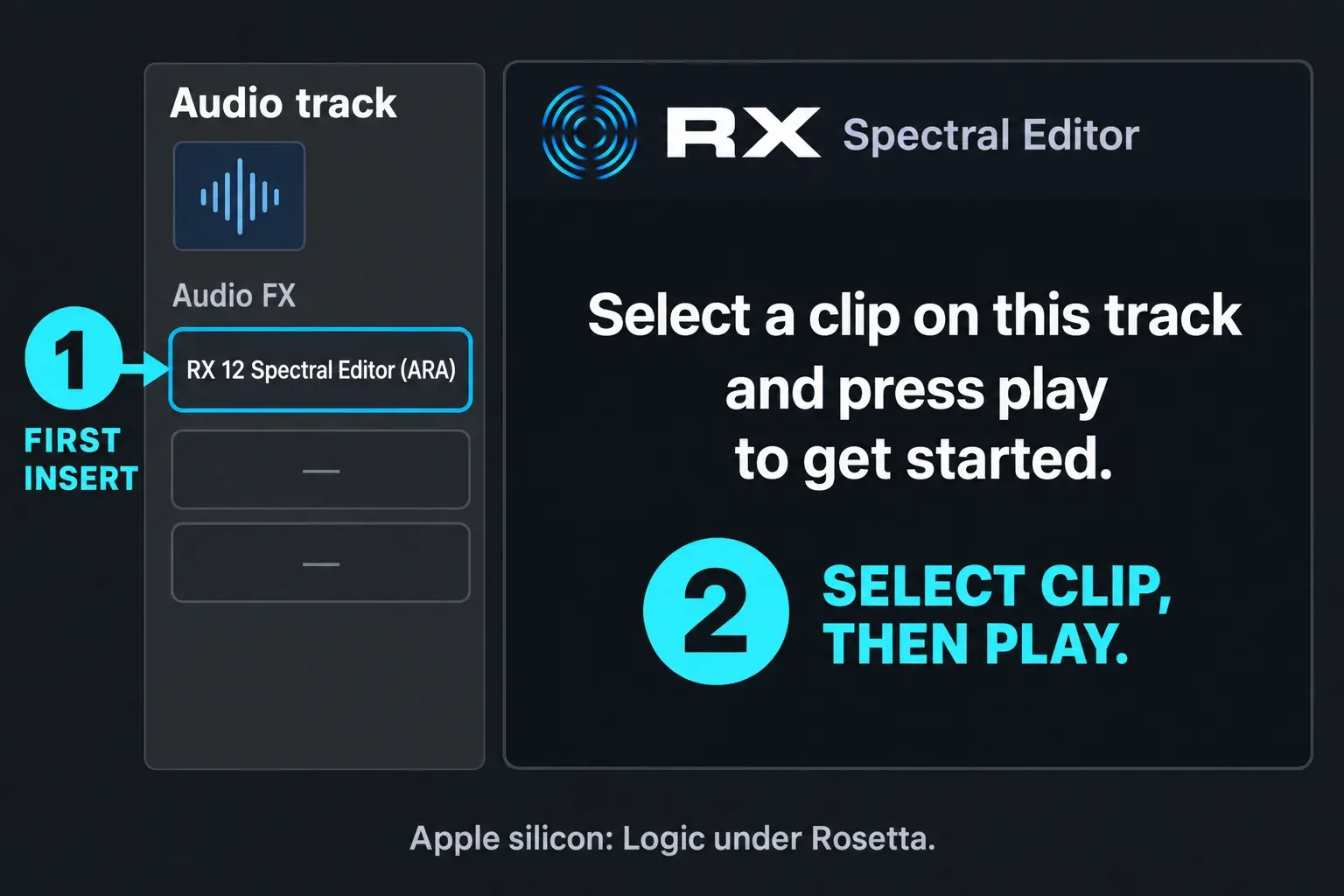
Check the source before treating an empty or silent editor as a failed installation. iZotope requires you to bounce Apple Loops, compressed audio, Flex-processed regions, and reversed regions in place first. A stereo file on a mono track, or a file sample rate that differs from the project, can produce silence. For a take folder, select an individual take rather than expecting the comp overview to load.
Two less obvious limits matter when keeping alternatives: non-unique copies of a clip share Spectral Editor changes and Undo, so bounce an independent copy before making a separate repair. The editor’s Undo history also clears when the session is saved. Don’t rely on an Undo list or a duplicate region as your only protection for the original.
To return Logic to native operation, quit it and deselect Open using Rosetta in Get Info. Before changing architecture for a continuing project, preserve a separate project version and a rendered repair you can use without depending on the live ARA edit.
Open RX as Logic’s external editor
The standalone route is useful when the needed tool belongs in the RX Audio Editor, or when you want to finish a repair as a separate file. You need Standard or Advanced. The external-editor setting points to the RX application. It’s separate from the Audio Units menu.
Protect the audio before sending it. Logic regions can refer to the same underlying file. RX’s Save command overwrites an uncompressed WAV or AIFF on disk. A second region or a different Logic project name does not, by itself, create an untouched copy of that audio file.
For a repair confined to a region, I prefer a new working file with a clear timeline position. Select the region and use File > Bounce > Regions in Place, with New Track and Source: Mute. Apple documents that the new audio is placed at the original region’s position. Keep the source track and an independent backup of the project’s audio.
For a dry repair copy, enable Bypass Effect Plug-ins, leave Include Volume/Pan Automation off, and choose Normalize: Off. Leave Add Effects Tail to File off when you need the working file to end with the selected region. These are preparation choices. They aren’t RX repair settings. Note the working region’s exact start position before exporting anything.
- Choose Logic Pro > Settings > Audio > File Editor.
- Under External Sample Editor, click Choose and select the installed RX application.
- Select the working audio region. In the Audio Track Editor, choose Edit > Open in [RX], or use the default Shift-W key command.
- In RX, confirm that the file you opened is the expendable working copy, then perform the required repair.
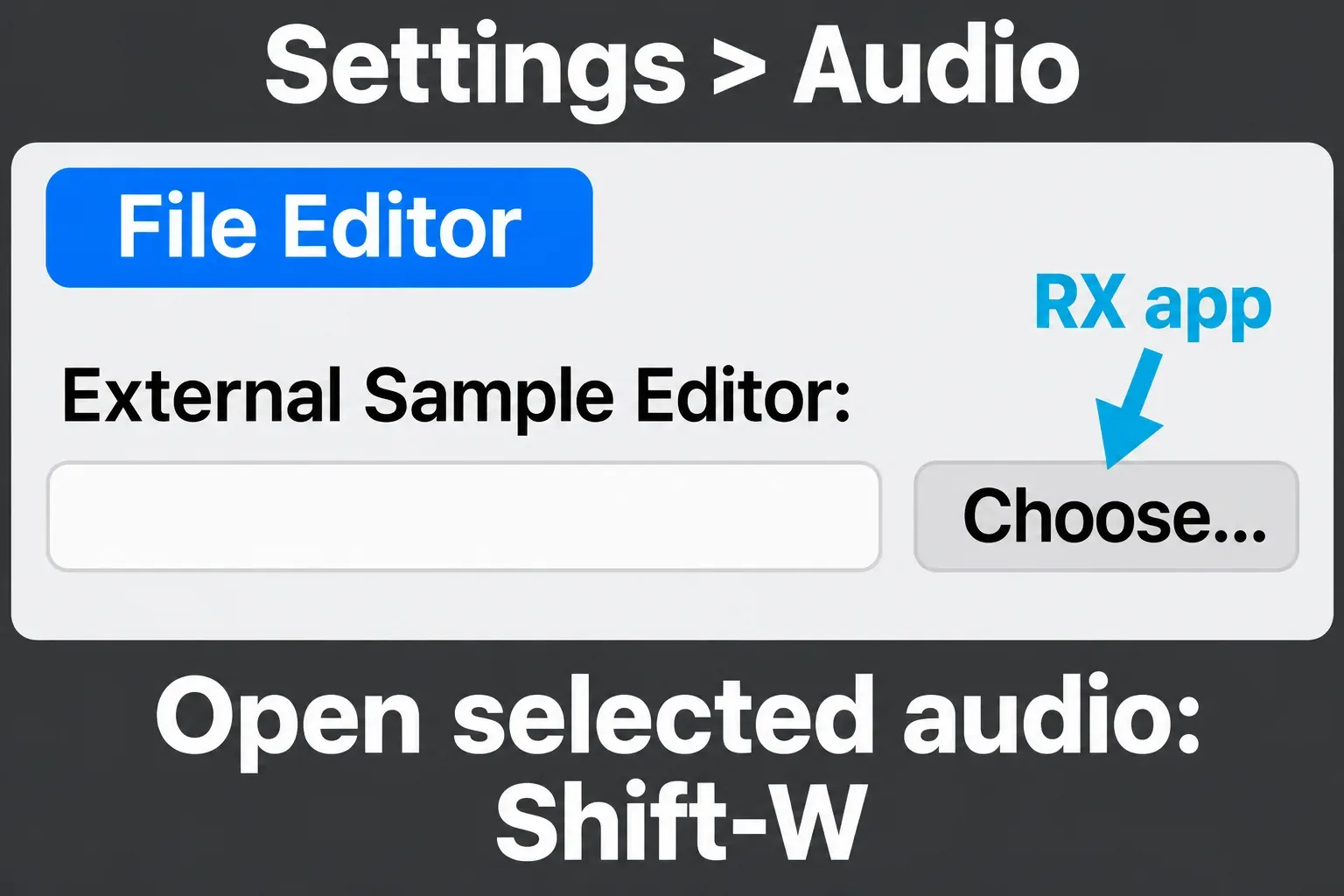
Those menu labels follow Apple’s current external sample editor instructions. Older RX help pages refer to Preferences and enabling advanced editing options. Don’t search for an obsolete checkbox before checking the current File Editor pane.
Return the repair without moving the performance
There are two sensible return paths. Pick one deliberately. Saving an RX document and exporting a playable audio file are different operations.
Update only the working copy
If you’re certain RX holds the new working file, save the repaired WAV/AIFF and switch back to Logic. Apple says the corresponding regions update in the Browser and main window. If the old audio remains, close the file tab in RX and switch back again. iZotope’s Logic-specific instructions include closing the tab, while its support article recommends quitting RX. Confirm the correct file was written before repeating a destructive save.
Don’t apply a Pro Tools RX Connect Send Back/Render recipe to Logic. The Logic section of the RX manual directs you to this external-editor workflow.
Export a new repaired file
For a separately named result, use RX’s File > Export and export the whole working file as WAV or AIFF. Keep its sample rate, channel layout, and duration consistent with the working copy. Don’t trim the opening or use Export Selection if you intend to replace that complete region. An .rxdoc preserves RX editing history but only opens in RX, so it isn’t the file to drag into Logic.
Before importing this fixed-position repair, use Keep Project Tempo, set imported files to Flex Off, and turn off the imported-file Trim start of new regions option. Apple’s Smart Tempo project settings distinguish keeping the project tempo from preventing an imported region from stretching or losing its opening.
Import the repaired audio on a separate audio track and place its beginning at the exact start position you recorded for the working region. Check that position. Don’t assume the file landed at the playhead or the nearest bar. Restore your usual import defaults afterward if other material needs tempo matching.
Mute the working copy while checking the repaired version, and keep the original source muted and available. Compare a recognizable transient near the beginning and another near the end, inspect the region end, and listen across the repair boundaries. A correct start with a drifting ending points to a duration, tempo, or sample-rate problem that needs resolving before you remove any fallback.
If you exported the underlying full recording instead of a region-length working copy, its file start may precede the visible trimmed region. Do not align that full file blindly to the trimmed region’s left edge. Use a known file start or return to the region-length preparation above.
Once the repair sits correctly and sounds acceptable in context, continue the edit from the Recording & Editing hub. Keep the untouched audio with the project until you no longer need the option of a different repair.


