Logic Pro Sample Rate and Buffer Size: What to Use
Choose a project sample rate, set a stable recording buffer, convert mismatched audio safely, and understand what each Logic Pro control changes.

Sample rate and I/O buffer size are two separate settings. Sample rate belongs to the project and affects how audio is recorded and stored. Buffer size controls how much audio your Mac processes at once while Logic is running.
If nobody's given you a delivery specification, start a stereo music project at 44.1 kHz and a video project at 48 kHz. For recording through Logic, try a 128-sample buffer, test 64 if the performer still hears delay, and move to 256 if the session clicks or crackles. For mixing, 512 or 1024 samples gives Logic more room to process plug-ins. Treat those buffer numbers as starting tests. Every Mac and audio interface behaves a little differently.
Choose the sample rate from the delivery requirement before recording. Then use the lowest I/O buffer that stays stable for the job in front of you.
Logic Pro sample rate and buffer size: quick settings
Stereo music, no specified delivery rate. Start at 44.1 kHz and try a 128-sample recording buffer. Try 64 if delay is distracting and playback stays clean.
Music for picture or a 48 kHz delivery. Start at 48 kHz and try 128 samples while recording. Confirm the required rate before the first take.
Playing software instruments. Keep the required project rate and try 64 or 128 samples. Raise the buffer one step if notes crackle.
Recording through interface direct monitoring. Keep the required project rate; 256 samples can be practical. Disable Software Monitoring only when the interface supplies the live headphone feed.
Mixing a plug-in-heavy session. Keep the project rate and try 512 or 1024 samples. A low buffer matters less once you stop performing live.
A client, broadcaster, film editor, label, or mastering engineer may specify a rate. Use that requirement instead of the generic music/video examples. Do not move an existing project to a new sample rate simply because a larger number looks better.
Sample rate and buffer size do different jobs
Sample rate is the number of samples captured per second. A 48 kHz project records 48,000 samples per second for each audio channel. That affects file compatibility, processing load, and storage use. What it doesn't tell Logic is how large each real-time processing block should be.
I/O buffer size is the number of samples Logic exchanges with the audio device in each processing block. A smaller block reaches your headphones sooner but gives the Mac less time to finish its work. A larger block is easier to process but adds monitoring delay.
Changing the buffer doesn't make recorded audio more or less detailed. A 1024-sample buffer isn't “higher quality” than 128 samples. It's a different latency and processing-load tradeoff, nothing more.
Choose 44.1, 48, or 96 kHz before recording
Apple's current Logic Pro sample-rate guide identifies 44.1 kHz as the CD standard and 48 kHz as common for video. That makes them sensible defaults when there's no stricter brief:
- 44.1 kHz: a practical choice for a music-only project with no requested delivery rate.
- 48 kHz: use it when the project is tied to picture or the recipient asks for 48 kHz files.
- 88.2, 96, 176.4, or 192 kHz: use a higher rate when the recording chain, client, archive plan, or production workflow has a clear reason for it. Higher rates use more CPU and disk space.
There's no need to upsample a finished 44.1 kHz recording to 96 kHz just to make the project number larger. Conversion can't recreate information that wasn't captured in the source file.
Planning a Dolby Atmos mix? Apple's spatial-audio setup guide recommends starting at 48 or 96 kHz. Logic converts 44.1 and 88.2 kHz material in real time for Atmos processing, which adds CPU work. This is an exception to the stereo music example above.
How to set the sample rate in Logic Pro
- Open File > Project Settings > Audio.
- Choose the required rate from the Sample Rate menu.
- Confirm that the audio interface supports the selected rate.
- Save the project before recording or importing audio.
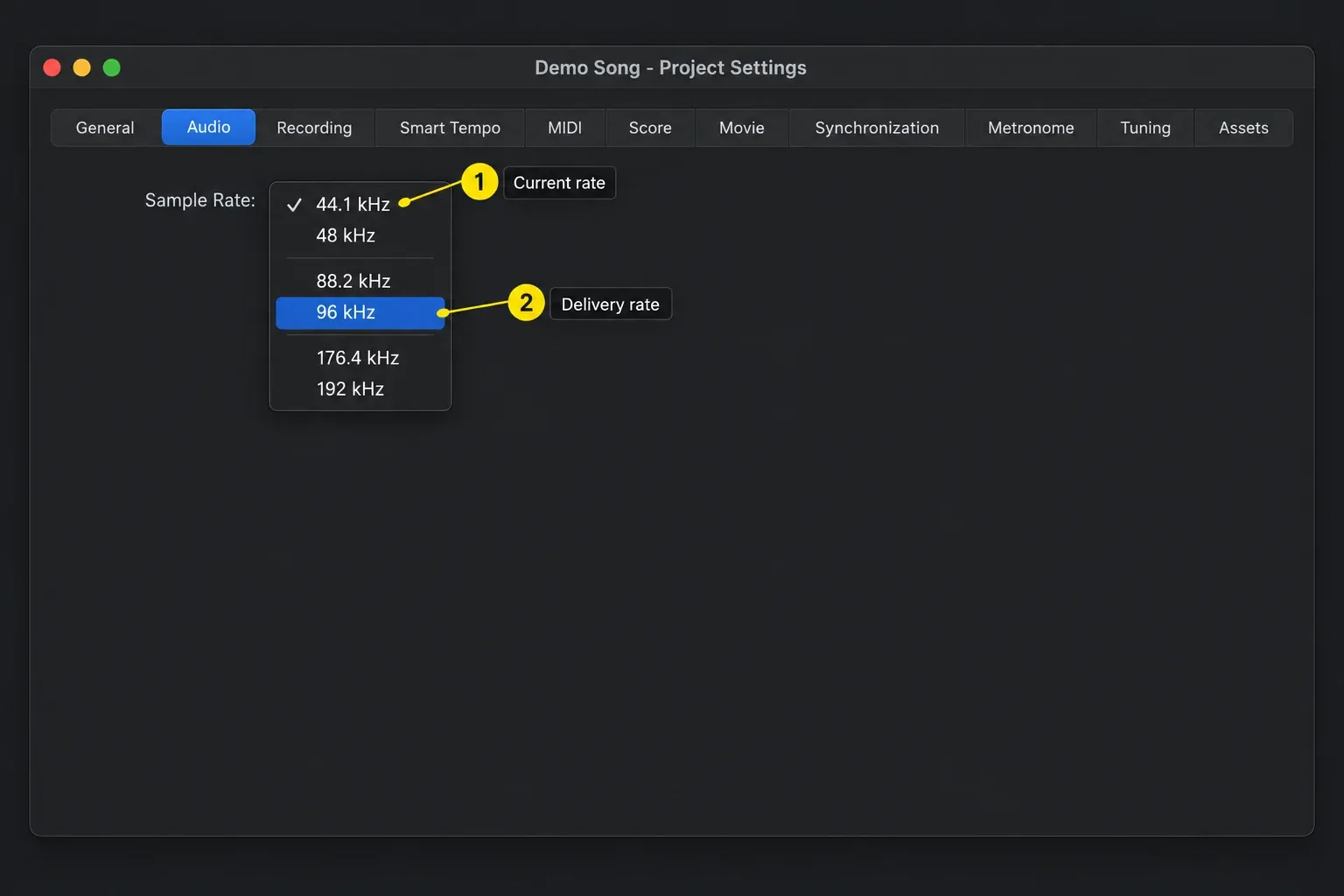
To show the value in the control bar, set its Display Mode to Custom. Control-click the control bar, choose Customize Control Bar, then enable Sample Rate/Buffer Size in the Display column.
Apple advises against changing the project rate after you have recorded or added audio. Save a separate project copy first, then verify every audio file, software instrument, tempo-synced effect, and bounce before replacing the working version.
Keep imported audio at the project sample rate
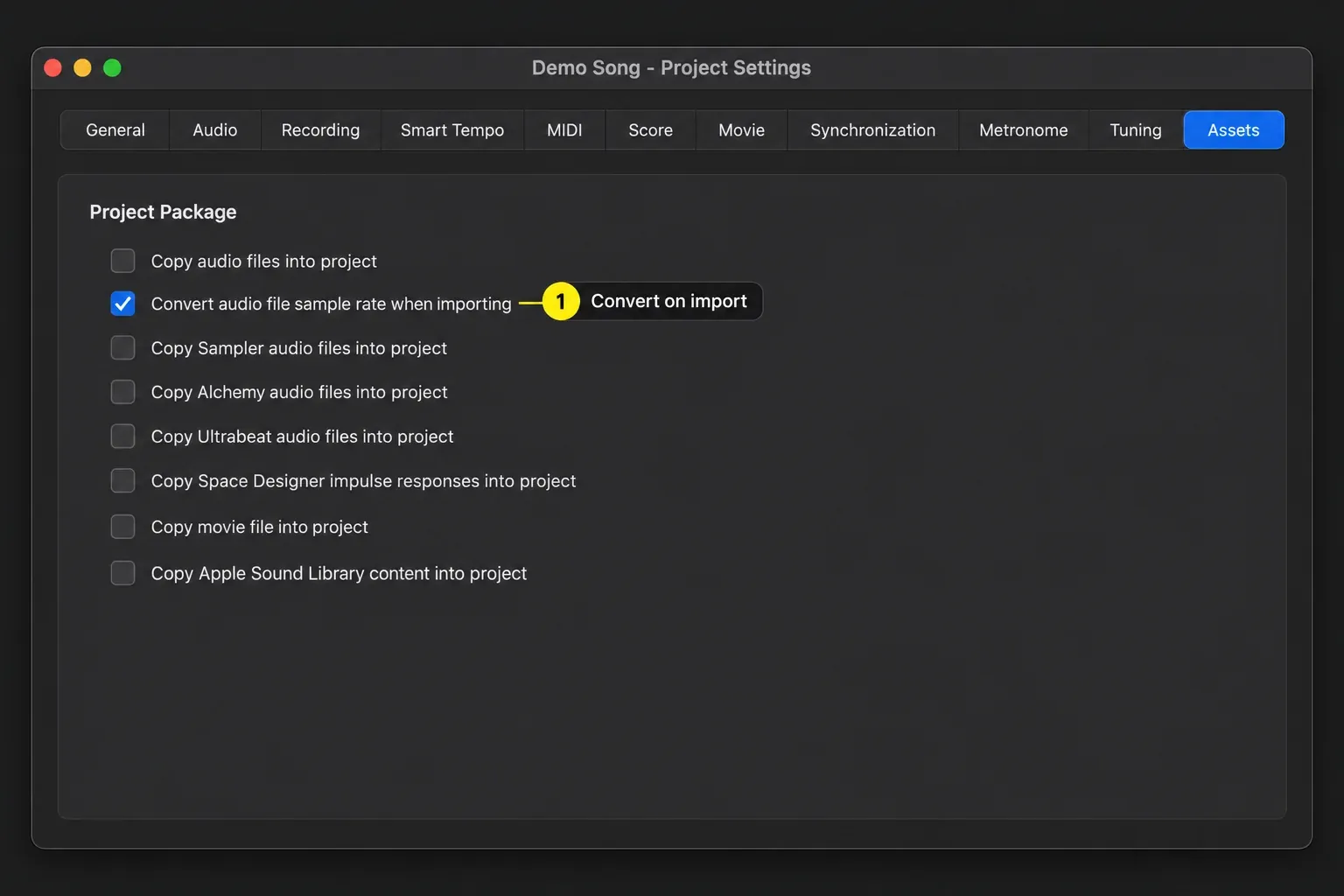
A file whose sample rate doesn't match the project can play at the wrong speed or pitch if it isn't converted correctly. For new imports, open File > Project Settings > Assets and enable Convert audio file sample rate when importing. Logic then converts incoming audio to the project rate.
For audio already in the project, select the files in the Project Audio Browser and use Copy/Convert File from its Audio File menu. Control-K is the default shortcut. Choose the project sample rate and a separate destination or file name so the originals remain intact. Select Change file reference in Project Audio, then click Save. That checkbox makes the project use the converted copies; without it, the original files remain in use. Check playback before replacing your working project copy.
Choose the I/O buffer by task, not habit
Apple's current monitoring-latency guidance recommends the lowest buffer that remains stable. A useful recording sequence is:
- Start at 128 samples.
- Record or play the busiest section you expect to perform.
- If monitoring delay gets in the way, try 64 samples.
- If you hear clicks, pops, or crackles, return to 128 or move to 256 samples.
- Once recording is finished, raise the buffer to 512 or 1024 for a heavy mix.
The right number depends on the Mac, interface driver, project sample rate, plug-ins, track count, and whether you're monitoring audio or playing software instruments. Copying another producer's buffer value without checking your own session solves nothing.
When 256 samples is fine for recording
If your interface provides direct hardware monitoring, the live input can go straight to the headphones without making a round trip through Logic. Apple's system-overload guidance says you can disable Software Monitoring and leave the I/O buffer at 256 in that workflow. Do not use that setup when you need to hear a software instrument or a live plug-in chain through Logic.
Bluetooth headphones add their own delay and are a poor choice for live monitoring. Use wired headphones or the interface's headphone output while recording.
How to change the I/O buffer size
- Open Logic Pro > Settings > Audio.
- Select the Devices tab.
- Choose a value from I/O Buffer Size.
- Read Resulting Latency below the setting.
- Play the busiest part of the project and listen for clean, stable playback.
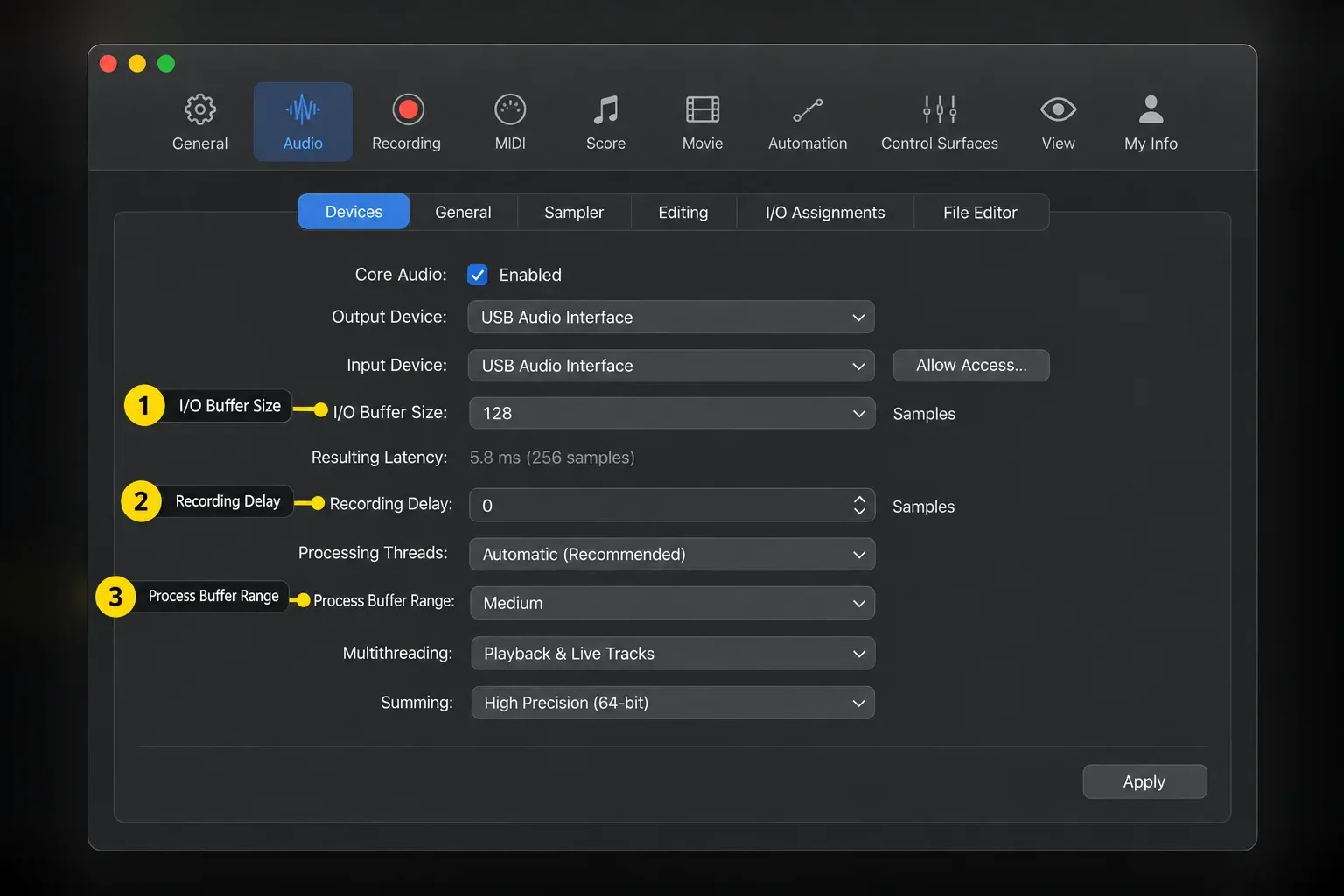
Resulting Latency reports roundtrip and output latency for the current device settings. Use it when comparing buffer values, but also listen through the actual monitoring path. Latency-inducing plug-ins can add delay that lowering the I/O buffer does not remove.
What buffer size means in milliseconds
One nominal buffer period is:
buffer samples ÷ sample rate × 1000
| Buffer | At 44.1 kHz | At 48 kHz |
|---|---|---|
| 64 samples | 1.45 ms | 1.33 ms |
| 128 samples | 2.90 ms | 2.67 ms |
| 256 samples | 5.80 ms | 5.33 ms |
| 512 samples | 11.61 ms | 10.67 ms |
| 1024 samples | 23.22 ms | 21.33 ms |
These figures are nominal periods for one block, not your actual roundtrip monitoring latency. Audio must travel into the Mac and back out, and the interface and plug-ins add time. Use the table to understand the relationship, then read Logic's Resulting Latency for the current device.
At the same buffer size, a higher sample rate shortens that one-block period. It also increases processing and storage demands. Do not raise an established project from 48 to 96 kHz just to chase a smaller latency number; first try a smaller stable buffer and check the monitoring plug-ins.
I/O Buffer, Process Buffer Range, and Low Latency Mode
Three controls appear in answers about “buffer size,” but they do different work:
I/O Buffer Size sets the real-time audio blocks exchanged with the device. Use it to balance monitoring delay against stable processing.
Process Buffer Range buffers non-live playback tracks. It is a separate playback-processing setting, not a substitute for choosing a stable live I/O buffer.
Low Latency Monitoring mode bypasses plug-ins that exceed the monitoring-path latency limit and can turn sends off. Try it when plug-in delay remains after you have chosen a suitable I/O buffer.
Apple now calls this Low Latency Monitoring mode. Enable it in Logic Pro > Settings > Audio > General. Older instructions may call it Low Latency Mode. It acts on the focused software instrument and input-monitored or record-enabled tracks; it does not change the I/O buffer. Some plug-ins are bypassed and sends can turn off, so check the headphone mix. Low Latency Safe can keep a needed send active. The mode is inactive during a bounce.
For the other two controls, Apple's Audio Devices reference distinguishes Process Buffer Range, which buffers non-live playback tracks ahead of time, from Recording Delay, which adjusts placement of recorded audio. Recording Delay normally needs no adjustment; do not use it to compensate for a delayed headphone feed.
If the performer still hears a delay at a stable buffer, follow the full Logic Pro recording-latency checklist. If playback stops with a system-overload alert, use the separate Logic Pro system-overload guide so you can identify CPU, disk, and project causes instead of changing random settings.
Fix a sample-rate conflict or sync alert
When Logic reports an Audio/MIDI synchronization problem, compare the project rate with the audio interface and any digitally connected device. Apple's sample-rate sync troubleshooting recommends these checks:
- Open File > Project Settings > Audio and note the project rate.
- Open the interface's control software and confirm the same rate.
- If the rates already match, save a separate project copy first. In that copy, try switching the project to another supported rate and immediately back to the original rate, as Apple suggests. Check playback; do not keep a changed rate as an unexplained fix.
- For S/PDIF, ADAT, or other digital connections, choose one device as the clock source.
- For an Aggregate Device, use matching sample rates where possible and check its timing source and synchronization settings in Audio MIDI Setup.
For combined interfaces, follow Apple’s Aggregate Device synchronization settings. The current guide calls the controls Sync Source and Sync; older interfaces use Clock Source and Drift Correction. Choose one primary timing source. Devices without hardware synchronization need drift correction, and different sample rates need synchronization for conversion. A shared hardware clock removes the drift-correction need when rates match; matching rates also minimize resampling.
Some interfaces don't support every rate. Logic can convert audio in real time for monitoring and playback when the hardware can't use the project rate, while internal processing and bouncing stay at the project's original rate. That fallback isn't a reason to ignore a mismatch during recording setup.
Five settings mistakes to avoid
- Choosing 96 kHz because it looks professional. Use a higher rate only when the workflow needs it and the added CPU and storage cost is acceptable.
- Changing an established project's rate without a copy. Existing audio, external files, and connected hardware all need verification.
- Treating 256 samples as universally bad for recording. It can work well with direct monitoring, while software-instrument players may need a lower value.
- Using Recording Delay to hide live monitoring latency. That control shifts recorded material; it is not the first buffer or plug-in fix.
- Assuming the buffer changes sound quality. Choose it for latency and stability. Keep sample-rate and file-format decisions separate.
For the rest of the capture path, continue with the Logic Pro audio recording guide. The Recording & Editing hub keeps setup, recording, editing, and delivery guides in one workflow.
Frequently asked questions
What sample rate should I use in Logic Pro?
Follow the recipient or production requirement. With no outside specification, 44.1 kHz is a practical stereo music starting point and 48 kHz is common for video. For a planned Dolby Atmos mix in Logic, start at 48 or 96 kHz. Choose before recording to avoid conversion work later.
What buffer size should I use for recording in Logic Pro?
Start at 128 samples, try 64 if monitoring delay is distracting, and move to 256 if the session clicks or crackles. The best value is the lowest one that remains stable on your Mac, interface, and current project.
Is 256 buffer size good for recording?
It can be. With interface direct monitoring, 256 samples is often practical because the live input does not need to travel through Logic. For software instruments or monitoring through plug-ins, 64 or 128 samples may feel better if the session remains stable.
Should I use 44.1 or 48 kHz?
Follow the delivery requirement first. Use 48 kHz for picture work or when the recipient asks for it. For stereo music without a requested rate, 44.1 kHz is a sensible choice. If you plan a Dolby Atmos mix, use 48 or 96 kHz from the start.
Does a higher buffer size improve sound quality?
A larger buffer does not add detail or fidelity. It can prevent clicks and dropouts when a smaller buffer overloads the Mac, but it also increases monitoring latency. Choose the lowest stable value for live performance, then raise it for a heavy mix.
Why does audio change pitch after I change the sample rate?
The file and project rates may no longer match. Work from a project copy, convert copies of the audio to the intended project rate in the Project Audio Browser, and enable Change file reference in Project Audio before saving the conversion. Check that playback is correct before replacing the working project.
What is the difference between I/O Buffer Size and Process Buffer Range?
I/O Buffer Size controls the real-time audio blocks exchanged with your device and affects live monitoring delay. Process Buffer Range handles non-live playback tracks, which Logic can process ahead. Changing it does not replace choosing a suitable I/O buffer for the part you are recording.
Does Low Latency Mode change the buffer size?
No. The current name is Low Latency Monitoring mode. It reduces plug-in-related delay on monitored or record-enabled tracks and the focused software instrument. Set the I/O buffer separately in Logic Pro > Settings > Audio > Devices.


