How to Record Guitar in Logic Pro
Choose the right guitar path, match a mono input, hear the tone you intend to record, and capture takes without clipping or doubled monitoring.

The quickest reliable way to record electric guitar in Logic Pro is to plug the guitar into an audio interface's instrument or Hi-Z input, create a mono Audio track with Guitar or Bass selected, choose the matching input number, and monitor through a Logic guitar patch. Play the loudest part while setting the interface input gain, leave headroom, record-enable the track, then press R to record. Turn the interface's direct monitoring off if you want to hear Amp Designer rather than a second clean guitar underneath it.
Choose how you want to capture the guitar
| Method | What Logic records | Use it when |
|---|---|---|
| Electric guitar direct, or DI | A clean guitar input that you hear through a Logic amp patch | You need quiet recording, easy tone changes, or the simplest home setup |
| Microphone on a real amp | The sound of the speaker, microphone position, room, pedals, and amplifier | The physical amp is part of the performance and you can play it at a useful level |
| Microphone on an acoustic guitar | The instrument in the room | You want the natural acoustic sound rather than only a pickup signal |
If you're unsure, I'd start with DI. Focusrite's current electric-guitar recording guide describes the same two core electric paths: record direct for a clean signal ready for an amp simulator, or place a microphone in front of an amplifier. Neither is automatically better. DI gives you flexibility. A microphone commits the sound and the room.
Record electric guitar direct through an audio interface
- Connect the guitar to an interface input with a standard 1/4-inch TS instrument cable.
- Set that hardware input to Instrument, Inst, or Hi-Z. Do not leave it at mic or line level unless the interface manual specifically tells you to.
- Connect wired headphones to the interface. Keep the headphone level low until the monitoring path works.
- In Logic Pro > Settings > Audio > Devices, select the interface as both Input Device and Output Device when your headphones are connected to it.
- Press Option-Command-N, choose Audio, then select Guitar or Bass.
- Choose the mono input number matching the guitar socket. Select Load Default Patch if you want the starter guitar processing; select Record Enable and Input Monitoring, then click Create.
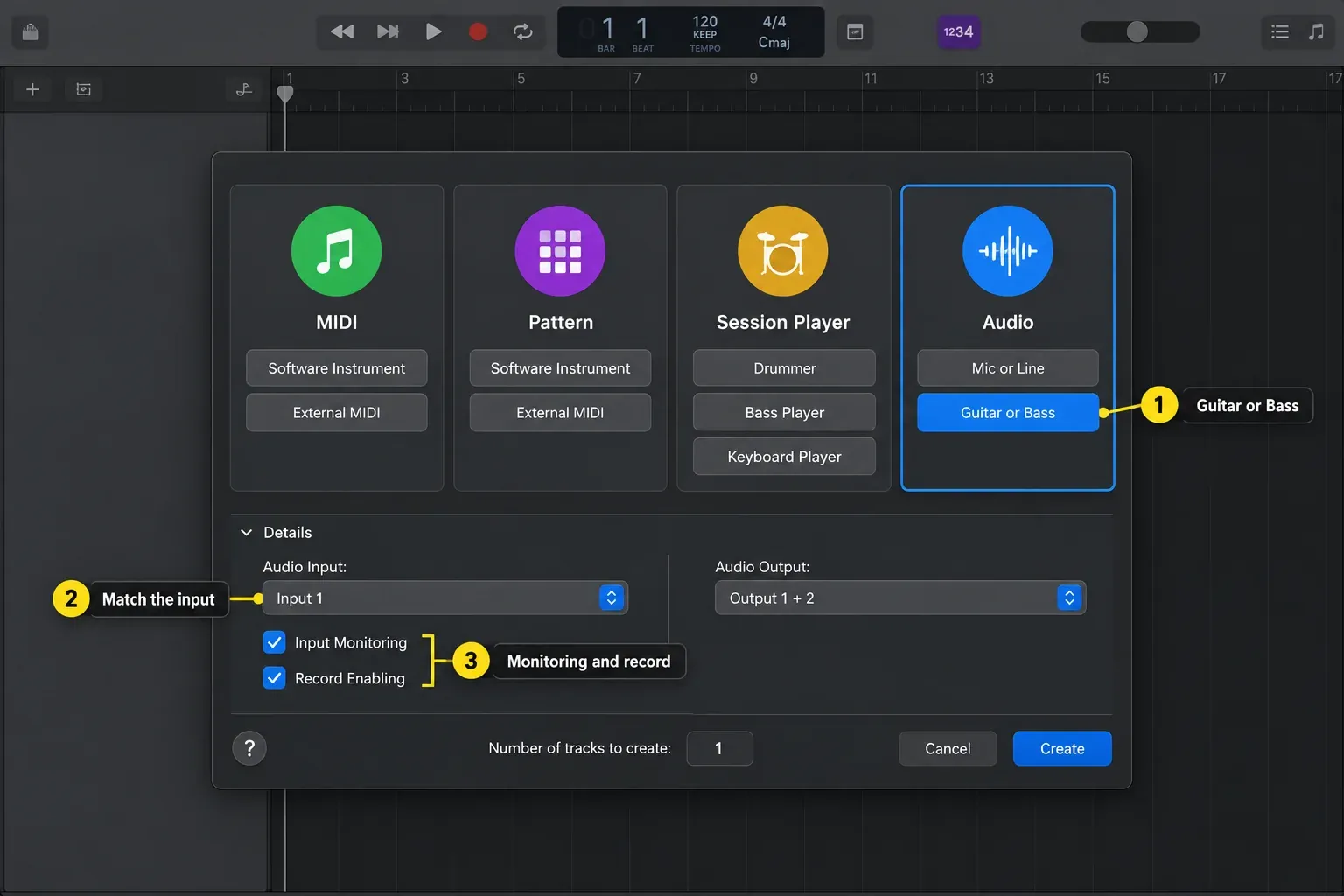
In the New Tracks dialog, select Audio > Guitar or Bass. Open Details and match Audio Input to the interface socket. Apple's current track-creation guide separates Guitar or Bass from Mic or Line because the guitar choice is designed to load amp and stompbox processing. It doesn't change the physical level of your interface input. The hardware input still needs the correct instrument/Hi-Z mode. Apple's electric-instrument connection guide also confirms the standard 1/4-inch tip-sleeve cable, audio-interface route, input selection, and monitoring step. If Load Default Patch is off, add Amp Designer yourself or choose a Library patch. Guitar or Bass isn't a hardware-input switch.
One guitar cable carries one mono signal. Use a mono track. A stereo track is appropriate only when a modeler, pedalboard, or other device sends separate left and right outputs into two interface inputs. If the guitar appears only on one side, check the track's mono/stereo format before changing pan or adding plug-ins.
Hear a real guitar tone with Amp Designer
Open the Library and choose a clean or distorted guitar patch close to the job you're playing. That patch may include Pedalboard, Amp Designer, EQ, sends, and other routing. For a simpler chain, start with an empty mono audio track and insert Amps and Pedals > Amp Designer in an Audio Effect slot. Apple's current Amp Designer guide confirms that its model combines an amplifier, cabinet, EQ, and virtual microphone, while still letting you change those parts independently.
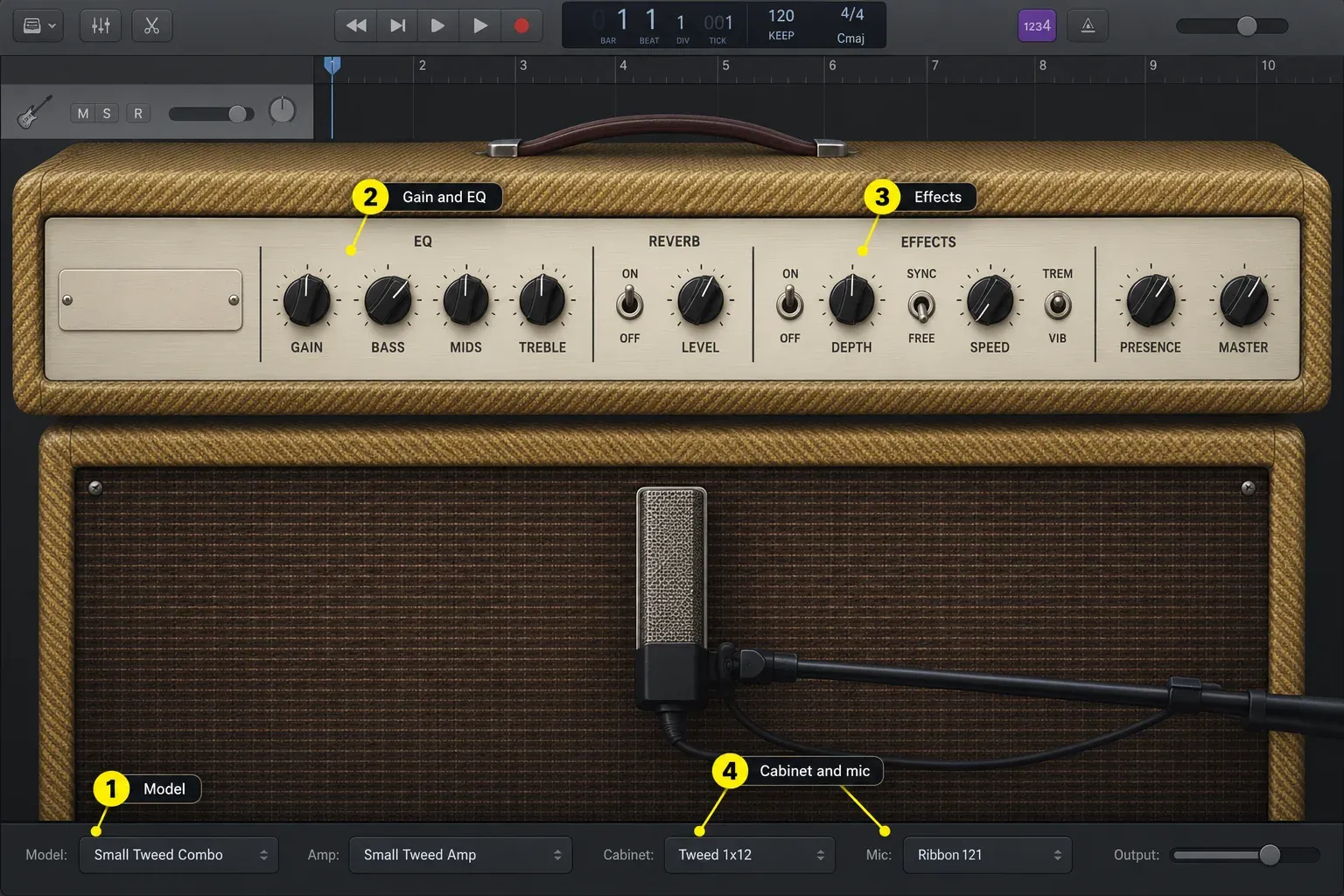
- In Logic Pro > Settings > Audio > General, enable Software Monitoring. Then turn on the track’s Input Monitoring button, marked I. If monitoring is limited to the focused track, click this track’s number to focus it.
- Choose a restrained amp model before adding several pedals.
- Match the amp's output by ear when comparing tones. Louder patches can seem better even when they are only louder.
- Keep time-based effects modest while tracking so the guitar remains easy to judge.
- Use Logic's Tuner before the take and check tuning again after hard bends or a capo change.
In a normal DI track, you record the guitar input and hear it through the channel-strip effects. That keeps the performance editable: you can change the Amp Designer model after recording. If you intentionally want to print hardware pedals, an amplifier modeler, or an input-channel-strip effect, that's a different routing decision. Make a ten-second test and play it back before recording the whole song.
For a concrete hybrid example, connect guitar to HX Stomp INPUT L/MONO, use an effects-only chain, and feed OUTPUT L/MONO into a Scarlett 2i2 4th Gen front jack: set HX Stomp’s Global Settings > Ins/Outs > Output Level to Line, as its level-setting instructions describe, and turn Scarlett Inst off/white for line-level input. Record that physical input on a normal mono Logic audio track with Amp Designer in an Audio Effect slot: the hardware effects are printed, while the software amp remains editable. Check for unwanted duplicate drive, delay or amp/cab stages; other pedals may output instrument level and need Inst/Hi-Z instead, so this is a device-specific example.
Fix the clean guitar under the amp sound
If you hear a clean guitar together with Amp Designer, the clean path usually comes from the interface's direct monitor. Direct monitoring sends the input straight to headphones without passing through Logic, so it can't include the Logic amp plug-in. Focusrite's direct-monitor explanation confirms that behavior, and its monitoring support notes that hearing direct and software paths together can sound like a small echo or make the guitar thinner.
To hear the Logic amp tone, turn direct monitoring off and keep Logic Software Monitoring and the track’s I button on. Apple’s General Audio settings explain both the software-monitoring switch and the focused-track option. For a clean, near-zero-delay monitor instead, use the interface’s direct path and mute the Logic track while recording. Unmute it for playback.
Set guitar input gain without clipping
Set the guitar volume as you’ll use it during the take, then play the hardest chord or pick attack. Watch the interface’s input meter or its control-app meter and adjust hardware gain to leave headroom below clipping. If that input clips, lower the input gain. Moving Logic’s track fader can’t repair the recorded distortion.
Do not chase one universal peak number. Passive pickups, active pickups, pedals, modelers, and interface inputs behave differently. The repeatable rule is simpler: use the correct input type, test the loudest real performance, avoid clipping, and leave enough headroom for the take to get more energetic. The full gain-staging workflow starts after the input is captured cleanly. Check the processed level separately: if the DI is clean but the amp chain or final output overloads, reduce the level at that stage. Amp Designer’s Output slider sets its final output level. Its Gain and Master controls also affect tone. Do not turn down a clean interface input merely because an amp preset is too loud.
Record takes that are easy to comp
- Set the project tempo or turn the metronome off if the performance should breathe freely.
- Use a count-in long enough to get both hands in position.
- Record-enable the guitar track, press R to record a short test, and press Space to stop. Return the playhead to the test and press Space to listen in the song, not only in solo. Before Logic Pro 12.4, enabling Record Arm during playback could make Logic quit; the 12.4 release notes list that as fixed, so on an older version arm the track before starting playback.
- For repeated passes, choose Record > Overlapping Audio Recordings > Cycle > Create Take Folder. Set the cycle range, then record several complete takes. Check this setting before recording over a take you want to keep.
- Stop when the hands get tense or the tuning drifts. More takes are not always more choices.
- Name the track by role, such as Rhythm DI L, Lead Hook, or Acoustic Main.
Logic can place repeated cycle passes into a take folder. Use the Take Folders and Quick Swipe Comping guide to build a clean comp, or the punch-in and cycle recording guide when only one phrase needs repair. Double-track a rhythm part by performing it again on a new track. Copying the same region won't create the small timing and articulation differences that make two performances sound wide.
Record a real guitar amplifier safely
Universal Audio's current load-box guidance makes the boundary explicit: a powered amplifier speaker output can't feed an ordinary modeler input, so a compatible load box is required. If your amp provides a labeled USB, line, recording, or DI output, follow that amp's manual and match the interface input level to the output the amp sends.
- Connect a suitable microphone to an interface mic input.
- Start with the microphone a short distance from the speaker grille, between the cone center and edge.
- Aim closer to the center for a brighter attack; move toward the edge for a darker balance.
- Create a mono Audio > Mic or Line track and choose the matching input.
- Set the mic preamp gain while the amp plays at the real recording level.
- Record ten seconds, then move the microphone before reaching for EQ.
The microphone position is part of the tone. Mark a useful position with tape once you find it, especially if the recording will continue another day. If you also record a clean DI for later re-amping, use separate tracks and inputs and check their timing and polarity before blending them.
Record acoustic guitar with one microphone
For a natural first pass, use one microphone on a mono track. Point it toward the area where the neck meets the body, then move it while listening. Shure's acoustic-guitar placement guide recommends that area as a balanced starting point and notes that moving toward the soundhole adds more low end. It's not a fixed rule: the instrument, room, microphone, pick, and player all change the useful position.
- Silence fans, phone vibration, chair squeaks, and reflective desk noise before raising the mic gain.
- Place the mic so the guitarist can move naturally without hitting it.
- Record the loudest strumming section and leave input headroom.
- Listen for boom, pick harshness, fret noise, and room reflections.
- Move the microphone a little and record another test. Compare the recordings at similar playback level.
A pickup can provide a useful guide or safety track, but it doesn't automatically replace the sound of the acoustic instrument in the room. If you record a microphone and pickup together, put them on separate mono tracks and check their timing and polarity before combining them.
Solve the problem by what you hear
| Symptom | Check first |
|---|---|
| No meter movement in Logic | Interface selected, correct physical input number, Inst/Hi-Z enabled, guitar volume up, cable working, track record-enabled |
| Meter moves but the guitar is clean | Amp Designer loaded and active, Software Monitoring and track I on, interface direct monitor off |
| Guitar sounds doubled, hollow, or phasey | Choose either direct monitoring or Logic software monitoring, not both |
| Guitar appears in only one headphone side | Use a mono track for one guitar cable or one microphone |
| Input distorts with a clean amp patch | Check the interface input for clipping first; if the DI is clean, check amp and output levels. Bypass external processing to isolate the source |
| Playing feels late | Use wired headphones, reduce the I/O buffer as far as the project runs cleanly, remove high-latency plug-ins, or turn on Low Latency Monitoring mode |
| Interface is missing | Follow the dedicated device-detection path before changing guitar-track settings |
Apple's May 2026 input-latency guidance confirms that smaller I/O buffers reduce monitoring delay but require more processing power, while Bluetooth adds delay of its own. Use the sample rate and buffer guide for a stable starting point and the latency troubleshooting path when the delay remains. If Logic doesn't list the interface at all, move to the interface detection checklist. Low Latency Monitoring mode can bypass latency-inducing plug-ins and turn off sends, so your monitored tone may change. Check what was bypassed before judging the guitar sound. Apple’s plug-in latency guide puts its checkbox in Logic Pro > Settings > Audio > General. Turn it off after tracking when you want to hear the full chain again.
Frequently asked questions
Do I need an audio interface to record guitar in Logic Pro?
For an electric guitar's direct signal or a microphone, an audio interface is the normal reliable route because it provides the correct instrument or mic input, gain control, and wired monitoring. A modeler with a supported USB audio connection can sometimes act as the interface. Follow that device's manual rather than connecting a guitar to a socket that was not designed for instrument level.
Should I choose Guitar or Bass or Mic or Line in Logic Pro?
Choose Guitar or Bass for an electric instrument recorded direct when you want Logic to prepare amp and pedal processing. Choose Mic or Line for a microphone, a miked amplifier, or a documented line output from external hardware. In either case, match Audio Input to the numbered interface socket. Leave Load Default Patch selected for the starter processing, or load your own patch afterward.
Why can I hear my guitar but not the Amp Designer sound?
Check whether you are hearing the interface’s direct-monitor path, which bypasses Logic plug-ins. Turn it off, load Amp Designer, enable Software Monitoring in Logic Pro > Settings > Audio > General, and turn on the track’s I button. If clean and processed guitar still play together, check the interface mixer and other monitored Logic tracks for a second route from the same input.
Should guitar be recorded in mono or stereo in Logic Pro?
Use mono for one guitar cable or one microphone. Use stereo only when the source truly supplies separate left and right outputs, such as a stereo modeler or two-microphone setup routed to two interface inputs. A mono recording still plays through both sides of a normal stereo mix.
Can I change the amp sound after recording?
Yes, when you record a clean direct guitar on a normal audio track and monitor it through Amp Designer or another channel-strip amp plug-in. You can change the plug-in after the take. If you record a miked amplifier or the processed output of hardware, that tone is already part of the audio file.
Why is there delay when I record guitar in Logic Pro?
The monitored signal is passing through interface conversion, Logic's I/O buffer, and possibly latency-producing plug-ins. Use wired headphones, try a smaller stable buffer, remove heavy look-ahead processing from the live path, or turn on Low Latency Monitoring mode. Direct monitoring removes most software delay but lets you hear the clean input rather than Logic's amp plug-in. Low Latency Monitoring mode may bypass effects or sends, changing the monitored tone.
Record the performance, not the setup
Once the ten-second test sounds right, stop changing the chain. Save the working track as a patch or project template, tune again, and record complete musical passes. The broader Logic Pro audio-recording guide covers session files and general capture settings. The Recording & Editing hub takes the guitar through comping, timing repair, punch-ins, and delivery.


