How to Use Flashback Capture in Logic Pro
Recover a performance played before Record, understand the different audio and MIDI limits, and fix dimmed capture or missing notes.

To recover a part you played before pressing Record, focus the right track and press Shift-R, or Control-click the transport Record button and choose Flashback Capture. Logic adds the performance as a region if it still has usable input history. For audio, the project must have been playing. MIDI can also be captured while the transport is stopped.
That distinction decides whether there’s anything to recover. Flashback Capture is a short-term safety net for a performance. It isn’t a project backup or a recorder that keeps everything indefinitely. I’d capture a good phrase right away, then check the region before carrying on.
What Flashback Capture can actually recover
Apple’s Flashback Capture overview describes a temporary store of incoming audio and MIDI. The command turns that history into a region you can edit and save in the project.
- Audio during playback: supported, provided Logic receives a signal. Playback must run for at least four seconds, and capture can save up to one minute of audio.
- Audio while stopped: not captured. A microphone being audible through your interface does not mean Logic has saved that performance.
- MIDI during playback: supported. With Cycle off, the captured region contains the MIDI events received during playback.
- MIDI while stopped: supported, with separate rules for pauses and the visible region boundary.
The detailed audio capture conditions and MIDI capture behavior are different. Don’t apply the audio time limit to MIDI, or expect stopped MIDI capture to prove that stopped audio was recorded.
This guide uses Logic Pro for Mac controls. Logic Pro for iPad also supports Flashback Capture, but its touch gestures and settings paths differ.
Find the command, even if the button is missing
The quickest route after the performance has already happened is the Record button’s shortcut menu: Control-click Record, then choose Flashback Capture. You don’t need to add another control to the bar first.
Logic Pro 12 includes the dedicated button in the default control bar, next to Free Tempo Recording. If your layout hides it, add it back. Following Apple’s control bar customization instructions, Control-click the control bar and choose Customize Control Bar and Display. Select the Flashback Capture checkbox in the Transport column.
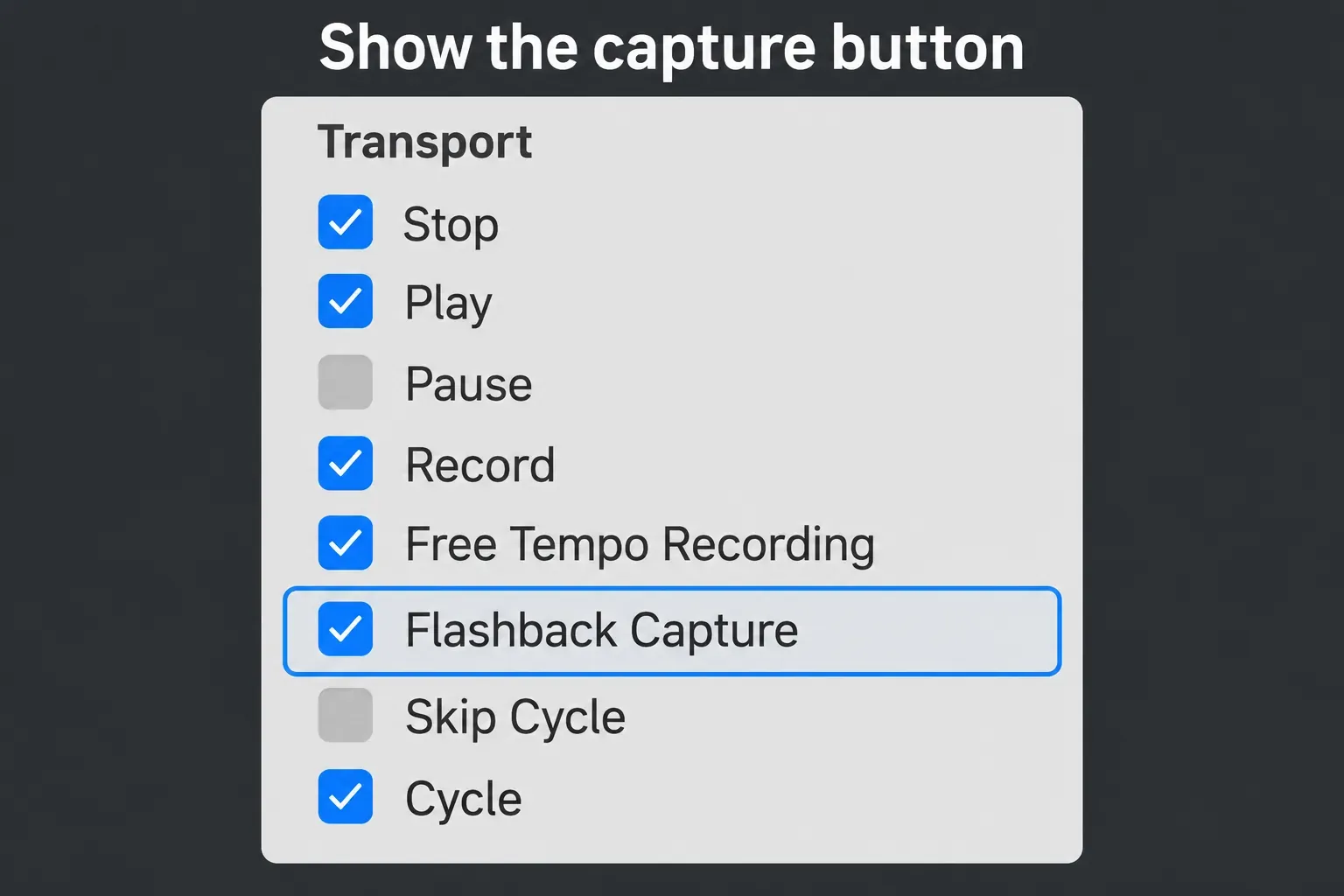
The button changes from dimmed to active when captured data is available. Seeing it helps, but forcing the button to appear doesn’t create missing input history.
Shift-R is the shortcut given in Apple’s capture instructions. If your assignments differ, use the visible command first and inspect your Logic Pro key commands afterward. Don’t keep pressing a shortcut that might be assigned to another action.
Recover a vocal, guitar or other audio performance
Before playing, click the audio track you intend to capture. Check its input and mono or stereo format. Apple specifies that the last focused audio track’s settings are used for capture. That means selecting a stereo track with inputs 1 and 2 can affect a later captured recording.
For example, if the idea is a vocal from input 1, focus that vocal track with its intended input rather than a different stereo track. Our mono versus stereo track guide explains the channel-format choice. If Logic isn’t receiving any signal, start with the audio recording setup. Flashback Capture can’t manufacture an input that never reached the project.
- Focus the audio track and start project playback with Play.
- Sing or play while Logic receives incoming audio. Let playback run for at least four seconds.
- As soon as there is something worth keeping, keep the audio track focused and press Shift-R, click Flashback Capture, or use the Record button’s shortcut menu.
- Check the new audio region’s source, position and boundaries, then save the project.
The region lands where the incoming audio was detected, according to Apple’s audio procedure. You don’t need to drag every captured audio phrase to the current playhead just because MIDI capture uses that position.
Capture saves incoming signal rather than silence. It can also create separate regions for sections where you stopped playback, moved the playhead and started again, so check each recovered section. Don’t assume one region contains the whole session.
If an existing audio take folder already contains a comp worth keeping, choose Duplicate Comp in its Take Folder pop-up menu before changing that comp. Check the recovered region first, then use the take-folder and comping workflow to work the chosen phrase into the performance. Do not assume that every captured region automatically joins an existing take folder.
For a complete song-length take or a session that depends on several microphone tracks, I’d use normal recording. The documented one-minute audio limit and focused-track behavior make Flashback Capture a poor fit for that job. For planned vocal takes and comping, follow the vocal recording workflow.
Recover MIDI, including notes played while stopped
Focus the software instrument track that receives your playing, then use the same capture command. Apple places the recovered MIDI region at the playhead position. Once it exists, inspect its notes and timing in the Piano Roll.
With playback stopped, Logic captures MIDI events received since the last playback. Two pause rules matter here:
- A gap of 20 seconds between incoming MIDI events: events before that pause are discarded. This is a gap between events, not a general promise that the last 20 seconds of any session can always be recovered.
- A gap of at least 1.5 bars: earlier notes can fall outside the visible part of the created region. Drag its left boundary to expose those notes if they are still present.
These are separate conditions in Apple’s stopped-MIDI instructions. Extending the region can reveal hidden notes. It can’t bring back events that were discarded.
If every captured note lands together
Control-click the Flashback Capture button and inspect Flashback Capture MIDI in Stop Mode. With this setting turned off, Logic places the played notes at the current playhead with a duration of one tick. That can collect pitches, but it doesn’t preserve your played phrase’s timing.
Keep the setting on when your goal is to recover the performance. If you intentionally collected a set of chord notes without timing, expect to assign their starts and lengths yourself. For ordinary controller setup, overdubs and takes, use the complete MIDI recording guide.
Keep repeated passes as takes
Cycle mode is useful when you want several versions of a phrase. The choice that matters comes before the performance: set the matching overlap behavior so the passes become a take folder. Don’t expect the capture command to decide for you.
- Choose Logic Pro > Settings > Recording.
- In Overlapping Track Recordings, choose Create Take Folder from MIDI Cycle On for MIDI, or Audio Cycle On for audio.
- Enable Cycle mode, start playback and perform through the repeated section.
- Use Flashback Capture when you have the passes you want to keep, then inspect the take folder.
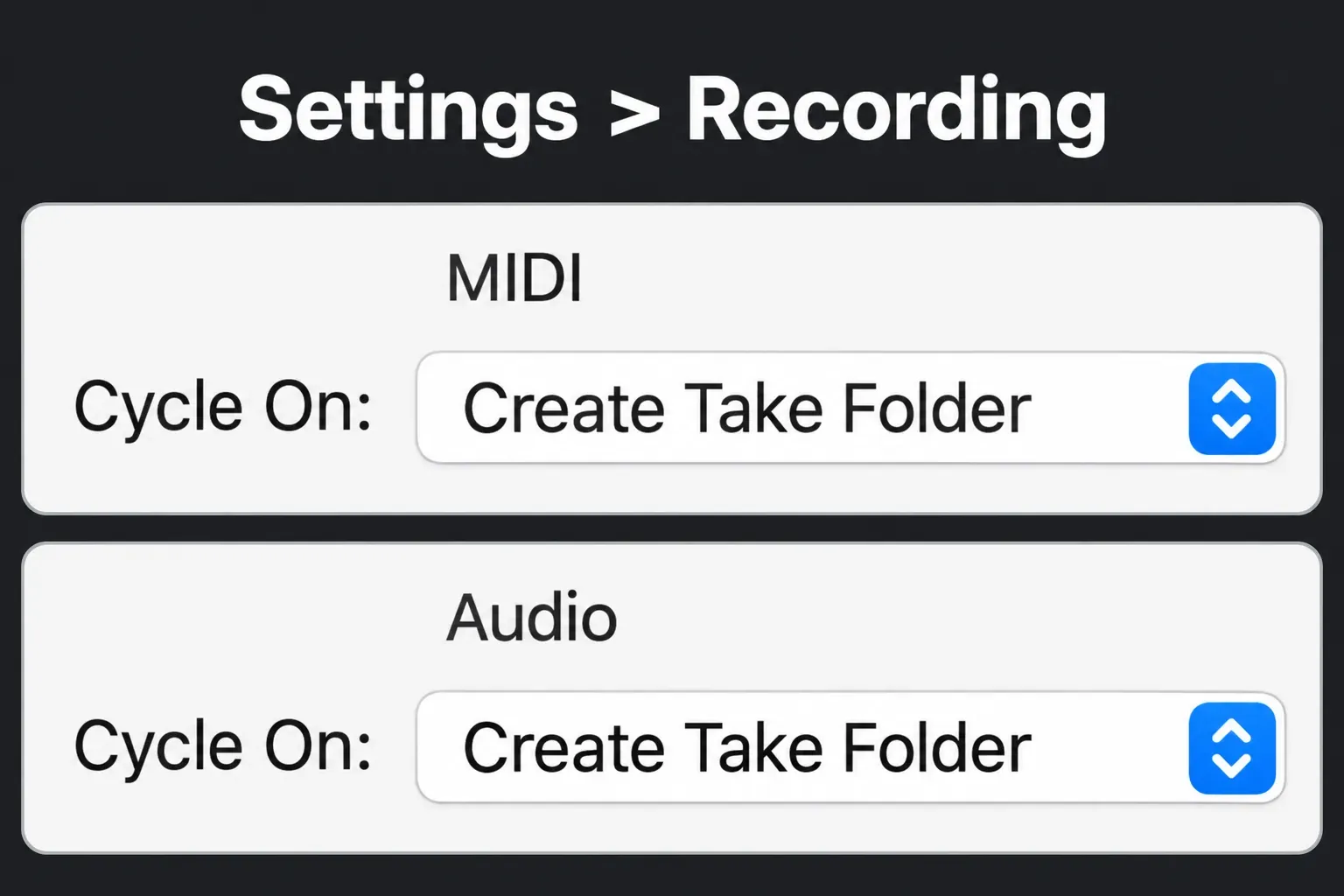
Apple documents this setup in both the MIDI cycle procedure and the audio cycle procedure. The audio capture limit still matters. For longer planned sessions, record normally and use take folders and Quick Swipe Comping afterward.
Check tempo and automation before capturing
If Smart Tempo is in Adapt mode before capture, the project tempo adapts to the captured recording. Apple states this in its capture overview. I’d check that choice before using the feature in an arrangement whose tempo is already settled. Changing the song’s tempo may be the opposite of what you want.
MIDI capture includes notes and MIDI control change messages during playback and while stopped. Capturing volume, pan and plug-in adjustments during playback also requires Record Automation with MIDI Regions. A recovered note performance doesn’t prove that every knob move was kept.
If Flashback Capture is greyed out or incomplete
Audio played while the project was stopped: there’s no native audio capture history for that performance. Start playback before the next attempt, or use normal recording. Changing the button layout afterward won’t recover it.
The audio command stays dimmed during playback: check the focused audio track, incoming signal and four-second playback minimum. An interface’s direct-monitoring sound alone is not enough evidence that Logic received the input.
MIDI starts too late: extend the region’s left boundary if the earlier notes are hidden after a pause. If a 20-second gap discarded those events, replay the phrase rather than looking for a longer buffer setting.
MIDI arrives as a pile of tiny notes: check Flashback Capture MIDI in Stop Mode. Turning it off deliberately removes the performance’s timing and gives notes one-tick durations.
Logic displays an actual capture error: check your version separately from the input conditions. Apple’s Logic Pro 12.4 release notes include a fix for an error displayed when using Flashback Capture. That specific fix does not change the documented stopped-audio or buffer limits. Version matters for Cycle passes too: Logic Pro 11.2.1 fixed captures that skipped the first take or an unfinished final take, or stopped at four takes.
Flashback Capture questions
Is Flashback Capture the same as Capture Recording?
Capture Recording is the older name you may see in earlier Logic tutorials. For current controls, look for Flashback Capture. Follow the present audio and MIDI conditions instead of assuming an old MIDI-only explanation covers both. Apple’s release notes list Flashback Capture, covering MIDI, audio and external instruments, as new in Logic Pro 11.2, so an earlier version won’t offer the audio steps on this page.
Does it recover a take from a closed project?
Apple describes temporary incoming-performance history, not a recoverable archive of closed sessions. Save the captured region in the project when you want to keep it. If a saved project was deleted, that is a project backup and recovery task.
Do I need the Flashback Capture button to use Shift-R?
No extra button is needed to use the documented shortcut or the Record button’s shortcut menu. Adding the button makes availability easier to see. If the command is dimmed, first check whether Logic received a capturable performance under the right conditions.


