AAF in Logic Pro: Import, Export and DAW Handoff
Move an edited audio timeline between Logic Pro, Pro Tools and Premiere without confusing interchange metadata with a finished mix.

In Logic Pro, use File > Import > AAF to bring in an edited audio timeline, or File > Export > Project as AAF File to send one out. AAF can carry region positions and volume automation. It does not recreate a Logic instrument or plug-in chain in another DAW, so print sounds the receiver cannot reproduce and send a stereo reference mix.
For film or video work, also send the matching reference movie with sequence timecode. For a music-only session, skip the picture files and agree on a common start position, tempo notes and any meter changes. Test a short export in the actual receiving application before preparing the full delivery.
What AAF carries in a Logic Pro workflow
AAF, or Advanced Authoring Format, is an interchange container. Apple's current Logic Pro AAF guide says it can import multiple audio tracks with track references, time positions and volume automation. Logic export includes used regions with track and position references and volume automation.
That's useful structure, but it doesn't guarantee a matching mix. A receiving DAW may interpret fades, stereo organization, clip gain, automation or media references differently. AAF won't turn a Logic-only instrument or Audio Units chain into a Pro Tools or Premiere equivalent.
Compare all three columns: swipe sideways on a phone, or focus the table area and use the left and right arrow keys.
| Usually part of the handoff | Must be verified | Print or document separately |
|---|---|---|
| Audio regions and timeline positions | Fades, clip boundaries and volume automation | Software instruments and unavailable plug-ins |
| Track references and names | Mono/stereo channel handling | Bus processing, sidechains and complex routing |
| Referenced or copied media | Timecode origin and sample-rate interpretation | Creative effects that define the sound |
Agree on the turnover spec before exporting
Ask the receiving editor or mixer for the exact target rather than choosing settings by habit:
- destination application and version;
- project sample rate and required bit depth;
- session start position; for picture, frame rate and sequence start timecode;
- embedded audio or a separate media folder;
- complete files or trimmed audio with an agreed handle length;
- mono, stereo and multichannel organization;
- which fades, clip gain and volume automation should remain editable;
- which effects must be printed, and whether clean copies are needed;
- for picture, reference movie codec and visible sequence timecode;
- delivery names, revision number and contact details.
Use the receiver’s turnover sheet when there is one. For music, include tempo and meter notes separately; do not assume that an audio AAF will rebuild the destination’s musical grid.
Prepare a Logic project for export
- Back up the original project and its media. Make a dated turnover copy or alternative before removing anything.
- Confirm the sample rate and common start position. For picture, also check frame rate, sequence start and the current cut.
- Exclude unwanted experiments from the turnover copy, leaving the original project and source media intact.
- Name tracks by content and role, such as Lead Vocal, DX Boom 1 or Foley Feet.
- Separate parts when the receiver needs independent control.
- Print software instruments and defining processing to audio; include the required reverb, delay and release tails.
- Make a full-length stereo reference mix from this same revision.
A project alternative shares the original assets; it is not an independent media backup. Apple explains how alternatives work and warns that external assets do not follow a copied project folder automatically. Use our project-backup guide before making a delivery copy.
Export a Logic Pro project as AAF
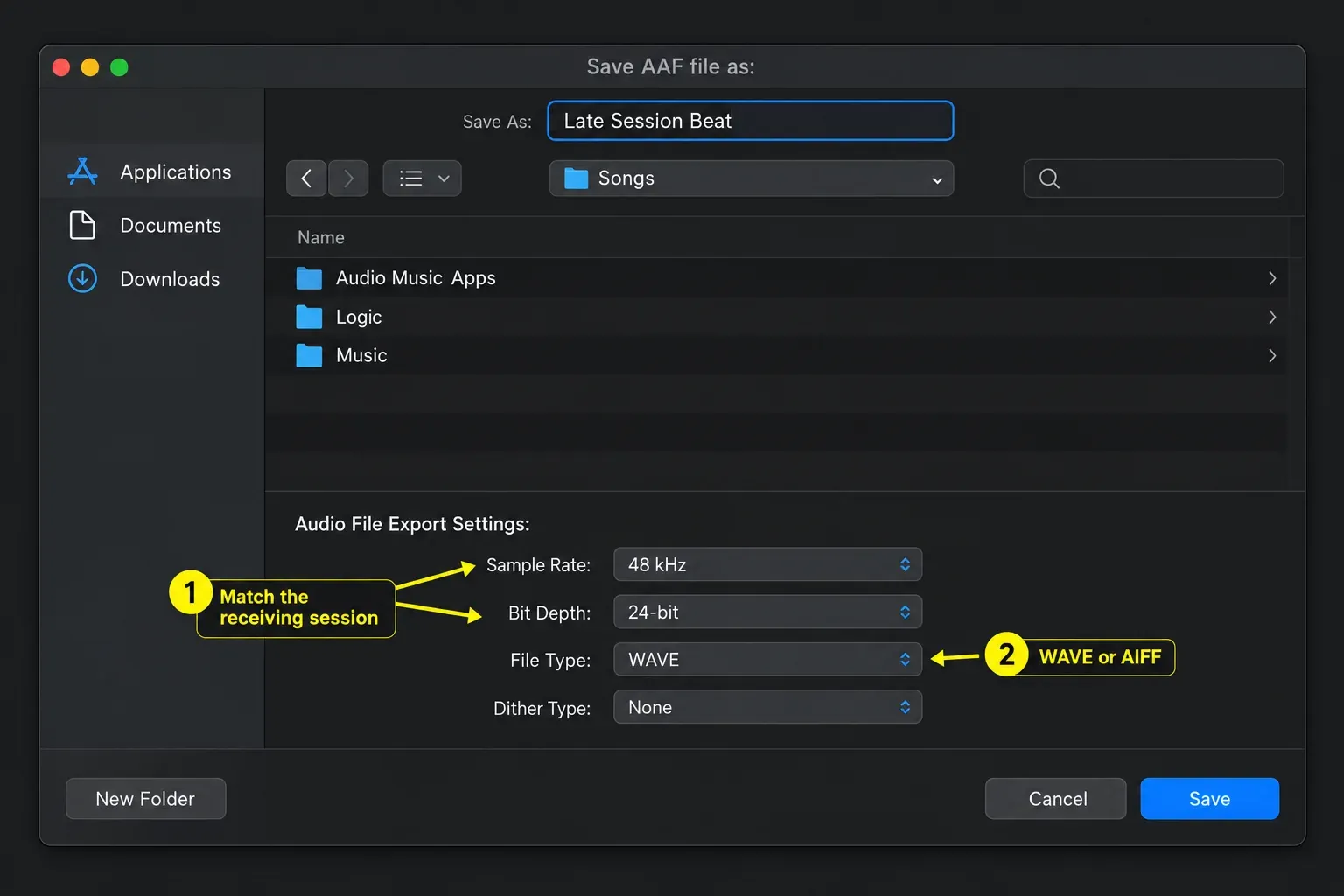
- Choose File > Export > Project as AAF File.
- Set Sample Rate to the agreed value: 44.1, 48, 88.2 or 96 kHz.
- Choose 16-bit or 24-bit and WAVE or AIFF as required.
- Choose the Dither Type for the actual bit-depth conversion. Avoid dithering the same audio repeatedly. The 24-bit to 16-bit dither guide on soundforgepro.com explains when dither belongs in the chain.
- Choose a clean delivery folder and name the file with the project, revision and date.
- Confirm the export with the dialog’s final button, which Apple’s written steps call OK.
These are Logic’s AAF export choices, and the receiver’s format decides which ones you pick. Apple’s dithering guidance discusses bit-depth reduction and warns against applying dither repeatedly; do not choose a noise-shaped algorithm just because it appears in the menu.
Premiere Pro to Logic Pro: test the path first
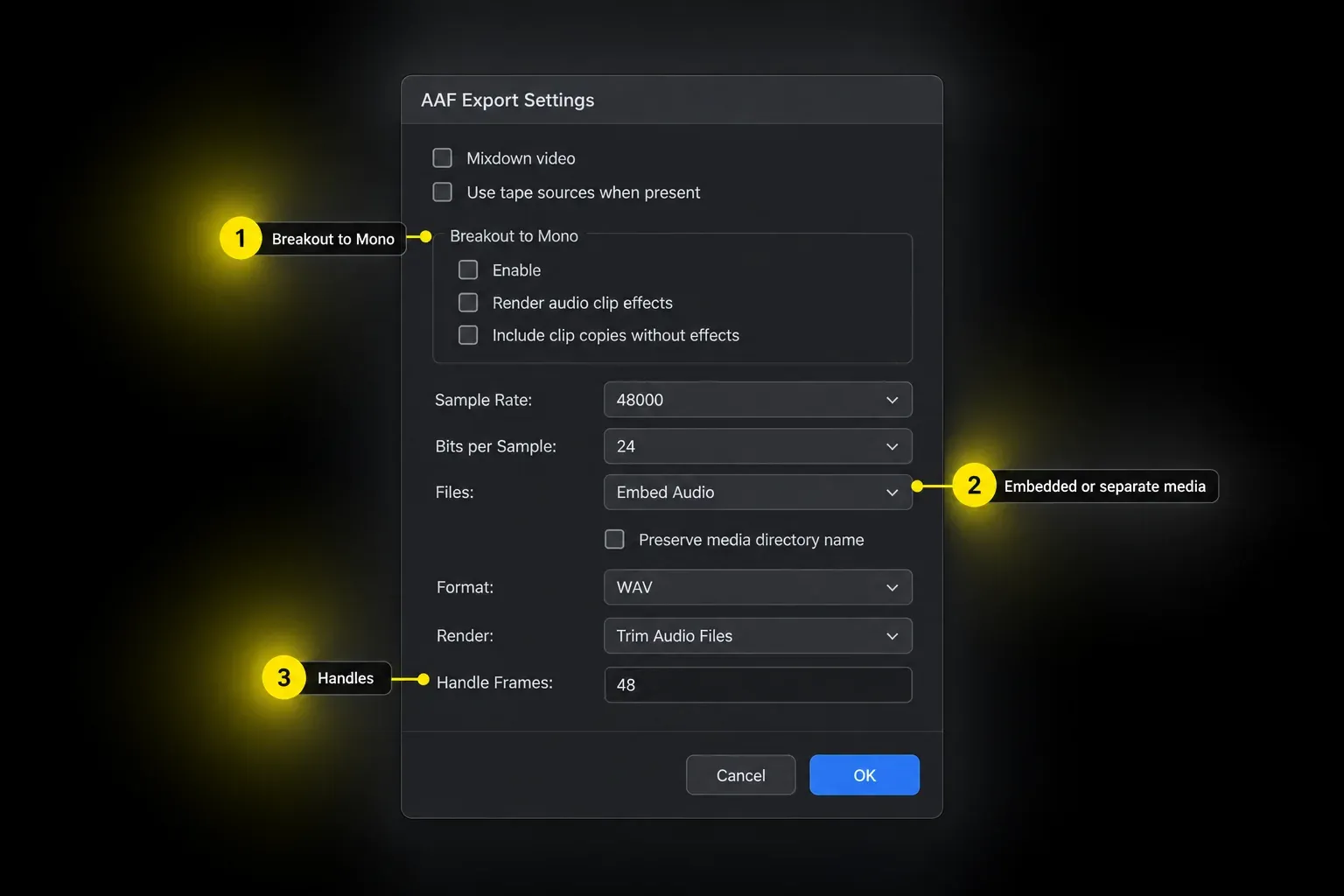
Adobe’s current AAF guide identifies Media Composer and Pro Tools as tested destinations, not Logic. So prove the Premiere-to-Logic route with a test export before the real turnover. A good trial is a minute containing speech, stereo audio, a crossfade, a level change and one clip effect; for picture, include a known sync event.
- Duplicate the sequence for turnover. Resolve merged clips on that copy before export; Adobe does not support merged clips in AAF.
- Use simple clip and sequence names without problematic special characters. Check clip-edge fades: Adobe documents transitions between clips, not at an isolated clip’s beginning or end.
- Select the prepared sequence and choose File > Export > AAF.
- Set the sample rate, bit depth, audio packaging and complete-file or trim/handle options agreed with the receiver.
- Select OK, choose the destination folder and filename, then Save.
- Import the test in Logic and compare timing, channels, fades, levels and rendered effects with the reference. Fix the exporter settings before delivering the full sequence.
Breakout to Mono renders new audio and splits stereo into Left/Right tracks; without it, Premiere links existing audio and retains its channel layout. Adobe recommends enabling it for Pro Tools. For Logic, test that choice explicitly. Render audio clip effects can preserve clip processing, with optional clean copies on separate tracks; it won’t rebuild the entire Premiere mixer. Compare the two versions separately so they do not double the sound.
Import or open an AAF in Logic Pro
Apple provides three current routes:
- File > Import > AAF to bring an AAF into the current project;
- select the AAF in the All Files Browser and click Open;
- File > Open to open the AAF as a project source.
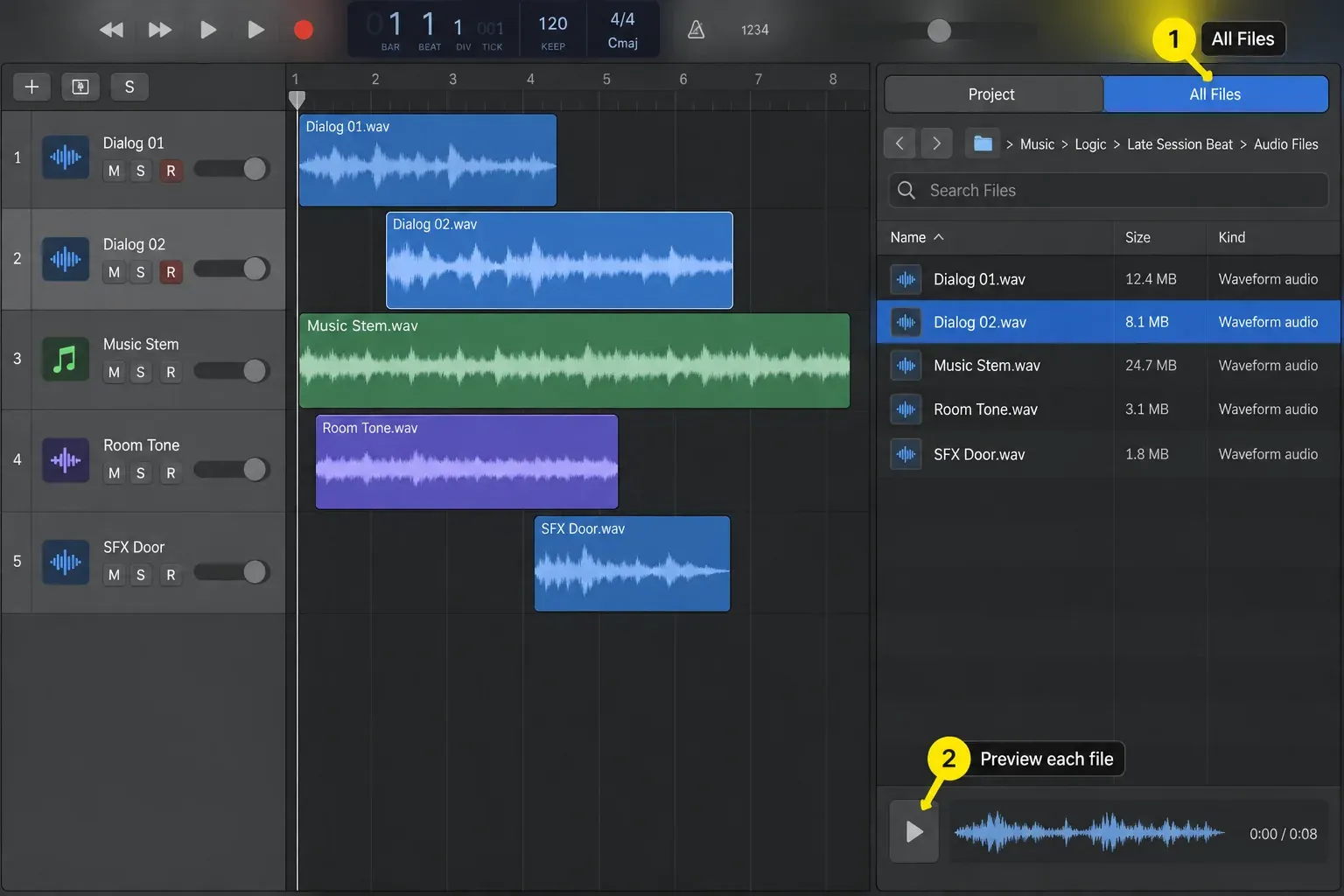
Start the test in an empty Logic project with the agreed sample rate and start position. For picture, set the frame rate and add the reference movie separately. Compare the imported audio with the stated sequence start and sync mark. A clean test project avoids confusing pre-existing tracks or settings with imported material.
Run a complete import QC
- Compare the imported track list with the delivery note.
- Check the beginning, end and several points in between; for picture, use the sequence-timecode reference and sync event.
- Compare playback with the stereo reference at quiet edits, dense passages and transitions.
- Inspect region edges, fades and available handles.
- Check mono/stereo organization and Left/Right assignments.
- Check level changes and listen to processed versus clean copies separately.
- Confirm all required media is local, online and playable, including source material behind any nested sequence.
- Record missing items or translation changes before editing the imported project.
Do not judge an import solely by the first sync point. Play a quiet speech edit, a busy section, a stereo passage and the last tail. A misplaced region and a missing effect can sound similar in a quick spot check.
Logic Pro to Pro Tools handoff
Create or open the agreed Pro Tools session, then use File > Import > Session Data and select the AAF. Avid’s Pro Tools 2025.12 Reference Guide describes the import and mapping options on pages 664–672. Check the controls available in the receiver’s installed version.
- Review Source Properties and select the required source tracks. Import into new tracks for an initial test rather than replacing an existing edit.
- Under Audio Media Options, use Copy from Source Media when you need local copies of referenced audio. Force to Target Session Format converts a differing source format; choose deliberately.
- Check Timecode Mapping Options against the delivery note. Absolute values retain timeline timecodes; relative values retain offsets from session start. They are not interchangeable when the sessions start at different times.
- Check Track Offset and sample-rate conversion settings rather than adding an unexplained manual offset.
- Confirm with OK. If Pro Tools offers an import-change log, save it and investigate the reported omissions.
- Play the imported tracks against the reference mix. For picture, import the reference movie separately; Pro Tools does not play video embedded inside an AAF.
A music collaborator may prefer individual full-length tracks or grouped stems from a common start. Individual tracks preserve control over each part; stems combine chosen groups. Use our stem and multitrack export guide to agree which is wanted. Keep AAF when editable region placement is useful, and supply prints for sounds that depend on Logic instruments or unavailable processing.
Embedded vs separate audio, complete files vs handles
Embedded audio packages media inside the AAF; it does not inherently make the audio smaller. Separate Audio places files beside the AAF. Adobe says this option preserves more metadata and can reuse unchanged audio in later exports; its Broadcast Wave choice includes iXML metadata. In Premiere on Windows, both Intel and Arm, embedded AAF exports over 2 GB fail: use separate audio there. Unless the receiver asks for embedded audio, I’d send separate audio anyway, because it keeps more metadata and the files are easy to check before delivery.
Complete files retain the available source audio. Trimmed files contain the used sections plus requested handles, so later extensions have a limit. Premiere specifies handles in frames; Pro Tools’ consolidate-import handle setting uses milliseconds. Write down the units and inspect actual media after import. Handles cannot recover sound that was never recorded or was omitted from the supplied source.
Fix common AAF failures
Media is offline or missing
First check whether the AAF contains audio or references separate files. Keep the supplied folder structure together. Fully download cloud-stored originals, copy the package locally and retry; do not delete the only source copy. If files are still missing, compare names and file counts with the sender and request a new export with copied media when necessary. Check the file type too: MXF isn’t among the audio formats Apple lists for Logic Pro, so if the AAF points to MXF media, ask the sender for WAV or AIFF files instead.
Audio arrives at the wrong time
Compare the sequence start, frame rate and reference version first. Source-clip timecode identifies the original recording; it does not replace the edited sequence’s timeline timecode. A constant offset may come from start-time mapping or an added track offset. Increasing drift can indicate a rate or pull-up/pull-down mismatch. Either pattern is only a clue, so compare several sync points before moving or stretching audio.
Fades or automation differ
Compare with the reference mix and the exporter’s transition limits. Request a rendered transition or processed print where the transfer is unacceptable, and retain clean source audio when the receiver needs to rebuild it. Check whether imported volume automation is being applied on top of level changes already baked into a print.
Stereo becomes unexpected mono tracks
Check the exporter's channelization or Breakout to Mono option and the destination's import behavior. Identify left and right pairs by name before combining them, and verify polarity and alignment.
A human-readable turnover folder
- 01_AAF: the interchange file;
- 02_Audio: supplied media and labelled prints;
- 03_Picture: the matching timecoded reference movie, for picture work only;
- 04_Reference: the stereo guide mix and any requested split references;
- 05_Docs: track list, settings, known exceptions and contact details.
Use the same revision string on the AAF, audio prints, reference mix and note, and on the movie when supplied. Open a copy of the complete delivery folder to catch missing media before sending it.
Build a reference movie the audio editor can trust
For picture work, burn in the sequence timecode and revision of the delivered cut. State the frame rate, including drop-frame or non-drop-frame notation when relevant. Source-clip timecode can be an additional labelled reference, but not the only clock. Add a two-pop or another agreed sync event when the production uses one. Choose a movie codec and resolution the receiving system can play smoothly.
Open the exported movie before delivery and confirm its first frame, final frame, duration and visible timecode. Check any included scratch audio, and supply the separate stereo reference mix used for the audio comparison. A music-only handoff does not need this movie step.
Print critical sounds without destroying editability
Decide which sounds need a processed print, a clean source or both. A tuned vocal may need the approved tuning plus the original; an instrument needs its rendered performance if the receiver lacks the instrument. Label printed, clean, alternate and reference-only files clearly. Do not play mutually exclusive versions together when checking the handoff.
Use a common start for full-length recovery files and keep the required tails. Bounce in place and track export serve different purposes; neither should be assumed to include every separately routed aux effect. Follow our bounce versus export guide and audition the actual prints. Leave normalization, limiting and sample-rate conversion off unless the agreed delivery requires them.
Write the receiver report while the export is fresh
Include source and destination app versions, project revision, sample rate, bit depth, start position, media method, handle length and units, printed tracks and known exceptions. For picture, add frame rate and sequence start timecode. Record what the receiver tested and when; do not write “verified” for a package nobody opened.
Frequently asked questions
What transfers from Logic Pro in an AAF?
Apple says used regions, track and position references, and volume automation are included. Verify the result in the destination and print Logic-specific instruments, plug-ins and routing separately.
Can Logic Pro import an AAF from Premiere Pro?
Logic can import AAF, but Adobe says Premiere AAF is tested with Avid Media Composer and Pro Tools, not other importers. Run a representative test before the full Premiere-to-Logic turnover.
Can Pro Tools open an AAF exported from Logic Pro?
Pro Tools imports AAF through File > Import > Session Data. The receiving mixer still needs to check timecode mapping, media, channels, fades and automation against the reference mix; a successful open does not prove an exact mix transfer.
Do Logic Pro plug-ins transfer through AAF?
Do not expect plug-in chains, software instruments or complex routing to rebuild in another DAW. Print defining sounds and document what was rendered.
Should AAF audio be embedded or separate?
Follow the receiver’s specification. Embedded audio is packaged inside the AAF, not necessarily compressed or smaller. Separate files are easier to inspect and replace. Premiere on Windows cannot export embedded AAFs larger than 2 GB; use separate audio for that case.
Why send a reference mix with the AAF?
The reference mix gives the receiver an audible target for edits, levels and rendered processing. Compare the rebuilt timeline with it; for picture, also check sync against the matching timecoded movie.
AAF handoff checklist
- Destination, revision, sample rate, bit depth and start position are documented.
- Required tracks, source media, prints and tails are present.
- Packaging, channel layout and handle units match the receiver’s request.
- The reference mix matches the delivered revision; any picture reference does too.
- The receiving system has opened and checked a representative import.
- The full delivery folder opens locally and known exceptions are documented.
Continue through the Logic Pro Recording & Editing hub for project organization, editing and delivery workflows.


