How to Export Logic Pro Audio to a Movie
Export a Logic Pro mix to a movie, choose the right source audio tracks, prevent sync drift and verify the finished file before delivery.

To export a movie with your Logic Pro mix, open the picture in Logic, confirm the project frame rate, then choose File > Movie > Export Audio to Movie. Name the new file, choose the audio settings, decide which original movie-audio tracks to keep, and save. Logic creates a new movie file; it does not replace the source movie.
That route is short. The mistakes happen before and after it: the project can use the wrong frame rate, Cycle mode can limit the range, the source dialogue can be removed by accident, or the exported movie can be trusted without checking its beginning and end. This guide handles the complete workflow.
Open the movie and set the project frame rate
Use File > Movie > Open Movie, then select the picture file. Apple’s Add a movie instructions describe opening the picture in a Movie window and showing frames in the Movie track. After opening it, check the project’s frame rate against the approved picture specification in Synchronization project settings.
Set the project to the approved picture frame rate before detailed editing when picture is the timing reference. If the project already follows a different delivery specification, resolve that conflict with the editor first. Recheck existing cues, edits and markers after changing a project that is already in progress.
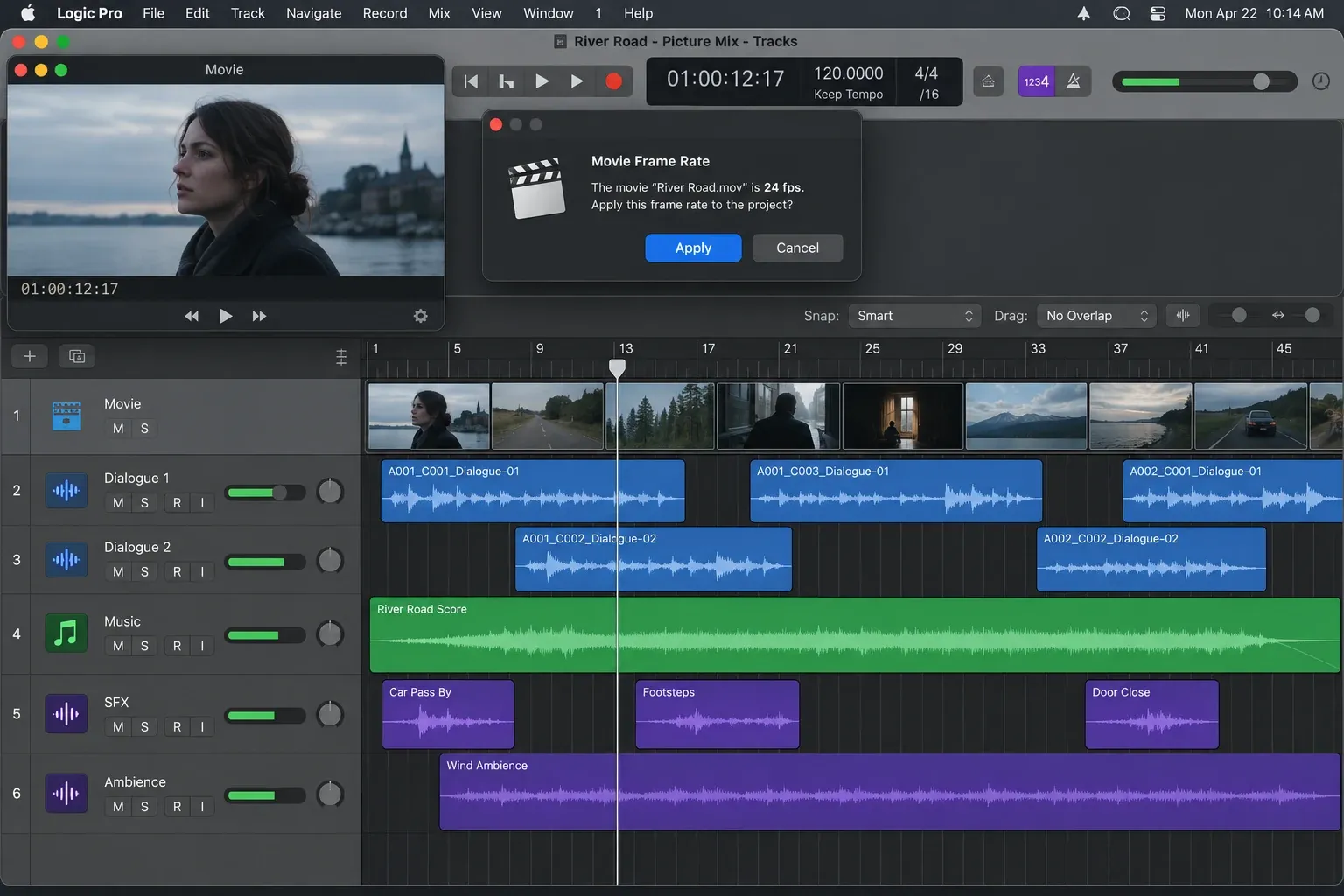
Keep an untouched copy of the reference movie. If the editor sends a new cut, treat it as a new timing source rather than silently replacing the file and assuming every cue still lands correctly.
Prepare the range and mix before export
Play the project from the first required frame to the end of the delivery. Check that dialogue, music, effects, buses and the output channel all reach the intended stereo output. If the final audio is still changing, resolve the mix first; exporting to movie is a packaging step, not a substitute for the project bounce workflow.
Cycle mode deserves a deliberate check. Apple’s Export Audio to Movie guide states that, with Cycle on, Logic exports only the project audio and section of movie between the left and right locators. With Cycle off, the export follows the movie’s start and end points. A forgotten cycle can therefore produce only part of the movie.
- Turn Cycle off when the full movie should be exported.
- If a defined section is intentional, confirm both boundaries against picture.
- Leave enough time for reverb, delay and natural releases at the end.
- Check that muted guide tracks and monitor-only routing are not part of the final output.
- Save a new project version before the delivery pass.
If the bounced mix already sounds different from project playback, fix that before attaching it to picture. The Logic Pro bounce troubleshooting guide works through output routing, range, mode, normalization and the external playback path.
Export audio to the movie
- Choose File > Movie > Export Audio to Movie.
- Enter a clear filename and choose a destination folder.
- Confirm the audio settings for the recipient and the purpose of this file.
- Select the original movie-audio tracks that should remain in the new file.
- Complete the export, then open the new movie for verification.
Logic creates a new movie file for the export and leaves the original picture unchanged. Keep the source movie as the reference and use a new, versioned filename for the delivered file.
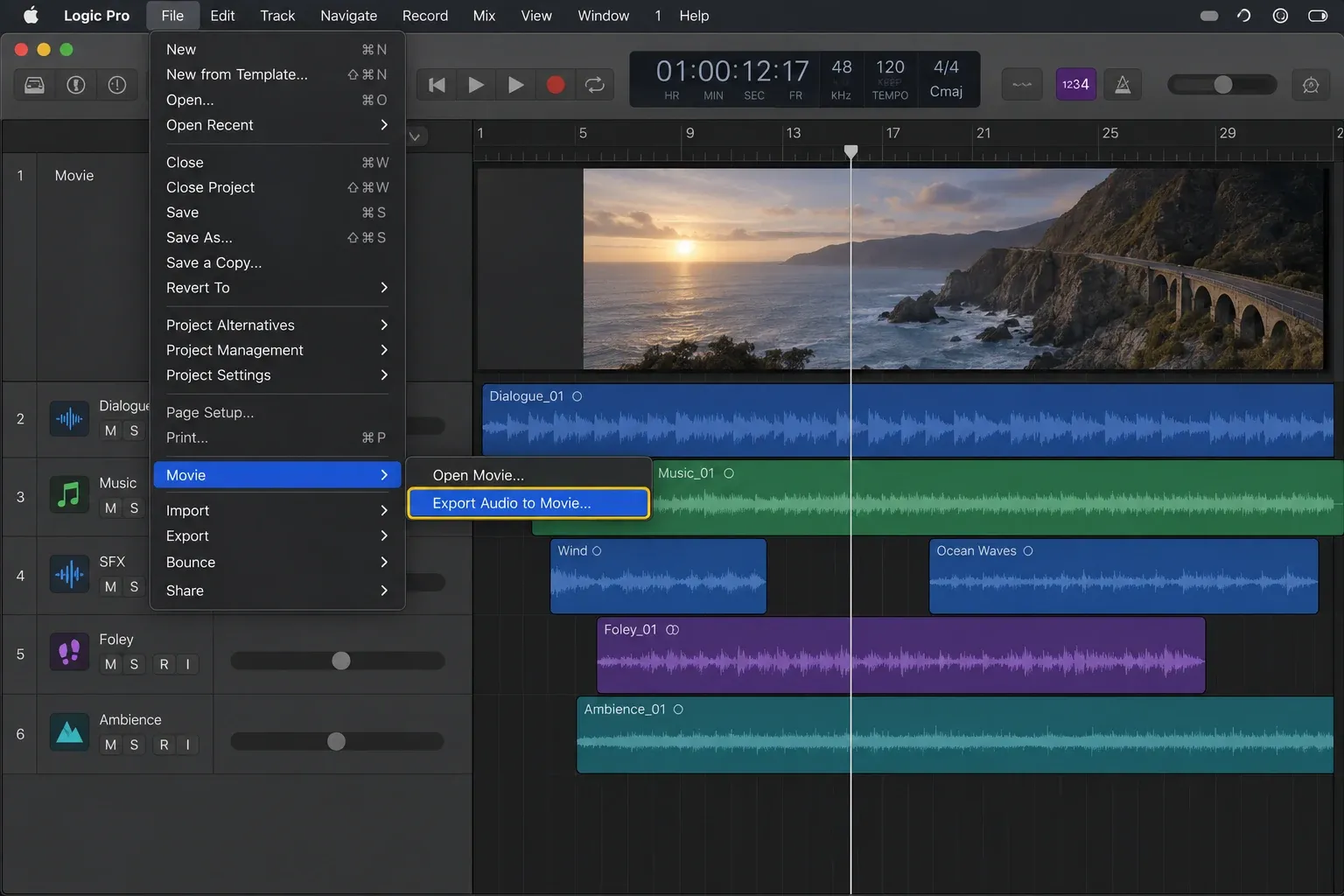
Use a versioned name that identifies the cut and mix, such as ShortFilm_PictureLock_Mix03.mov. Avoid names such as final-final or new mix. A filename should tell the editor which picture and which sound revision belong together.
Choose audio settings for the delivery
The correct settings come from the recipient. For an approval copy, the goal is a movie that plays easily and is small enough to send. For an editorial or finishing handoff, the receiver may ask for a specific sample rate, bit depth, channel layout or codec. Apple notes that higher-quality audio increases the resulting file size, so there is no single best choice for every delivery.
If no specification exists, ask before delivering a master. Do not guess that a convenient review movie is also the final audio handoff. For a dedicated audio delivery, use the required PCM format and keep the audio files separate from the picture when the next department needs editable material.
For music-only files, use the dedicated Logic Pro MP3 export workflow. For separate groups or production elements, follow the stem export checklist. Those jobs are different from creating a self-contained review movie.
Decide which original movie audio tracks to keep
After the audio settings, Logic asks which audio tracks from the source movie should remain. This decision controls whether the new movie contains only the Logic mix or combines it with selected original tracks.
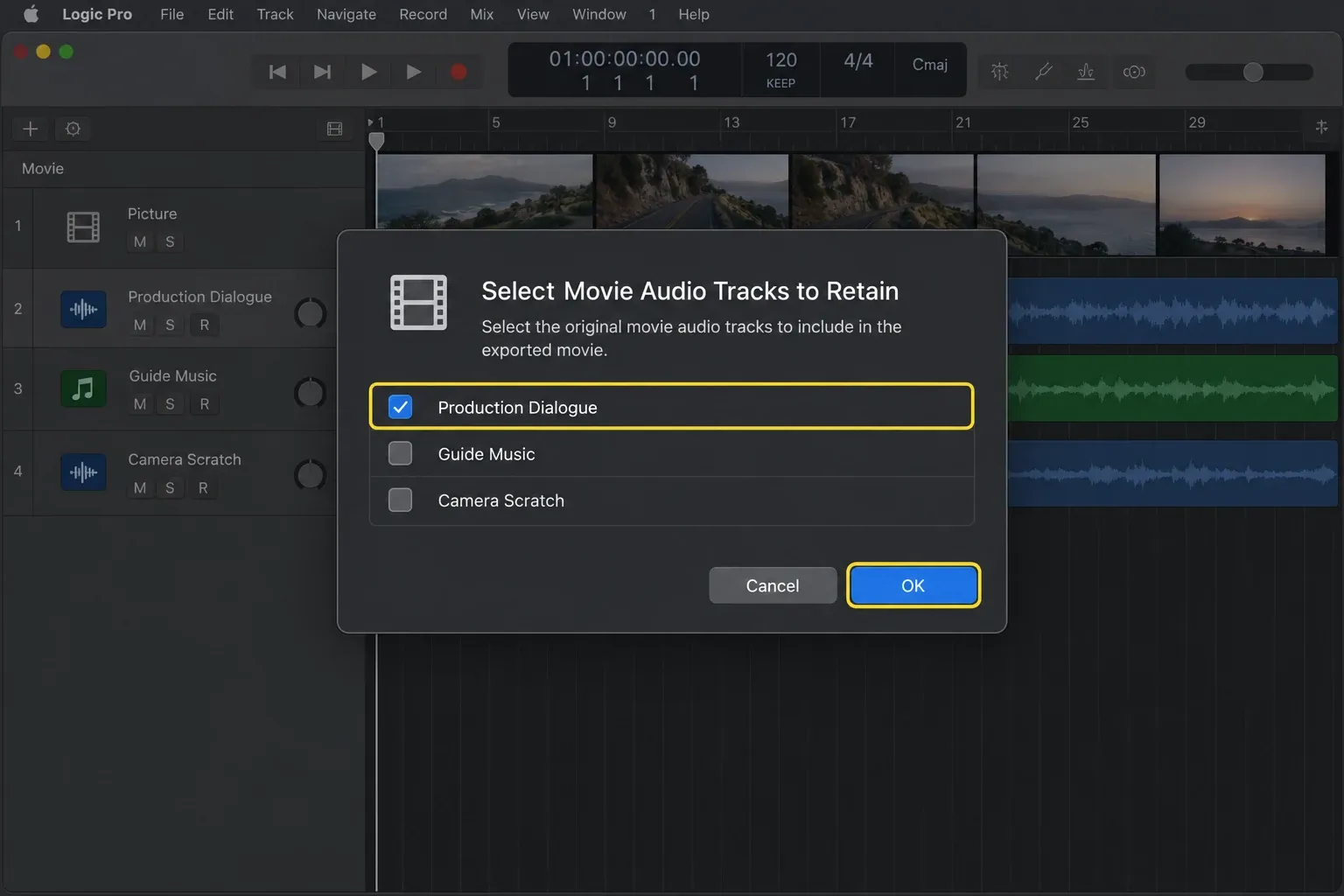
- Keep no original tracks when the Logic mix fully replaces the guide audio.
- Keep the dialogue or production track when the Logic session contains music or effects but the source movie still supplies approved dialogue.
- Keep a guide track only for a clearly labelled reference copy, and check that it does not double material already present in the Logic mix.
Listen for doubled dialogue, phasey guide music and unexpected level changes. A source track and a rendered version of the same sound can play together even when each track sounds correct alone.
Why Export Audio to Movie is greyed out
If Export Audio to Movie is unavailable, first confirm that a movie is open in the current project. The command depends on an active movie; an audio-only project has no picture container to update.
- Choose File > Movie > Open Movie.
- Confirm that the Movie window or Movie track shows the expected picture.
- Return to File > Movie and check the export command again.
- If the movie was moved or renamed, relink or reopen the actual file rather than relying on a missing reference.
The Movie track overview is useful when the picture is open but not visible in the Tracks area.
Prevent drift and lip-sync errors
Sync problems usually fall into two patterns. A fixed offset means the sound is early or late by roughly the same amount everywhere. Drift means it begins close to sync and becomes increasingly wrong later. Drift points toward a timing mismatch, commonly the project frame rate or a changed picture cut.
Apple’s project frame-rate guide treats frame rate as a project-level synchronization setting. Match the project to the approved movie before detailed work, and confirm that the reference movie has not been replaced with another cut that has a different start, duration or frame rate.
- Compare a visible sync event near the beginning and another near the end.
- Check dialogue consonants, claps, door hits or a 2-pop rather than judging a slow movement.
- Confirm the exact movie revision and its starting timecode.
- Do not stretch the mix to hide a wrong project setting.
- If the destination requires embedded timecode or a formal turnover, follow its written specification.
For a DAW-to-DAW handoff, use the Logic Pro AAF workflow and send the matching reference movie. AAF can carry timeline structure, but it does not make a mismatched picture revision correct.
Verify the exported movie
Open the new file outside Logic and watch the parts most likely to expose a packaging mistake. A full casual play-through can miss a cut-off tail or slow drift.
- Check the first audible event and the first dialogue line.
- Jump to a clear sync point near the end.
- Listen through the final effect or music tail.
- Confirm that dialogue is present once, at the intended level.
- Check left and right channels and the expected output device.
- Confirm the filename, duration and picture revision before sending.
If the file is an approval copy, state that clearly. If it is a finishing delivery, include the requested separate audio files and turnover notes rather than making the movie carry information the next system needs to edit.
When to send the movie and audio separately
A self-contained movie is excellent for review because one file carries picture and sound. Separate files are better when the recipient will continue editing, mixing, conforming or mastering. Send the movie as a visual reference and supply the requested full mix, stems or AAF alongside it.
The distinction is the same one explained in Bounce in Place versus export: choose the file according to what the next person must do. For the larger recording-to-delivery path, use the Logic Pro Recording and Editing hub.


