How to Use Match EQ in Logic Pro Without Overcorrecting
Learn the reference, learn your mix, then decide how much of the curve deserves to stay. A practical Match EQ workflow with the real controls and their limits.

To use Match EQ in Logic Pro for Mac, insert EQ > Match EQ on the channel you want to change. Load a reference audio file into Reference Learn, play your own audio through Current Learn, then click Match under EQ Curve. Reduce Apply and adjust Smoothing before deciding whether the result belongs in the mix.
The first curve is a proposal. A reference with more bass, a different arrangement or a brighter vocal can produce an EQ move that is technically consistent with its spectrum and musically wrong for your song. I’d use Match EQ to locate broad tonal differences first, then keep only the changes that survive a fair listen.
What Match EQ changes
Match EQ compares the average frequency spectrum of the Current material with the Reference material. It calculates a filter curve from the difference. Apple’s Match EQ overview describes this as fingerprint EQ and explicitly says it does not match the signals’ dynamic differences.
That makes it useful for bringing two recordings closer in tone, checking a mix against a suitable reference, or making songs on an album feel less disconnected. It doesn’t recreate the reference’s performance, compression, transient shape or arrangement. A finished master and an unfinished mix can have similar average spectra while still feeling very different.
Choose comparable material. For a vocal, use another isolated vocal with a reasonably similar delivery. For a full mix, choose a reference with similar instrumentation and intended sound. A sparse acoustic verse is a poor target for a dense electronic chorus unless that contrast is the point.
If one reference suggests a large broad correction, I’d compare another suitable recording before accepting it. Save any curve you want to keep, then learn the alternative reference and create a new match. A difference that persists is worth investigating. A correction that changes direction may say more about the reference’s arrangement or mastering. This is a listening check, and it doesn’t prove that either curve is right.
If you already know which frequency needs a small correction, Channel EQ is often the more direct choice. Match EQ earns its place when the tonal difference is harder to describe or you need a repeatable reference spectrum.
Load a reference without adding it to your mix
- Open the Audio Effect menu on the destination channel strip and choose EQ > Match EQ. Use the vocal channel for a vocal match, or Stereo Out for an overall mix comparison.
- Find the reference audio file in Finder.
- Drag that file onto the Reference Learn button inside Match EQ. Wait for the analysis to finish.
- Select the Reference view to inspect the learned spectrum. Loading the reference does not replace your destination audio.
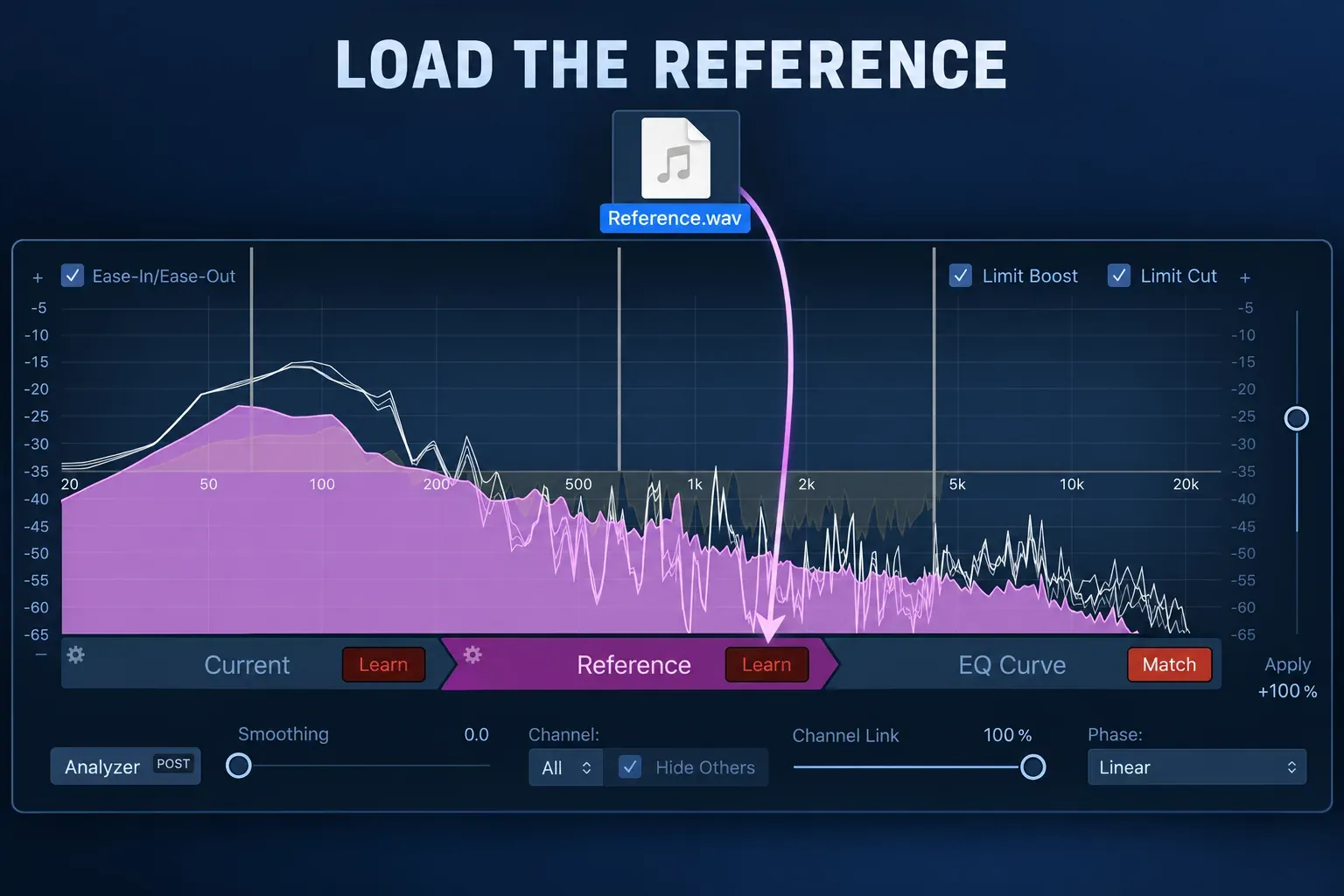
Apple documents dragging an audio file to either Learn button and an alternative Action-menu command for generating a spectrum from a file. The two destinations matter. Reference describes the sound you’re aiming toward, and Current describes the sound being processed. Reversing them answers a different question.
This file-loading route is the cleanest first pass because the reference doesn’t need to play through your Stereo Out processing. If you import it as a track for listening, keep it out of the signal you teach to Current. Playing your song and the reference together teaches the combined signal, so your song never gets learned on its own.
A whole-file analysis gives a whole-file average. If you need to compare particular passages, prepare comparable audio files or use the playback learning method below. Do not judge an entire chorus against a reference spectrum learned mainly from a long quiet intro.
Learn your audio, then create the curve
Return to the start of your mix, click Current Learn, and play the audio through the channel carrying Match EQ. For an overall comparison, Apple’s documented workflow plays the mix from beginning to end. For a passage-specific decision, learn a representative passage and keep the reference equally specific.
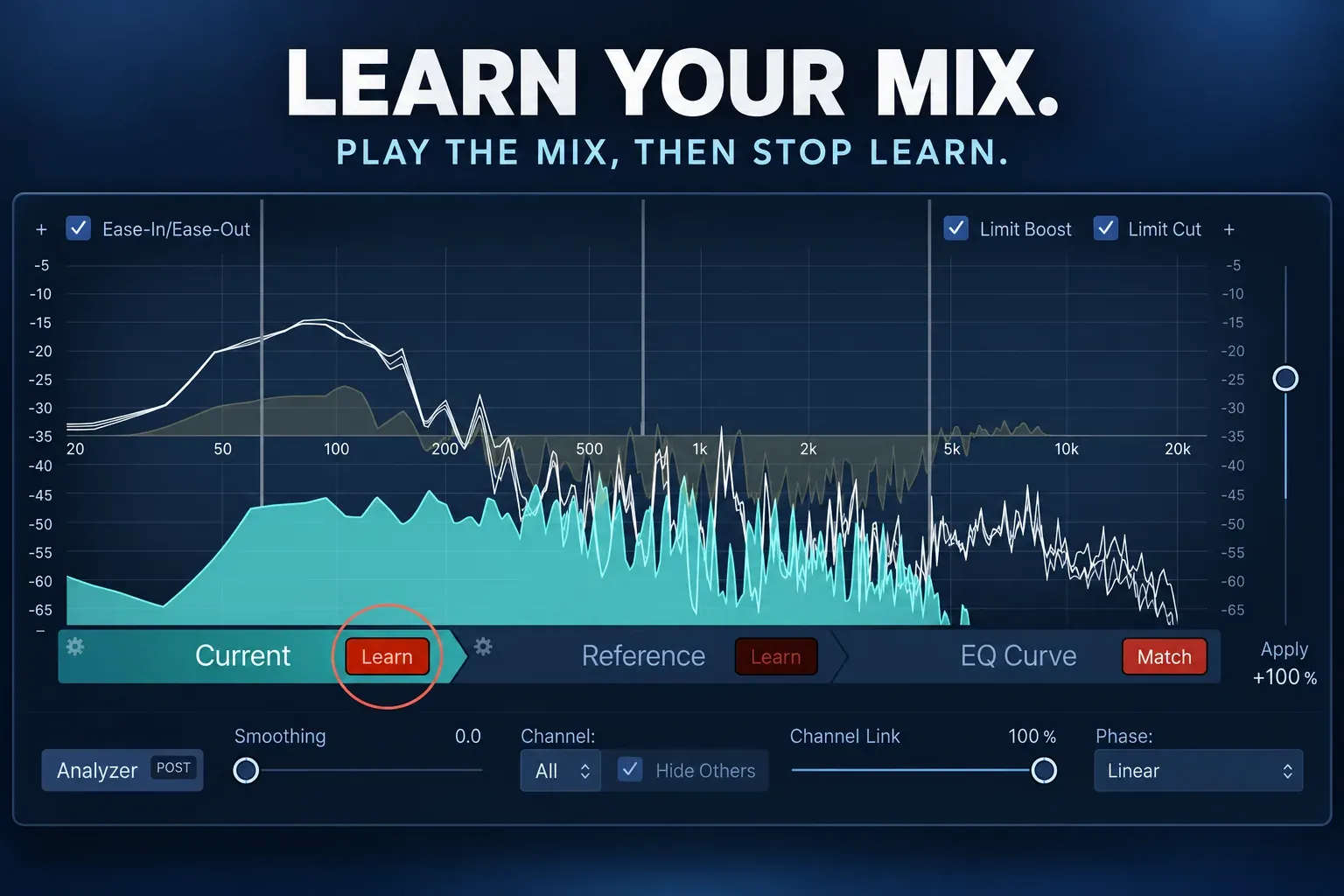
Click Current Learn again to stop learning, then click Match under EQ Curve. Select the EQ Curve view to inspect the correction. The Current spectrum is green, Reference is purple, and the EQ response is yellow. The separate Analyzer can show the signal in real time. Apple’s display and Learn controls distinguish these views from one another.
Only one Learn button can be active at a time. Clicking Current Learn while Reference Learn is running stops the reference analysis and starts learning the channel input. The stored spectra are deliberate snapshots. The live Analyzer moving during playback doesn’t mean Match EQ is continuously relearning both sounds.
Turn Match off and on to compare the matched curve with a flat response. Keep the listening level close enough that extra volume isn’t doing the persuading. Match EQ compensates for overall gain differences between the learned spectra when calculating the curve. That doesn’t guarantee that processed and bypassed playback will feel equally loud.
Refine the curve before you commit
Apply changes how strongly the calculated curve affects the audio. Below 100% reduces the effect; above 100% magnifies it. Negative values invert the boosts and cuts. I’d lower Apply from its default and raise it only as far as the audible improvement holds. There’s no percentage that works for every reference.
Smoothing reduces sudden changes in the calculated curve. Increase it when the match contains a forest of narrow peaks and notches that makes the result sound overly filtered. Apple’s curve-refinement instructions recommend reducing Apply to avoid extreme spectral changes and adjusting Smoothing when needed.
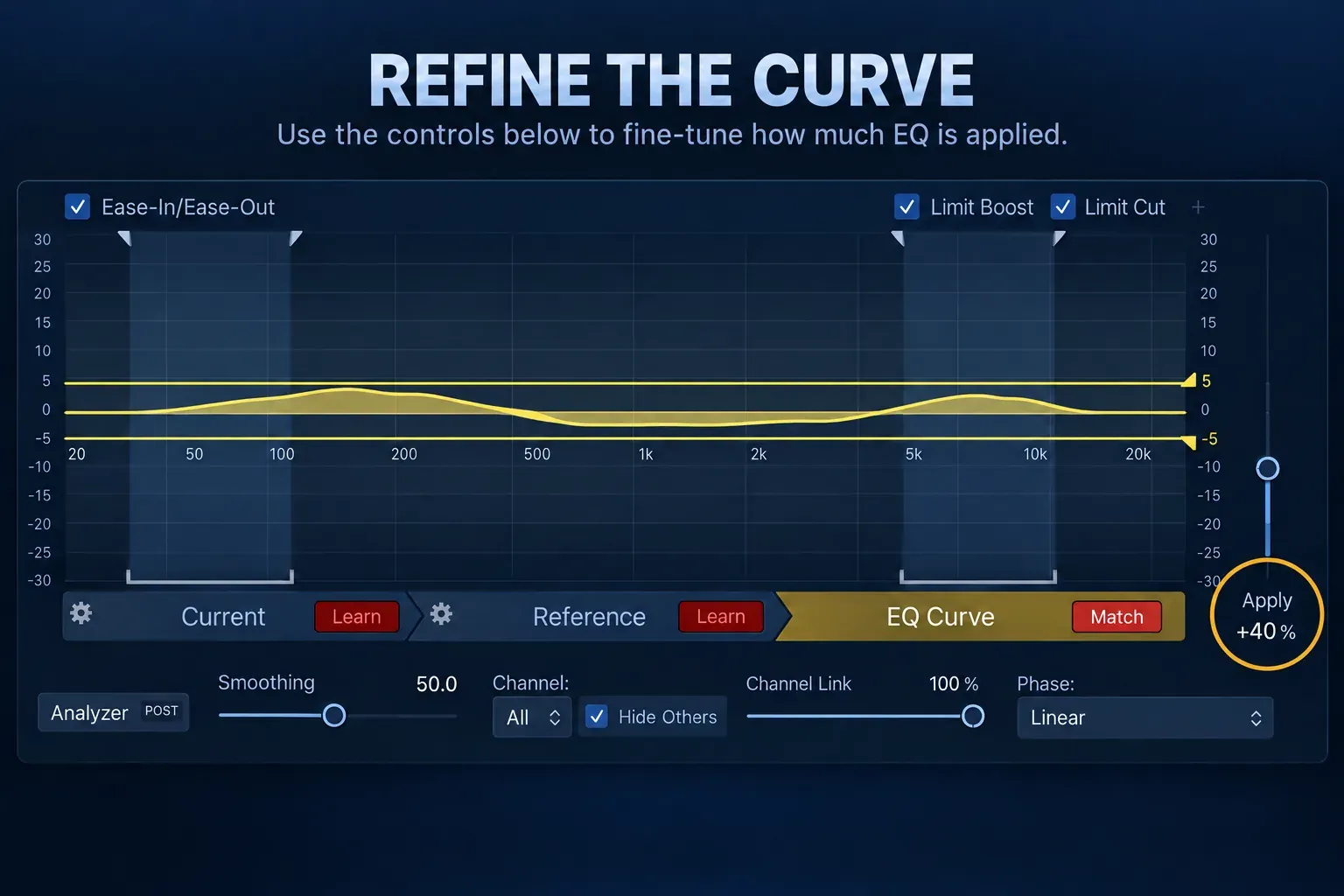
Use Limit Boost and Limit Cut to bound the curve’s positive and negative gain. Enable each checkbox, then drag its line or handle to the chosen limit. These are EQ limits. They aren’t peak limiting, so they don’t guarantee that the channel output will avoid clipping.
Ease-In/Ease-Out lets you fade the correction toward a flat 0 dB response at the low and high ends. Move the handles to define each transition. This is useful when you want a midrange tonal adjustment while preserving your own sub-bass or upper treble instead of copying the reference at the extremes.
For a local correction, select EQ Curve and drag vertically to change gain, horizontally to move the frequency, or hold Shift after beginning a vertical drag to change its width. Option-click resets the manual changes. Apple’s curve-editing reference notes an important limitation: Smoothing does not affect your manual edits.
Finish learning before doing this work. Learning or loading a new spectrum with Match on discards existing curve edits and resets Apply to 100%. Turning Match on after loading a new spectrum does the same. If a careful correction vanishes, check whether you just rematched the material.
Use a track as the reference, or reuse its spectrum
When the reference is already on a channel strip, select that source in Match EQ’s Side Chain menu, click Reference Learn, and play the source passage. Stop Reference Learn when the passage finishes. Then return to your own material, learn Current and create the match. Apple’s channel-strip reference workflow specifies that Reference Learn receives the side-chain input; Current Learn receives the destination channel’s input.
Keep the reference from also reaching the destination’s main input. In a Stereo Out match, an audible reference routed to that same output can contaminate Current learning. Check the routing before you blame the plug-in. Use the file-loading route if the side-chain setup is distracting from the tonal decision.
The Current and Reference Action menus can copy and paste spectra between Match EQ instances in the current project, load spectra from saved settings, or generate them from audio files. A spectrum is the learned tonal description. The final correction still depends on the other spectrum it’s matched against. Reusing a reference doesn’t make one fixed correction appropriate for every song.
Choose phase and stereo behavior deliberately
The Phase menu offers Linear, Minimal and Minimal, Zero Latency. Apple documents Linear as avoiding phase shifts with higher latency; Minimal permits minimal phase shifts to reduce latency. Minimal, Zero Latency achieves zero latency with higher CPU overhead than the other options.
For a live vocal or instrument path, consider the monitoring delay before choosing Linear. For a mix, compare the sound. Don’t assume one phase mode is automatically best. If monitoring is uncomfortable, the Logic Pro latency guide covers the surrounding buffer and signal-path decisions.
In a stereo instance, Channel Link at 100% gives the channels a common EQ curve. At 0%, each has a separate curve. Intermediate values blend those behaviors. The Channel menu selects which channel you display and edit. Apple’s stereo controls, including Channel and Channel Link, are unavailable on a mono channel strip.
I’d start a stereo mix comparison with a common curve. Separate corrections can change the left-right tonal relationship, so audition the stereo image as well as brightness and bass weight before reducing Channel Link.
When the match looks or sounds wrong
No useful curve appears
Confirm that both Current and Reference contain learned material, that audio passed through the intended learning input, and that Match is on. Select EQ Curve to view the correction. Reference Learn needs its side-chain source when you learn during playback. Loading a file directly avoids that dependency.
The result is harsh, thin or full of deep notches
Reduce Apply, increase Smoothing and limit extreme boosts or cuts. Then reconsider the reference. If a reference’s bass instrument occupies a different range, forcing your entire mix to follow it can change the kick, vocal and other instruments along with the bass. Sometimes the right response is to adjust one source with Channel EQ and leave the master curve out.
The matched version is louder or clips
Check the output after the EQ. Limit Boost caps the EQ curve. It doesn’t cap the resulting sample peaks. Use the curve’s gain offset by dragging the right-hand dB scale, or a following level trim, then repeat the bypass comparison. The gain-staging workflow explains why downstream level matters even when the source was safe.
The curve changes after I edit the mix
A stored Current spectrum describes the audio you taught it. After a material arrangement, balance or processing change, learn Current again and reassess the match. Save the useful settings first, because rematching resets the curve edits and Apply. Do not assume the old correction still describes the revised song.
Keep Match EQ when it solves an audible tonal problem. If it only makes the graph resemble a reference, keep the information and remove the processing. The complete mastering workflow covers dynamics, final level and delivery. The Mix & Master hub puts this tonal decision in the wider mix.


